¶ Virtual Machines: Now In Beta
Your HexOS server just learned a new trick. It can now run entire computers inside itself.
That's what a virtual machine is: a complete, separate computer with its own operating system, running on your server's hardware alongside your storage and your apps. It can be Windows. It can be Linux. It can be a purpose-built appliance like Home Assistant. And it gets the same HexOS treatment as everything else: pick what you want, answer a few questions, and let the server do the rest.
Virtual Machines are in beta today, rolling out automatically to everyone over the next few weeks, and they lose the Beta tag alongside Buddy Backup on Black Friday.
¶ Why would I want one?
There are more uses for a VM than we could list, but here are a few of our favorites to get you thinking.
Your server can also be your desktop. Set up Windows 11 or a friendly Linux desktop like Mint or Zorin, and you've got a full PC living on your server that you can reach from any computer on your home network. Prefer to game? Bazzite and SteamOS are on the menu. And because the desktop is its own computer, you can reboot it whenever you like. HexOS keeps running, your files stay reachable, and your apps stay up while the desktop comes back.
A lab you're allowed to break. If you tinker, you know the feeling of wanting to try something without risking the machine you rely on. Spin up that Linux distro you keep hearing about before you commit your laptop to it. Keep a few test environments around for different operating systems and browsers. Stand up an enterprise platform at home to learn it for work. When you're done, delete it and start over.
Virtual appliances. Some applications are built to be delivered as a complete virtual machine rather than as a standard app, and they work better that way. Think of the VM as the packaging: instead of installing the app, you install a small, purpose-built computer that has the app already inside it. Home Assistant OS is the headline example, with the complete, feature-rich version rather than the more limited app edition. OpenWrt is here for people who want to run their own router software. Game-server platforms like CubeCoders AMP3 fit the same mold. And soon there will be a dedicated media server VM for Plex and Jellyfin built around older graphics cards, so a GTX 10-series card you've had in a drawer can go back to work transcoding your media.
¶ Setting one up
Here's the whole flow for Windows 11. Other operating systems are similar, and appliances skip most of it.
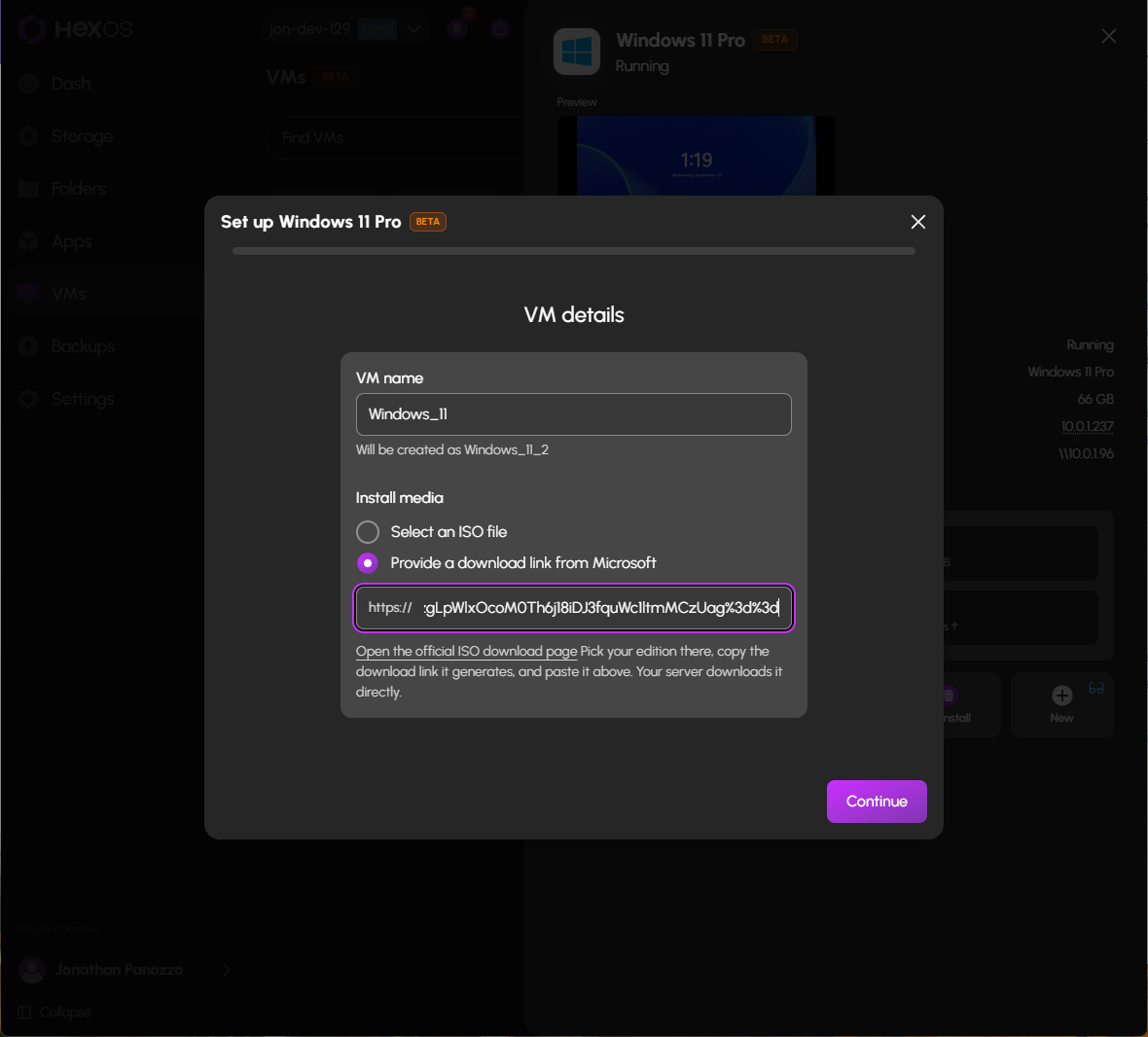
Name it and point at the installer. For Windows, you paste a download link from Microsoft's official page and your server fetches the installation media directly. You can also supply your own installation media file.
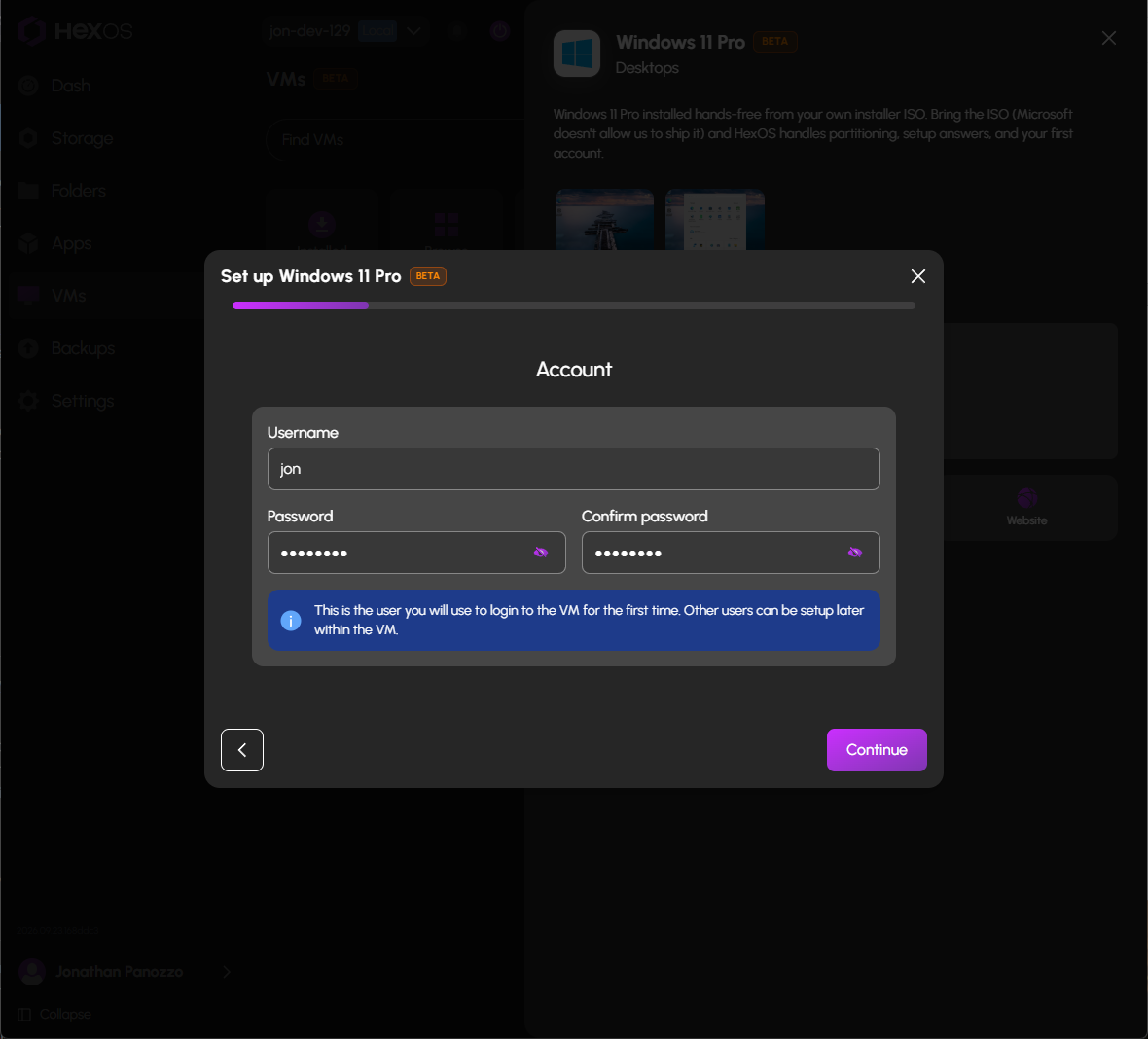
Create your login. Pick a username and password. This is the account you'll sign into the first time; you can add others inside the VM later. On Windows, this is a local account, and you can sign in with a Microsoft account afterward if you prefer.
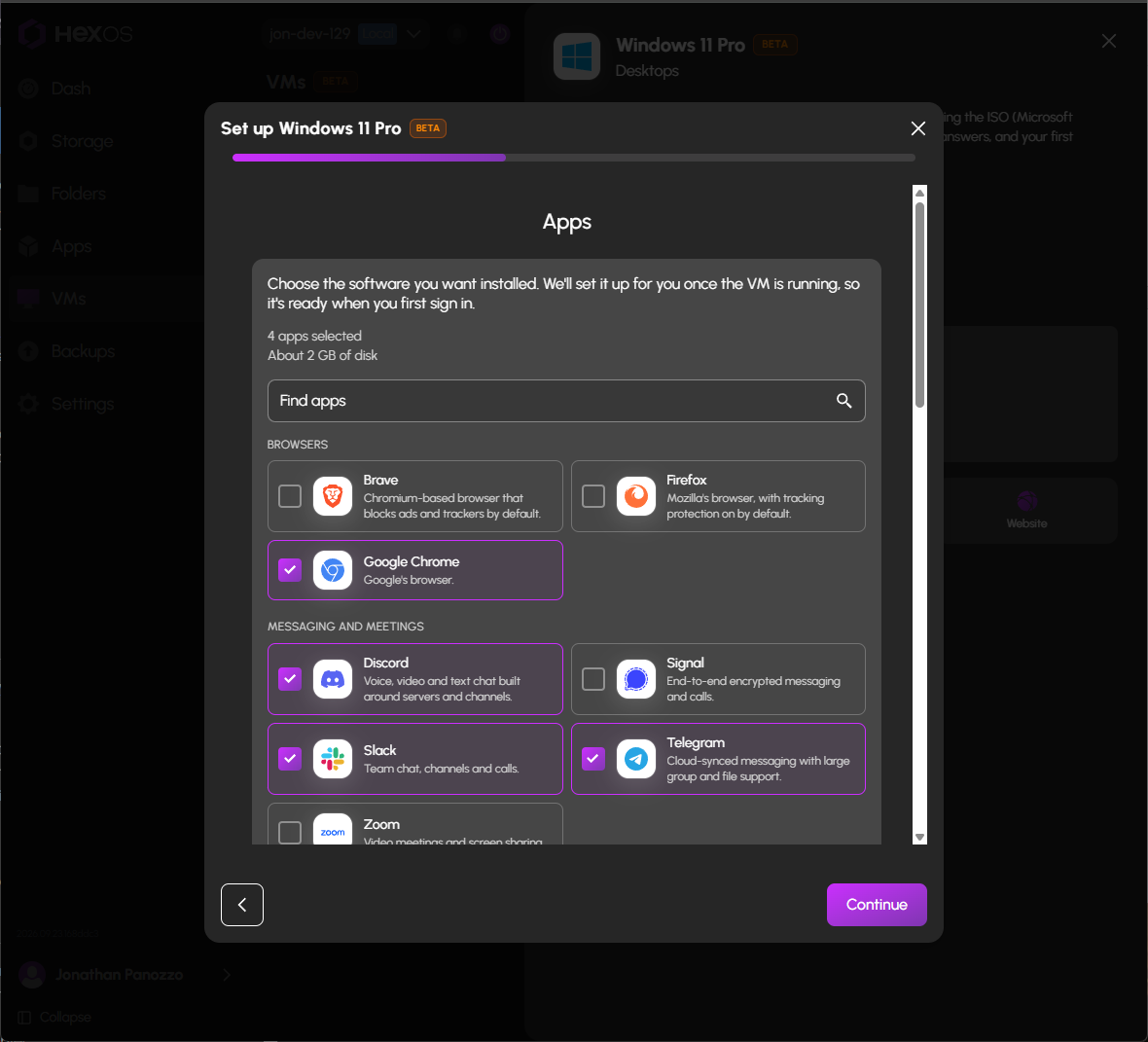
Pick your apps. This is the part we're most excited about. Tick the boxes for the software you want, and it will already be installed when you first sign in. Browsers like Chrome, Firefox, and Brave. Discord, Slack, Signal, Zoom. Spotify, VLC, OBS. LibreOffice, Steam, VS Code, and more. The same list works for Windows and Linux desktops, and it's growing.
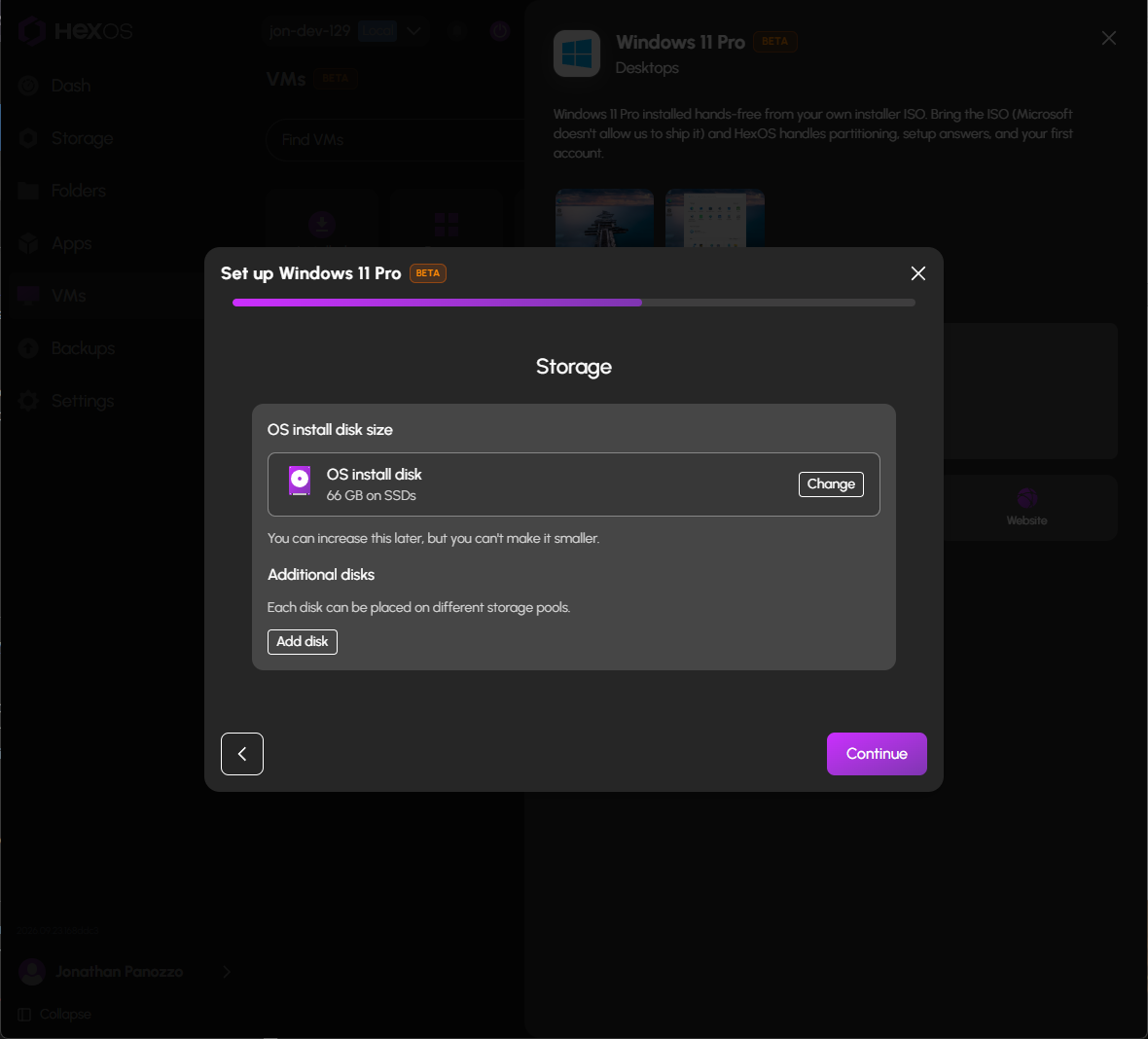
Storage. HexOS proposes a sensible install disk on your fastest pool. You can change the size or the pool, and you can add extra disks on whatever pool makes sense. The install disk can always be grown later.
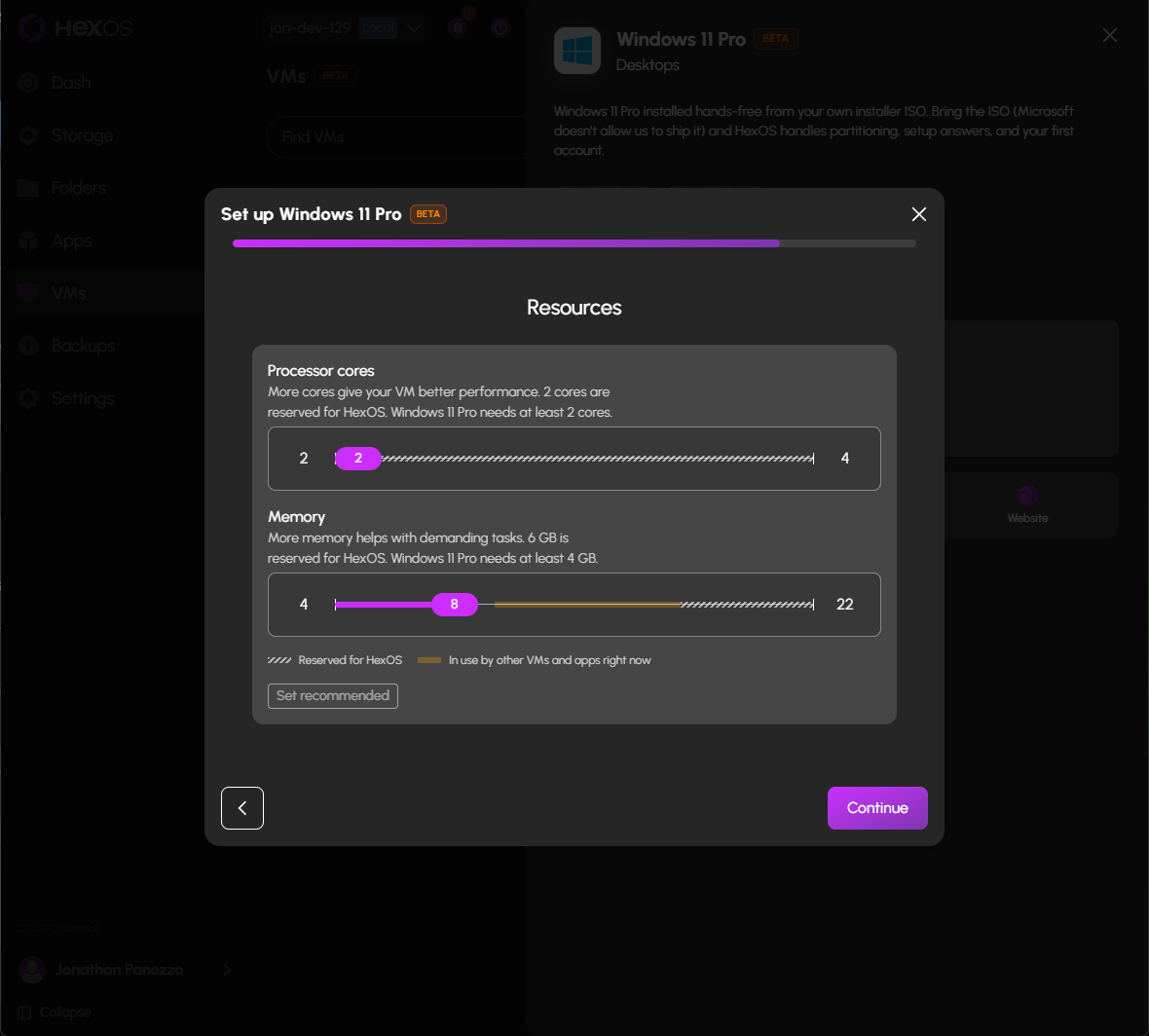
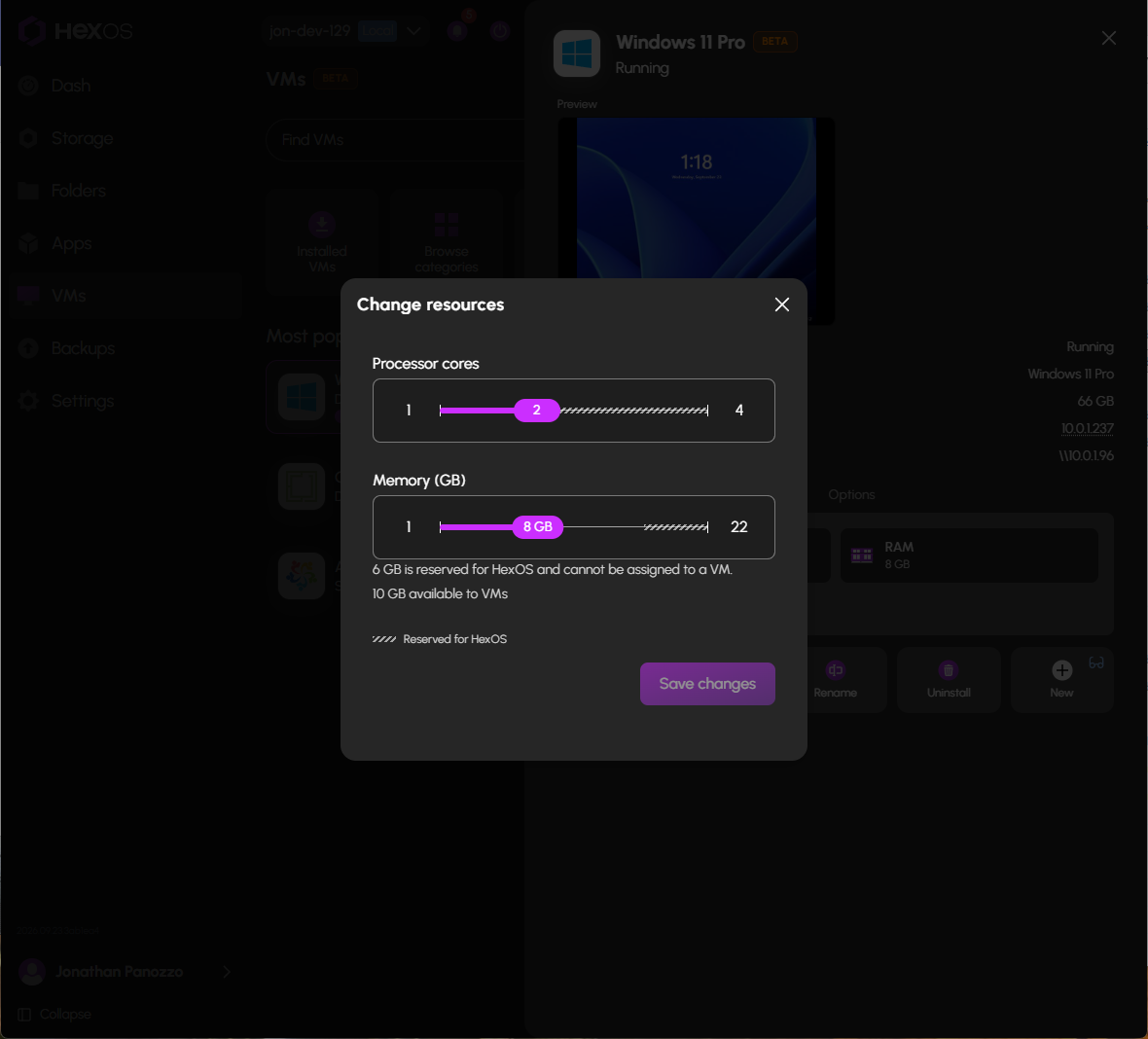
Resources. Two sliders for processor cores and memory. HexOS shows you what's reserved for itself, what your other apps and VMs are already using, and where the sweet spot is for this particular operating system. If you'd rather not think about it, press Set recommended.
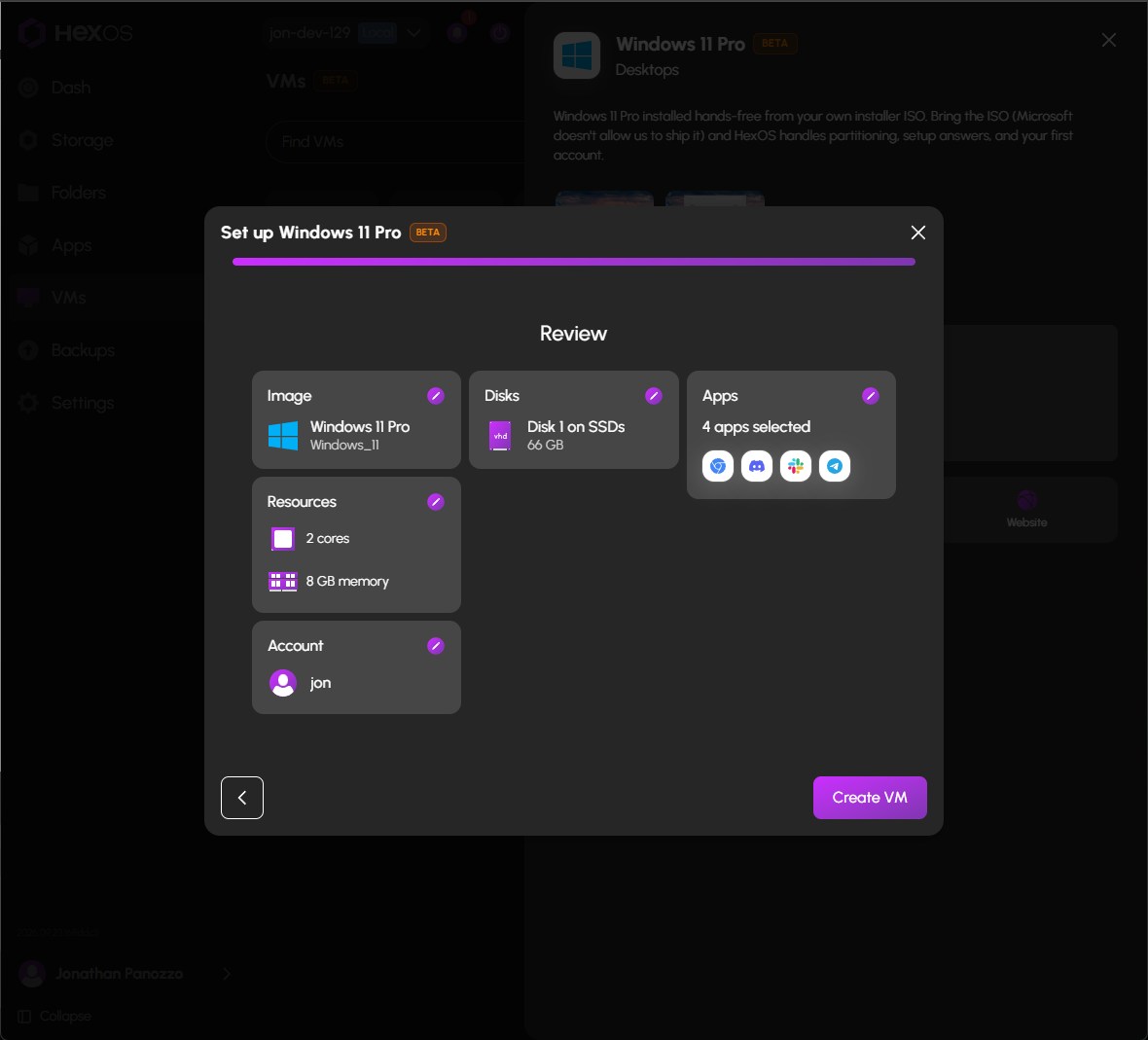
Review and create. Then walk away.
¶ What happens next
This is where a HexOS virtual machine differs from every other VM you may have tried.
HexOS writes a custom, hands-off installation script for your VM on the spot. It installs the operating system, loads the drivers a virtual machine needs to run well, sets up your account, enables Remote Desktop on Windows, and installs every app you selected. You never click through a setup screen. You don't get shown the VM at all until it's completely finished, so nothing can interrupt the process. When it's ready, you sign in to a computer that's already set up the way you asked.
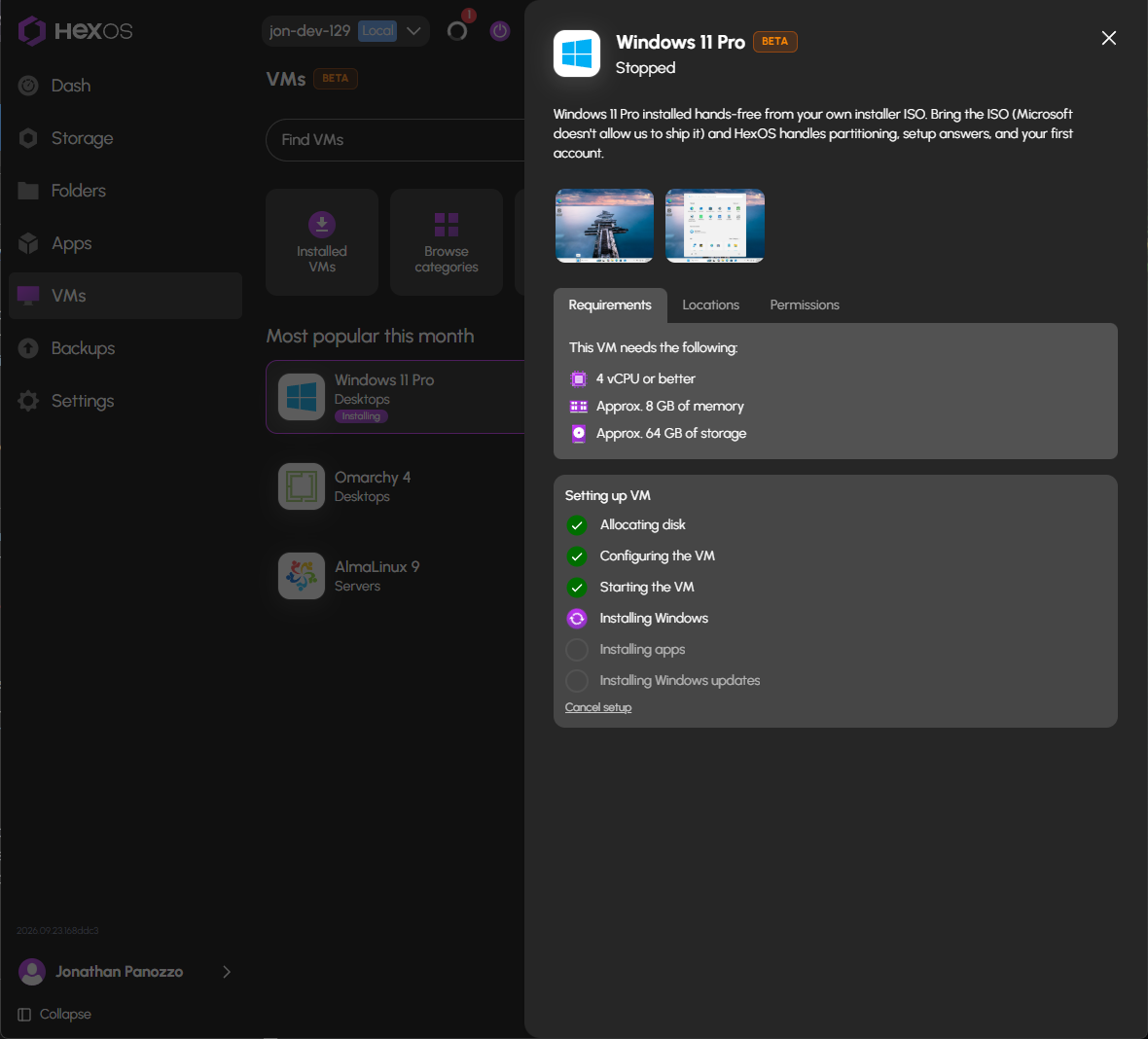
One note on Windows: HexOS installs it and gets it ready to use, but activation is up to you. Enter your own Windows license inside the VM whenever you're ready, exactly as you would on any new PC.
¶ Connecting and keeping an eye on it
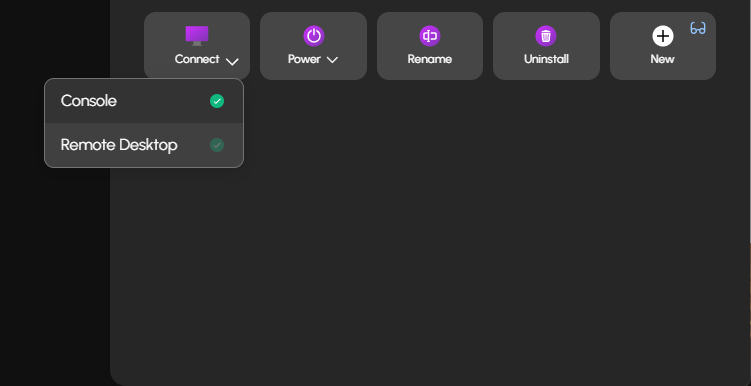
Every VM gets a Connect button, and HexOS picks the right door for each kind. Windows offers a Remote Desktop session or a built-in console. Linux desktops and servers get the console. Home Assistant and OpenWrt open straight to their own web interface, with the console available as a backup. For now, console access works from devices on the same network as your server.
That built-in console deserves a word of its own. It's based on SPICE, an open-source project for viewing virtual machines in a browser, and our own Eric Schultz has spent the past month rebuilding large parts of it. Smooth video streaming in the console, audio that plays reliably, touch and trackpad support so you can drive a VM from a phone or tablet, fixes for keyboard quirks like Num Lock and international layouts, faster drawing, and a long list of stability improvements. The best part is that this work is going back to the SPICE project itself, with nineteen of those changes already accepted upstream and more on the way, so everyone who uses SPICE benefits, not only HexOS users.
The VM's info panel gives you a live preview thumbnail, its IP address, and real-time CPU, memory, network, and disk activity, so you can see what a VM is doing without connecting to it. It also shows the address to paste inside the VM to reach your server's folders, so getting your new desktop connected to your storage is a copy-and-paste job.
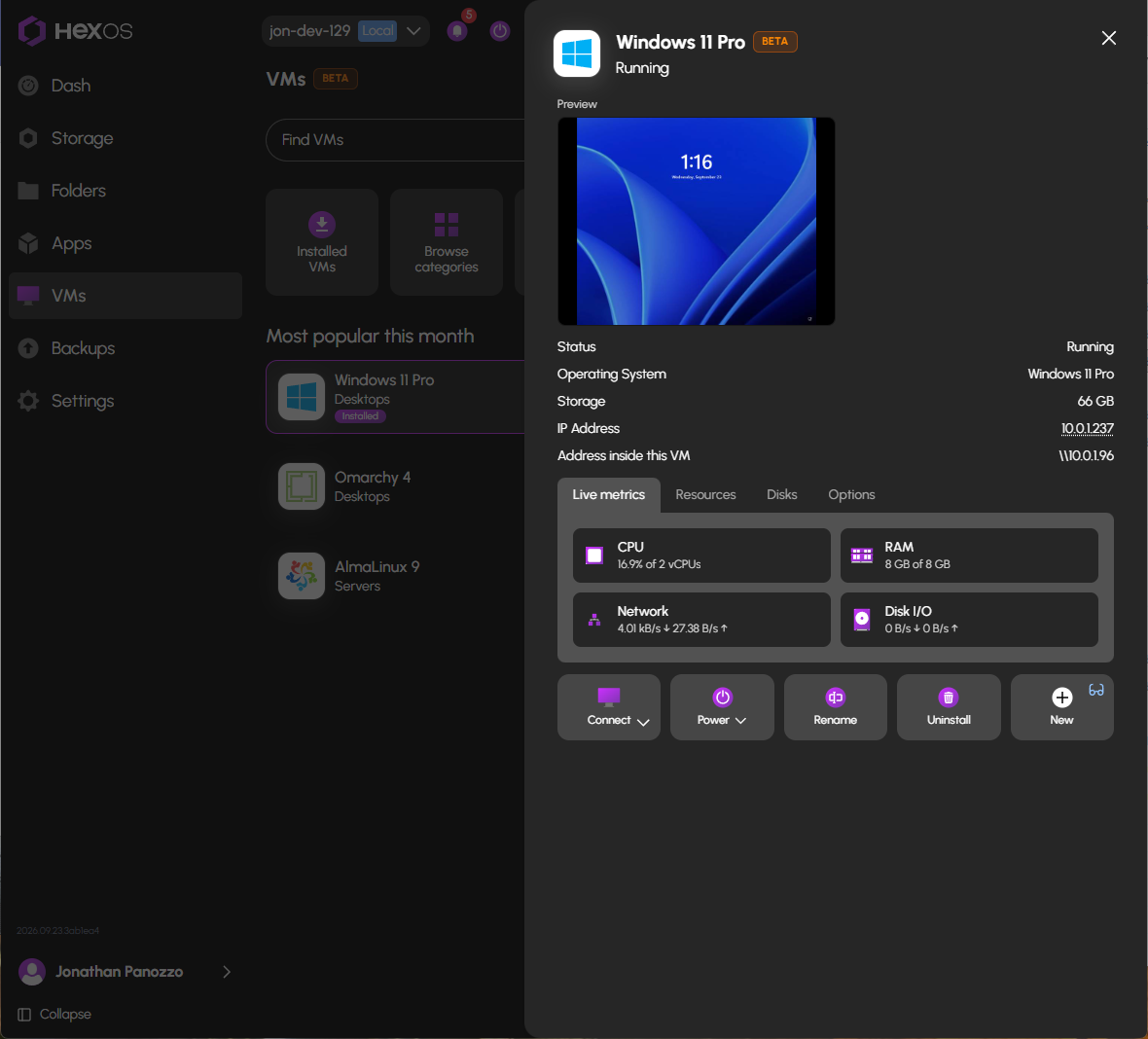
Nothing you chose in the wizard is locked in. Open the Resources tab to give a VM more cores or memory. Open Disks to grow the install disk, and on Windows, HexOS extends the partition for you so the extra space just appears. Power, Rename, and Uninstall are right there too.
¶ What's on the menu
Browse categories and you'll find three groups.
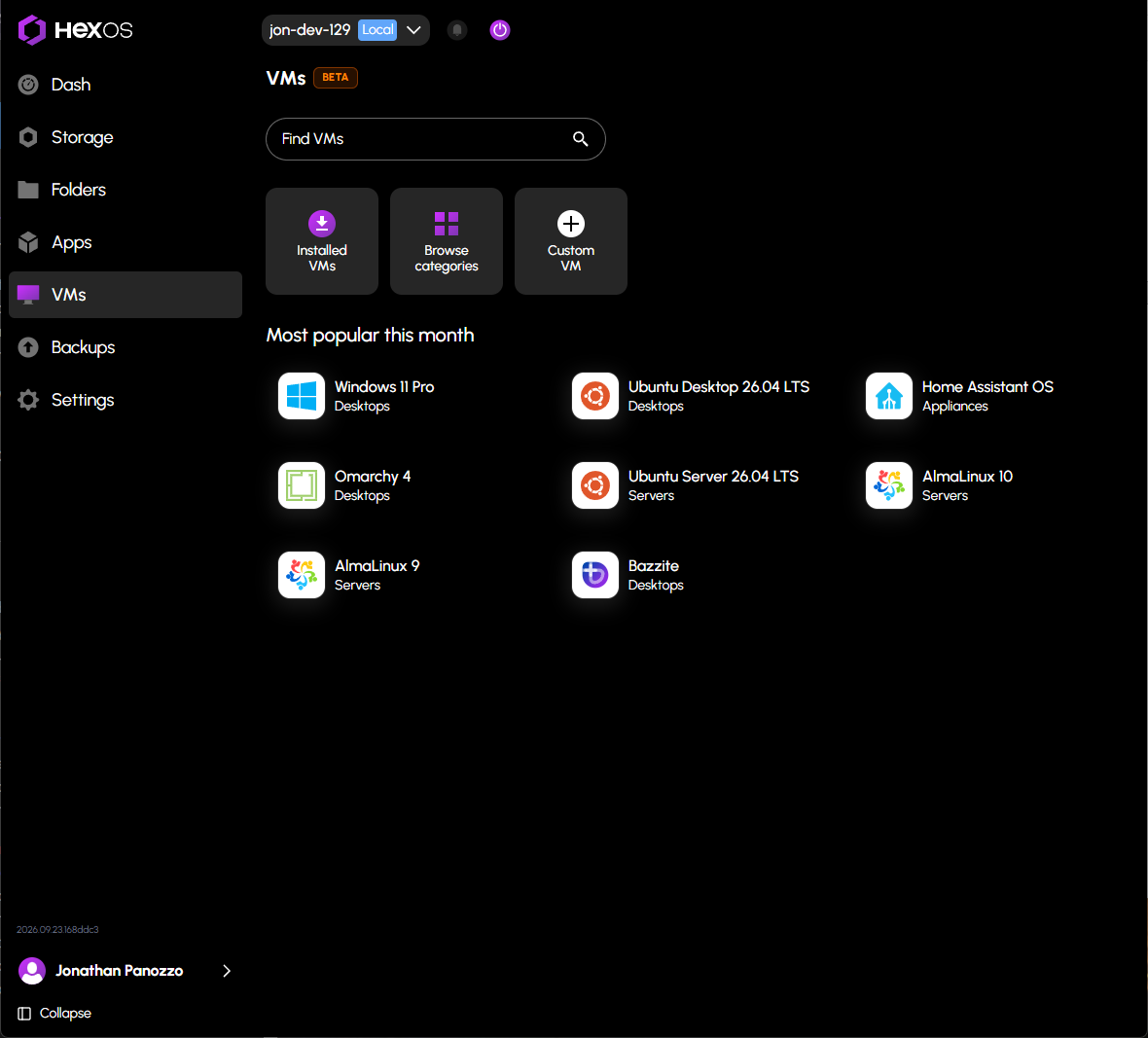
Desktops: Windows 11 Pro, Windows 10 Pro, Ubuntu Desktop, Linux Mint, Pop!_OS, Zorin OS, Fedora Workstation, Fedora KDE Plasma, openSUSE Leap, CachyOS, Bazzite, SteamOS, and Omarchy.
Servers: Ubuntu Server, Debian, Fedora, Fedora CoreOS, Flatcar, Rocky Linux, and AlmaLinux, in current and previous versions.
Appliances: Home Assistant OS and OpenWrt. More are coming!
If what you want isn't listed, Custom VM lets you bring your own installation media and set it up yourself.
¶ Coming during the beta
A few things will arrive before the Beta tag comes off: assigning a graphics card or USB device directly to a VM (so your server-desktop can drive a monitor and peripherals, and the media server VM can use that older GPU). We'll share more as each one lands.
¶ Try it, or tell someone
If you'd like to help test, sign up for the beta here. Otherwise, everyone will get Virtual Machines automatically over the coming weeks.
And if you're as excited about this as we are, the best thing you can do for a small team is share it. Post it, send it to a friend who's been thinking about a home server, and tell them what you plan to run on yours.