¶ Grow a mirror and reclaim space
Growing a mirror and Reclaim space are available only on servers where HexOS offers those controls. If a control is missing, your server may not qualify or the feature may not be available to it yet.
The screenshots show example pools. Their sizes and time estimates are examples; read the estimates for your own pool.
¶ What growing changes
A two-drive mirror stores the same data on both drives. HexOS can grow it into a three-drive RAIDZ1 by adding a suitable third drive. After it finishes, the pool can still keep working if one drive fails, with more room for files.
Keep a separate backup of files you cannot replace before starting. Growing changes the pool's layout and erases drives as part of the method you confirm.
HexOS offers this on a healthy two-drive mirror with a suitable unused drive, on TrueNAS 25.10 or later. Other work on the pool, a drive problem or insufficient room can prevent it from starting. The dialog explains what needs attention.
¶ Choose a method
Open Storage, click the mirror's pool card, then click Add drive. When both methods are available, the first step lets you choose between them.
The method step with Copy out and rebuild selected and the holding pool named
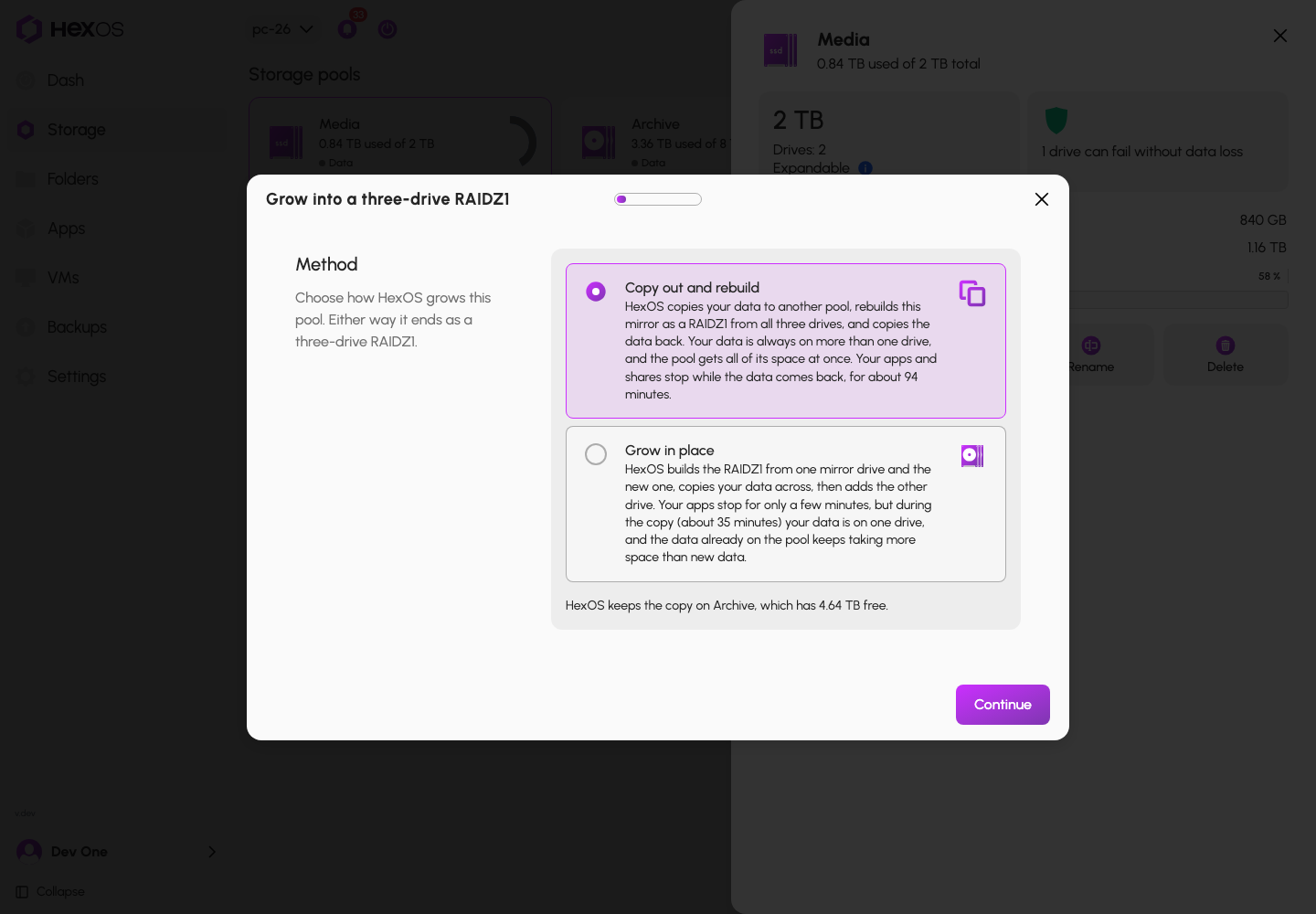
| What to compare | Grow in place | Copy out and rebuild |
|---|---|---|
| How it works | Uses one mirror drive and the new drive to build the RAIDZ1 beside your pool, copies the data, switches to it, then adds the other mirror drive. | Copies the pool to another pool, rebuilds the original pool using all three drives, then copies the data back. |
| Drive protection during the work | There is a period when your data depends on one drive. A failure then can lose data. | The holding pool keeps a protected copy while the original pool is rebuilt. |
| Apps, shares and VMs on this pool | Stop briefly for the switch. The copy and final expansion can take much longer. | Stop while the original pool is rebuilt and the data is copied back. This can take much longer than the initial copy. |
| Space after growing | Existing data keeps its earlier layout until it is rewritten. | The rebuilt pool uses the three-drive layout immediately. |
| Another pool needed | No. | Yes: a healthy pool that can withstand a drive failure and has enough room for the copy. The mirror being grown must use SSDs or NVMe drives. |
| Copy kept afterward | No separate holding copy. | The holding copy stays until you explicitly delete it. |
Copy out and rebuild is selected first when it is available. Check which pool will hold the copy. If several qualify, choose the one you want to use. If the method step is absent, follow the method HexOS offers and read its review.
Grow in place selected, with its time on one drive explained
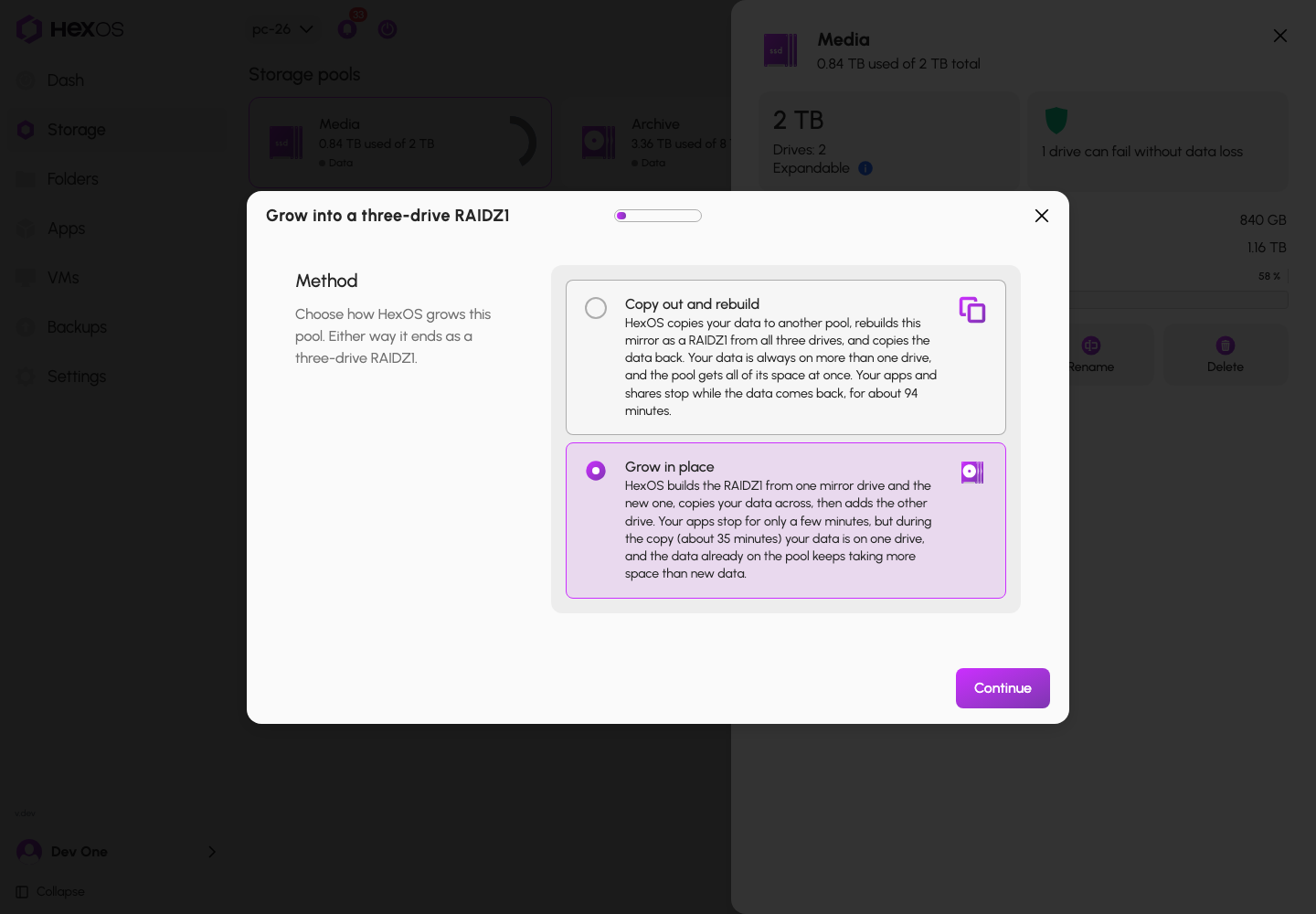
With Grow in place, read the time on one drive carefully. Your apps may be available during the copy, but the pool has reduced drive protection during that part of the work.
¶ Review and start
- Choose the unused third drive. Check its name, model and size.
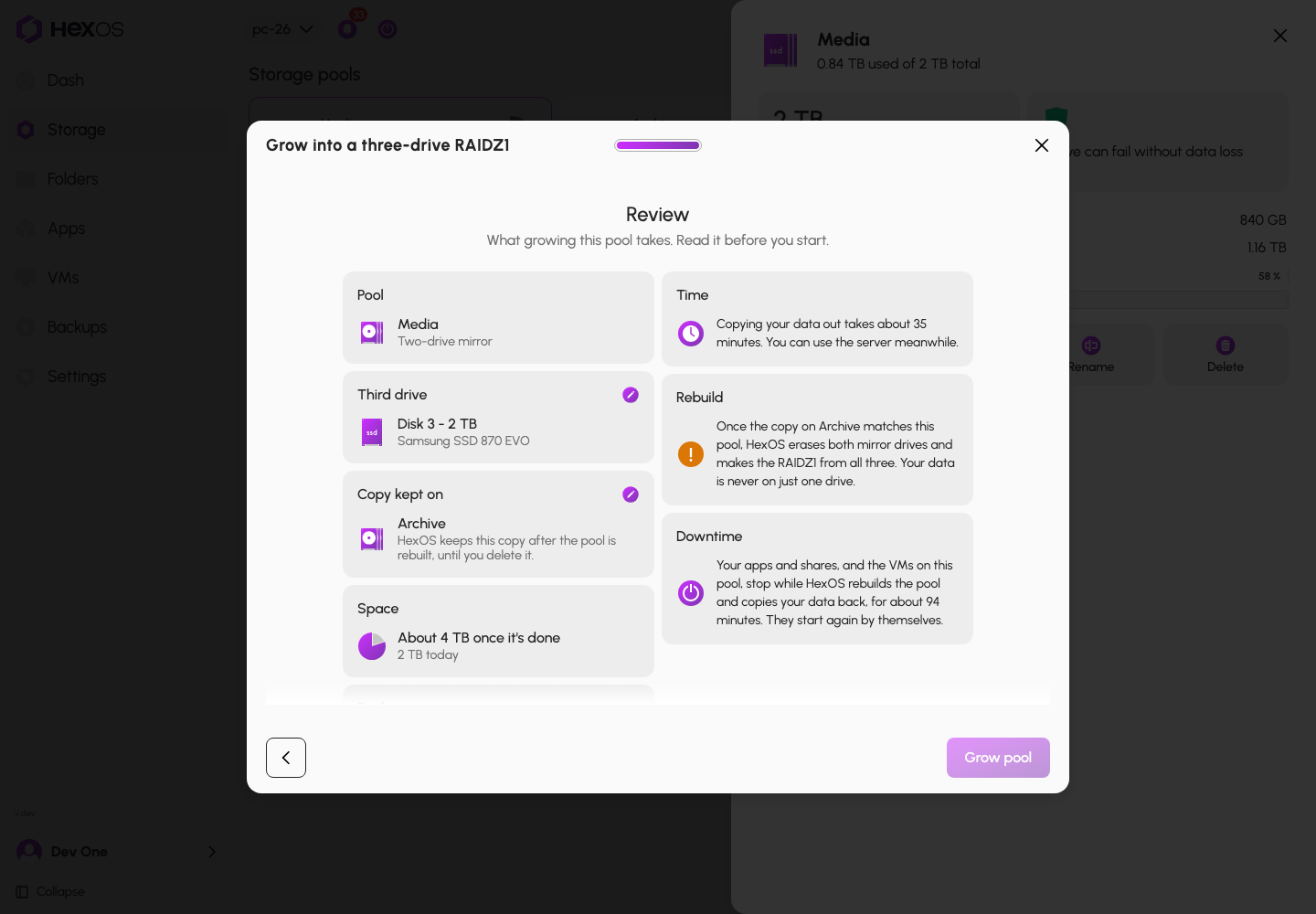
- Click Continue and read the review. Scroll through every card: the pool, drive, expected space, time, downtime and any folders that will need unlocking afterward.
- For Copy out and rebuild, check the holding pool and the explanation that the mirror drives will be erased after the copy matches. For Grow in place, check the time when the data depends on one drive.
- Read and check the confirmation checkbox, then click Grow pool.
The rebuild review identifies the pool, third drive, holding pool and expected downtime
The growth confirmation checkbox records agreement to the selected rebuild and holding pool
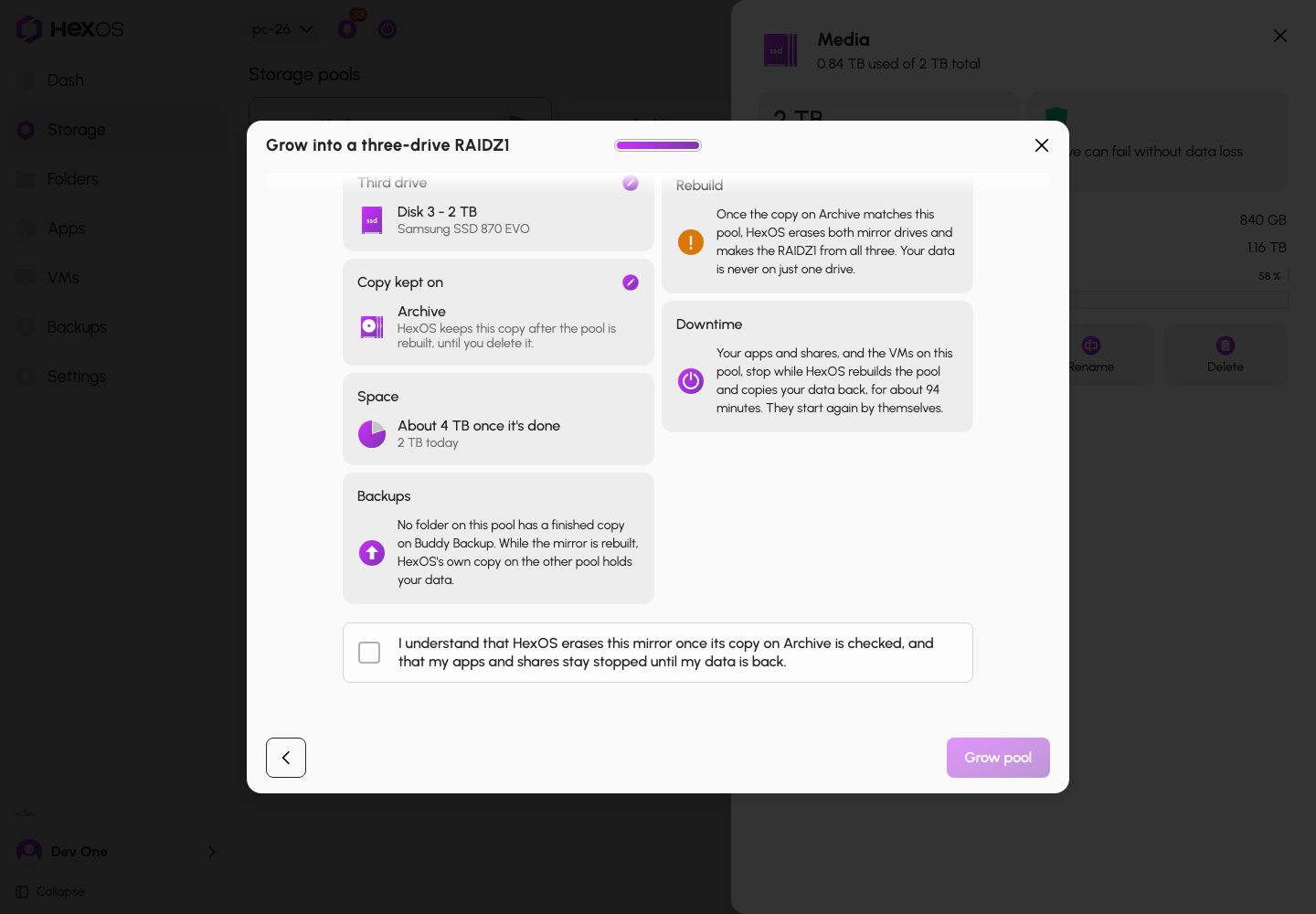
Nothing starts just because you open the dialog or choose a method. If the pool or holding-pool choice changes while you are reviewing it, read the updated review and confirm it again.
¶ Follow the progress
The pool card and info panel show the current step. You can leave the page and return to follow it. Times are estimates and depend on the amount of data, the drives and other work on the server.
Apps, shares and VMs on the pool are unavailable during the switch. With Copy out and rebuild, that downtime includes copying the data back from the holding pool. Plan a time when you can leave the server powered on and let the work finish.
Folders that use a passphrase may stay locked afterward. Unlock them with their passphrase when HexOS asks. Check that your folders and apps work after growing finishes.
¶ If you change your mind
Use the action offered by the pool's progress card:
- Grow in place can offer Put the mirror back before the switch. Read its confirmation; rebuilding the mirror can take time.
- Copy out and rebuild can offer Stop growing before the original pool is erased. Its confirmation says that the temporary copy will be deleted and the mirror will remain as it was.
Stop growing explains that the partial copy is deleted and the mirror is unchanged
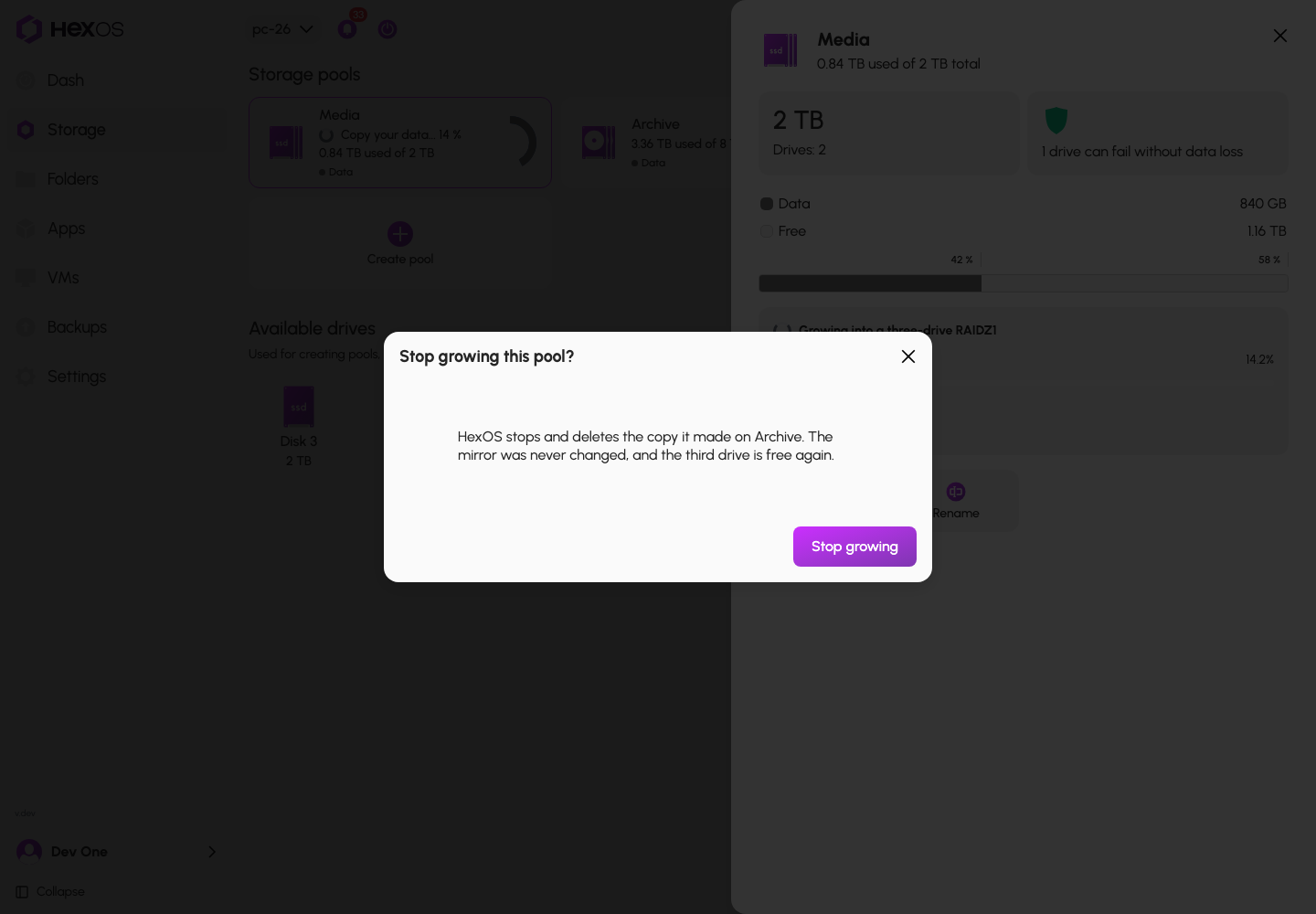
These actions are available only while HexOS can take that way back. During a later step, wait for the work to finish or follow the stopped-run guidance.
¶ If growing stops
Read the message and current step in the pool's info panel. Try again, when offered, continues from the stopped step.
If the message says your data is kept on the holding pool, leave that pool and the conversion's drives in place. The original pool may be temporarily absent. Open the holding pool's info panel to find the stopped run, and contact support if you are unsure how to continue. Do not delete the holding copy or repurpose its drives to try to clear the error.
¶ The copy kept after a rebuild
After Copy out and rebuild finishes, Copy from growing a pool appears in the info panel of the grown pool and the pool holding its copy.
The grown pool shows the copy kept on the holding pool and its Delete copy button
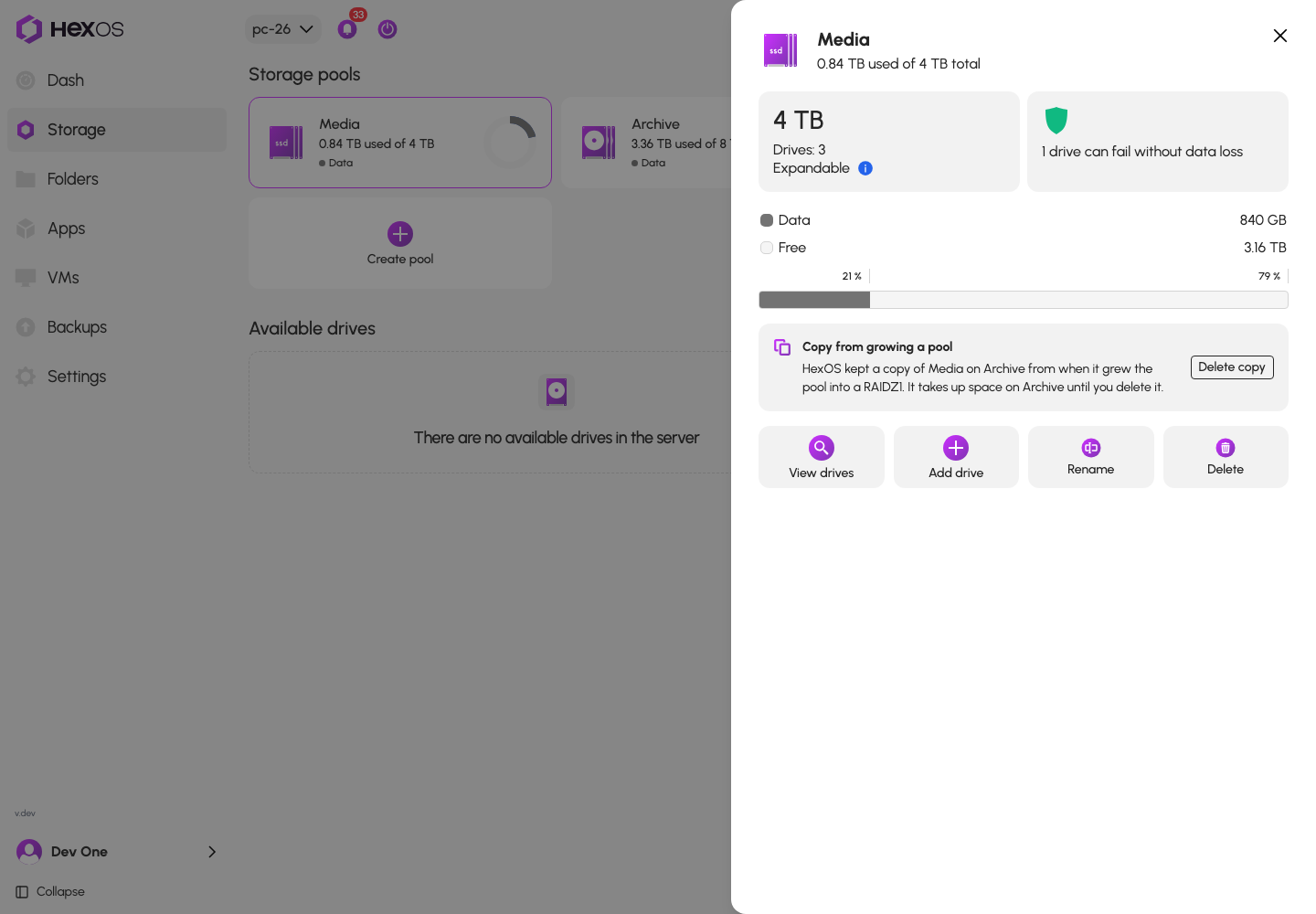
This copy reflects the data copied during the conversion. Later changes to your files are not added to it. It continues to use space on the holding pool until you delete it.
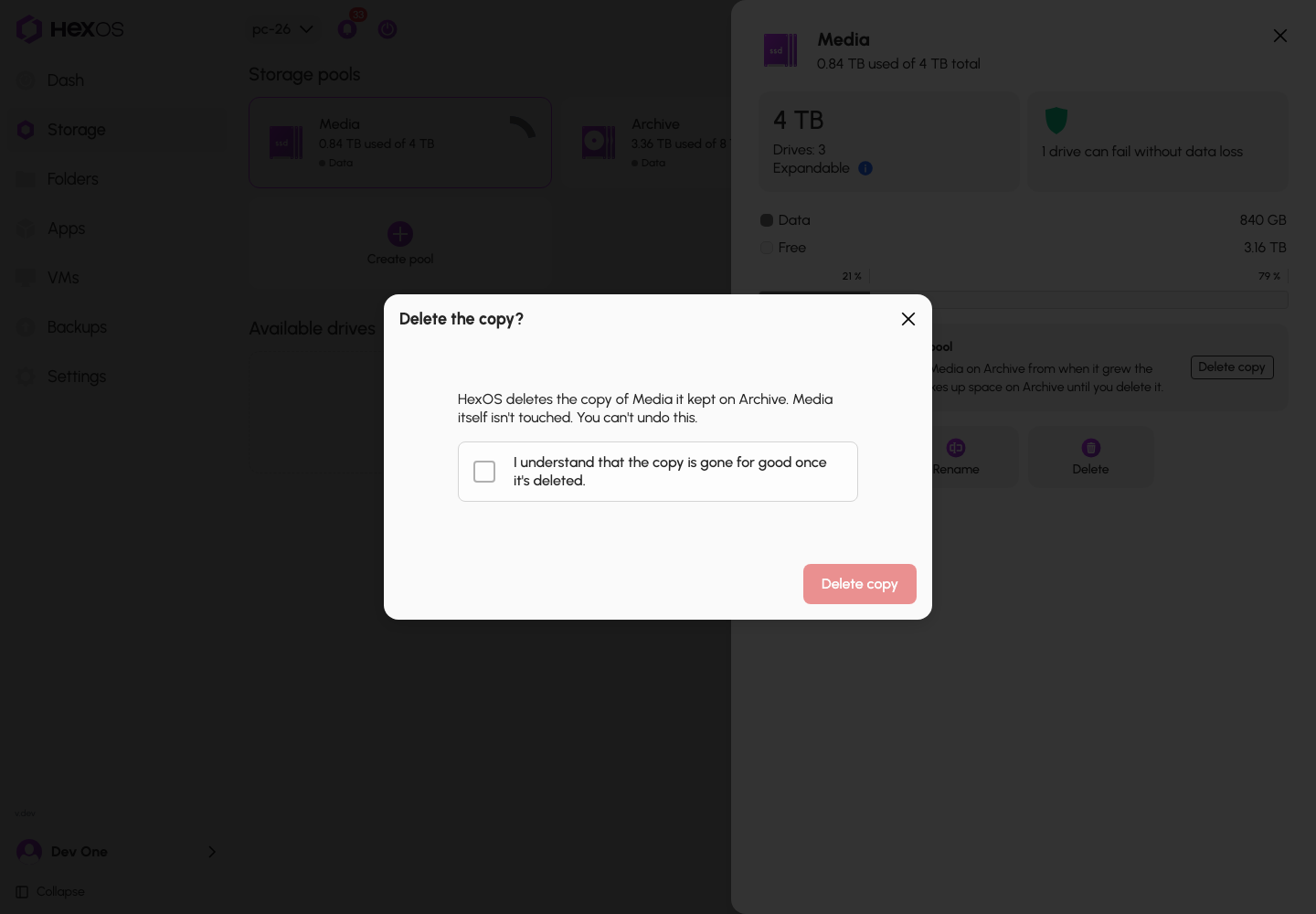
Check your files and apps and keep the backups you need before deciding to remove it. Click Delete copy, read the pool names in the confirmation, check the checkbox and confirm. Deletion is permanent; it removes the held copy and leaves the grown pool in place.
Deleting a kept copy requires a separate confirmation and checkbox
¶ Reclaim space after expansion
When a RAIDZ pool expands, data already on it can keep taking more space than data written afterward. Reclaim space rewrites eligible data using the pool's current layout.
It is offered for an expanded RAIDZ pool on TrueNAS 26 or later when the pool supports the required rewrite feature and is ready for the work.
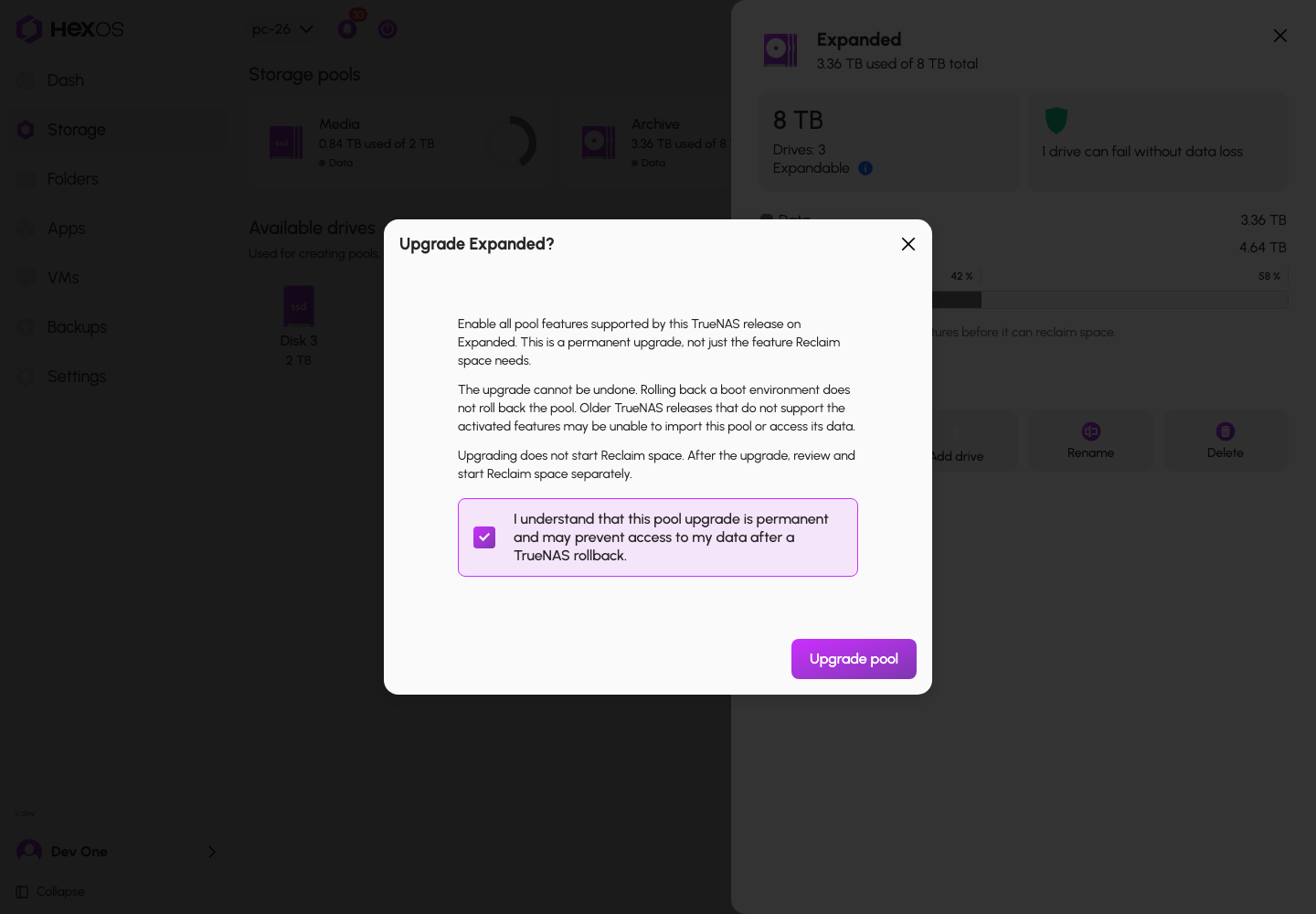
If a pool created on an earlier TrueNAS release is otherwise ready and shows This pool needs newer ZFS features before it can reclaim space., HexOS offers Upgrade pool in the pool's info panel:
- Click Upgrade pool and read the warning. Upgrading enables all pool features supported by your current TrueNAS release, not only the feature Reclaim space needs.
- The upgrade is permanent and cannot be undone. Rolling back a boot environment does not roll back the pool, and older TrueNAS releases may be unable to import the pool or access its data.
- If you do not need to roll back to an older TrueNAS release, check the acknowledgment box and click Upgrade pool. Upgrading does not start Reclaim space; review and start it separately afterward.
Upgrade pool warns that enabling all current ZFS features is permanent before offering Reclaim space
To start Reclaim space:
- Open the pool's info panel and click Reclaim space.
- Read the confirmation. The amount shown is the most data the run can rewrite, rather than a promise of how much space it will free.
- Read the list of skipped volumes and locked or unmounted folders, then confirm with Reclaim space.
Reclaim space explains the upper bound, shared-data caveat and skipped paths before starting
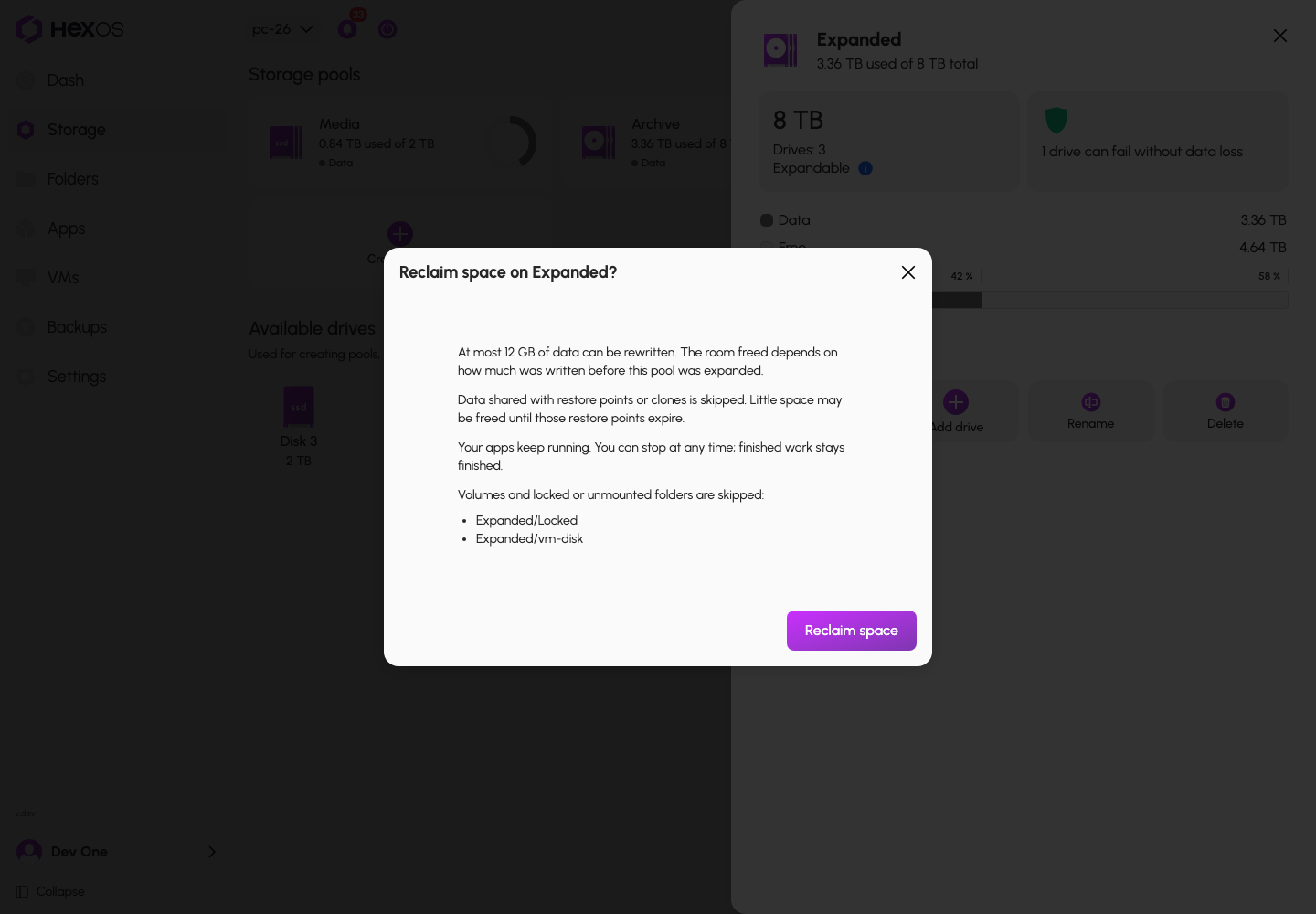
Data shared with restore points or clones is skipped. Those copies may keep most of the old blocks in place, so a run can free little or no space. You can keep your restore points; starting Reclaim space does not delete them.
Your apps keep running. The info panel shows progress through the folders, then waits for the space measurement to settle. Stop asks the run to stop; wait until the status confirms it has stopped. Work already finished stays finished.
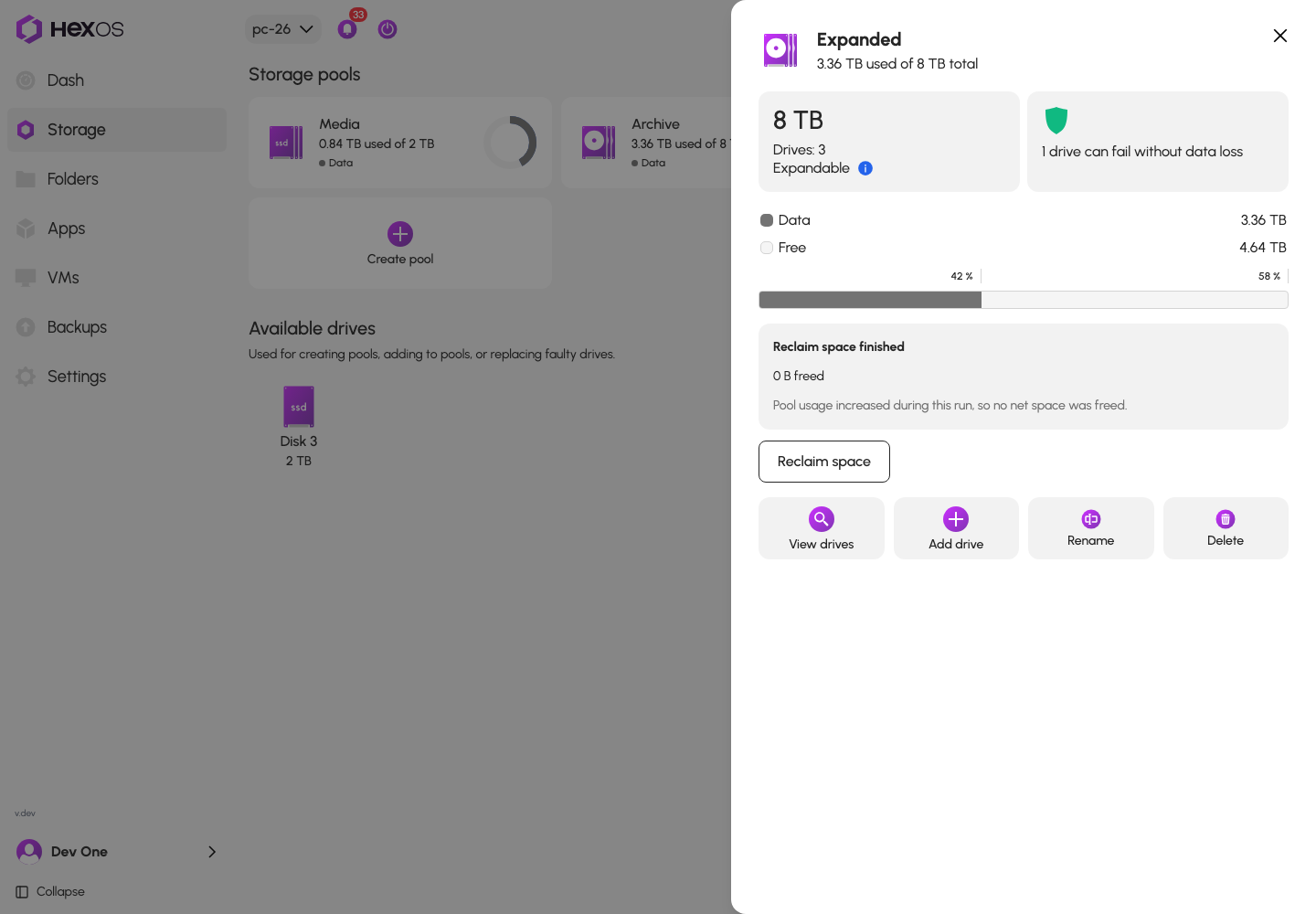
The result reports the measured net space freed. If the measurement is unavailable, HexOS keeps it unknown. If total pool usage increased during the run, it reports zero net space freed. That result does not mean that no blocks were rewritten.
A completed run reports zero net freed because pool usage increased during it
¶ Related
Contribute: To help improve HexOS documentation, join the Docs channel on Discord. Send feedback, suggestions or contribute a guide.