¶ Application troubleshooting guide
¶ Installation
- If installation fails once, try again immediately
- If it still fails, check the error
- This can be done by clicking the bell icon at the top of HexOS Deck
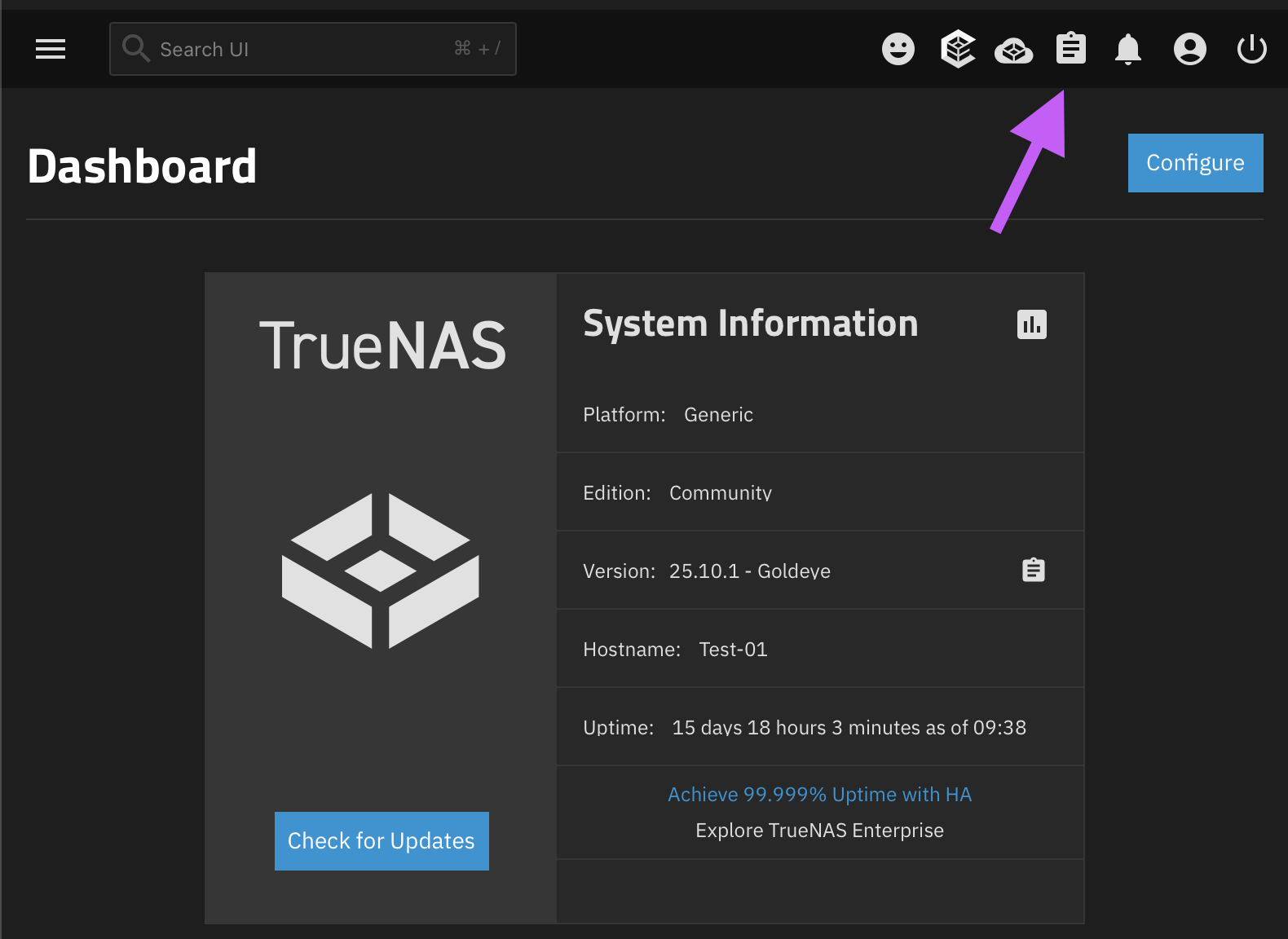
- If HexOS shows an unknown error you can find more details by entering TrueNAS and clicking the clipboard icon
How to view the error in TrueNAS
1. Log in to HexOS Deck and go to **Settings**- Click the TrueNAS button
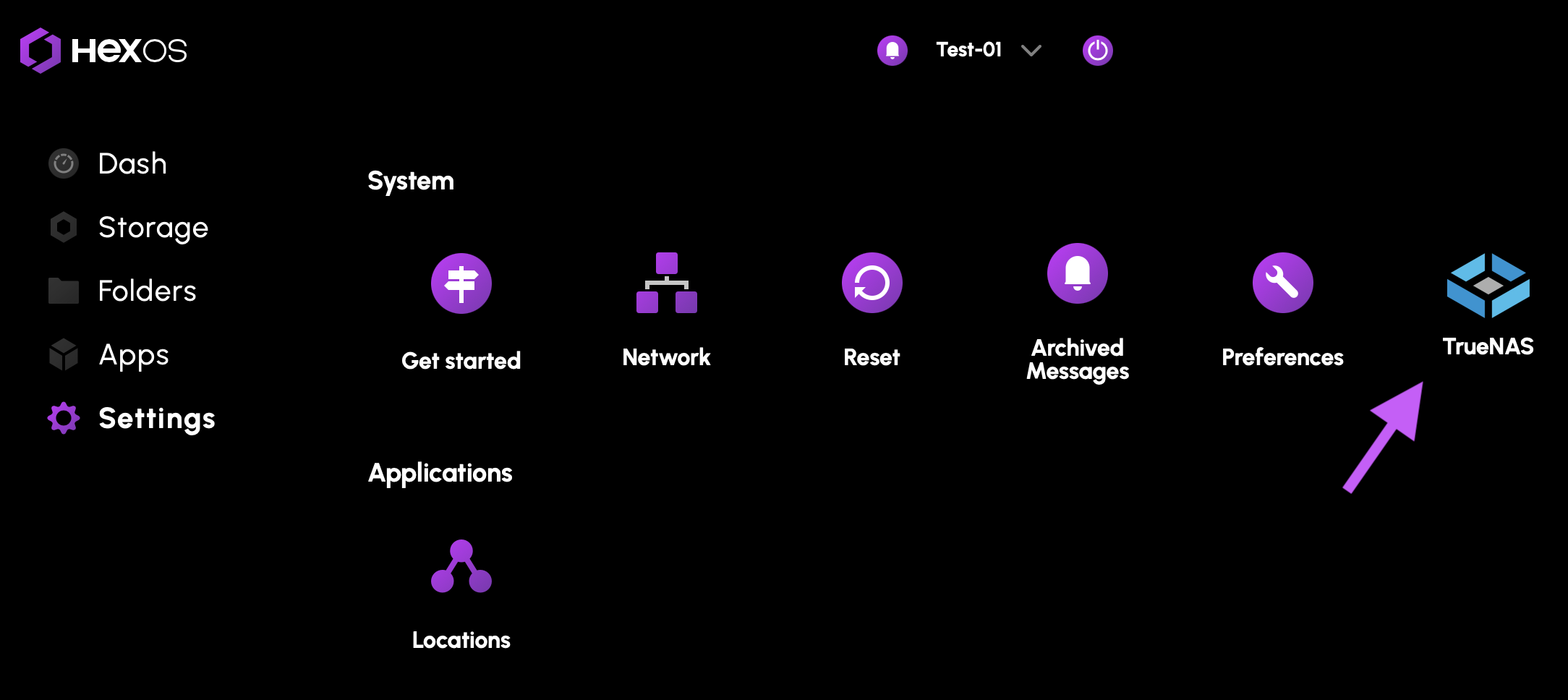
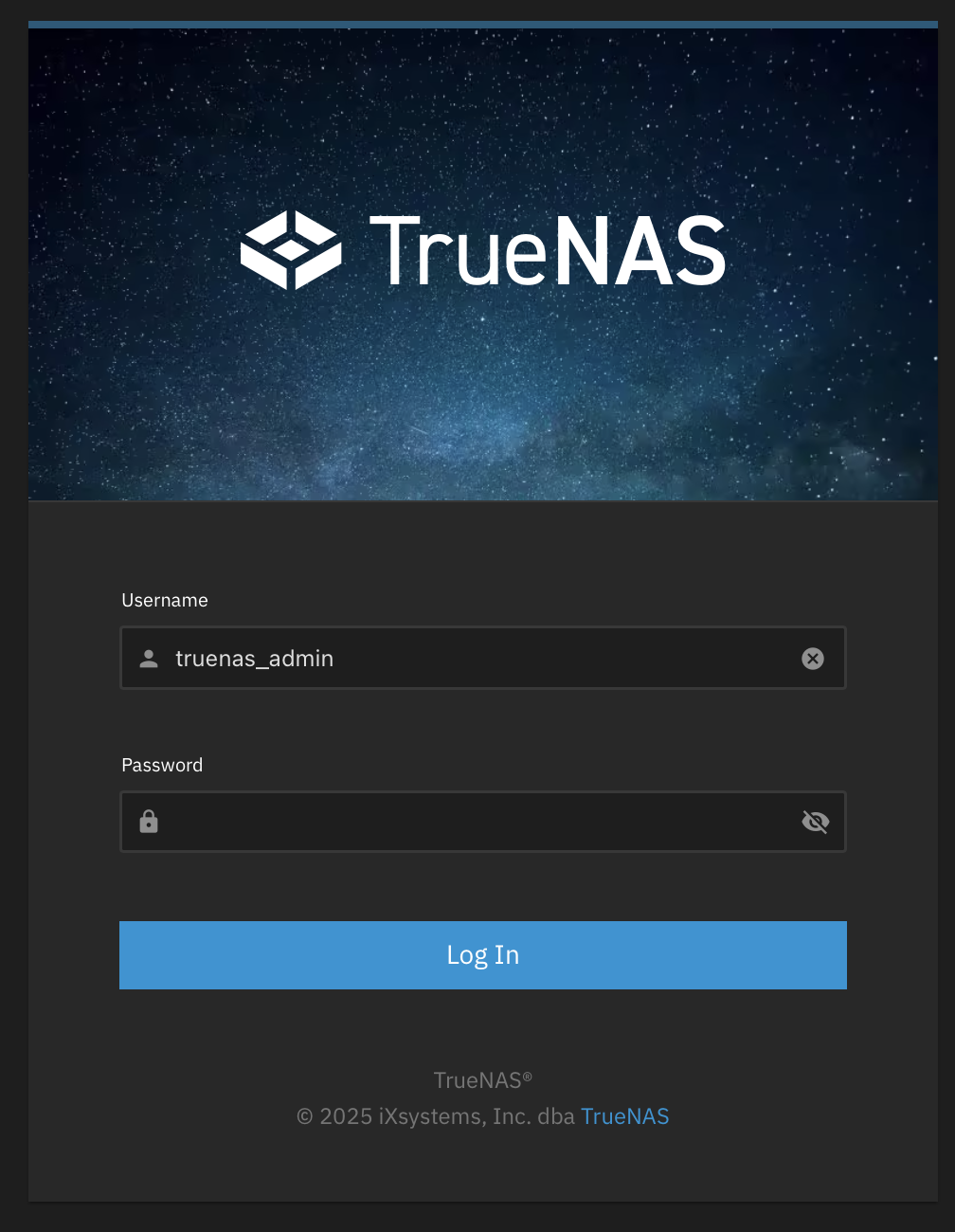
- Log in to TrueNAS
- Username: truenas_admin
- Password: What was selected when installing HexOS
- Click on the clipboard icon at the top of the screen
¶ Custom application name conflicts
When installing a custom application through TrueNAS, the name you assign must be unique across your system. If a custom application shares the exact name of an application available in the HexOS catalog, the installation will fail and the catalog application will not be installable until the conflict is resolved. This commonly occurs when setting up multiple instances of the same application configured for different purposes, such as:
- A separate Jellyfin instance for a kids-only media library
- An additional Minecraft server running a different modpack or world
- A dedicated Home Assistant instance used as a staging environment
- A second Vaultwarden instance reserved for family members
- An extra PostgreSQL instance isolated to a specific application's data
HexOS will display a warning banner on the catalog application's details page when a name conflict is detected. To avoid this issue, choose a distinct name for your custom application by appending a descriptor or suffix. For example, if the catalog application is named sonarr, consider naming your custom application one of the following instead:
sonarr-2sonarr-animesonarr-4k
If you have already installed a custom application whose name matches a catalog application, uninstall or rename the custom application before installing the catalog version.
¶ Updating
An app has to be running for it to be updated.
It is good practice to update apps regularly.
How to update
- Log in to HexOS Deck and go to the apps section
- Click your app
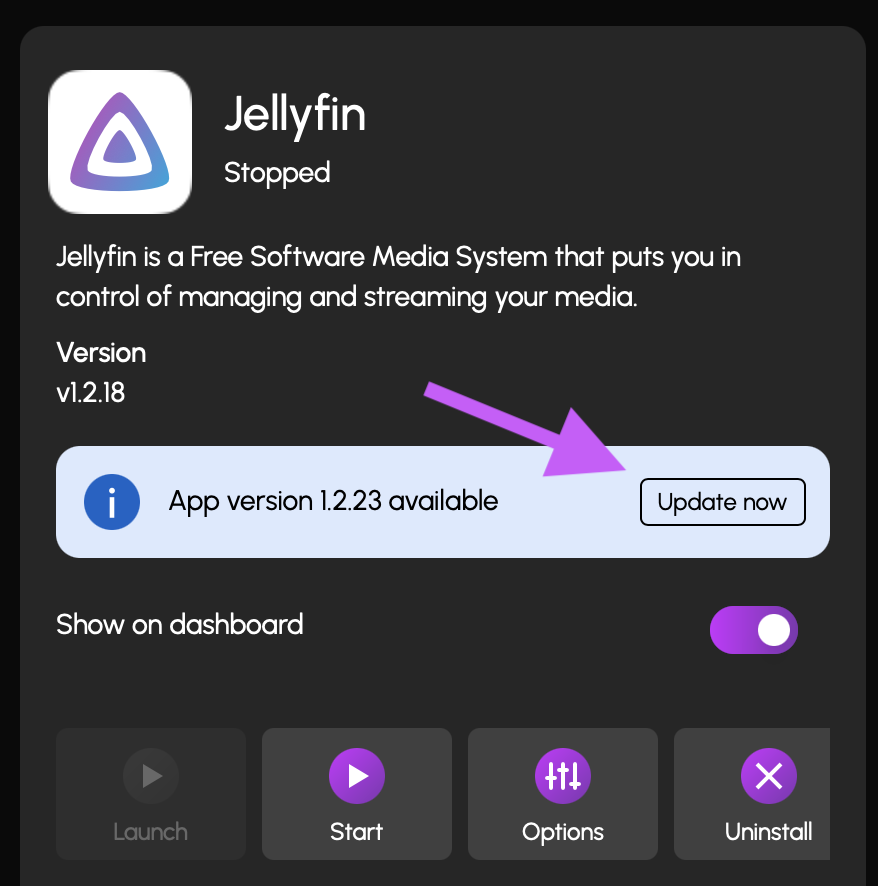
- Click the Update button on the Application info card
¶ If an app update fails
Sometimes an update fails with an error like this:
Failed 'up' action for 'sonarr' app. Please check /var/log/app_lifecycle.log for more details
This means TrueNAS could not start the app after it installed the update. Often the app starts a few minutes later on its own.
- Wait a few minutes
- In HexOS, open Apps and click the app
- If the app is running, the update worked and you do not need to do anything else
- If the app is not running, click the Update button on the Application info card to try the update again
If the update fails again, you can read the reason in the TrueNAS log file.
How to read the app log in TrueNAS
- In HexOS, go to Settings and click the TrueNAS button
- Log in to TrueNAS
- Username: truenas_admin
- Password: the password you chose when you installed HexOS
- In the TrueNAS menu, click System > Shell
- Type this command and press Enter:
sudo tail -n 40 /var/log/app_lifecycle.log - Type your TrueNAS password and press Enter. The password does not show while you type.
- Look for the lines that name your app. They say why it did not start.
Help: Not sure what the log means? Copy the lines that name your app and ask in our Discord.
¶ If an app is not working after an application update
If your app stopped working immediately after an update you can go into TrueNAS and roll back to a previous version of your app.
Warning: Some applications may have bugs when rolled back
Instructions for rolling back an application
- Log in to HexOS Deck and go to Settings
- Click the TrueNAS button
- Log in to TrueNAS
- Username: truenas_admin
- Password: What was selected when installing HexOS
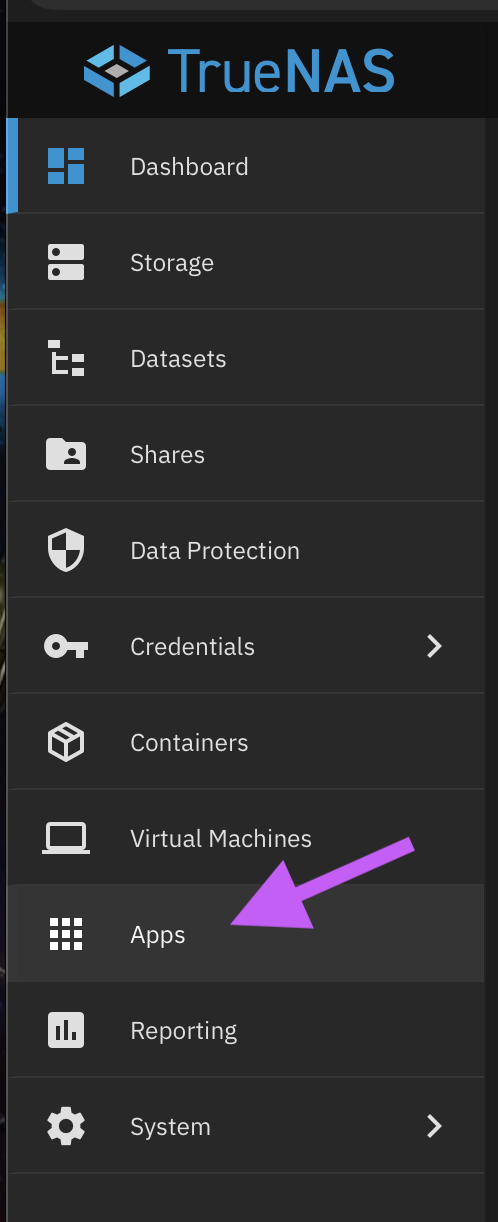
- Navigate to the Apps tab on the left sidebar menu
- Click on your application
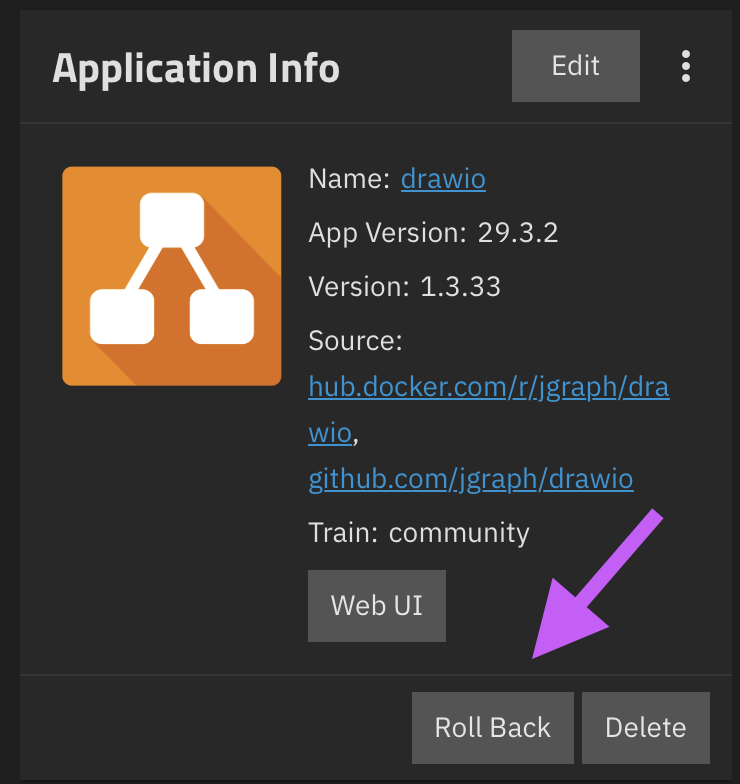
- Click the Rollback option on the Application Info card
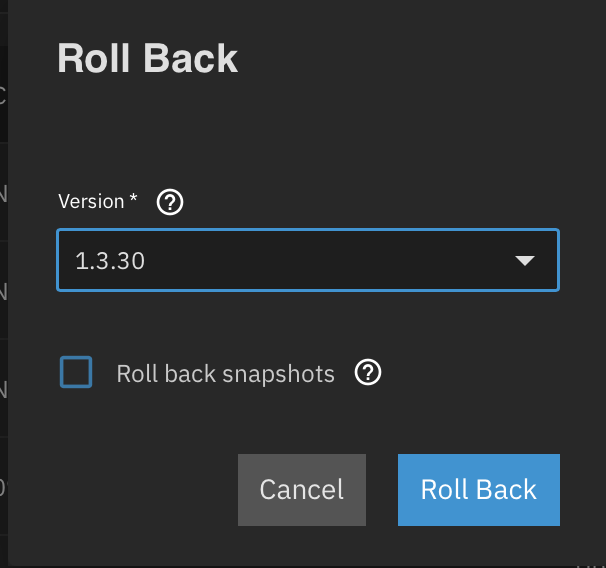
- Click the most recent version of the app that worked and roll back
¶ Resetting app curation
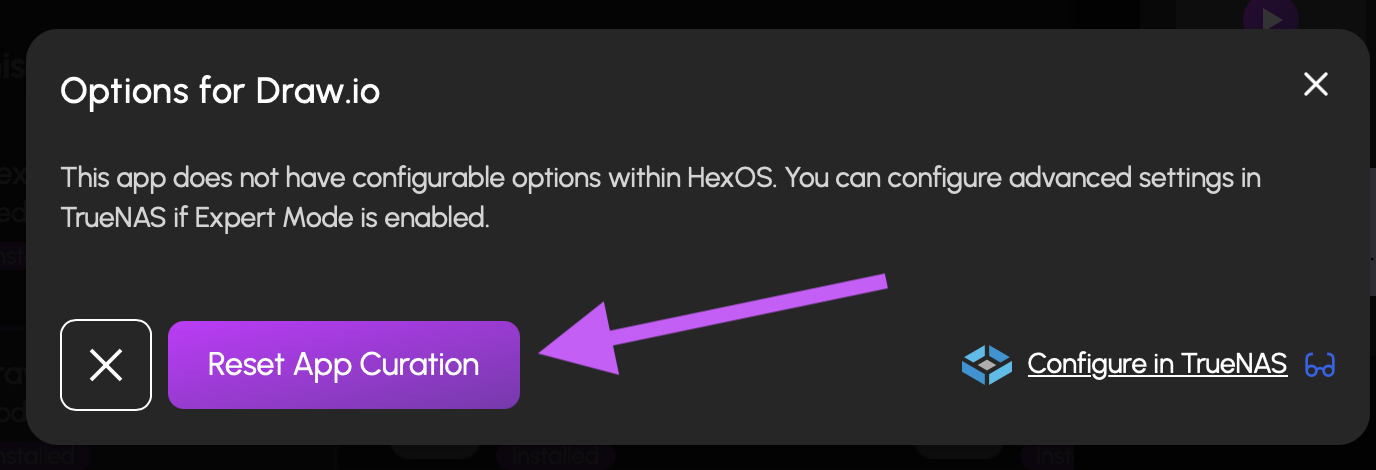
If the settings on an app were changed in TrueNAS you can use Reset App Curation to bring it back to the HexOS default configuration.
Info: This can be used to update your application settings if HexOS has updated the curation.
How to Reset App Curation
1) Open the HexOS Deck application section- Click the app
- Click the options button on the application info card
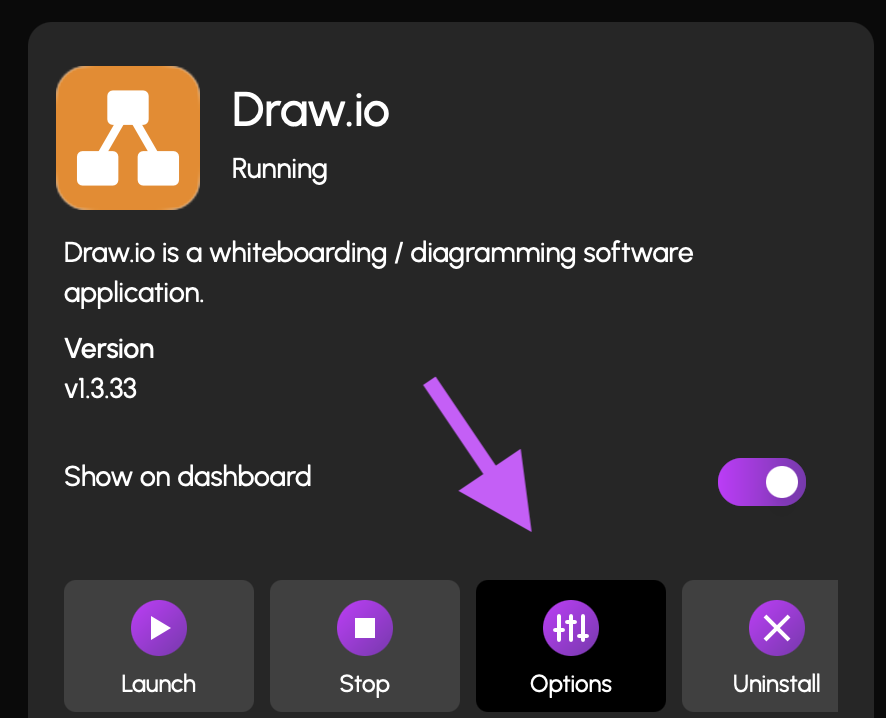
- Click Reset App Curation
¶ Application not showing up with the bookmarked link
- Open directly from HexOS Deck
- Check if your server's IP address has been updated
¶ App not starting
If apps are not starting after recent hardware changes you can try the following
Motherboard changed: Try opening the app from HexOS Deck as your server IP address may have changed
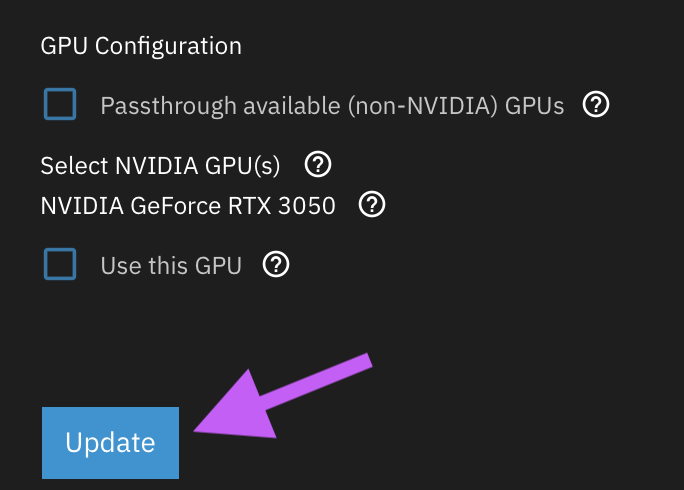
GPU changed: Try disabling GPU pass-through and disable using a GPU in the application configuration to troubleshoot
How to turn off GPU pass-through
1. Click the app in HexOS Deck- Click the options button on the application info card
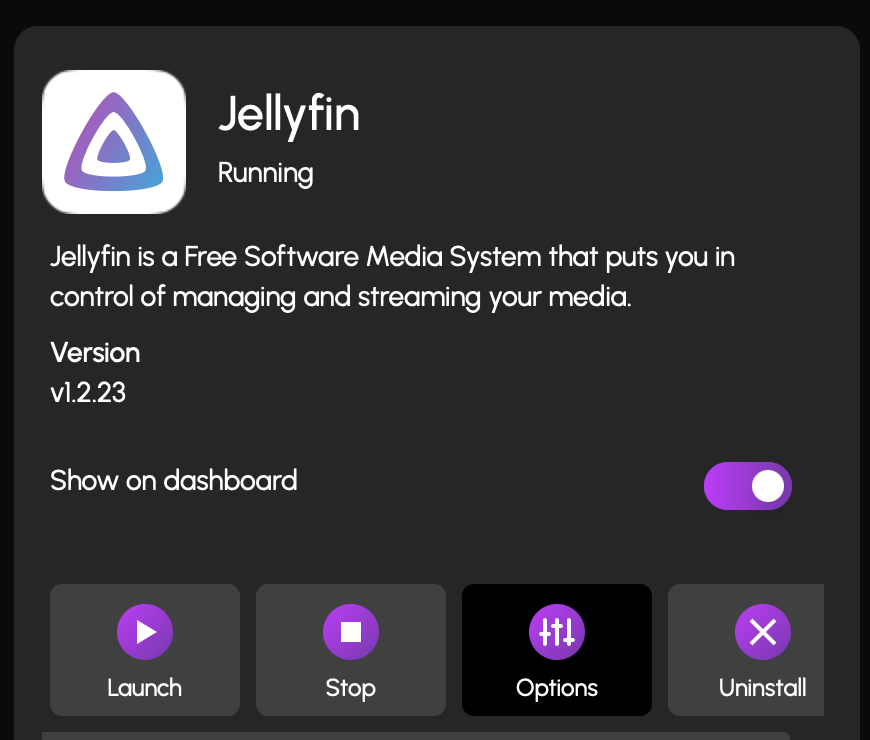
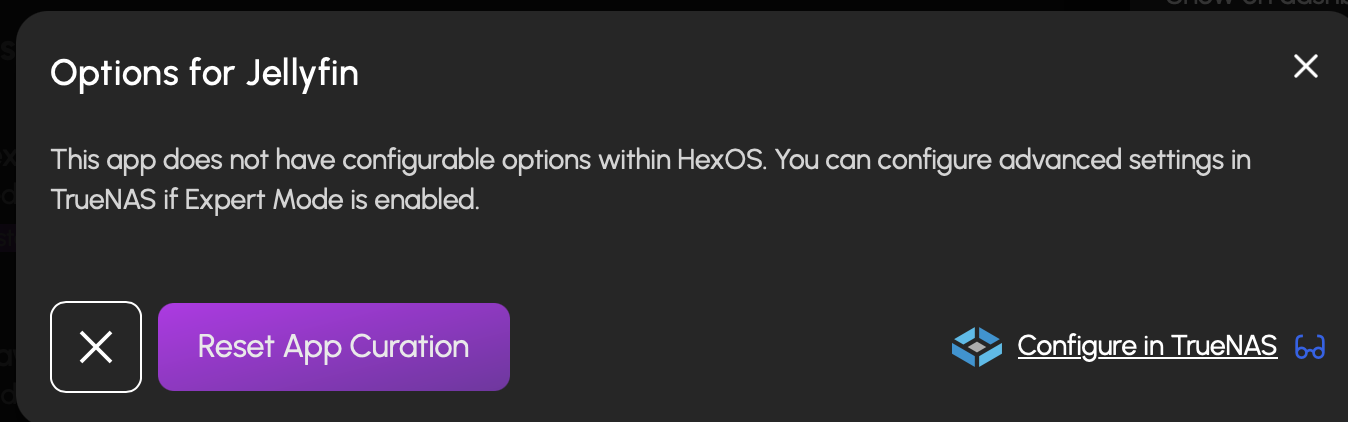
- Click Configure in TrueNAS
- Scroll all the way to the bottom and uncheck GPU-related options
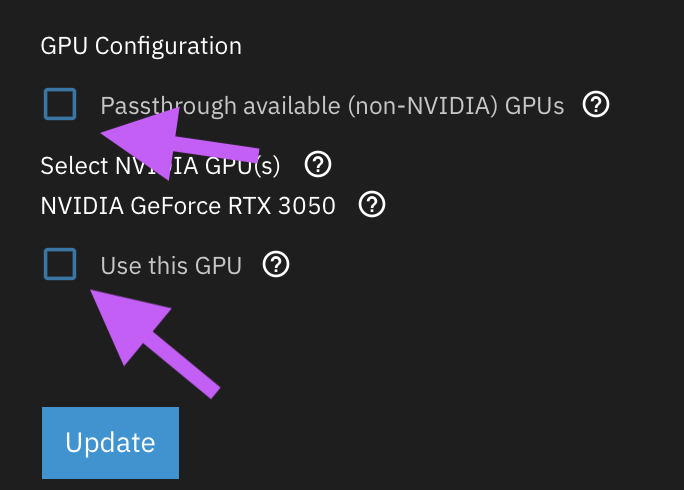
- Click the Update button
¶ App-specific troubleshooting
Immich
## ImmichWarning: Do not uninstall Immich as a troubleshooting step unless explicitly instructed to or you are planning to start again fresh
¶ Installation
If you uninstalled Immich and it is no longer re-installing,
consider deleting the old datasets and starting over fresh
Danger: Deleting the old datasets will also delete the copy of your media on the server
¶ Updating Immich
¶ Firmware 1.135.0 and higher
Coming soon
¶ Firmware below 1.135.0
Coming soon
¶ Mobile application not functioning
Update the Immich app on both the server side and the mobile side
¶ Immich media not showing up
Check the storage paths in the settings
Uploads: (HDDs/SSDs)/Photos/immich
Postgres: (HDDs/SSDs)/Applications/immich/postgres_data
If your storage locations do not match and you installed Immich via HexOS, are on Immich version 2.0.0+ and have not modified Immich in TrueNAS then you can Reset App Curation
Fill out the following template and share it on HexOS HUB or contact us at [email protected]
¶ Template
TrueNAS Version:
Application Version:
Model of CPU:
Model of GPU:
Modifications made in TrueNAS:
Description of problem:
Troubleshooting steps attempted:
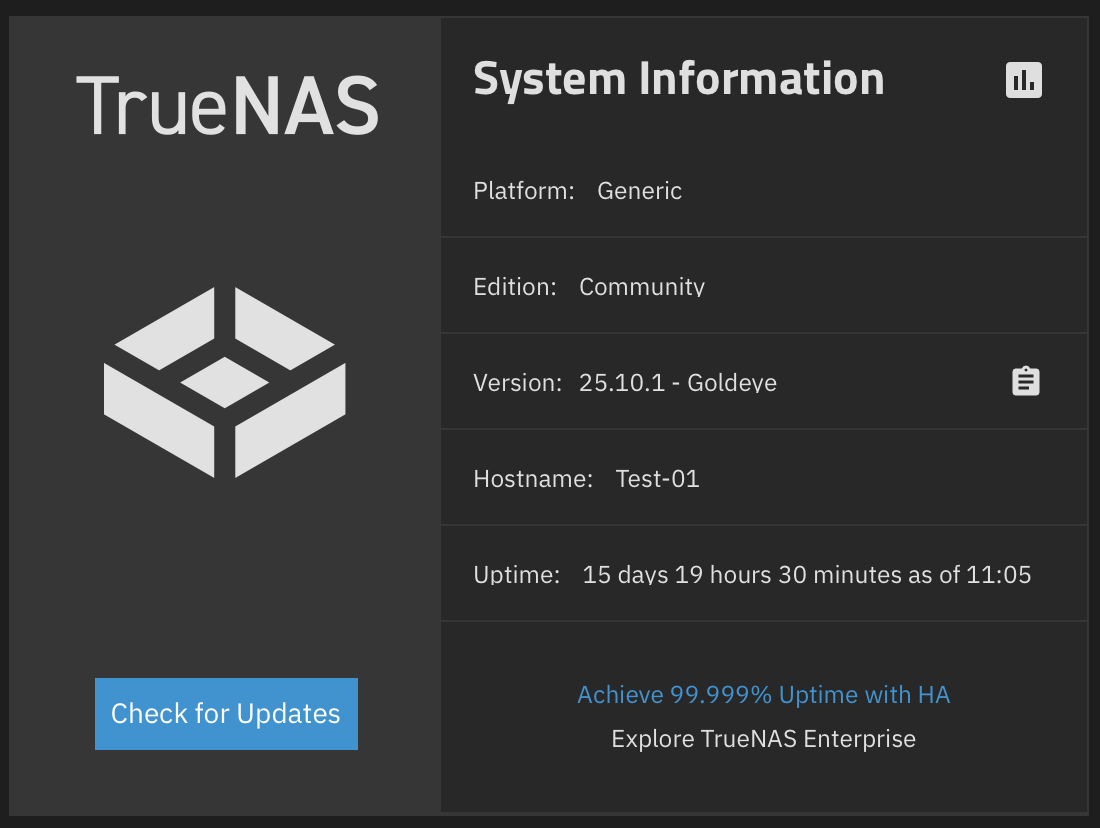
TrueNAS Version
The TrueNAS version can be found by
- Log in to HexOS Deck Settings
- Click the TrueNAS button
- Log in to TrueNAS
- Username: truenas_admin
- Password: What was selected when installing HexOS
- On the System Information card you will see your TrueNAS version
Application Version
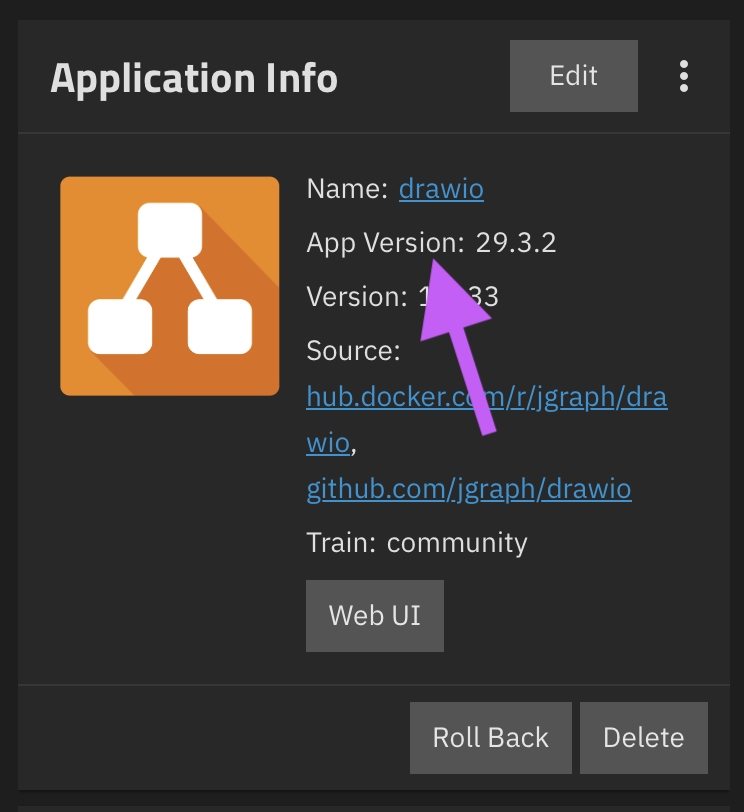
The application version can be found by
- Log in to HexOS Deck and go to Settings
- Click the TrueNAS button
- Log in to TrueNAS
- Username: truenas_admin
- Password: What was selected when installing HexOS
- Navigate to the Apps tab on the left sidebar menu
- Click on your application
- On the Application Info card you will see an App Version
Model of CPU
The model of the CPU in your server can be found by
- Log in to HexOS Deck Settings
- Click the TrueNAS button
- Log in to TrueNAS
- Username: truenas_admin
- Password: What was selected when installing HexOS
- On the CPU Model card you will see your CPU model
Model of GPU
1. Log in to HexOS Deck and go to **Settings**- Click the TrueNAS button
- Log in to TrueNAS
- Username: truenas_admin
- Password: What was selected when installing HexOS
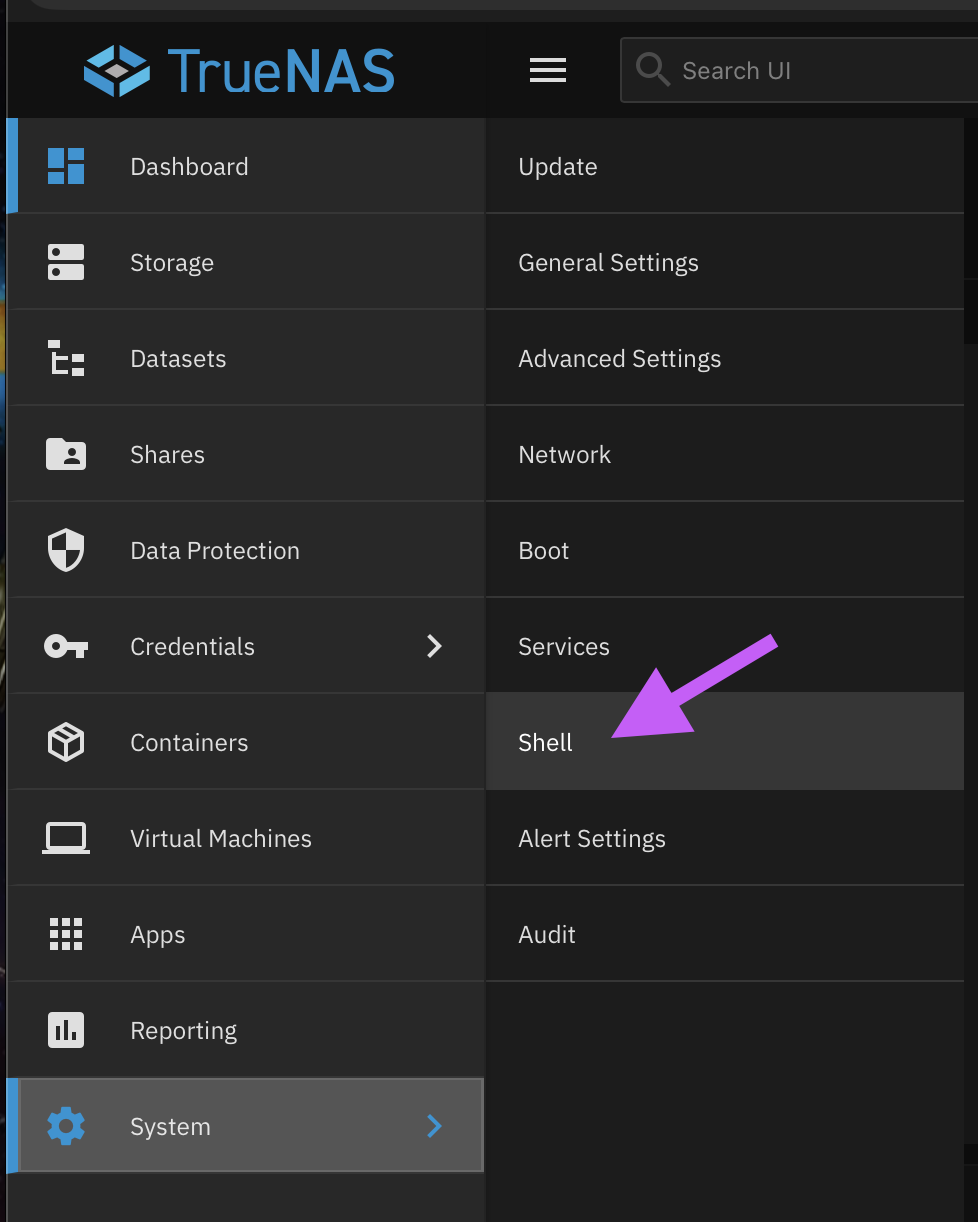
- Navigate to the System tab on the left sidebar menu
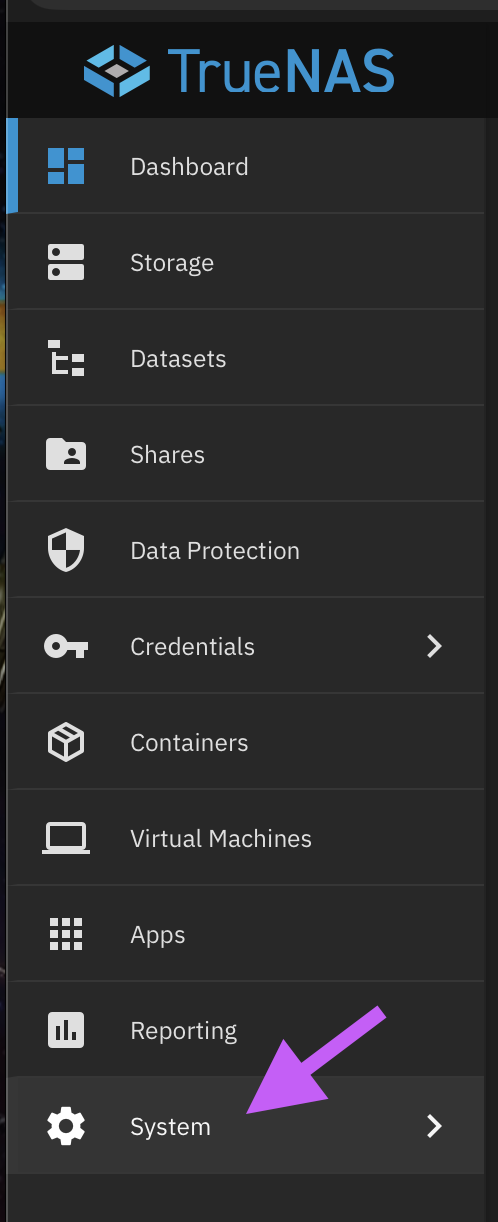
- Click Shell
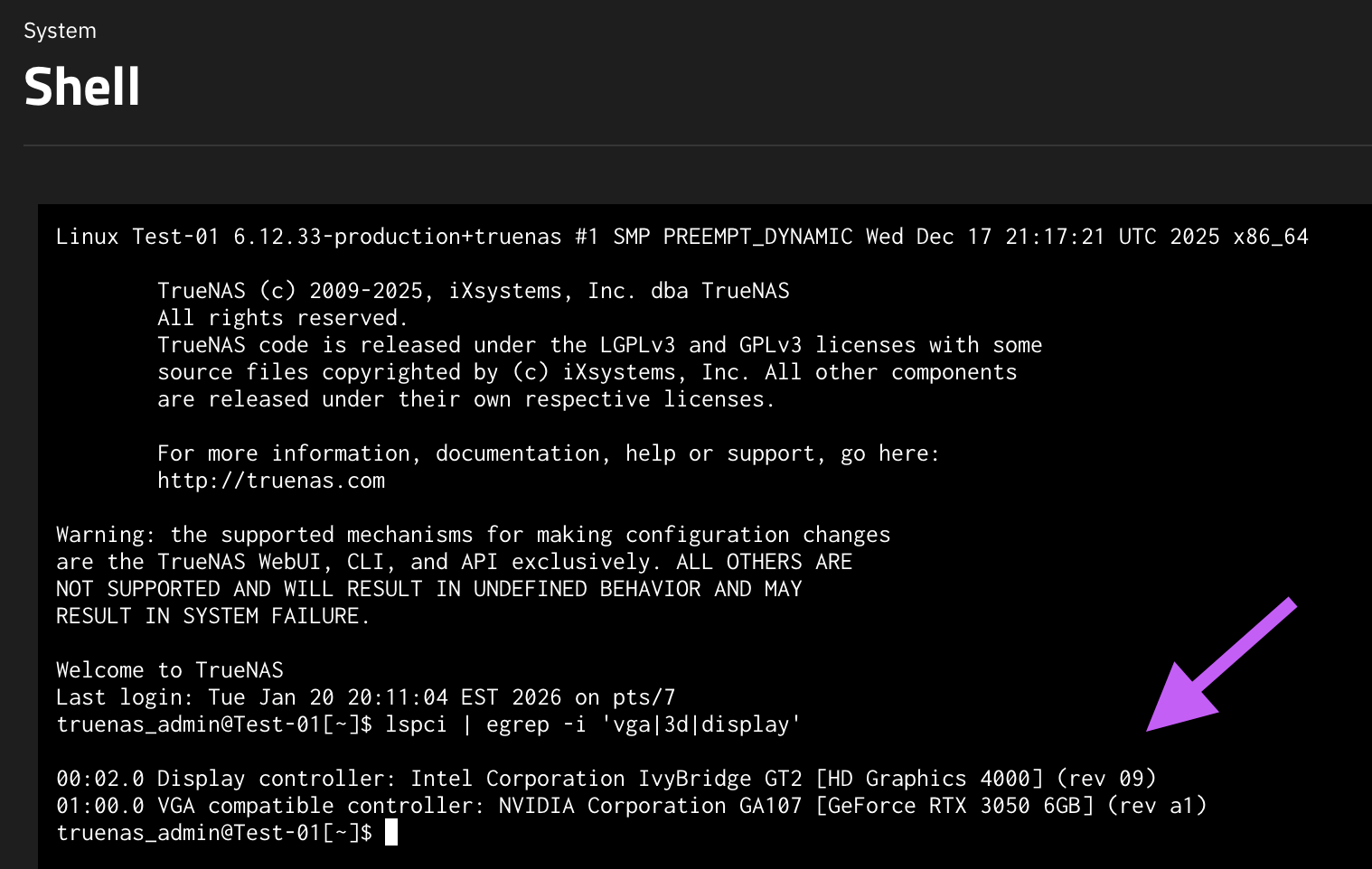
- Type
lspci | egrep -i 'vga|3d|display'
Modifications made in TrueNAS
Example modifications
- App installed via TrueNAS not HexOS
- Storage pool created in TrueNAS not HexOS
- App configuration modified in TrueNAS
Description of the problem
Describe the problem
When did it start?
What steps did you take before the problem started?
Include any error reports that HexOS or TrueNAS informs you of in this section.
Troubleshooting steps attempted
A brief overview of any steps you have tried.