¶ Local access to your server
Your server has an address of its own on your home network. When the Command Deck talks to your server at that address, your files and pages stay on your own network instead of travelling through the internet, which is faster.
When you open the Command Deck at deck.hexos.com, it checks whether your browser can reach that address. When it can, the deck stays where it is and loads your server's pages straight from the server. A purple Direct badge appears beside your server's name at the top, and uploads and downloads in the file browser work.
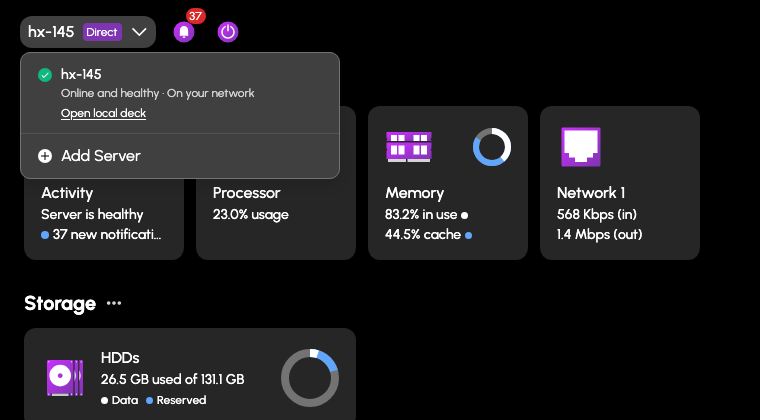
When the check does not succeed, no badge shows and everything keeps working through HexOS Cloud, a little slower. A check that does not succeed does not mean the address is unreachable: your browser may simply not allow the deck to look for your server. You can still open the address yourself.
¶ Find your server's local address
You can open your server's own address at any time, whether or not the deck found it for you. The address works whenever you are on the same network as your server.
- From the server dropdown. Open the server dropdown at the top of the Command Deck and choose Open local deck under your server's name. The line above it says how the deck reaches your server right now: On your network or Through HexOS Cloud.
- From Preferences. With expert mode on, go to Preferences > Advanced. The Local Access URL is your server's own address; open it, or bookmark it for next time.
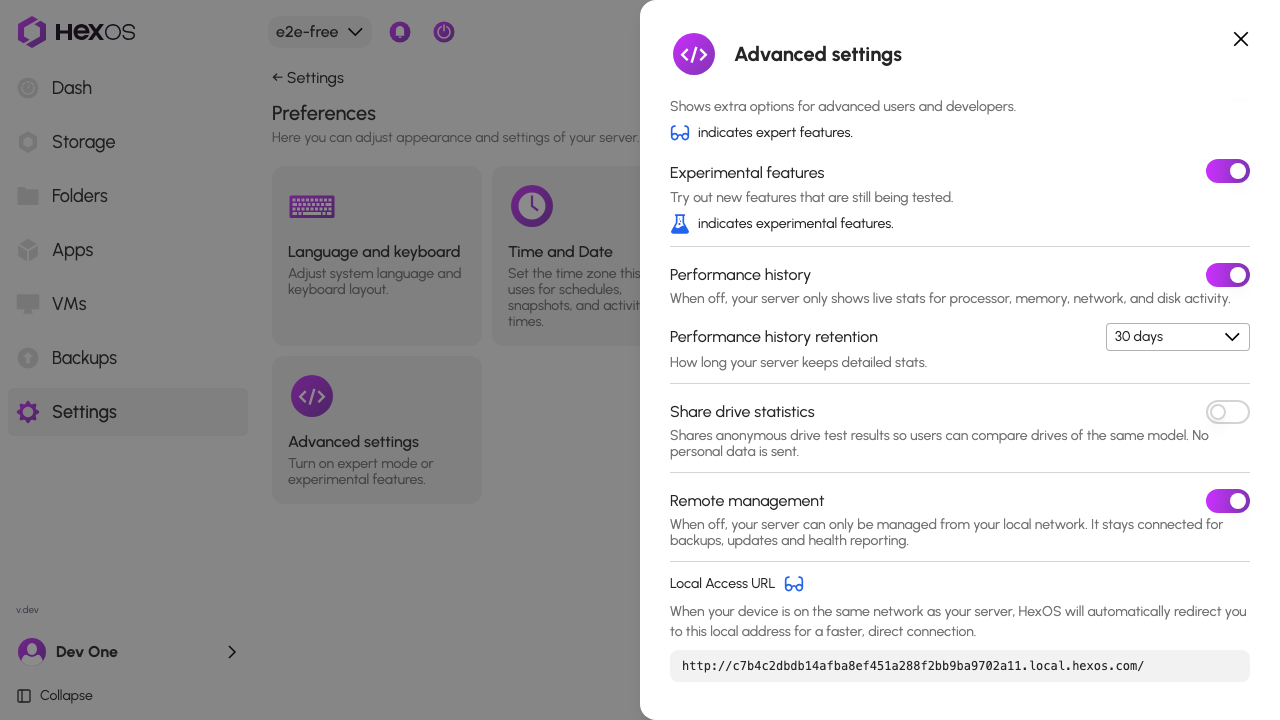
If the address does not open, see If the address cannot be reached below.
¶ Let the Command Deck use local access for you
The deck asks your server, at its local address, whether it is there. When it answers, the deck loads your server's pages from it directly and shows the Direct badge.
Newer browsers ask before a website may look for devices on your home network, and remember the answer. If the question was dismissed or answered Block, the deck's check cannot succeed in that browser, so everything goes through HexOS Cloud and the Direct badge does not show. Blocking the check does not block the address itself: the ways to open it above still work.
To let the deck reach your server directly, allow local network access for deck.hexos.com, then reload the page.
¶ Google Chrome
Chrome asks the first time with a prompt that reads deck.hexos.com wants to look for and connect to devices on your local network. If you missed it:
- Open the Chrome menu (⋮) and choose Settings.
- Go to Privacy and security > Site settings.
- Under Permissions, open Local network access.
- Move
deck.hexos.comfrom Not allowed to Allowed, or remove it so Chrome asks again. - Reload the Command Deck.
You can also paste chrome://settings/content/localNetworkAccess into the address bar to open the list directly.
¶ Microsoft Edge
- Open the Edge menu (⋯) and choose Settings.
- Go to Cookies and site permissions.
- Open Local network access.
- Move
deck.hexos.comto Allow, or remove it so Edge asks again. - Reload the Command Deck.
¶ Brave
- Open the Brave menu (☰) and choose Settings.
- Go to Privacy and security > Site and Shields Settings.
- Open Local network access and allow
deck.hexos.com. - Reload the Command Deck.
¶ Other Chromium browsers
Arc, Vivaldi, Opera and other browsers built on Chromium keep the same setting under their site permissions. Look for Local network access in the browser's privacy or site settings, allow deck.hexos.com, and reload the Command Deck.
¶ Firefox
Firefox asks the first time with a prompt about allowing the site to access your local network. If you missed it:
- Click the permissions icon on the left of the address bar while on the Command Deck.
- Clear the blocked Local network permission, or set it to Allow.
- Reload the Command Deck.
If the icon shows nothing, open Settings > Privacy & Security > Permissions and look for a local network entry there.
¶ Safari
Safari does not have a setting of its own for this. On a Mac, the permission belongs to the operating system; see the next section.
¶ On a Mac: the system-wide Local Network permission
macOS keeps its own list of apps allowed to reach devices on your network, and your browser needs to be on it. The system asks once, the first time the browser tries, with a prompt that names the browser.
- Open System Settings (Apple menu > System Settings).
- Go to Privacy & Security > Local Network.
- Make sure your browser is switched on in the list. If it is missing, quit the browser, open it again, open the Command Deck, and answer Allow when the prompt appears.
¶ If the address cannot be reached
When your server's own address does not open, or the Direct badge never appears while you are at home, the path from this device to the server is the problem rather than the browser:
- A different network. Local access only works from the same network as the server. On a guest network, a phone's mobile data or away from home, the deck works through HexOS Cloud.
- A VPN. A VPN on this device can send your server's local address out through the tunnel. Pause the VPN, or allow local network access in its settings, and try again.
- Your router's DNS rebind protection. Many routers refuse the kind of address HexOS uses for local access. The deck shows a Network message when it finds this; the steps are in DNS rebind protection.
- A server that is still updating. The deck talks to your server directly only when the server runs the current HexOS version. Right after a HexOS release, the badge returns once your server has updated itself.
- Remote Management is off. A server set to be managed locally only answers its own Command Deck; use Open local deck.
- A firewall or an isolated Wi-Fi network. Client isolation on a Wi-Fi network, or a firewall on this device, can block the connection to the server's ports. See Network ports for what must be open.
Everything in the Command Deck except uploads and downloads keeps working through HexOS Cloud in the meantime. Only the direct path to your server is affected.