¶ Updating Immich to use Postgres 18
¶ Overview
- This guide applies to users unable to update Immich and getting the following error
[EINVAL] immich.postgres_image_selector: Input should be 'vectorchord_18_image' - This guide only applies to users that are still able to access the Immich web UI
¶ Logging in to the TrueNAS web UI
- Log in to the TrueNAS UI
- Navigate to HexOS Deck
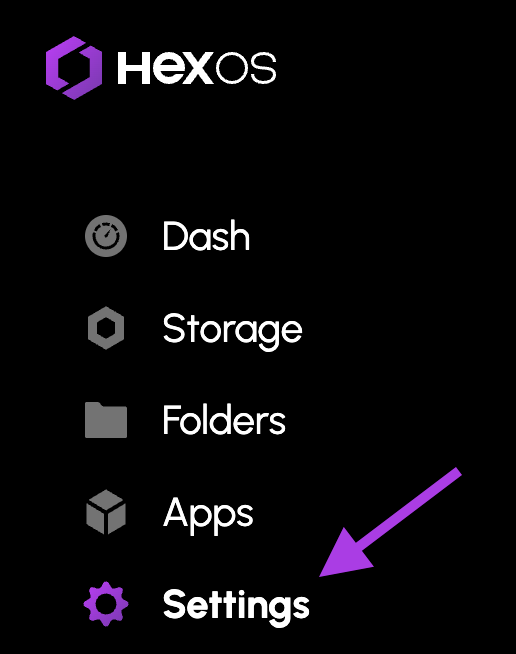
- Navigate to the settings panel by clicking it on the left sidebar
Settings option in sidebar
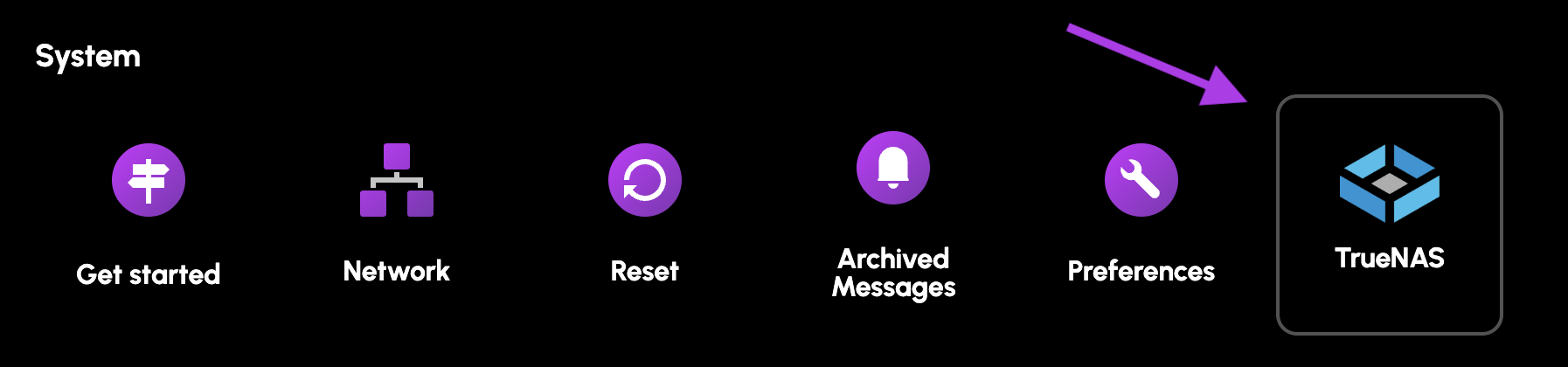
- Click the TrueNAS button
TrueNAS button in settings
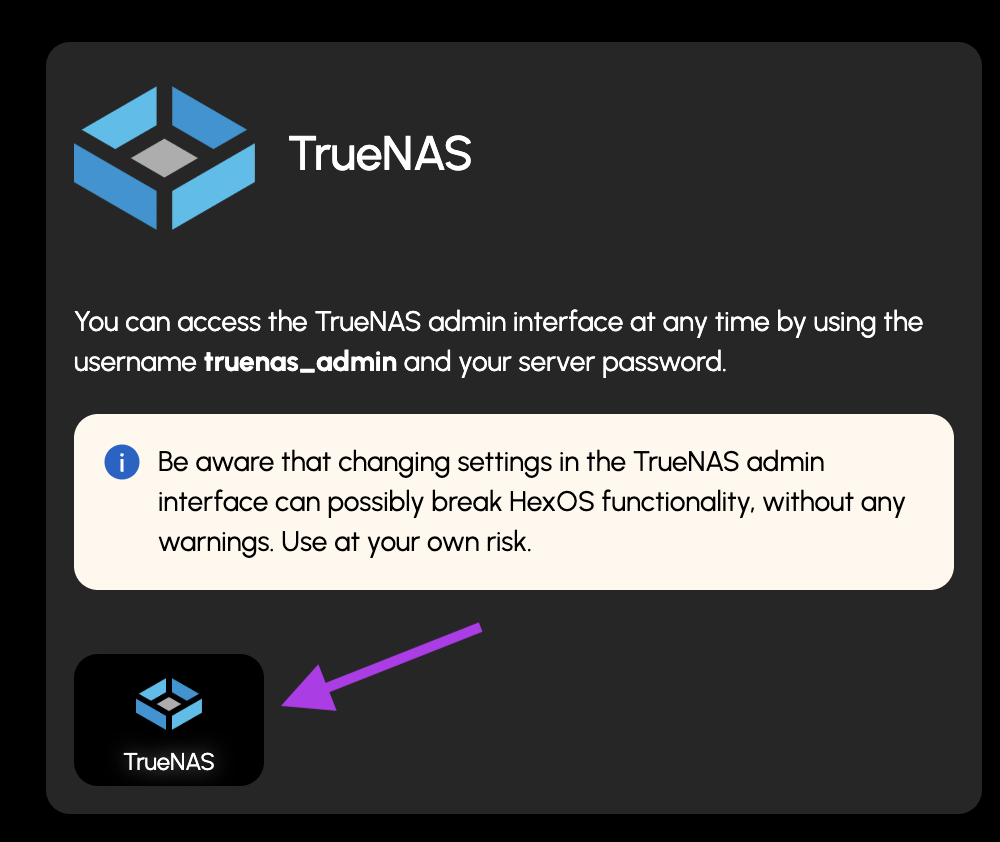
- Click the new TrueNAS button
TrueNAS launch button
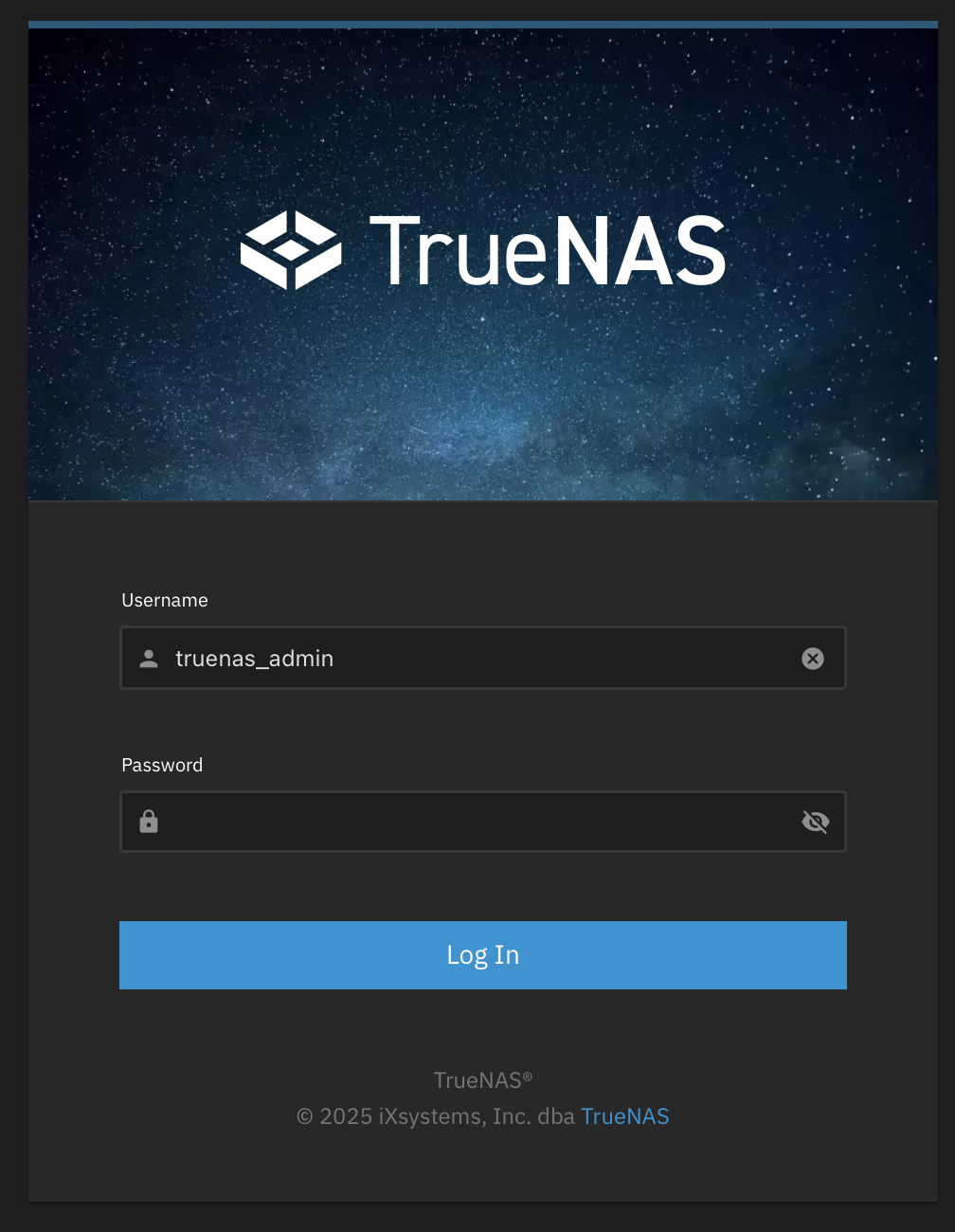
- Log in
- The username will be
truenas_admin - The password will be what you selected when first installing HexOS
- The username will be
TrueNAS login screen
¶ Updating process
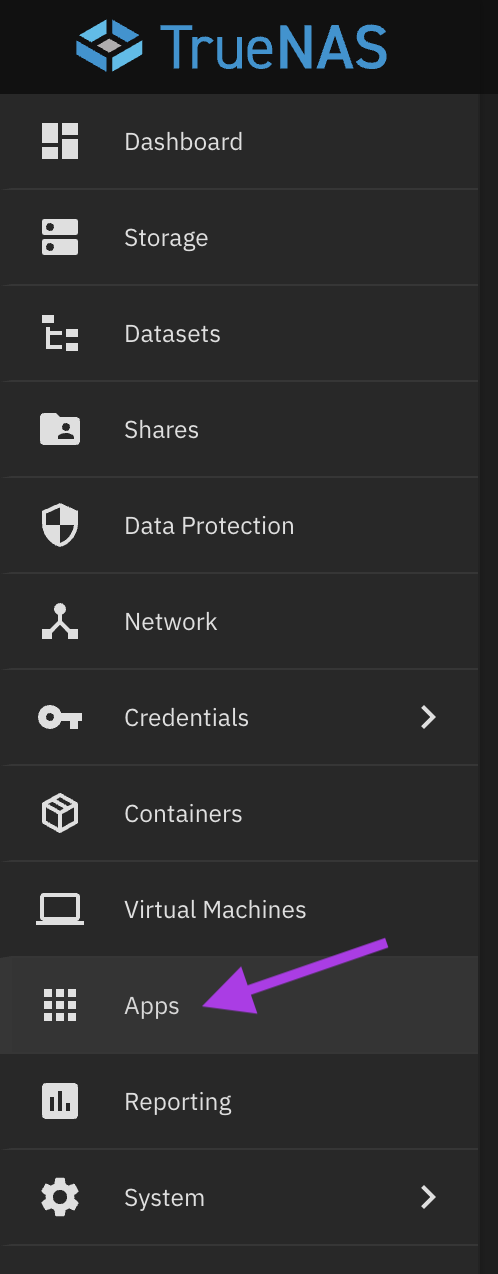
- Navigate to the Apps tab
Apps tab in sidebar
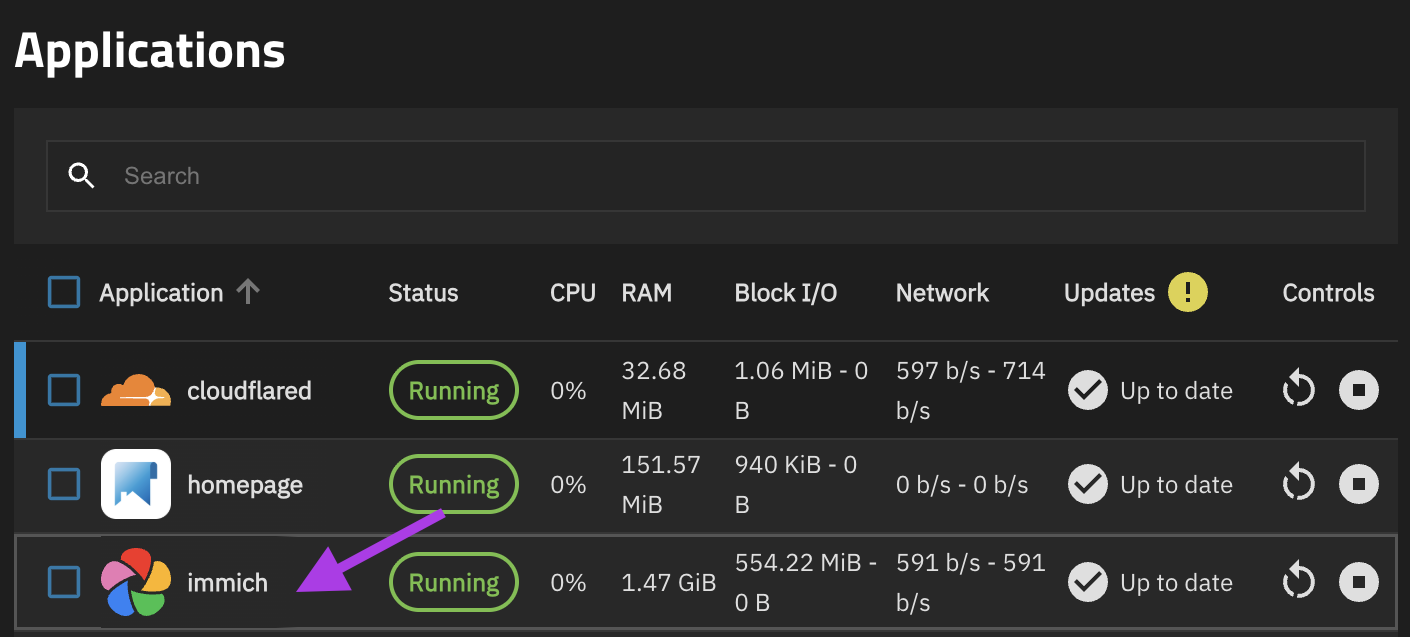
- Click on the Immich line
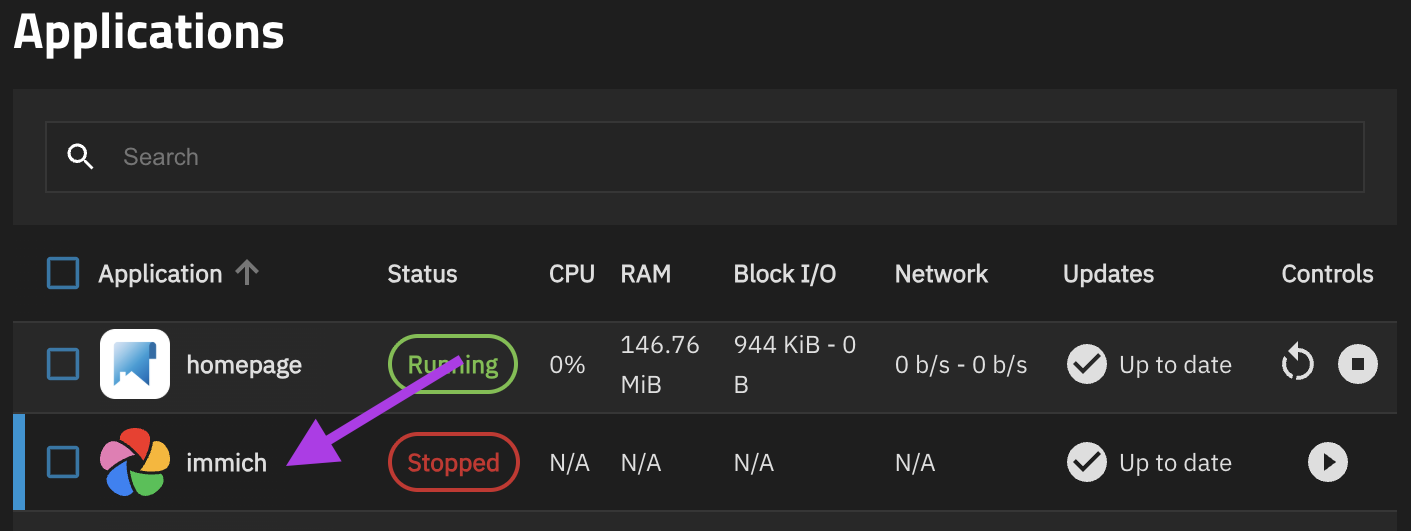
Immich app in list
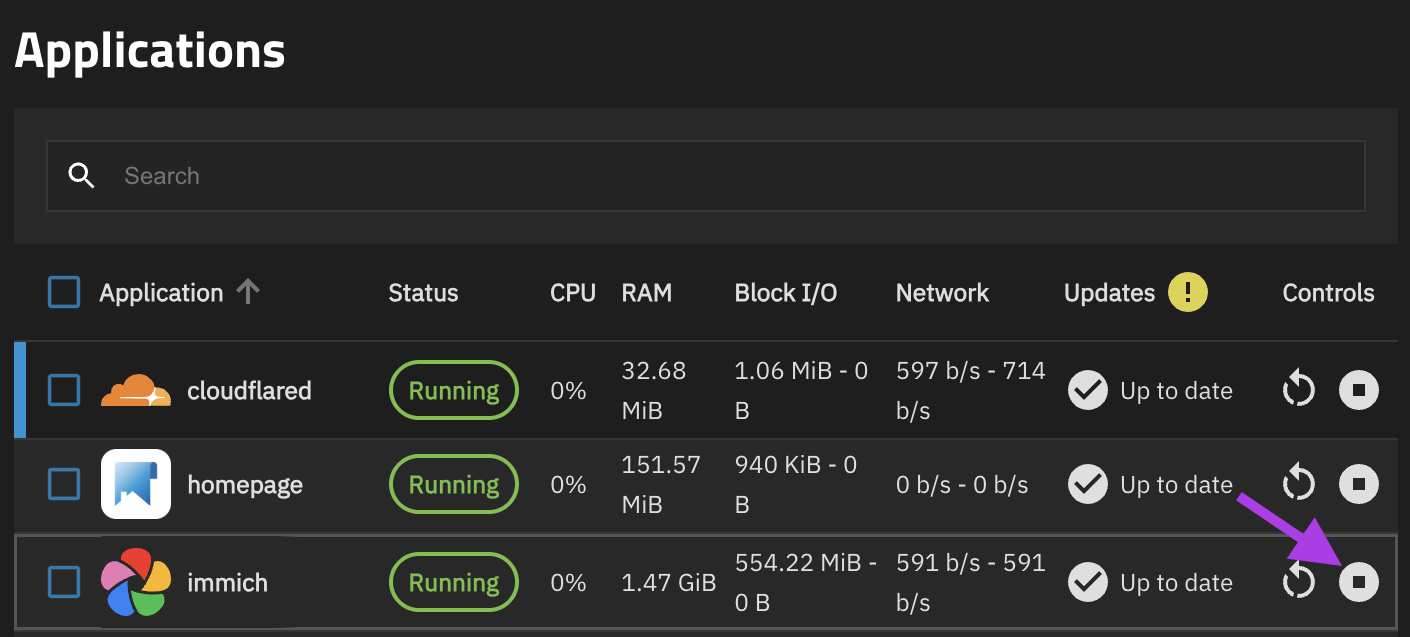
- Stop Immich
Stop button for Immich
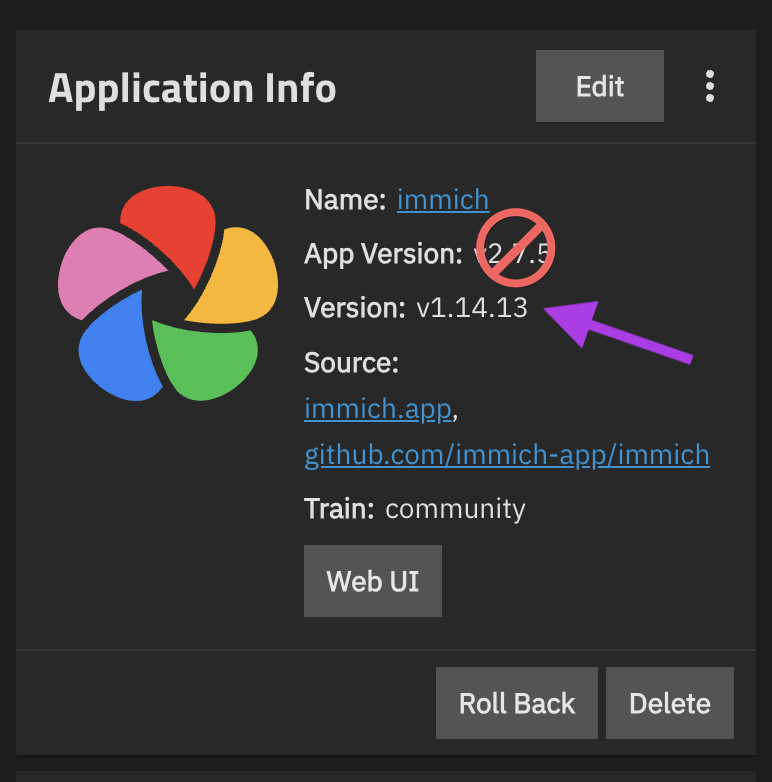
- Determine the Immich version on the Application Info card
Info: Not to be confused with App Version
Immich version on info card
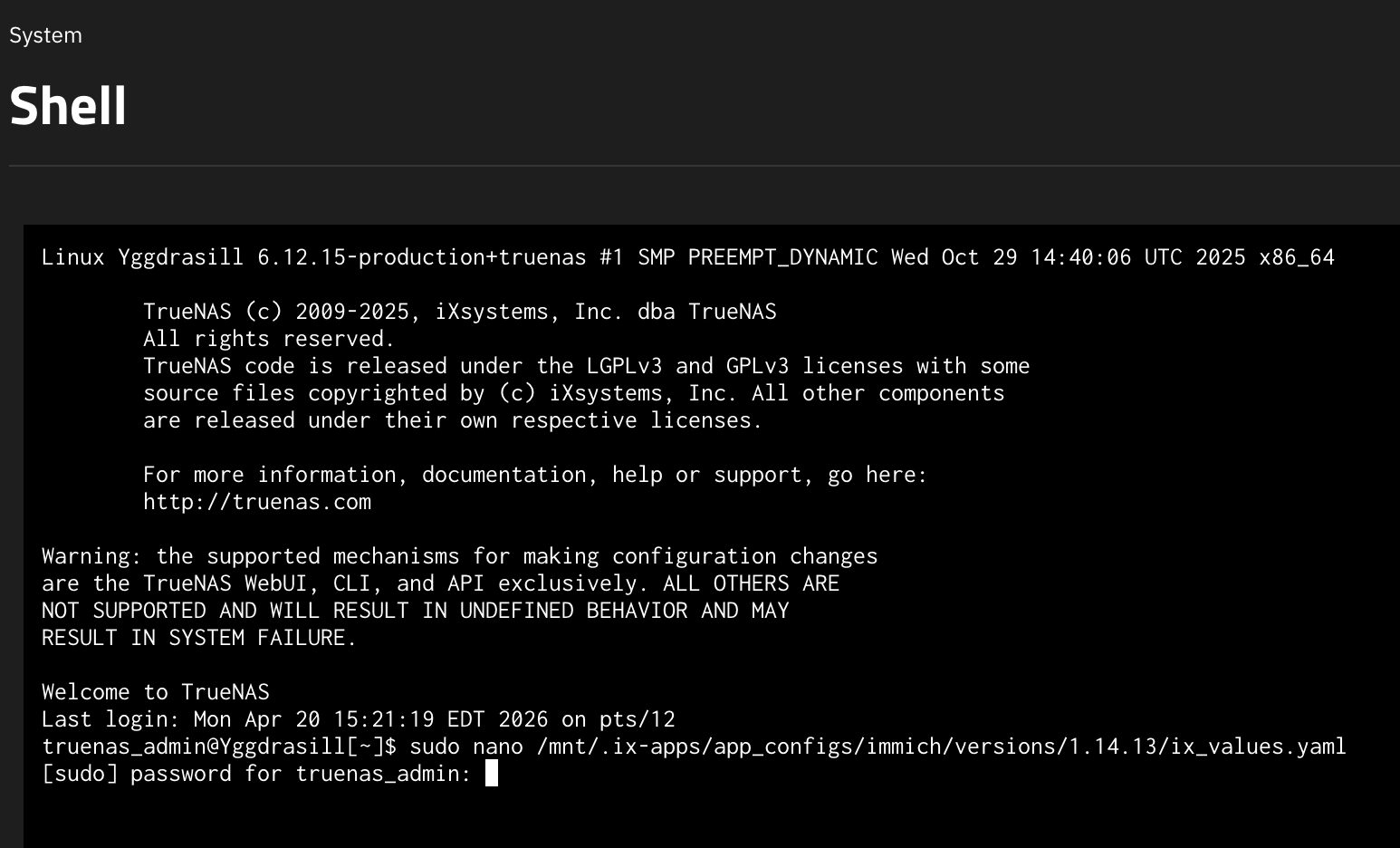
- Modify the following command to include your Immich version
sudo nano /mnt/.ix-apps/app_configs/immich/versions/<insert_your_immich_version>/ix_values.yaml
In this example the command would be
sudo nano /mnt/.ix-apps/app_configs/immich/versions/1.14.13/ix_values.yaml
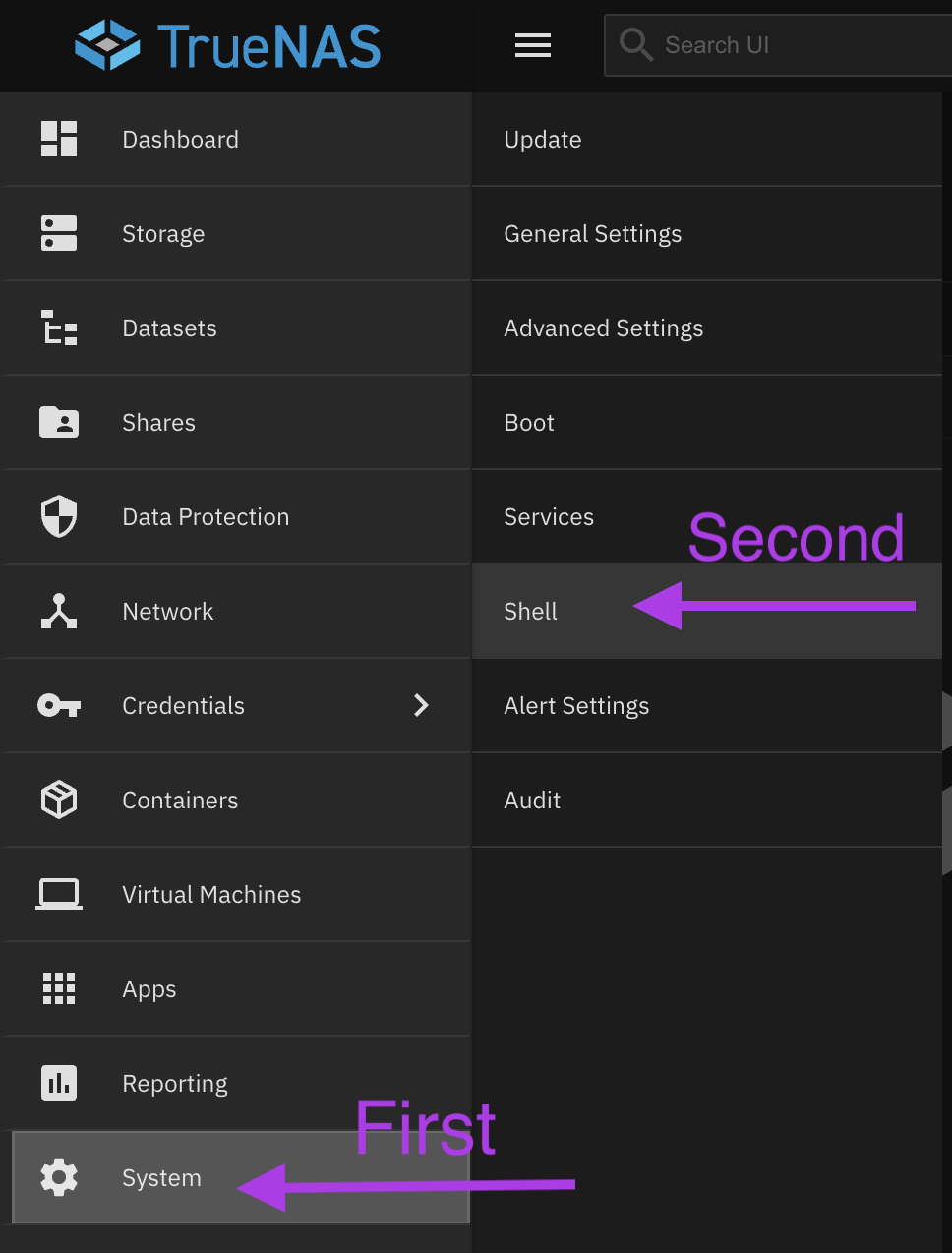
- Navigate to the System tab and then click Shell
Shell option under System tab
- Paste the command created in step 5 and press enter
Tip: To paste things in shell you need to press
Shift + Enter
- You will be asked to enter your password.
- This is the same password used to log in to TrueNAS
- There will be no input shown on screen as a security feature
- When you finish entering your password you can press enter
Shell password prompt
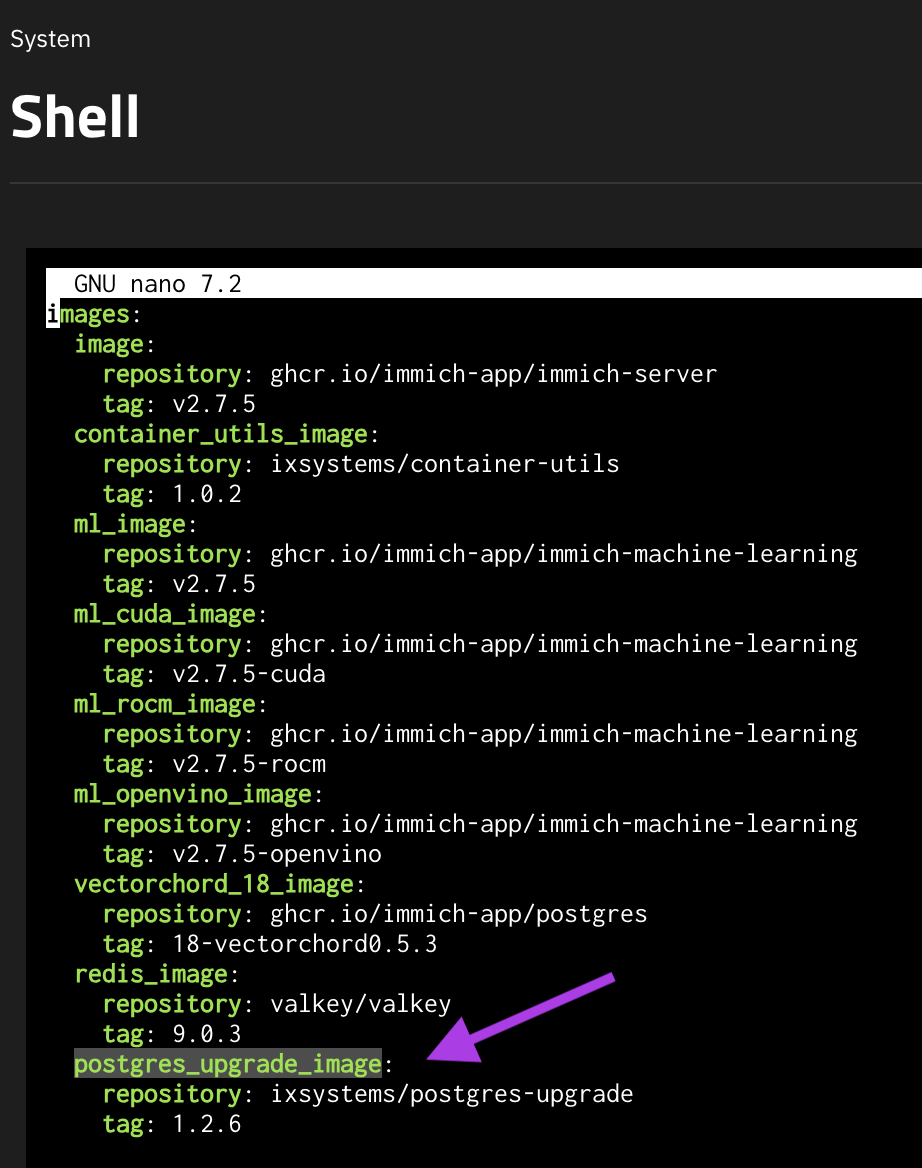
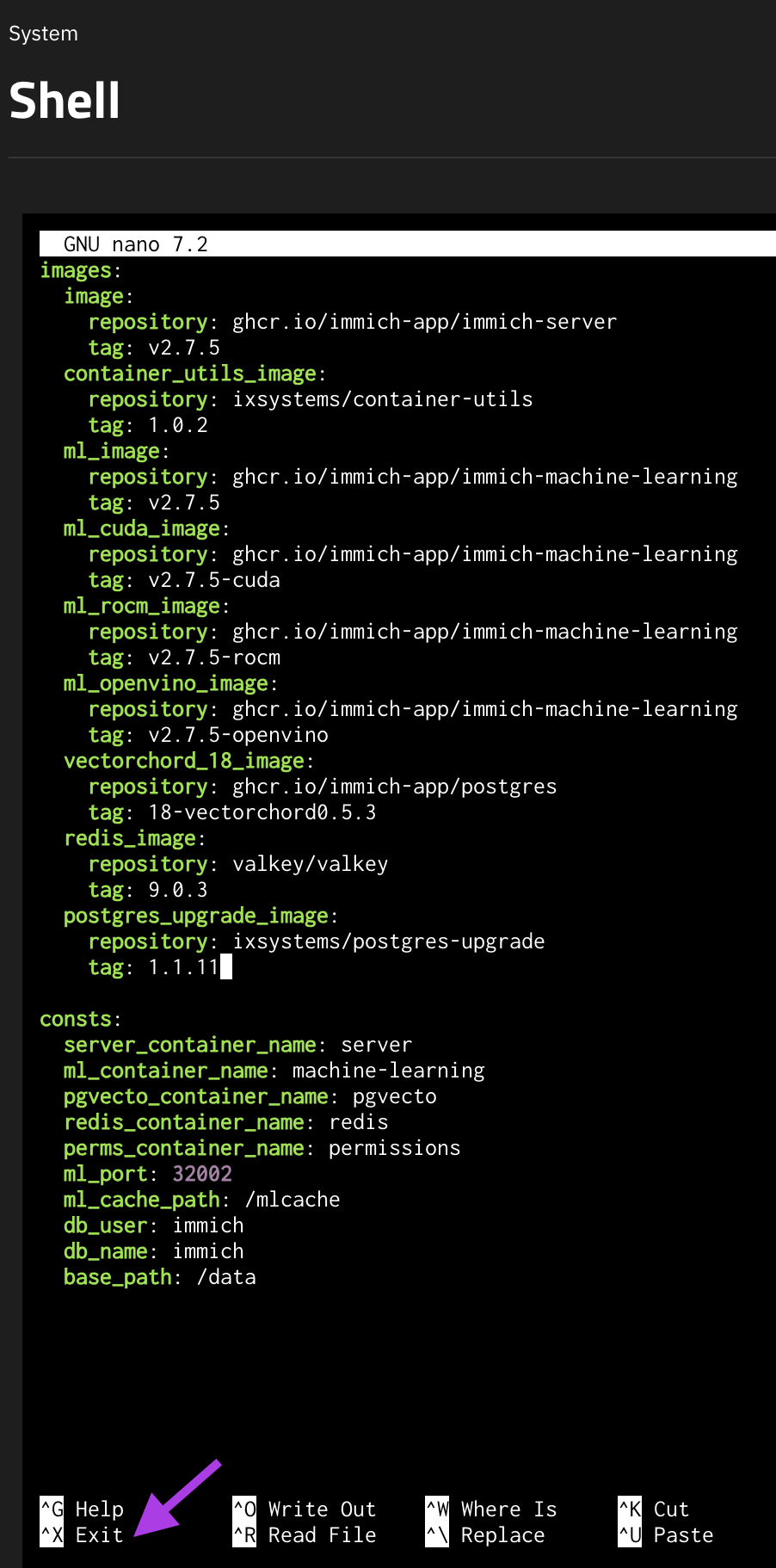
- Use your arrow keys to scroll down to the
postgres_update_imagesection
Postgres update image section
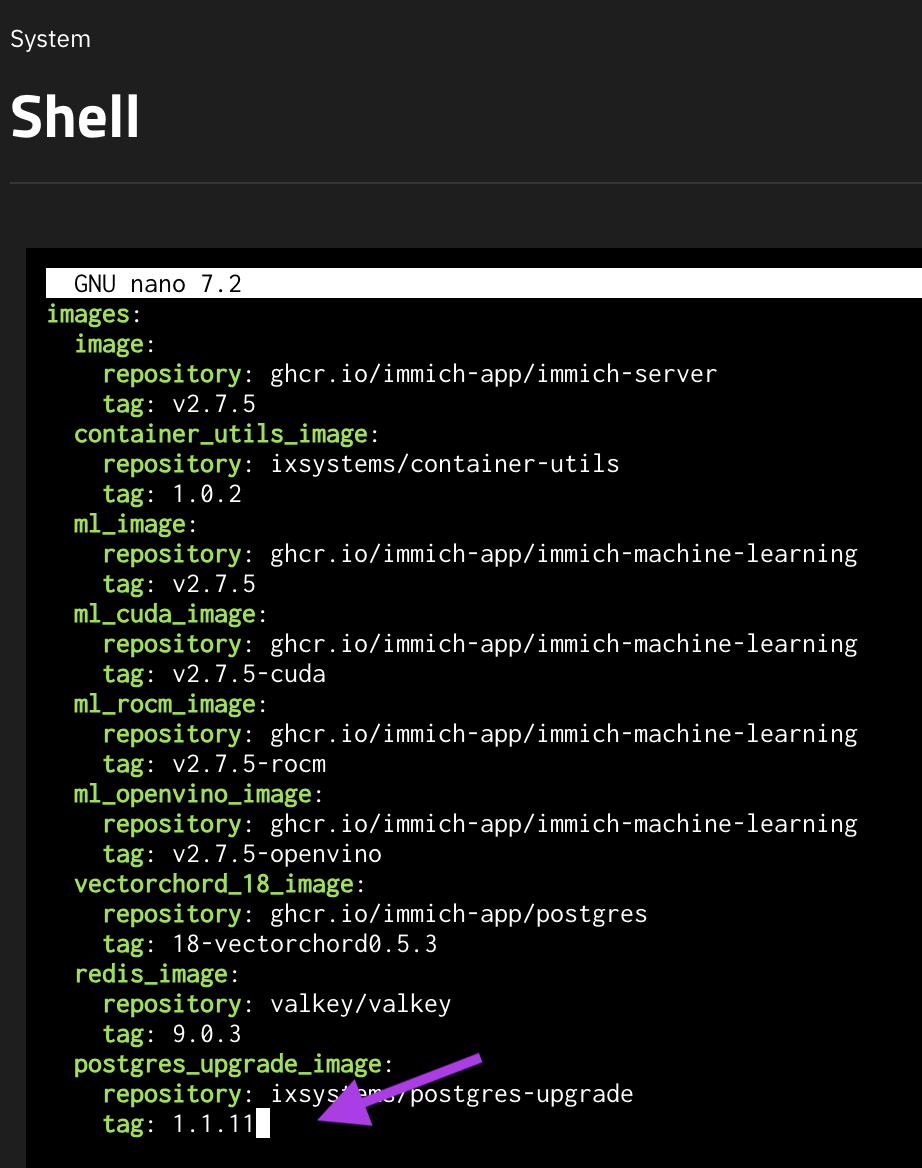
- Change the
tagto1.1.11
Editing the image tag
-
Save the changes
- Press
Control + Xto exit
- Press
Nano exit prompt
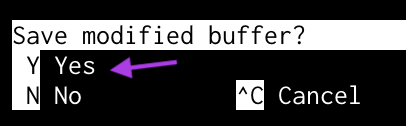
2) Press `Y` to save
Nano save confirmation
3) Press `Enter` to save the file name
Nano file name prompt

- Return to the Apps tab
Apps tab in sidebar
- Click on the Immich line
Immich app in list
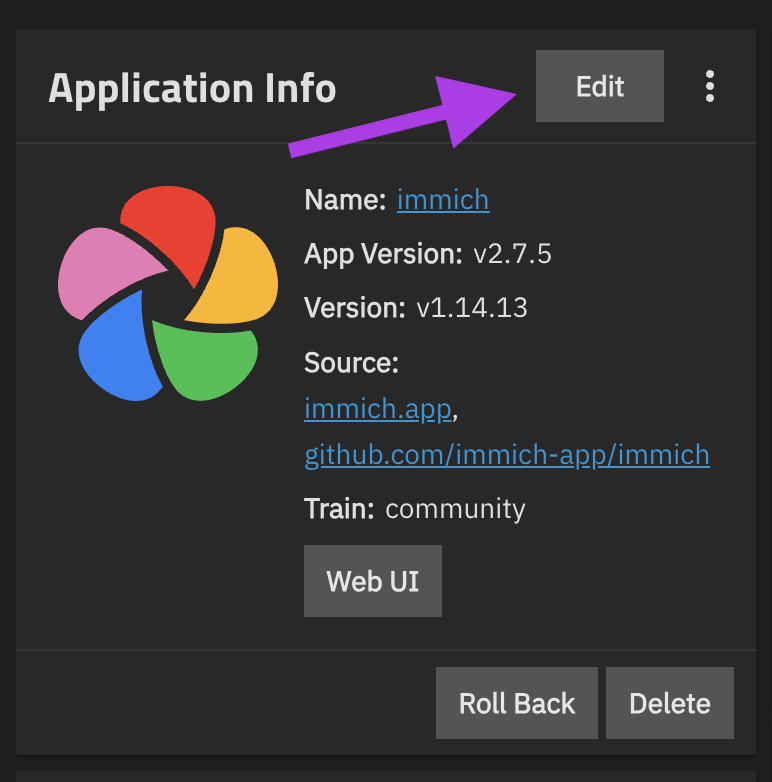
- On the Application Info card click Edit
Edit button on info card
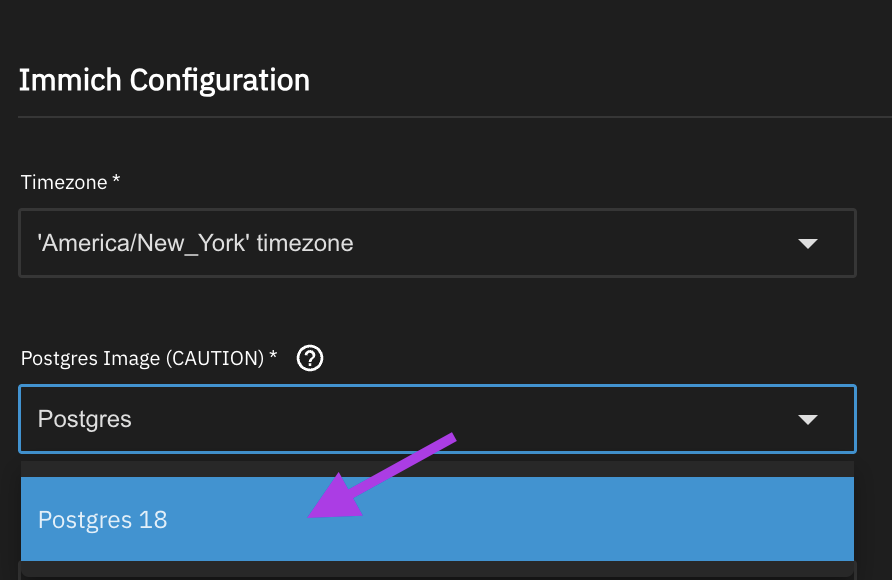
- Edit the Postgres Image (CAUTION) line to Postgres 18
Postgres image selection
- Scroll all the way down and click the Update button
- Start the Immich app
Start button for Immich
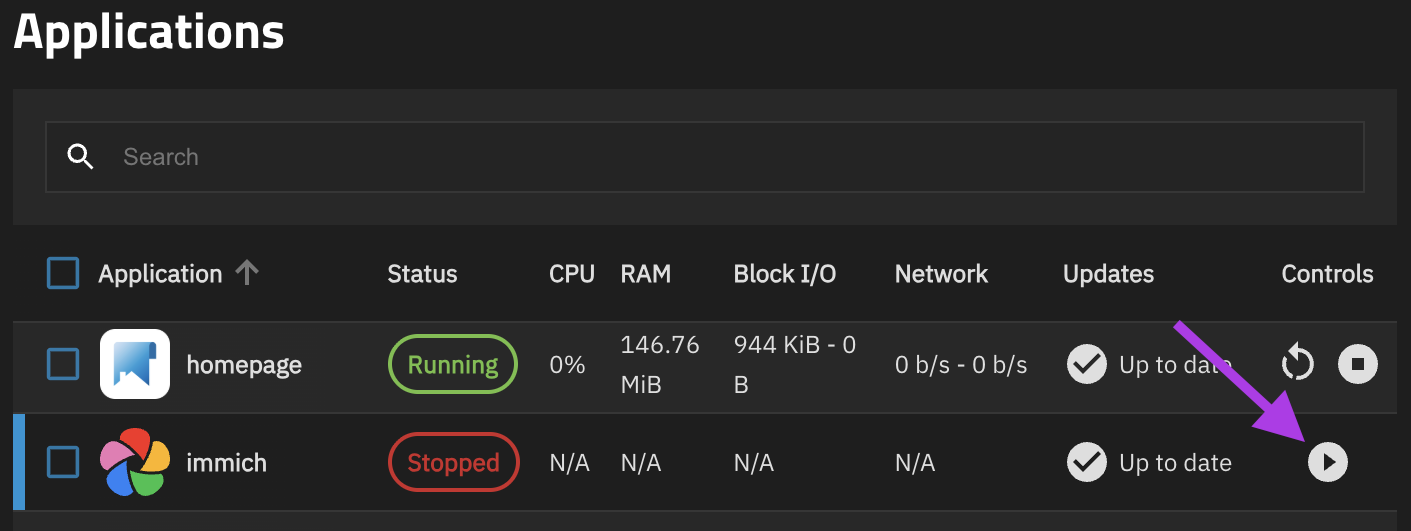
Info: Starting Immich will take longer than usual this time.
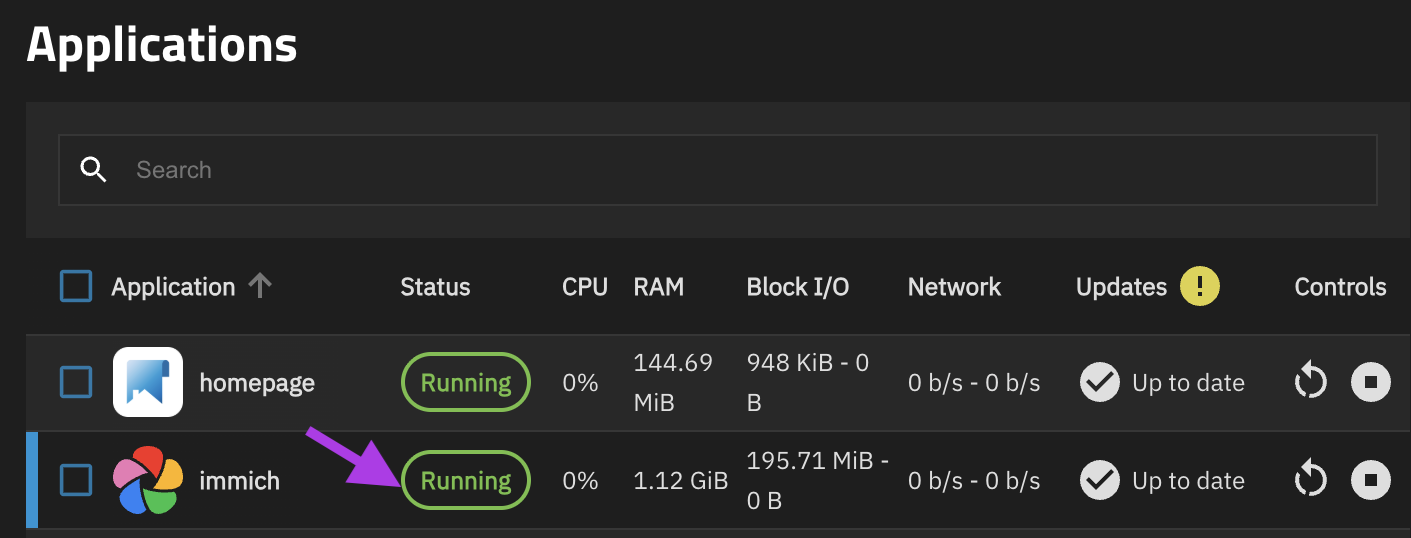
- Once Immich has the Running status, open the web UI and make sure Immich is functioning normally
Immich running status
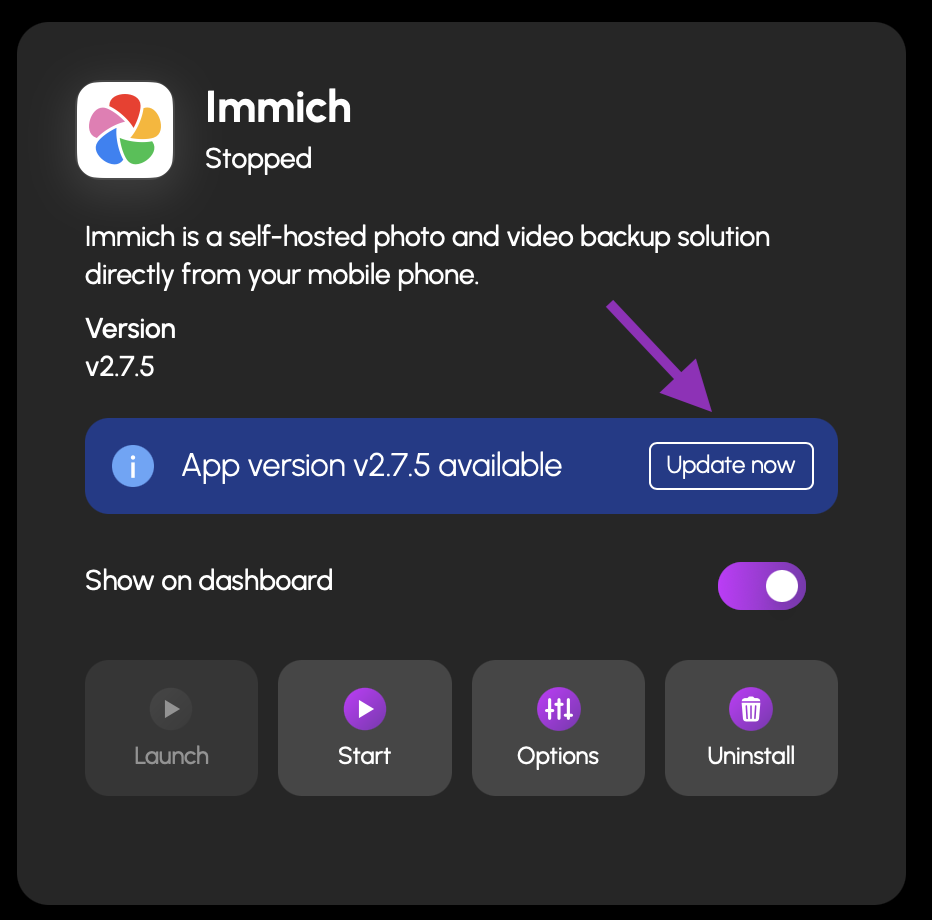
19) Update the Immich app in HexOS
Update button in HexOS deck
¶ If you still can't update Immich
If you are still having trouble updating Immich please reach out to [email protected]
¶ Community credits
sunny_raven - Created the original guide in the HexOS forums
BruteNas - Provided the instructions for saving files in shell
Also a big thank you to everyone that contributed on GitHub to find a solution
Contribute: to help to improve HexOS documentation join the #Docs channel on Discord today! Send feedback, suggestions or contribute a guide.