¶ Files that can't be read on a pool
Sometimes HexOS tells you that some files on a storage pool can't be read. This page explains why that happens, what HexOS shows you, and what to do. Often the damaged file belongs to TrueNAS, not to you, and HexOS can repair it for you.
¶ Why this happens
Your server stores your files with ZFS. ZFS checks each piece of data every time it reads it. If a piece doesn't match what was written, ZFS knows it is damaged.
- If the pool keeps a second copy of your data (a mirror or RAIDZ pool), ZFS fixes the damaged piece from the other copy. You don't have to do anything.
- If the pool keeps one copy (a single drive, or drives with no redundancy), ZFS has nothing to fix the piece from. It can only report it.
- If both copies are damaged, ZFS can't fix it either.
When ZFS can't fix a piece, the file it belongs to can't be read. HexOS shows you which files.
Damage like this can come from a failing drive. It can also come from a loose cable or a memory fault, even when the drives are healthy.
¶ Where you see it
On the Storage screen, the pool card shows one of these:
- Needs a quick repair when the only damaged files belong to TrueNAS. See A TrueNAS file is damaged.
- 2 files can't be read (with the number of files) when your own files are damaged. See Your files can't be read.
- Data errors when HexOS couldn't read the list, or the damaged files were already deleted. See Check pool.
Pool card that needs a quick repair
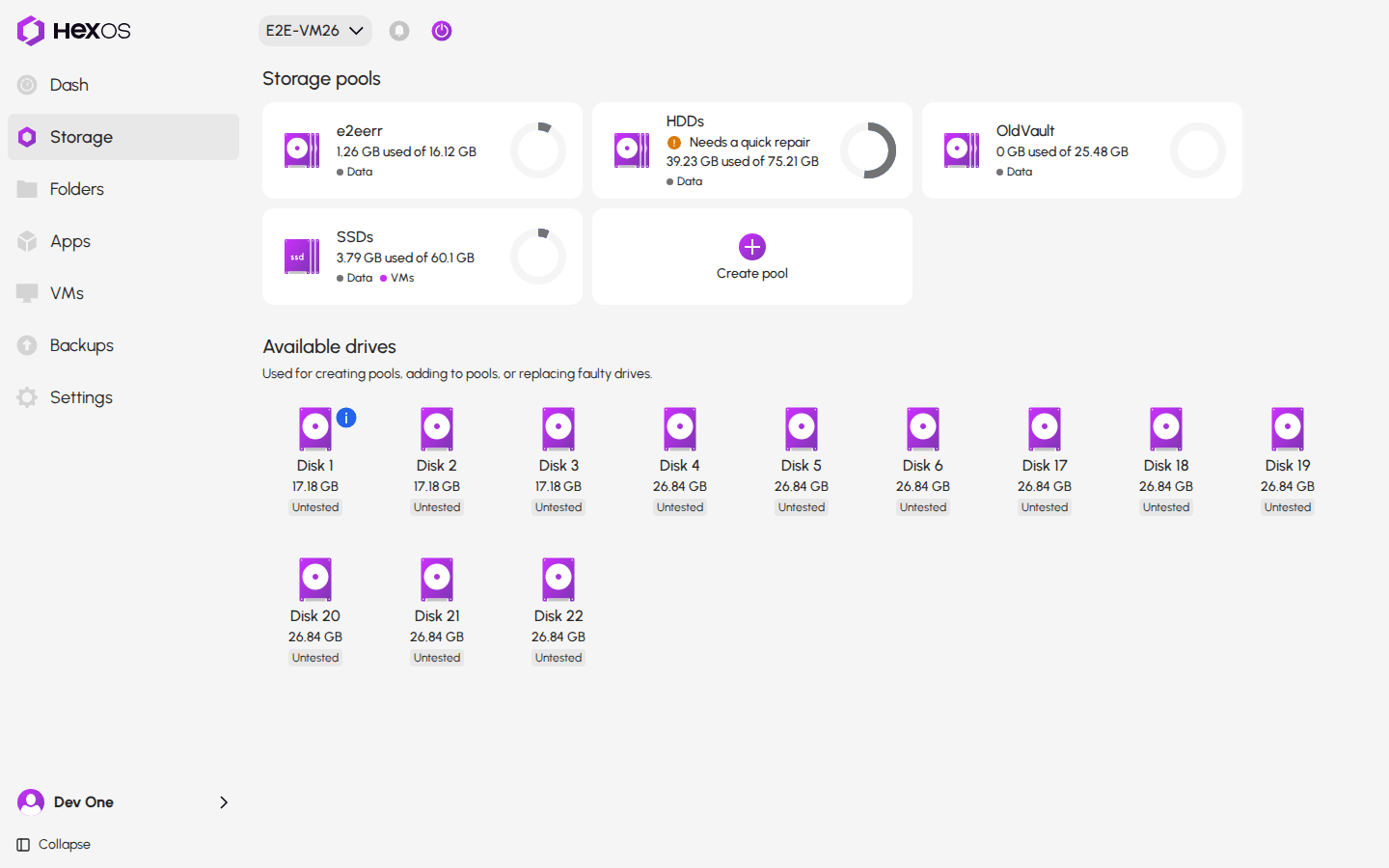
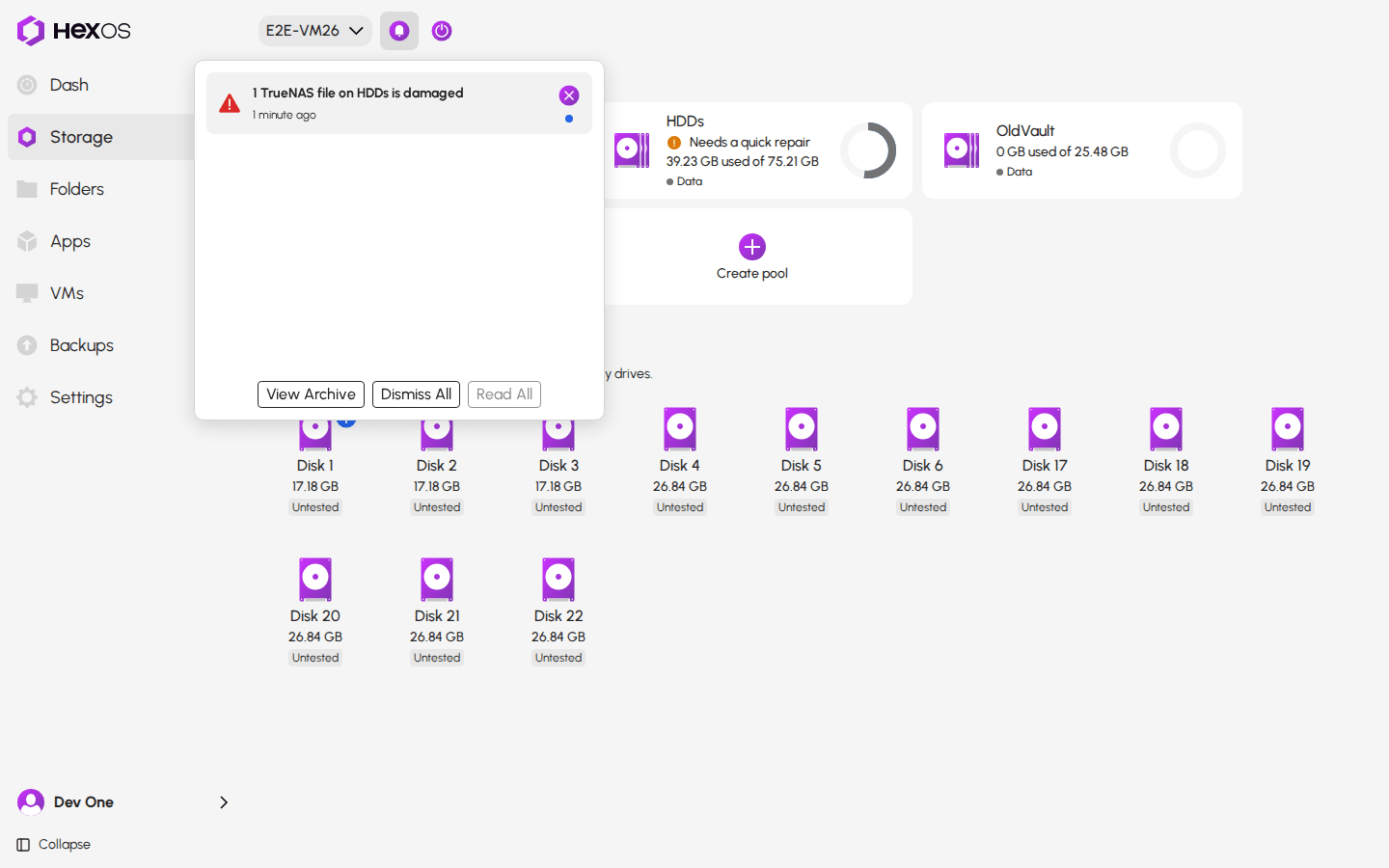
HexOS also adds a card to the Activity Center and can send you an email. Click the pool card to open the pool's info panel. Everything on this page happens there.
Activity Center card for a damaged TrueNAS file
¶ A TrueNAS file is damaged
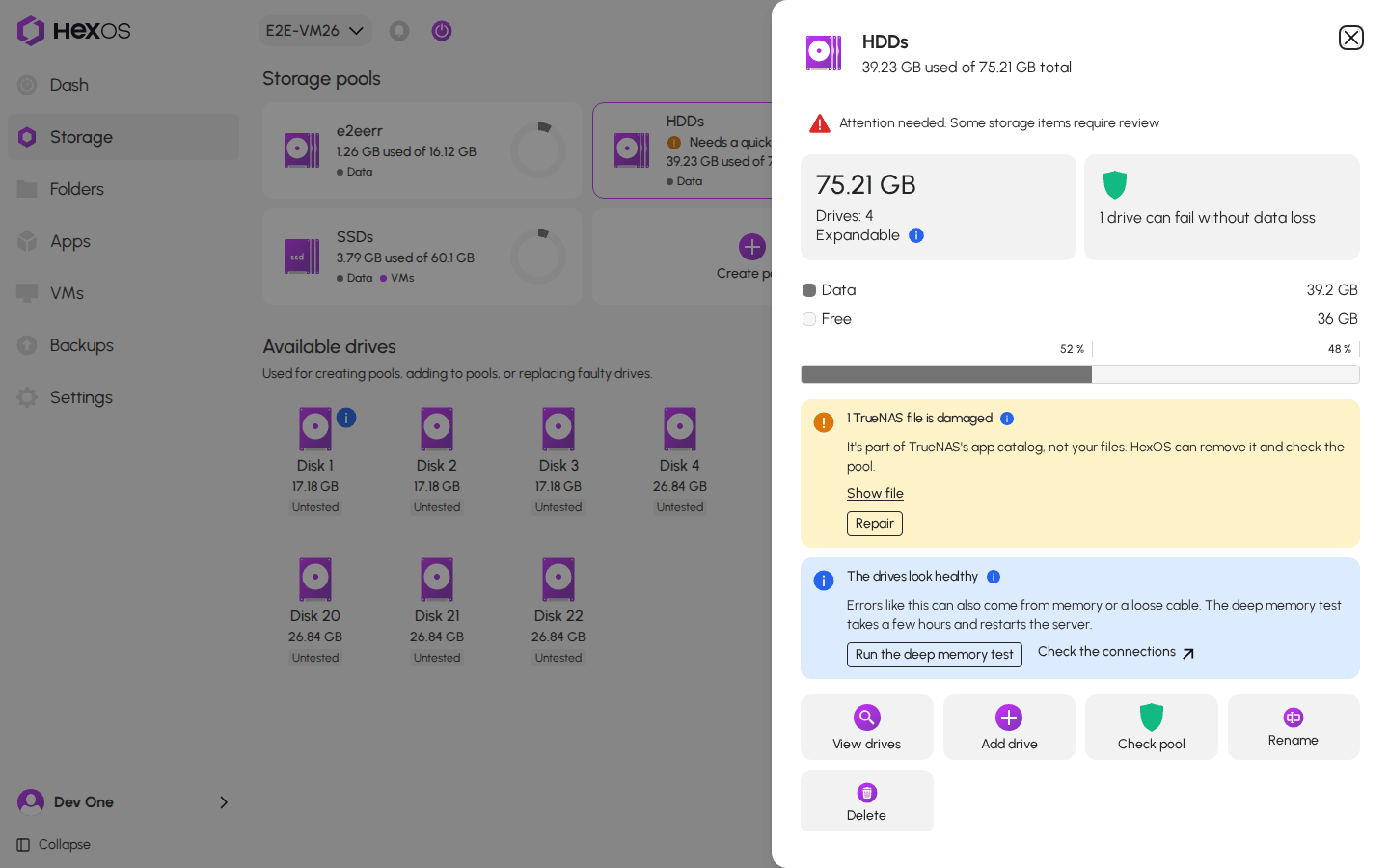
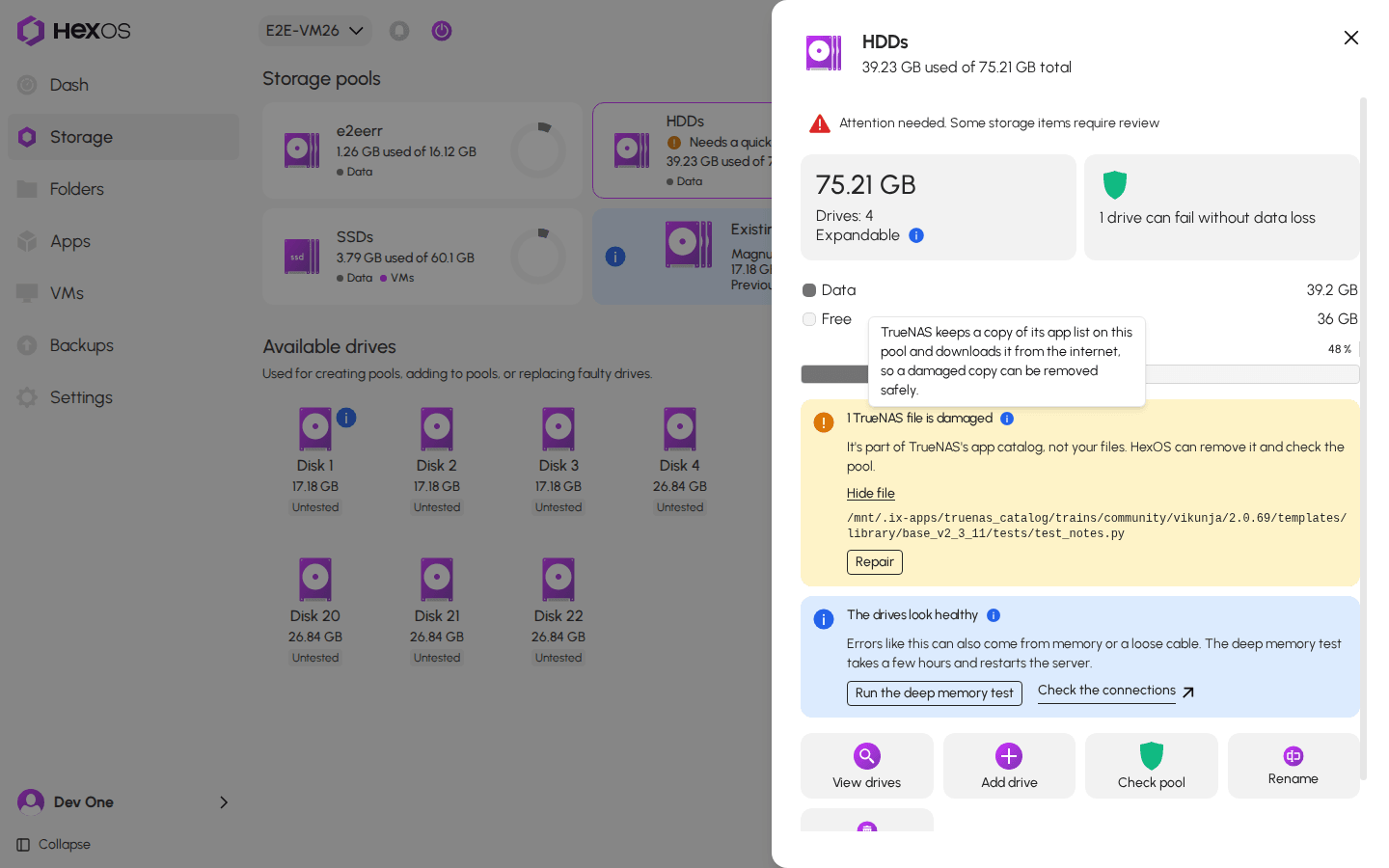
TrueNAS keeps a copy of its app catalog on one of your pools. The app catalog is the list of apps TrueNAS can install, and TrueNAS downloads it from the internet. Your installed apps run from their own copies, not from the catalog. So a damaged catalog file is not one of your files, and HexOS can remove it safely.
When every damaged file is part of the TrueNAS app catalog, the pool's info panel shows a yellow message: 1 TrueNAS file is damaged.
1 TrueNAS file is damaged
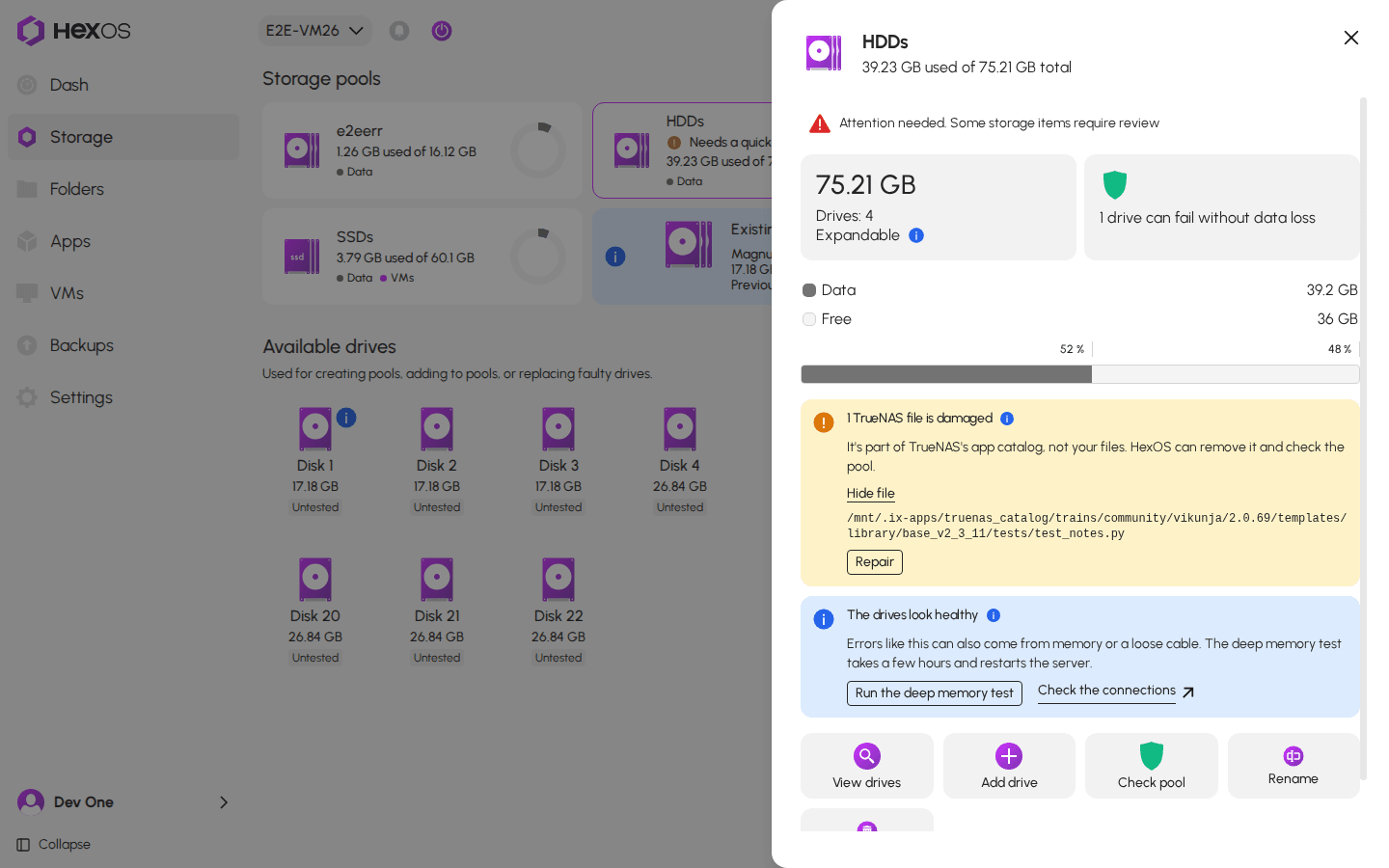
Click Show file to see which file it is. Hover over the info icon next to the title to read why it is safe to remove.
The damaged file, shown
Why it is safe to remove
¶ Repair the pool
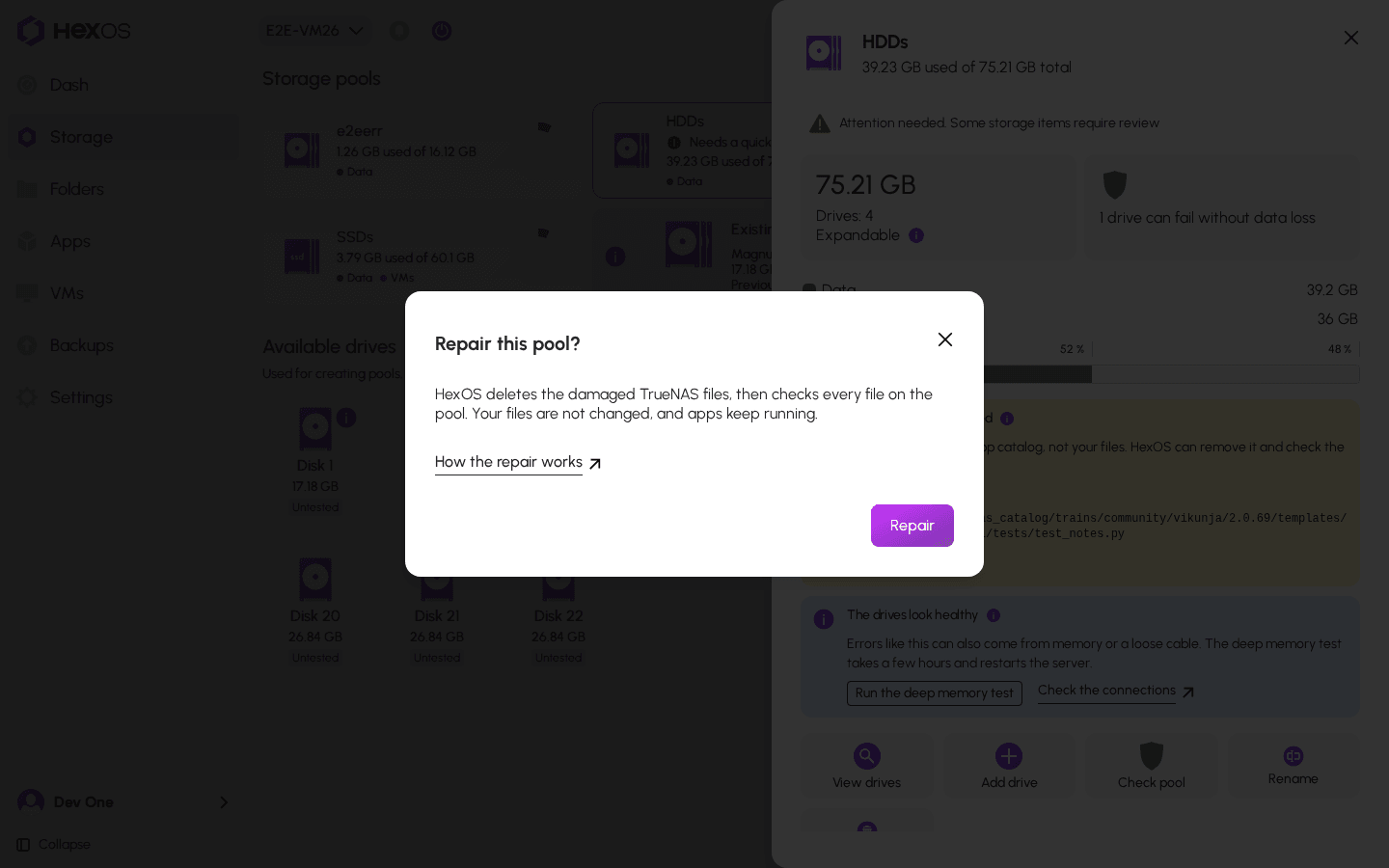
- Click Repair.
- Read the dialog, Repair this pool?, then click Repair.
Repair this pool?
HexOS says Repairing this pool. Its progress is in Activity. The info panel shows two steps: Remove the damaged TrueNAS files, then Check the pool, with how far the check has got.
Repairing this pool
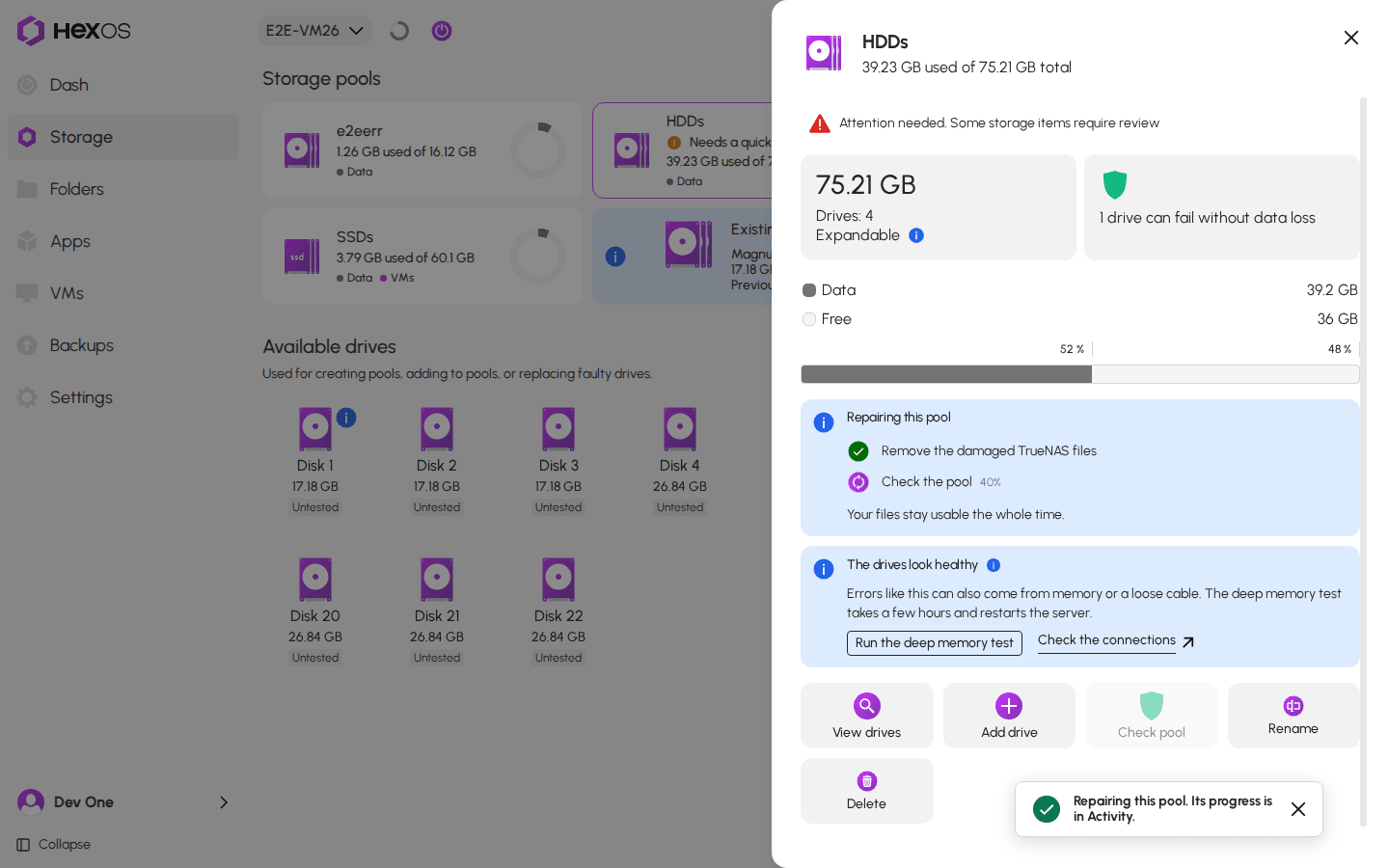
Your files stay usable the whole time, and your apps keep running. You can close the panel. The Activity Center shows the repair as Repairing pool.
The repair in the Activity Center
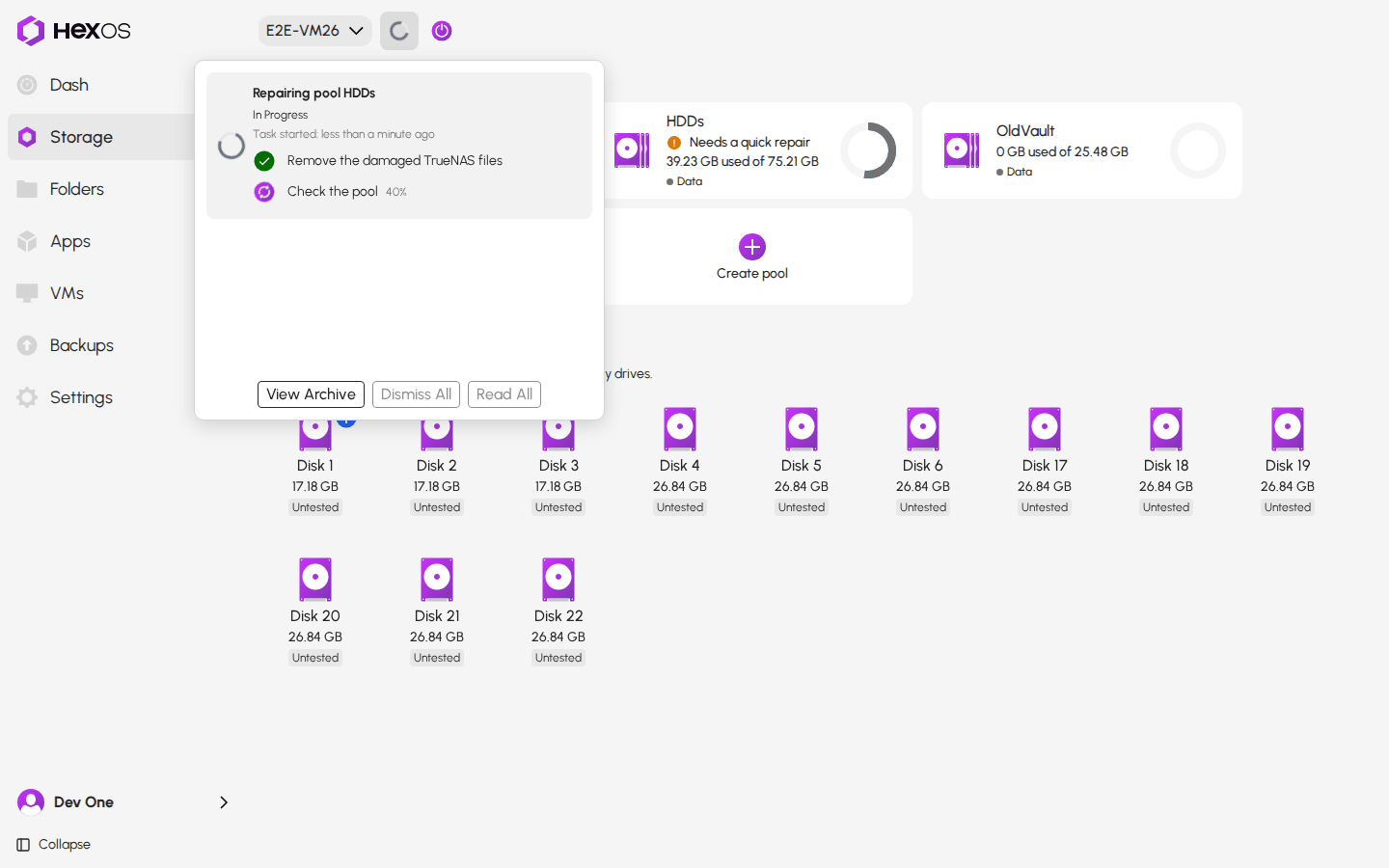
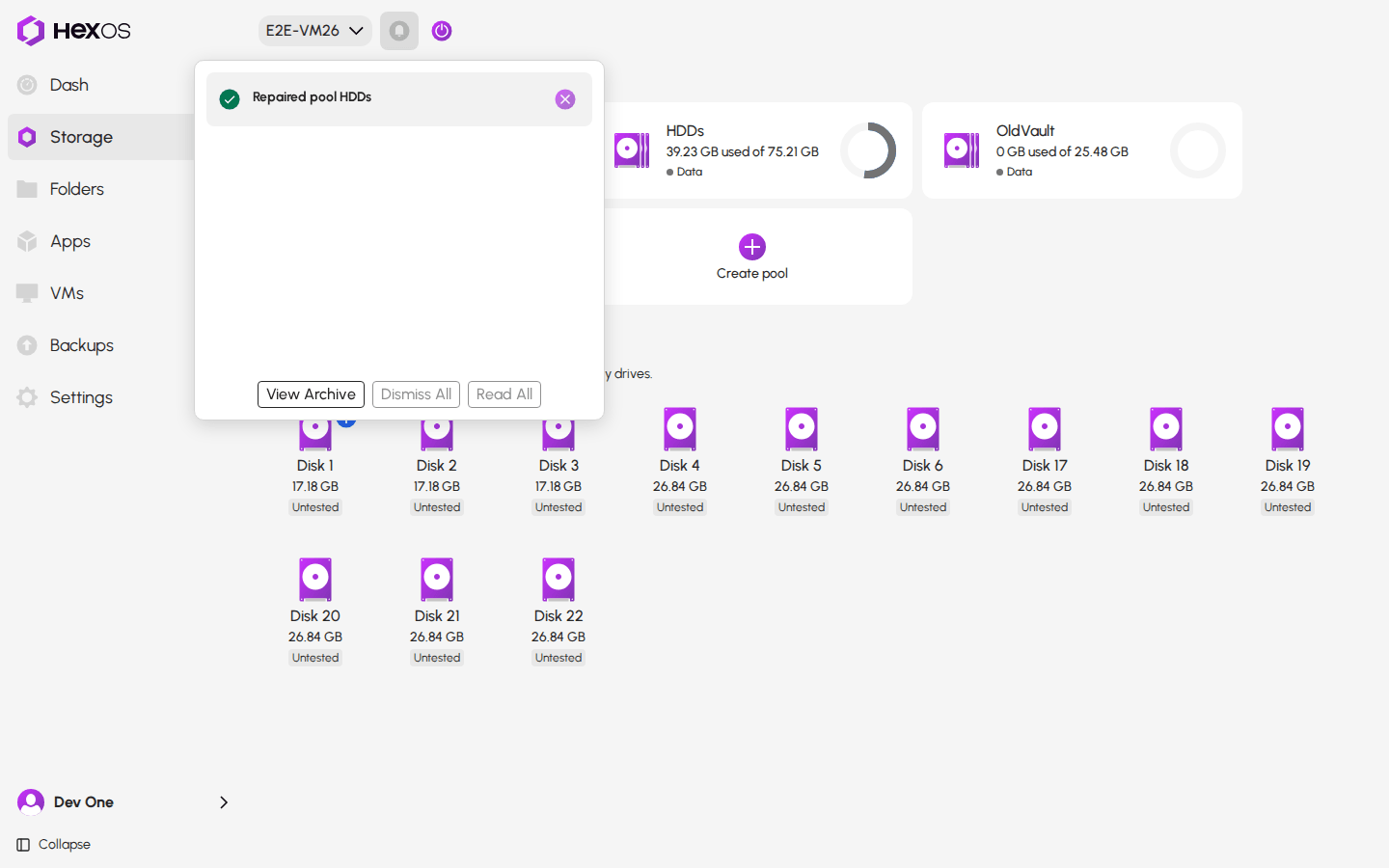
The check reads every file on the pool, so on a large pool it can take hours. When it finishes with no errors, the Activity Center shows Repaired pool, and the yellow message is gone.
Repaired pool
¶ What the repair does and doesn't do
- It removes only the TrueNAS catalog files that ZFS lists as damaged. Just before it removes anything, HexOS reads the list again on the server.
- It never removes your files. If any of your own files is on the list, HexOS doesn't offer Repair, and stops if the list changed since you clicked.
- It checks every file before it removes any. If a file isn't where HexOS expects it, HexOS stops and says so in the Activity Center. It never touches your files.
- After removing the files, it checks the whole pool. This is the same check as Check pool.
- It doesn't reset the pool's error count. See Reset error count.
¶ If the repair fails
The Activity Center shows Failed to repair pool, the step that stopped, and the reason. For example: The pool check found errors, so HexOS kept the error count. This can point to a hardware problem.
Failed to repair pool
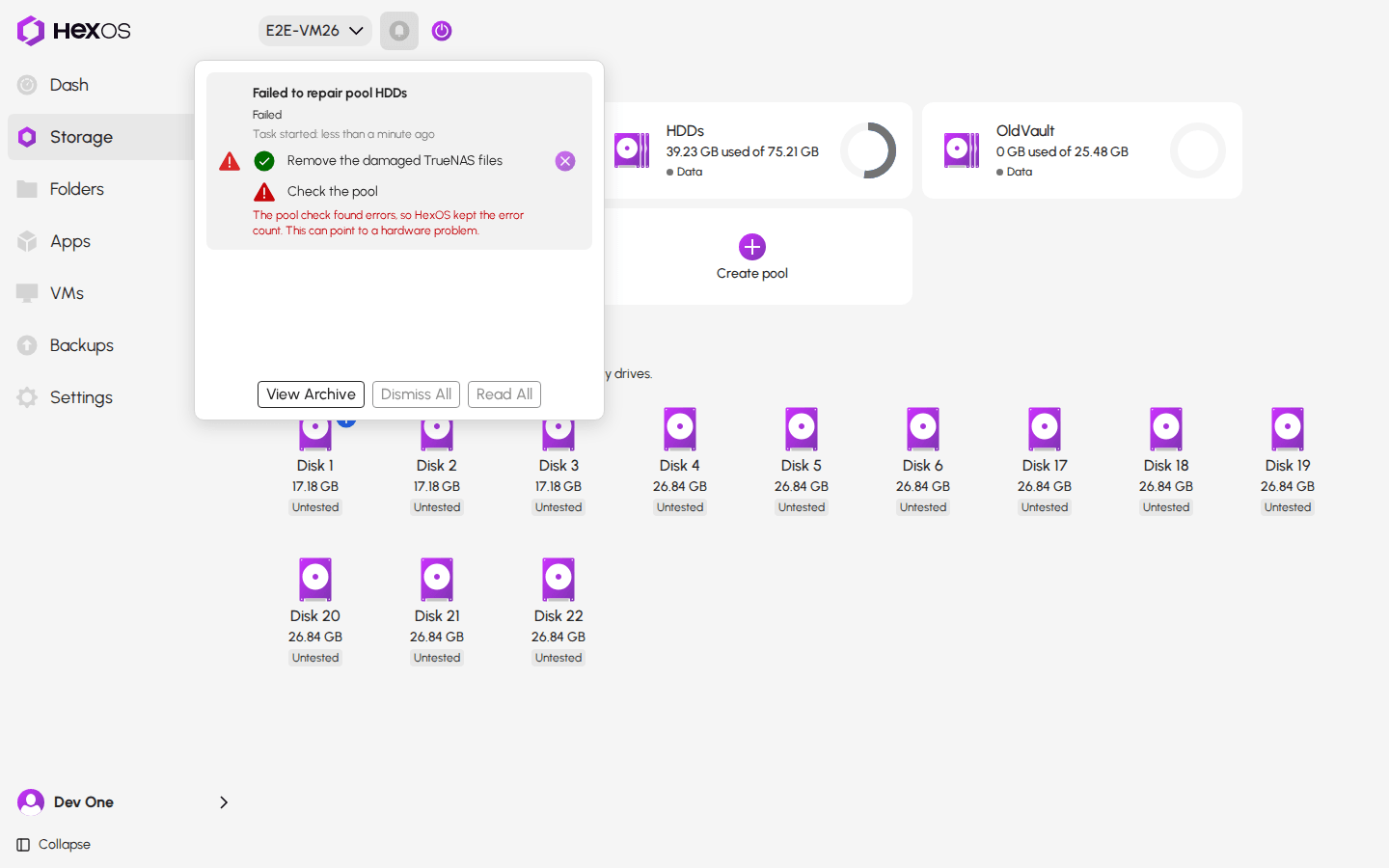
If the check found errors, see If the damage comes back.
¶ Your files can't be read
When some of your own files are damaged, the pool's info panel shows a red message, for example 2 files can't be read, with the list of files.
2 files can't be read
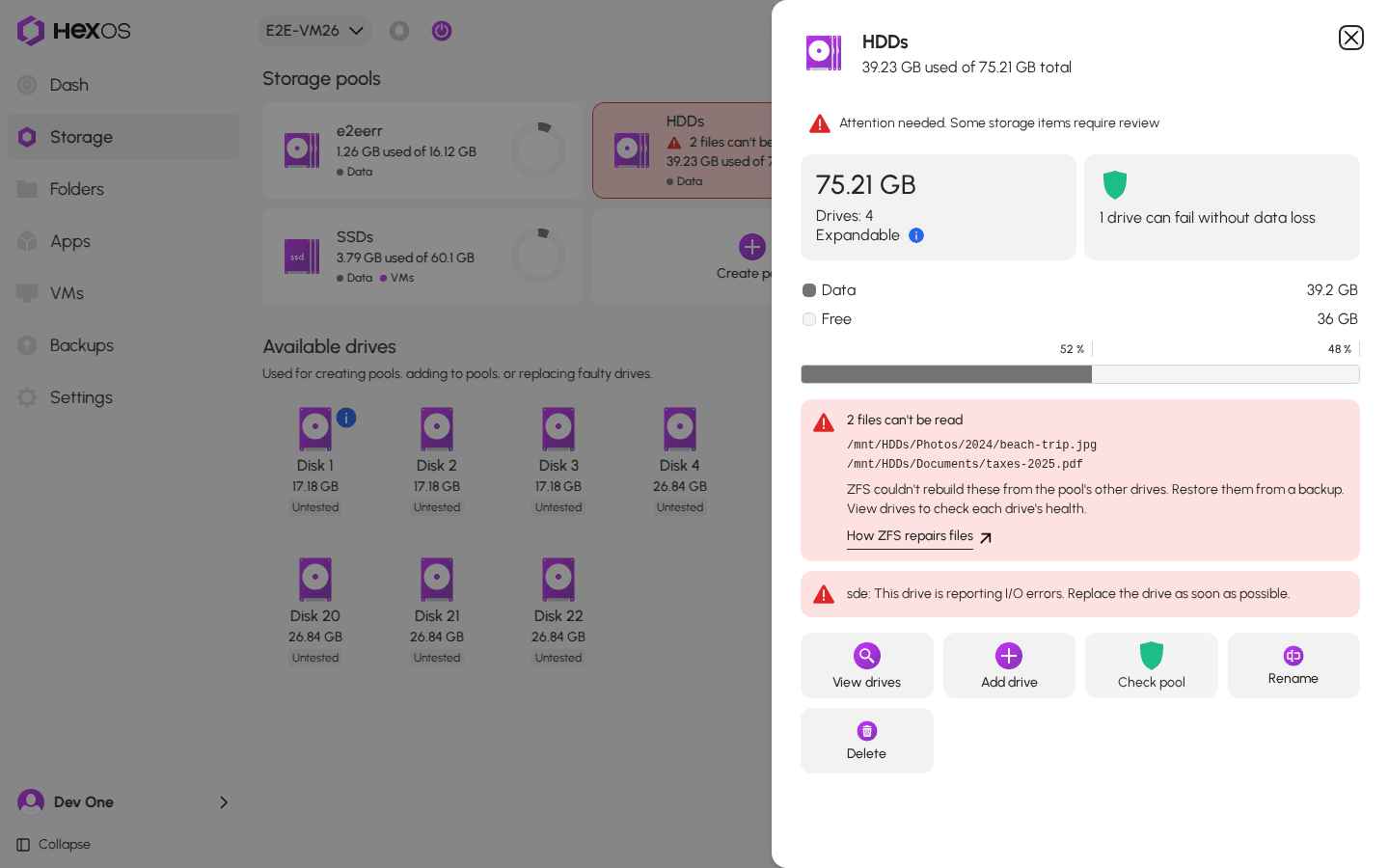
HexOS can't repair your own files. Here is what to do:
- Restore each listed file from a backup, if you have one. Click View drives to check each drive's health.
- If you don't need a file, you can delete it instead. Open the folder from your computer and delete the file there.
- Click Check pool. When the check finishes, the message lists only the files that are still damaged.
Tip: If the list then names a snapshot (a name with @ in it), the damaged file is also kept in that snapshot. Ask in the HexOS Discord Community before you delete any snapshot.
Warning: Restore a copy from before the damage happened. A backup made after it may be missing the file.
¶ A pool with one copy
If the pool keeps only one copy of its data, the message usually says so: This pool keeps one copy of its data, so there's nothing to repair these from. The drive may still be healthy. Hover over the info icon after the message to read why.
A pool with one copy
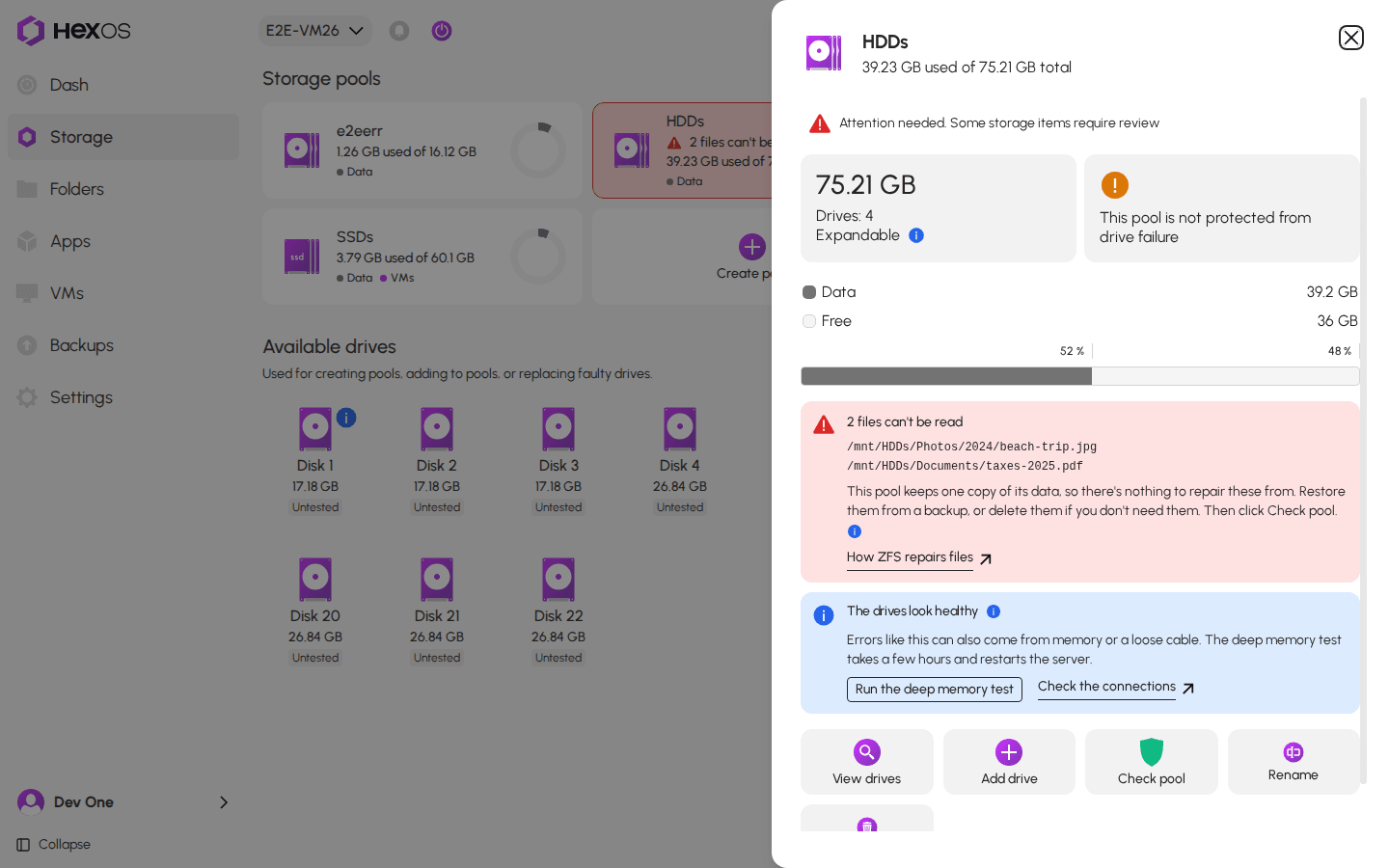
How ZFS repairs files
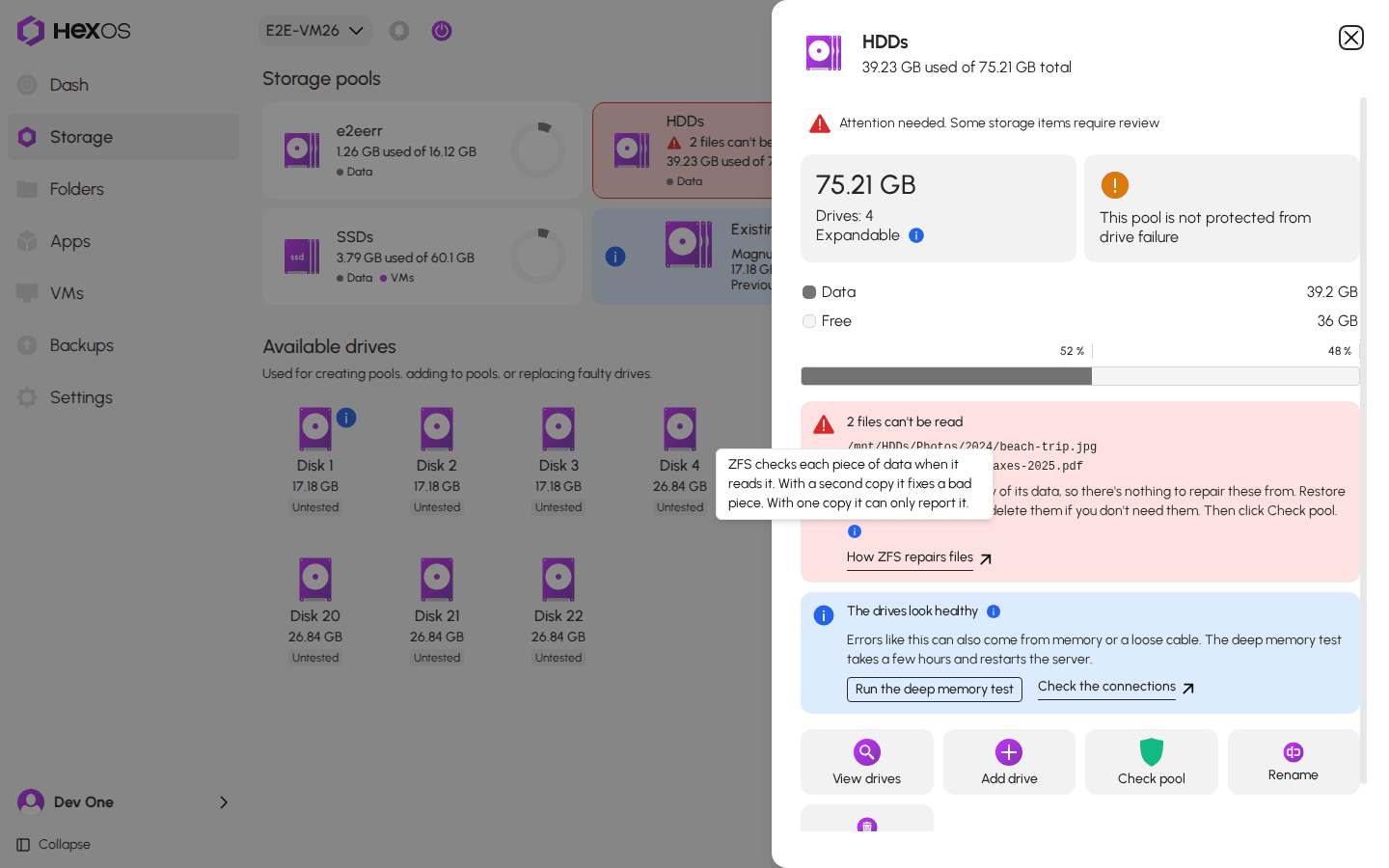
Tip: A second drive in a mirror lets ZFS fix damage like this on its own. Keep a backup of anything you can't replace either way.
¶ Your files and TrueNAS files together
When the list has your files and TrueNAS files together, HexOS shows the red message and doesn't offer Repair.
Your files and a TrueNAS file together
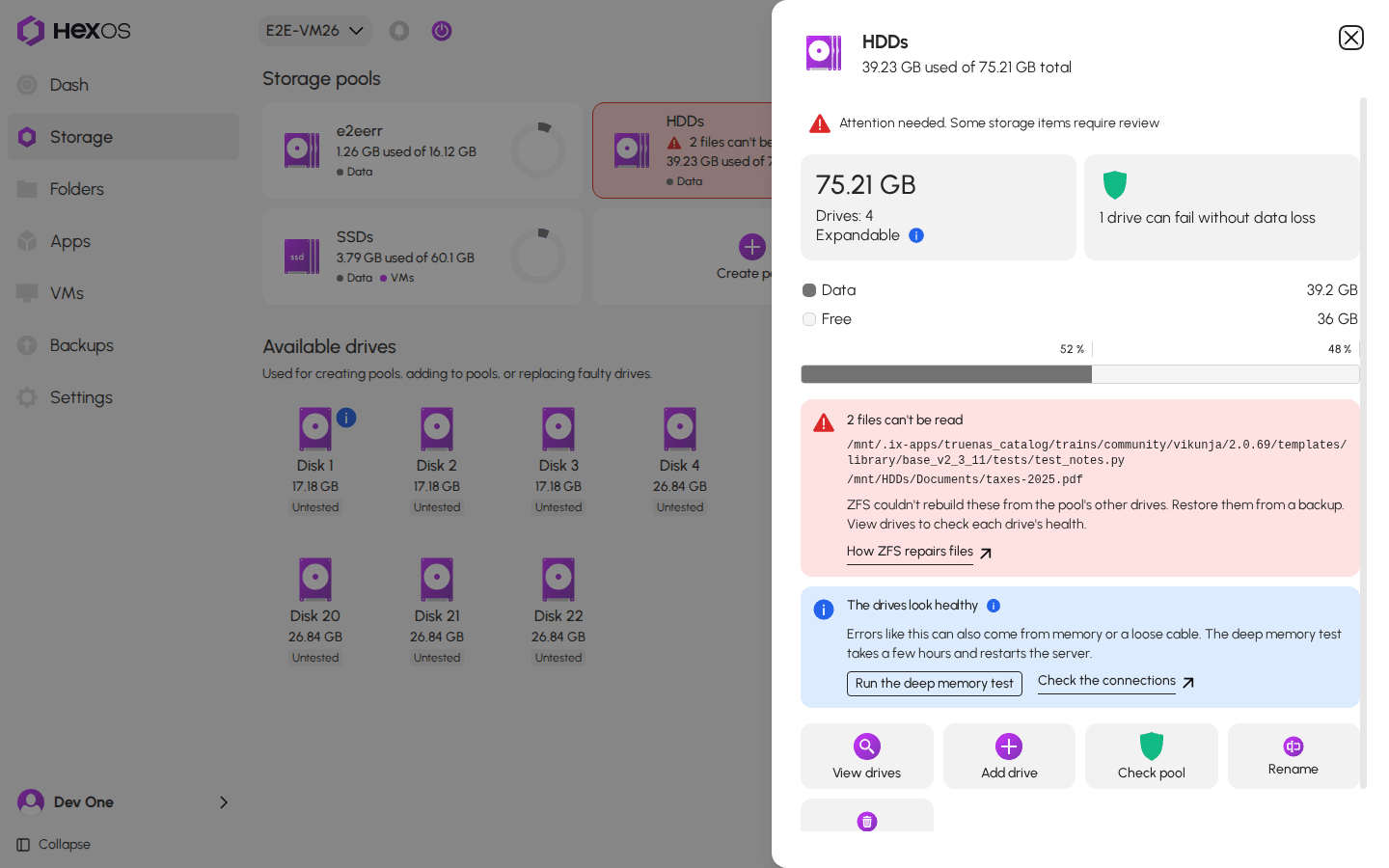
Restore or delete your files first, then click Check pool. When the check finishes and only TrueNAS files are left, the yellow message and Repair appear.
If more than 20 TrueNAS files are damaged at once, HexOS shows them in the red message and doesn't offer Repair. Ask in the HexOS Discord Community.
¶ Check pool
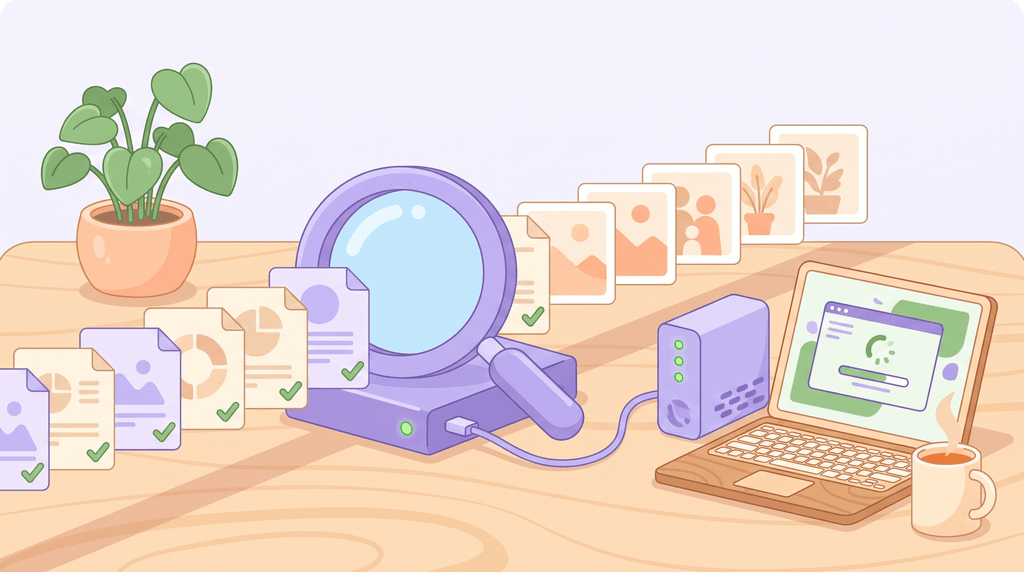
Check pool reads every file on the pool to find damage. The pool stays usable while it runs. You find the button at the bottom of the pool's info panel when the pool has errors or old error counts.
Check pool button
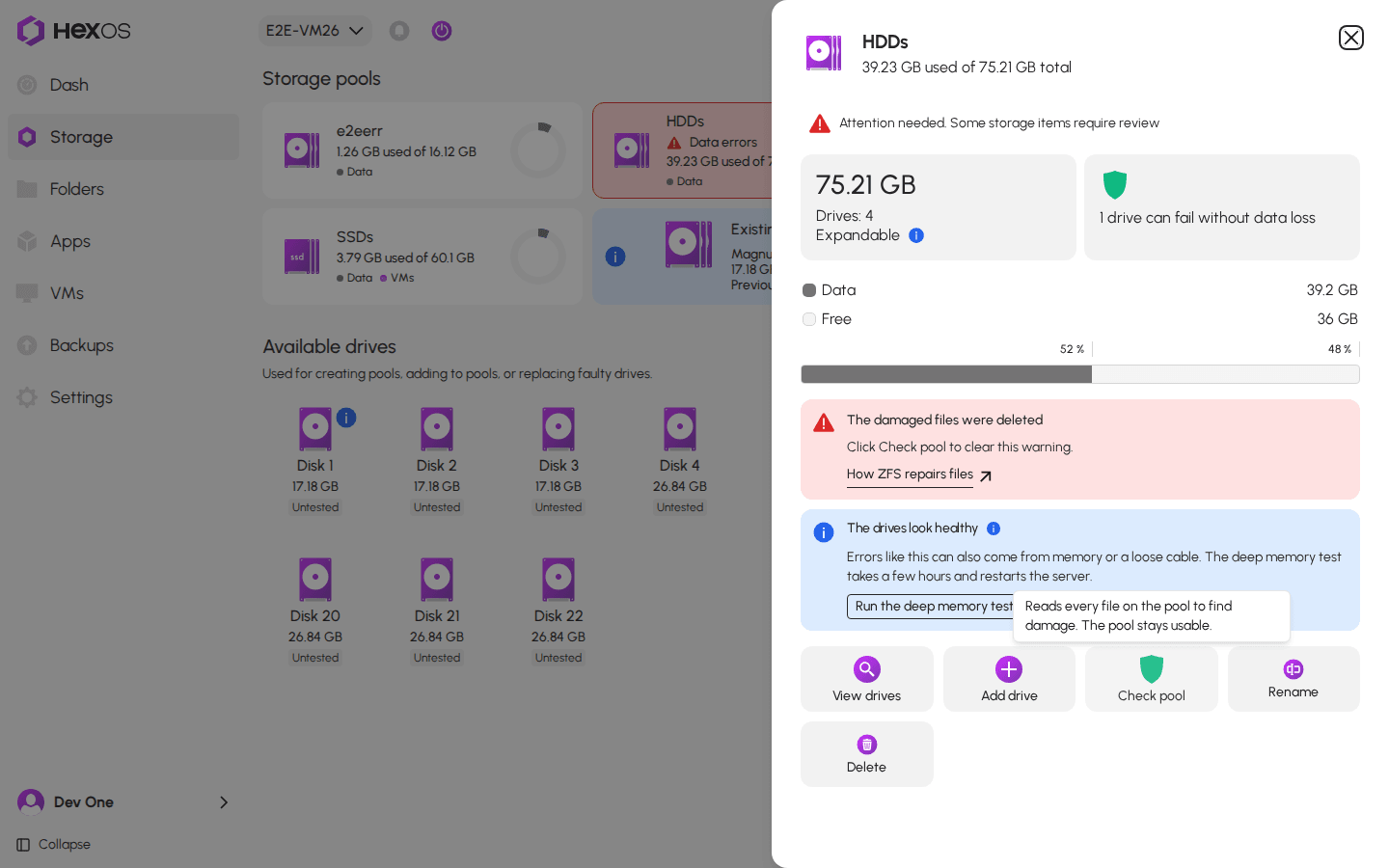
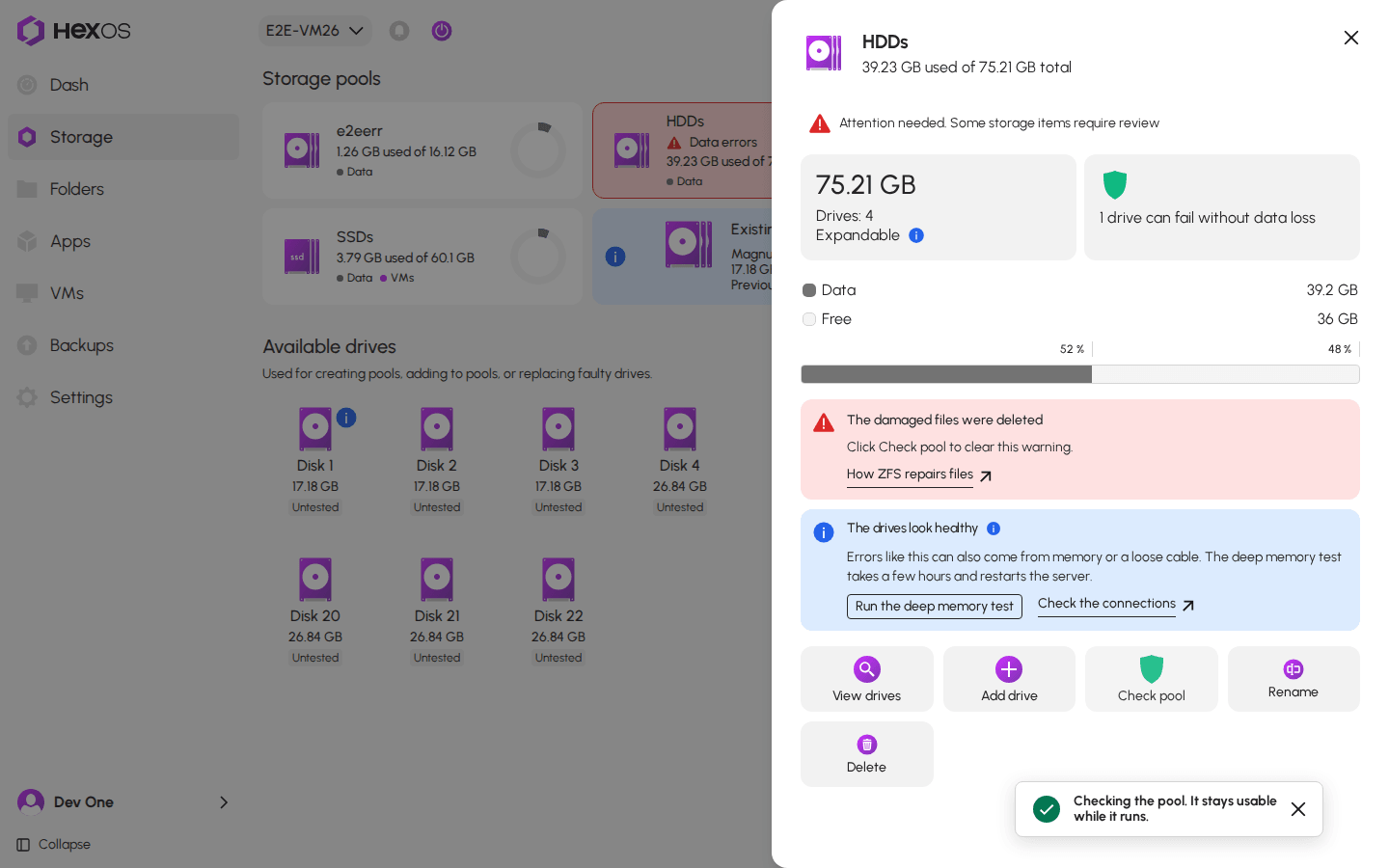
Click Check pool. HexOS says Checking the pool. It stays usable while it runs., and the info panel shows the progress.
Checking the pool
The check in progress
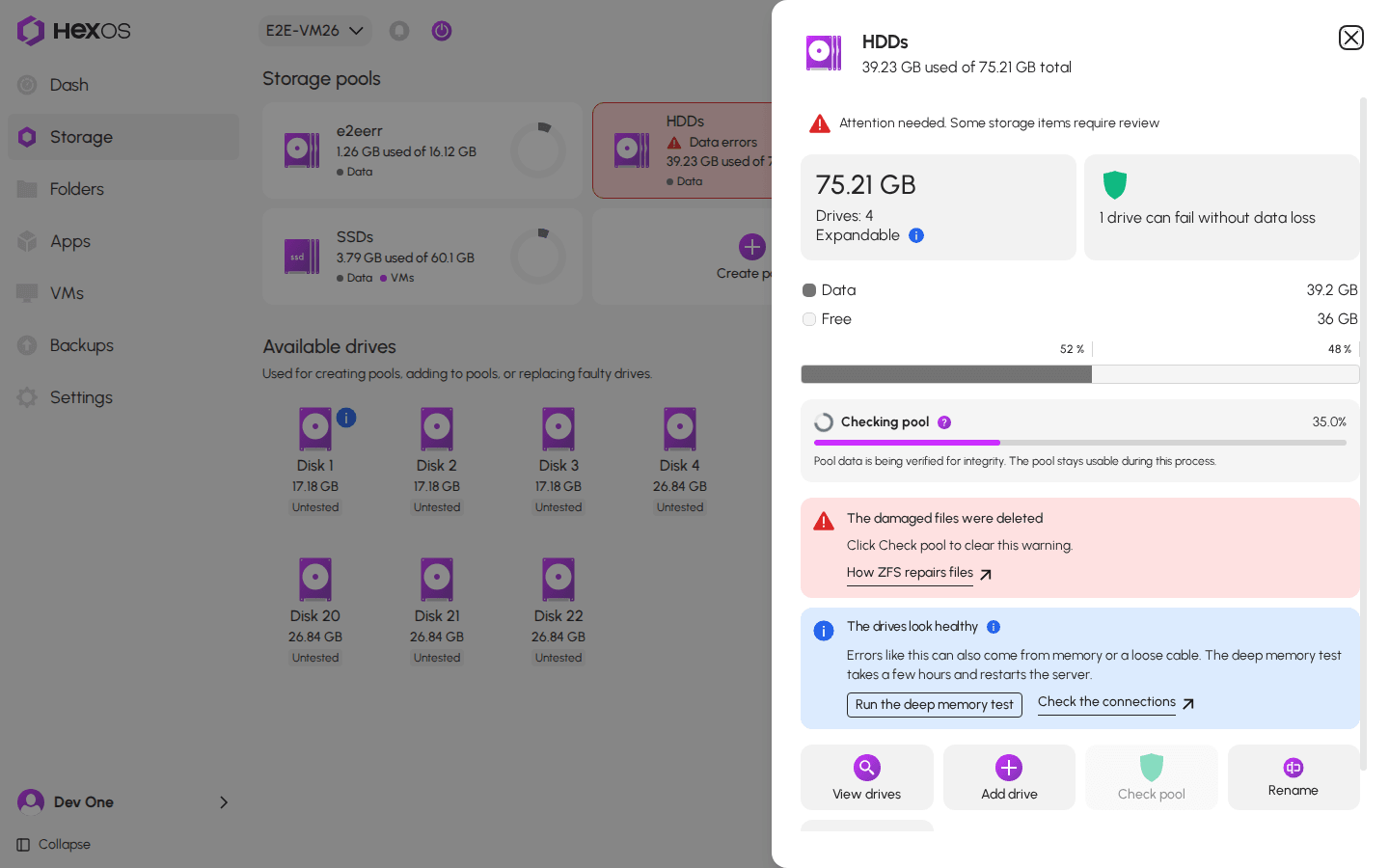
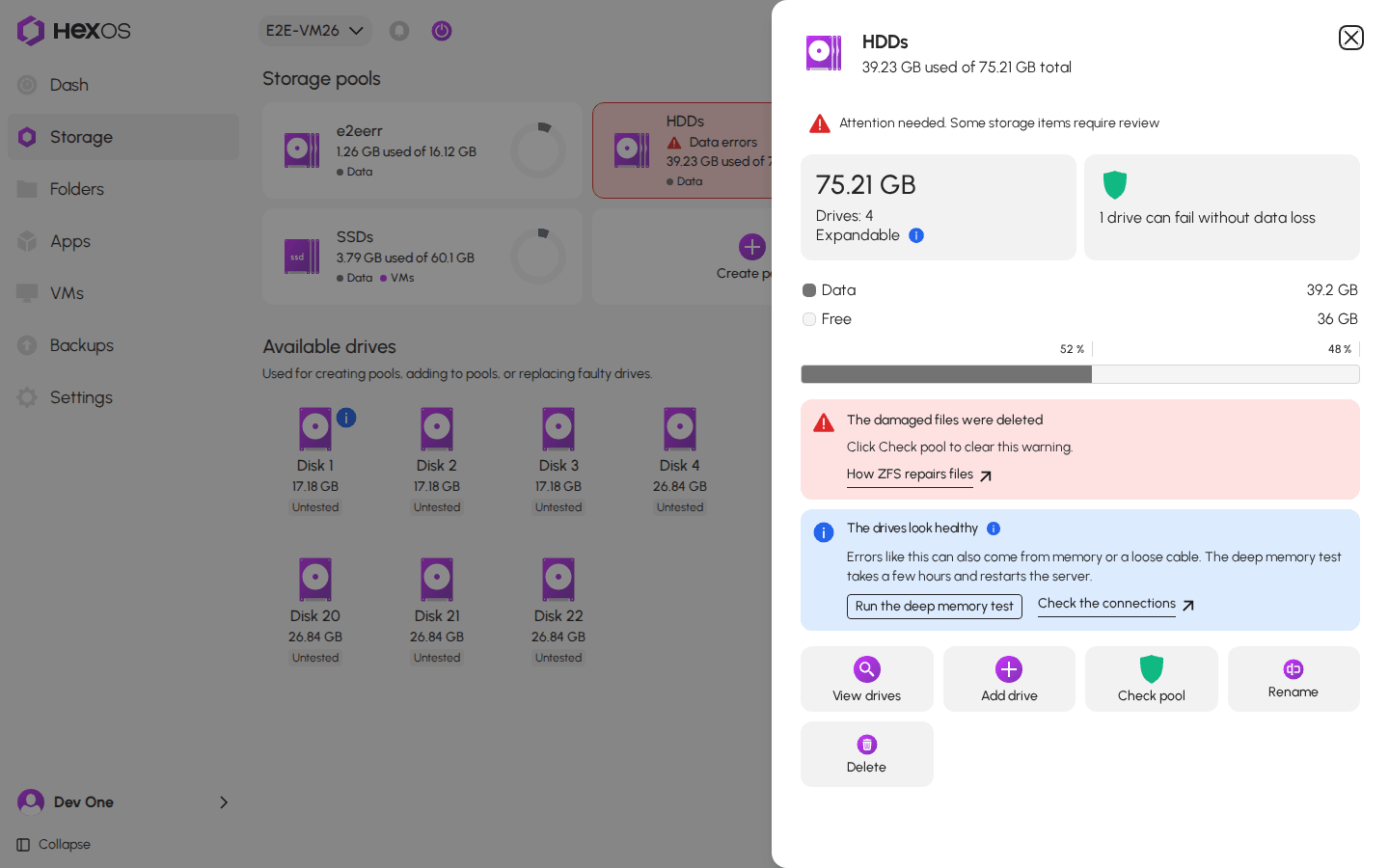
After you delete damaged files, ZFS keeps the warning until a check finishes. The message then reads The damaged files were deleted and Click Check pool to clear this warning.
The damaged files were deleted
¶ Reset error count
ZFS counts every error it finds on each drive. Repair and Check pool don't reset these counts, so the pool can still show old errors after the damaged files are gone.
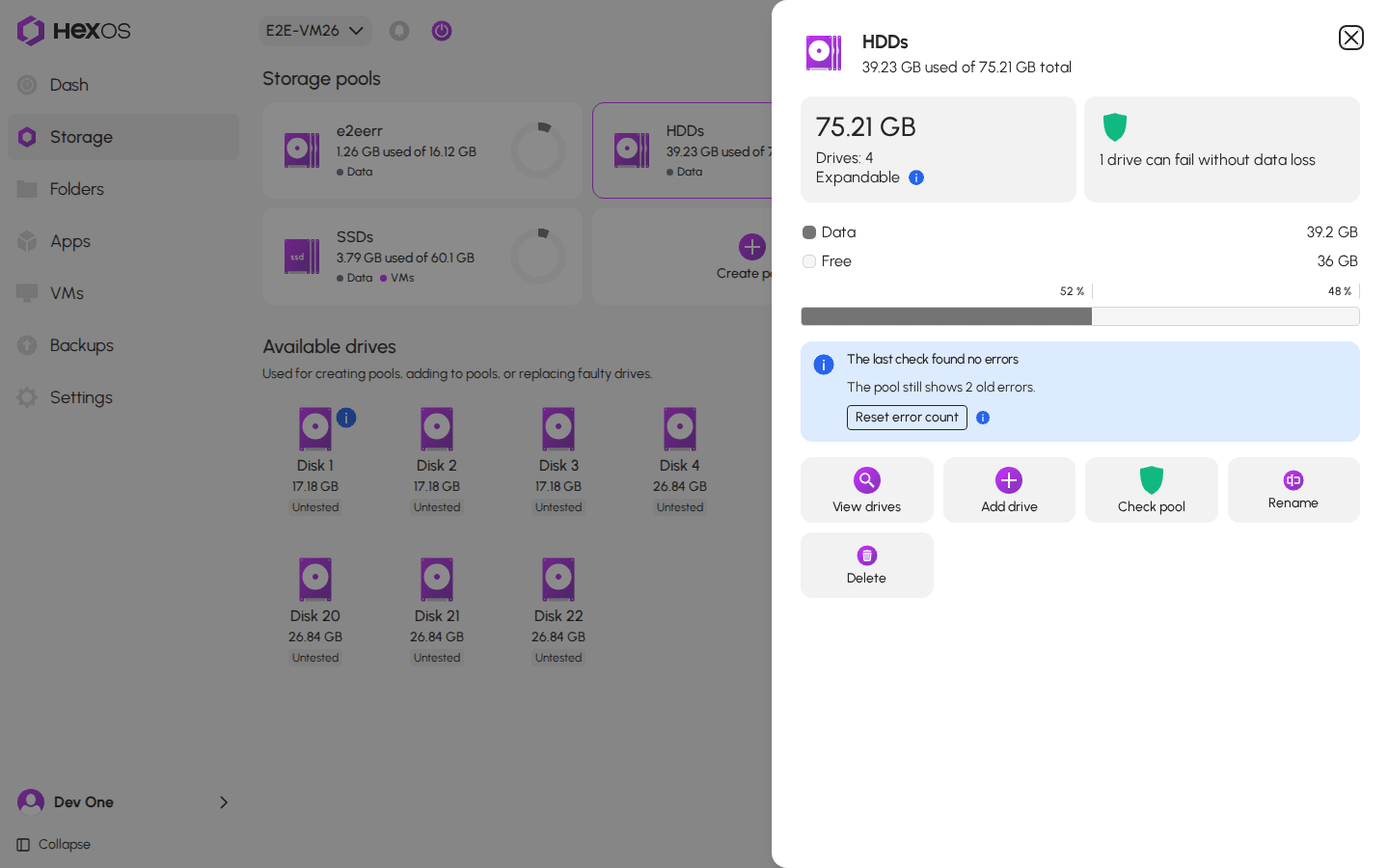
If the last check HexOS ran finished with no errors, the info panel says The last check found no errors and shows a Reset error count button. The check inside a successful repair counts, so after a repair you usually see this right away. Click Reset error count to reset the counts.
The last check found no errors
Otherwise, for example after a restart, the info panel says The pool still shows 2 old errors. (with the number of errors) and Click Check pool first. If it finishes with no errors, you can reset the count. Click Check pool and wait until it finishes. If it found no errors, the message changes to The last check found no errors with the Reset error count button.
Click Check pool first
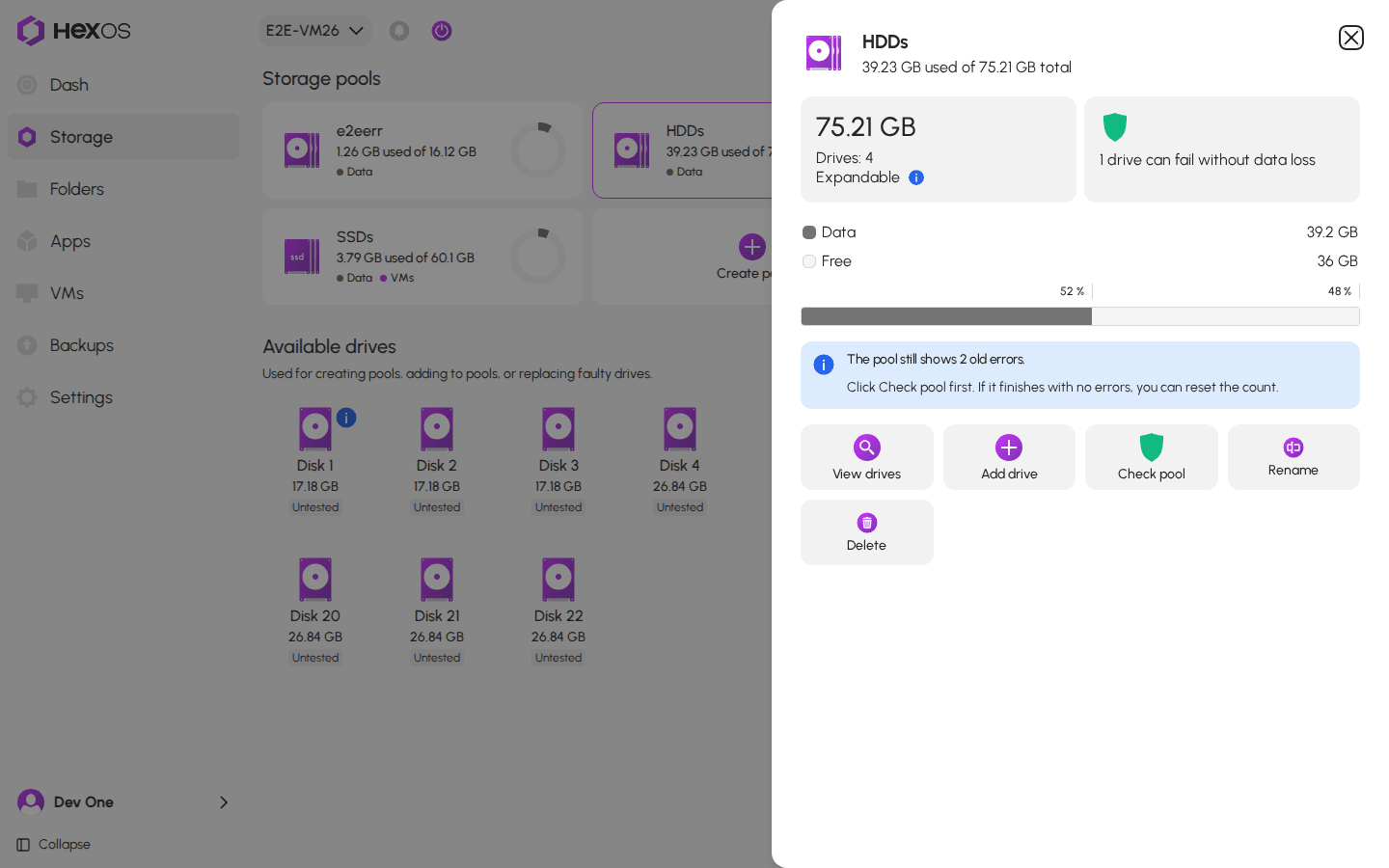
What Reset error count does
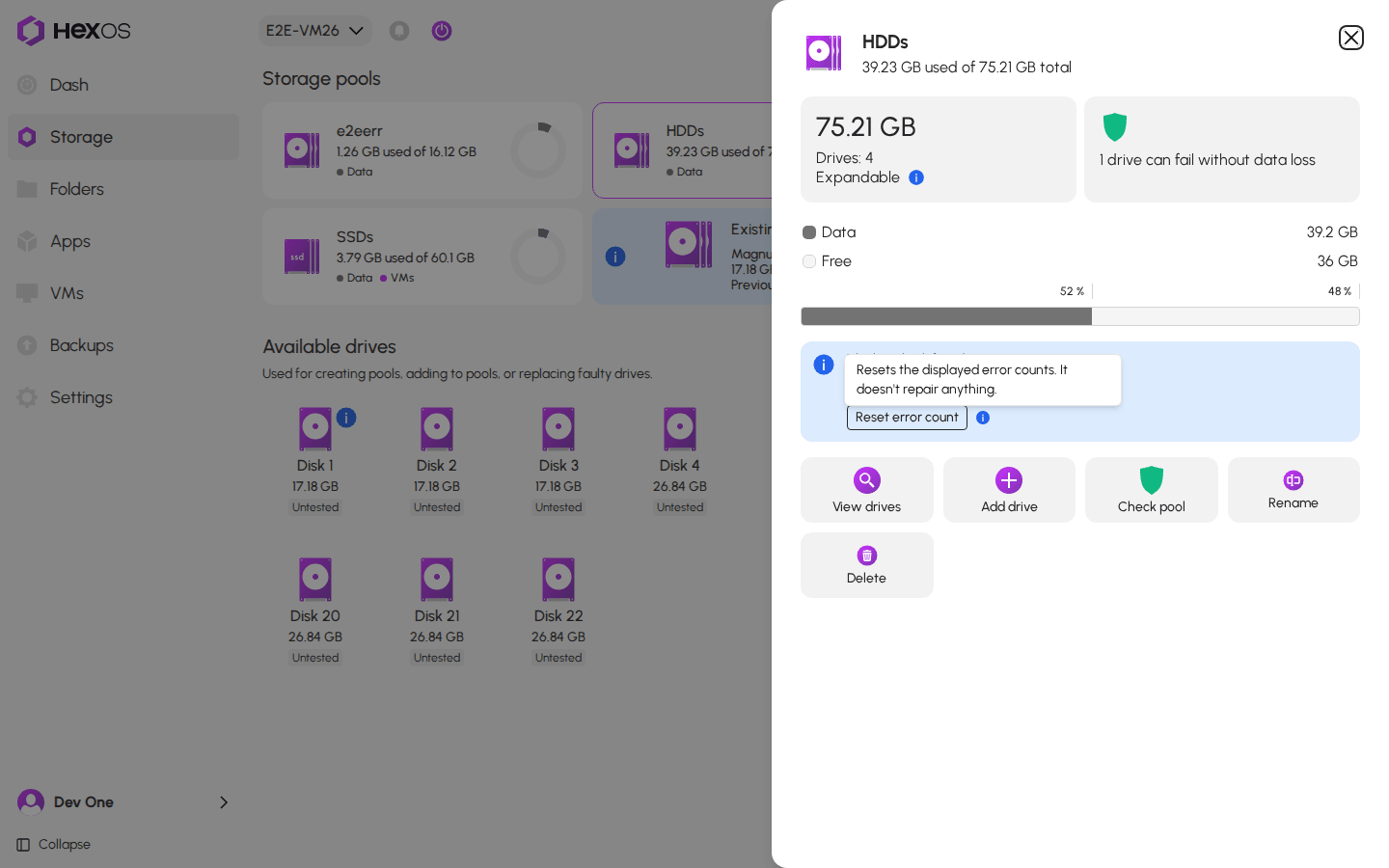
Reset error count only resets the displayed error counts. It doesn't repair anything.
Info: A restart of the server between Check pool and Reset error count means you need to run Check pool again first. The memory test restarts the server too.
¶ If the damage comes back
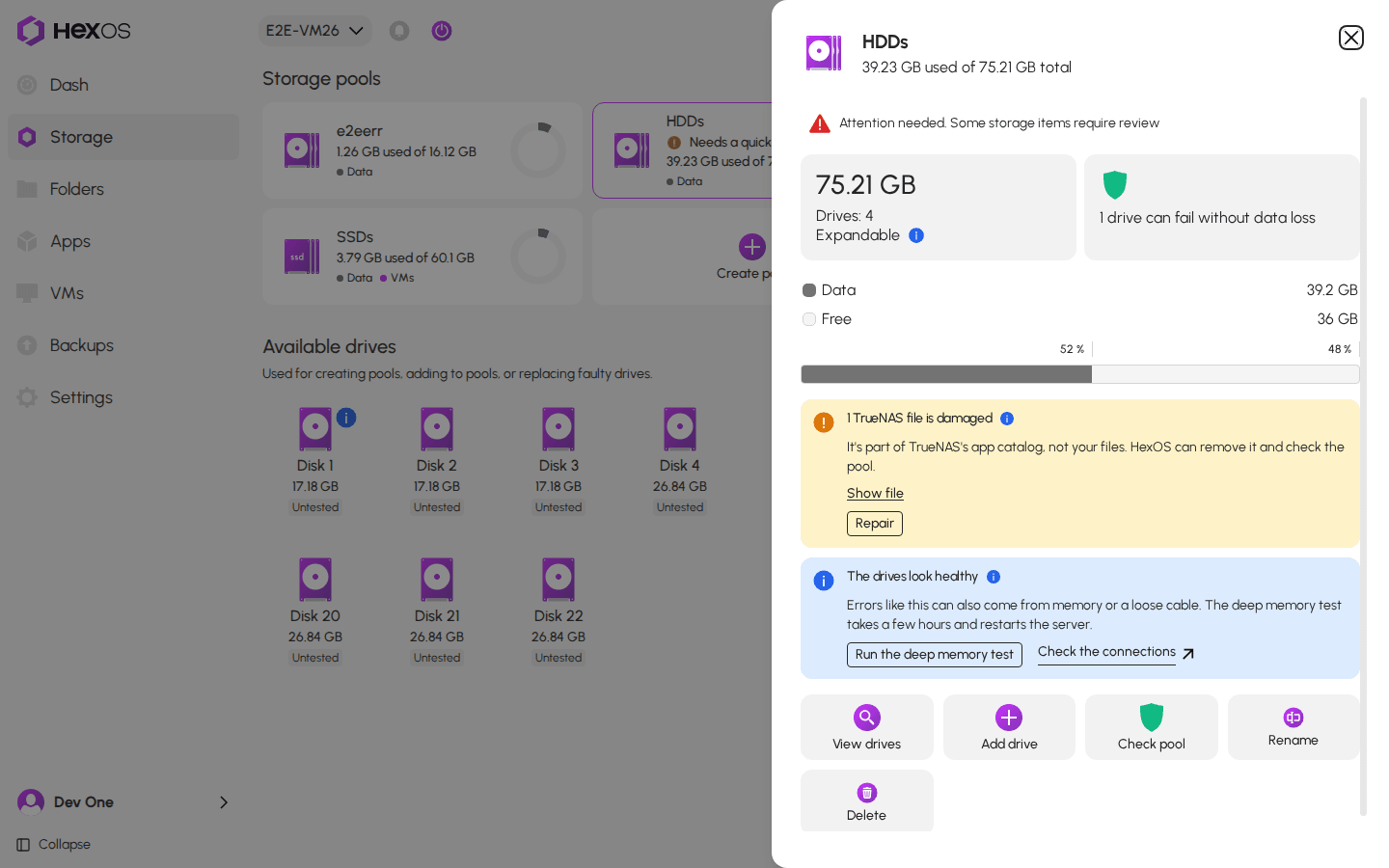
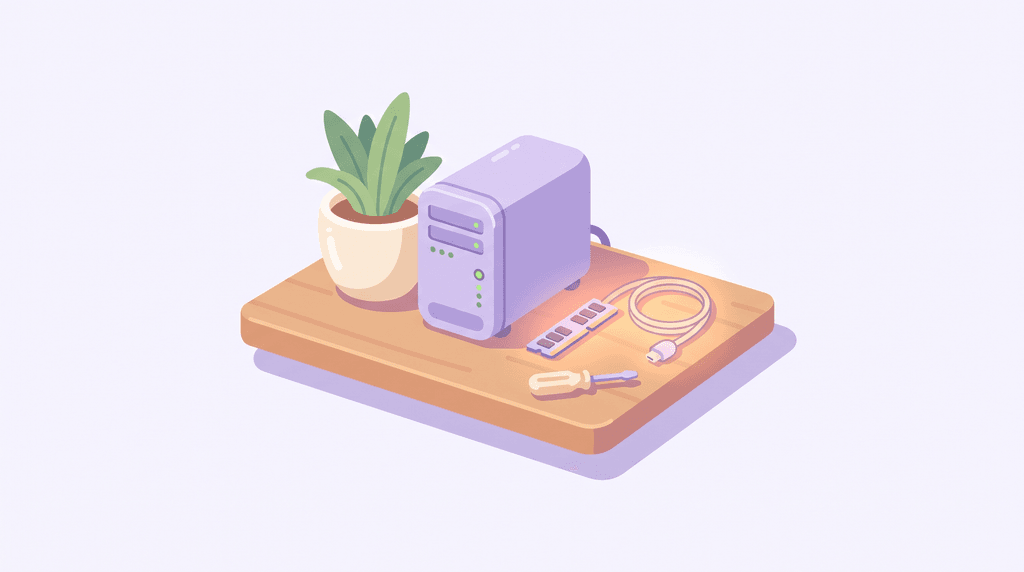
When the pool has damaged files and every drive in it reports that it is healthy, the info panel adds a blue message: The drives look healthy (The drive looks healthy on a pool with one drive). It means the next things to check are the server's memory and its cables.
The drives look healthy
¶ Memory
Click Run the deep memory test. HexOS opens the memory test set to the Deep test: a quick pass, then three full ones. Because HexOS found a sign of trouble, it doesn't offer the shorter test.
The Deep memory test
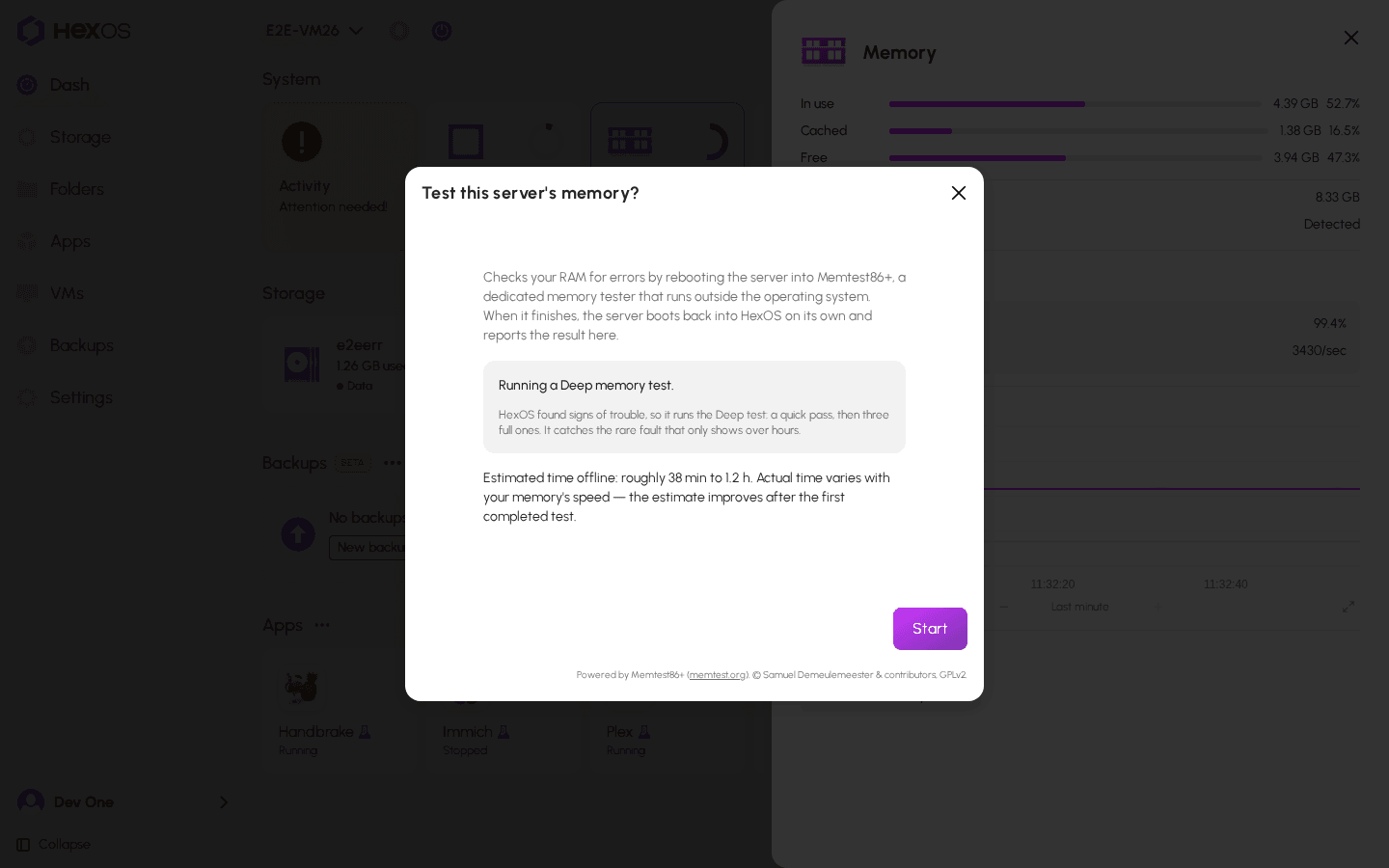
Warning: The memory test restarts the server. Your server, apps and files are offline for the whole test. The Deep test can take a few hours; the dialog shows an estimate for your server before you click Start.
¶ Connections
Check the connections opens this section. A data cable or power cable that is loose or worn can cause errors on a healthy drive.
- Shut down the server from HexOS, then unplug its power cable.
- Push each drive's data cable and power cable firmly into place, at both ends.
- If a drive keeps getting errors, try a different cable or a different port for it.
- Start the server, then click Check pool.
¶ When HexOS stops an action
If HexOS can't do what you asked, it tells you why. For example, when some of the damaged files are yours, Repair stops with Some of the damaged files are yours, not TrueNAS's, so HexOS stopped. It never deletes your files. Restore them from a backup, or delete them if you don't need them.
Couldn't repair this pool
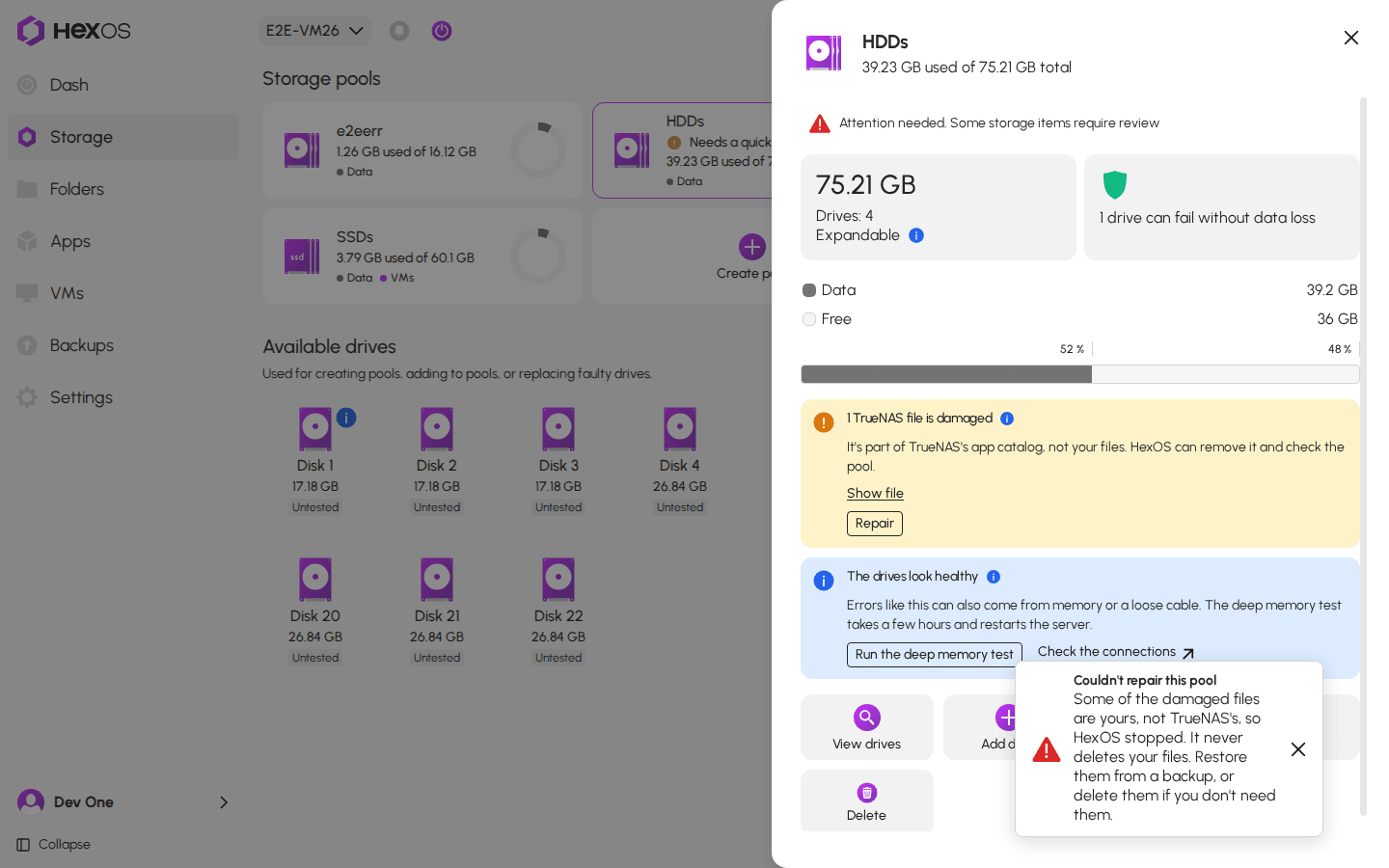
Other reasons you may see:
- More than 20 files are listed as damaged, which is more than Repair handles, so HexOS stopped. It never deletes your files.
- Click Check pool and wait until it finishes with no errors. Then reset the error count.
- A drive in this pool is missing or offline, so HexOS kept the error count. View drives to see which one.
- This pool isn't available right now, so HexOS can't check it.
- This TrueNAS version can't start a pool check. Update TrueNAS, then try again.
Help: If the damage keeps coming back or you are not sure what to do, ask in the HexOS Discord Community.