¶ File browser
The file browser lets you work with the contents of your folders directly from the Command Deck, without connecting your computer to the server first. You can browse, upload, download, rename, move, and delete files, download files from the internet straight to your server, and write an ISO to a USB stick plugged into the server.
¶ Opening the file browser
- Go to the Folders screen.
- Click the folder you want to open.
- Click the Browse button.
The file browser opens over the folder screen. Close it with the X button or the Esc key to go back.
Info: If a folder is encrypted and locked, the Browse button is unavailable. Unlock the folder first.
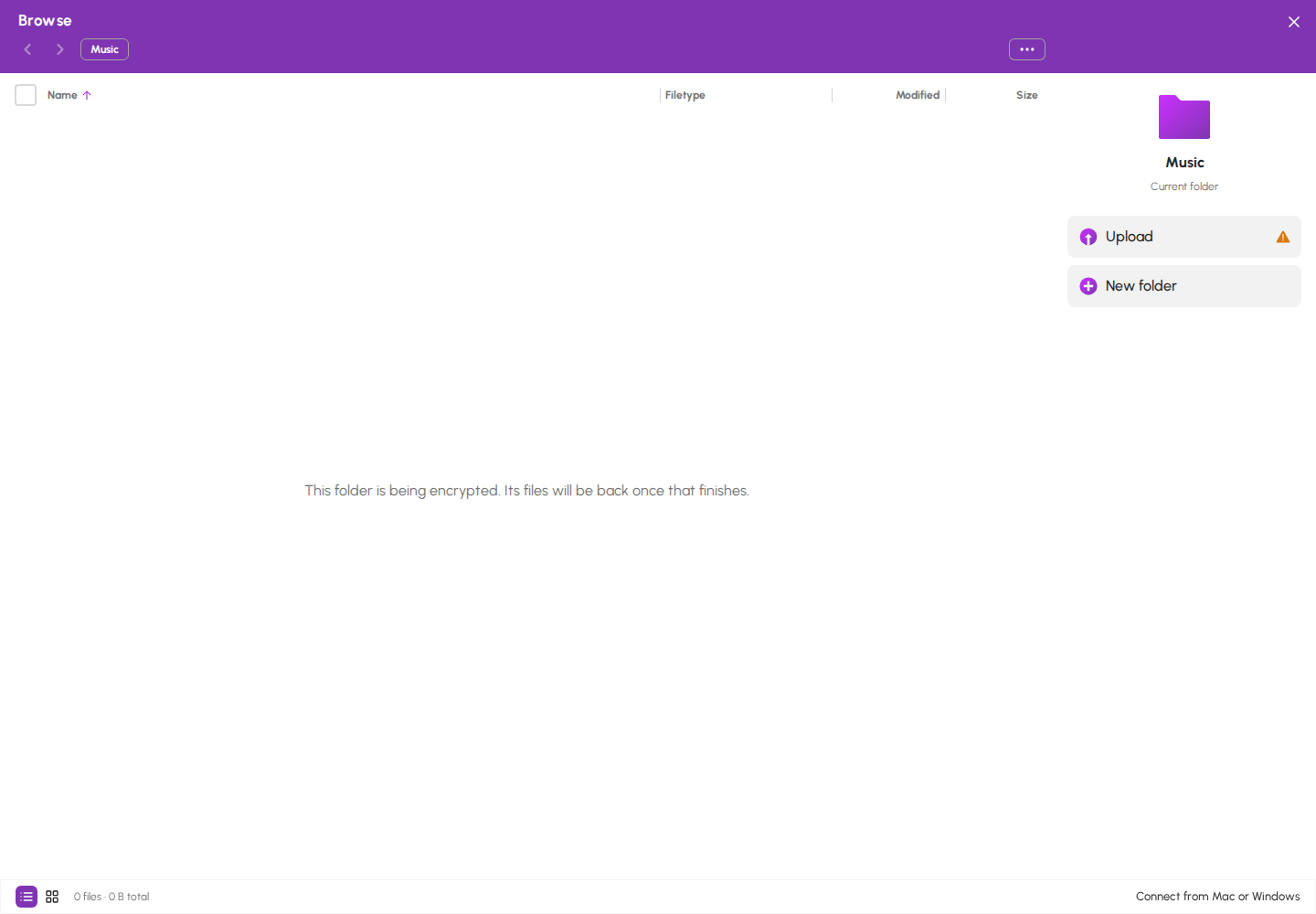
While HexOS is turning on encryption for a folder by moving its files, the file browser says "This folder is being encrypted. Its files will be back once that finishes." See Turn on encryption for a folder.
File browser while a folder is being encrypted
¶ Browsing your files
Click a folder to open it. The pills along the top show where you are — click any of them to jump back up. On a computer you can also use the back and forward arrows.
¶ Changing the view
Click View options to change how files are listed:
- View as — List shows details in columns, Icons shows thumbnails
- Sort by — Name, Size, Type, or Date
- Order — Ascending or Descending
- Show file extensions — on by default
- Show hidden files — off by default
Folders always appear above files, whichever sort you choose. Your choices are remembered for next time.
In list view you can drag the dividers between column headers to resize them, and double-click a divider to reset the widths.
¶ Selecting files
- Click a file to select it
- Ctrl-click (Cmd-click on a Mac) to add or remove individual files
- Shift-click to select a range
- Use the checkbox in the header to select everything
- Use the up and down arrow keys to move through the list, and hold Shift to extend the selection
On a phone, press and hold a file to start selecting, then tap others to add them. Each row also has a ⋮ button for actions.
The panel on the right shows details about whatever you have selected, and the buttons for working with it.
¶ Using the right-click menu
Info: The right-click menu is being tried out with some accounts first. If right-clicking shows your browser's own menu, it has not reached your account yet. Everything in the panel works as before.
Right-click a file or folder to see what you can do with it, right where you clicked. The menu offers the same actions as the panel on the right.
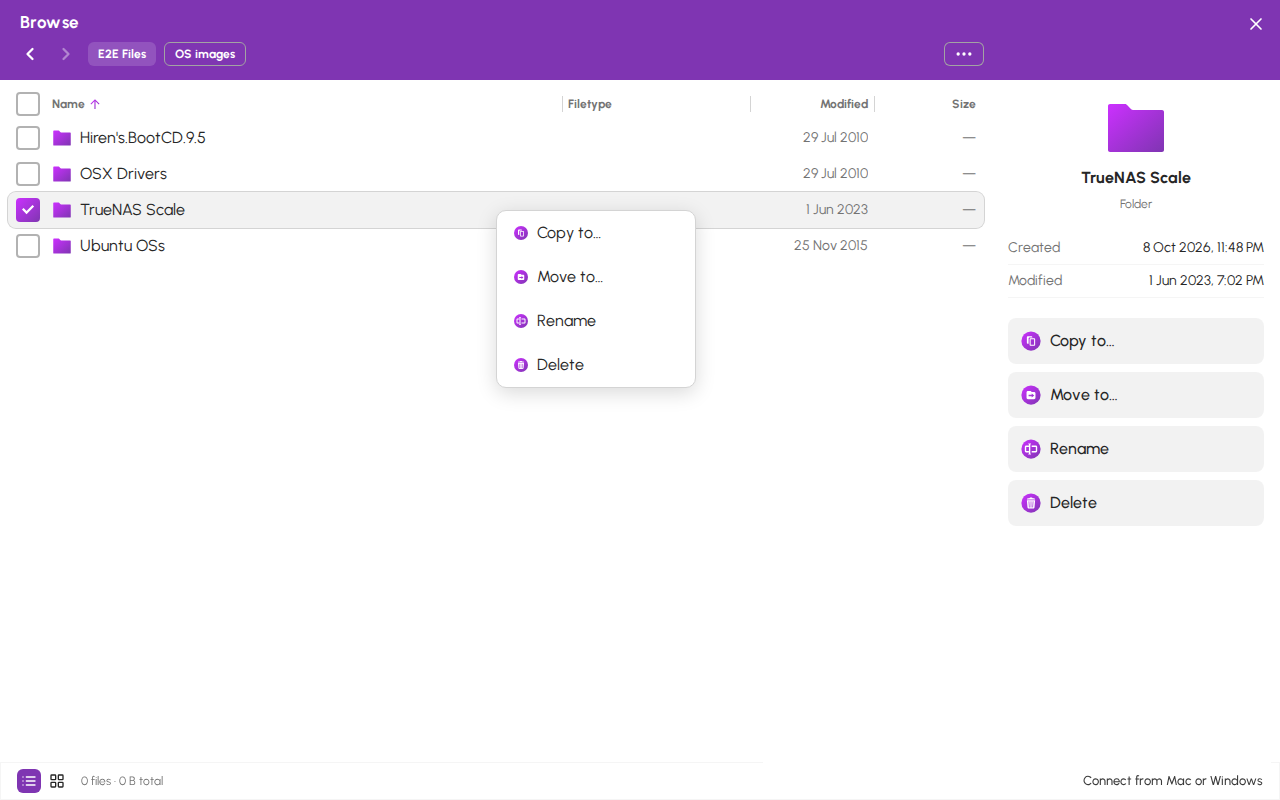
Right-click a file or folder you have not selected. HexOS selects just that item and opens the menu next to it.
Menu for one folder
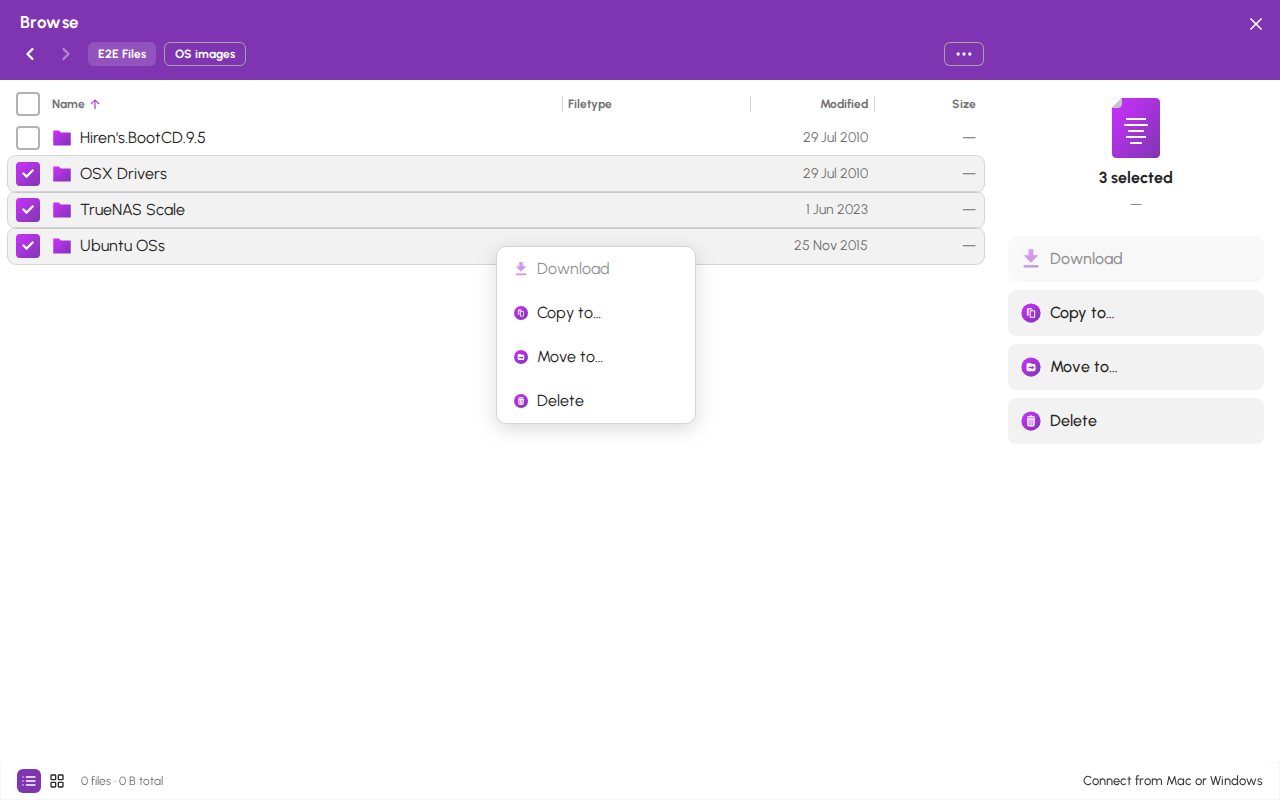
Right-click one of several selected items. The whole selection stays selected, and the menu acts on all of it. Rename is not offered, because it works on one item at a time.
Menu for several selected folders
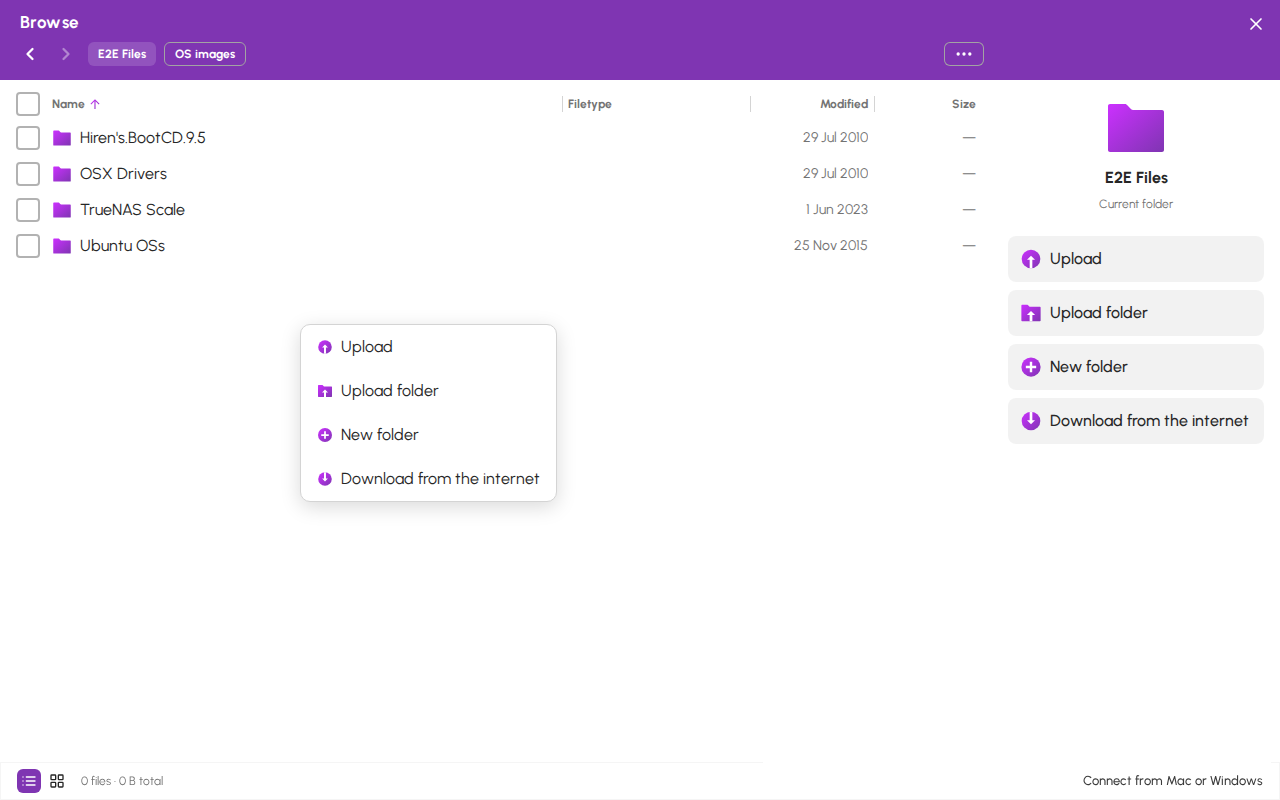
Right-click the empty space below your files. HexOS clears the selection, and the menu shows what you can do in the folder you are looking at, such as Upload and New folder.
Menu for the folder you are in
To open the menu from the keyboard, select an item and press Shift+F10, or the Menu key if your keyboard has one. Use the arrow keys to move through the menu, Enter to choose, and Esc to close it.
Menu opened from the keyboard
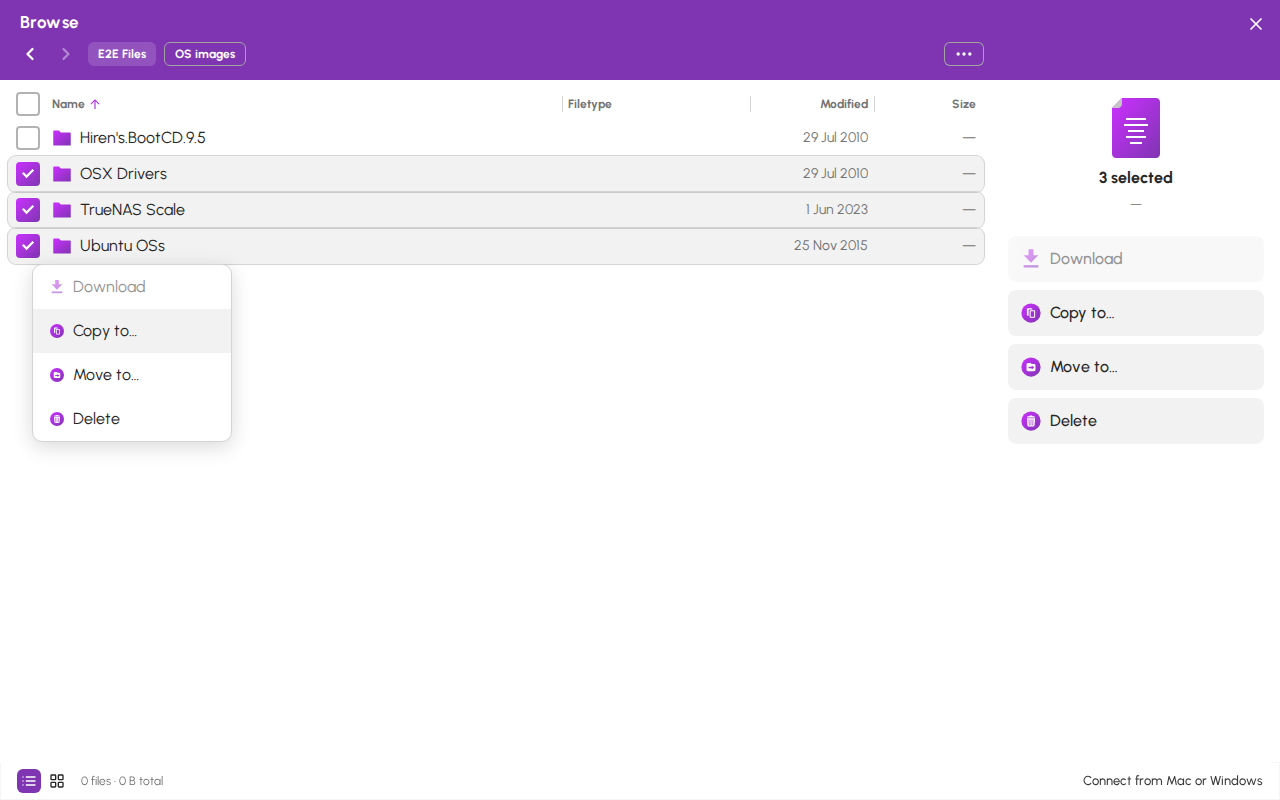
On a tablet, press and hold a file or folder for half a second to open the same menu. On a phone, press and hold still starts selecting files.
¶ Dragging files onto a folder
Info: Dragging files onto a folder is being tried out with some accounts first, together with the right-click menu. If you can't drag files, it has not reached your account yet. Copy to and Move to in the panel work as before.
Select one or more files, then drag them onto a folder in the list. You can also drop them on a folder above the one you are in, using the path buttons at the top of the window. When you let go, a menu asks what to do: Move here, Copy here or Cancel. Nothing happens until you choose. Cancel is selected to start with, so pressing Enter does nothing.
Menu after dropping two files on a folder
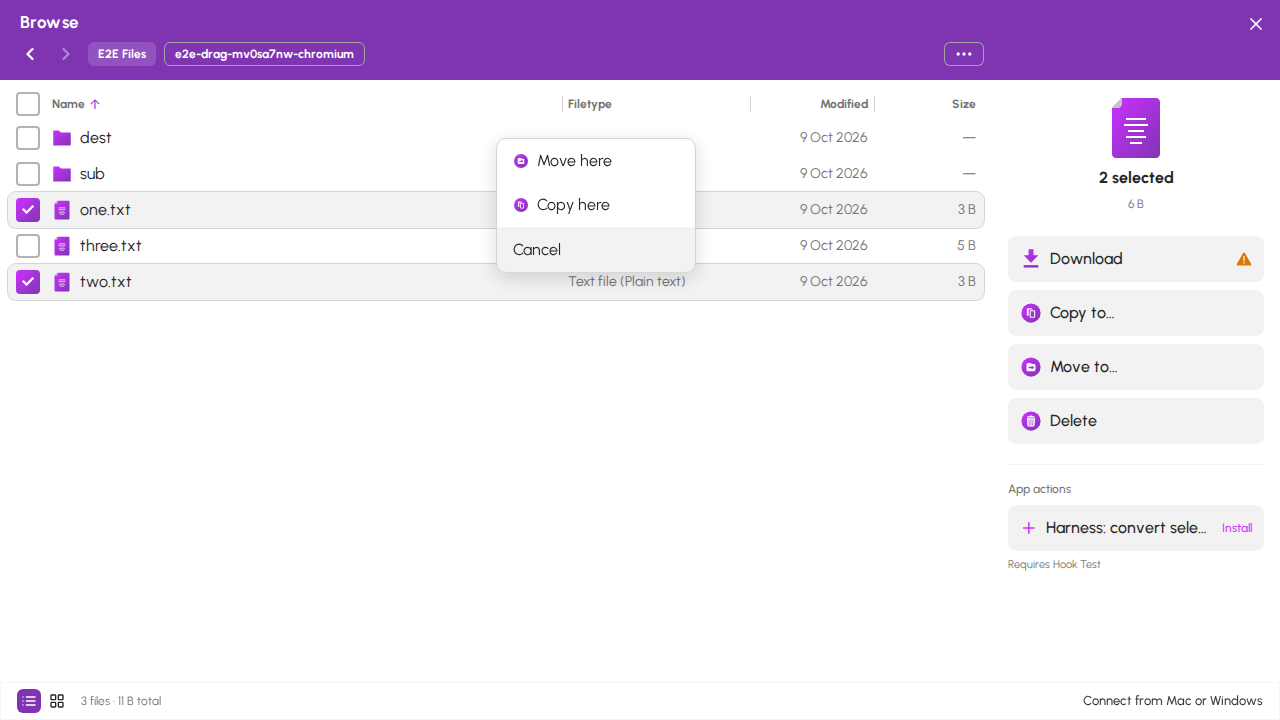
Dragging works with a mouse or trackpad. On a phone, or with a finger or pen, use Copy to and Move to instead.
¶ Undoing a move
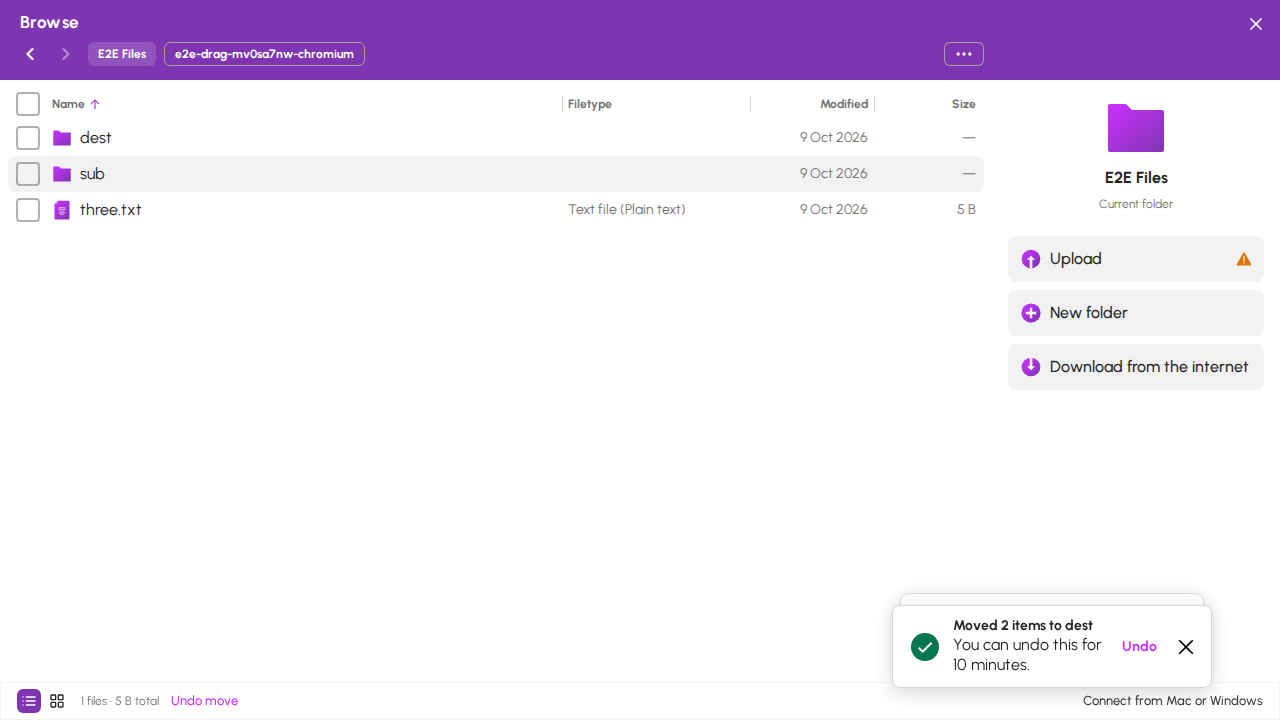
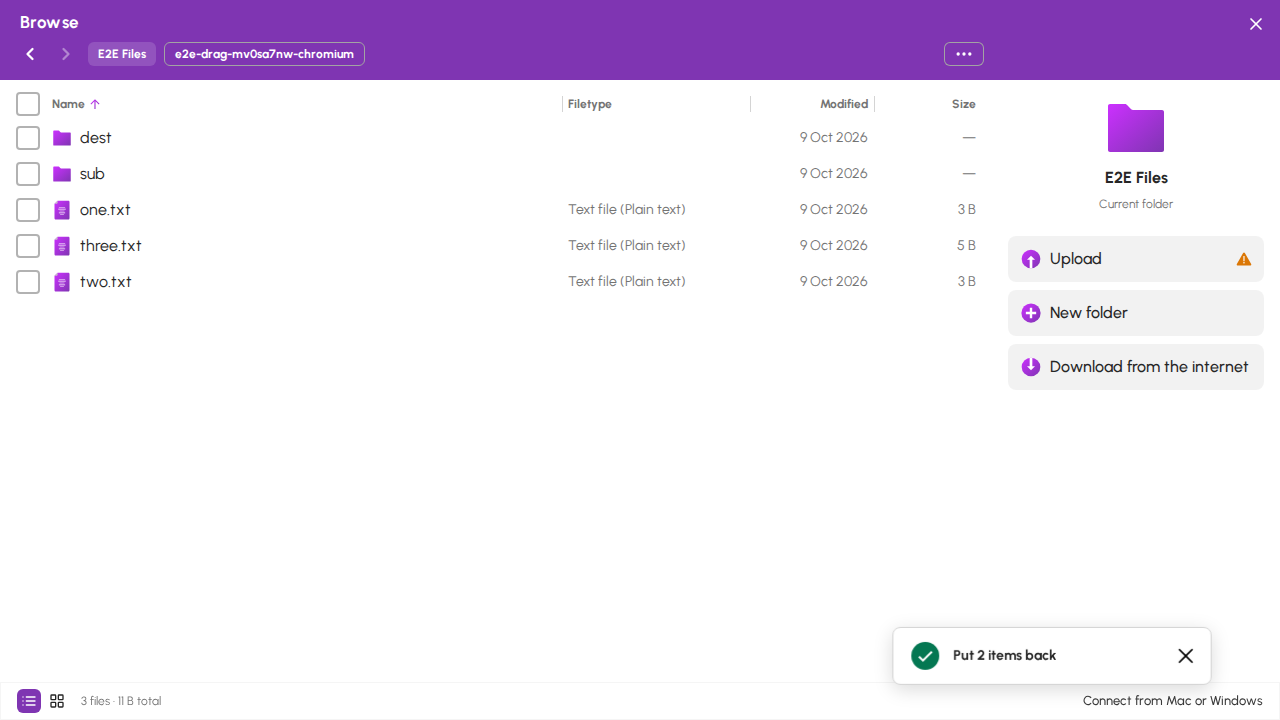
When a move you made by dragging finishes, a message says what moved and where. Click Undo within 10 minutes to put everything back where it was, under the same names. You can also click Undo move in the bar at the bottom of the file browser, which does the same thing.
Message offering Undo after a move
Message after the files went back
Undo never replaces or deletes anything. An item stays where it is, and the message says why, when:
- something else now has its old name
- it was moved, renamed or replaced after the move
- the folder it came from is gone or was replaced
- it is shared or in use now
Message when an item could not go back
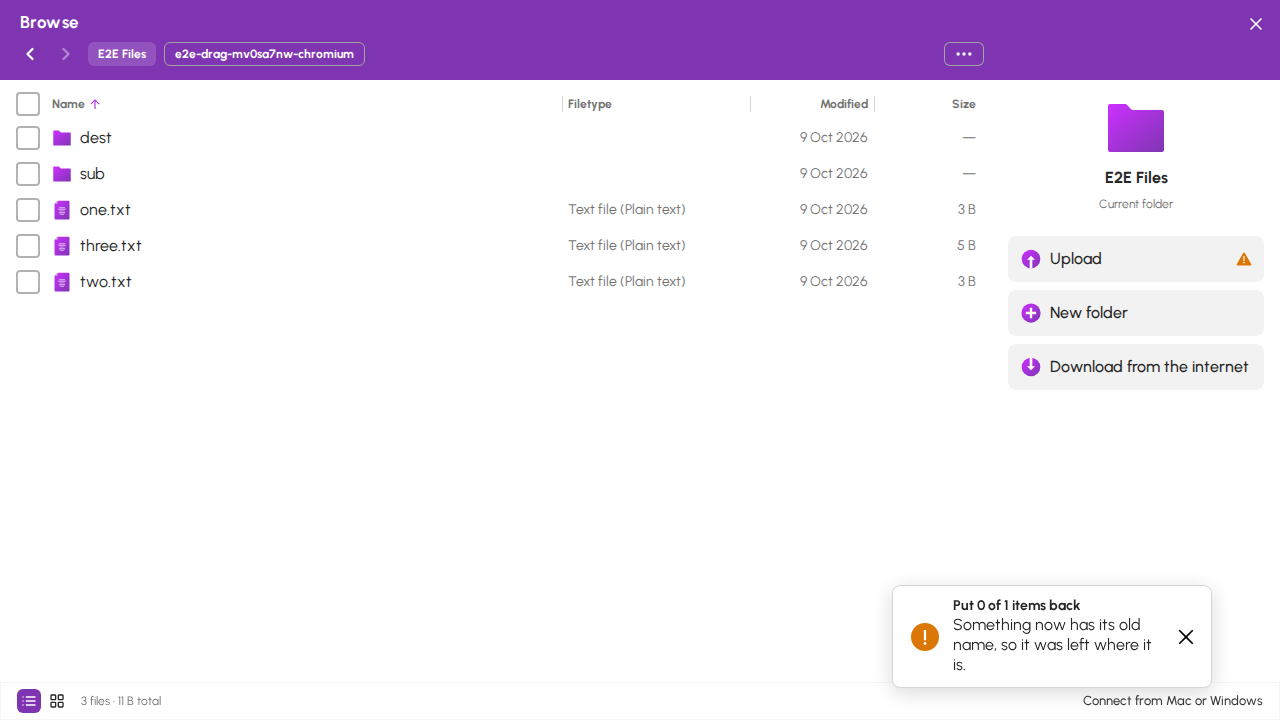
If an item could not go back because something else has its old name, rename or move that other item. Undo is offered again while the 10 minutes last.
Info: Undo isn't offered for a move into a different storage area (for example a folder an app created). Move the files back yourself.
¶ Undoing a copy
A copy you made by dragging can be undone too, for 10 minutes after it finishes. Click Undo in the message, or Undo copy in the bar at the bottom of the file browser. Copies are never deleted: HexOS asks first, then moves them into a new folder named Set aside by Undo, in the folder you copied them to. Click Set aside copies.
Question before setting a copy aside
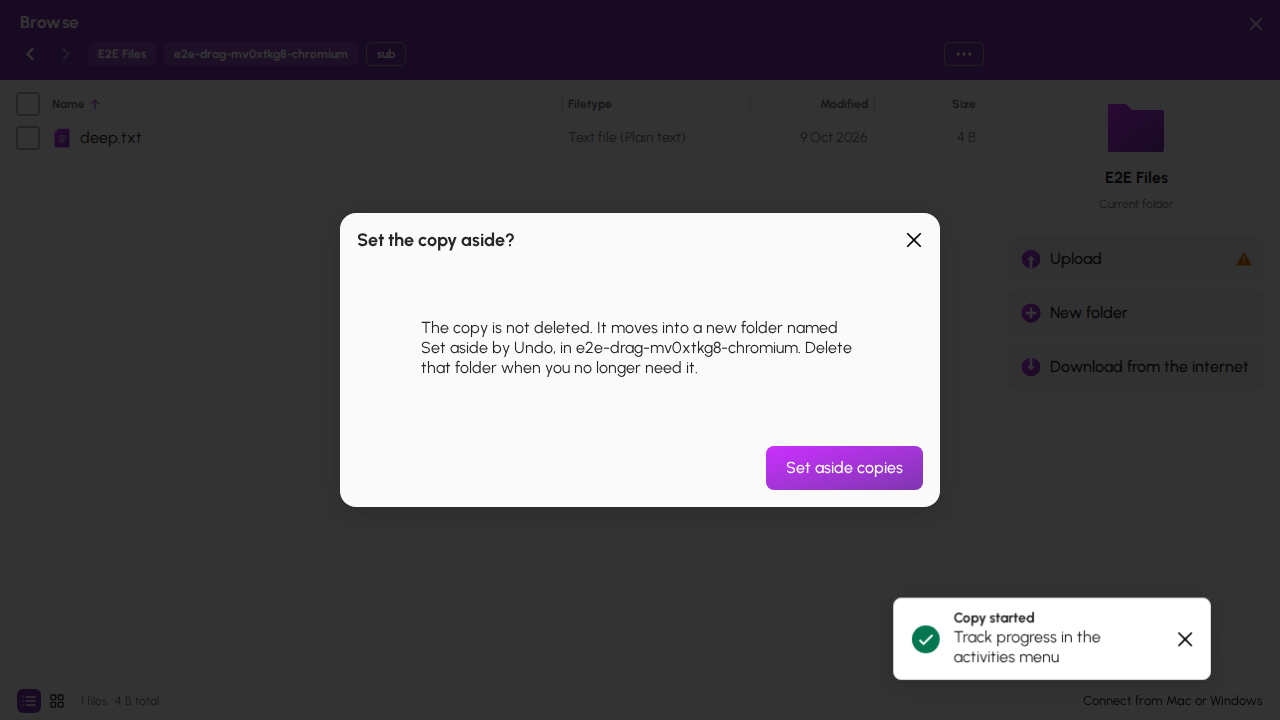
The originals stay where they were. Delete the Set aside by Undo folder when you no longer need the copies, or drag something back out of it.
The Set aside by Undo folder after the Undo
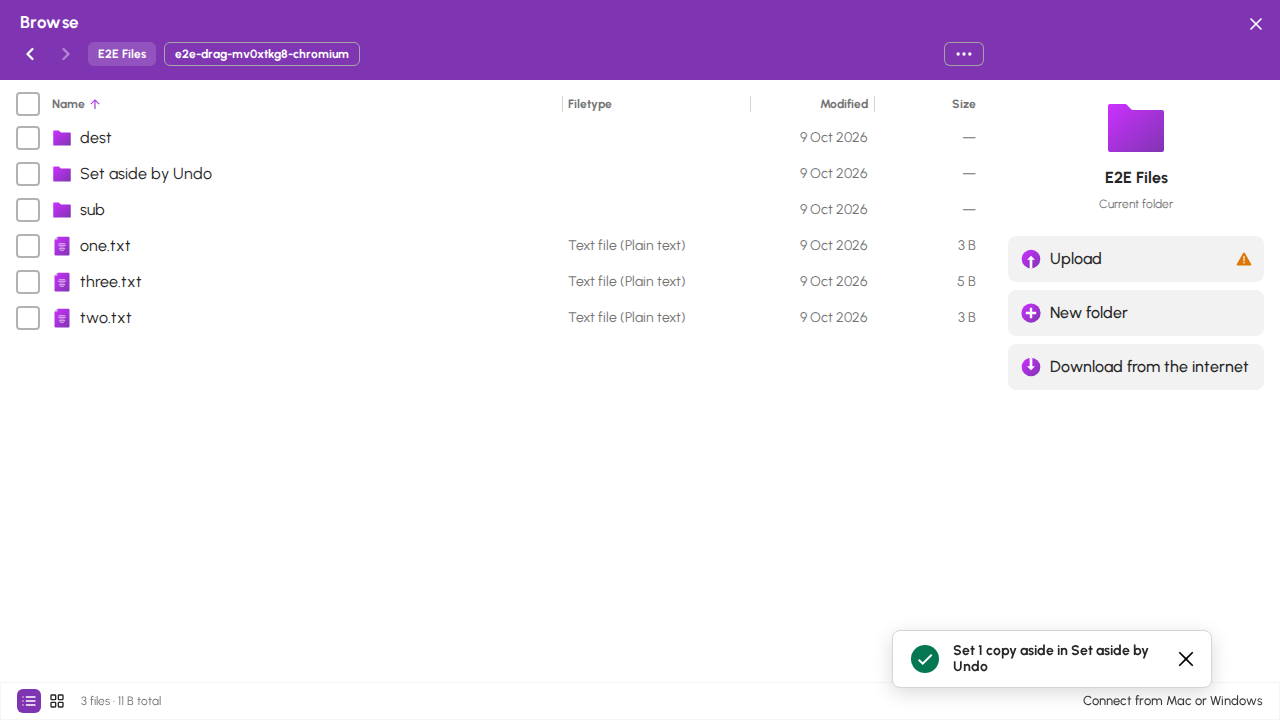
A copy you changed before clicking Undo stays where it is. If a Set aside by Undo folder is already there, the new one is numbered, for example Set aside by Undo (1).
Info: Undo isn't offered for a copy, or for a move into a different storage area (for example a folder an app created). Delete the copy, or move the files back yourself.
¶ Working with files
¶ Uploading
Click Upload to choose files, or Upload folder to choose a whole folder. You can also drag files and folders from your computer onto the window.
Dragged folders keep their structure, including any empty subfolders inside them.
Info: Uploads keep running if you close the file browser or move to another screen. They only stop if you reload the page. You can watch progress in the activities menu.
Files upload one at a time, and anything you add while an upload is running joins the queue. You can upload up to 10,000 files at once.
¶ Downloading
Select one or more files and click Download.
Info: Folders cannot be downloaded. Select individual files instead.
¶ Creating, renaming, and organizing
- New folder — creates a folder where you are
- Rename — only the name is selected to start with, so the file extension is left alone. If you do change the extension, HexOS asks you to confirm
- Copy to and Move to — choose the destination folder, then click Copy here or Move here
- Delete — asks you to confirm first, because this cannot be undone
Rename, New folder, and Delete stay open until your server answers. If something goes wrong, they stay open with what you entered, so you can try again.
If a file you chose changes or disappears while you decide (for example, someone renames it from another computer), HexOS does nothing and shows Something changed in this folder. Choose the items again.
Warning: HexOS never overwrites files silently. If something with the same name already exists, you are asked what to do — Keep both saves the new copy with a number added, for example
movie.mp4becomesmovie (1).mp4.
Info: A folder that is shared on your network cannot be deleted here. Remove the share on the Folders screen first.
¶ Downloading from the internet
Your server can fetch a file from the web directly, which is much faster than downloading to your computer and uploading it again. It also means you can close the window while it works.
- Click Download from the internet.
- Paste the web address into Web address (URL).
- Click Check link to confirm the file and see its size.
- Adjust Save as if you want a different filename.
- Paste a Verification code if the website provides one.
- Click Download.
Tip: Many download pages list a verification code next to the file, sometimes called a checksum, SHA-256, or MD5. Pasting it lets your server confirm the file arrived complete and untampered. HexOS works out which type it is automatically.
¶ Burning an ISO to a USB stick
If you select a single .iso file, Burn to USB stick appears. Your server writes the ISO to a USB stick and then checks the result, so you can make installation media without any extra software.
- Plug a USB stick into a USB port on your server, not into your computer.
- Select the ISO file and click Burn to USB stick.
- Choose the USB stick from the list and click Continue.
- Type
ERASEto confirm, then click Erase and burn.
Danger: Everything on the USB stick is permanently erased before the ISO is written. Check that you have selected the right stick.
HexOS only offers USB sticks that are safe to write to. Drives that are part of a storage pool, are being used to boot the server, or are larger than 2 TB are never listed.
Info: Windows installer ISOs do not start up from a plain copy like this. Linux, TrueNAS, and recovery ISOs work correctly.
¶ Connecting from your computer instead
For everyday file work, and for moving large amounts of data, connecting your computer to the folder over the network is usually more comfortable. Click Connect from Mac or Windows at the bottom of the file browser for instructions, or read How to access folder contents.
¶ Local connection required for transfers
Uploading and downloading move file data between your computer and your server directly, so they are only available when you are on the same network as your server.
If you are away from home, the Upload and Download buttons show a warning and explain how to switch to local access. Everything else — browsing, renaming, moving, deleting, downloading from the internet, and burning a USB stick — happens on the server itself and works from anywhere.
Info: If file actions are missing entirely, your server may need a HexOS update before they become available. Browsing still works in the meantime.