¶ Turn on encryption for a folder
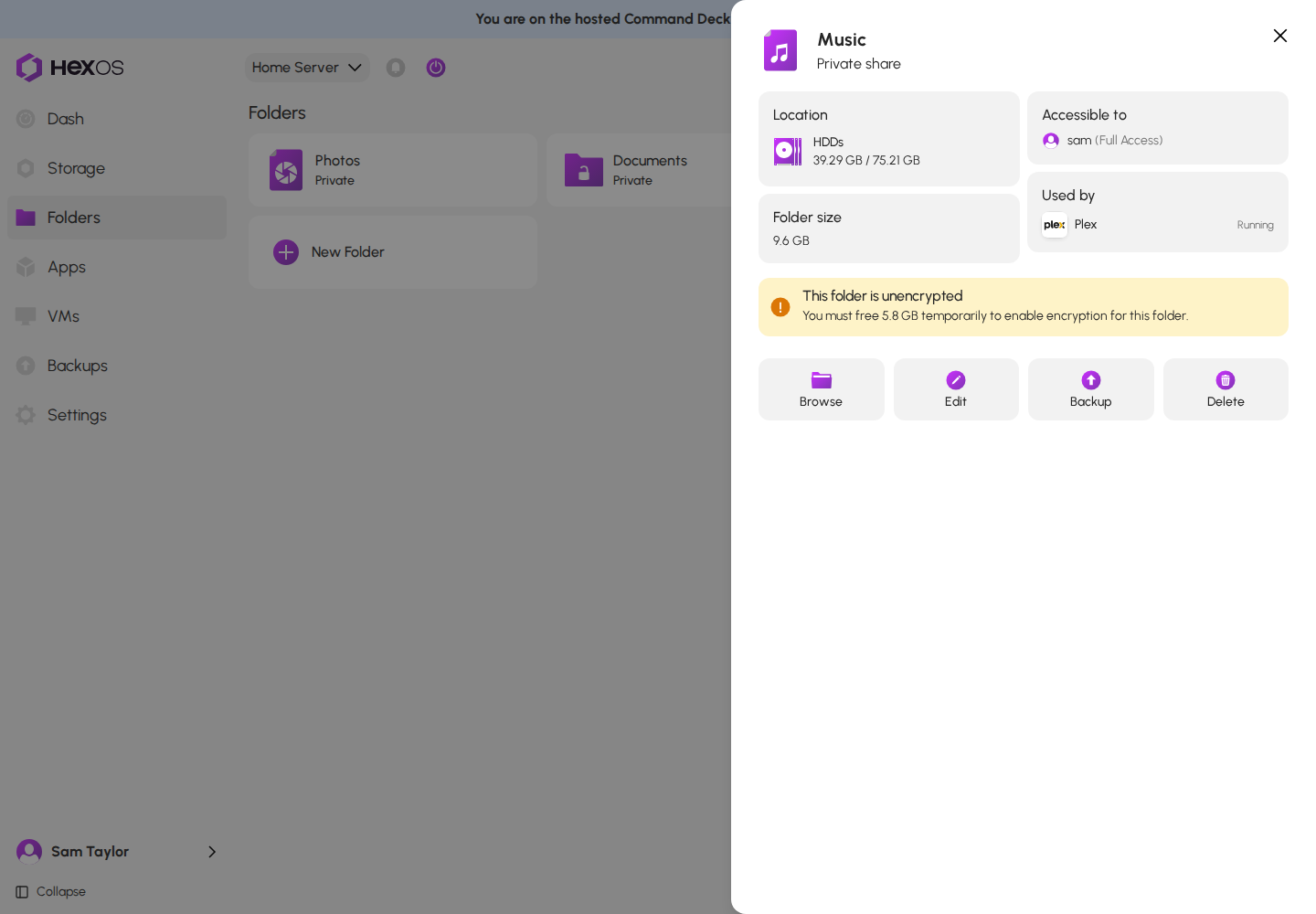
A folder that is not encrypted can be encrypted later, with its files, settings and share kept. HexOS builds an encrypted version of the folder on the same pool, checks that it holds everything, and switches it into place. This page shows how to start it, what can stop it, and what to do if it stops.
Info: Turning on encryption is a one-way change. Once a folder is encrypted, it cannot be changed back to unencrypted. If you need an unencrypted copy of the data, create a new unencrypted folder and copy the files into it with the file browser.
¶ How HexOS converts the folder
HexOS picks one of two ways, depending on the free space on the pool:
- Copy: when there is room for a second copy of the folder, HexOS builds an encrypted copy, including the folder's snapshots, while you keep using the folder. At the end the folder goes offline for a few minutes while HexOS copies the last changes, checks that every snapshot arrived intact, and swaps the encrypted folder into place.
- Move: when there is no room for a copy, HexOS moves your files into the encrypted folder a batch at a time, freeing space as it goes. The folder is offline for the whole conversion, and it takes longer. This is only possible for a folder with no snapshots and no datasets inside it.
Datasets inside the folder that are not encrypted, such as an app's own data, are converted with it.
¶ Start the conversion
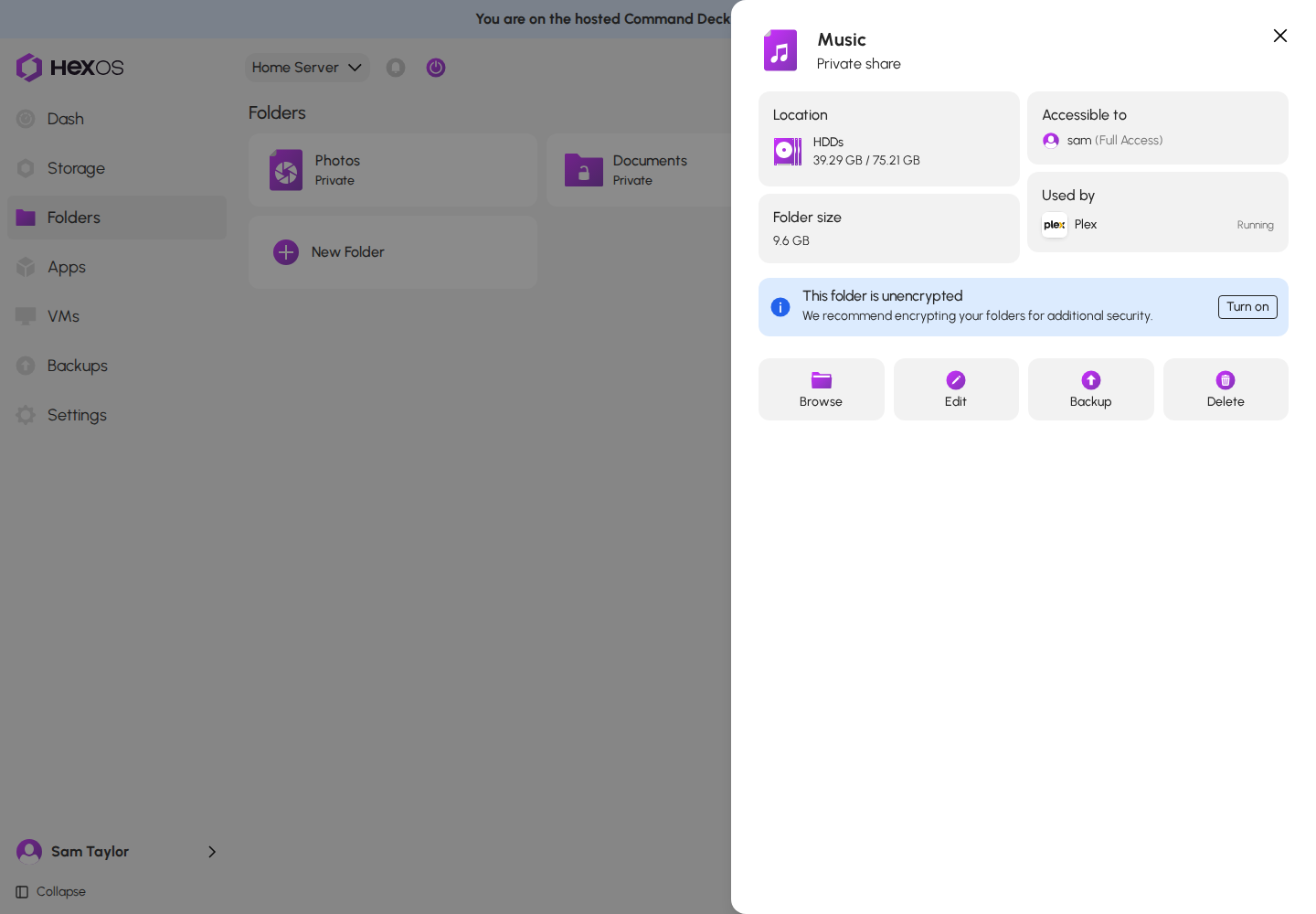
- Open Folders and click the folder. Its page says This folder is unencrypted: "We recommend encrypting your folders for additional security." Click Turn on.
This folder is unencrypted, with the Turn on button
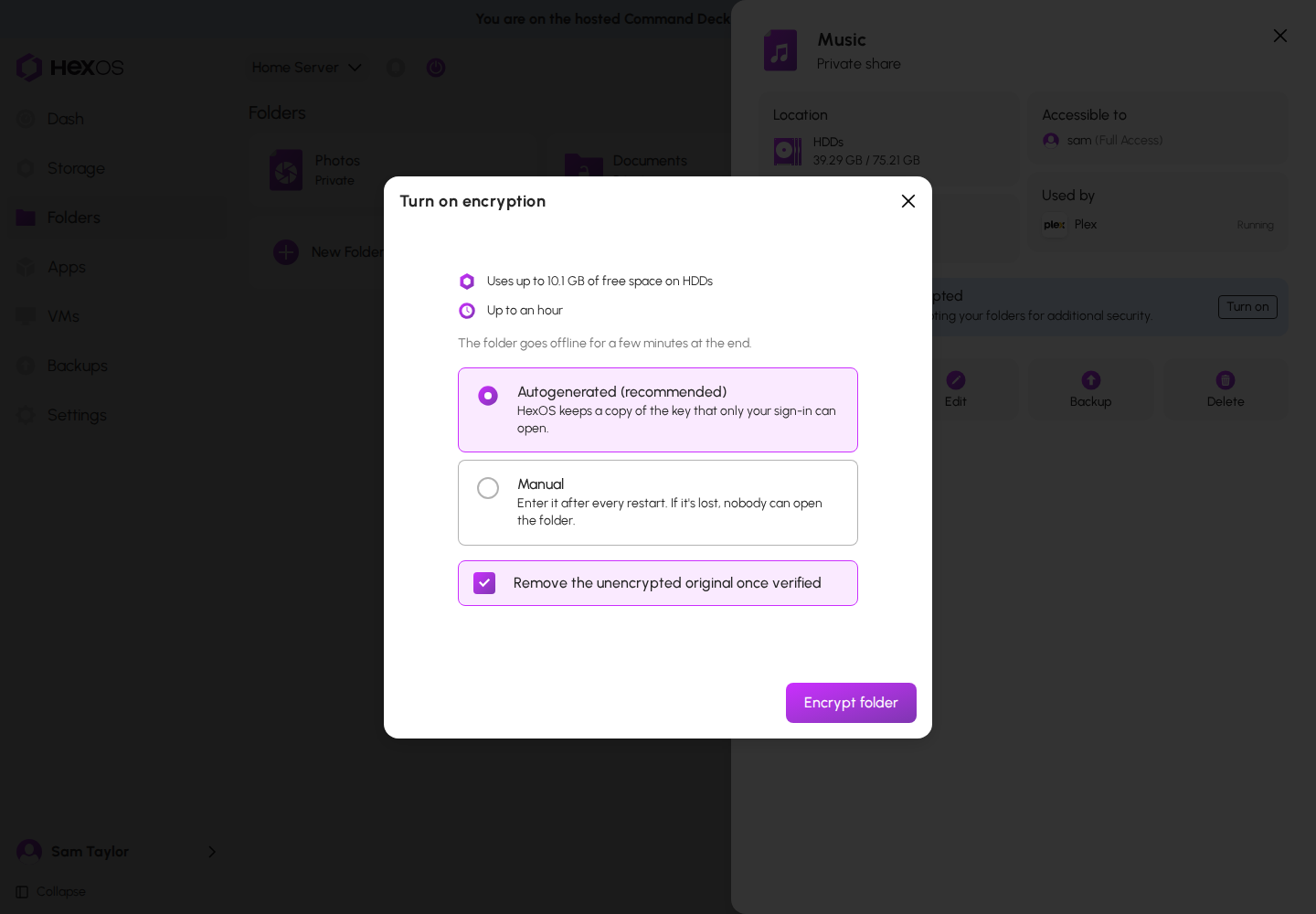
- The Turn on encryption dialog shows how much free space the conversion uses ("Uses up to {size} of free space on {pool}") and roughly how long it takes: A few minutes, Up to an hour, A few hours or A day or more.
- For a copy, it says "The folder goes offline for a few minutes at the end."
- For a move, it warns "Due to limited space, the folder will need to be taken offline in order to complete the conversion process, and the conversion will take longer."
Turn on encryption dialog for a copy
Turn on encryption dialog for a move
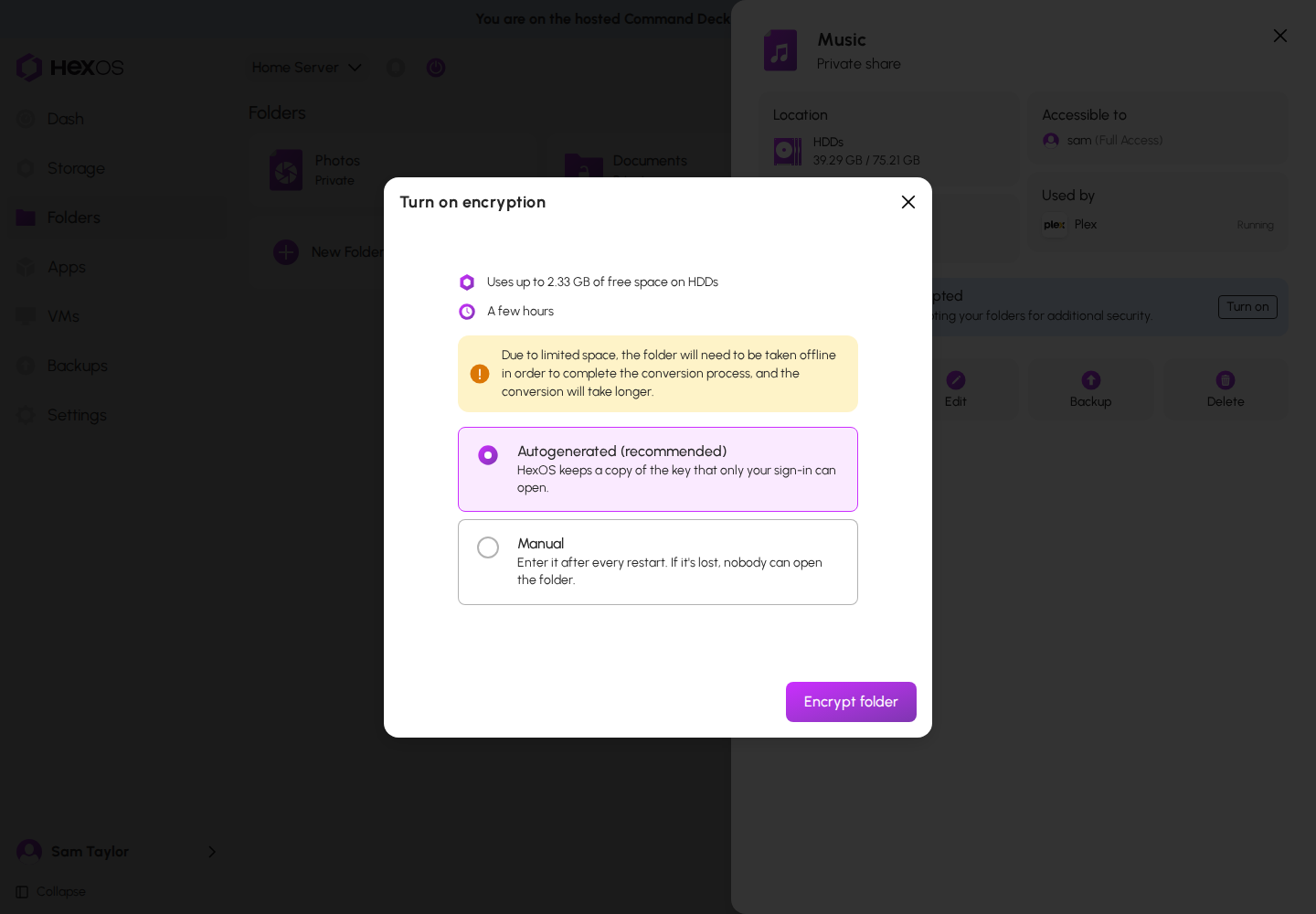
- Choose how the key is kept: Autogenerated (recommended) or Manual. For Manual, type a passphrase of at least 8 characters in Passphrase and again in Confirm passphrase. The choices are explained in Encrypted folders.
- For a copy, leave Remove the unencrypted original once verified ticked to have HexOS remove the original only after it has checked that the encrypted folder holds all of it. A move empties the original as it goes, so this box is not shown.
- Click Encrypt folder. HexOS shows Encrypting the folder: "Follow "{folder}" in Activity. You can close this page."
Danger: If you choose Manual and later lose the passphrase, nobody can open the folder or its backups made from then on. Keep the passphrase somewhere safe before you click Encrypt folder.
¶ When the folder can't be encrypted yet
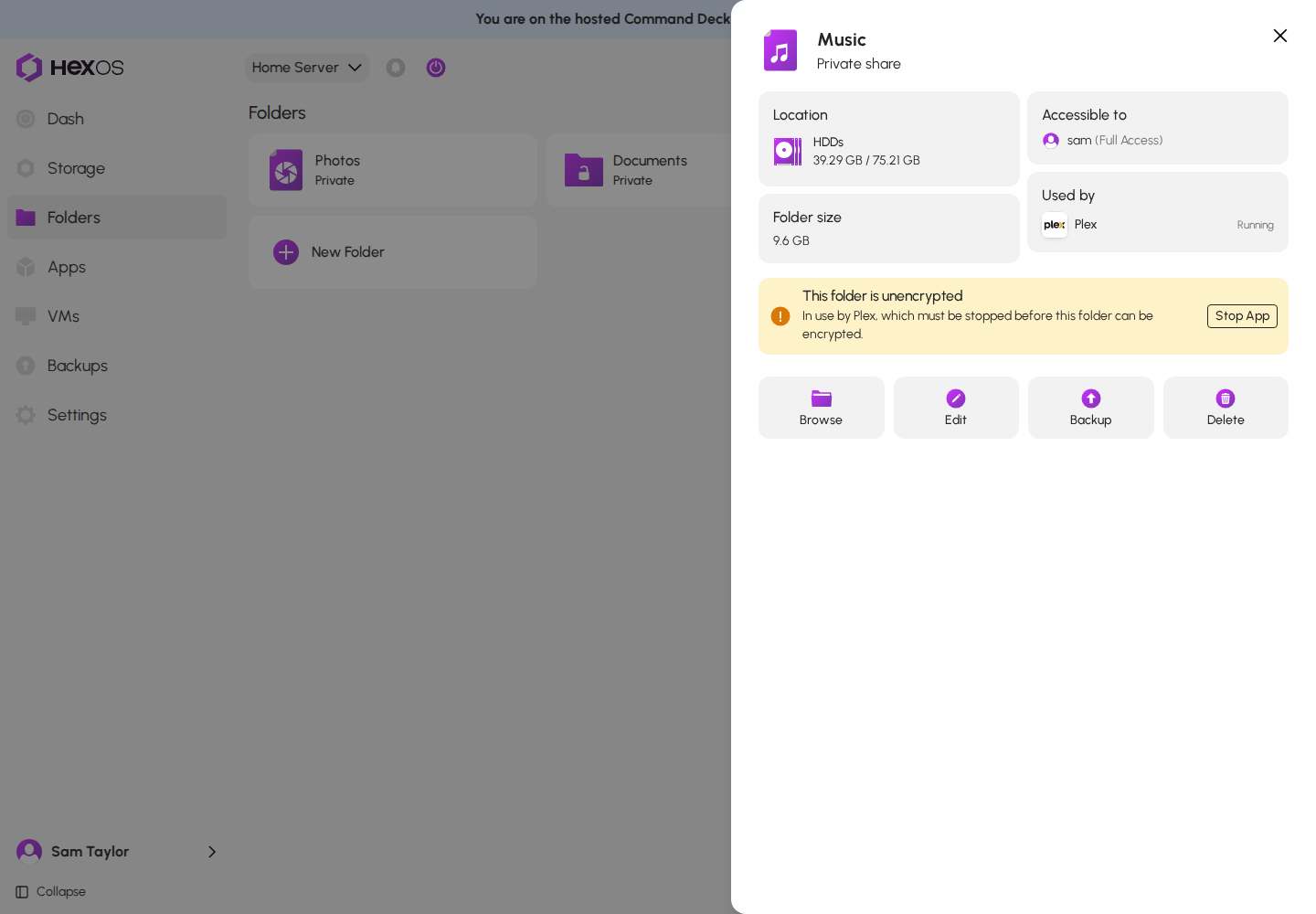
If something stops the conversion from starting, the folder's page shows the reason and has no Turn on button. The dialog lists the same reasons under This folder can't be encrypted yet:. Fix the reason, then open the folder's page again.
Folder in use by an app, with the Stop App button
Not enough free space on the pool
| What HexOS says | What to do |
|---|---|
| In use by {apps}, which must be stopped before this folder can be encrypted. | Click Stop App (or Stop Apps). HexOS stops the apps and reminds you to "Start again from Apps once the folder is encrypted." A virtual machine, or a sync task running on the folder, is listed the same way but has no button: stop it yourself. |
| The share {shares} reaches into this folder and keeps its files open. Turn that share off in TrueNAS, then try again. | A share made in TrueNAS points inside this folder. Turn it off in TrueNAS. The folder's own share is turned off and back on for you. |
| The folder is already backed up to one of your own servers. Remove it from that backup first, then encrypt it. | Remove the folder from that backup (see Manage your backups). Add it again once the folder is encrypted. If the folder is in no backup, see Known issues. |
| You must free {size} temporarily to enable encryption for this folder. | Free up that much space on the pool, or delete old snapshots of this folder. In the dialog this reads "There isn't enough free space on the pool. Free up some space, or delete old snapshots of this folder, then try again." |
| A periodic snapshot task covers this folder. | This shows only when the pool is too full for a copy. Free up space so HexOS can copy the folder instead, or turn the snapshot task off in TrueNAS until the conversion finishes. |
| The folder contains other datasets, which can't be converted with it yet. | A dataset inside this folder has encryption of its own. Contact HexOS support. See Known issues. |
| A folder conversion on this server is running or needs attention. Finish or discard it first. | Only one conversion runs at a time on a server. Wait for the other one to finish, or open that folder's page and click Retry or Discard attempt. |
| A dataset is already using a name this conversion needs, and HexOS can't confirm it's safe to remove. Contact support to clear it. | Contact HexOS support. |
| This folder is a child of {parent}, and cannot be converted by itself. | The folder sits inside another dataset. "To encrypt the contents of this folder, you will need to convert the parent dataset instead." |
| This server needs a HexOS update before it can encrypt folders. It updates itself, so check back soon. | Wait for the update, then try again. |
| We couldn't determine how much free space is required to encrypt this folder. Try again in a moment. | Close the dialog and open it again. |
¶ While it runs
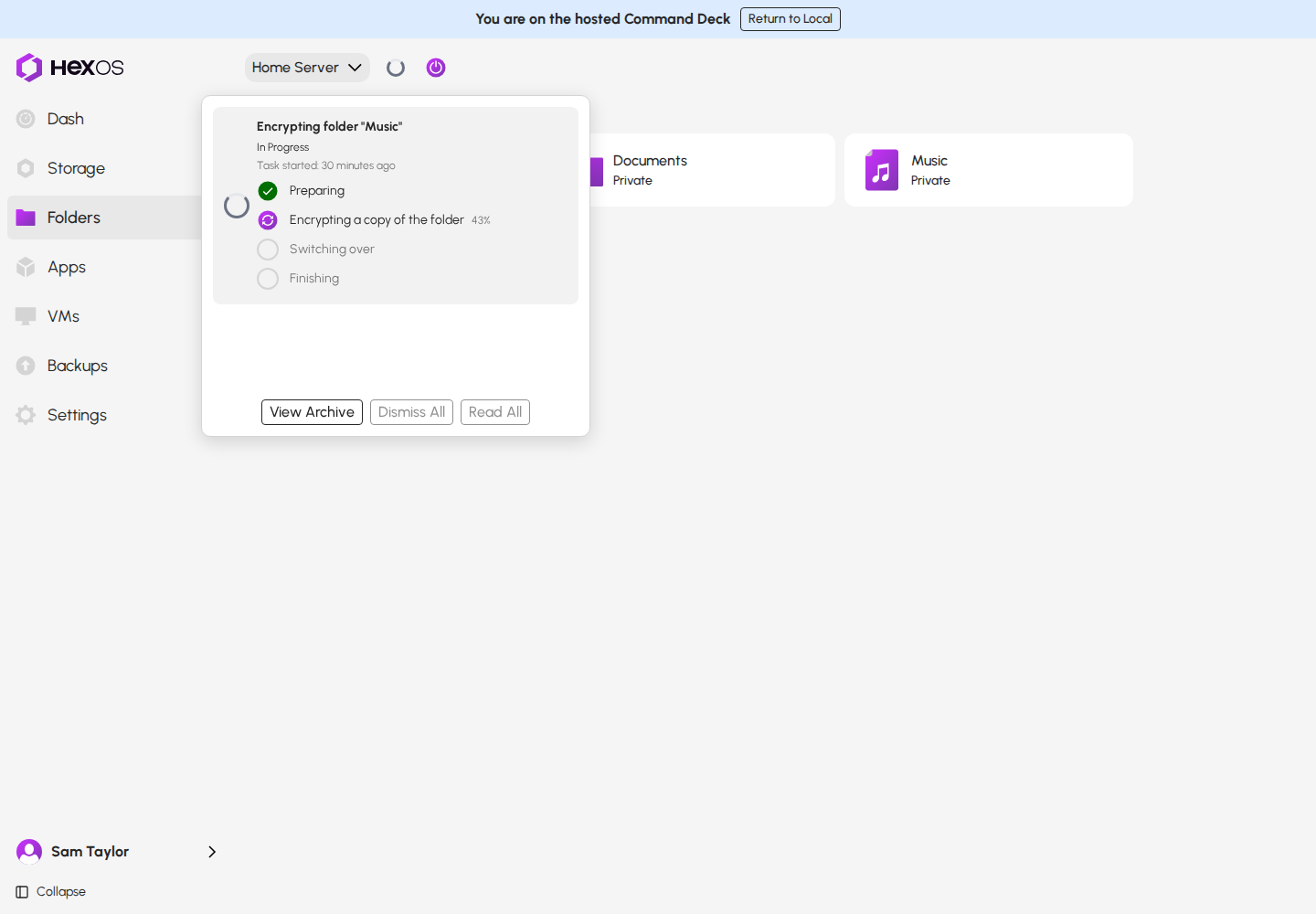
Follow the conversion in the Activity Center. Its steps are Preparing, Encrypting a copy of the folder, Switching over and Finishing. The conversion runs on your server: you can close the Command Deck, and if the server restarts, the conversion carries on when it is back.
Conversion steps in the Activity Center
While it runs:
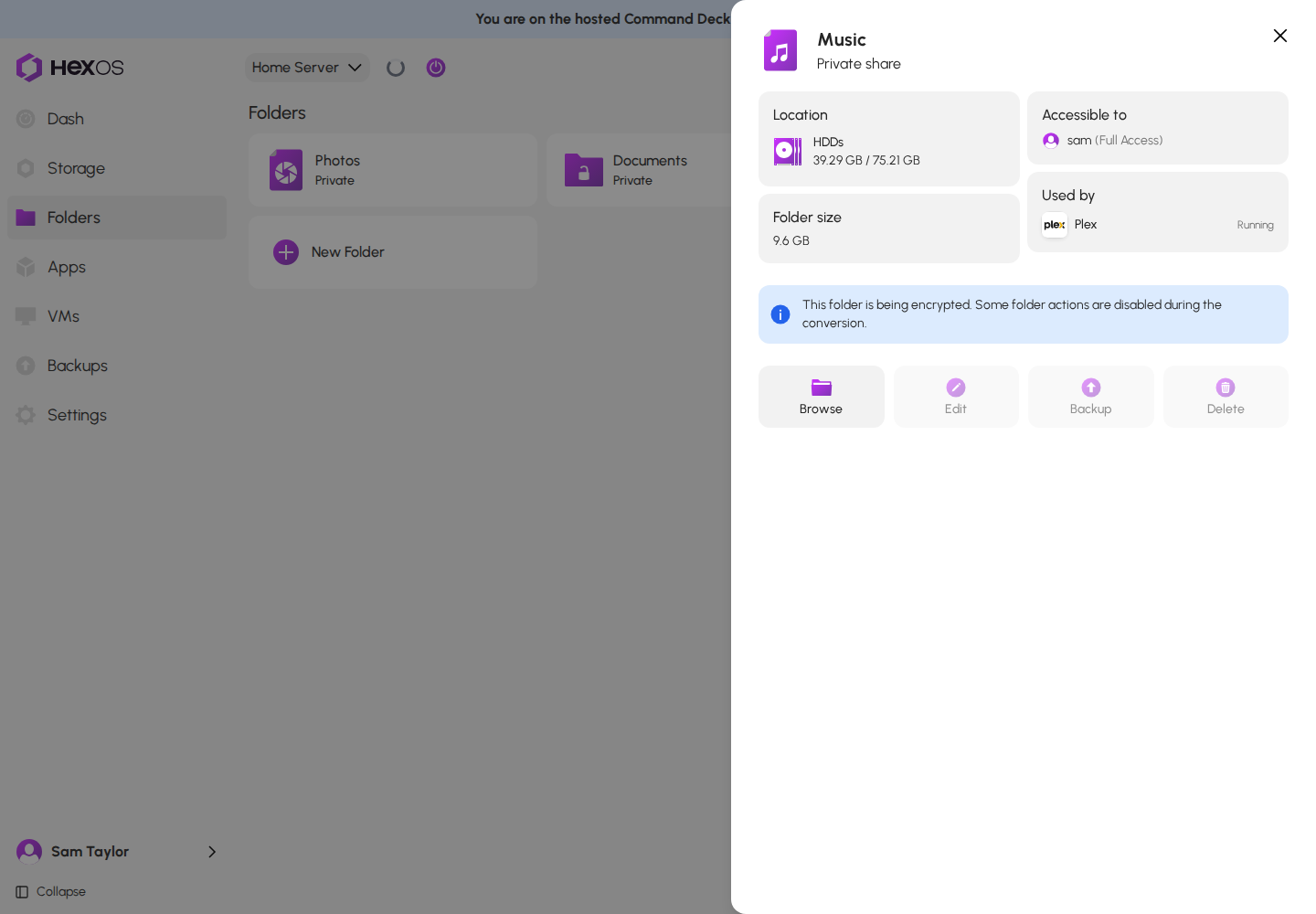
- The folder's page says "This folder is being encrypted. Some folder actions are disabled during the conversion." Edit, Backup and Delete are off. Browse still works.
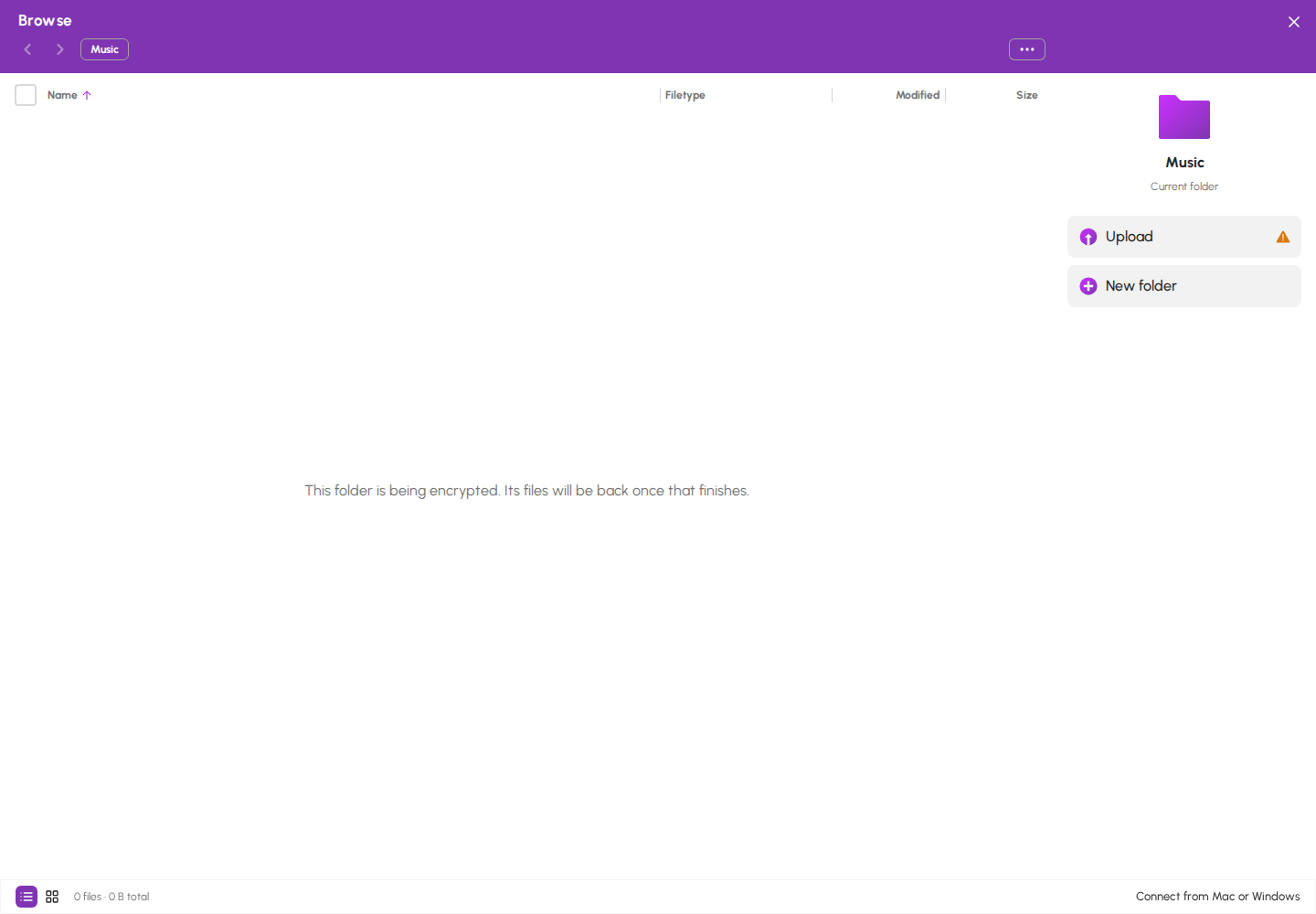
- During a move, the file browser says "This folder is being encrypted. Its files will be back once that finishes."
- Apps that use the folder cannot be started, updated or uninstalled. An app's page says "Uninstall is off while {folders} is being encrypted."
Folder page while the folder is being encrypted
File browser during a move
¶ When it finishes
The folder keeps its name, its share and its access settings, and it is now encrypted. Start any apps you stopped again from Apps.
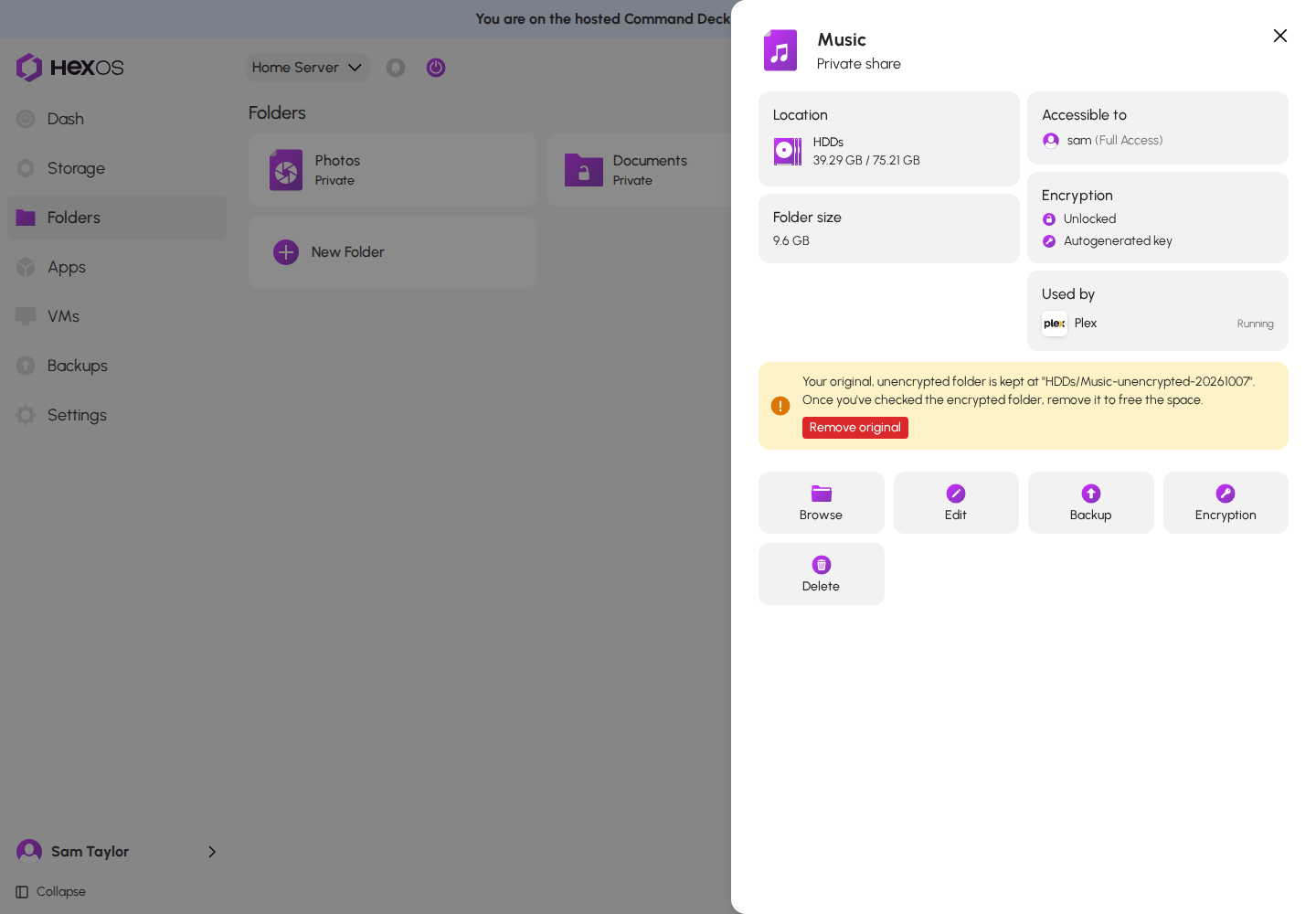
The unencrypted original. If Remove the unencrypted original once verified was ticked and HexOS proved that the encrypted folder holds all of it, the original is already gone. Otherwise HexOS keeps it beside the folder, with a name like Music-unencrypted-20261007, and the folder's page says where, for example: "The unencrypted original couldn't be verified against the encrypted folder, so it's kept at "{dataset}". Remove it to free the space." Your encrypted folder is complete and in use either way.
To remove a kept original:
- Check that the encrypted folder has what you expect.
- On the folder's page, click Remove original.
Kept original with the Remove original button
- In Remove the unencrypted original?, tick I understand this permanently deletes the unencrypted original and click Remove original.
Remove the unencrypted original dialog
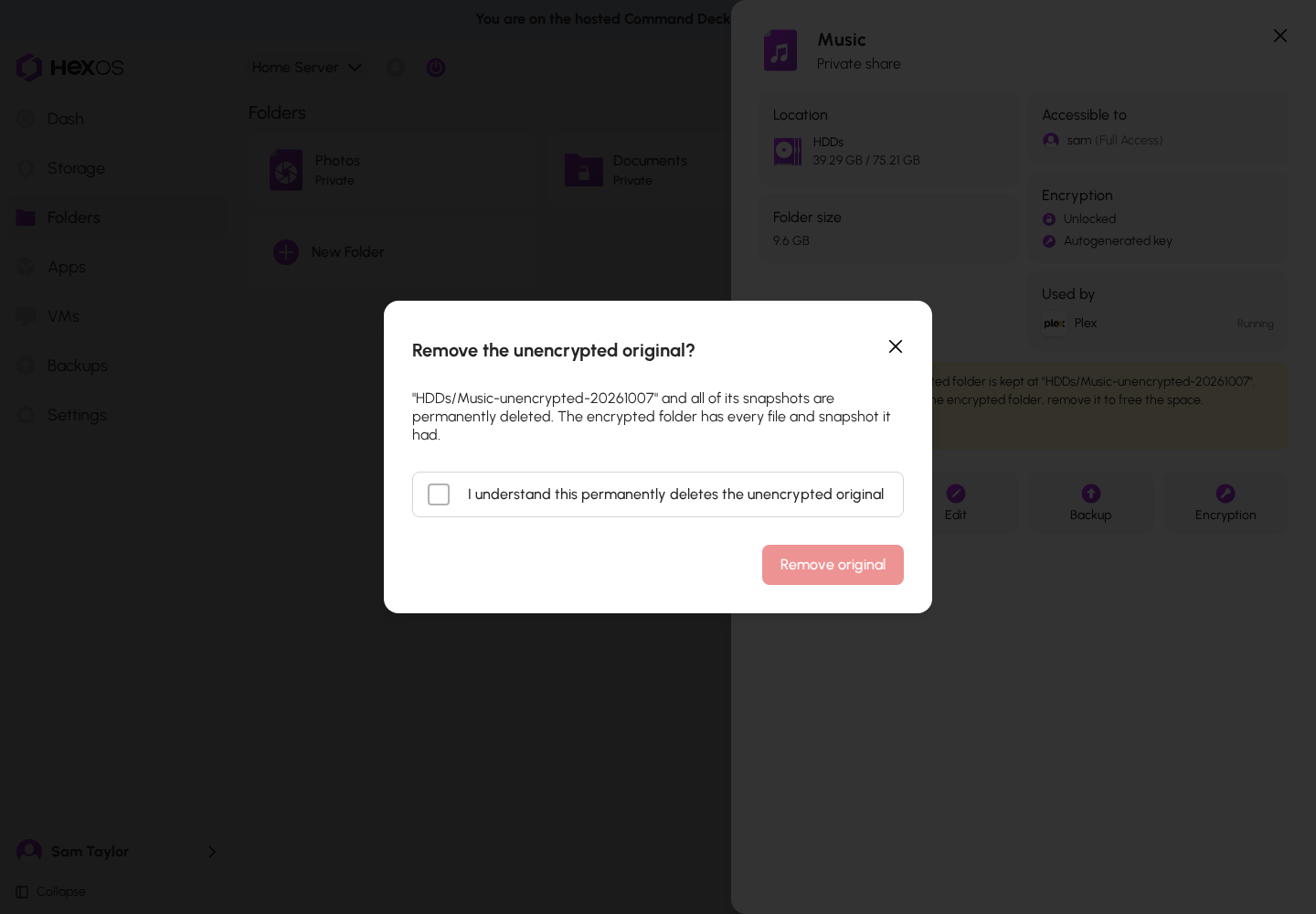
Warning: A kept original is not encrypted, and it uses space on the pool. Removing it deletes it and all of its snapshots for good. Removing it frees the space but does not overwrite it, so pieces of files stored before encryption can stay on the drives until that space is used again. Erase a drive before you sell it or send it back.
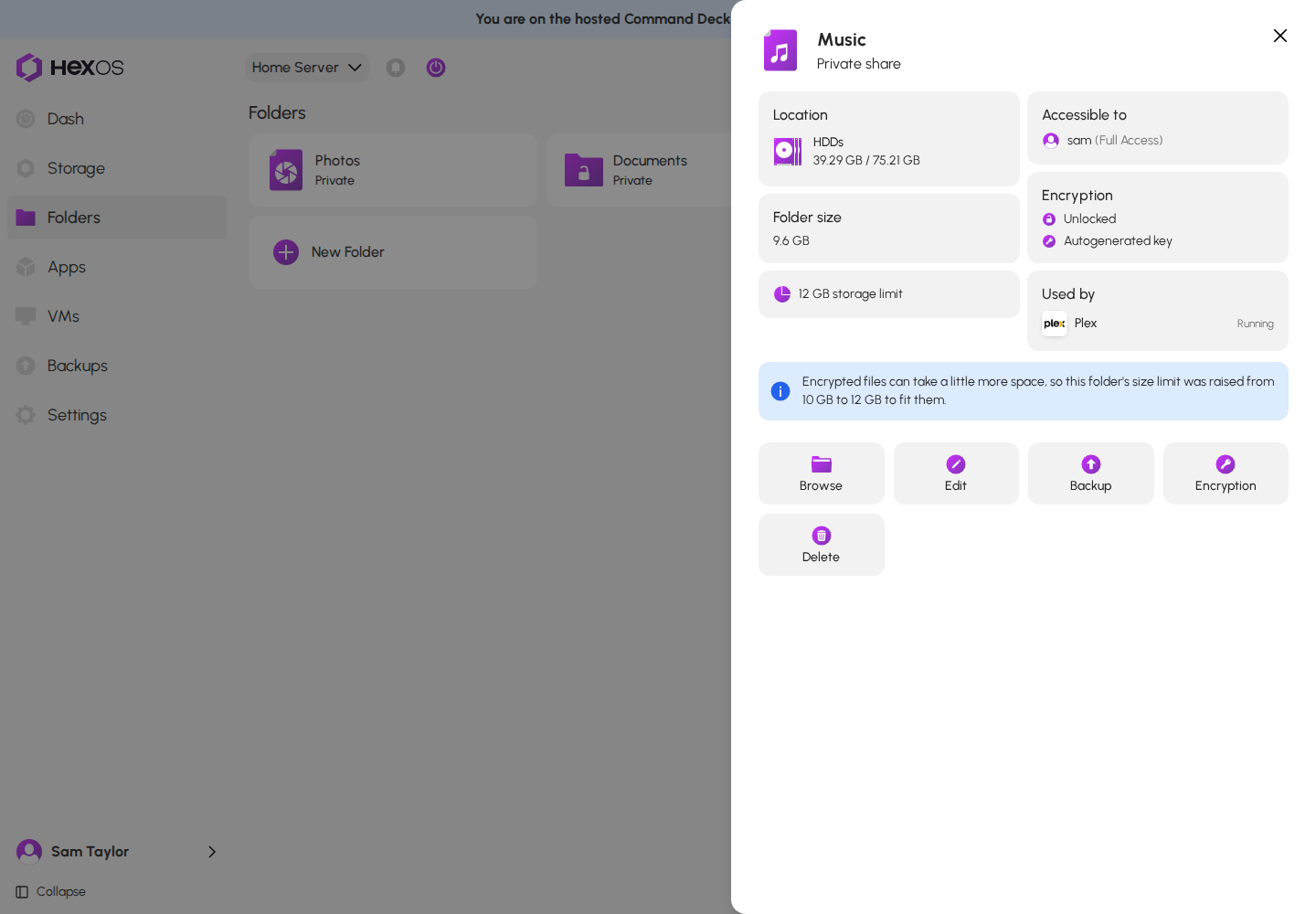
Size limit. Encrypted files can take slightly more space than the originals. If the folder has a size limit and the encrypted files no longer fit inside it, HexOS raises the limit by the difference and says so: "Encrypted files can take a little more space, so this folder's size limit was raised from {from} to {to} to fit them."
Size limit raised note
Backups. If you started from a backup (see below), the folder is added to that backup when it is done. If that fails, the page says "The folder is encrypted, but it couldn't be added to a backup. Add it again from the backup."
¶ If the conversion stops
If a conversion stops part-way, the folder's page explains what happened and offers Retry, Discard attempt, or both. A copy leaves the original untouched until the switch-over. A move keeps every file in either the original or the encrypted folder, never in neither.
A stopped conversion with Retry and Discard attempt
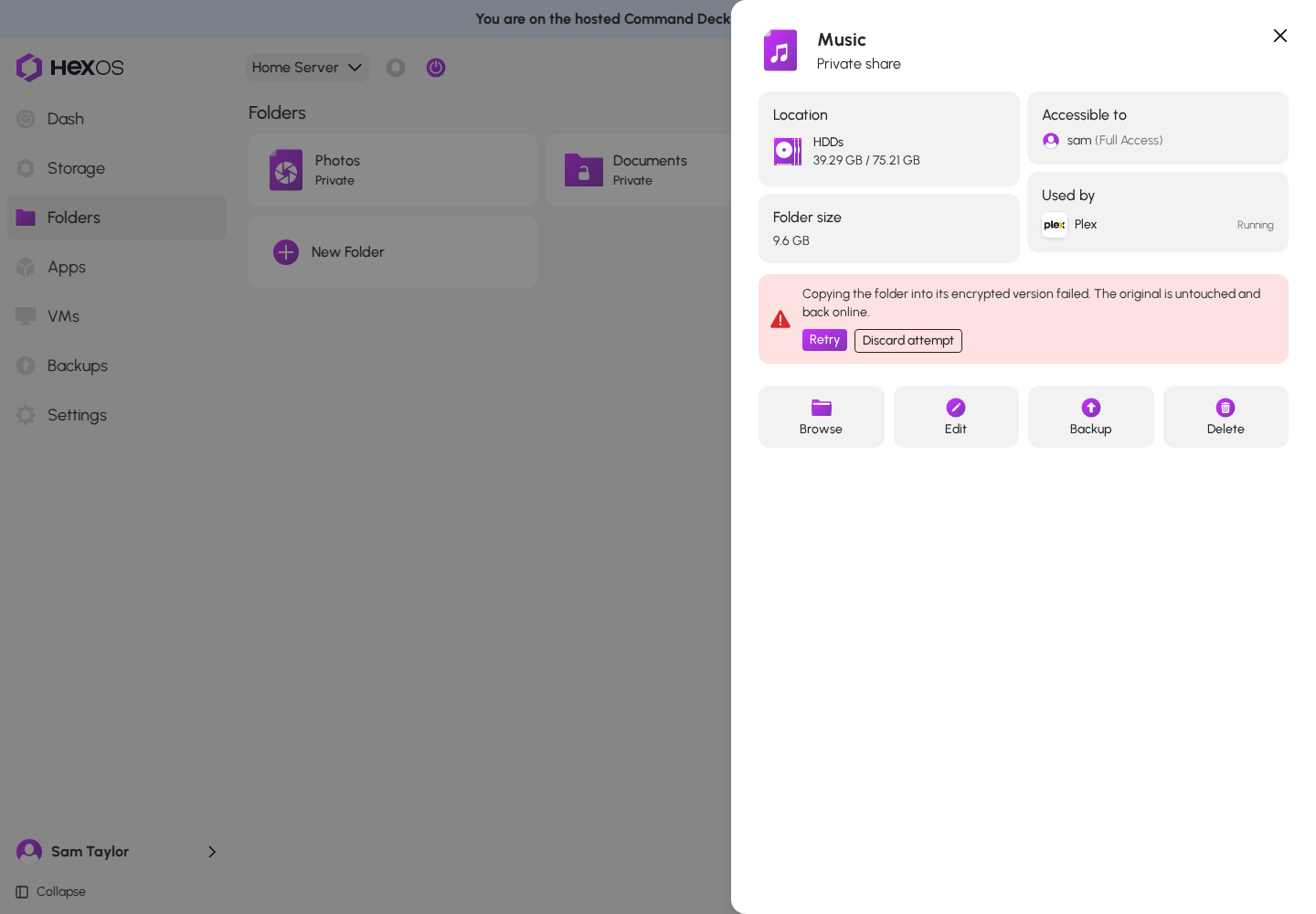
- Retry carries on from where it stopped.
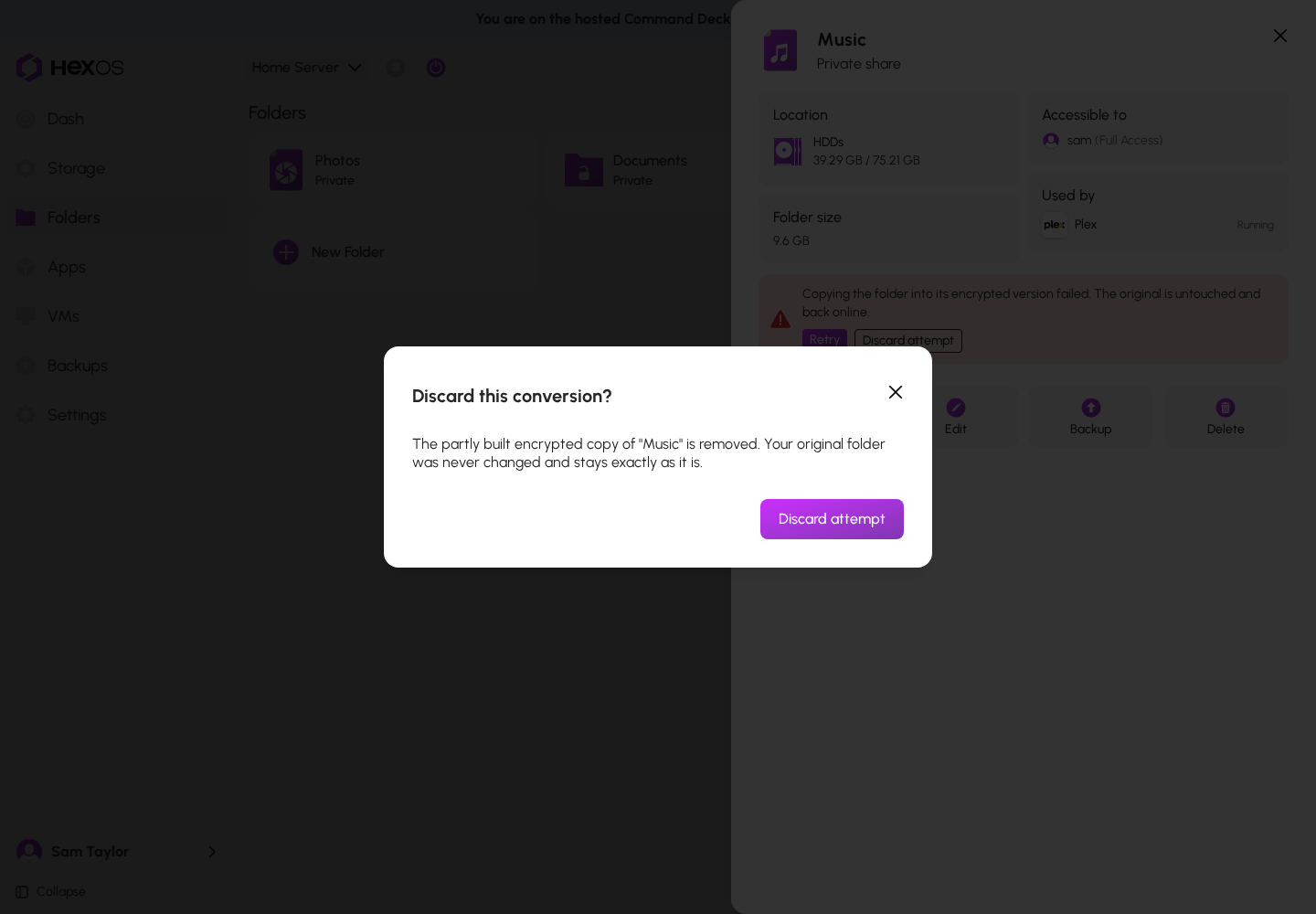
- Discard attempt is offered when nothing has been switched yet: a copy that failed before the switch-over, or a move that has not moved any file. Click it, then Discard attempt again in Discard this conversion?. The folder goes back to how it was, unencrypted, and you can turn on encryption again later.
Discard this conversion dialog
| What HexOS says | What to do |
|---|---|
| Copying the folder into its encrypted version failed. The original is untouched and back online. | Click Retry, or Discard attempt. |
| The encrypted copy didn't match the original, so nothing was switched. The original is untouched and back online. | Click Retry, or Discard attempt. |
| Switching over to the encrypted folder didn't finish. Your files are safe; retry to complete it. | Close anything that still uses the folder, such as an app, then click Retry. |
| Moving files into the encrypted folder stopped part-way. Every file is still in one place or the other; retry to finish. | Click Retry. |
| Moving files into the encrypted folder stopped before the pool ran out of free space. Every file is still in one place or the other. Free up space on the pool, then retry. | Free up space on the pool, then click Retry. |
| Moving files into the encrypted folder couldn't start, so no files were moved. The folder stays offline until the move finishes or the attempt is discarded. Retry, and contact support if it stops here again. | Click Retry, or Discard attempt to put the folder back. |
| Some files couldn't be moved into the encrypted folder. Retry to try them again. | Click Retry. |
| The server didn't confirm it stored the folder's key. Retry to store it again. | Click Retry. |
| The conversion stopped unexpectedly. Your files are safe; retry to continue. | Click Retry. |
| The folder's key was lost before encryption finished, so this attempt can't continue. Every file is still in the folder. Discard the attempt, then turn on encryption again. | Click Discard attempt, then Turn on again. |
| The folder is encrypted, but the passphrase you chose was lost before it could be set, so the folder still uses an autogenerated key. Open Encryption and choose Manual to set your passphrase, then retry to finish. | Click Encryption, choose Manual, set your passphrase and click Save changes. Then click Retry. |
| The folder's key was lost before encryption finished, and this attempt can't continue on its own. Your files are safe. Contact support. | Contact HexOS support. |
Help: If Retry keeps stopping at the same point, contact HexOS support at [email protected] or ask on Discord.
¶ Encrypt a folder from a backup
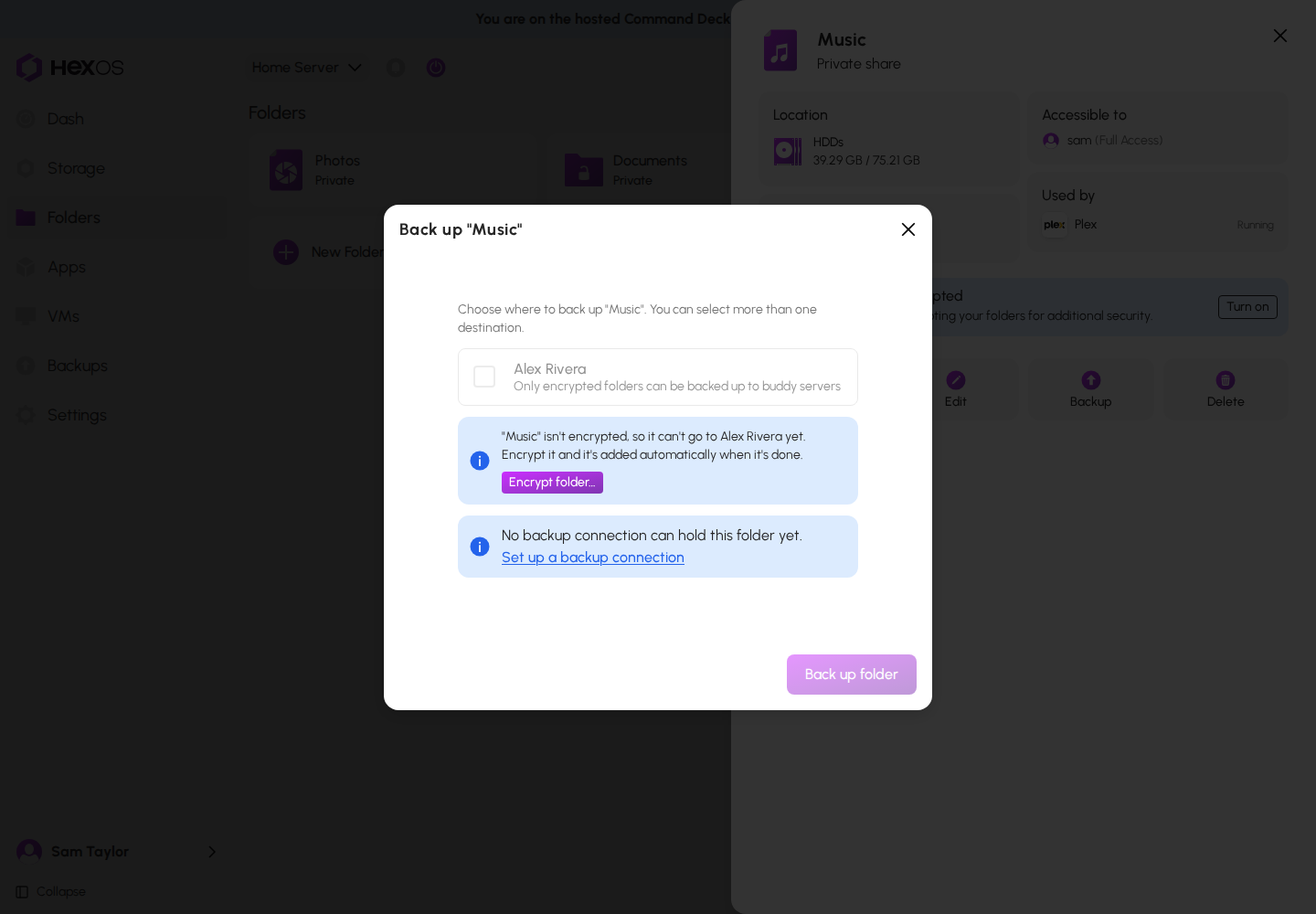
A folder must be encrypted before it can be backed up to another person's server. If you pick an unencrypted folder for such a backup, the backup offers to encrypt it:
- In a folder's Backup dialog: ""{folder}" isn't encrypted, so it can't go to {destinations} yet. Encrypt it and it's added automatically when it's done." Click Encrypt folder….
- In a backup's Folders dialog, next to each unencrypted folder: click Encrypt….
Unencrypted folder in the Backup dialog
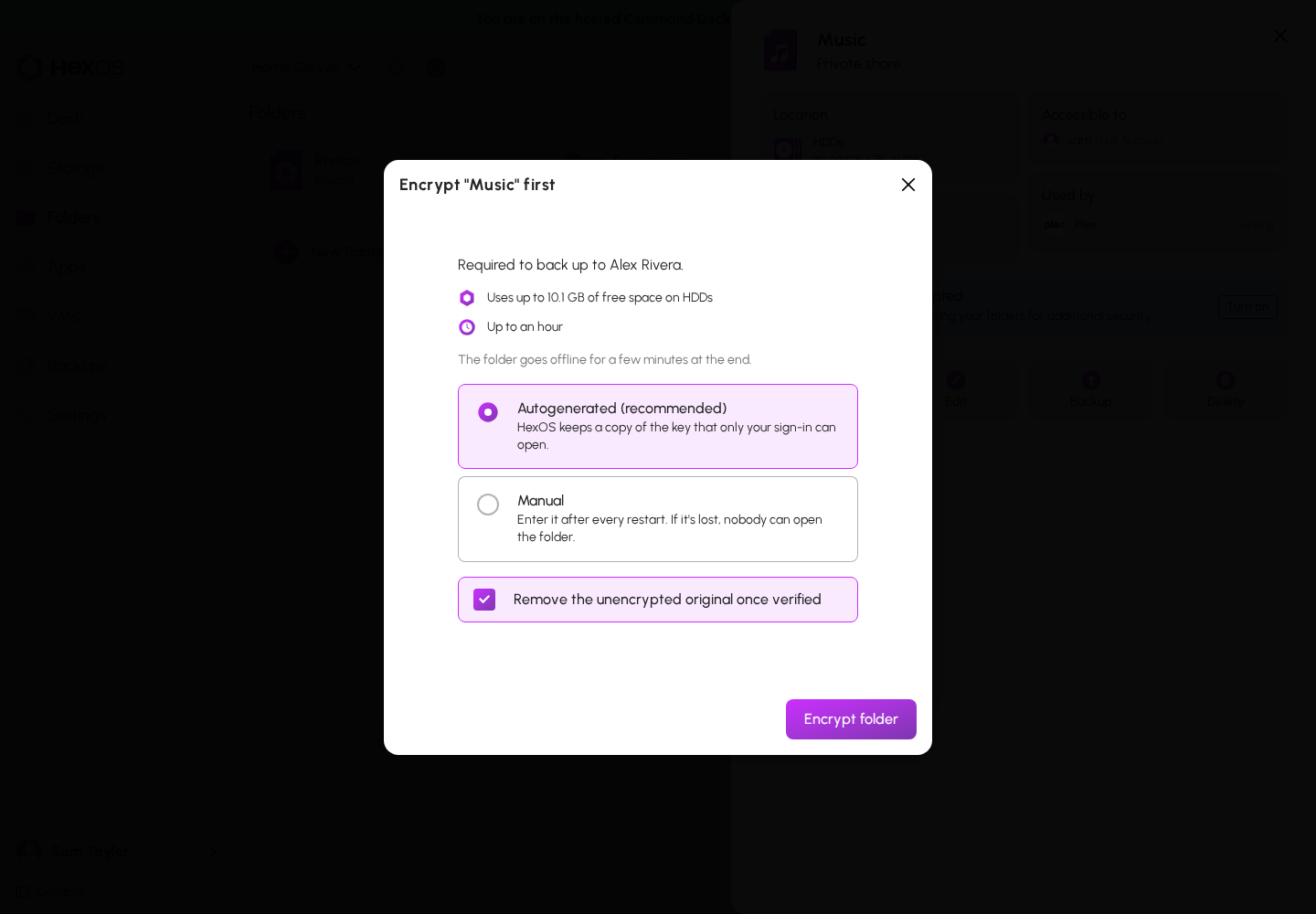
The dialog that opens is titled "Encrypt "{folder}" first" and says "Required to back up to {destinations}." It works the same as Turn on encryption above. When the folder is encrypted, it is added to the backup automatically.
Encrypt the folder first dialog
For setting up the backup itself, see Set up a backup.