¶ Using a VM's console from a phone or tablet
Info: Virtual Machines is in beta. Everyone can use it. Beta means we are still finishing it, so screens may change and you may find a rough edge. What beta means
You can open a VM's console, its screen, on a phone or tablet and use it with your fingers. This is most useful when nothing else can reach the VM: while an operating system is installing, at a startup or firmware screen, or when the VM has no network connection.
Info: For everyday use of a Windows VM from a phone, a Remote Desktop app is smoother. See Connecting. The console always works, even when Remote Desktop cannot.
Requirement: Your phone or tablet must be on the same network as your server, because the console runs on the server itself.
¶ Opening the console
- Go to VMs > Installed VMs and click the VM.
- Click Connect. If it opens something else, such as Remote Desktop or Web UI, click the arrow beside Connect, then click Console.
For a VM with its own web page, such as Home Assistant OS or Plex Media Server, Console is only in that list with Expert Mode on. While HexOS is still setting a VM up, the console is locked and the button reads Setting up.
The console opens in a new browser tab, scaled to fit. The bar at the top shows the VM's name, a keyboard button, a ⋯ menu and a status dot. The dot is green when the console is connected.
The console on a phone
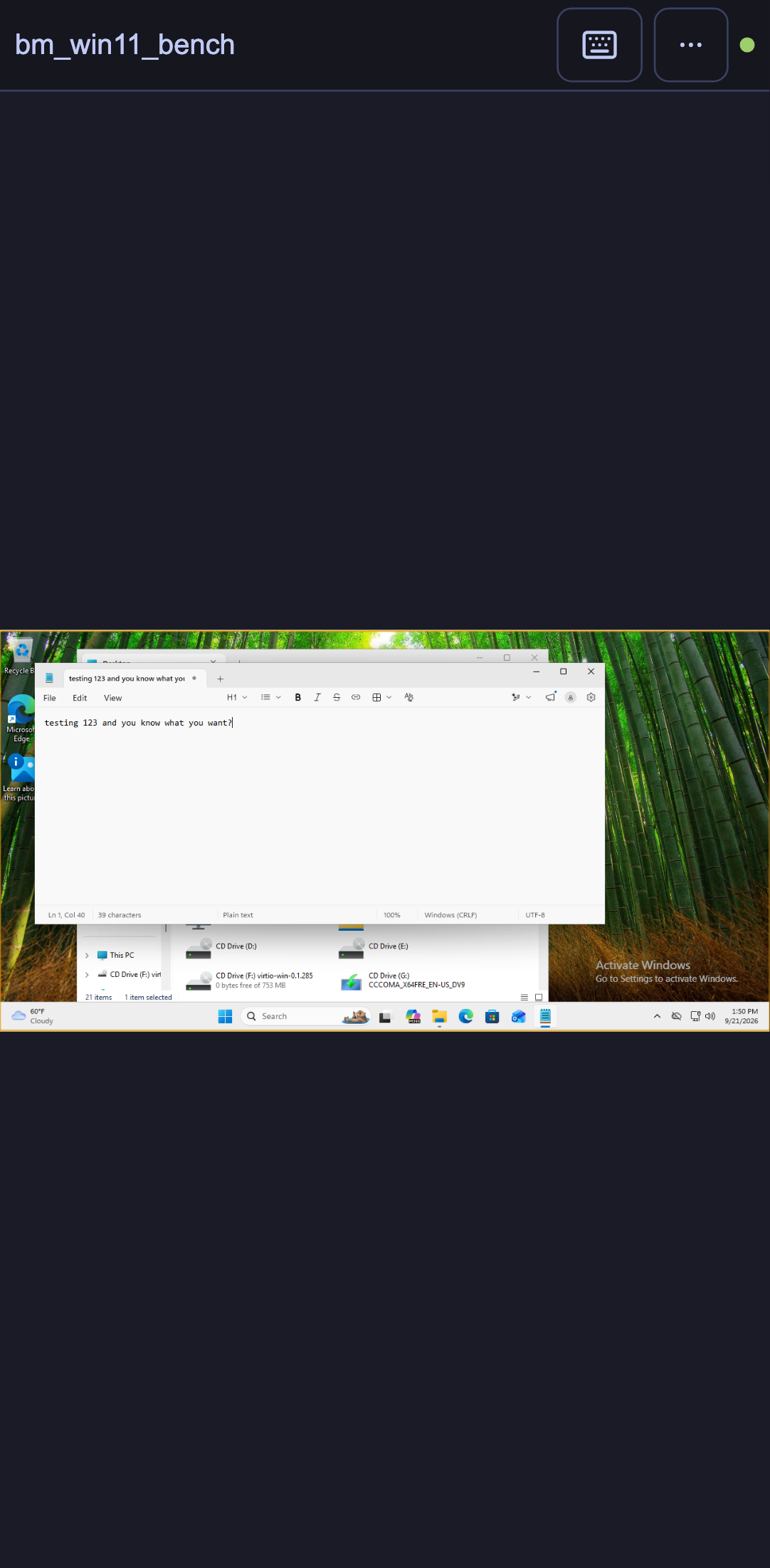
Tip: Turn your phone on its side. A desktop is wider than it is tall, so it is drawn larger that way, and the bar has room for more buttons.
¶ Using your fingers as the mouse
| You do this | The VM sees |
|---|---|
| Tap | A click |
| Tap twice | A double click |
| Press and hold, or tap with two fingers | A right click |
| Tap with three fingers | A middle click |
| Drag one finger | Click and drag: move a window, select text, drag a scrollbar |
| Drag two fingers up or down | Scrolling |
| Pinch with two fingers | Nothing: this zooms your view, see below |
¶ Zooming in
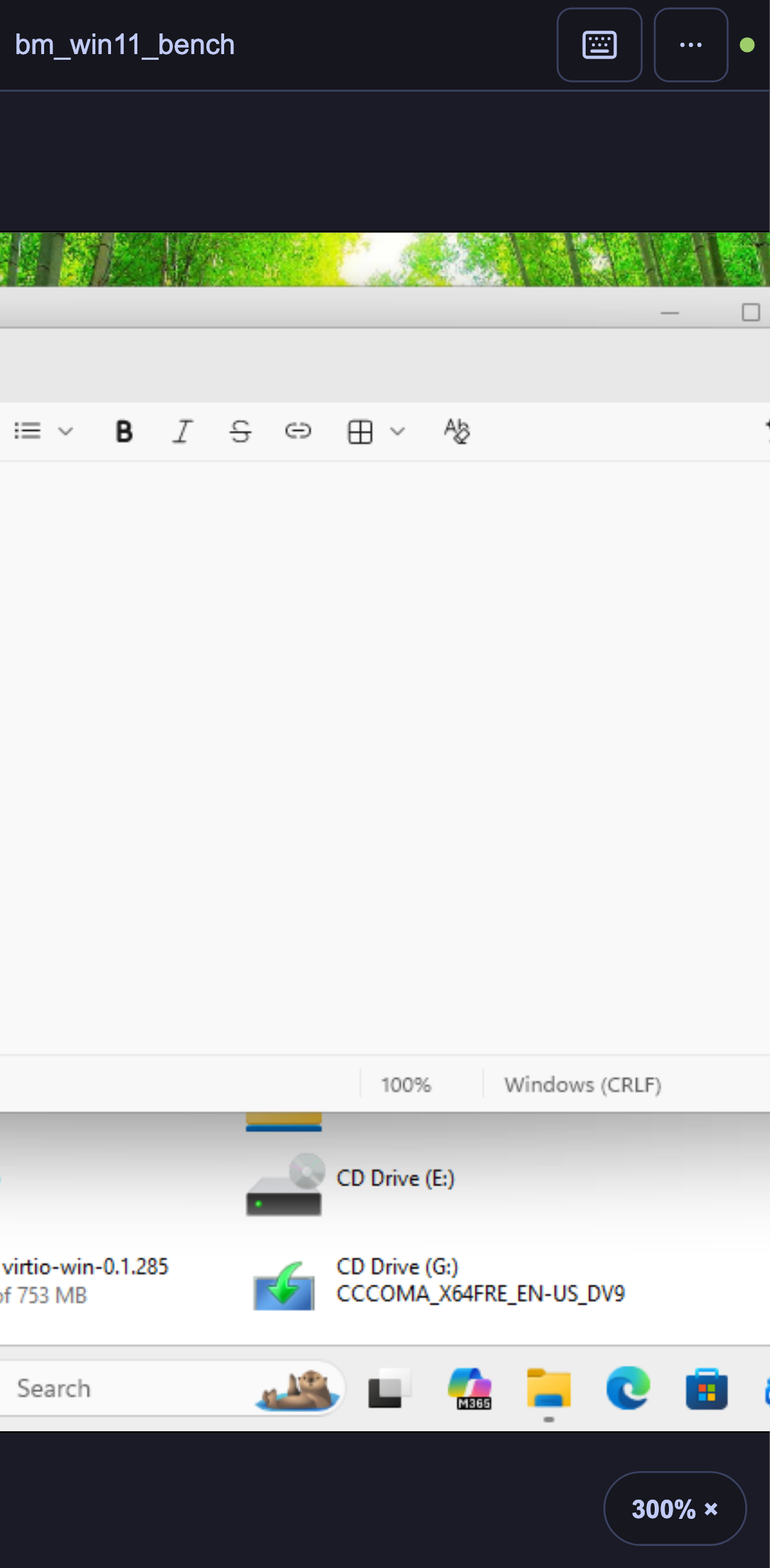
A whole desktop on a phone is small. Pinch outwards with two fingers to zoom in, up to four times. While you are zoomed in:
- Drag with two fingers to move around the screen.
- Taps and drags still land exactly where you put your finger.
- A button in the corner shows how far you have zoomed. Tap it to go back to the whole screen.
To scroll inside the VM while zoomed in, drag its scrollbar with one finger, or go back to the whole screen first.
Zoomed in
¶ Trackpad mode, for small targets
A fingertip covers what it is pointing at, which makes small buttons hard to hit. Trackpad mode turns the screen into a laptop's trackpad:
- Click ⋯.
- Click Touch: Direct. It changes to Touch: Trackpad.
Now a pointer is drawn on the screen, and:
- Dragging one finger moves the pointer without clicking. Move slowly for precise control.
- Tapping anywhere clicks where the pointer is.
- To drag something, tap, then straight away put your finger back down and move it.
- Press and hold, or tap with two fingers, for a right click where the pointer is.
- Two fingers still scroll and zoom.
Your choice is remembered on that device. Tap the same menu item again to go back.
¶ Typing
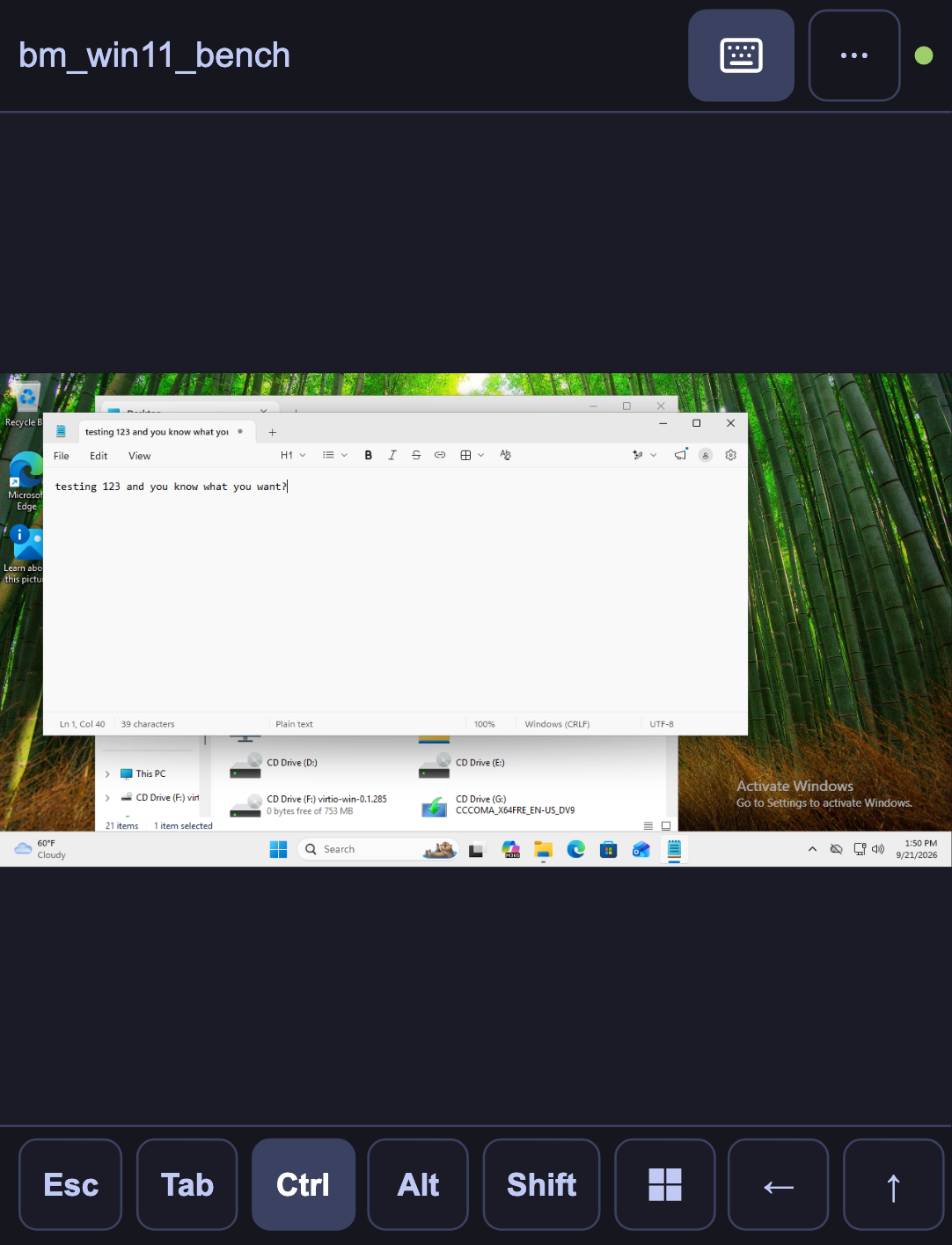
Tap the keyboard button in the bar to bring up your phone's keyboard. What you type is sent to the VM. Tap the button again, or put your phone's keyboard away as usual, to finish.
A row of extra keys appears above your keyboard with the keys a phone does not have: Esc, Tab, Ctrl, Alt, Shift, the Windows key, the arrow keys, Home, End, PgUp, PgDn, Del and Ins. Swipe the row sideways to see them all. F1-12 swaps the row for the function keys.
The extra keys, with Ctrl held
¶ Keyboard shortcuts
Ctrl, Alt, Shift and the Windows key stay held for you, since you cannot hold one key while pressing another on a phone:
- Tap once to hold it for the next key only. For example, click Ctrl, then type c to copy.
- Tap a second time to keep it held until you tap it again. For example, keep Alt held and click Tab several times to switch windows.
- Tap a third time to let go.
A held key also applies to taps on the screen, so Ctrl and a tap selects several files. Everything is let go when you put the keyboard away.
Info: Typing is sent as the keys of a US keyboard. If the VM is set to another keyboard layout, some characters may come out differently, and characters that a US keyboard cannot type, such as accented letters and emoji, are skipped. A message tells you which characters were skipped. Paste Text works the same way.
¶ The ⋯ menu
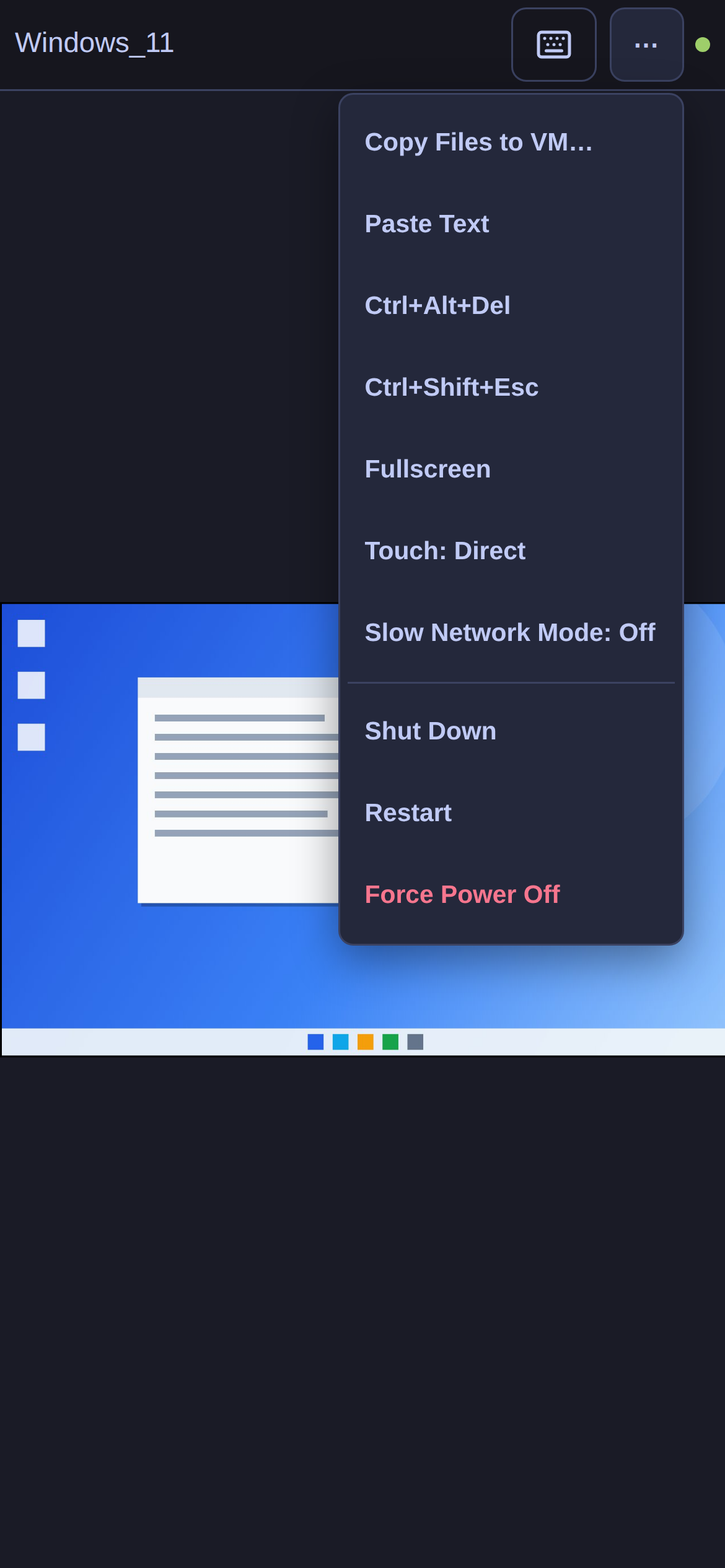
On a phone held upright, the rest of the controls are in the ⋯ menu:
- Copy Files to VM…: copy files from your phone or tablet into the VM. This needs the SPICE guest agent inside the VM. See The console.
- Paste Text: type a block of text into the VM, such as a password or a command.
- Ctrl+Alt+Del: send that key combination, for example to reach the Windows sign-in screen.
- Ctrl+Shift+Esc: send that key combination, which opens Task Manager in Windows.
- Fullscreen: hide the browser's own bars. Not available on iPhone.
- Touch: Direct / Touch: Trackpad: see above.
- Slow Network Mode: Off: click it to send fewer, smaller screen updates, for a slow or distant connection. It then reads Slow Network Mode: On.
- Shut Down, Restart and Force Power Off: each asks you to confirm first. Force Power Off is the same as unplugging the power cable, so anything unsaved inside the VM is lost.
With the phone on its side, most of these move into the bar, and the power actions are behind the power button.
The ⋯ menu
¶ If something is not working
- The keyboard button does nothing: tap the screen once, then tap the keyboard button again. If a keyboard is attached to your tablet, your device may not show its own keyboard; the extra keys still appear.
- The picture is there but nothing responds: check the status dot. If it is not green, the screen is reconnecting. If another device has the same console open, you will be asked whether to use it here.
- Everything is too small: turn the phone on its side, pinch to zoom in, or switch to trackpad mode.
- The screen went black: the VM may have gone to sleep or be restarting. Wait a moment, or tap the screen.
- It says Virtual Machine Stopped: the VM is off. Click Start VM to start it.
- It says Console Session Expired: close the tab and open the console from HexOS again.