¶ Open shared folders from a Virtual Machine
This guide helps you open the files on your HexOS server from a Virtual Machine (VM). A VM is a computer running inside your server. It has its own desktop, sign-in, and network address.
A shared folder is a folder you can open over your home network. Connecting it does not copy the files into the VM. You are opening the files stored on the server.
You will choose the right address, then follow the steps for your VM's operating system. There is also a Mac example for connecting from a separate computer.
¶ Before you start
You need:
- A running VM with its desktop open. Use the Virtual Machines guide if you have not created or opened your VM yet.
- An existing shared folder on your HexOS server. In this guide, it is called Documents. Use your own folder's name.
- A file-sharing username and password with access to that folder. Ask the person who set up your server if you do not know them.
File-sharing accounts are listed in HexOS under Settings > Local users. They are separate from your Command Deck website account and the account you use to sign in to the VM.
Info: Follow the section for the desktop where you want to open the files. For example, if you use a Mac to control a Windows VM, follow the Windows steps inside the VM.
¶ Choose the right address
Your server and your VM have different addresses. An address shown as four numbers separated by dots, such as 192.168.1.100, identifies a device on your network.
| Where are you opening the files? | Where are the files stored? | Address to use |
|---|---|---|
| Inside a VM | On the HexOS server running that VM | Address inside this VM, when shown in HexOS |
| On a separate Windows PC, Mac, or Linux computer | On your HexOS server | The normal folder address copied from HexOS |
| Inside a VM | On a different computer on your home network | That computer's shared-folder address |
¶ Find the address for a VM
- In Command Deck, choose your server from the menu at the top. Click VMs, then Installed VMs.
Find your installed VM
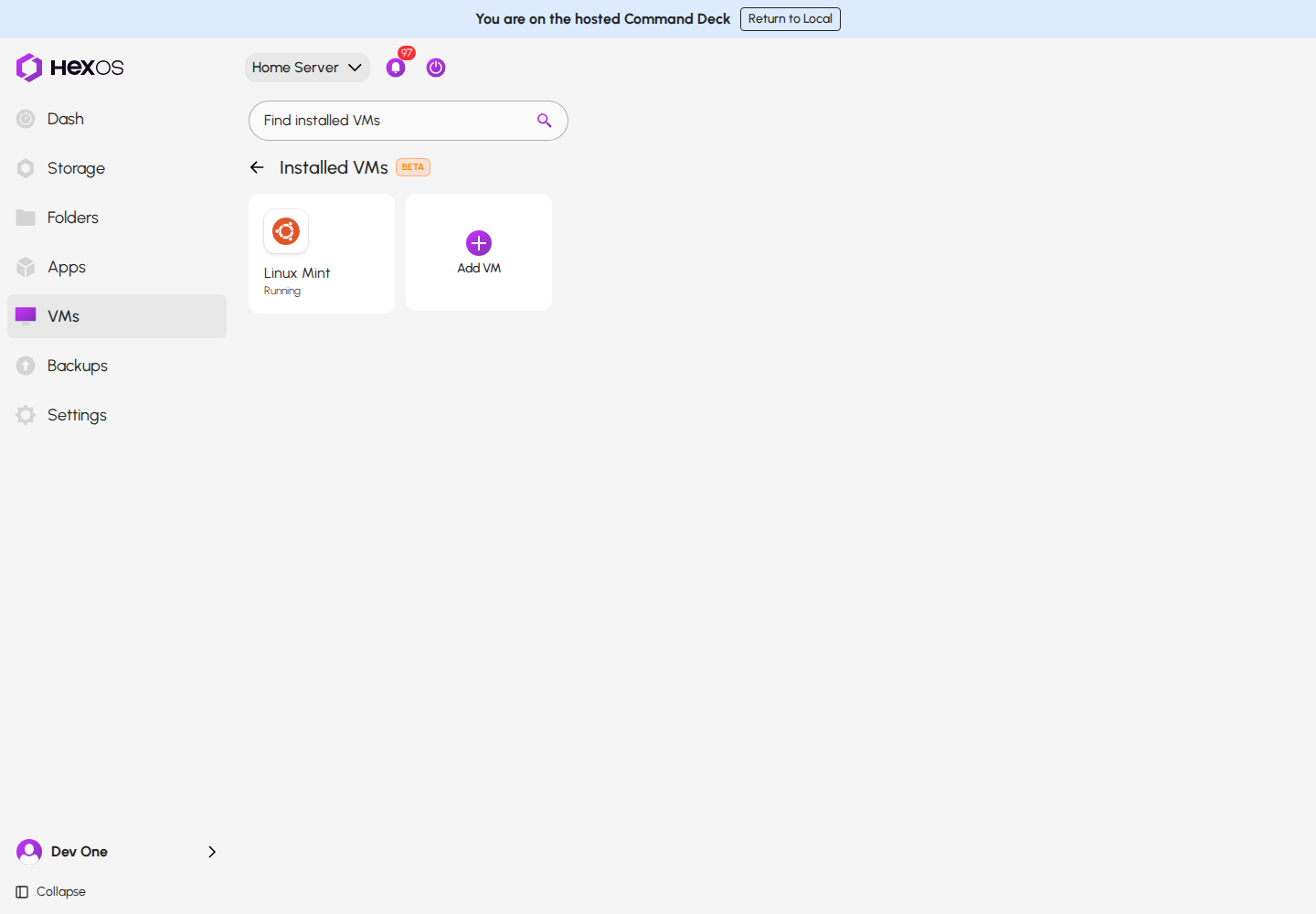
- Click your VM's card. Write down the value beside Address inside this VM. This is the address for reaching your server from inside that VM. IP Address is the VM's own address and is not the one to use for the server's folders.
Find Address inside this VM
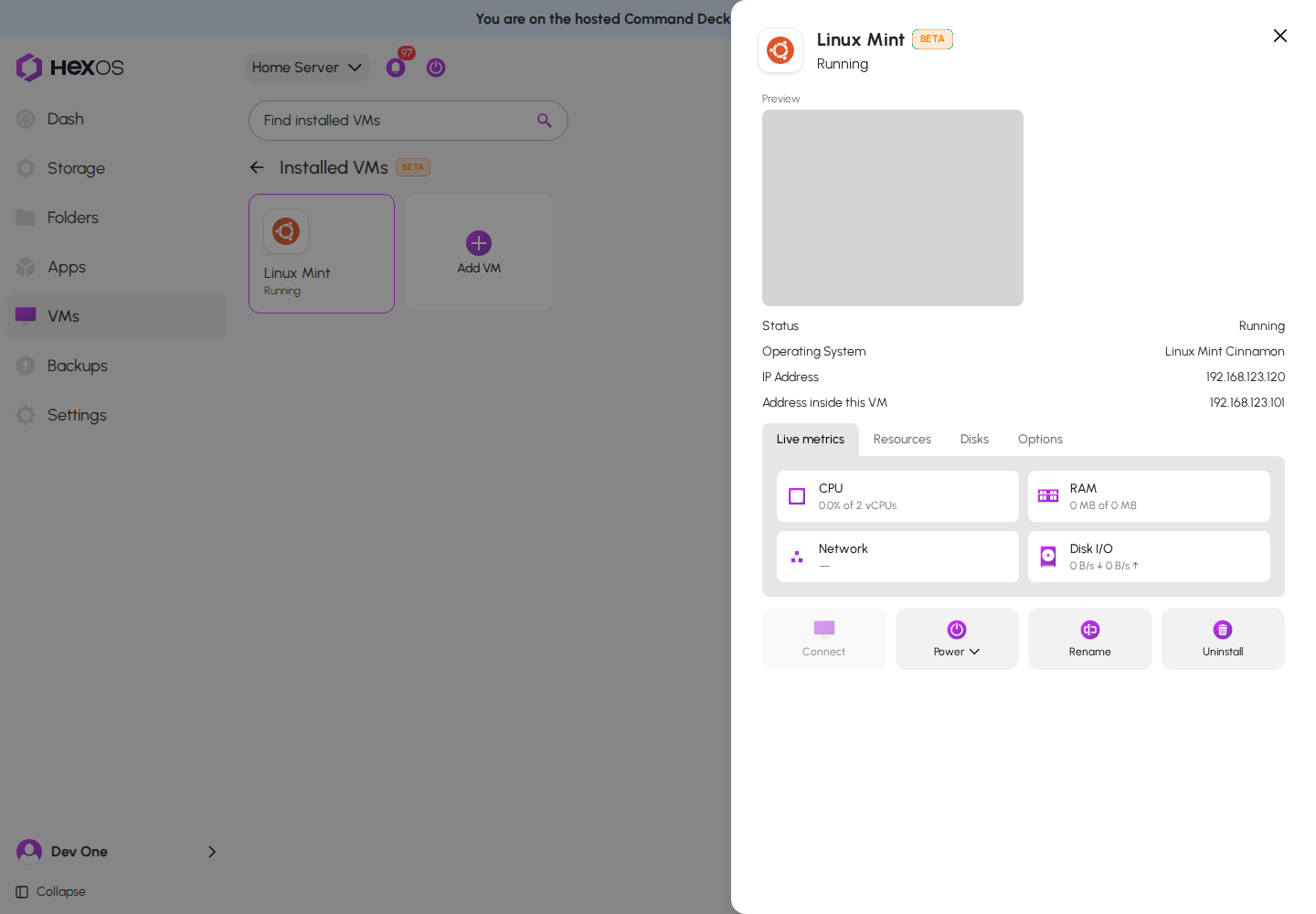
On some network setups, the VM cannot reach its own server at the address your other computers use. It can still reach other devices or the internet. The Address inside this VM value provides an address to try for the server's shared folders.
If that row is missing, try the normal folder address using the link below. A missing row does not by itself mean something is broken. If neither address works, use If the connection fails.
¶ Find the normal folder address
Follow Copy the folder address. It shows Folders > your folder > Browse > Connect from Mac or Windows, with a screenshot for each step.
When connecting from inside the VM, keep the folder name but replace the numbers in the server address with the numbers from Address inside this VM. For Windows, that row may already begin with \\. Keep exactly two backslashes before the numbers, then one backslash before the folder name. For a separate computer, keep the normal address you copied.
For example, if the VM-specific address is 192.168.123.101 and the folder is Documents:
| Desktop you are using | Address to type |
|---|---|
| Windows | \\192.168.123.101\Documents |
| Linux Mint or Ubuntu | smb://192.168.123.101/Documents |
The numbers and folder name are examples. Replace both with your own values. Windows uses backslashes (\); Linux and Mac use forward slashes (/). smb:// tells the file manager to open a shared folder. Do not type these addresses into a web browser.
¶ Windows 11: map a network drive
Mapping adds a letter, such as Y:, that opens your shared folder in File Explorer. The Windows and Linux steps below also work on separate computers; use the normal folder address in that case.
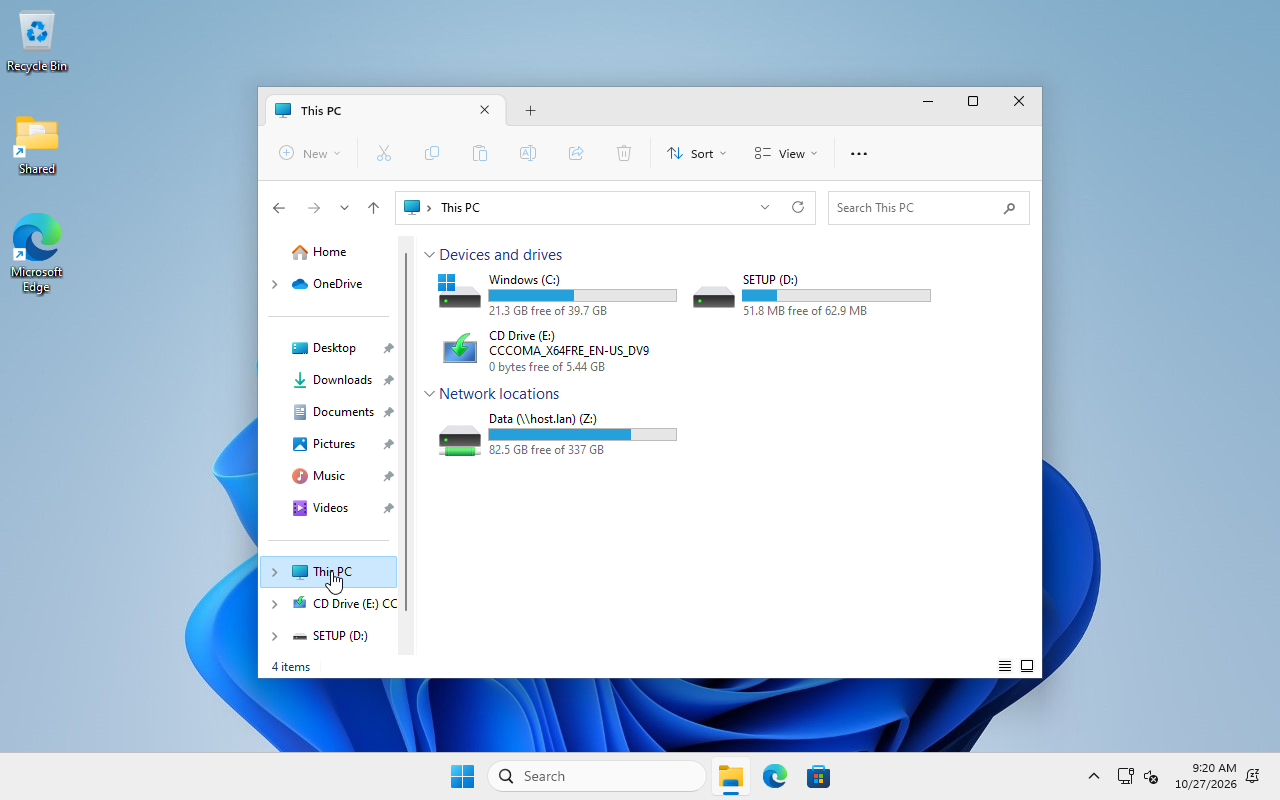
- Inside the Windows desktop, click the folder icon on the taskbar to open File Explorer. Click This PC in the left sidebar.
Open This PC
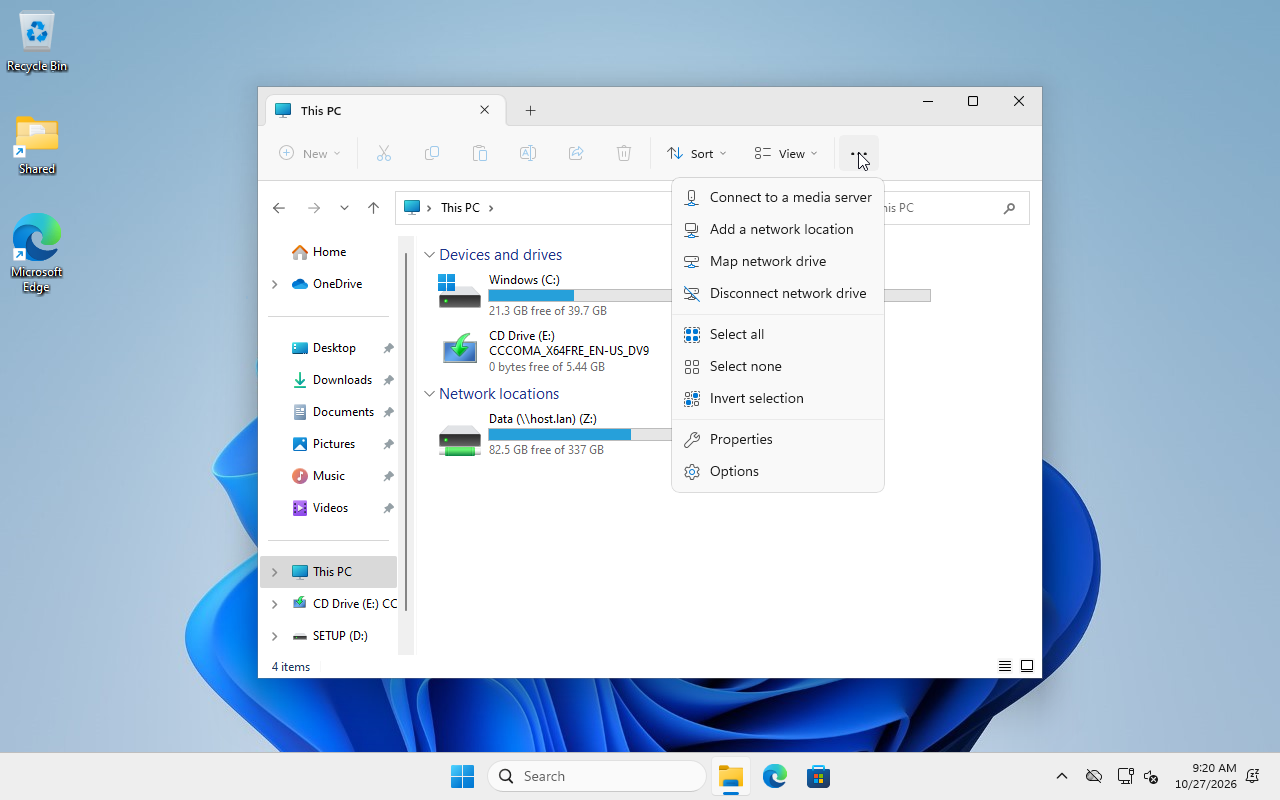
- Click the three-dot More menu at the top, then Map network drive.
Find Map network drive
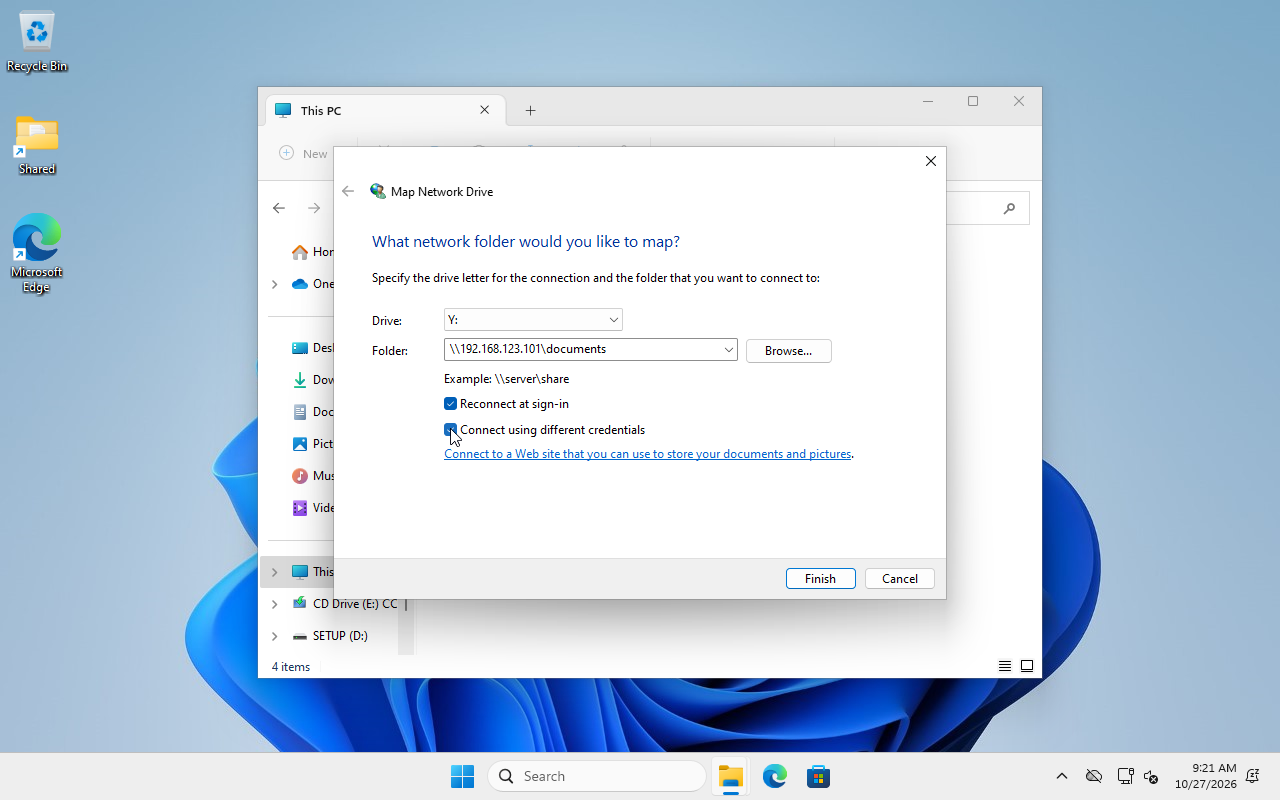
- Choose an unused letter in Drive. In Folder, type your shared-folder address, for example
\\192.168.123.101\Documents. Keep Reconnect at sign-in checked if you want the drive available after signing in again. Check Connect using different credentials to use your file-sharing account. Click Finish.
Enter the folder address
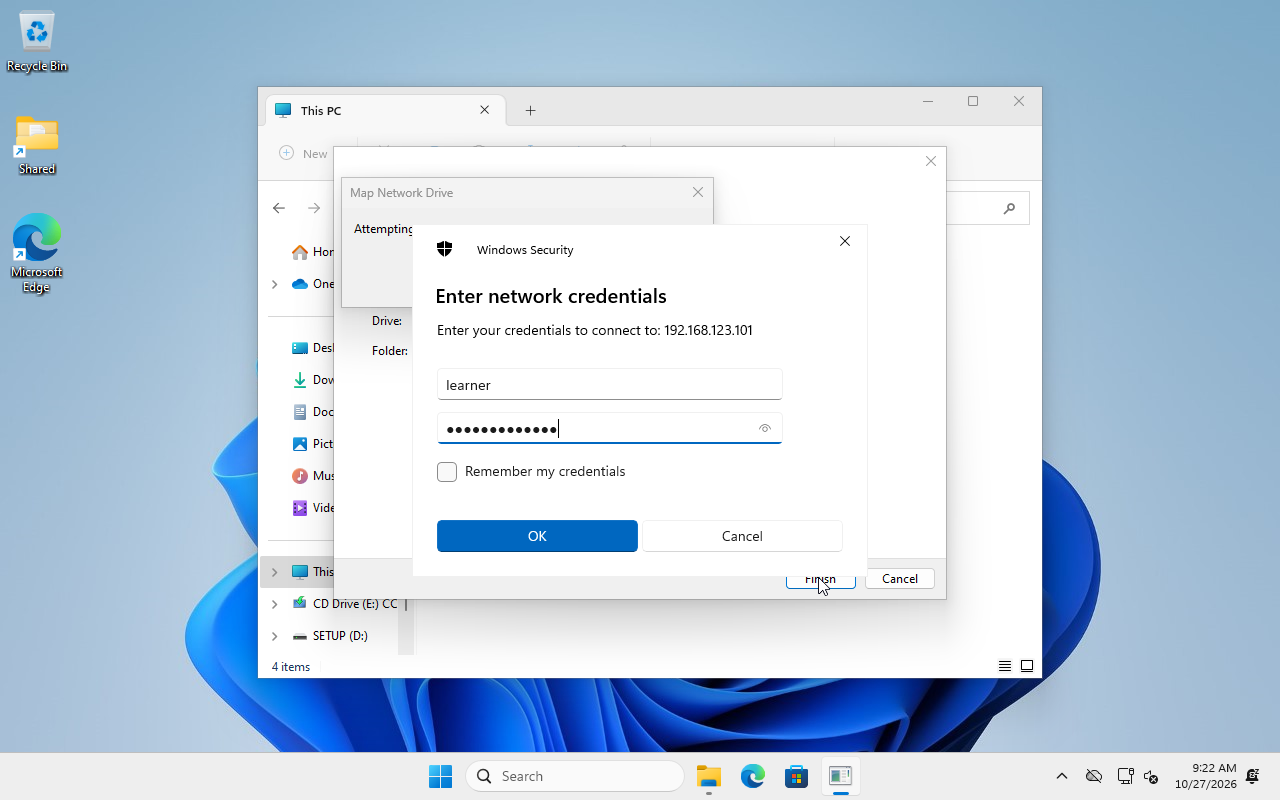
- Enter your file-sharing username and password. If Windows shows a different account, click More choices > Use a different account first. Click OK.
Sign in to the shared folder
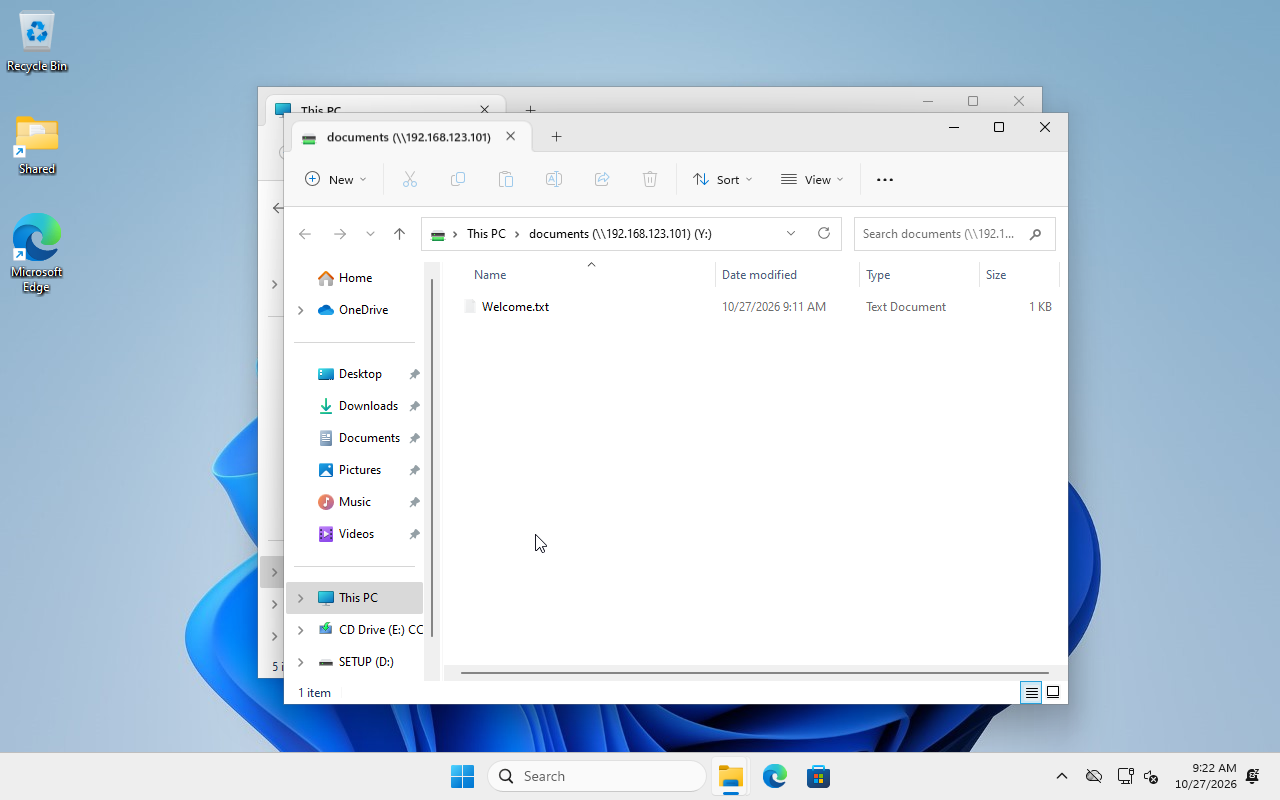
- The folder opens. Double-click a file you recognize to check that you reached the right folder. Later, open This PC and click the drive letter to return to it.
Check the connected folder
¶ Linux Mint: connect in Files
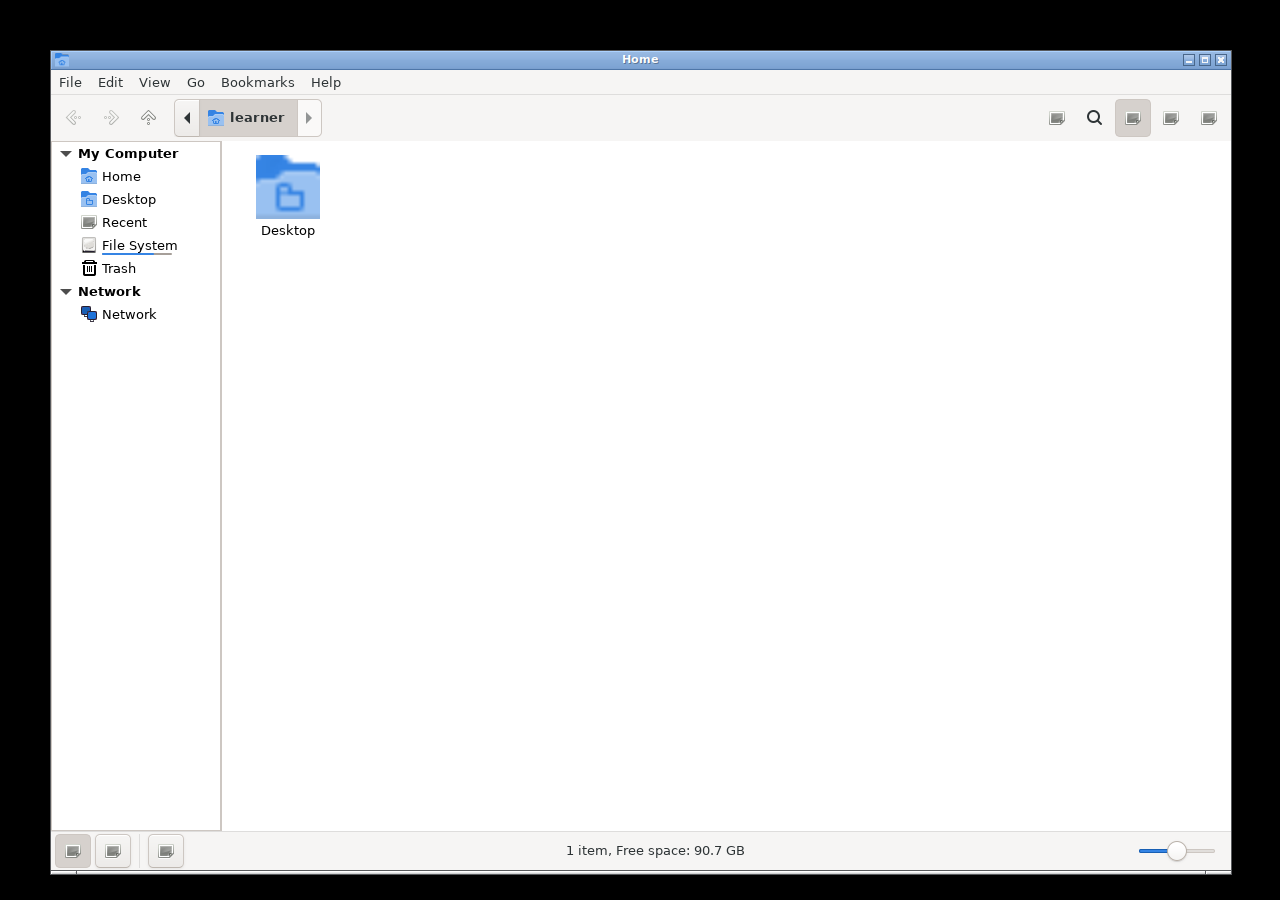
These steps use Linux Mint Cinnamon's Files app, also called Nemo. Colors and icons can differ by version; the example shows Nemo's connection controls.
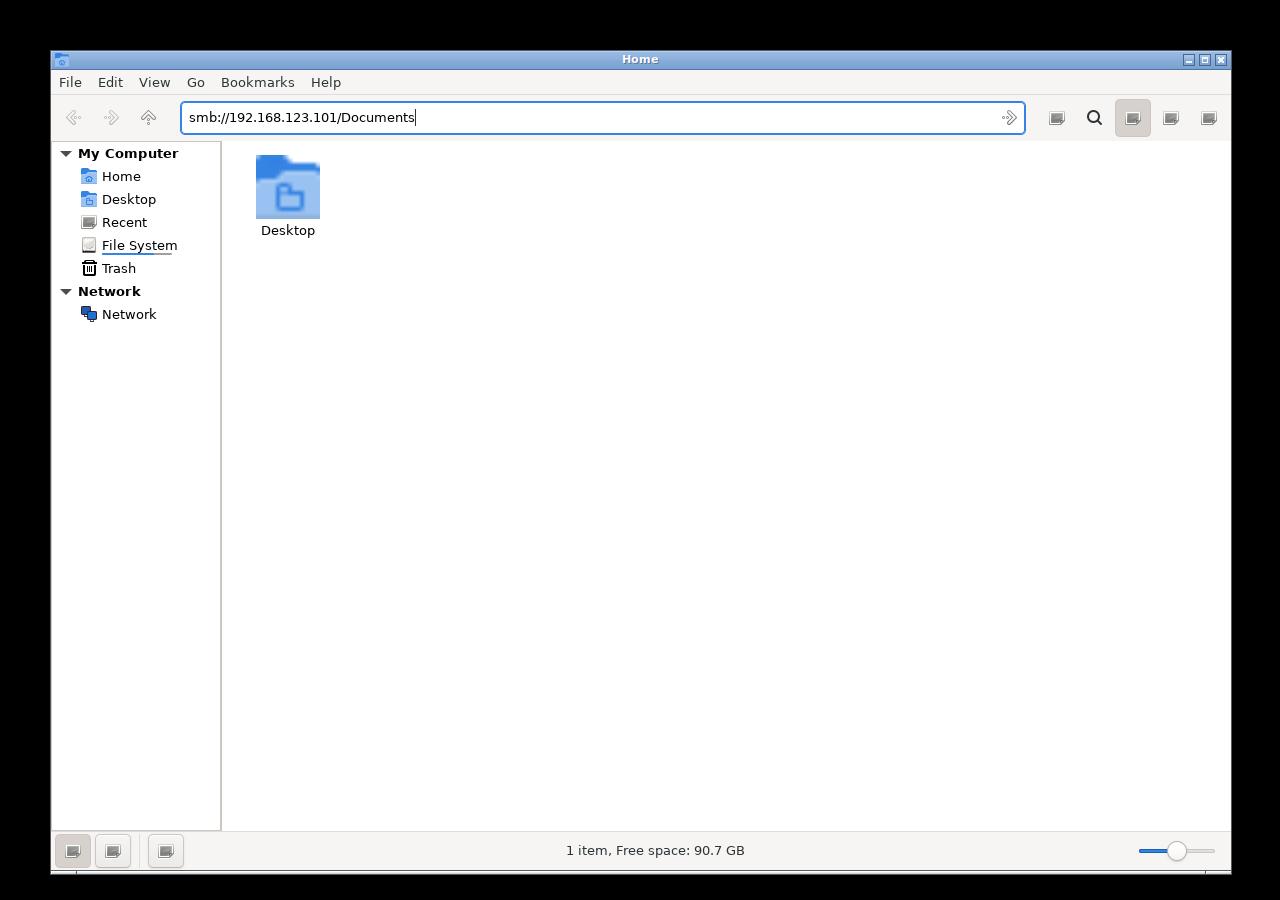
- Inside the VM, open Files (the folder icon). Its window should look like the example below; colors and icons may differ. Click inside that window, then hold Ctrl and press L to show its address box.
Files in Linux Mint
- Type your shared-folder address, for example
smb://192.168.123.101/Documents, then press Enter.
Enter the address in Files
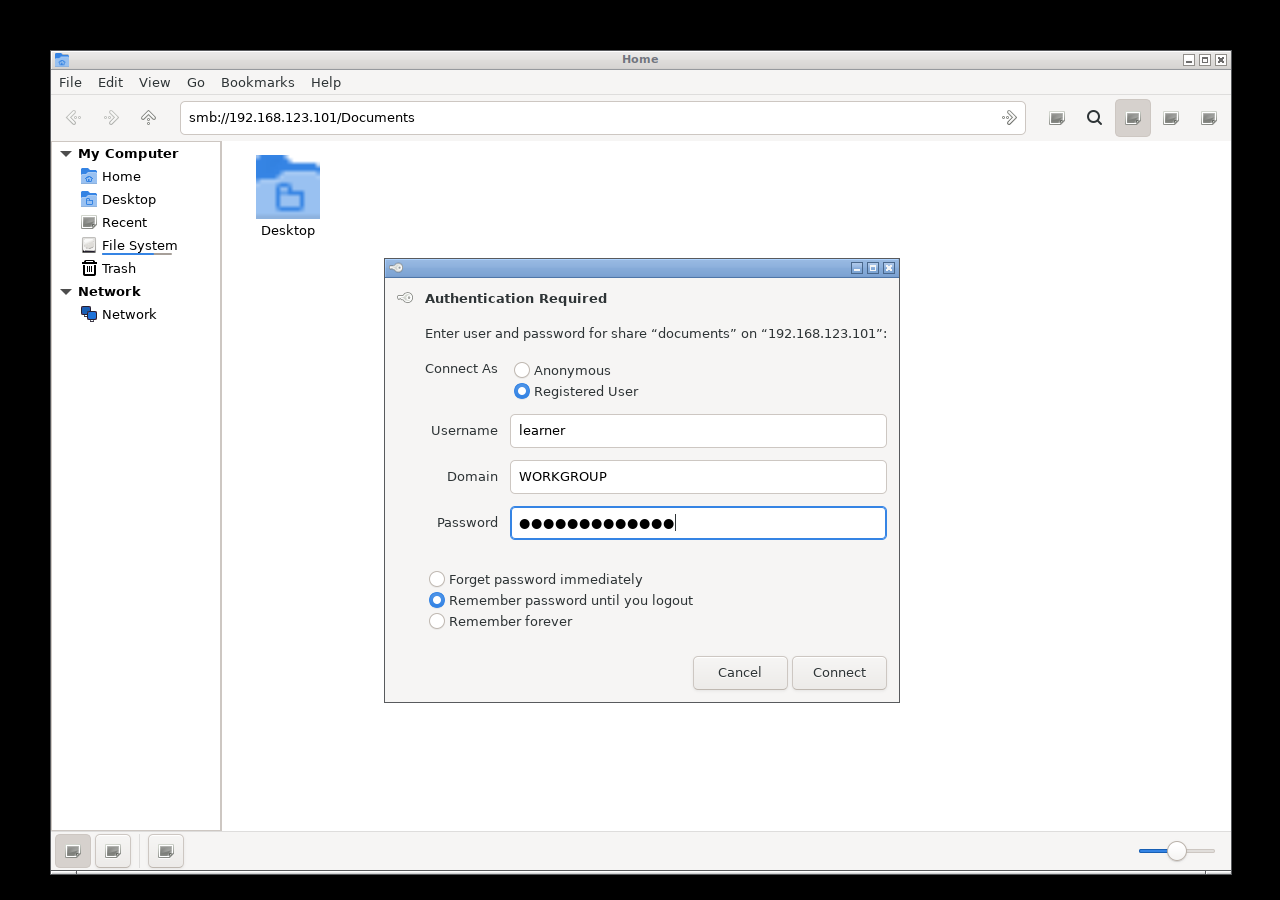
- If asked to sign in, click Registered User. Enter your file-sharing Username and Password. Leave Domain at its existing value unless the person who manages your server gave you a different one. Click Connect.
Sign in from Linux Mint
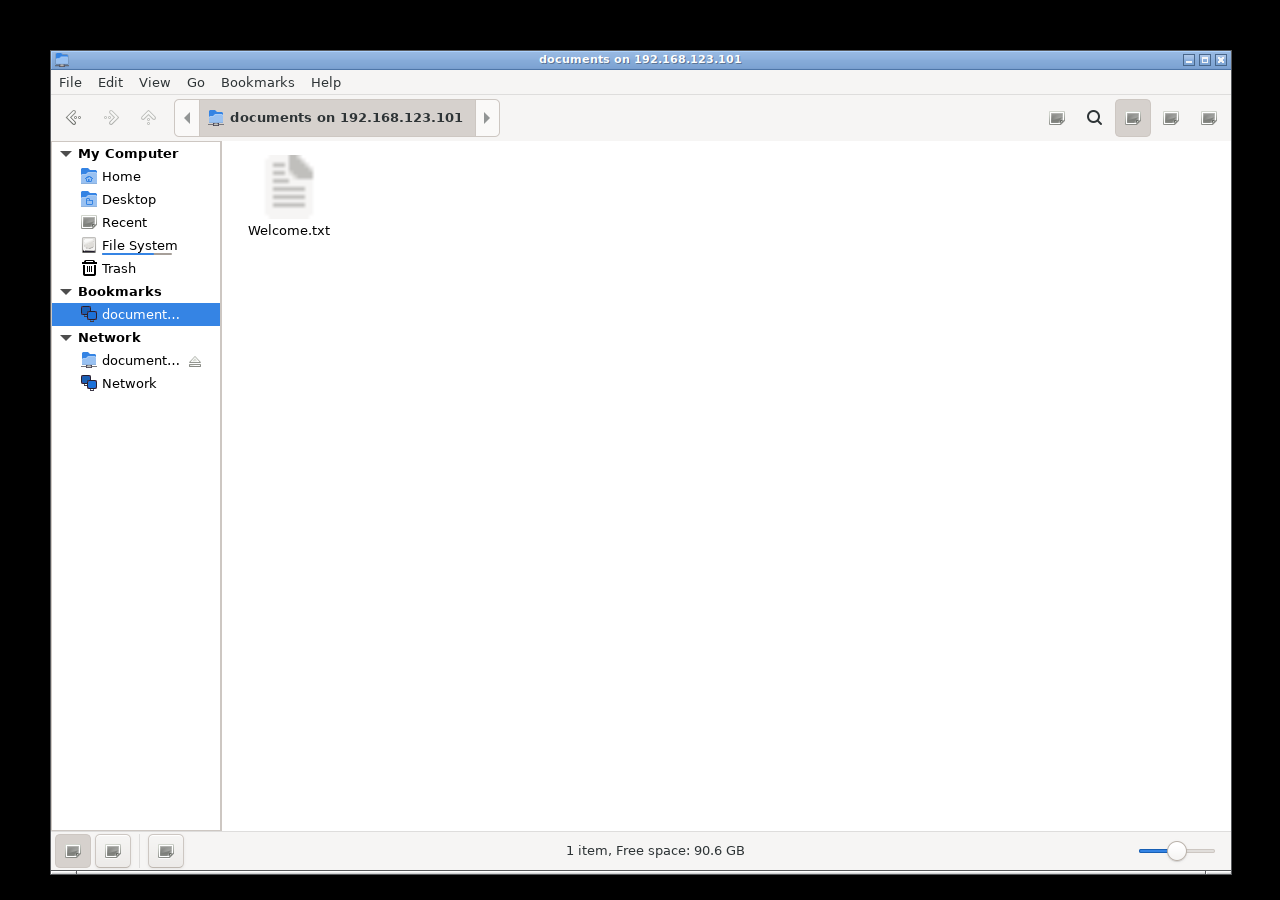
- The folder opens. Double-click a file you recognize to check the connection. To save a shortcut, hold Ctrl and press D while the folder is open. The bookmark lets you return without typing the address again.
Connected folder and bookmark
¶ Ubuntu: connect in Files
These steps use Ubuntu's Files app, also called Nautilus. Colors and icons can differ by version; the example shows Nautilus's connection controls.
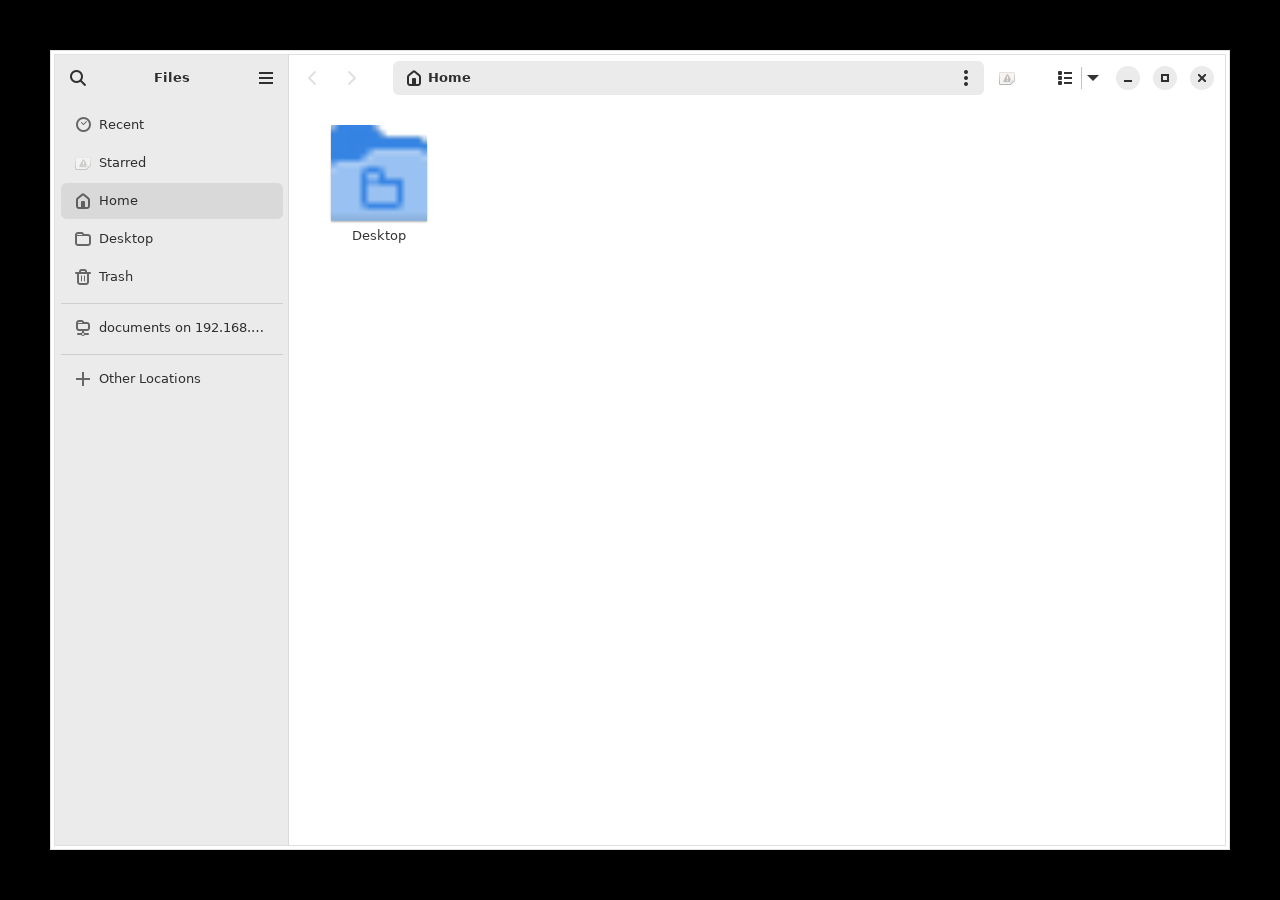
- Inside the VM, open Files (the folder icon). Its window should look like the example below; colors and icons may differ. Click inside that window, then hold Ctrl and press L to show its address box.
Files in Ubuntu
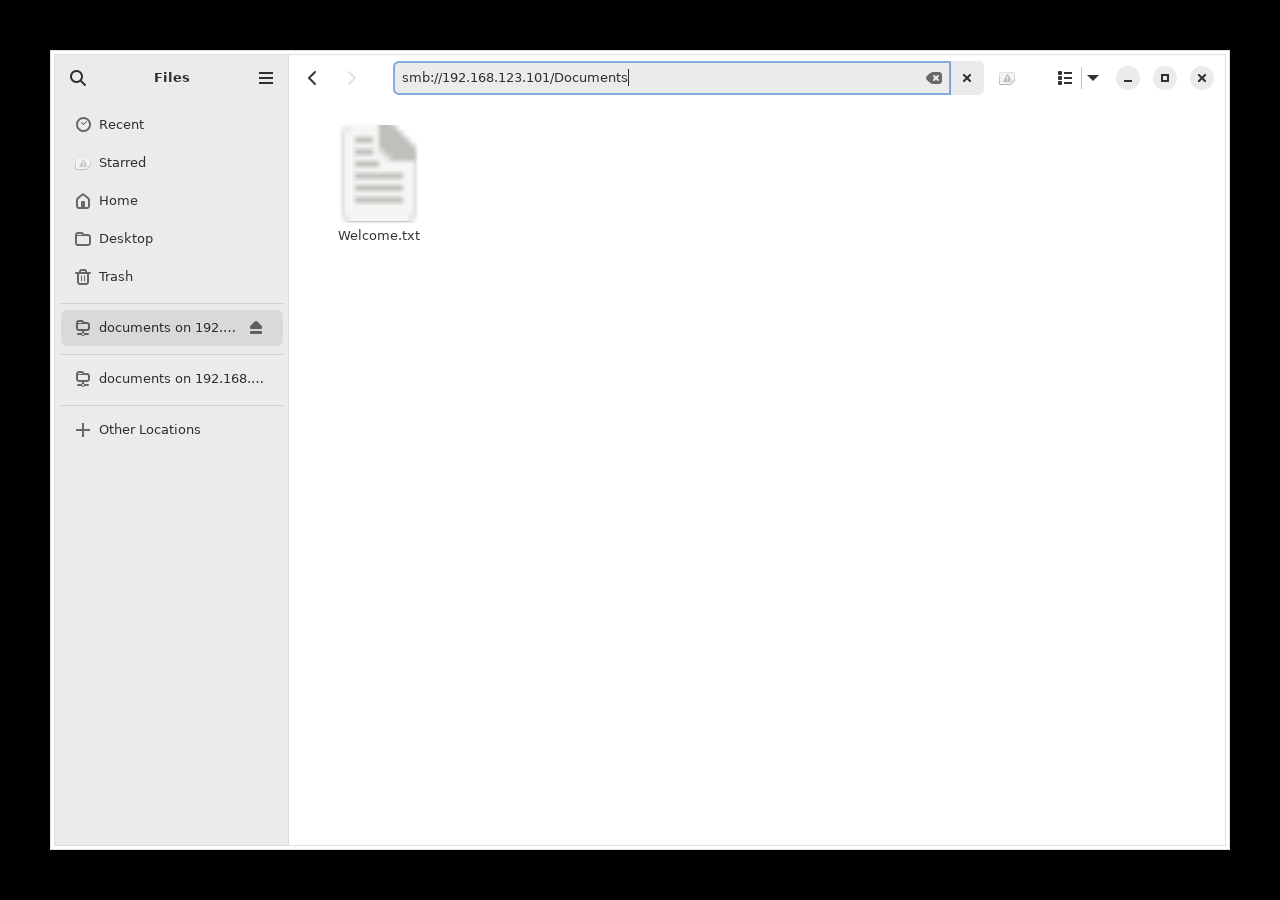
- Type your shared-folder address, for example
smb://192.168.123.101/Documents, then press Enter.
Enter the address in Files
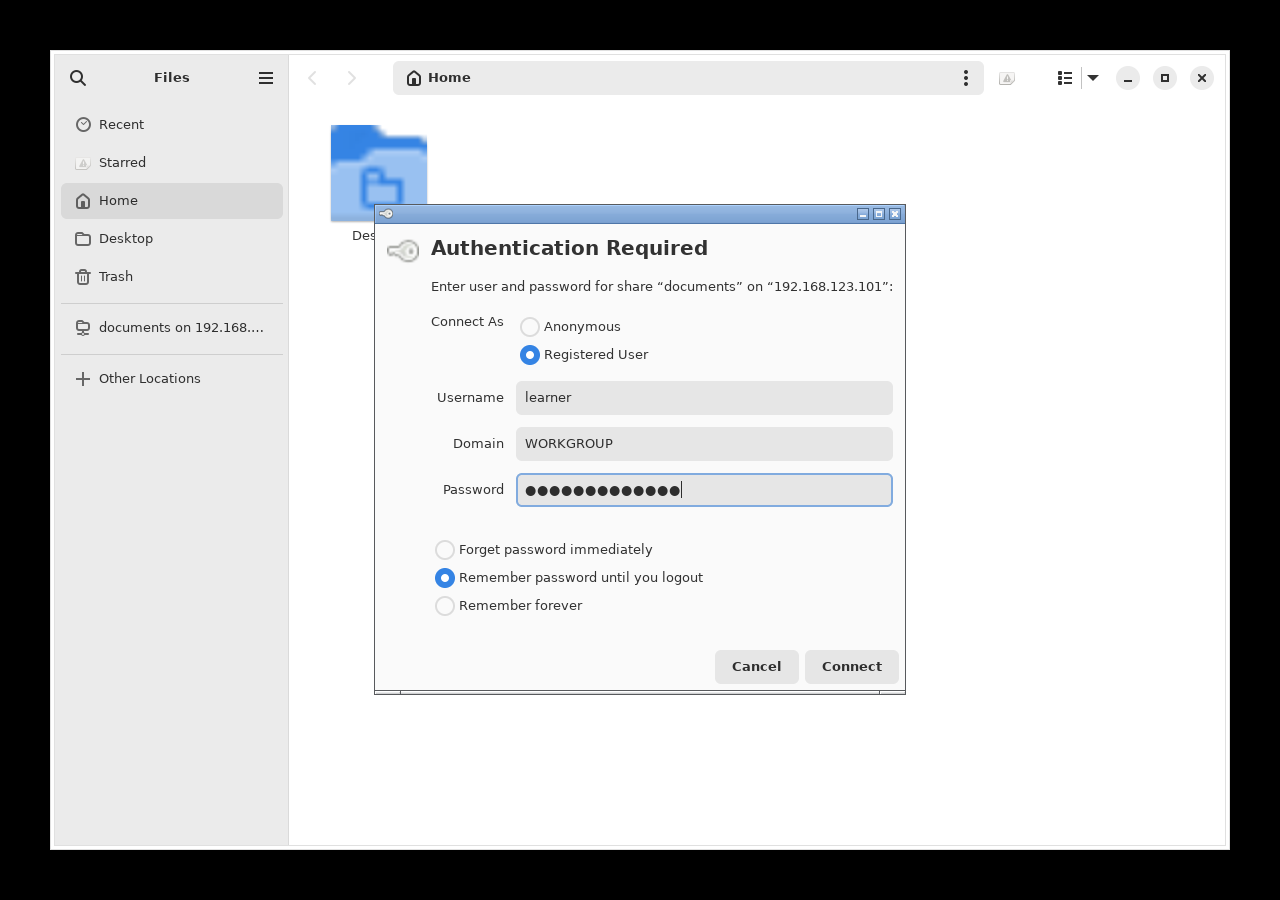
- If asked to sign in, click Registered User. Enter your file-sharing Username and Password. Leave Domain at its existing value unless your server administrator gave you a different one. Click Connect.
Sign in from Ubuntu
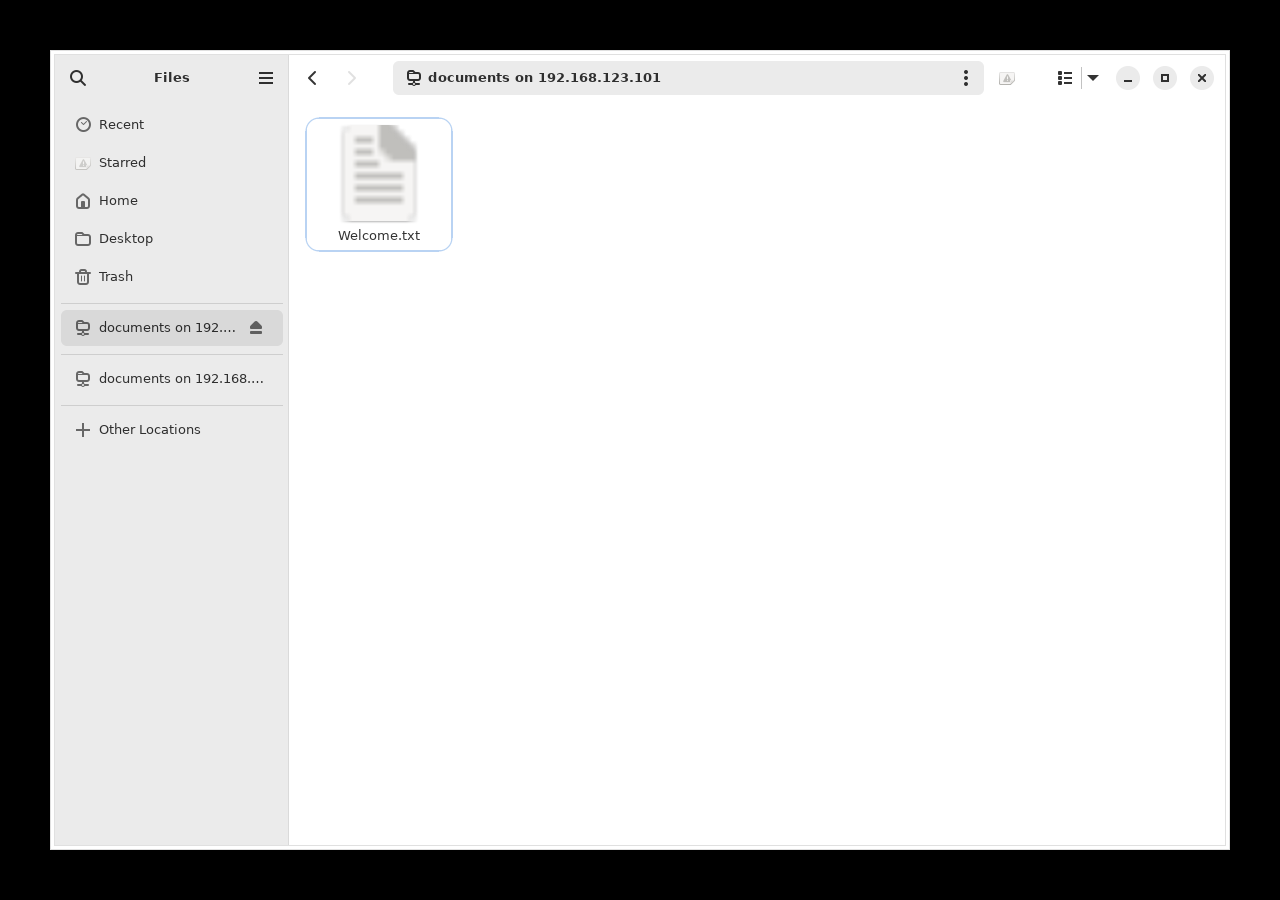
- The folder opens. Double-click a file you recognize to check the connection. To save a shortcut, hold Ctrl and press D while the folder is open.
Connected folder and bookmark
¶ Mac: connect from your own computer
Use the normal macOS folder address copied from HexOS. These steps run on your Mac, outside the VM.
- Open Finder. From the menu at the top of the screen, click Go > Connect to Server.
Connect to Server in Finder
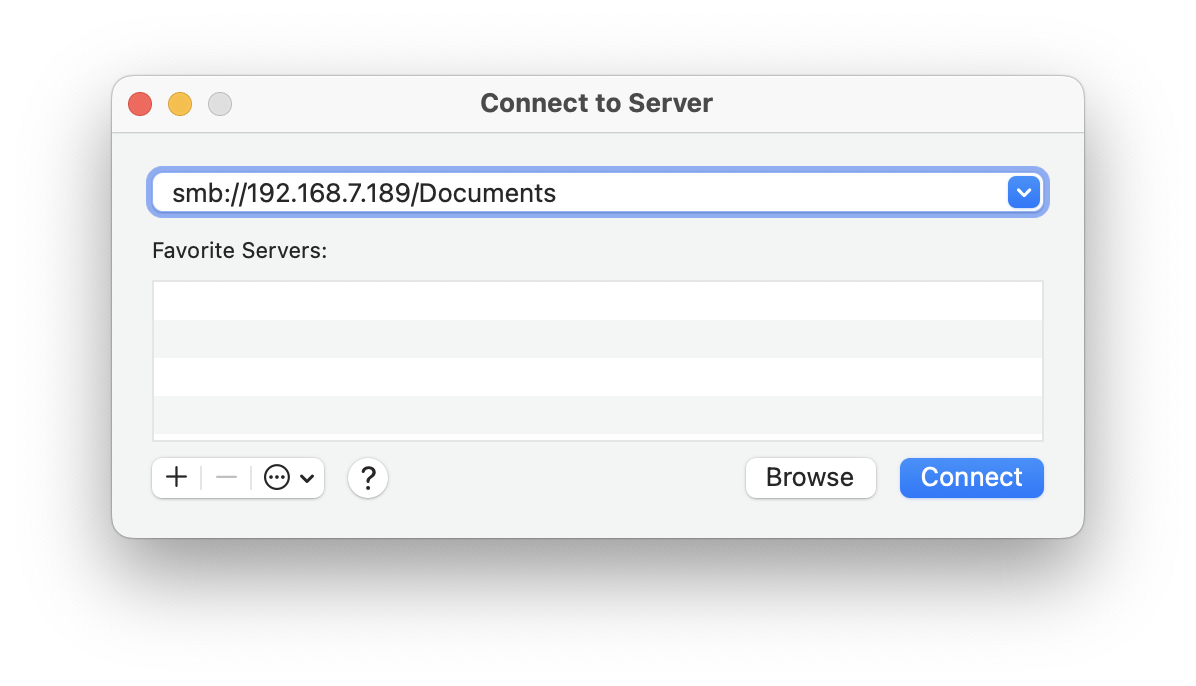
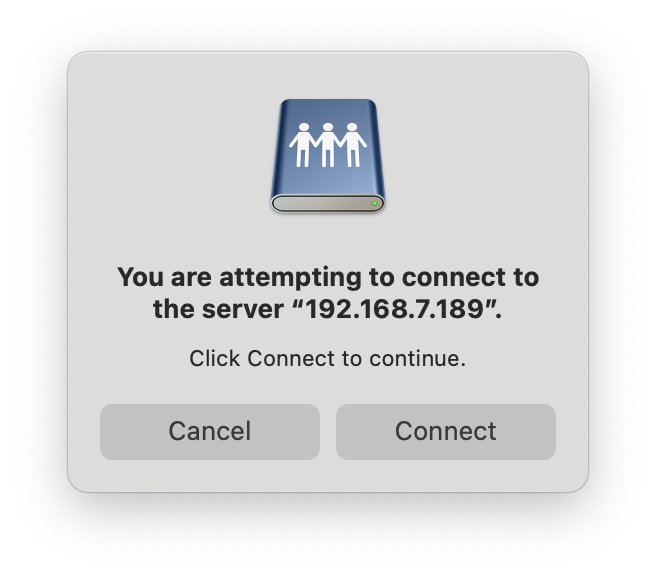
- Paste your
smb://address into Server Address, then click Connect. If another message asks you to confirm the connection, click Connect again.
Confirm the connection
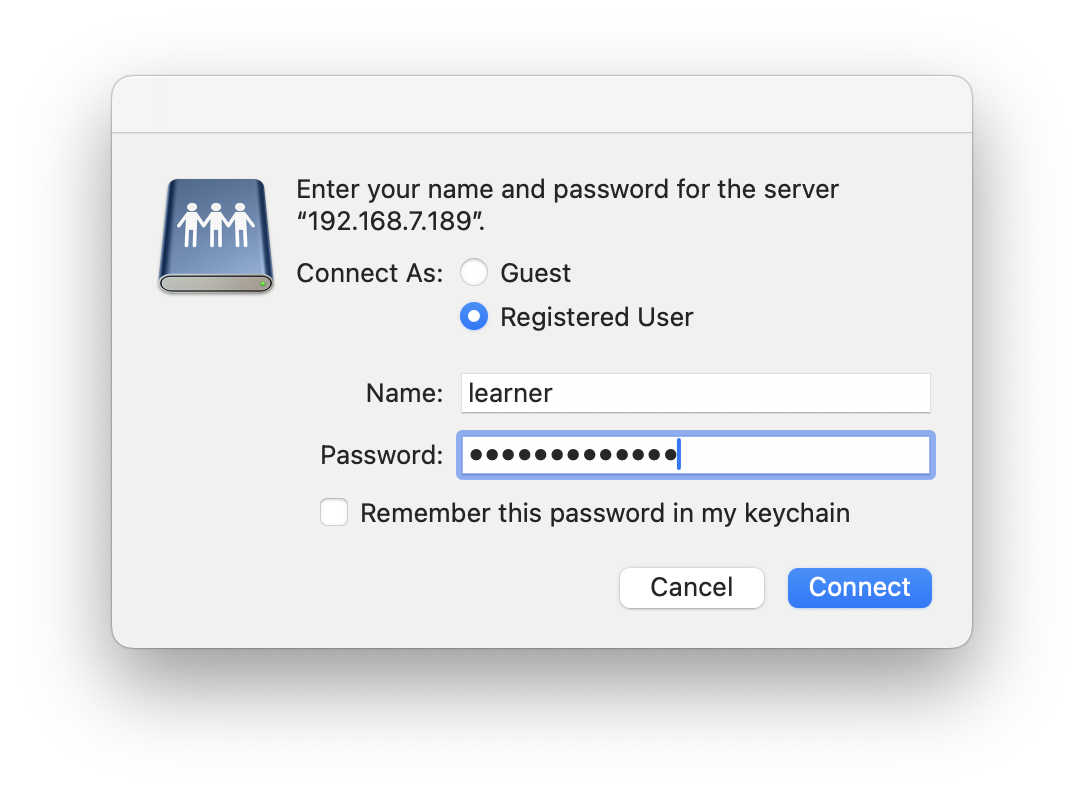
- If asked to sign in, click Registered User. Enter your file-sharing username and password, then click Connect.
Sign in from your Mac
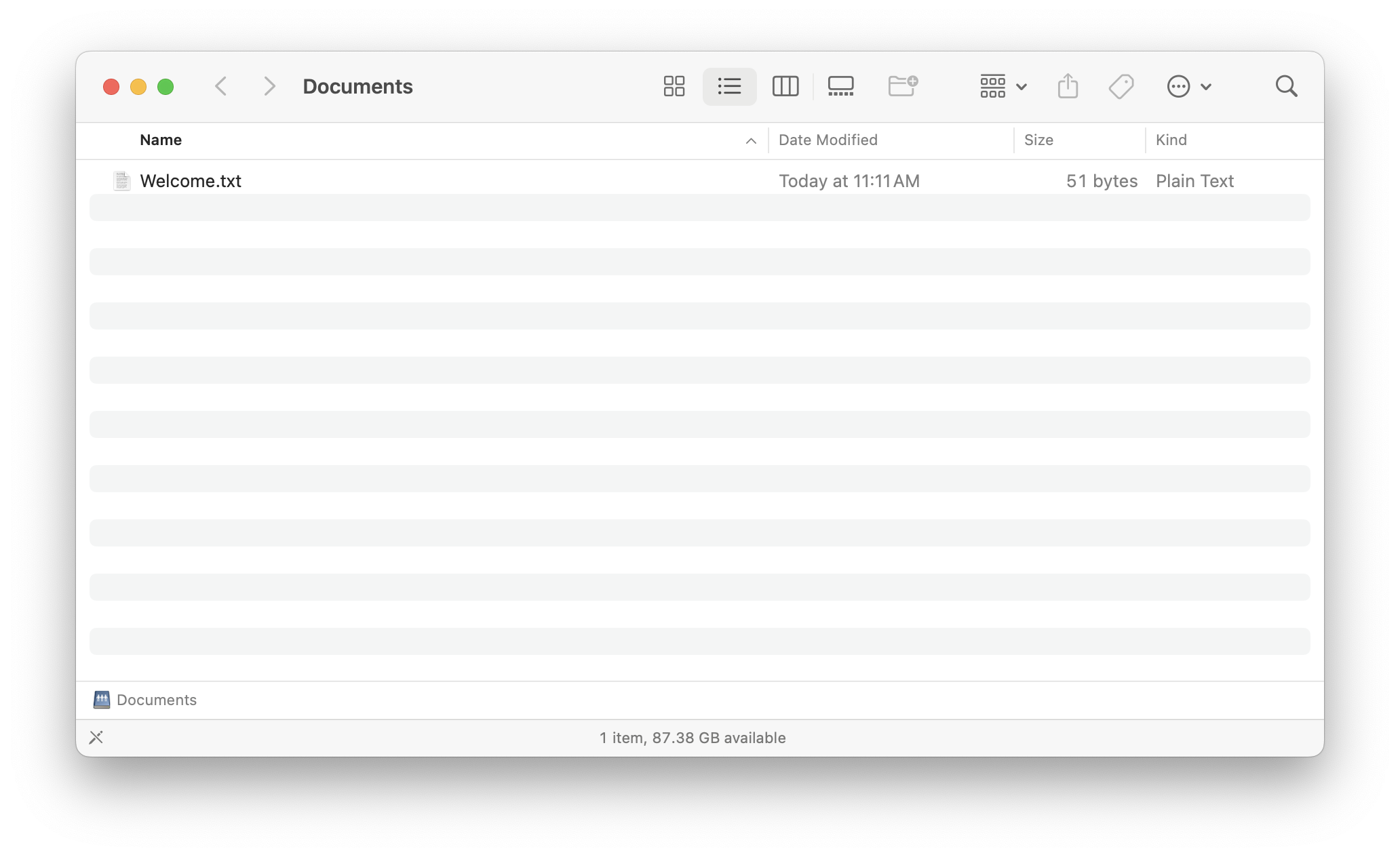
- The folder opens in Finder. Double-click a file you recognize to check the connection. If it is disconnected later, repeat the connection steps using the same address.
Connected folder in Finder
¶ If the connection fails
| What you see | What to check |
|---|---|
| No route to host, Destination Host Unreachable, or a connection error | If you are inside a VM, check that you used Address inside this VM for the server hosting it. A working internet connection does not prove that the VM can reach that server. |
| The password is rejected or access is denied | Use the file-sharing account, not your website login or computer PIN. Ask the server owner to check that account's access to the folder. |
| The folder cannot be found | Check the folder name and slashes. Use the shared-folder name from HexOS, not a server storage path beginning with /mnt/. |
| Windows says it already has a connection using another username | Stop here and ask for help before disconnecting drives. Other open files may be using that connection. |
| The shortcut stops working after a restart or address change | Make sure the server is on. Check the address in HexOS again, then reconnect. A bookmark or drive letter does not keep the server awake or make its files available offline. |
Do not change TrueNAS bridges, turn off firewalls, or enable guest access just to get past an error. Those changes can affect other connections or permissions.
If you need help, contact HexOS support with:
- Which desktop you are using: Windows, Linux Mint, Ubuntu, or Mac.
- Whether you are working inside a VM or on a separate computer.
- Whether Address inside this VM is shown.
- The exact error message, or a screenshot of it.
- Whether the same folder opens from a separate computer.
Do not send passwords. You can hide private addresses in public screenshots.
Warning: Renaming, saving, or deleting a file through this connection changes the file on the server. A mapped drive or bookmark is not a backup.