¶ Application Troubleshooting Guide
¶ Installation
- If installation fails once, try again immediately
- If it still fails check error
- This can be done by pressing the bell icon at the top of HexOS deck
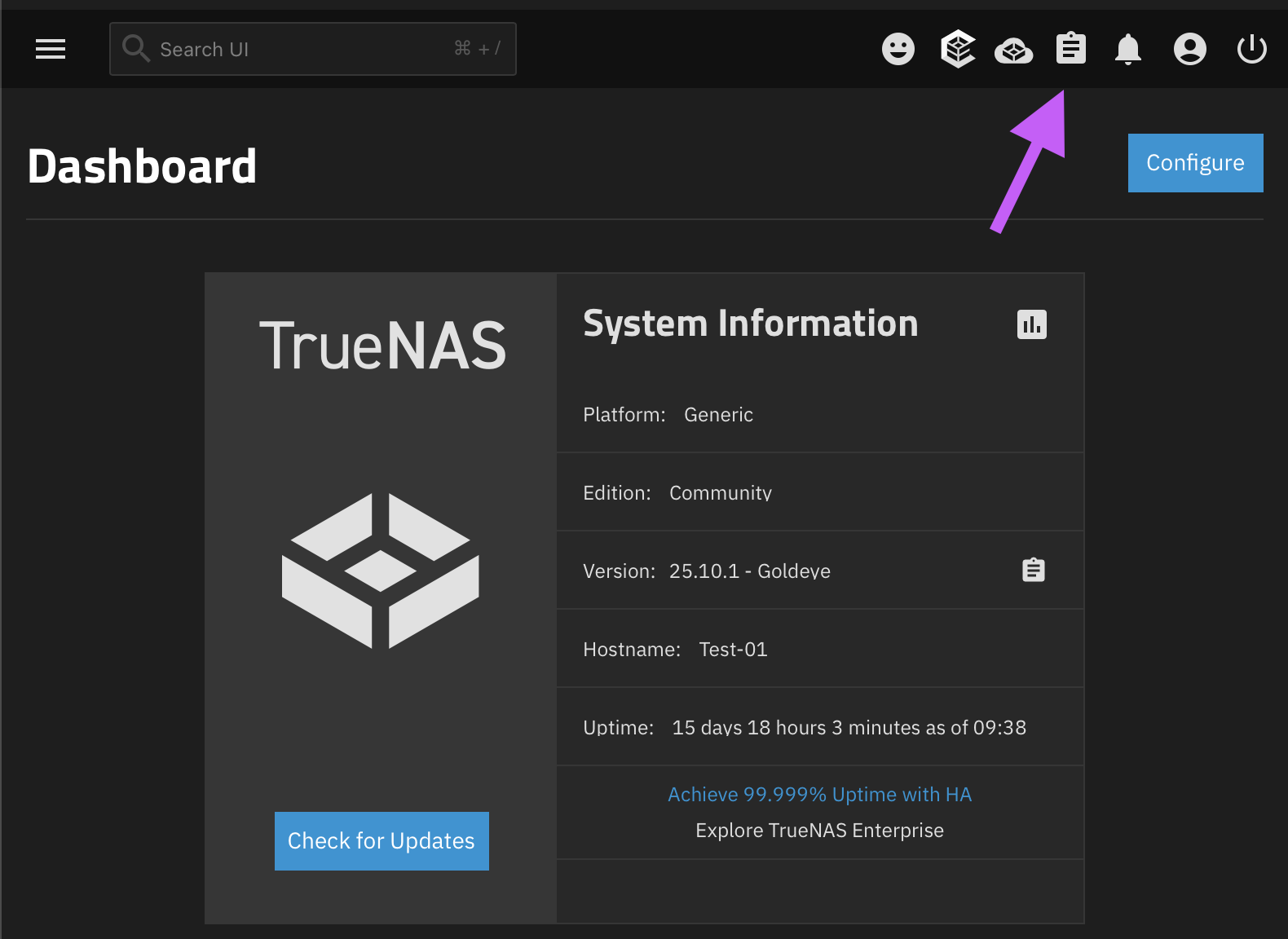
- If HexOS shows an unknown error you can find more details by entering TrueNAS and selecting the clipboard icon
How to view the error in TrueNAS
1. Login to HexOS deck and go to Settings- Select the TrueNAS Button
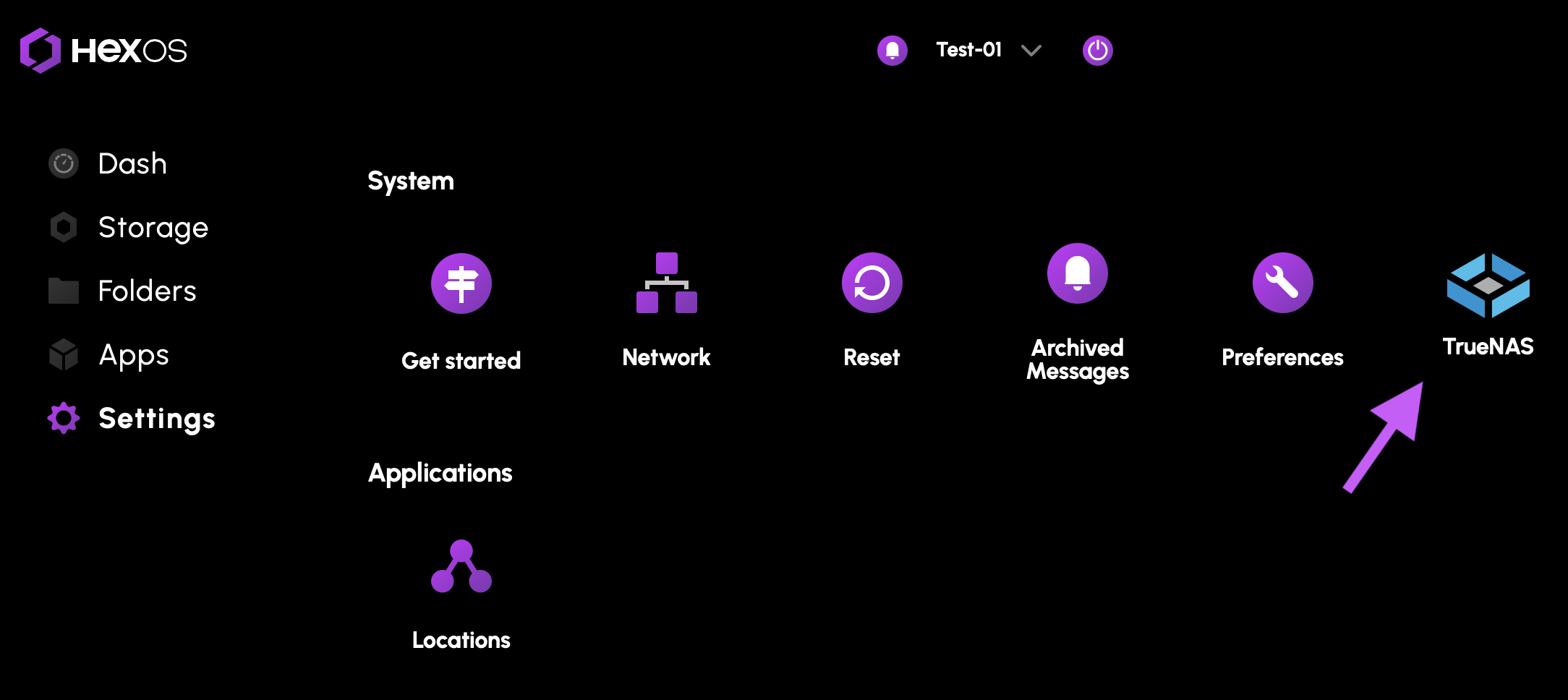
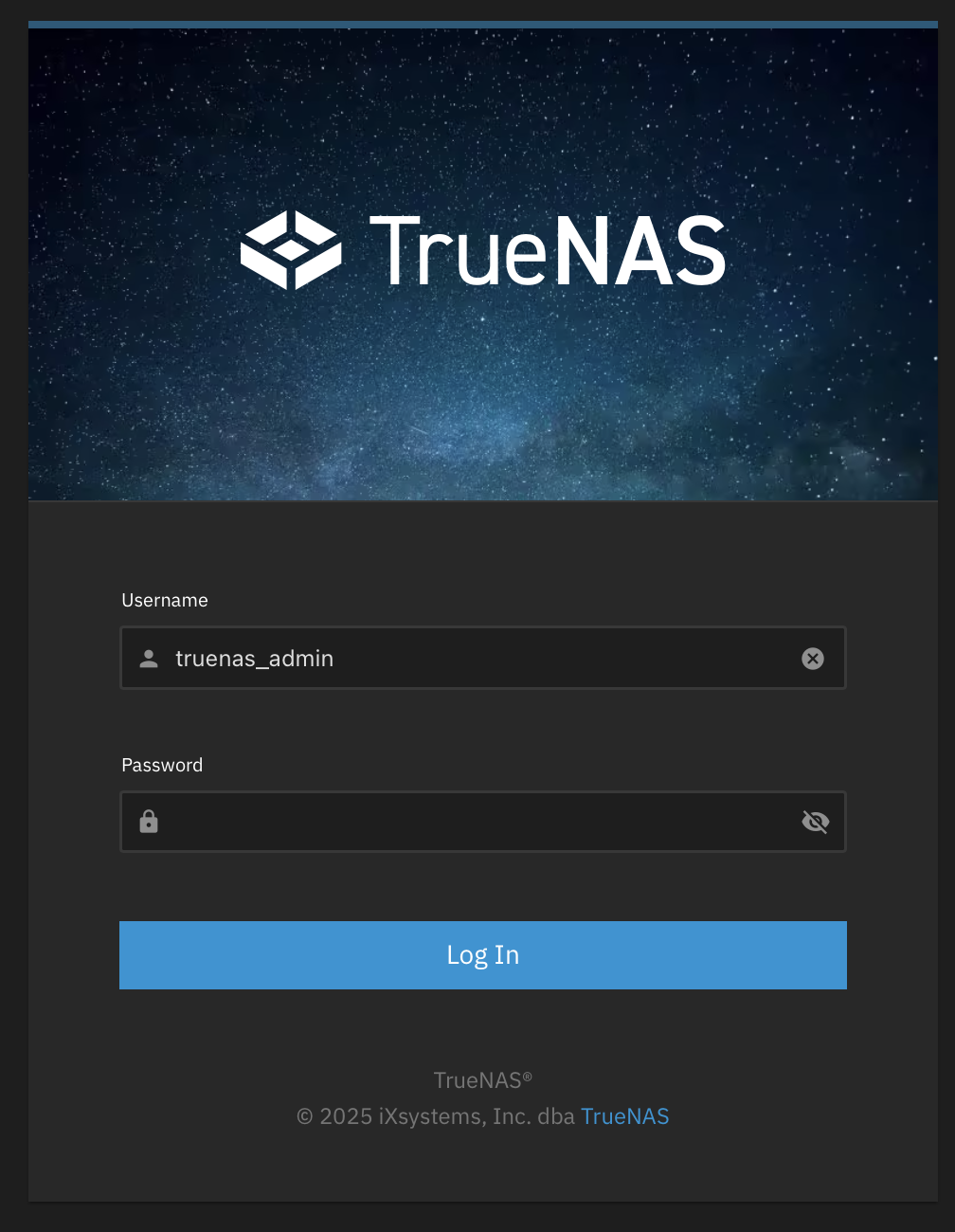
- Login to TrueNAS
- Username: truenas_admin
- Password: What was selected when installing HexOS
- Click on the clipboard icon at the top of the screen
¶ Custom Application Name Conflicts
When installing a custom application through TrueNAS, the name you assign must be unique across your system. If a custom application shares the exact name of an application available in the HexOS catalog, the installation will fail and the catalog application will not be installable until the conflict is resolved. This commonly occurs when setting up multiple instances of the same application configured for different purposes, such as:
- A separate Jellyfin instance for a kids-only media library
- An additional Minecraft server running a different modpack or world
- A dedicated Home Assistant instance used as a staging environment
- A second Vaultwarden instance reserved for family members
- An extra PostgreSQL instance isolated to a specific application's data
HexOS will display a warning banner on the catalog application's details page when a name conflict is detected. To avoid this issue, choose a distinct name for your custom application by appending a descriptor or suffix. For example, if the catalog application is named sonarr, consider naming your custom application one of the following instead:
sonarr-2sonarr-animesonarr-4k
If you have already installed a custom application whose name matches a catalog application, uninstall or rename the custom application before installing the catalog version.
¶ Updating
An App has to be running for it to updated.
It is good practice to update apps regularly.
How to update
- Login into HexOS deck and go to the apps section
- Select your app
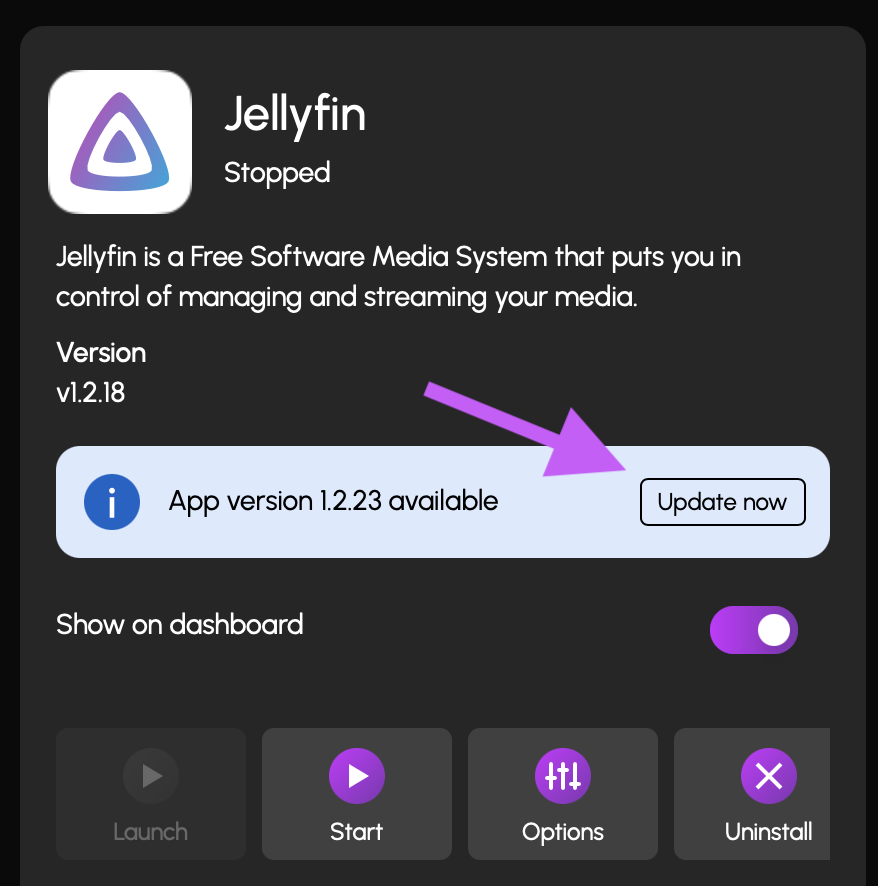
- Select the Update button on the Application info card
¶ If an app is not working after an application update
If your app stopped working immediately after an update you can go into TrueNAS and roll back a previous version of your app.
Note: Some applications may have bugs when rolled back
Instructions for rolling back an application
- Login to HexOS deck and go to settings
- Select the TrueNAS Button
- Login to TrueNAS
- Username: truenas_admin
- Password: What was selected when installing HexOS
- Navigate to the
Appstab on the left sidebar menu
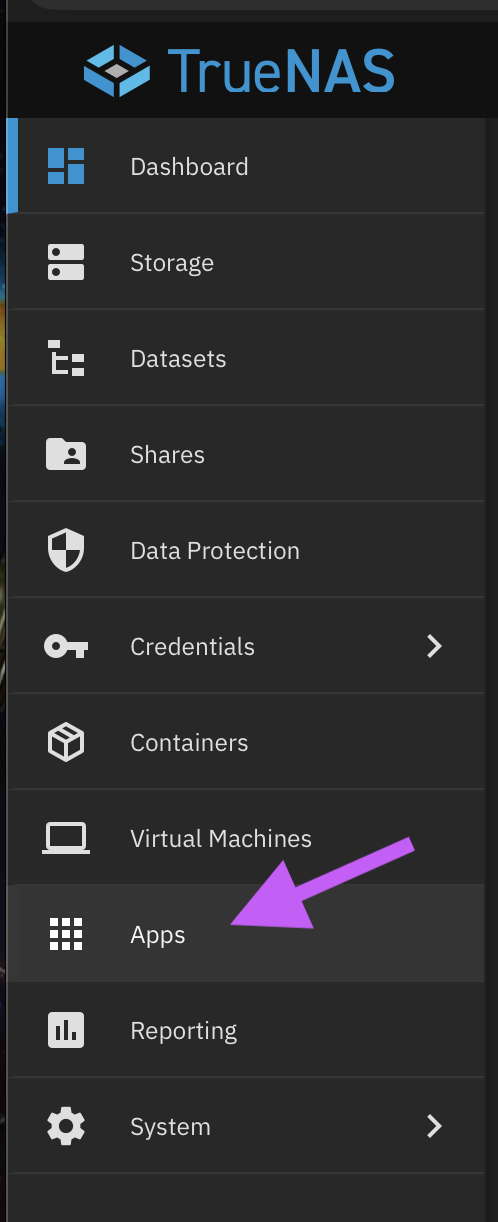
- Click on your application
- Select the
Rollbackoption on theApplication Infocard
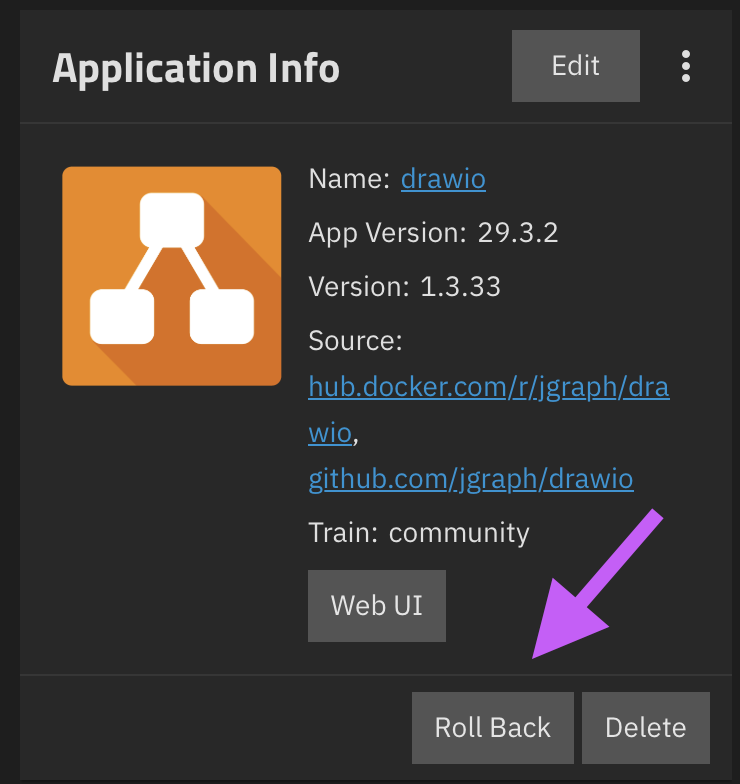
- Select the most recent version of the app that worked and rollback
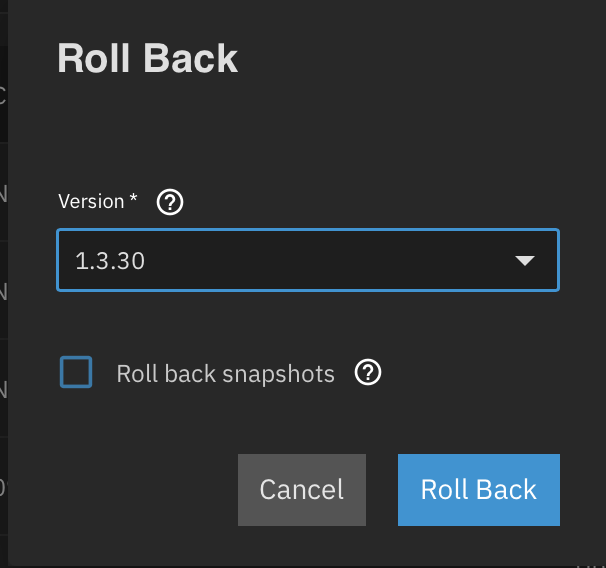
¶ Resetting App Curation
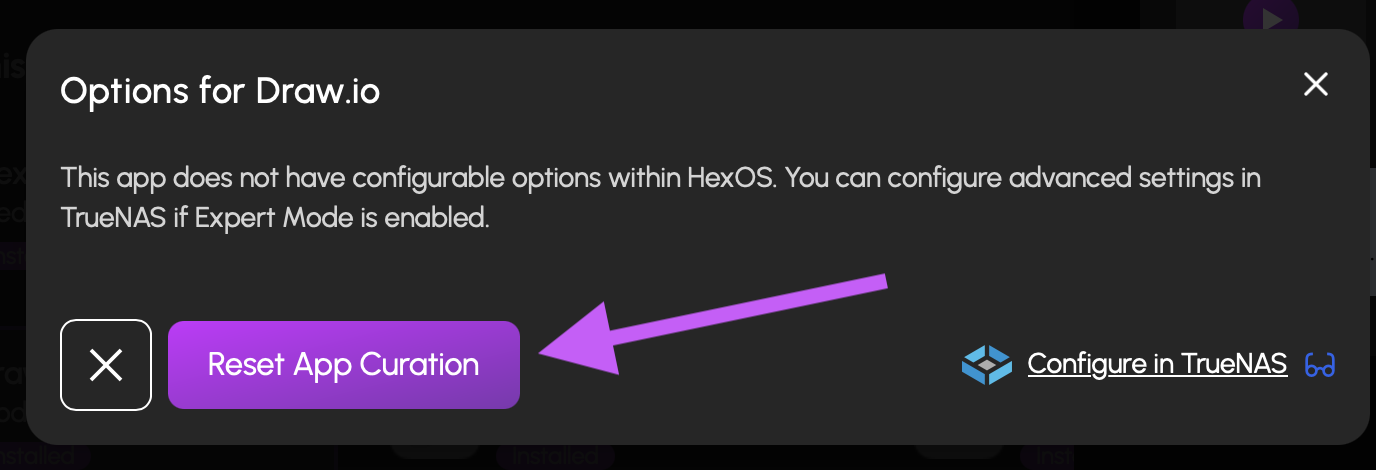
If the settings on an app were changed in TrueNAS you can use Reset App Curation to bring it back to the HexOS default configuration.
Note: This can be used to update your application settings if HexOS has updated the curation.
How to Reset App Curation
1) Open Hexos Deck Application section- Select the app
- Select the
optionsbutton on the application info card
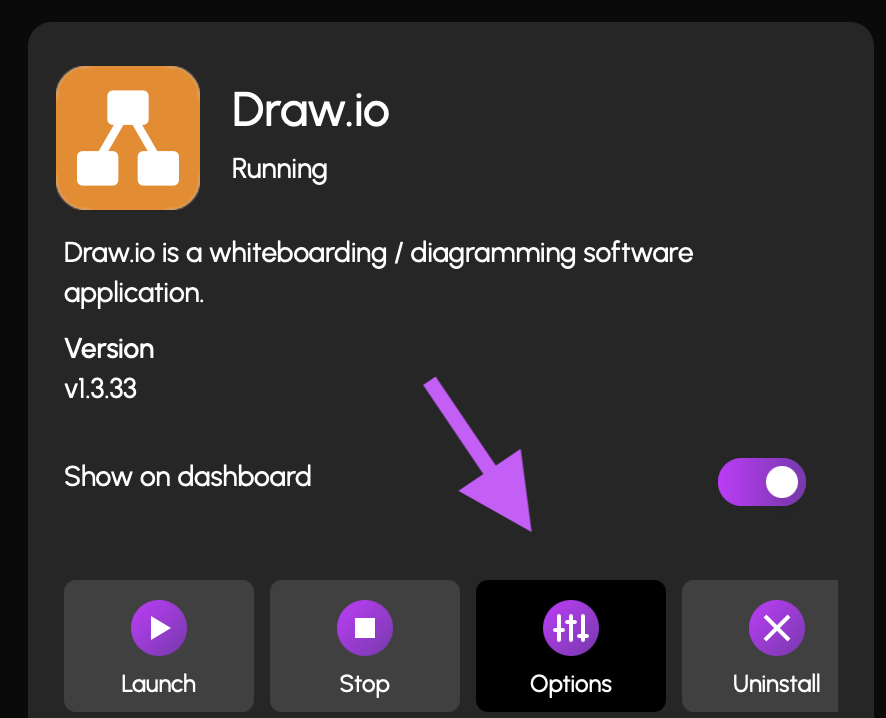
- Select
Reset App Curation
¶ Application not showing up with the bookmarked link
- Open directly from HexOS Deck
- Check if your server's IP address has been updated
¶ App not starting
If apps are not starting after recent hardware changes you can try the following
Motherboard changed: Try opening the app from HexOS Deck as your sever IP Address may have changed
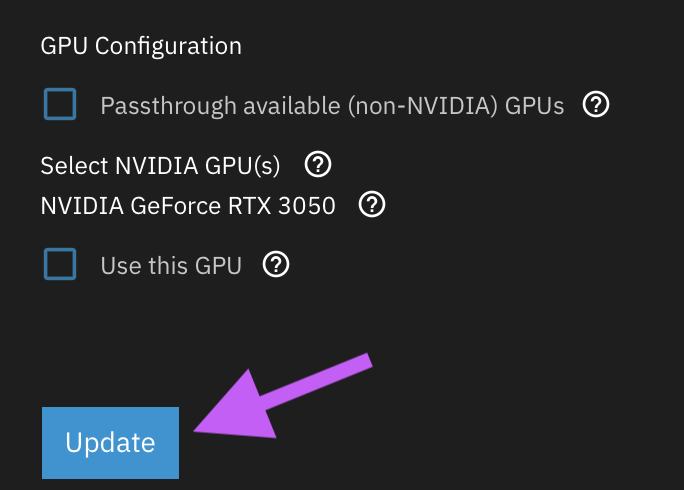
GPU changed: Try disabling GPU pass-through and disable using a gpu in the application configuration to troubleshoot
How to turn off GPU pass-through
1. Select the app in HexOS deck- Press the
optionsbutton on the applications info card
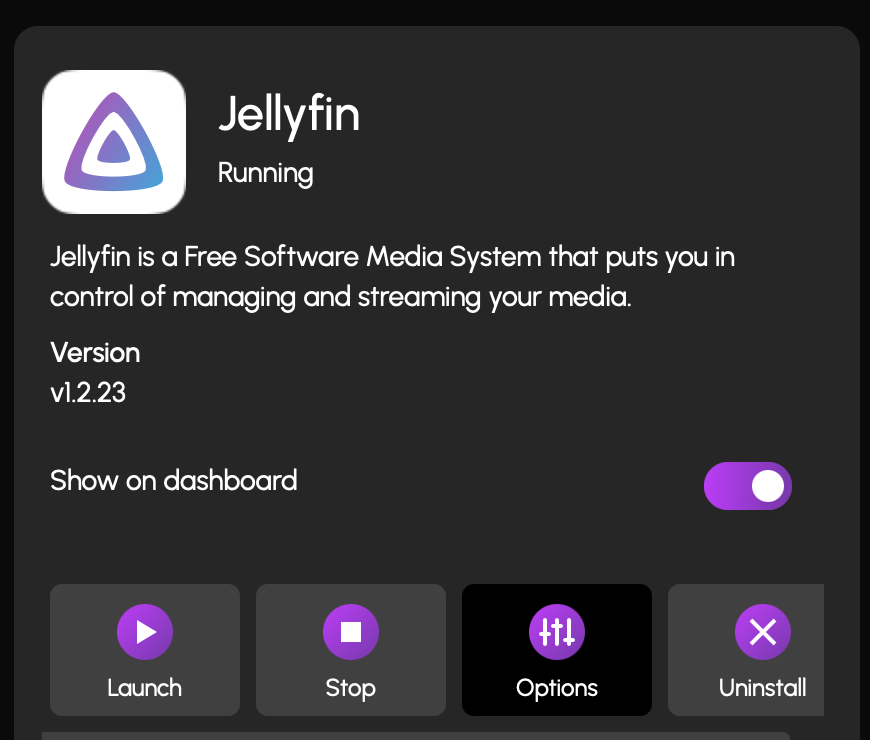
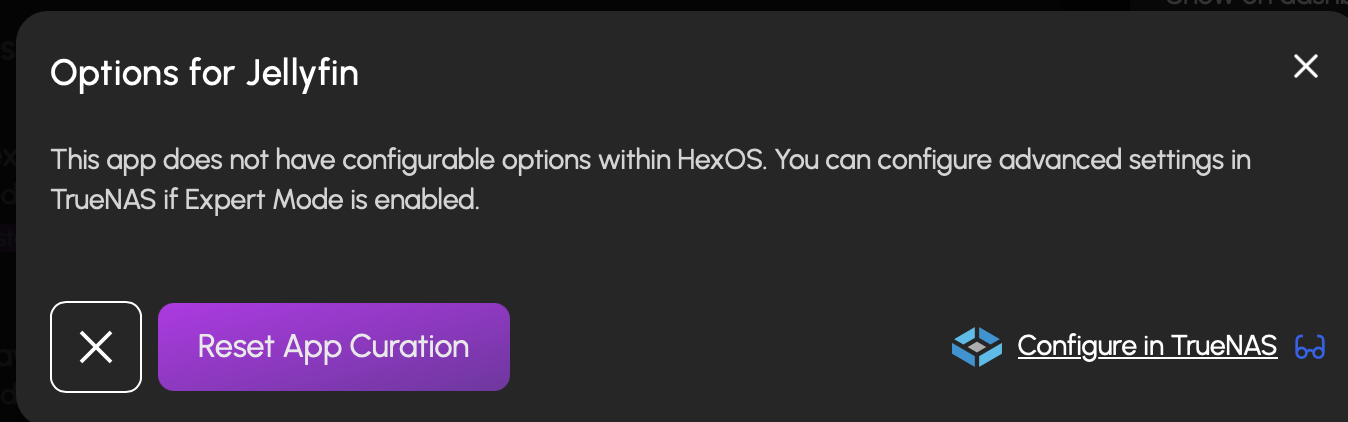
- Press
Configure in TrueNAS
- Scroll all the way to the bottom and uncheck GPU related options
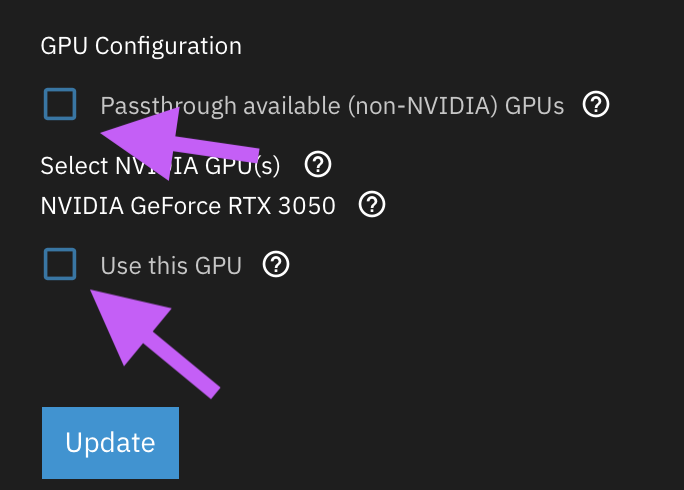
- Press the Update button
¶ App Specific Troubleshooting
Immich
## ImmichWarning: Do Not uninstall immich as a troubleshooting step unless explicitly instructed to or are planning to start again fresh
¶ Installation
If you uninstalled Immich and it is no longer re-installing
consider deleting the the old datasets and start over fresh
Warning: Deleting the old data sets will also delete the copy of your media on the server
¶ Updating Immich
¶ Firmware 1.135.0 and higher
Coming soon
¶ Firmware below 1.135.0
Coming soon
¶ Mobile Application not functioning
Update the Immich app on both the server side and the mobile side
¶ Immich Media not showing up
Check the storage paths in the settings
Uploads: (HDDs/SSDs)/Photos/immich
Postgres: (HDDs/SSDs)/Applications/immich/postgres_data
If your storage locations do not match and you installed Immich via HexOS, are on Immich version 2.0.0+ and have not modified Immich in TrueNAS then you can Reset App Curation
Fill out the following template and share it in on HexOS HUB or contact us at [email protected]
¶ Template
TrueNAS Version:
Application Version:
Model of CPU:
Model of GPU:
Modifications made in TrueNAS:
Description of problem:
Troubleshooting steps attempted:
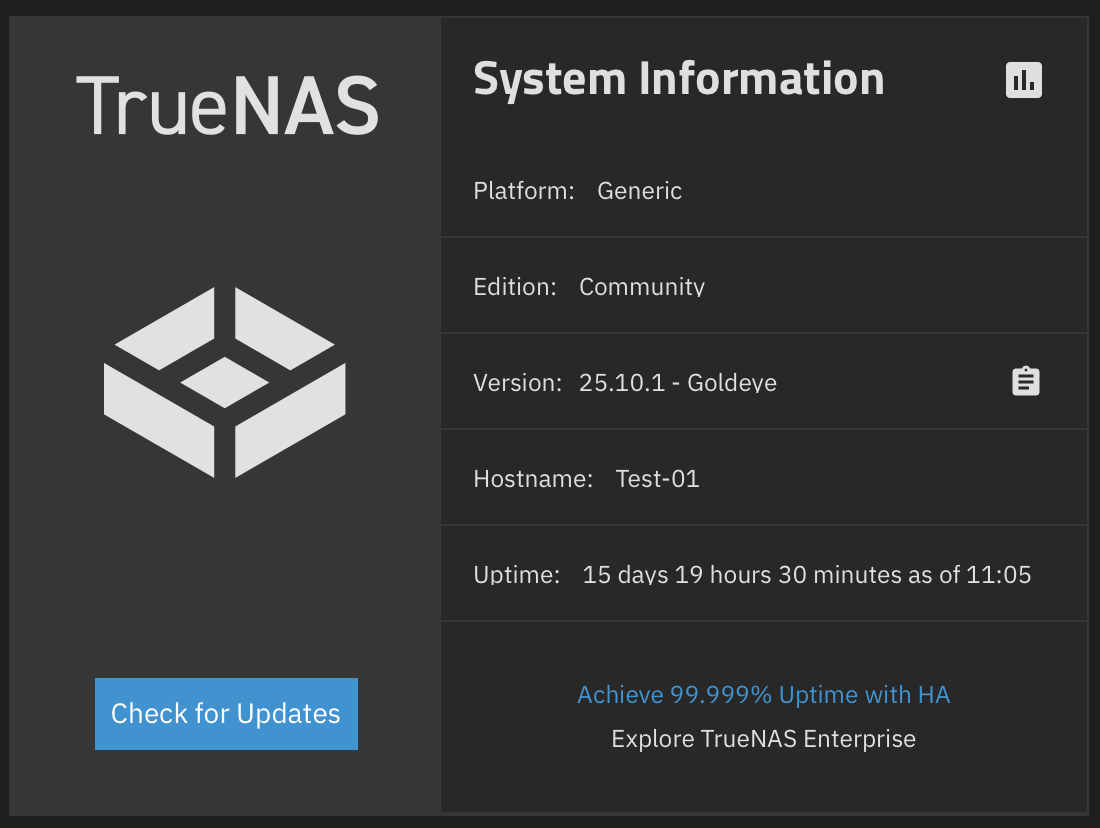
TrueNAS Version
TrueNAS Version can be found by
- Login to HexOS Deck Settings
- Select the TrueNAS Button
- Login to TrueNAS
- Username: truenas_admin
- Password: What was selected when installing HexOS
- On the system information card you will see your TrueNAS Version
Application Version
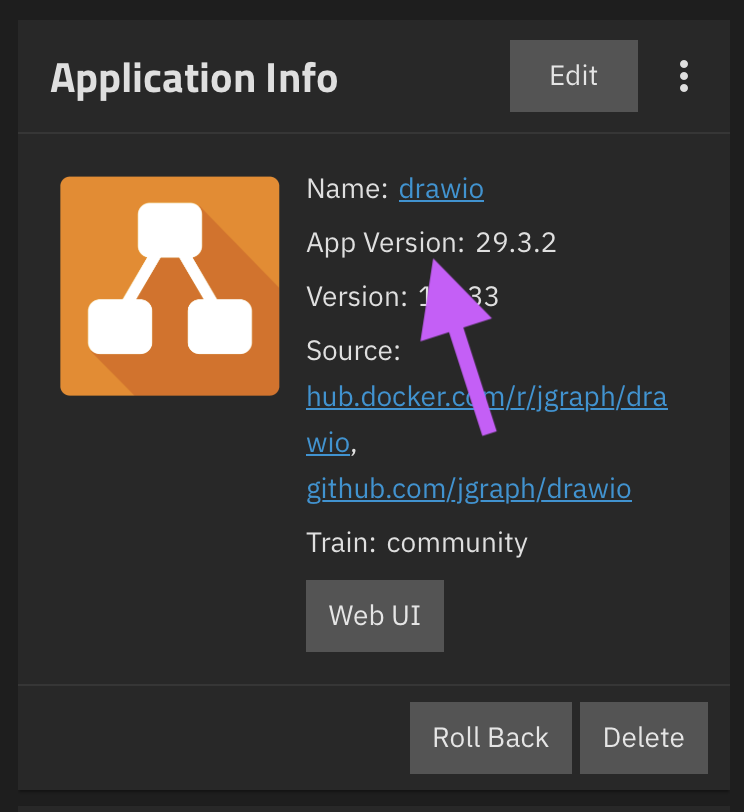
The application Version can be found by
- Login to HexOS deck and go to
Settings - Select the TrueNAS Button
- Login to TrueNAS
- Username: truenas_admin
- Password: What was selected when installing HexOS
- Navigate to the
Appstab on the left sidebar menu - Click on your application
- On the
Application Infocard you will see anApp Version
Model of CPU
The model of the CPU in your server can be found by
- Login to HexOS Deck Settings
- Select the TrueNAS Button
- Login to TrueNAS
- Username: truenas_admin
- Password: What was selected when installing HexOS
- On the
CPU Modelcard you will see your CPU Model
Model of GPU
1. Login to HexOS Deck and go to `Settings`- Select the TrueNAS Button
- Login to TrueNAS
- Username: truenas_admin
- Password: What was selected when installing HexOS
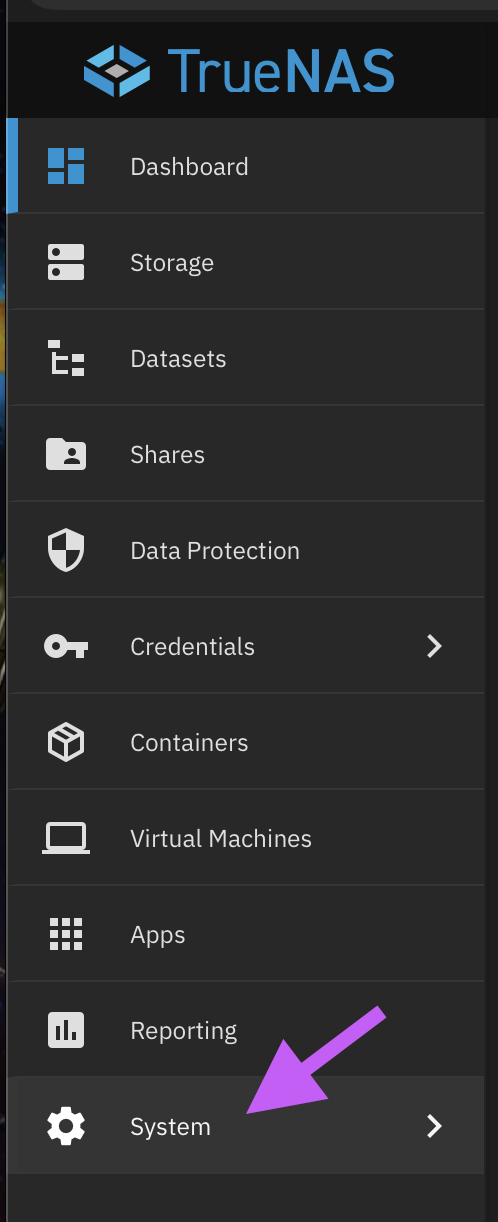
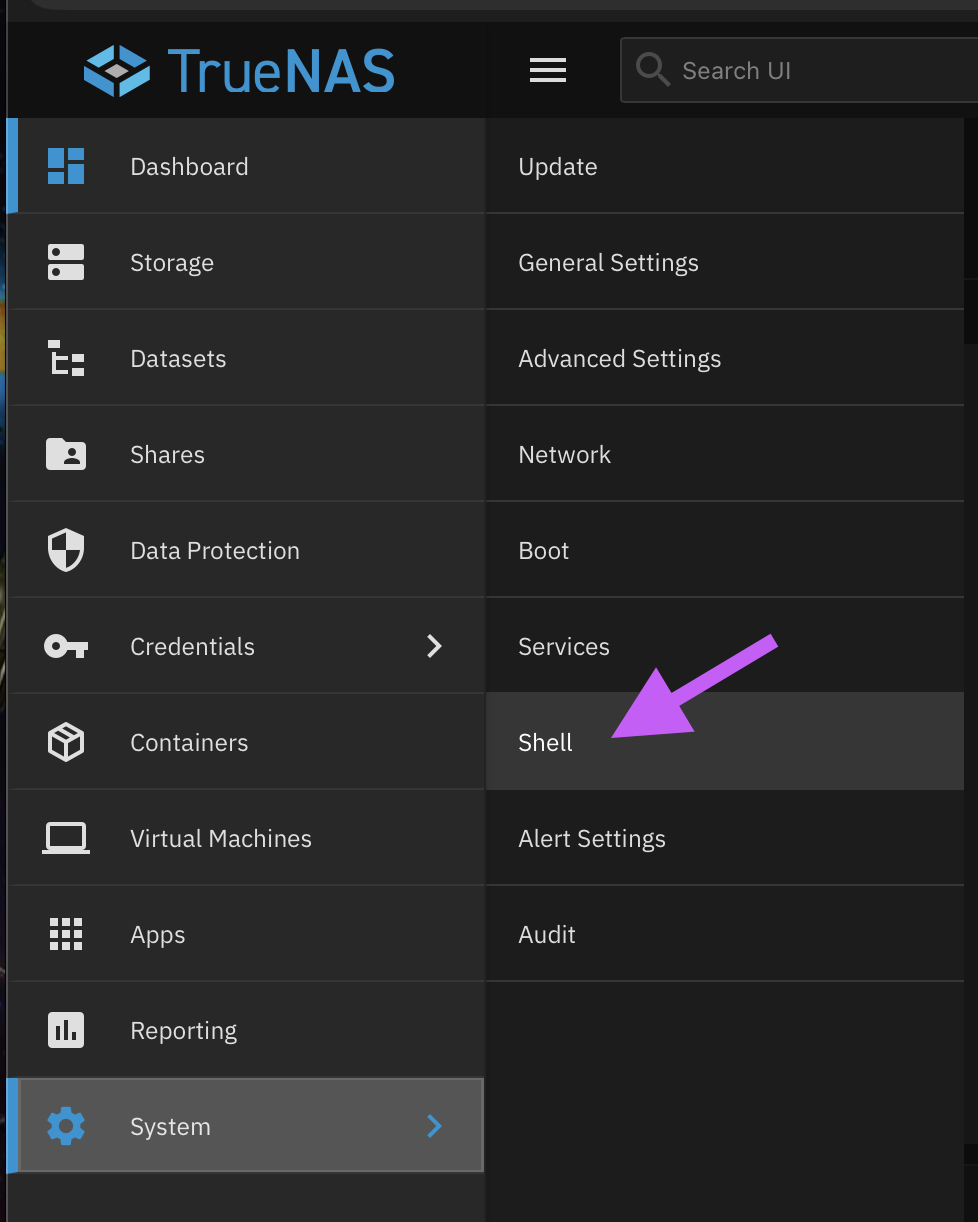
- Navigate to the
Systemtab on the left sidebar menu
- Select
Shell
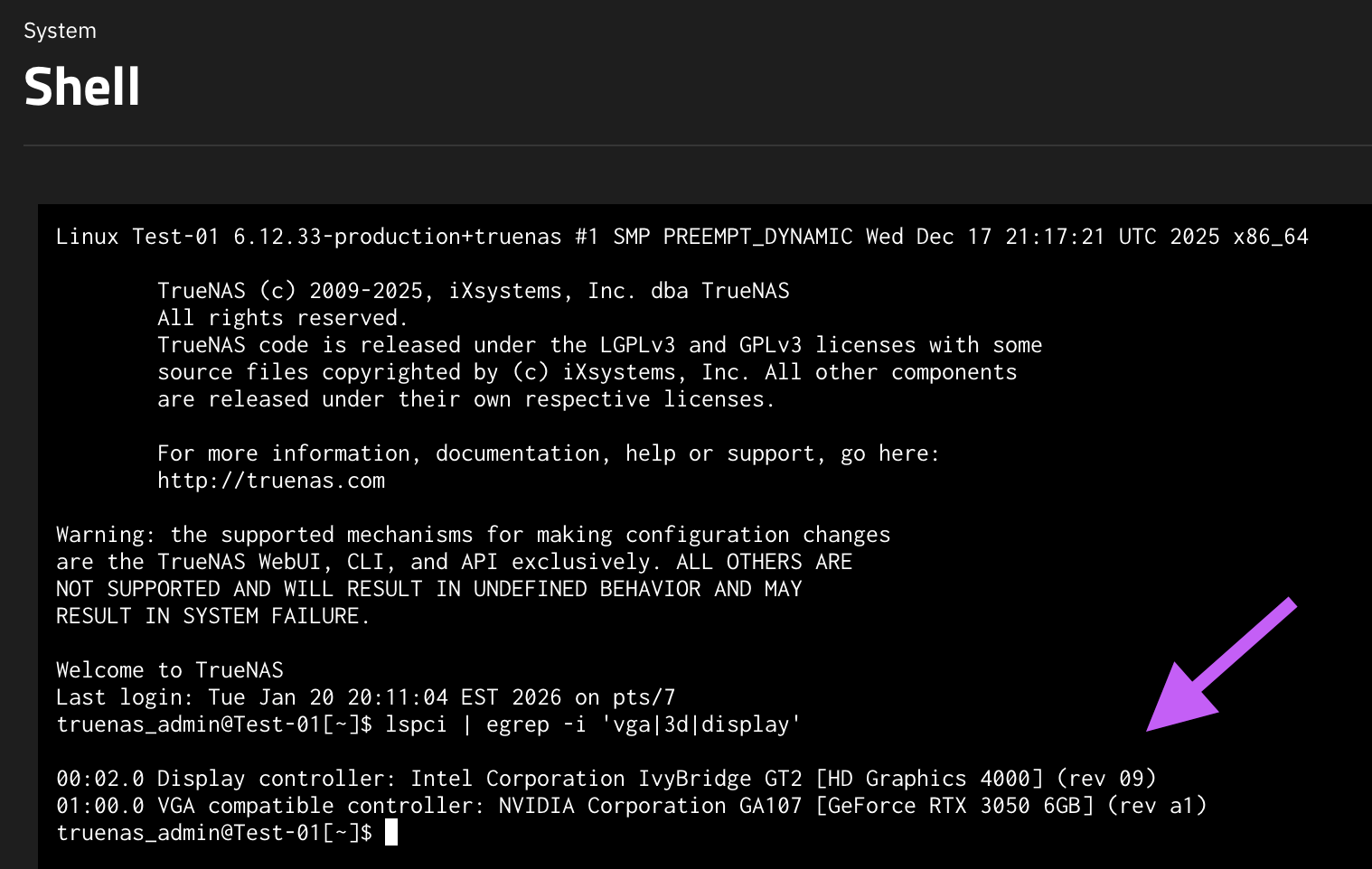
- Type
lspci | egrep -i 'vga|3d|display'
Modifications made in TrueNAS
Example modifications
- App installed via TrueNAS not HexOS
- Storage pool created in TrueNAS not HexOS
- App configuration modified in TrueNAS
Description of the problem
Describe the problem
When did it start?
What steps did you take before the problem started?
Include any errors reports that HexOS or TrueNAS informs you of in this section.
Troubleshooting steps attempted
A brief overview of any steps you have tried.