¶ How to create a new folder
- Log in to the Command Deck.
- Go to the Folders screen in the side menu.
Folders screen
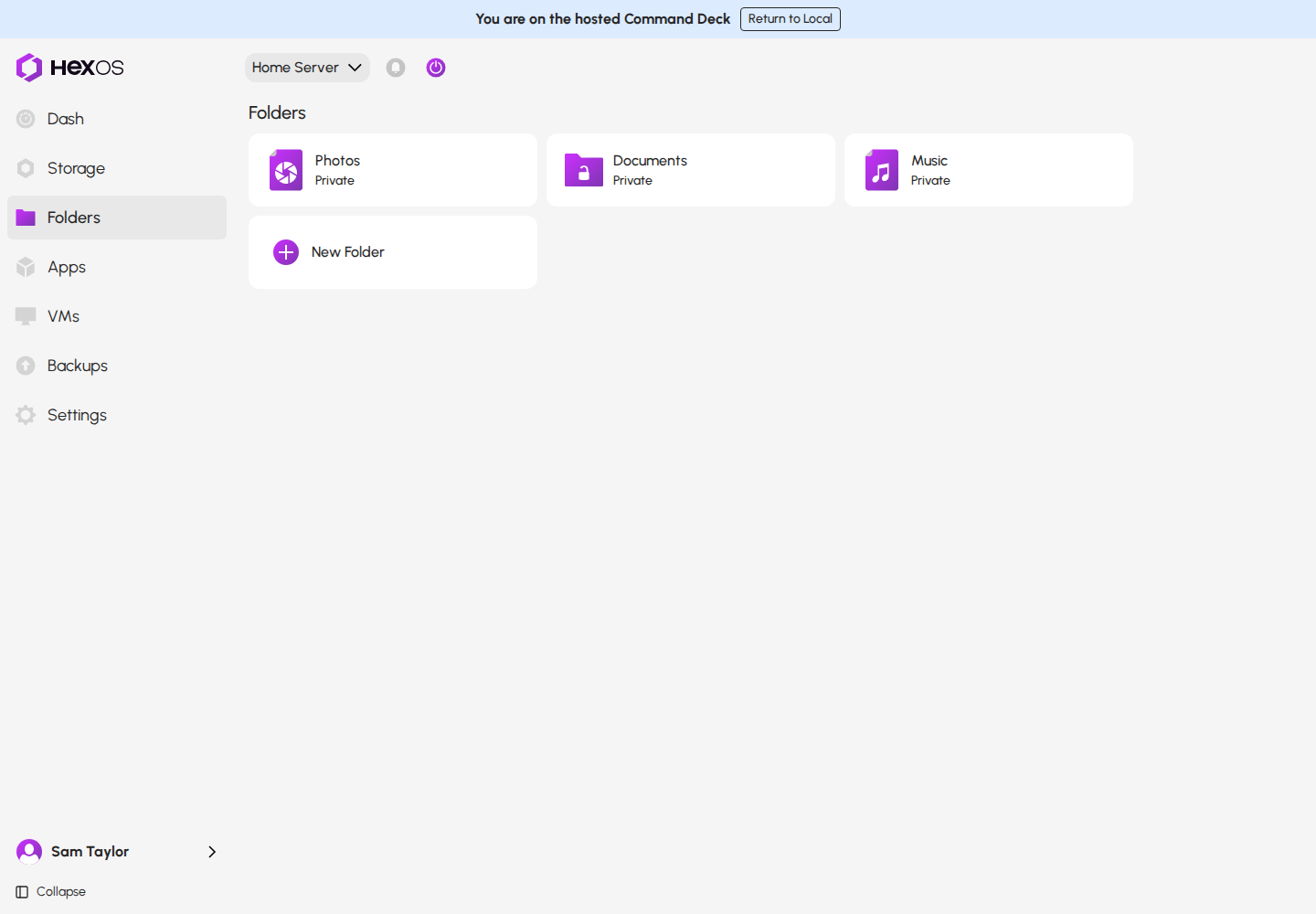
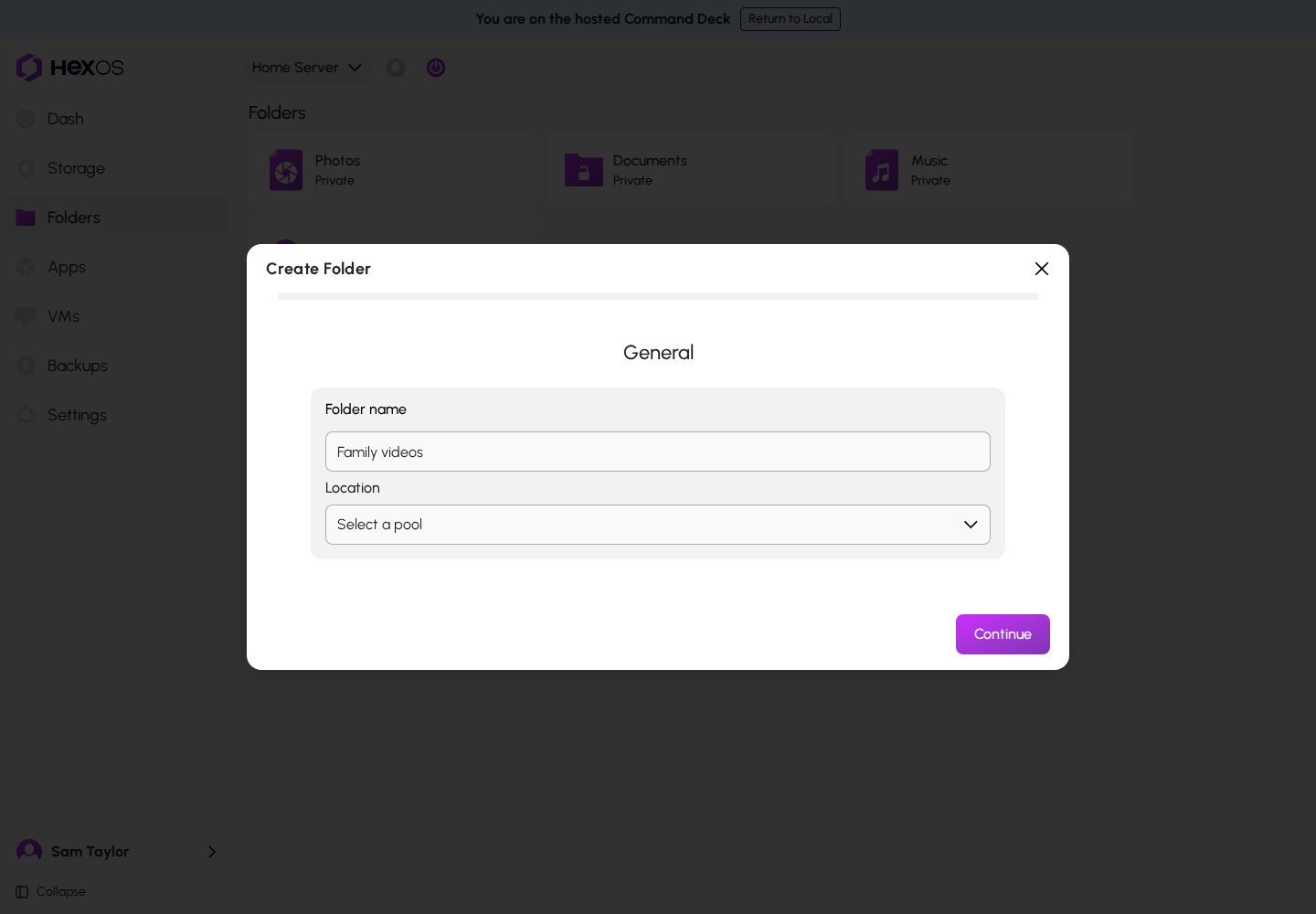
- Click the New Folder button.
New Folder button
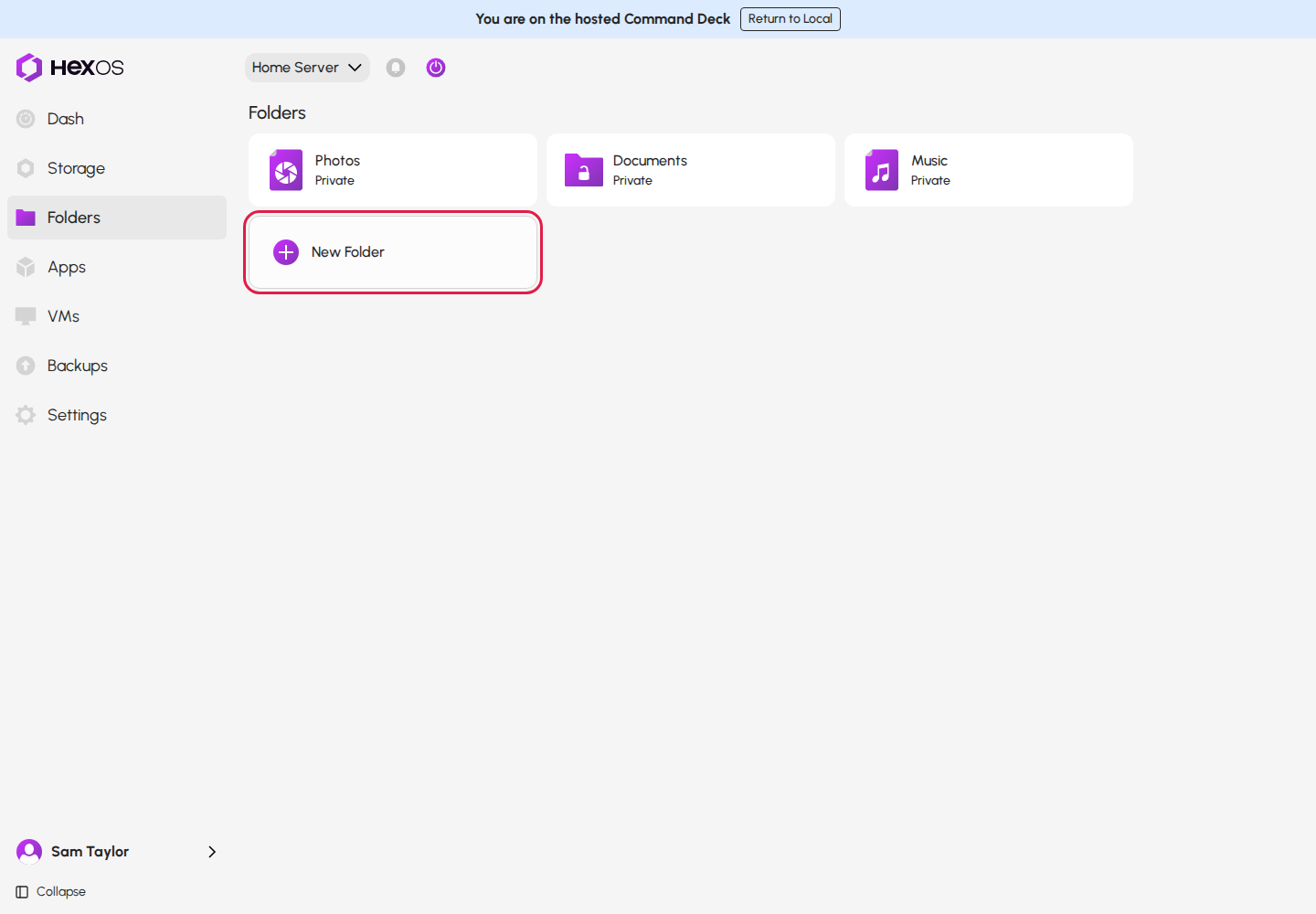
This opens the Create Folder dialog. It has five steps: General, Access, Options, Encryption and Review. Click Continue to go to the next step and Back to go back.
Create Folder dialog
Info: Make new folders from the Folders screen. The New folder button in Settings > Locations opens an older dialog, where encryption is off by default and only a passphrase is offered. See Known issues.
¶ General
¶ Folder name
- Choose a folder name.
Warning: Folder name cannot be modified after folder creation.
¶ Location
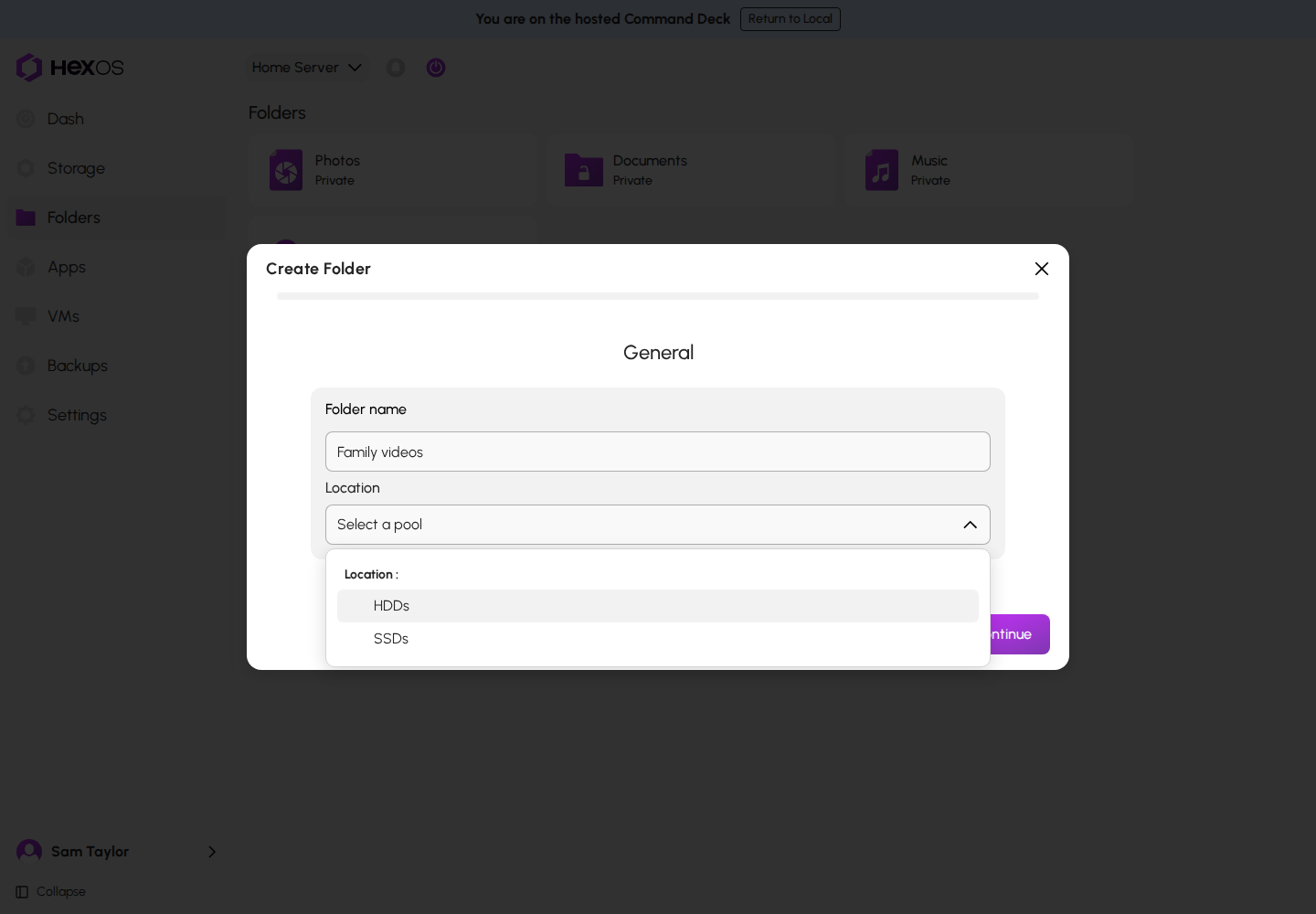
- Choose the pool you would like your folder to be in.
- If you only have one pool then it will automatically be selected for you.
Warning: Folder location cannot be modified after folder creation.
Folder location pool selection
¶ Access
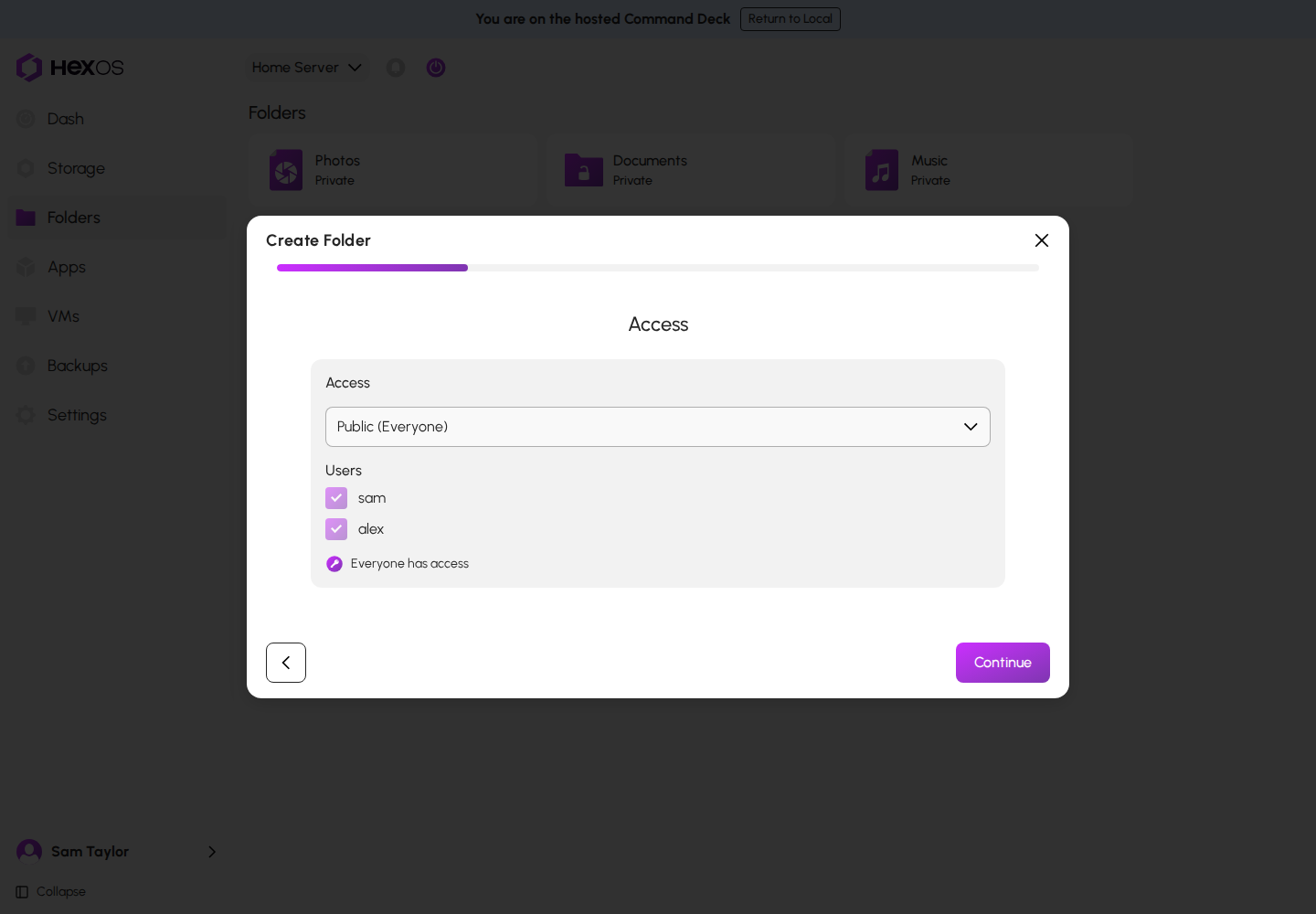
This step is optional. In the Access step you can choose which users have access to this folder and which permissions they are granted. This is covered in more detail in Folder permissions.
Access step
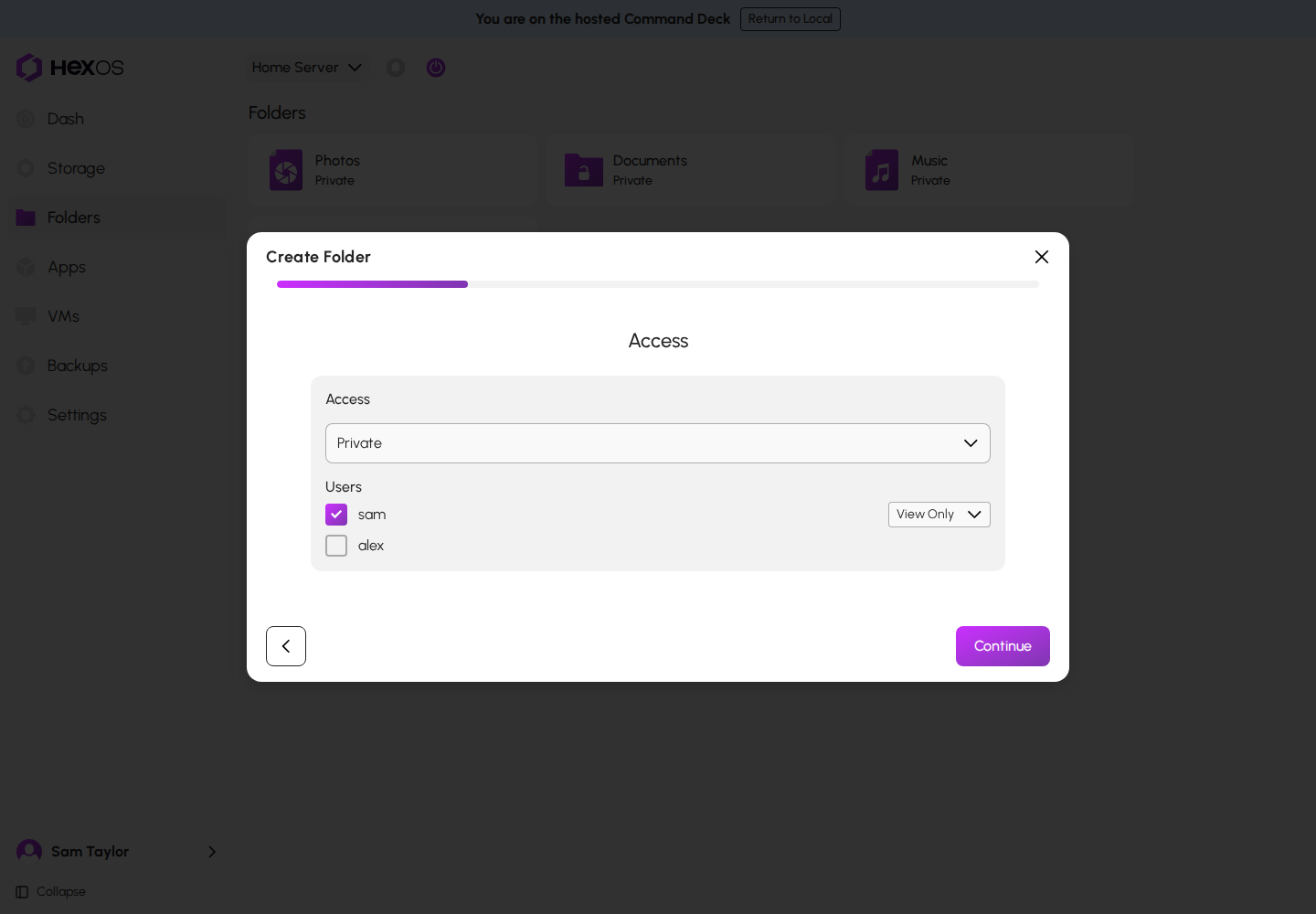
In this example a user has been selected and given permission only to view the files.
User with view-only access
¶ Options
¶ Folder storage limit
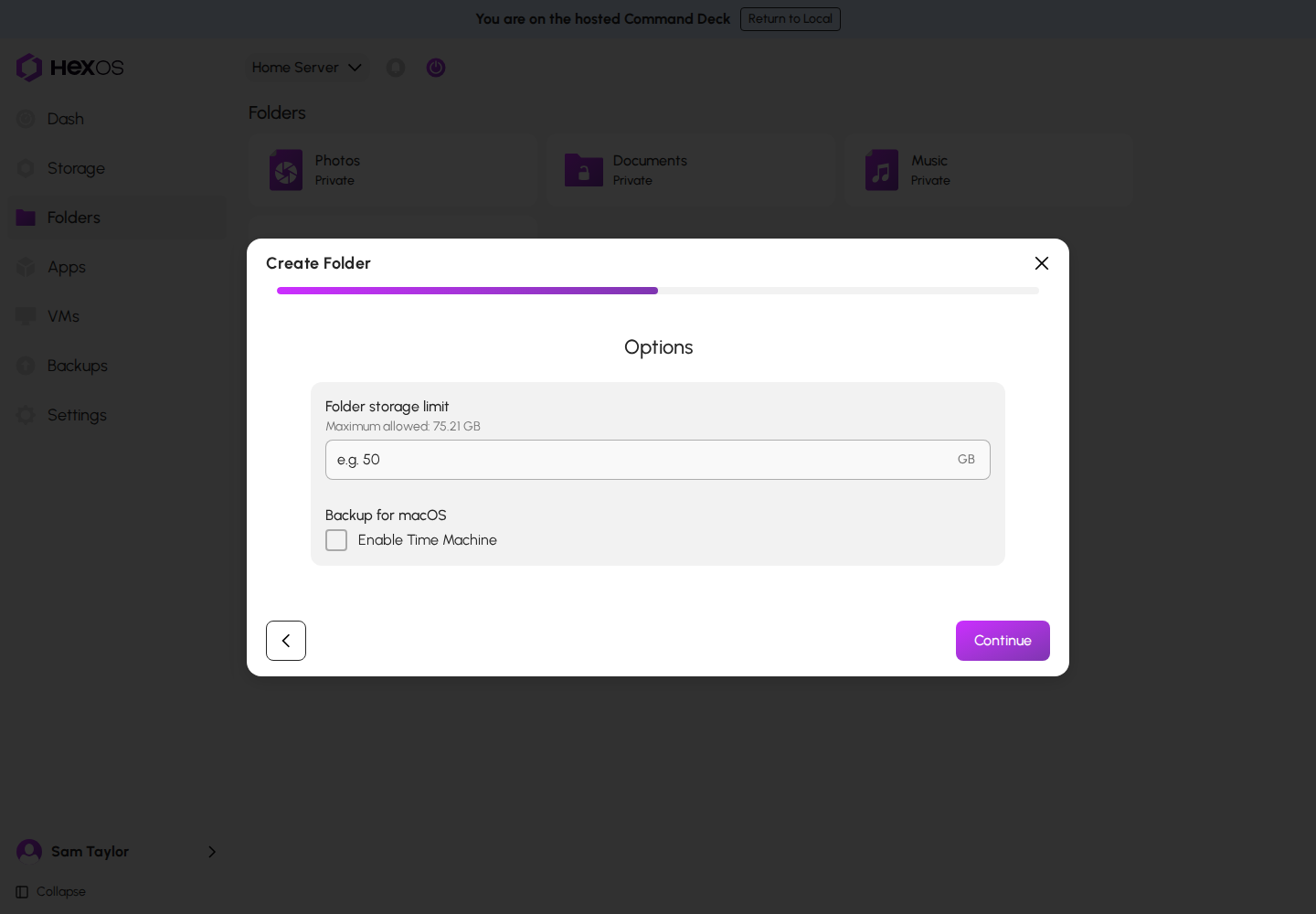
Optional. In this section you can set a maximum amount of disk space the folder may use. This helps manage disk usage when multiple people or applications share your server.
¶ Backup
Optional. You can enable Time Machine by clicking the checkbox. Enabling this feature sets up the folder with the proper configuration for Apple's Time Machine backup system.
Storage limit and backup options
¶ Encryption
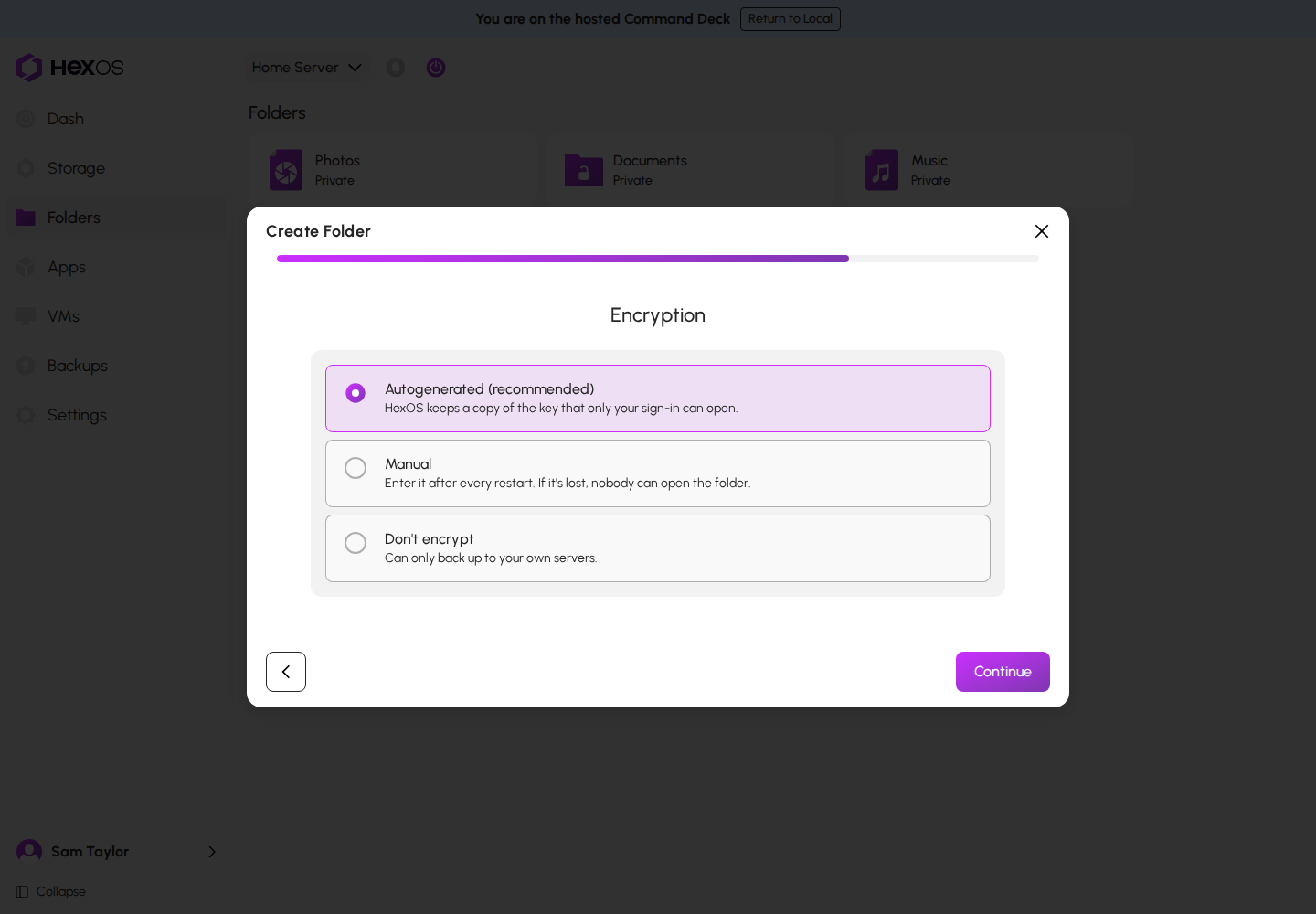
New folders are encrypted by default. The Encryption step offers three choices, and Autogenerated (recommended) is already selected:
- Autogenerated (recommended): "HexOS keeps a copy of the key that only your sign-in can open." With End-to-end encryption, that copy also needs your recovery key. The folder unlocks by itself when your server starts, and there is nothing to remember.
- Manual: "Enter it after every restart. If it's lost, nobody can open the folder." Type a passphrase of at least 8 characters in Passphrase and again in Confirm passphrase.
- Don't encrypt: "Can only back up to your own servers." The folder cannot be backed up to another person's server until you encrypt it.
Encryption step with Autogenerated selected
Encryption step with Manual selected
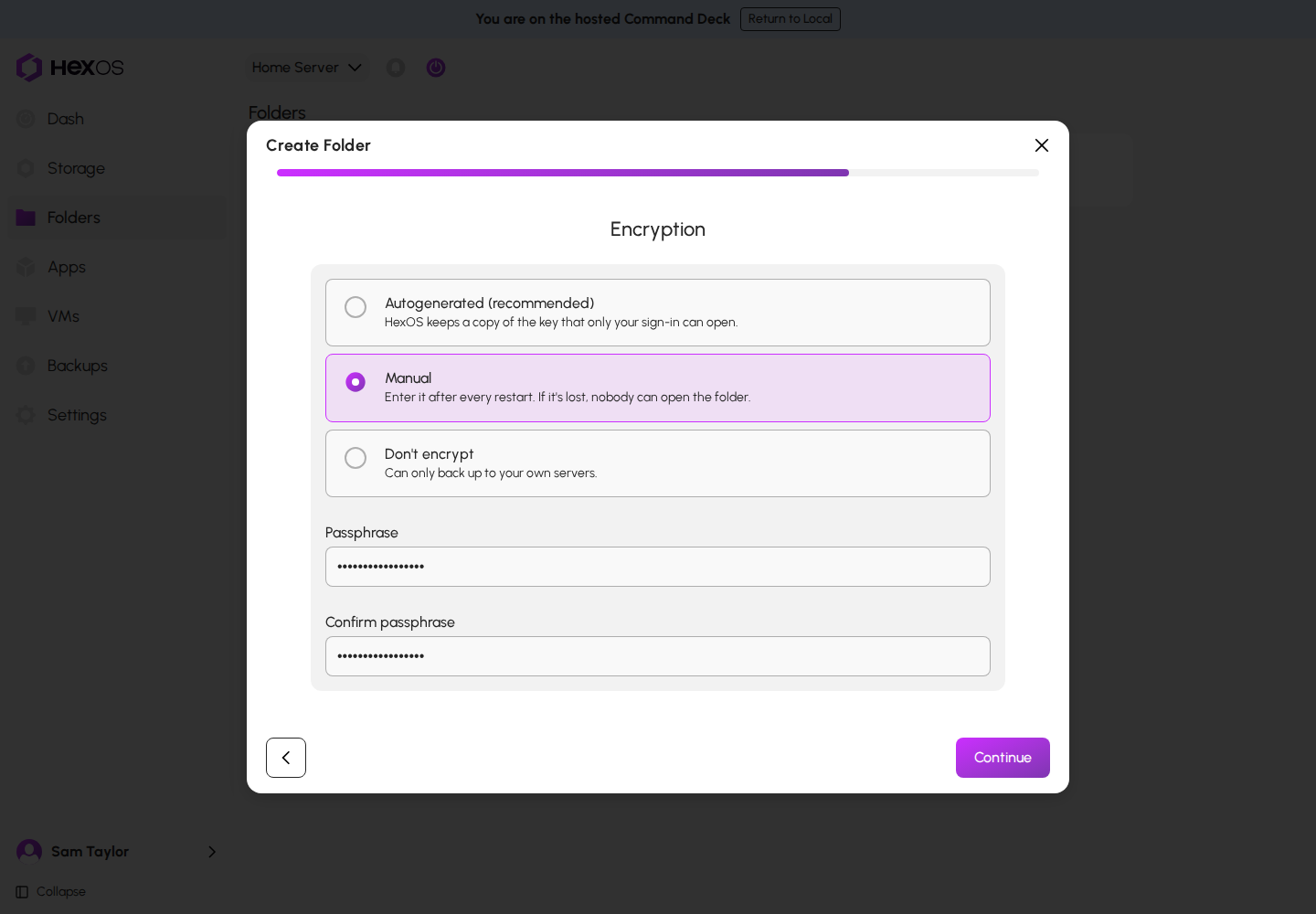
Danger: If you choose Manual and lose the passphrase, nobody can open the folder or its backups. HexOS does not store your passphrase on its servers and cannot get it back. Write it down and keep it somewhere safe.
Warning: An autogenerated key unlocks the folder for anyone who starts your server, because the key is kept on the server's boot drive. If the folder must stay unreadable when someone takes the whole server, choose Manual.
You can change an encrypted folder between Autogenerated and Manual later from the folder's page, and a folder you did not encrypt can be encrypted later. What each choice protects is explained in Encrypted folders.
¶ Finalizing new folder creation
The Review step shows your choices. Its Encryption card shows Autogenerated key, Manual passphrase or Not encrypted.
Review step
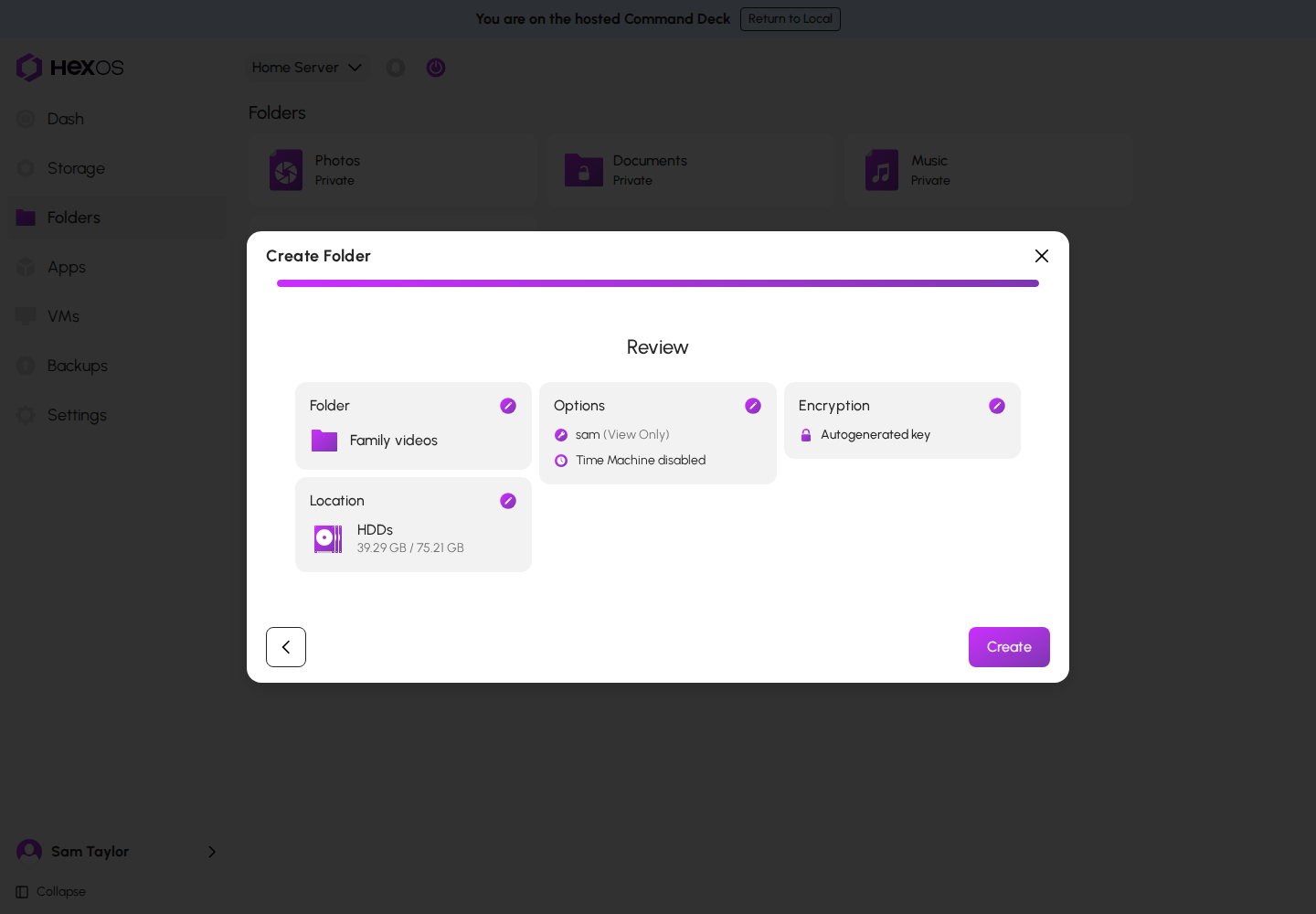
If you wish to adjust any settings, click Back, or click the edit button at the top right of a card to go back to its step. When you are ready, click Create and the folder will be created. When a folder is created you will see it on the Folders screen.
¶ Editing folder settings
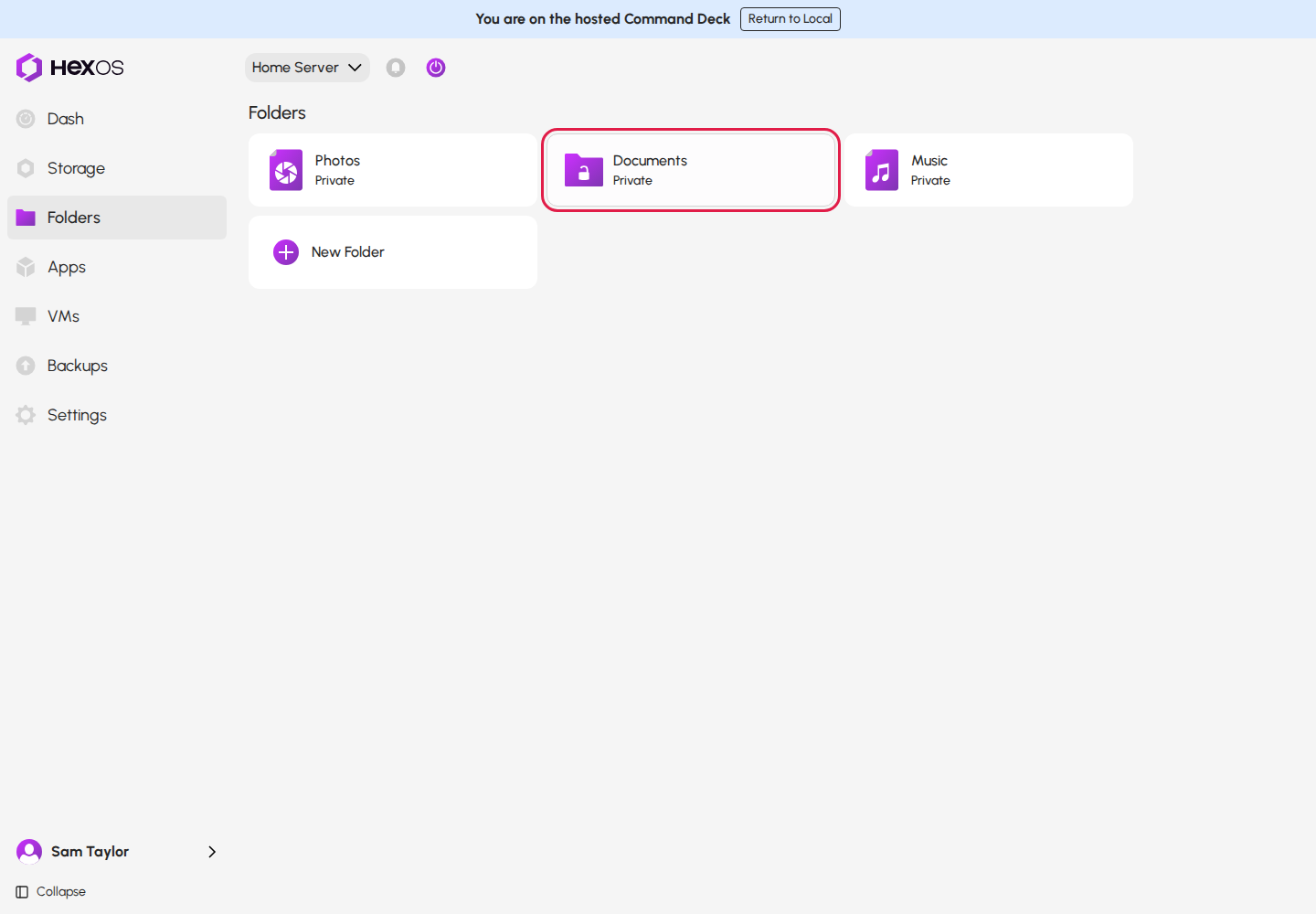
To edit the settings of a folder go to the Folders screen and click the folder you wish to edit.
Selecting a folder to edit
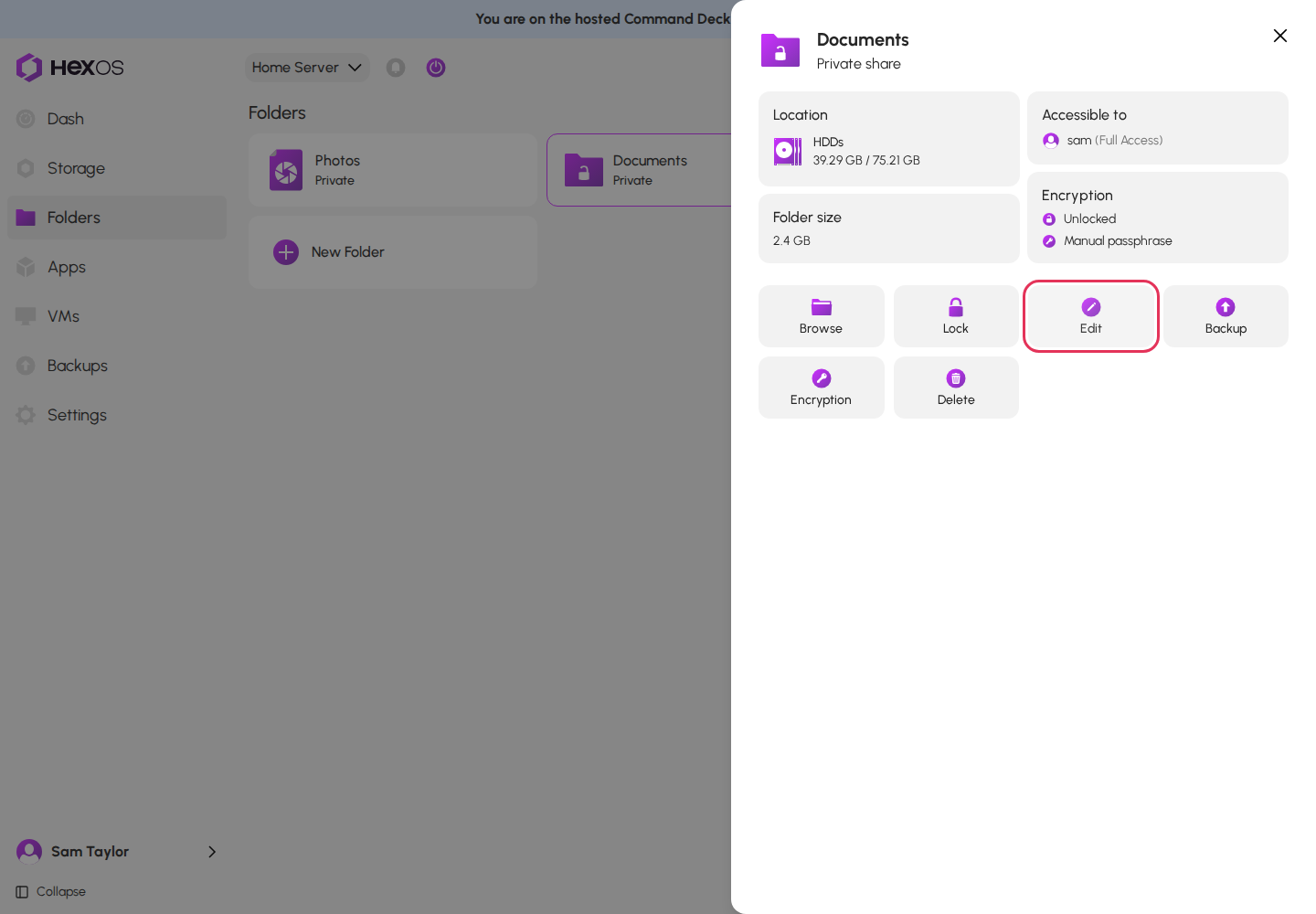
Then click Edit.
Edit button
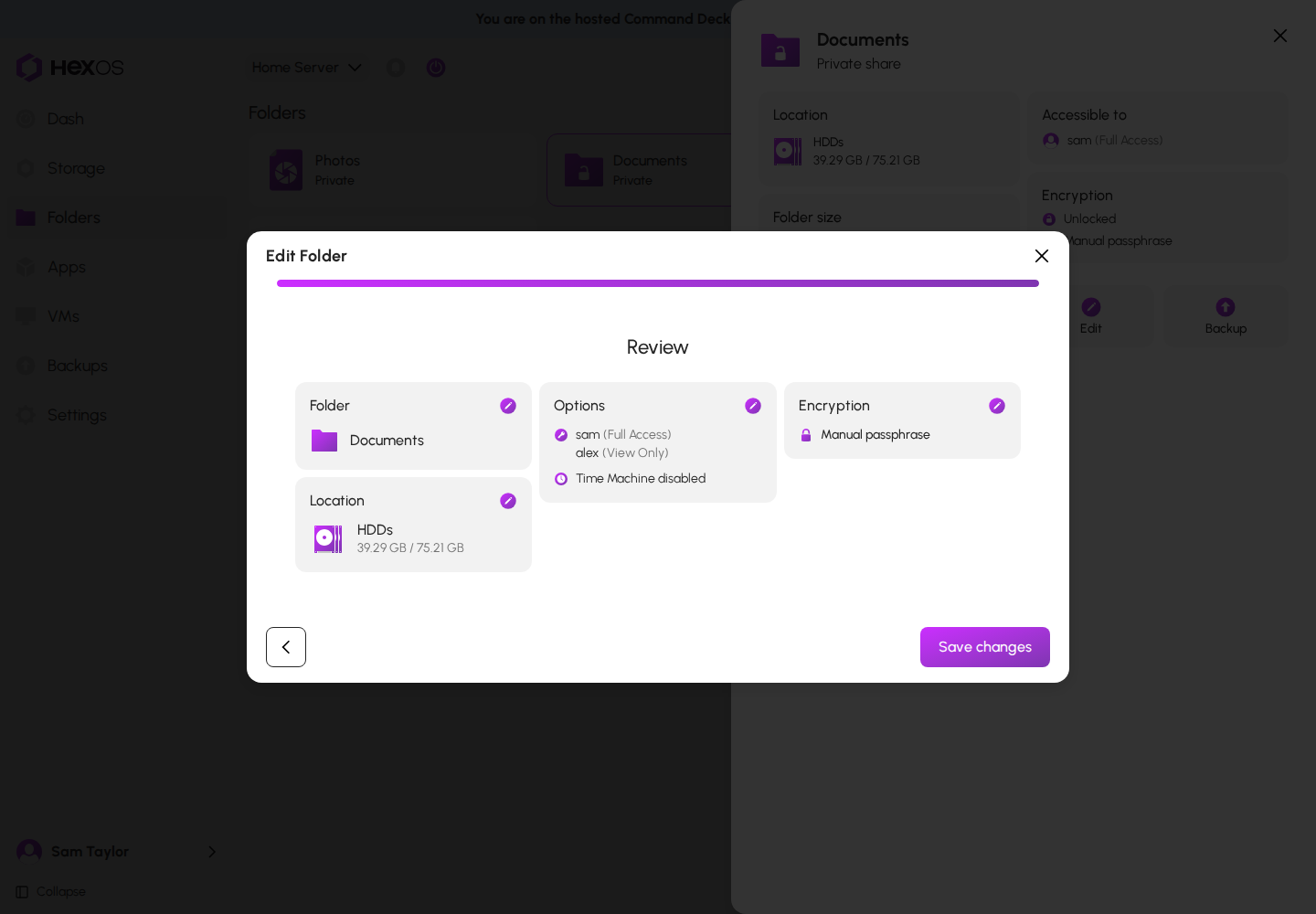
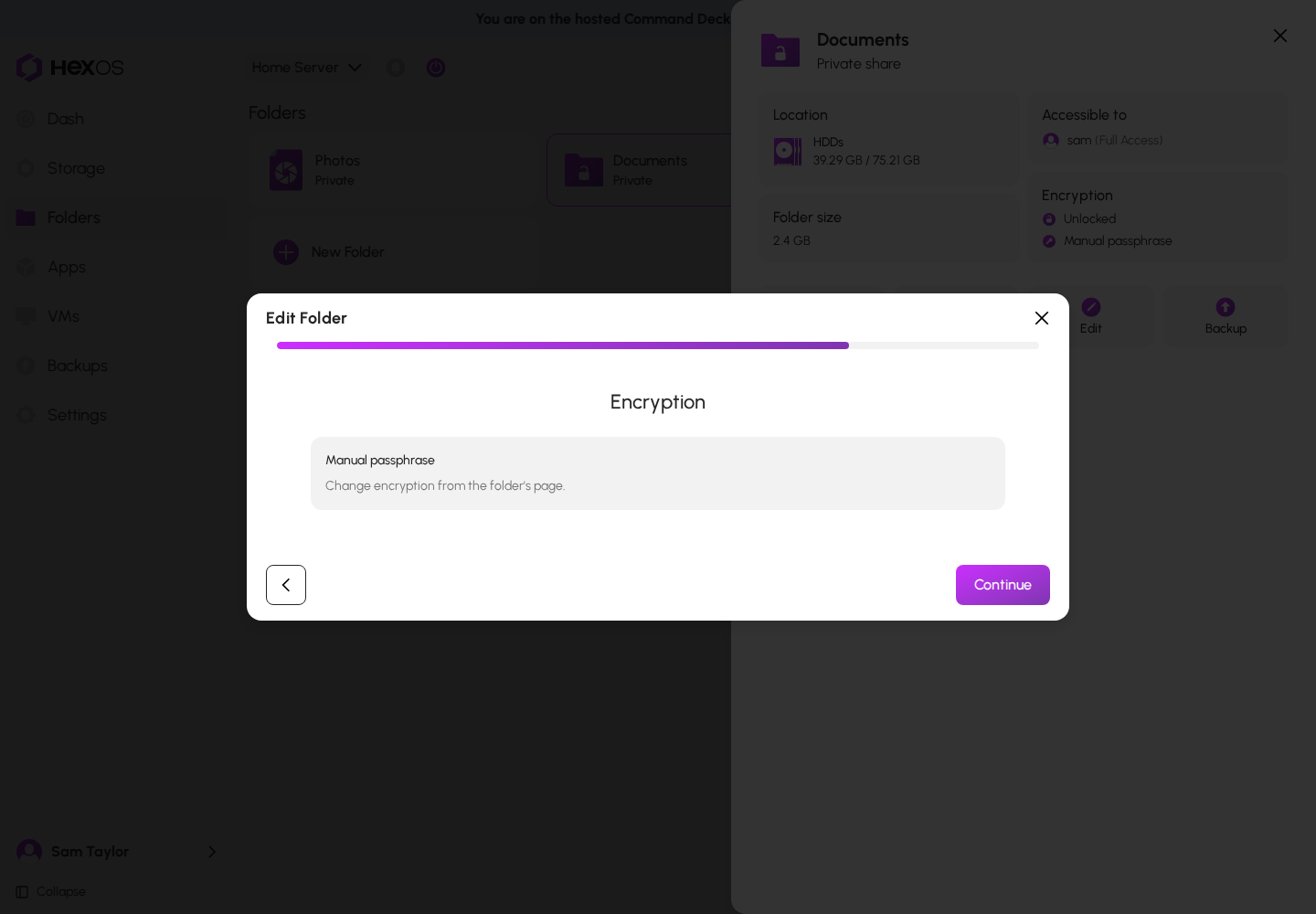
The Edit Folder dialog shows what may be edited. Folders cannot be renamed after creation. The Encryption step only shows the folder's current state and says "Change encryption from the folder's page." To change encryption, use the Encryption tile or the Turn on button on the folder's page (see Encrypted folders and Turn on encryption for a folder).
Edit Folder dialog, Encryption step
In this example, a new user has been added and the folder permissions are set to allow the new user to view the folder. Click Save changes to save.
Saving updated folder permissions