¶ Recovery key and emergency kit
Every server has its own recovery key: a 28-character code in groups of four. It locks the copies of the server's autogenerated folder keys that HexOS keeps, so that a replacement server can open your folders after a disaster. Your server creates it the first time you open the server in the Command Deck.
The recovery key is not the key to your folders. To open a folder on a system without HexOS, use the folder's own key, exported from TrueNAS.
¶ Open the recovery key page
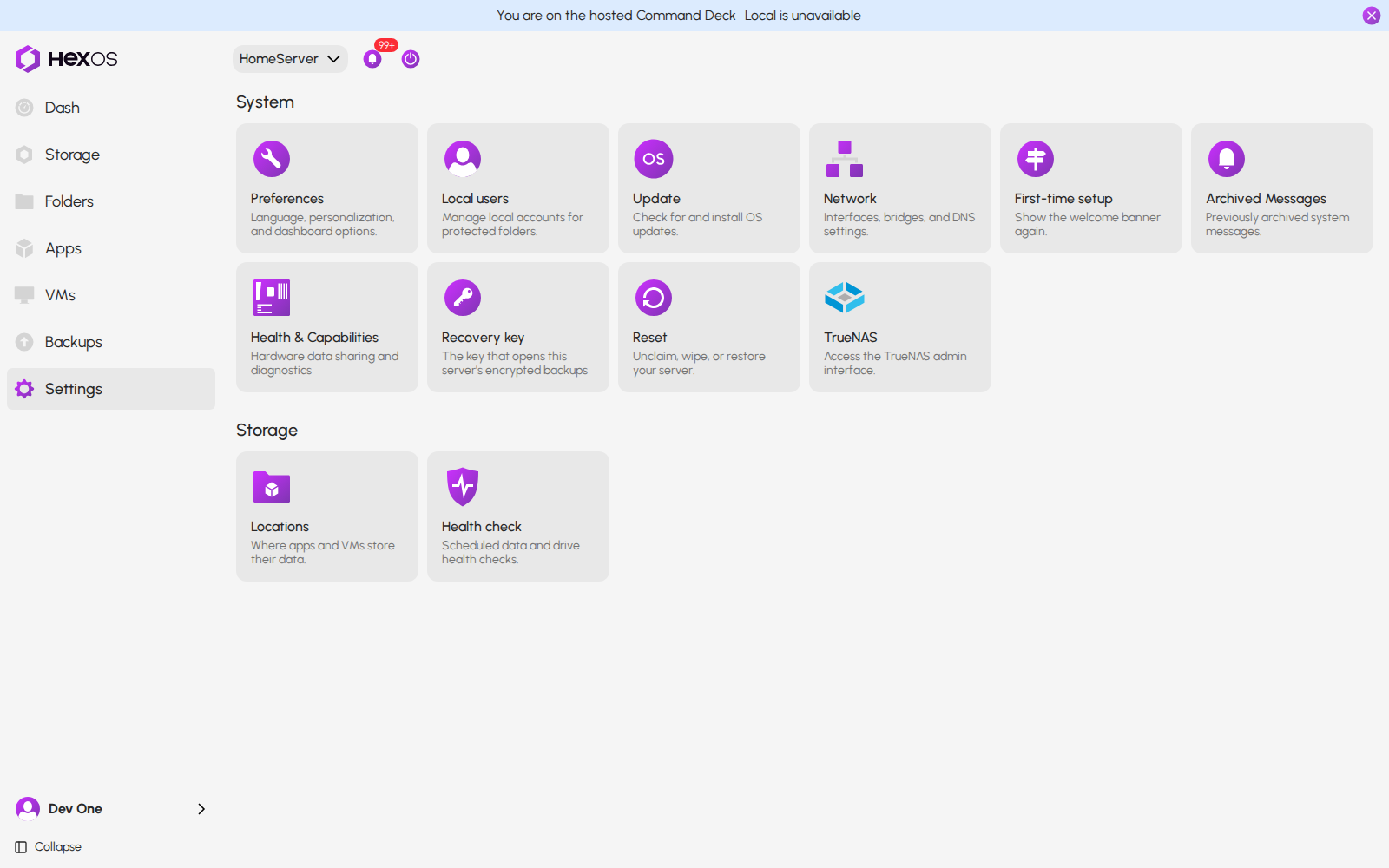
Go to Settings. Under System, click Recovery key: "The key that opens this server's encrypted backups".
Recovery key tile in Settings
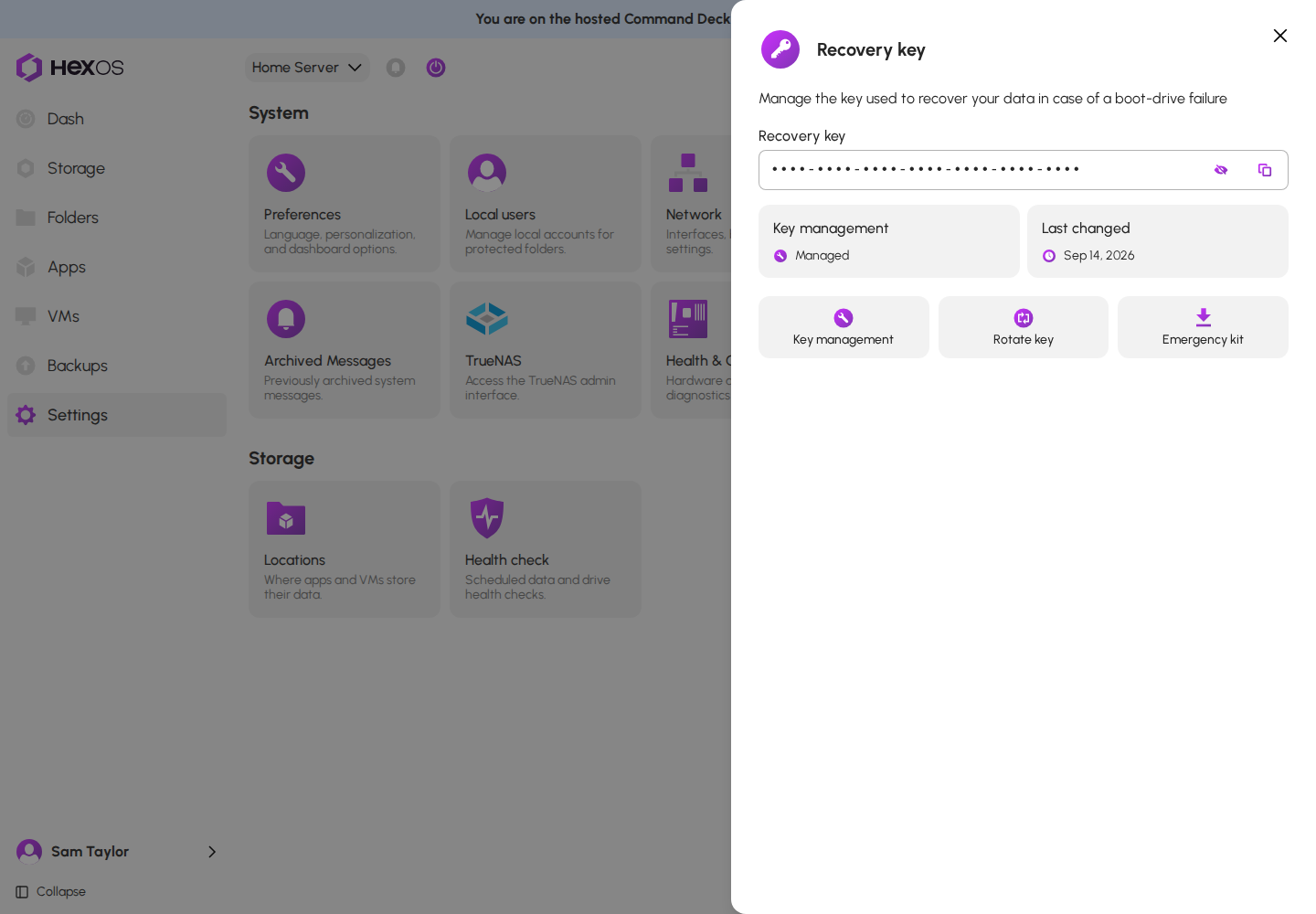
The page shows the key (hidden), how it is kept under Key management, when it was Last changed, and the Key management, Rotate key and Emergency kit buttons.
Recovery key page
¶ View or copy the key
To see the key, you need to have signed in within the last 10 minutes. The same goes for every change on this page: switching, rotating, entering the key and the Emergency kit. If it has been longer, HexOS asks you to sign in again.
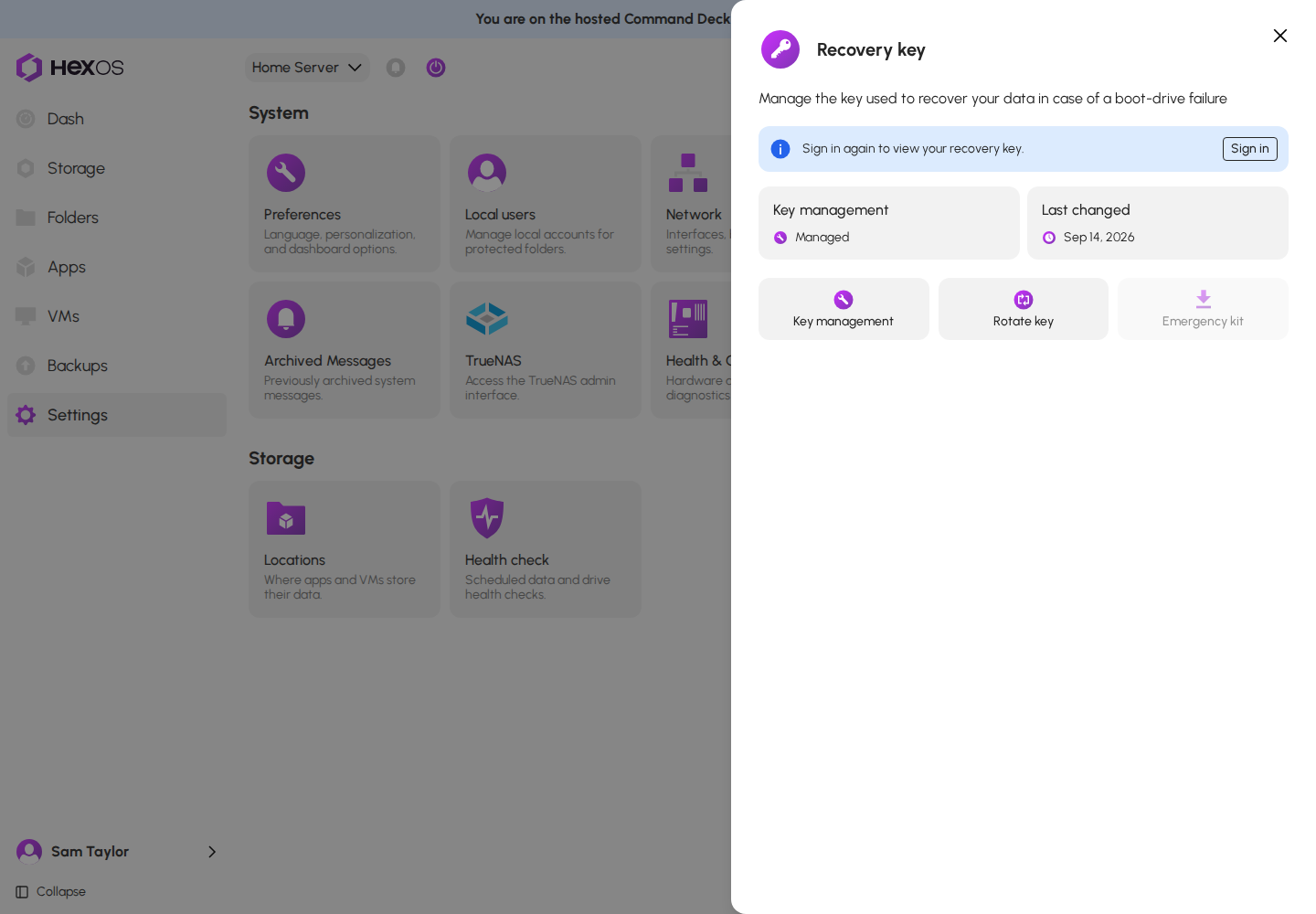
- If the page says "Sign in again to view your recovery key.", click Sign in and sign in. You come back to the same page.
Sign in again to view your recovery key
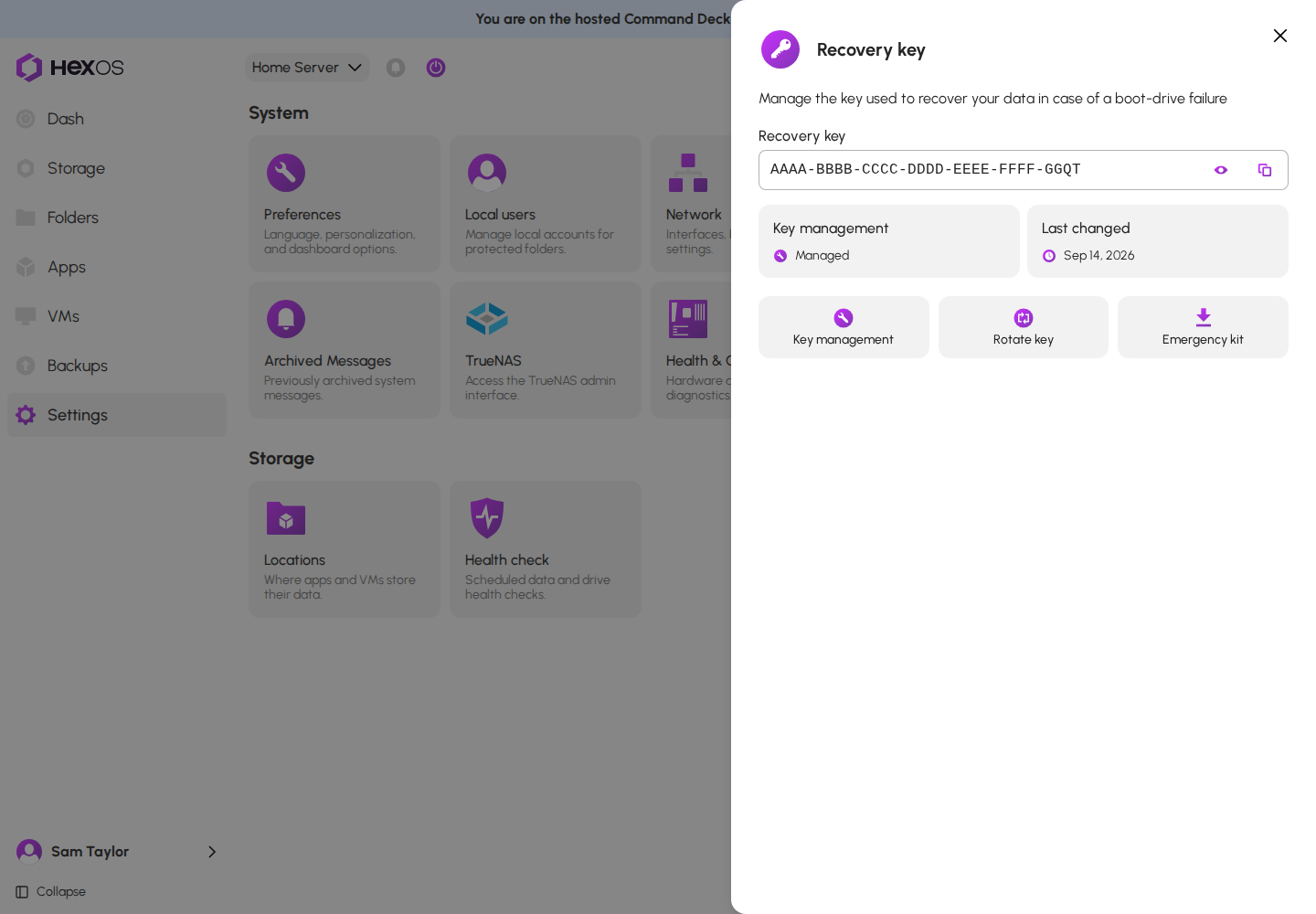
- Click the eye button beside the key to show it, and click it again to hide it.
- Click the copy button beside it to copy the key. HexOS confirms with Recovery key copied.
Recovery key shown, with the eye and copy buttons
Warning: Anyone who has your recovery key and your HexOS sign-in can open this server's backups. Do not share it, and do not keep it next to your HexOS password.
¶ Managed or end-to-end encryption
Key management decides who keeps the recovery key:
- Managed (the default): "Your recovery key is saved to your HexOS account. A lost server can be recovered by logging-in with your credentials." There is nothing for you to store.
- End-to-end encryption: "Your recovery key is only stored on this machine. Improves security, but your data can be permanently lost if you lose your recovery key." HexOS keeps no copy. Once the switch has finished and the old keys are removed (see below), HexOS cannot open this server's folder keys for anyone, including you.
Key management dialog
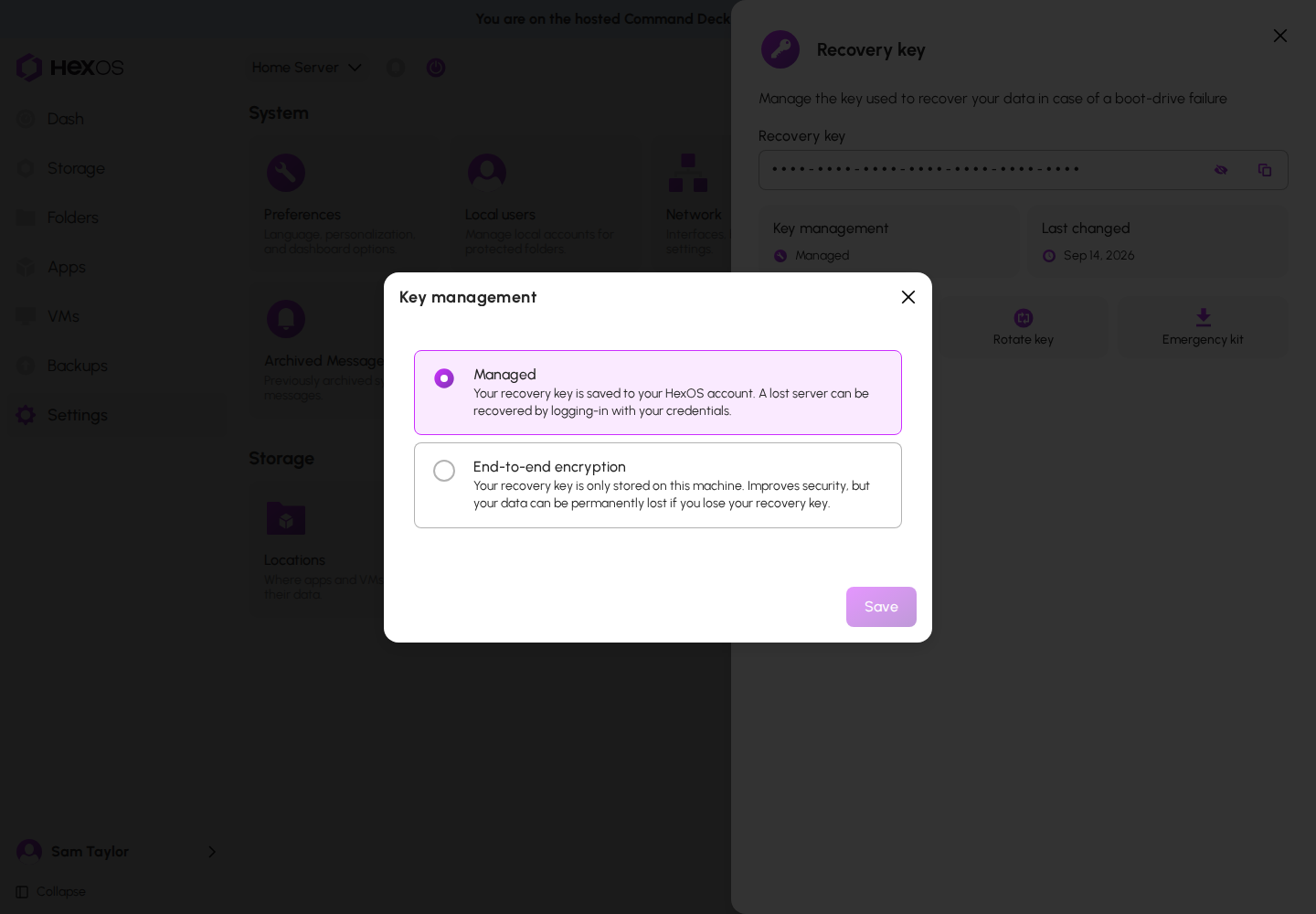
Danger: With End-to-end encryption, if you lose your server and your recovery key, your data cannot be recovered. HexOS cannot open it for you. Save the key in the Emergency kit before you rely on it.
¶ Switch to end-to-end encryption
- Click Key management.
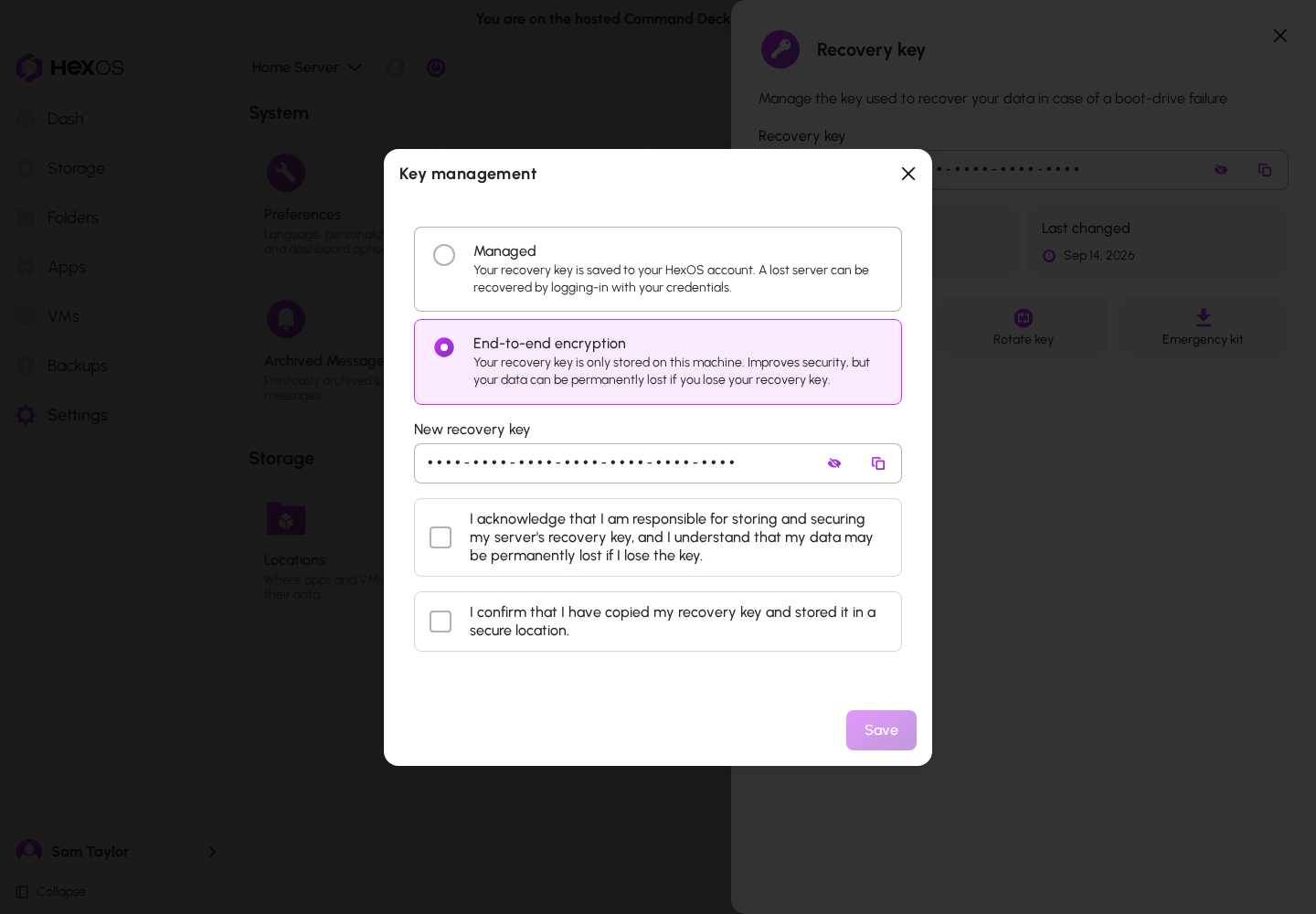
- Click End-to-end encryption. Your server makes a new recovery key and shows it, hidden, under New recovery key. If HexOS says "Sign in again to continue.", click Sign in again first.
- Click the eye button to show the new key, or the copy button to copy it. Save it somewhere safe, such as a password manager.
- Tick both boxes: "I acknowledge that I am responsible for storing and securing my server's recovery key, and I understand that my data may be permanently lost if I lose the key." and "I confirm that I have copied my recovery key and stored it in a secure location."
- Click Save. HexOS confirms with Switched to end-to-end encryption.
New recovery key and the two acknowledgements
- Click Emergency kit to download a copy of the new key (see Emergency kit).
What happens next:
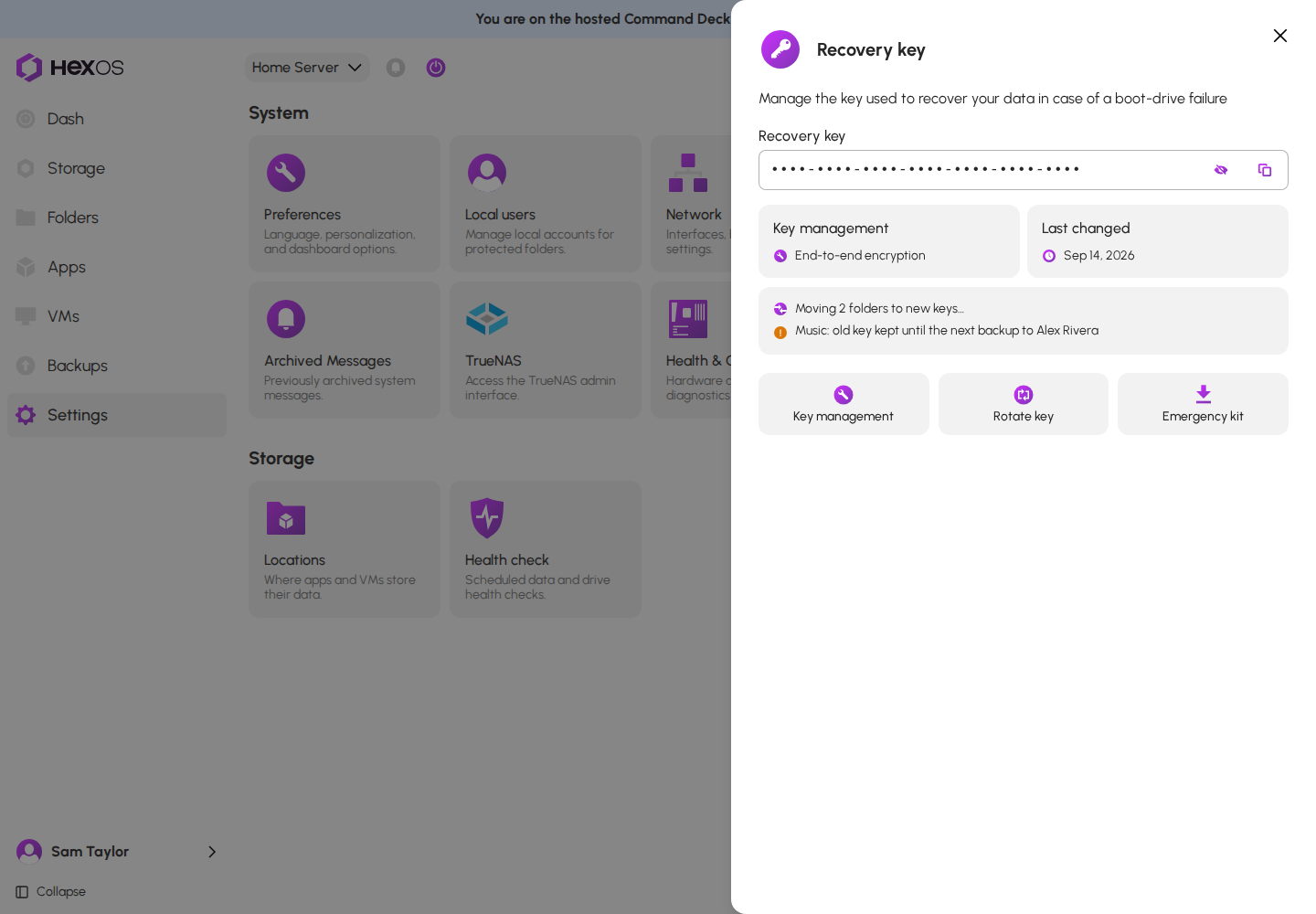
- Every unlocked folder with an autogenerated key on this server gets a new folder key, locked only with your new recovery key. A locked folder gets its new key once it is unlocked. This runs in the background, a few folders at a time. The page shows "Moving {count} folders to new keys…" until it is done.
- Until every backup of a folder has a backup made after the change, HexOS keeps the folder's old key and can still open it for a request signed in to your account. A folder whose files do not change keeps its old key until they do. The page lists each folder still waiting, for example "Music: old key kept until the next backup to {destinations}". A backup on a paused connection keeps the old key too.
- Your exported folder keys are now out of date. Export them again.
Folders moving to new keys, and a folder waiting for its backup
Info: Switching cannot reach copies that already left HexOS. HexOS's own database backups keep the old keys until those backups expire, and a copy of a folder made before the switch (such as a disk image) still opens with the old key. See Old keys after a key change.
From then on, if you restore one of this server's folders on another server, HexOS asks you for this recovery key once (see When HexOS asks for a recovery key).
¶ Switch back to managed
- Click Key management.
- Click Managed, then Save. HexOS confirms with Switched to managed.
Your server sends HexOS a copy of the recovery key. Your folder keys stay the same.
¶ Emergency kit
Click Emergency kit to download a one-page PDF for this server. It holds the server's name, your HexOS account, how the key is kept, the recovery key, the date it was made, and these steps:
- "If this server is lost, set up HexOS on a replacement server and sign in with the account above."
- "Open Backups, choose Recover, and pick this server's backup."
- "If you're asked for a recovery key, enter the one above."
Emergency kit PDF
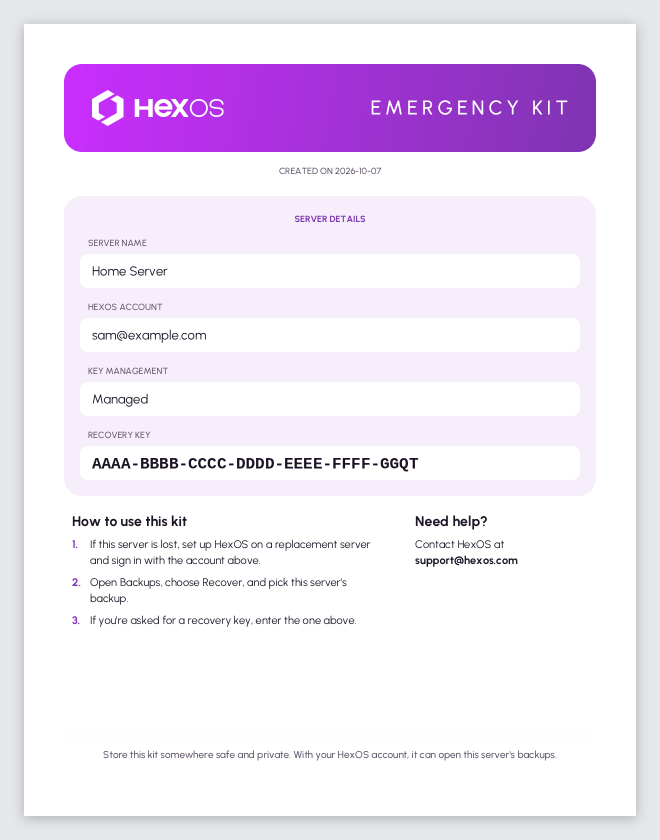
The PDF is made in your browser, and the key is not sent anywhere else. Like viewing the key, it needs a sign-in from the last 10 minutes. Each server has its own recovery key, so each server has its own kit.
Tip: Print the kit, or keep it somewhere safe and private away from the server. Make a new kit after you rotate the key or switch to End-to-end encryption.
¶ Rotate the key
If you think your recovery key has been exposed, make a new one:
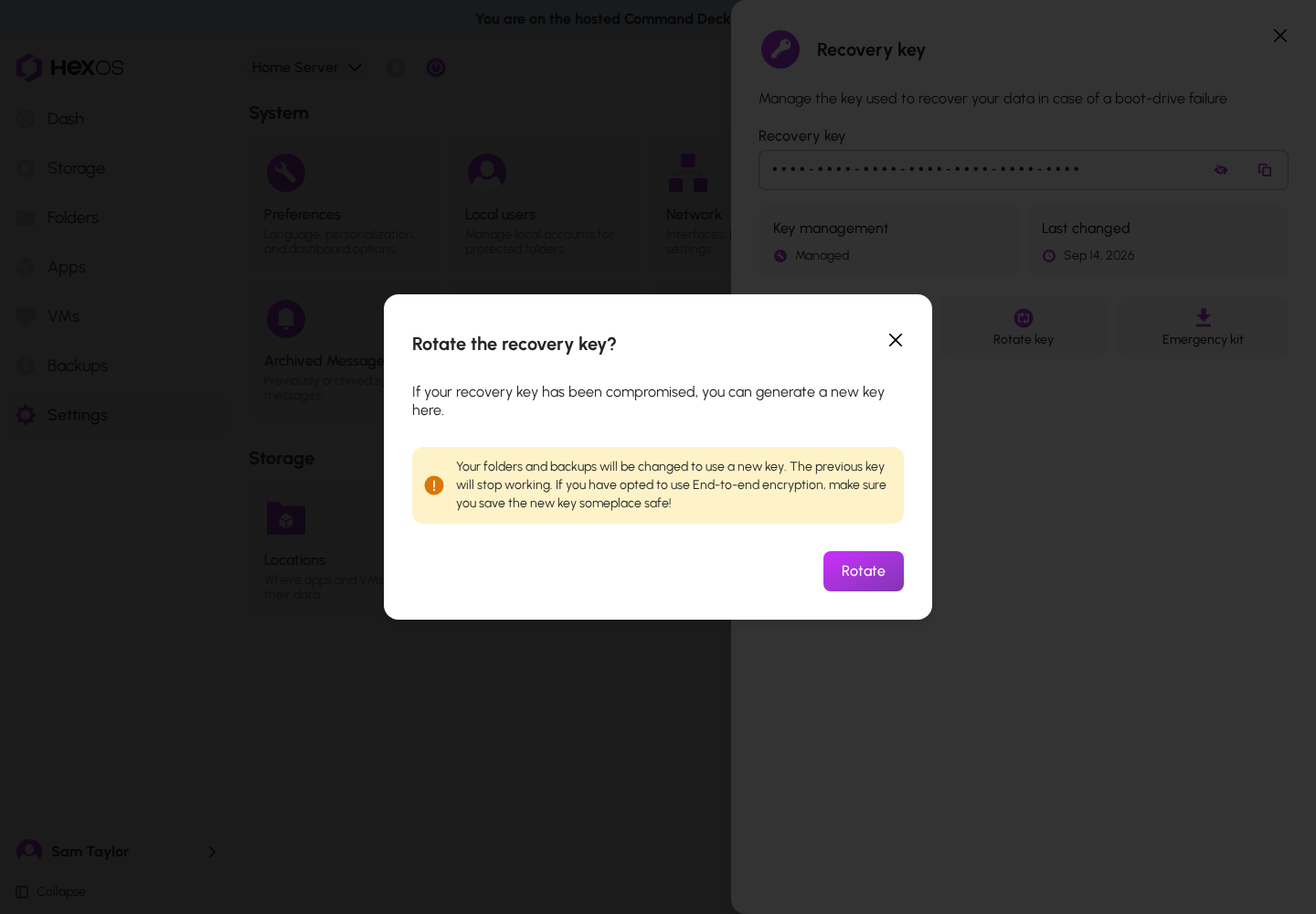
- Click Rotate key. The dialog Rotate the recovery key? opens.
- With End-to-end encryption, the dialog shows the New recovery key. Save it, then tick "I confirm that I have copied my recovery key and stored it in a secure location."
- Click Rotate. HexOS confirms with Recovery key rotated.
Rotate the recovery key dialog
What changes:
- Managed: the new key takes over straight away. Your folder keys stay the same; only HexOS's locked copies move to the new recovery key. The dialog's warning that "Your folders and backups will be changed to use a new key" refers to those copies.
- End-to-end encryption: rotating works like switching. Every folder with an autogenerated key moves to a new folder key under the new recovery key, and old keys are kept until the backups have caught up.
Tip: With End-to-end encryption, keep your previous Emergency kit until this page no longer lists any folder as waiting for a backup. Then make a new kit.
¶ When the server lost its copy of the key
If you keep the recovery key yourself and this server loses its own copy, the page says Not on this server, and an Enter recovery key button replaces the other buttons.
Not on this server, with Enter recovery key
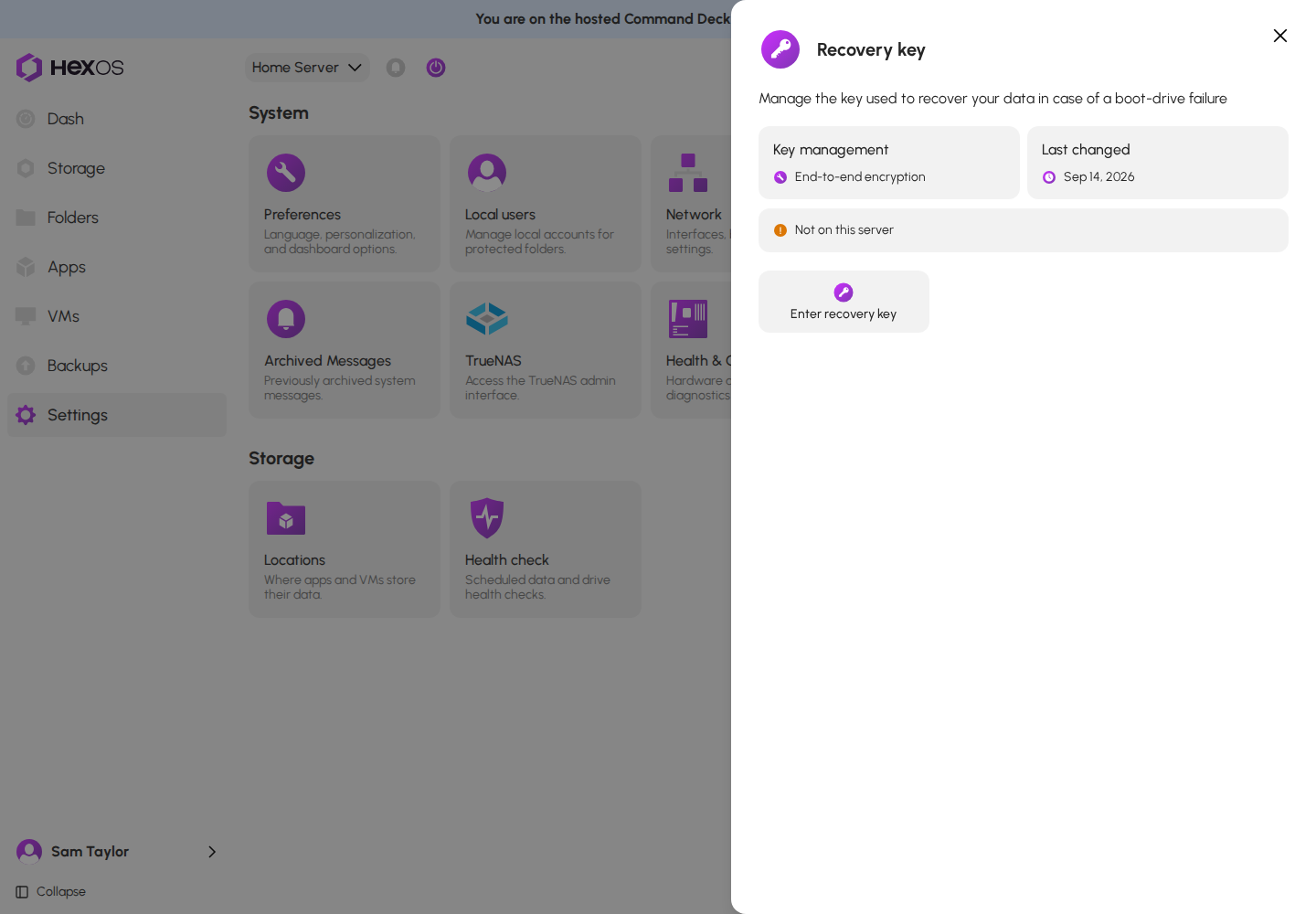
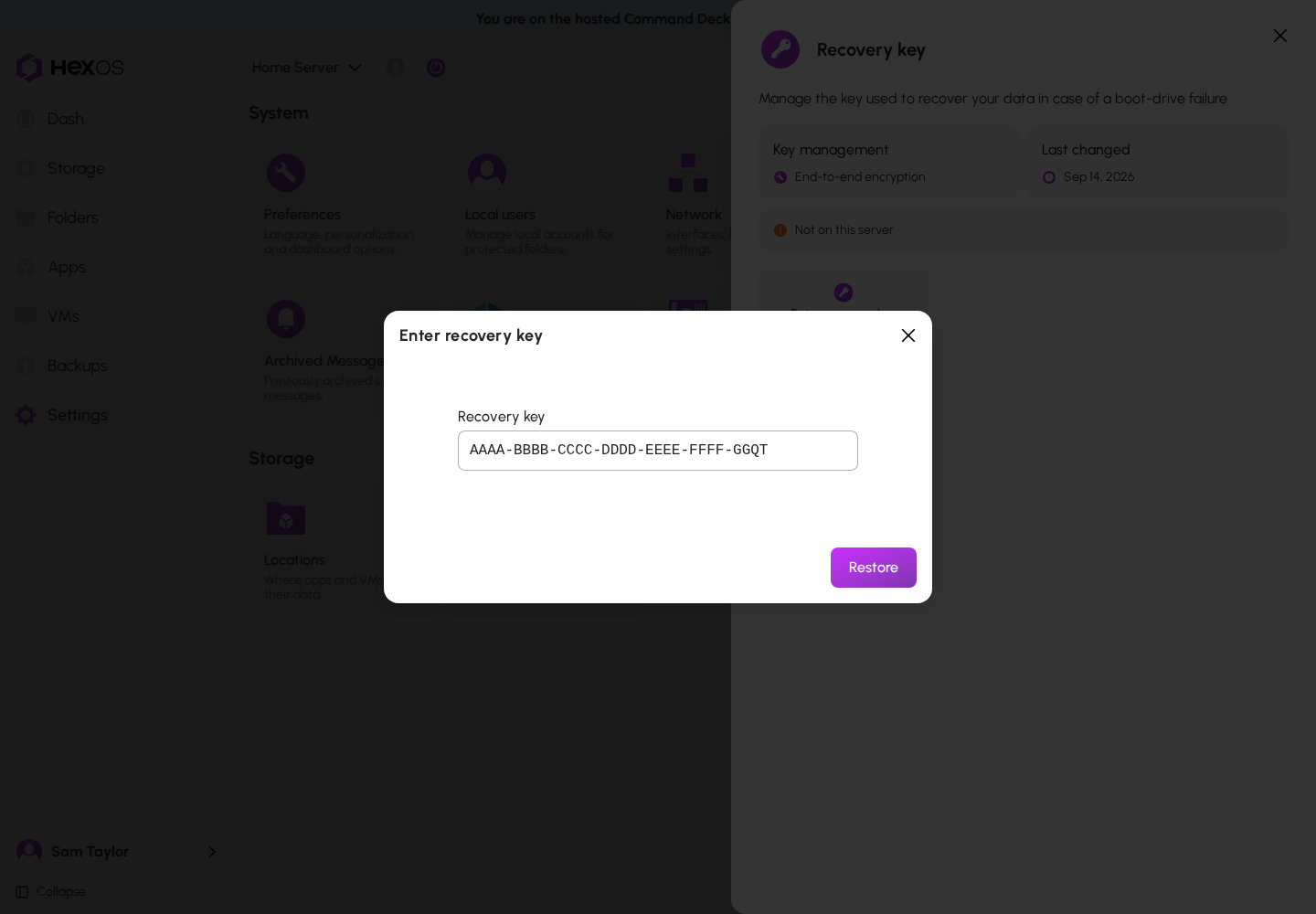
- Click Enter recovery key.
- Type the recovery key from this server's Emergency kit.
- Click Restore. HexOS checks it is the right key and confirms with Recovery key restored.
Enter recovery key dialog
¶ When HexOS asks for a recovery key
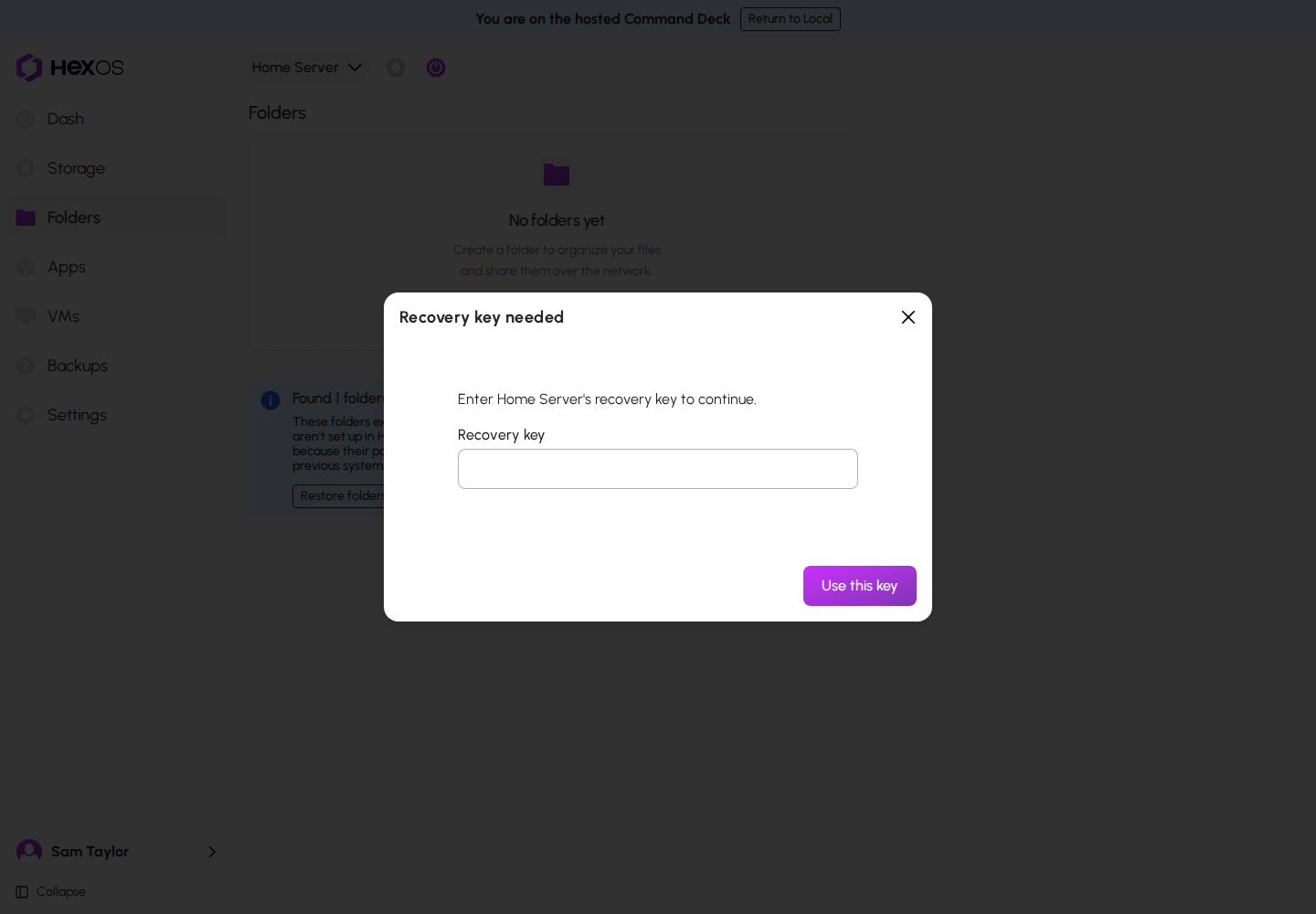
When a folder's key is locked with a recovery key that you keep, HexOS asks for it. This can happen when you restore a lost server's backups, restore folders from an imported pool, or unlock a folder. The dialog is titled Recovery key needed and names the server: "Enter {server}'s recovery key to continue."
- Type the recovery key of the server it names, from that server's Emergency kit.
- Click Use this key. HexOS says Recovery key added and "Try again now."
- Repeat what you were doing. From then on this server opens those folder keys by itself.
Recovery key needed dialog
If HexOS says "That isn't the recovery key this needs. Check it and try again.", you may have typed the key of a different server.
¶ After a disaster
To get your folders back on a new server, see Recover a failed server.
Warning: The server a folder ends up on decides who keeps its key. If you restore a folder onto a server set to Managed, HexOS keeps a copy that can open that folder's key, even if the lost server used End-to-end encryption. To keep it end-to-end, switch the new server to End-to-end encryption before you restore.
¶ Reminders
On a server set to End-to-end encryption, HexOS reminds you to keep the key: the Get started list shows Keep your recovery key safe, and the same reminder appears when you set up a new backup.