¶ When the apps drive fails
HexOS itself runs as an app on your apps drive. If the storage running HexOS becomes unavailable, HexOS cannot start, and your server looks unavailable. This page explains what HexOS shows you, and how to get your apps running again.
¶ What you see
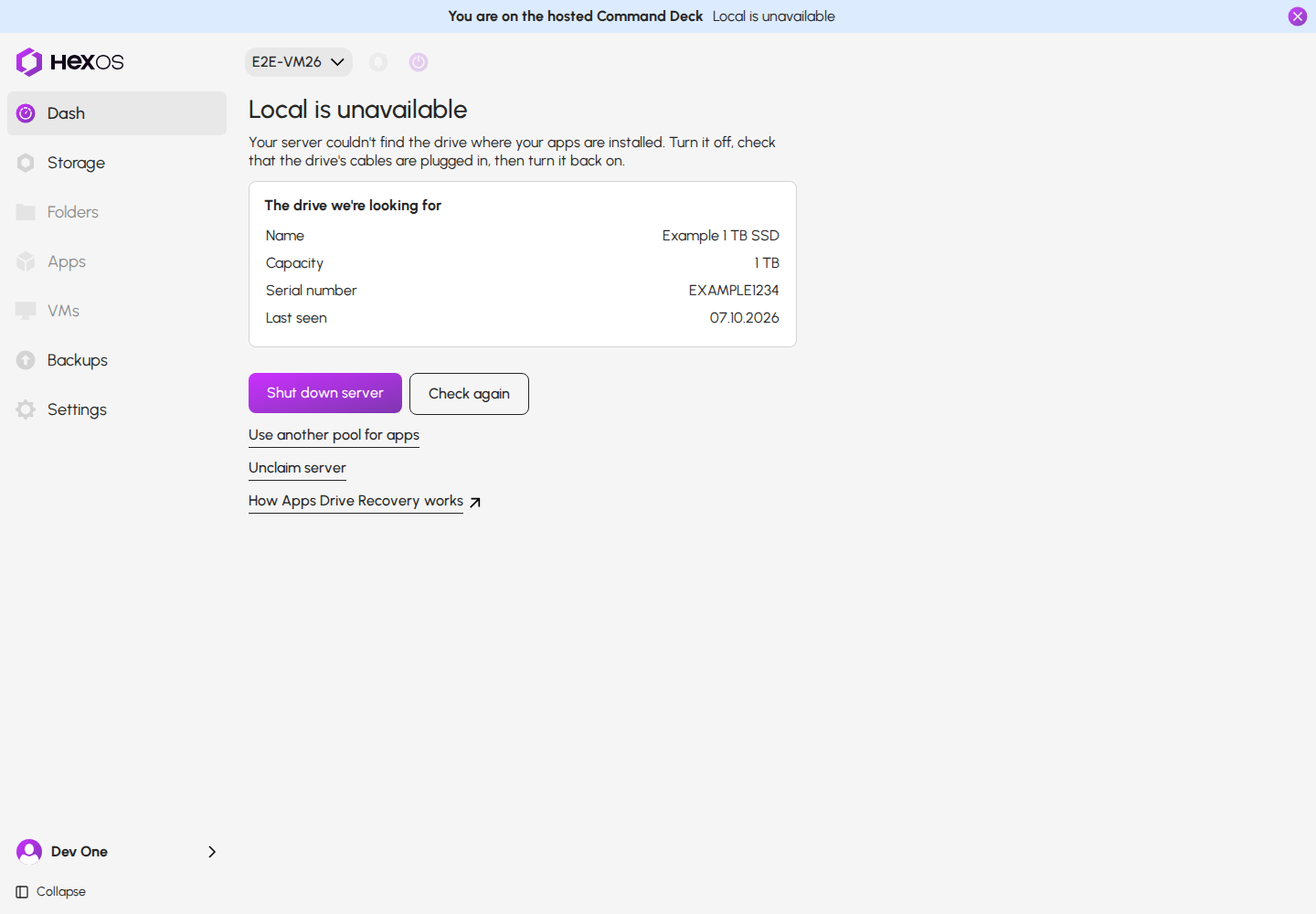
Open your server in the Command Deck. Instead of the dashboard, a page with the heading Local is unavailable tells you what is wrong. When HexOS has details about the missing drive, a card named The drive we're looking for shows its name, capacity, serial number and last-seen date when known. Use these details to identify the drive.
The apps drive is missing
| What the page says | What it means |
|---|---|
| Your server couldn't find the drive where your apps are installed. | Your server started without the drive. Check its cable and power connector. |
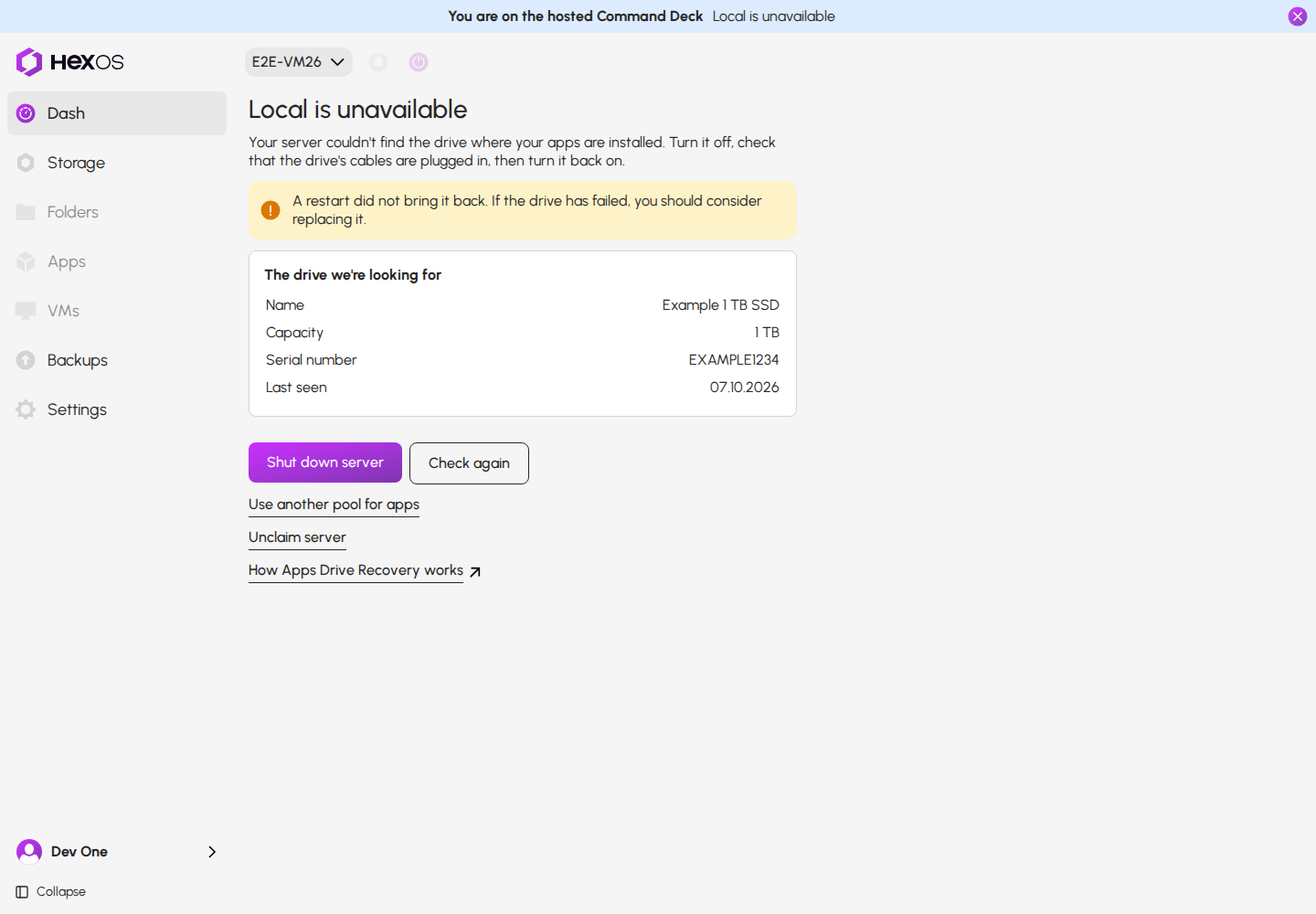
| A restart did not bring it back. If the drive has failed, you should consider replacing it. | The drive was still missing after a restart. It may have failed. |
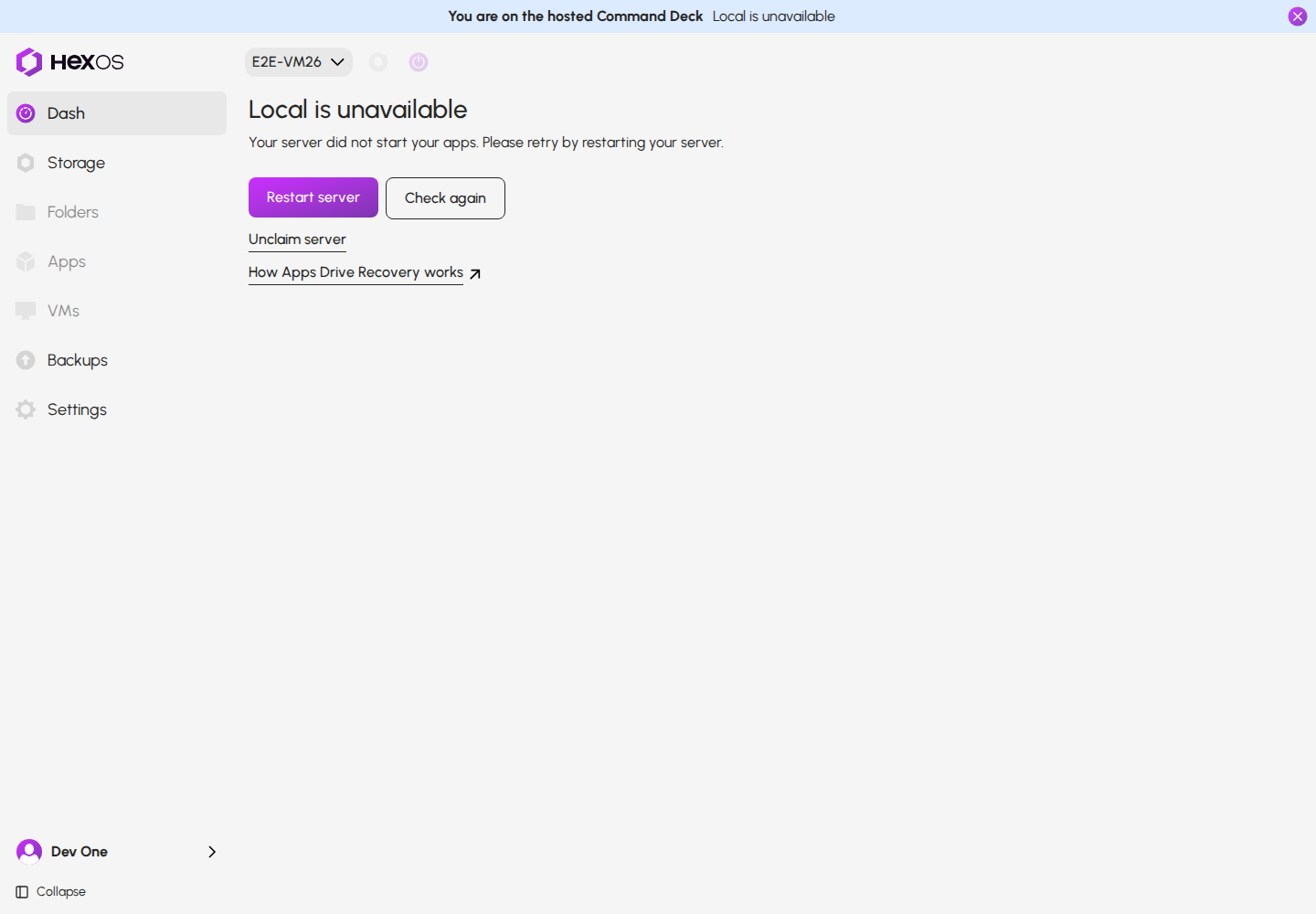
| Your server did not start your apps. Please retry by restarting your server. | The drive is there, but your server did not start the storage on it. |
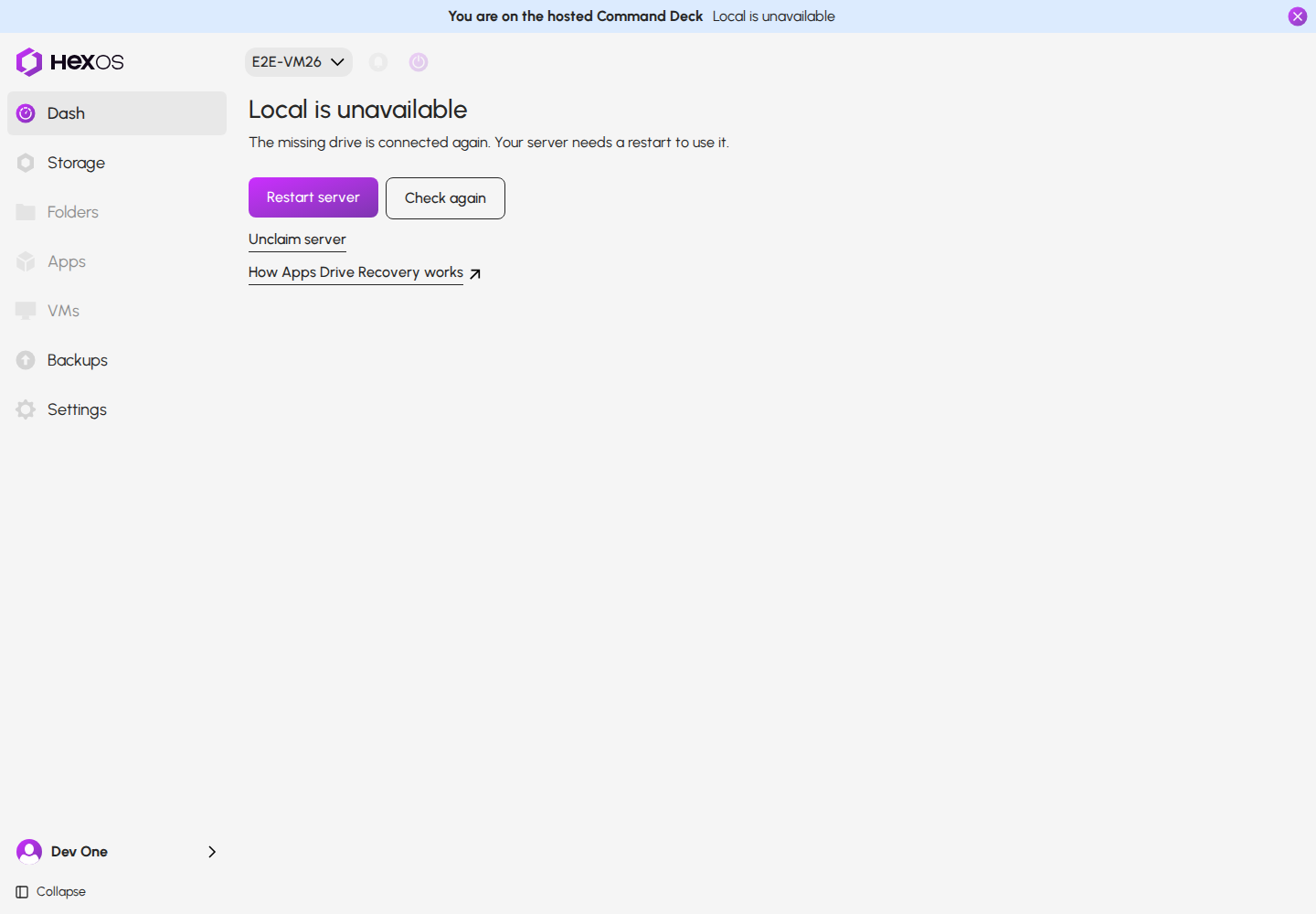
| The missing drive is connected again. Your server needs a restart to use it. | The drive came back while the server was on. Restart the server to try bringing the apps storage back online. |
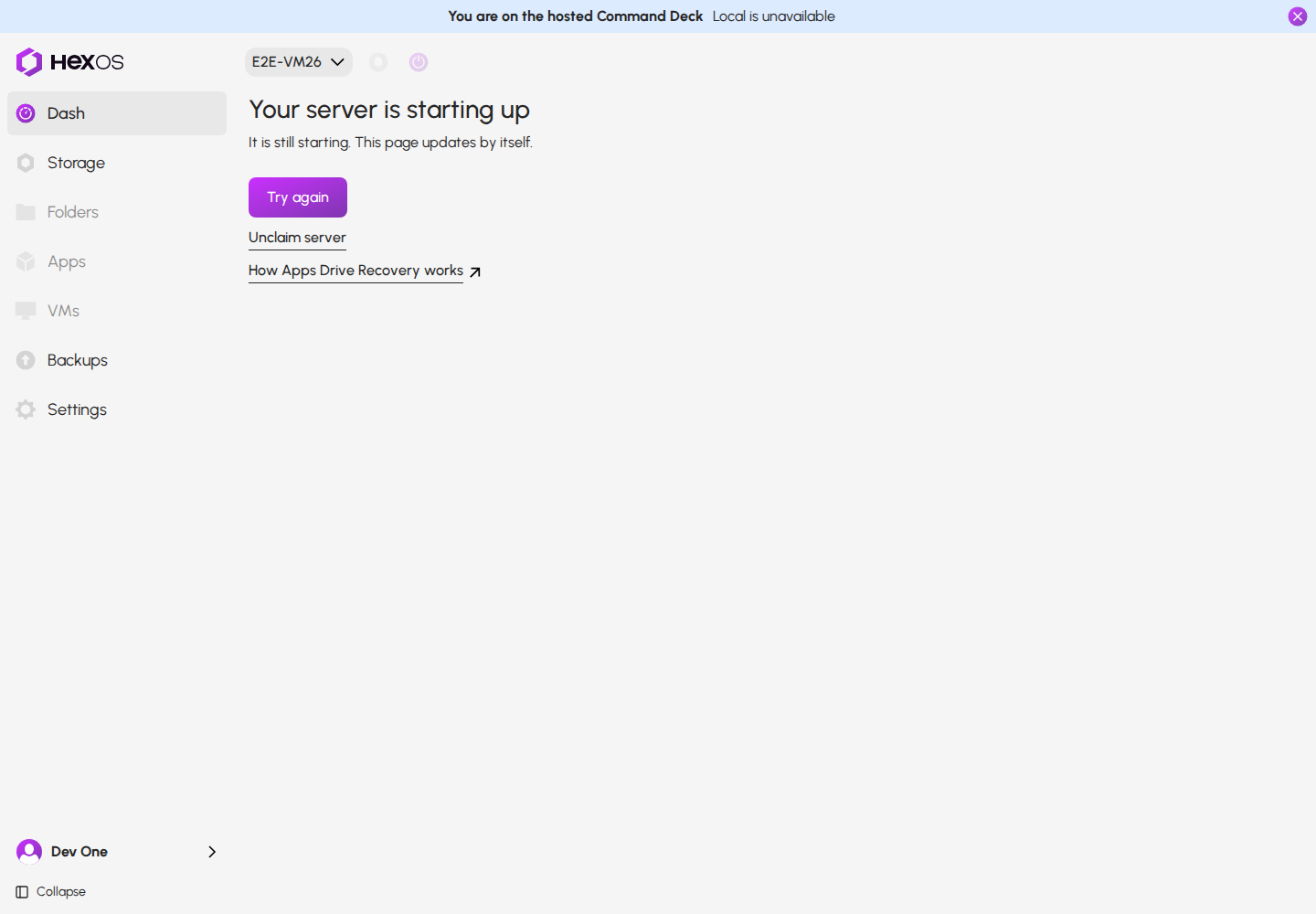
| Your server is starting up | Wait. The page updates by itself. |
The apps drive is still missing after a restart
The missing drive is connected again
The server is starting up
¶ Step 1: Check the drive
If the page offers Shut down server for a missing drive:
- Click Shut down server, then click Shut down server again to confirm. Your server turns off and stays off until you turn it back on.
- Check that the drive's cable and power connector are plugged in.
- Turn the server back on.
Shut down server
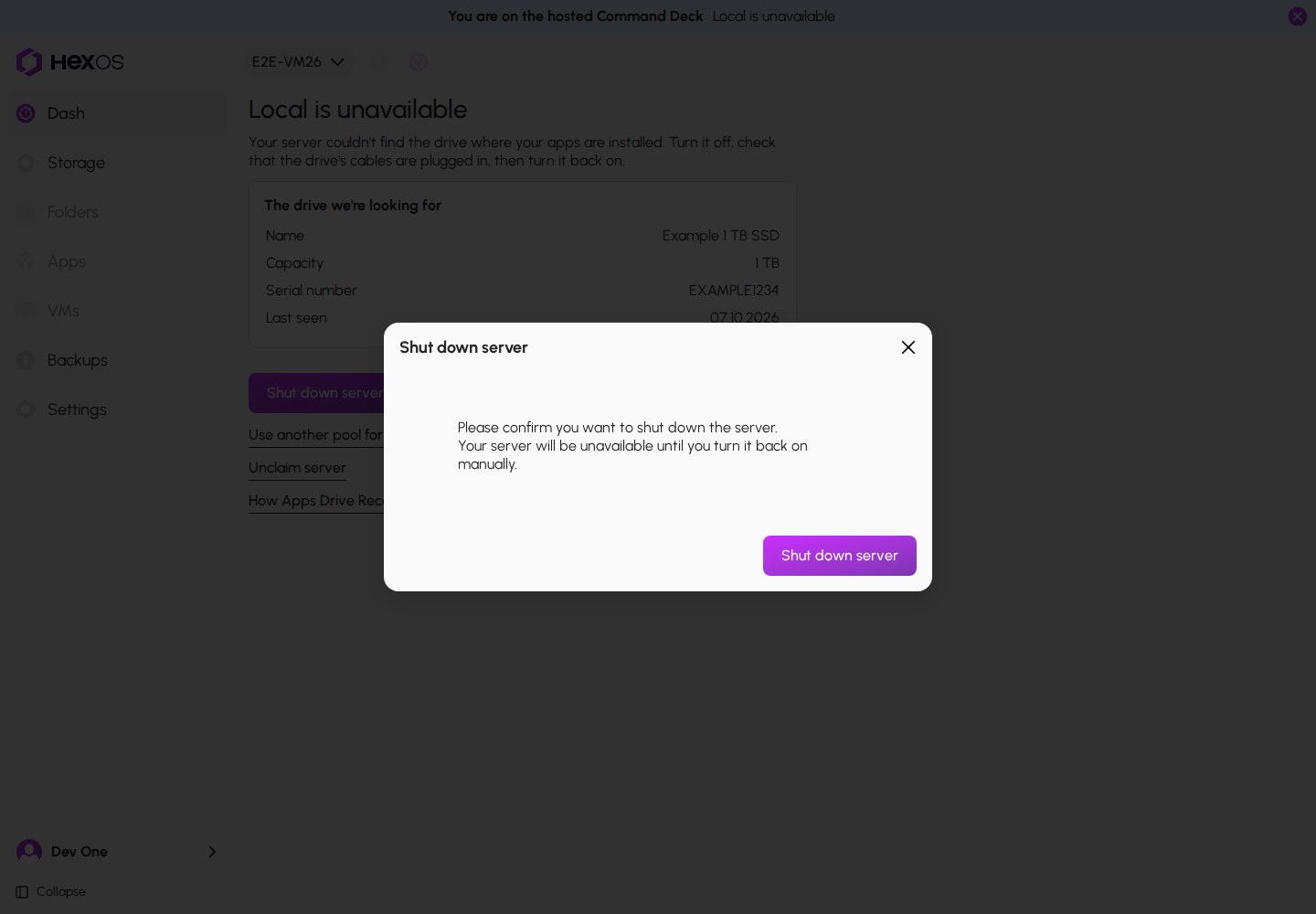
The page updates by itself, or click Check again. If the apps storage starts successfully, your apps can run again. Otherwise, follow the updated message.
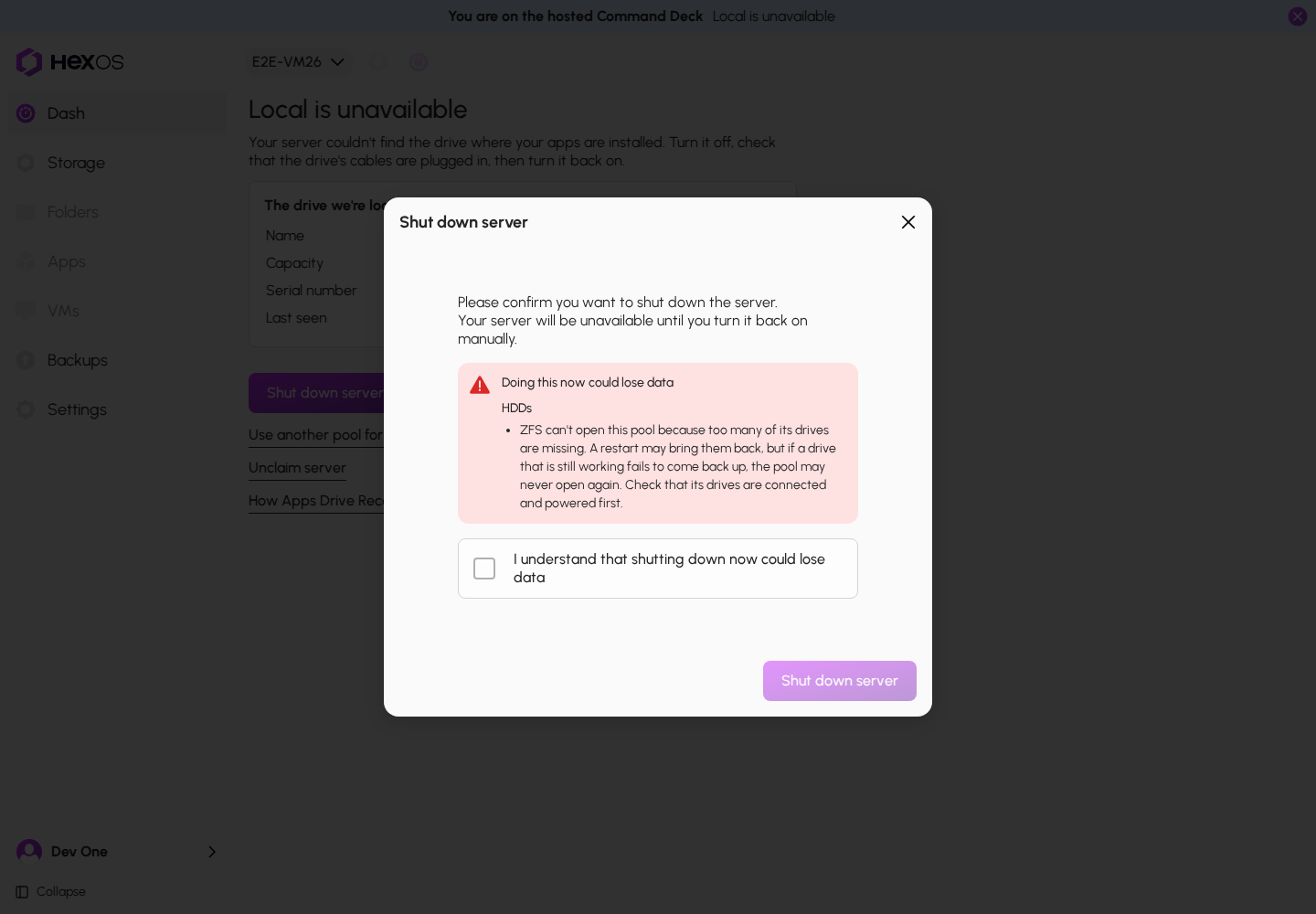
Info: If a pool on your server is at risk, HexOS warns you before it shuts down or restarts the server. It can ask you to tick a box before you continue.
A pool-risk acknowledgment before shutting down
¶ Step 2: Restart the server
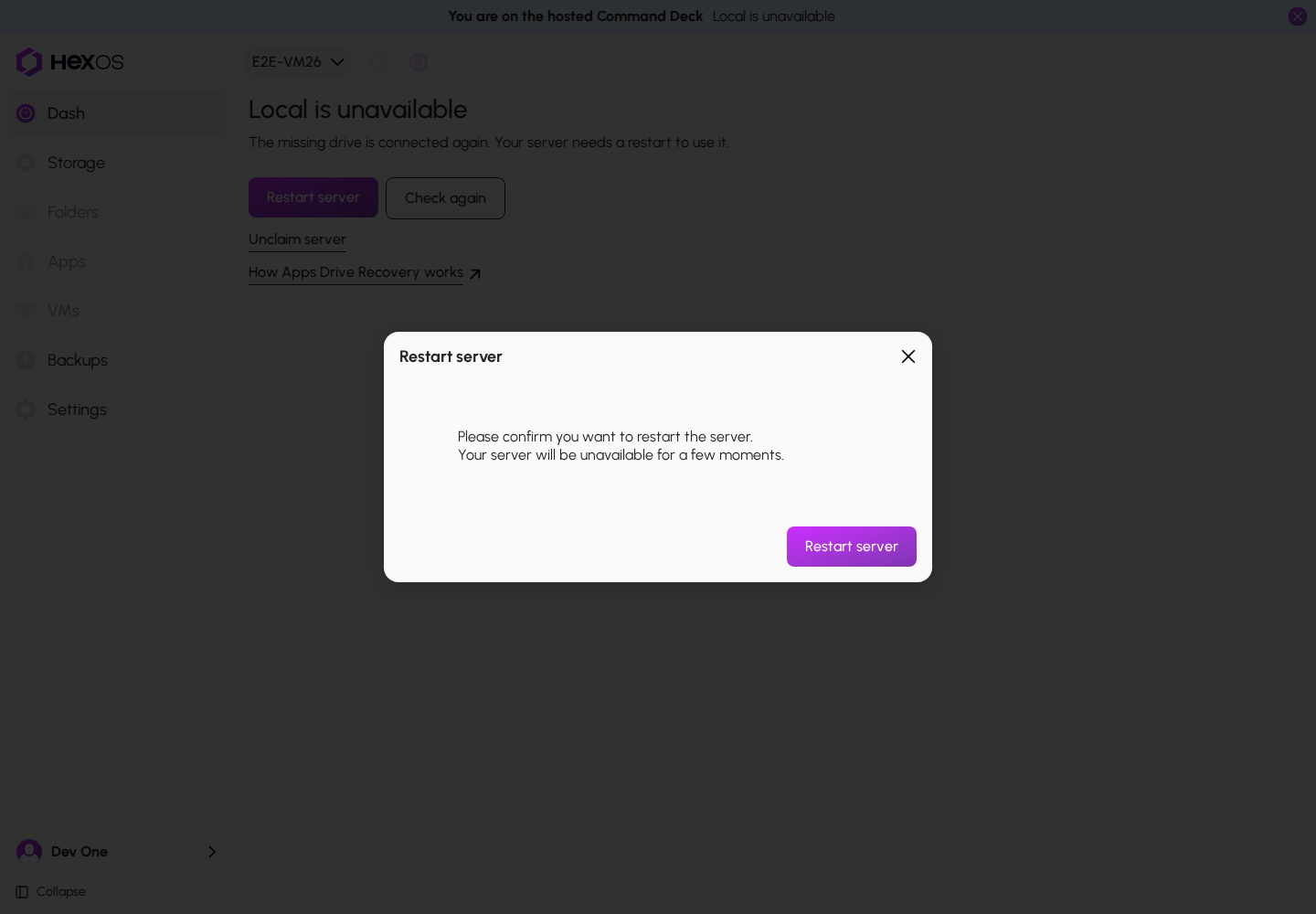
If the page offers Restart server, the recorded drives for the apps storage are connected, but that storage has not started. Click Restart server, then click Restart server again to confirm. Wait for the server to reconnect; this page updates by itself.
Restart server
The apps storage did not start
¶ Step 3: Use another pool for your apps
If Use another pool for apps appears, HexOS found another pool it can use. To continue from that pool, click Use another pool for apps, choose a pool from the list, and click Confirm.
Use another pool for apps
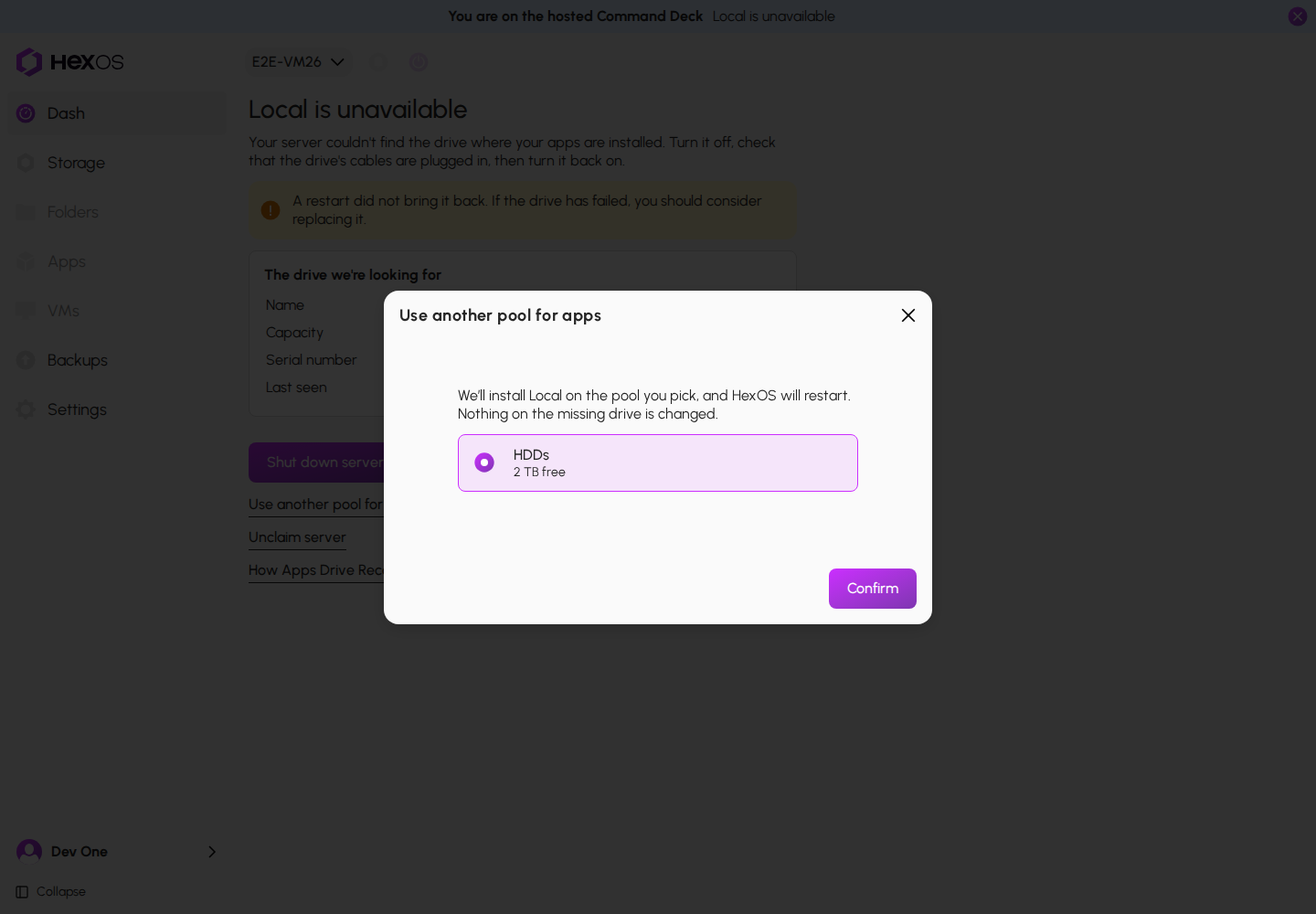
Info: HexOS starts from the selected pool. This step does not copy apps from the missing pool. A pool with an existing apps installation may bring those apps back. Nothing on the missing drive is changed. If a usable app backup is available, the next step lets you restore it.
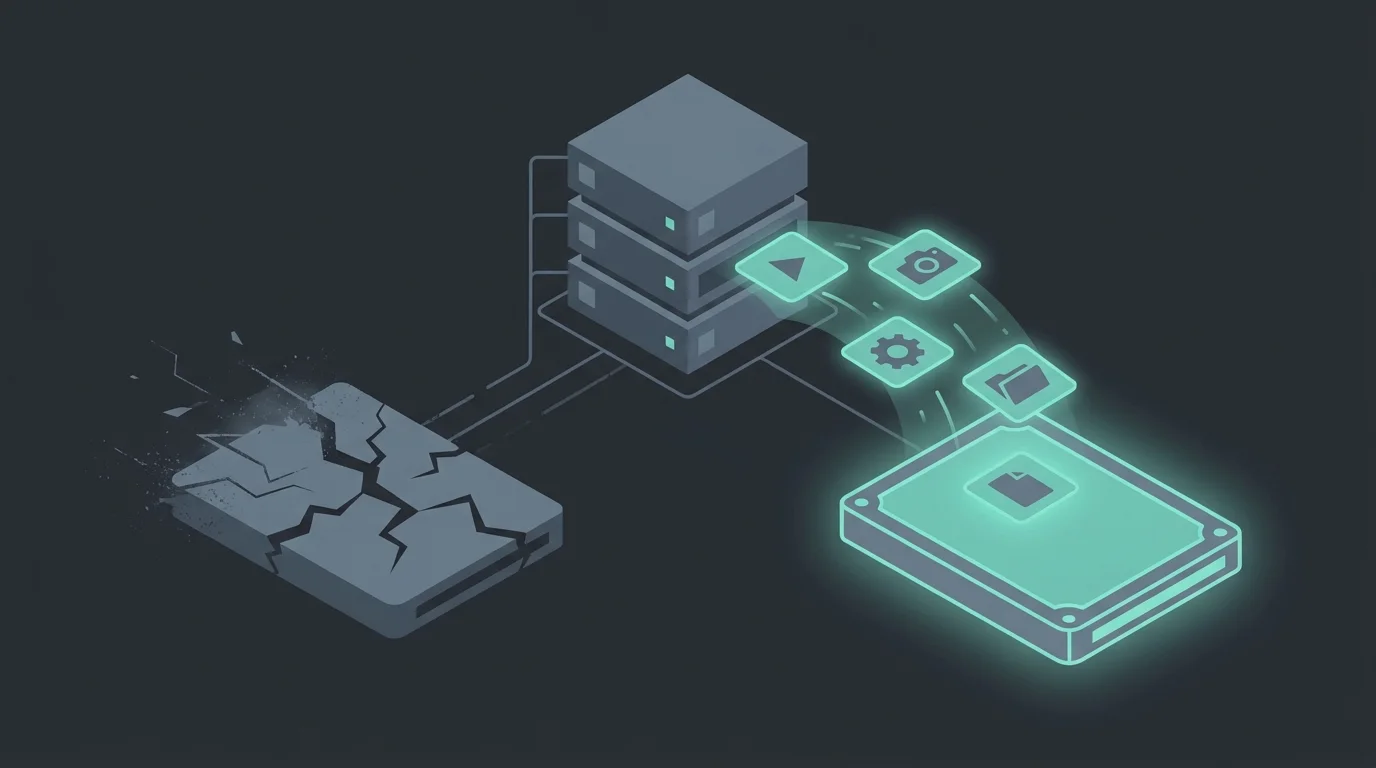
Concept illustration. The screenshots show the actual controls.
¶ Step 4: Restore your apps
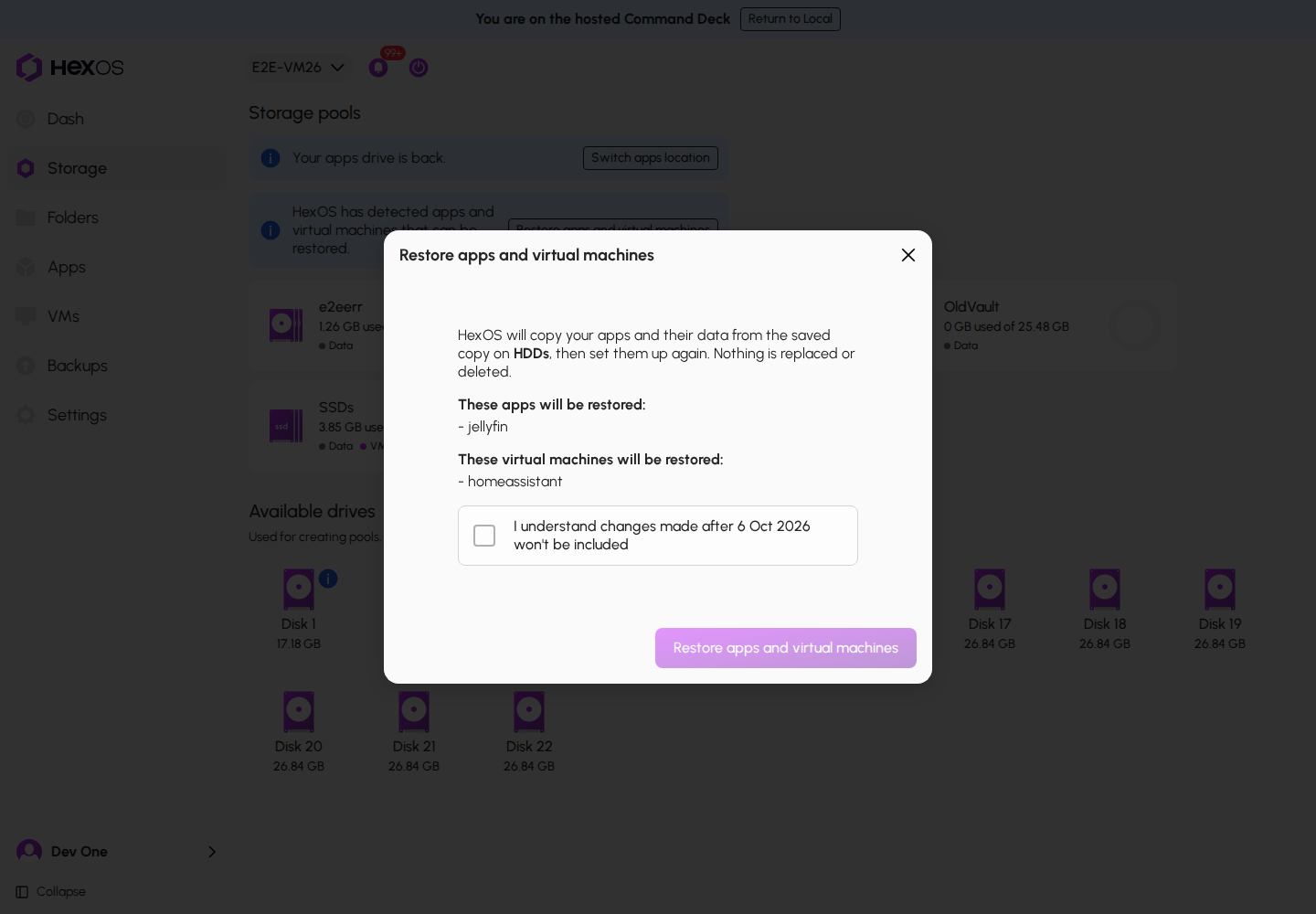
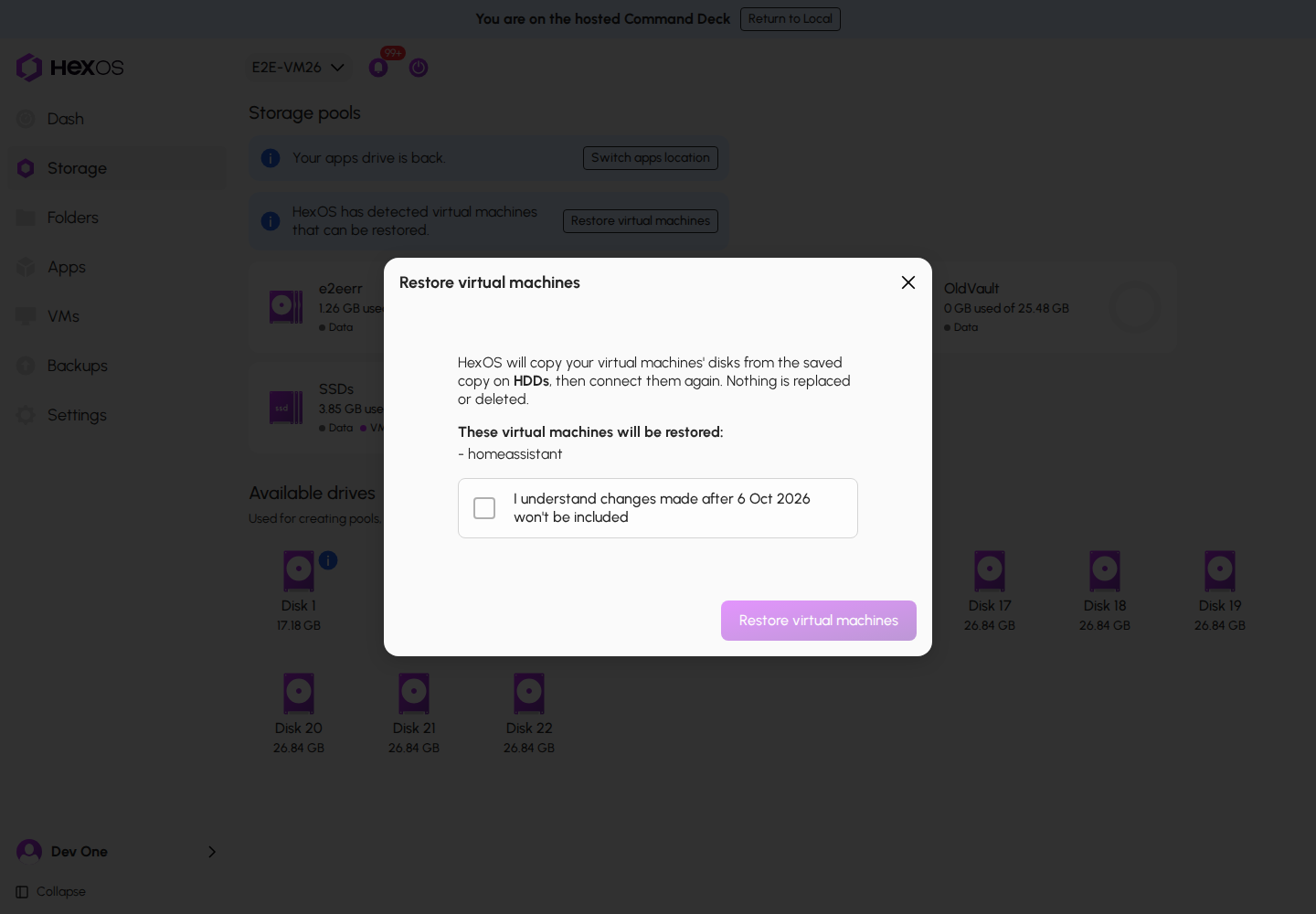
When HexOS finds a usable app backup it can restore, a notice appears at the top of Storage and in notifications. It names apps, virtual machines, or both, depending on what can be restored.
Apps that can be restored
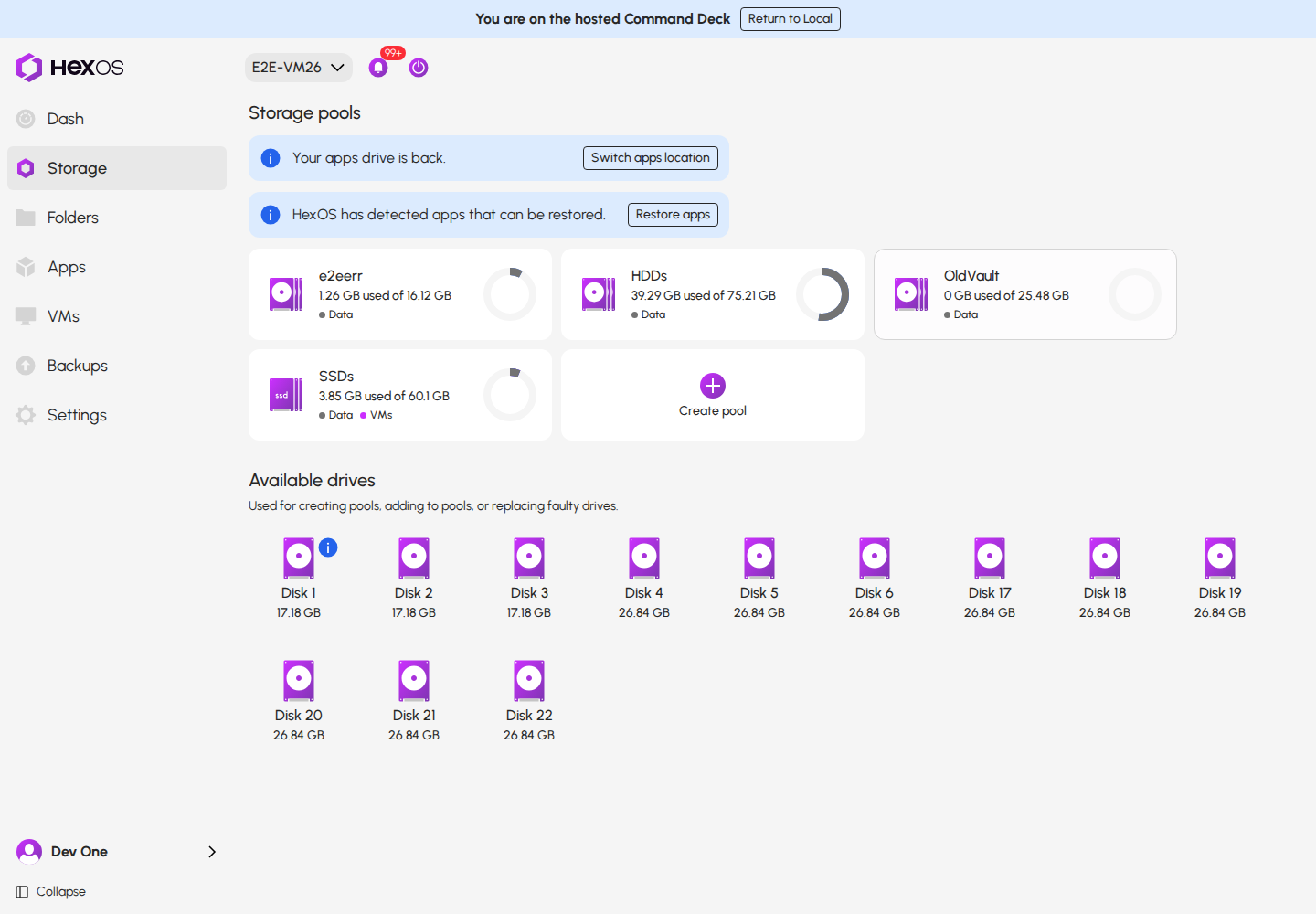
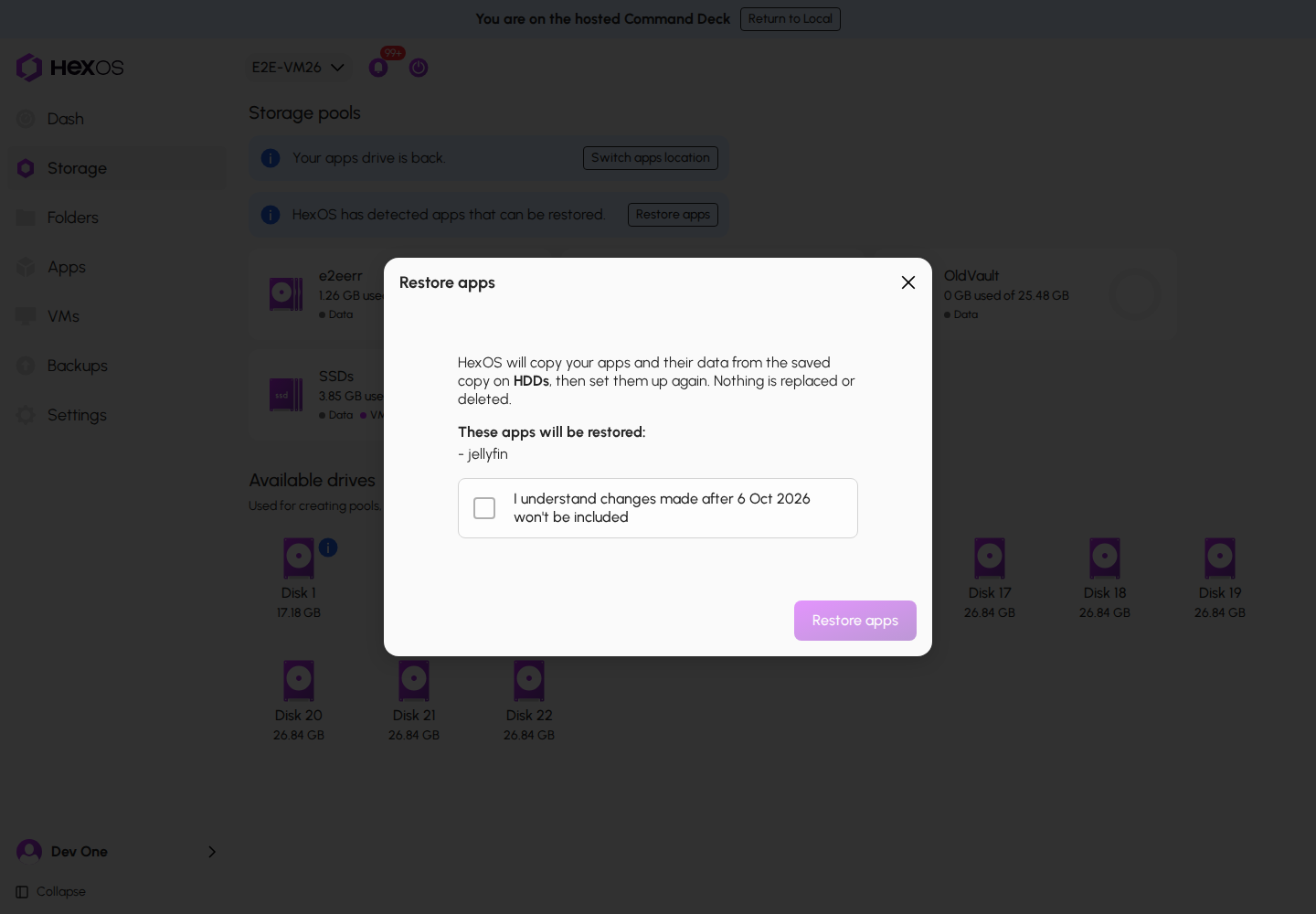
- Click Restore apps, Restore apps and virtual machines, or Restore virtual machines, depending on the offer.
- Check the list of apps and virtual machines that are restored.
- Tick the box to confirm that changes made after the date of the copy are not included.
- Click the matching restore button to confirm. HexOS restores the available data and sets up the apps or virtual machines it can restore safely.
Restore apps
Restore apps and virtual machines
Restore virtual machines
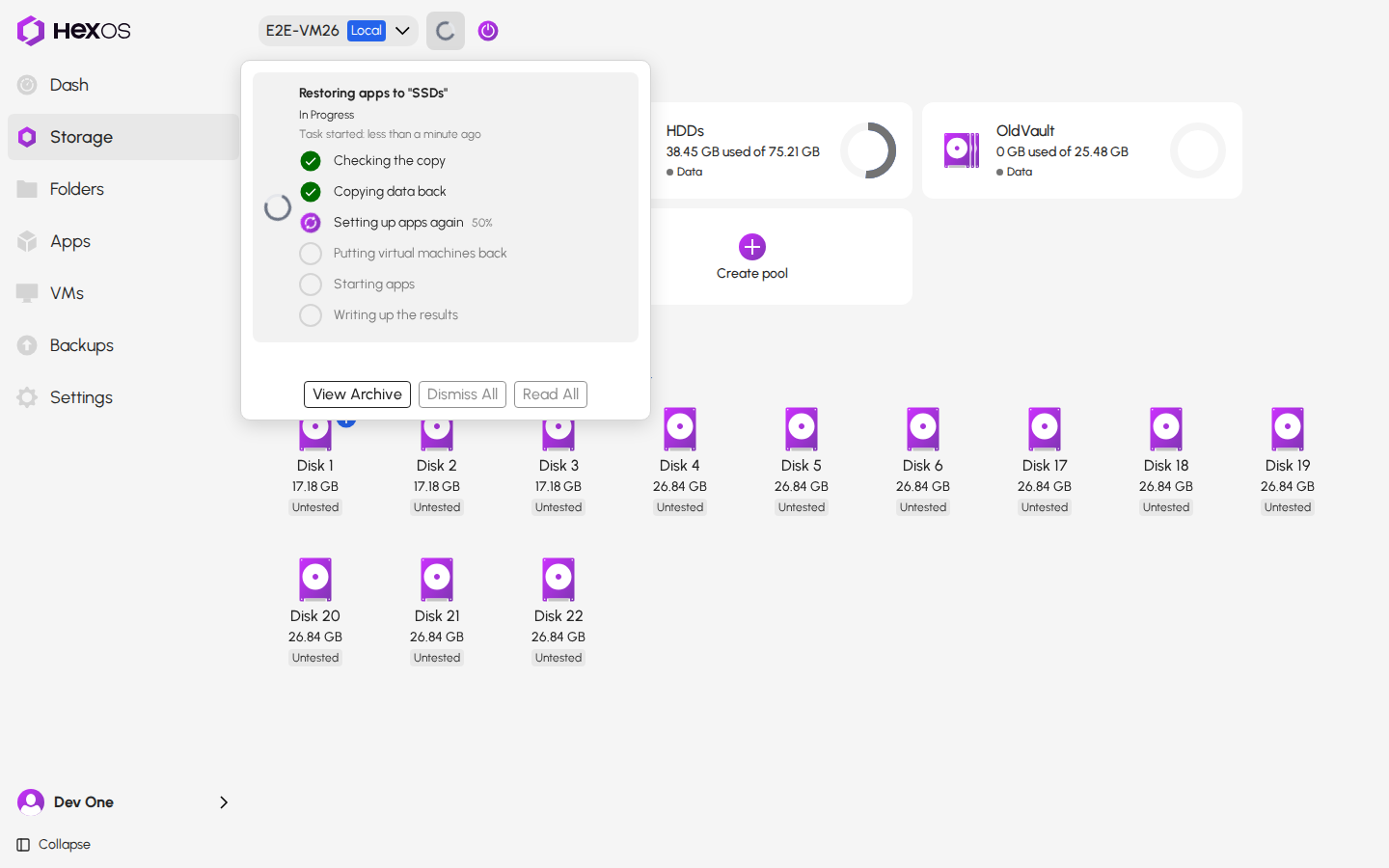
Follow the progress in the Activity Center. The row shows each step as it happens.
Restoring your apps in the Activity Center
When it finishes, the row lists anything you need to do yourself, such as an app to install again, or a virtual machine to check before you start it.
What is left for you to do
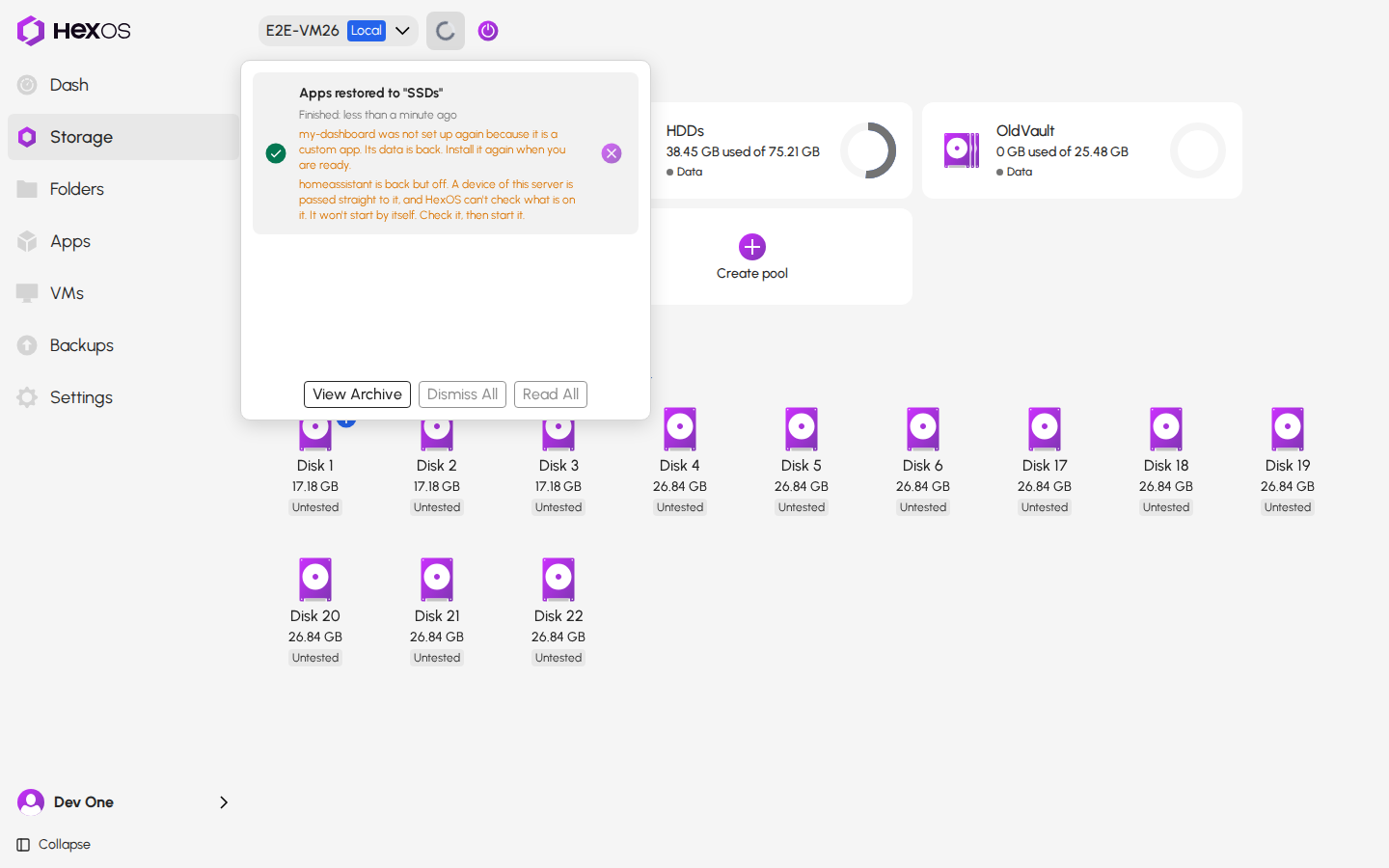
Info: Existing data on the pool is not replaced. The Activity Center shows problems and any follow-up needed, such as an app to install again, data that could not be restored, or a virtual machine to check.
Warning: Some virtual machines are restored but not started, and do not start by themselves: for example one with a device passed to it from your server, or one with disks from two different days. The Activity Center names each one. Check it, then start it yourself.
¶ Optional: Go back to your old apps drive
If you moved apps to another pool, HexOS can offer to switch back once the original pool is online, usable, and still holds its apps. A line at the top of Storage says Your apps drive is back. The same message shows as a notification. Follow any restart guidance first if the original pool has not started.
Your apps drive is back
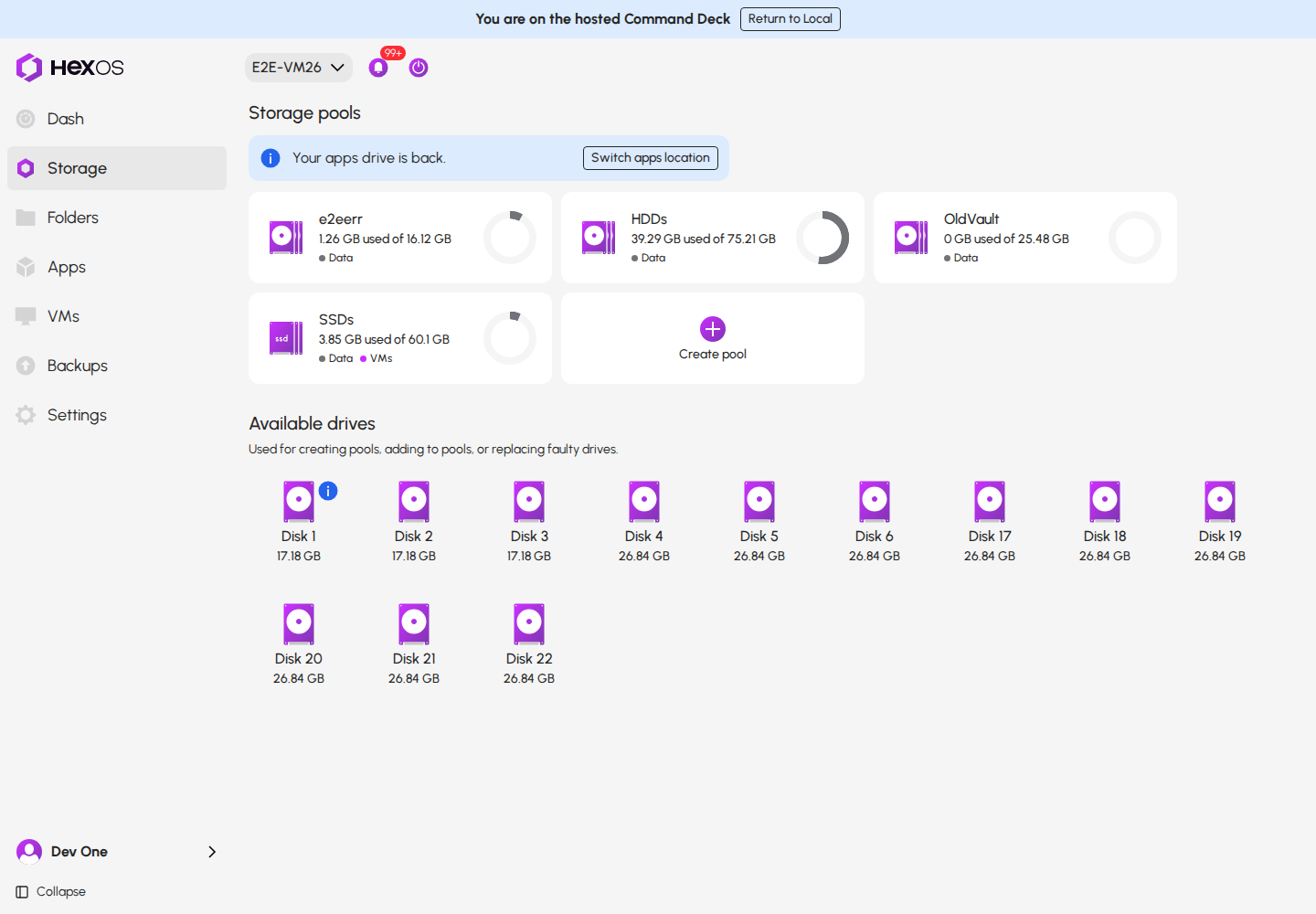
- Click Switch apps location.
- Tick the box to confirm that the apps on the other pool will stop running.
- Click Switch apps location to confirm. HexOS runs your apps from the old drive again, as they were before it went missing.
Switch apps location
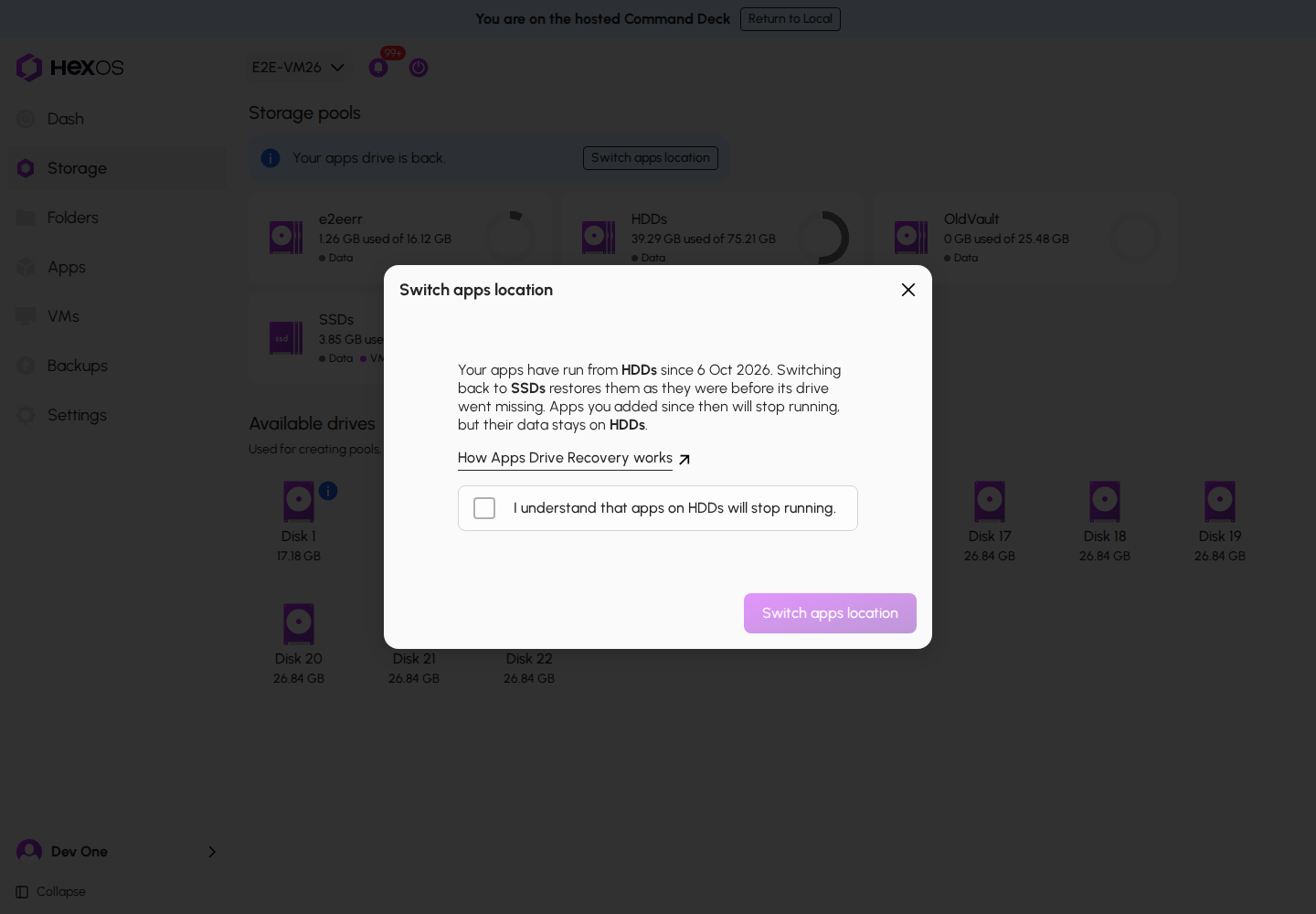
Warning: The apps you added on the other pool stop running when you switch back. Their data stays on that pool.
¶ Replace a failed drive
If the drive has failed for good, replace it, then restore your apps from the copy. See Drive failure.
Help: Stuck at any step? Ask in the HexOS Discord Community.