¶ VM setup
Info: VM setup is part of the Virtual Machines beta. Everyone can use it. Beta means we are still finishing it, so screens may change and you may find a rough edge. Read the known issues at the end of this page. What beta means
Some systems in the VM catalog need a few more steps after they start, such as signing in to an account. HexOS can do those steps for you. You choose what to allow while you set up the VM, and HexOS does it once the VM is running.
¶ What HexOS can set up
| System | Setup step | What it does | Starts |
|---|---|---|---|
| Plex Media Server | Sign in to Plex | Claims the new server on your Plex account, names it, publishes it so your Plex apps can find it, and creates Movies, TV Shows, Music, Photos and Videos libraries from your HexOS folders, scanned every hour | Off |
| Plex Media Server | Scan libraries after a media folder reconnects | Asks Plex to scan a library again when one of its folders comes back after an outage | Always, when Plex was signed in |
| Home Assistant OS | Onboarding check | Checks that Home Assistant answers and notes whether you still need to create its owner account. It reads one status page and changes nothing | On |
Each step is optional. If you leave a step off, the VM still installs, and you do that part yourself inside the VM.
¶ Choose what to allow
When you set up one of these systems from the catalog, the setup dialog has a Setup step. It says that once the system is running, HexOS can finish setting it up for you, and asks you to choose what to allow.
Each switch is one setup step, with a description of what it does:
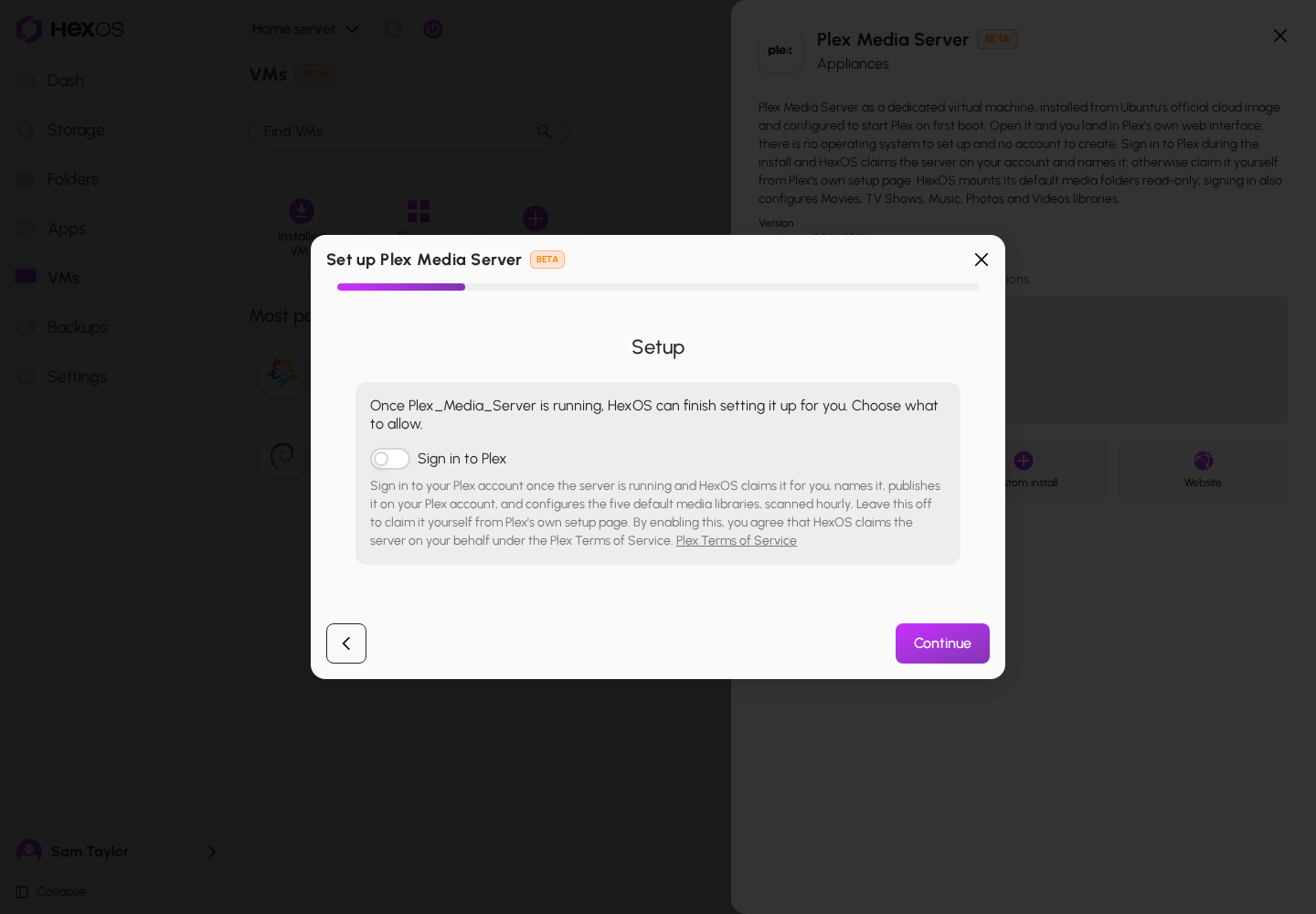
- Sign in to Plex is off unless you turn it on. Turning it on means you agree that HexOS claims the server for you under the Plex Terms of Service, linked under the switch. Leave it off to claim the server yourself from Plex's own setup page.
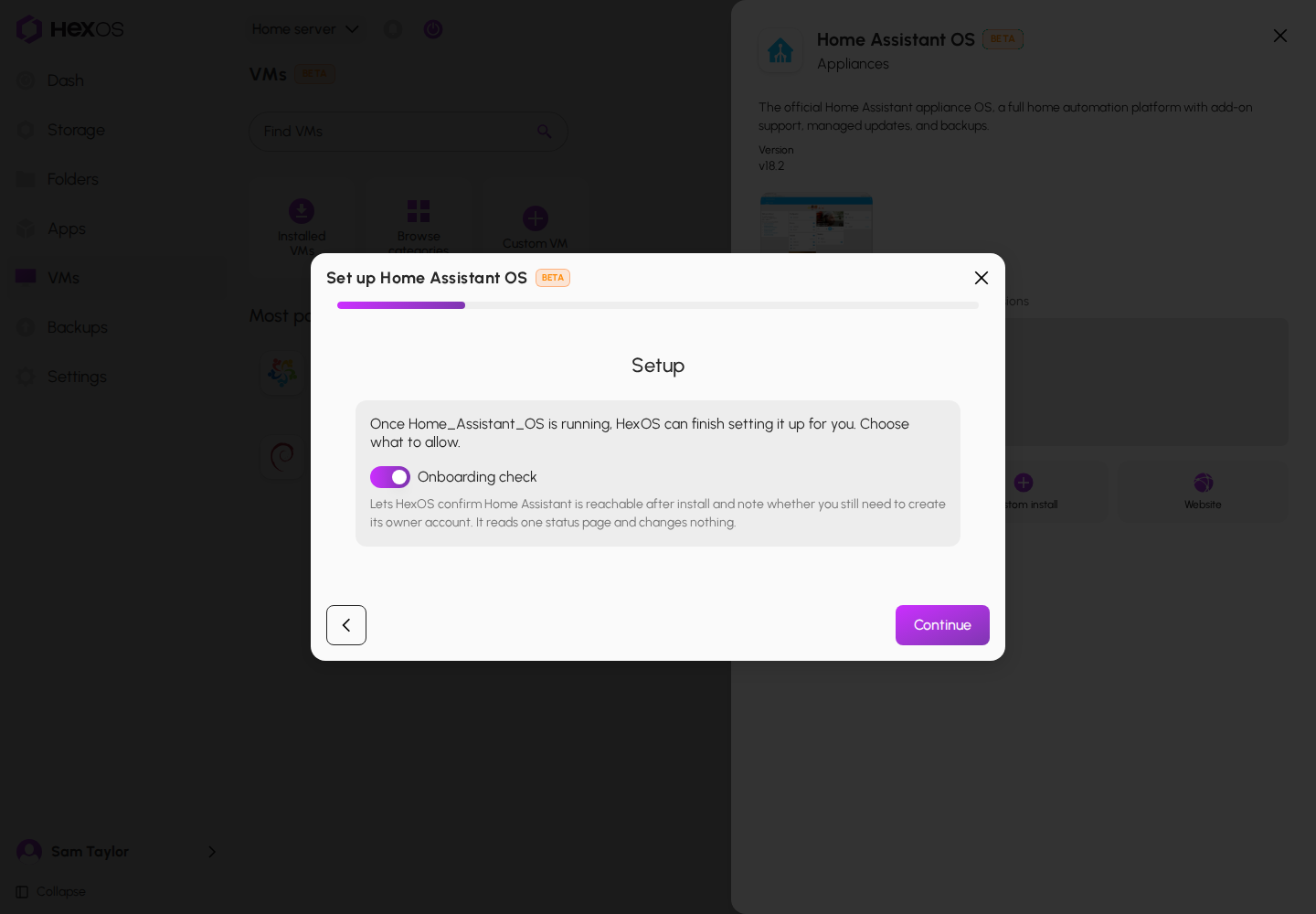
- Onboarding check is on unless you turn it off.
The Setup step for Plex Media Server
The Setup step for Home Assistant OS
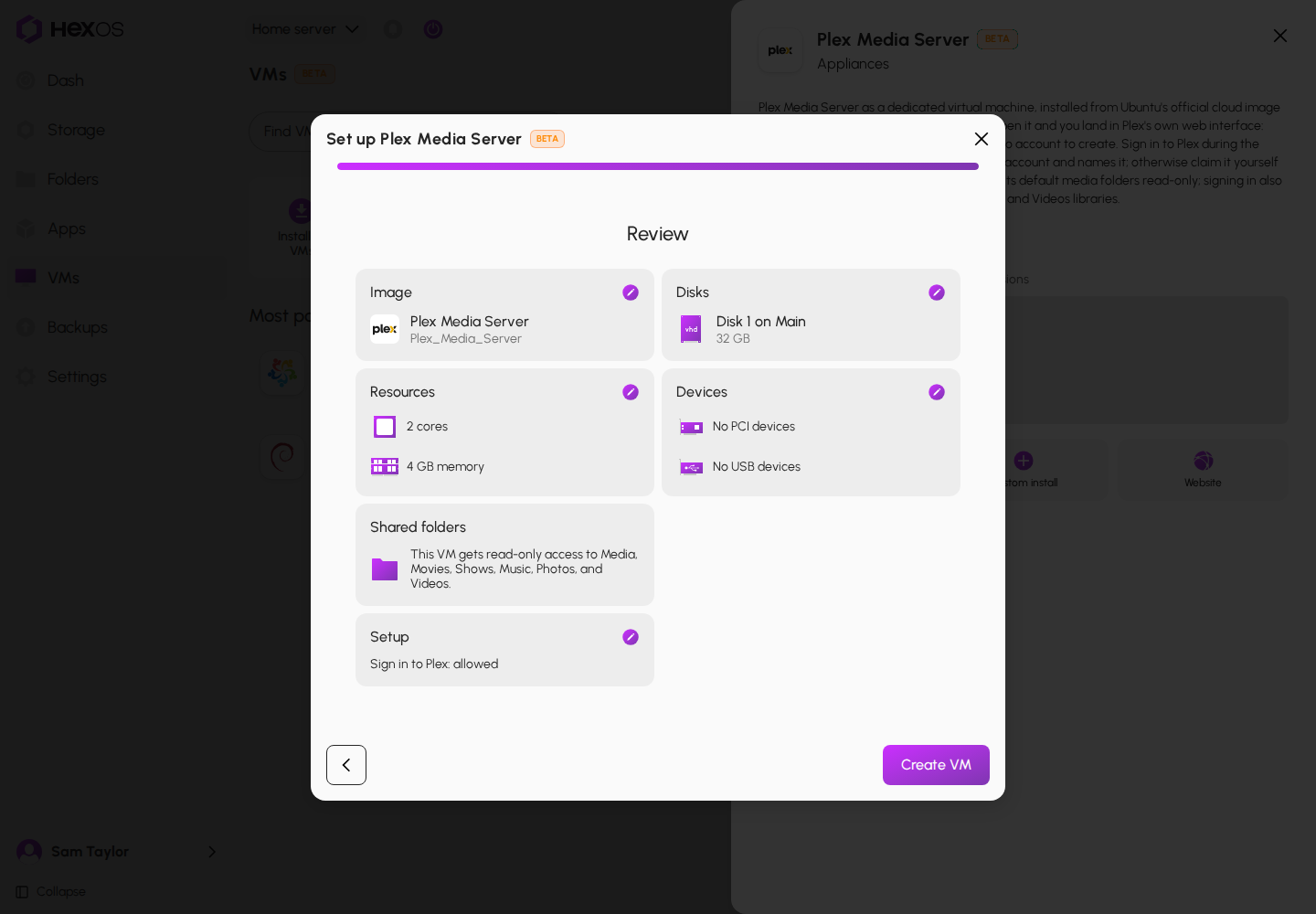
The Review step has a Setup card with one line for each step, such as Sign in to Plex: allowed or Sign in to Plex: not allowed.
The Setup card on the Review step
Warning: You cannot change these choices after the VM is installed. To change them, uninstall the VM and set it up again.
¶ Sign in to Plex while it installs
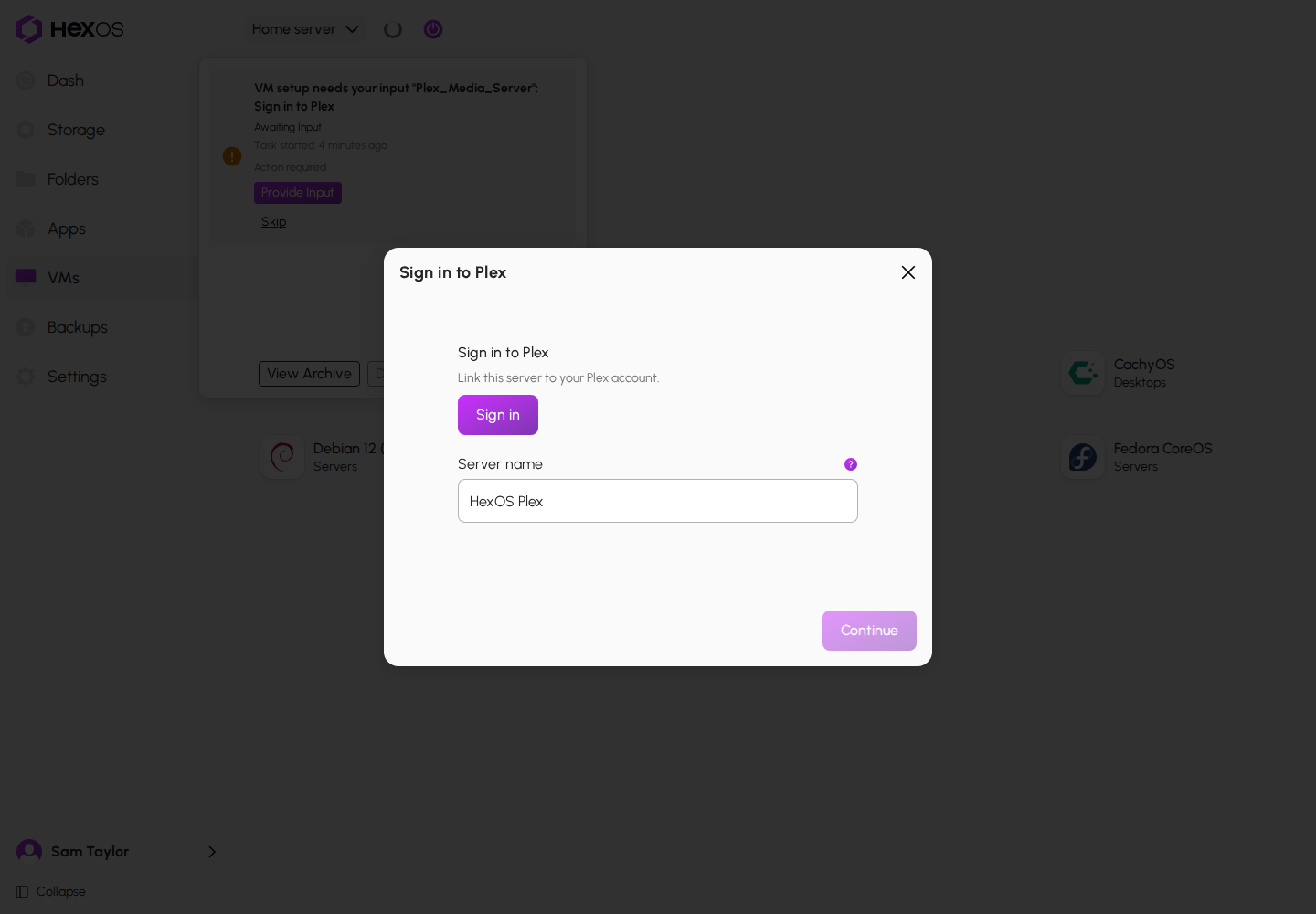
If you turned on Sign in to Plex, HexOS asks you to sign in while the VM is still installing:
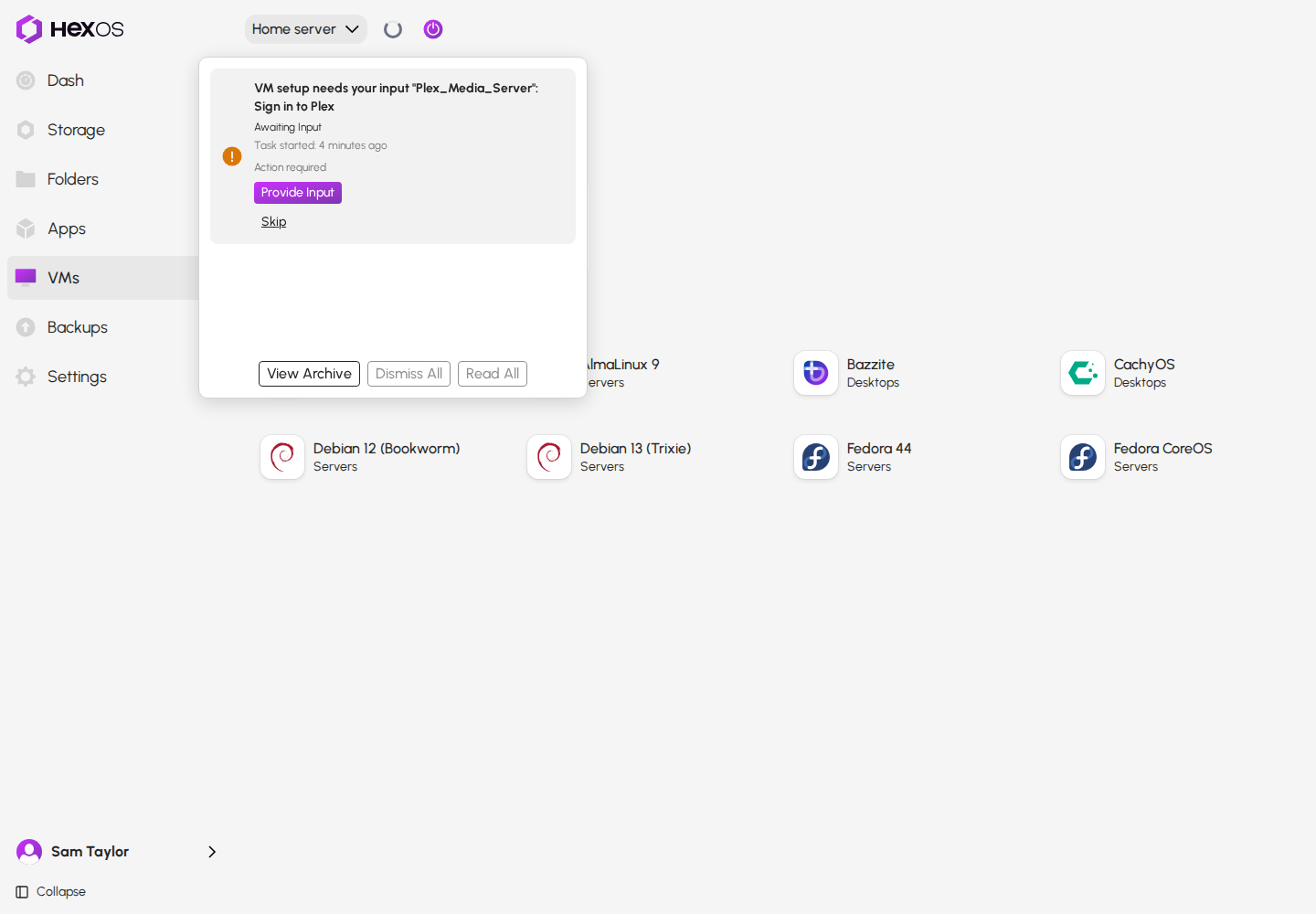
- Open the activity center. A row says VM setup needs your input, with the VM's name and Sign in to Plex.
- Click Provide Input.
- Click Sign in. Plex opens in a new browser tab. Sign in there, then come back. The button changes to Signed in.
- Under Server name, keep HexOS Plex or type your own name. Clear it to use the VM's name.
- Click Continue.
The activity row asking for input
Signing in to Plex
You can answer as soon as the row appears. Once the VM is ready, HexOS waits 10 minutes for your answer. If no answer comes, the step ends without signing in. To skip the step yourself, click Skip on the row.
Until the VM is ready, the setup rows read Waiting for the VM to be ready. The VM's console and power controls stay locked until setup has finished.
¶ Check how setup went
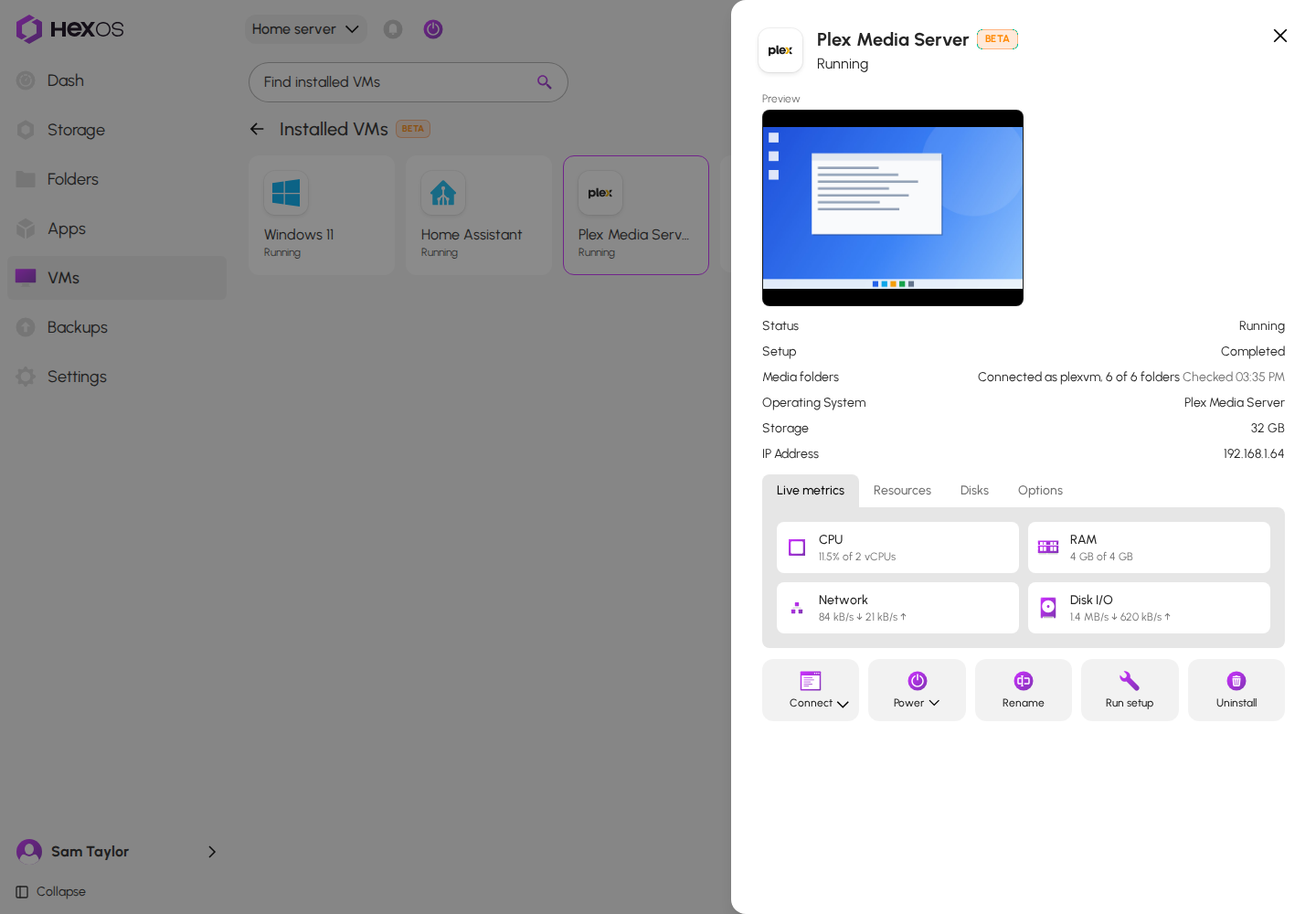
Open the VM's details under VMs > Installed VMs. Once setup has run, a Setup row shows one word for how it went, such as Completed, Running, Awaiting input, Skipped, Needs attention, or Failed.
The Setup row and Run setup
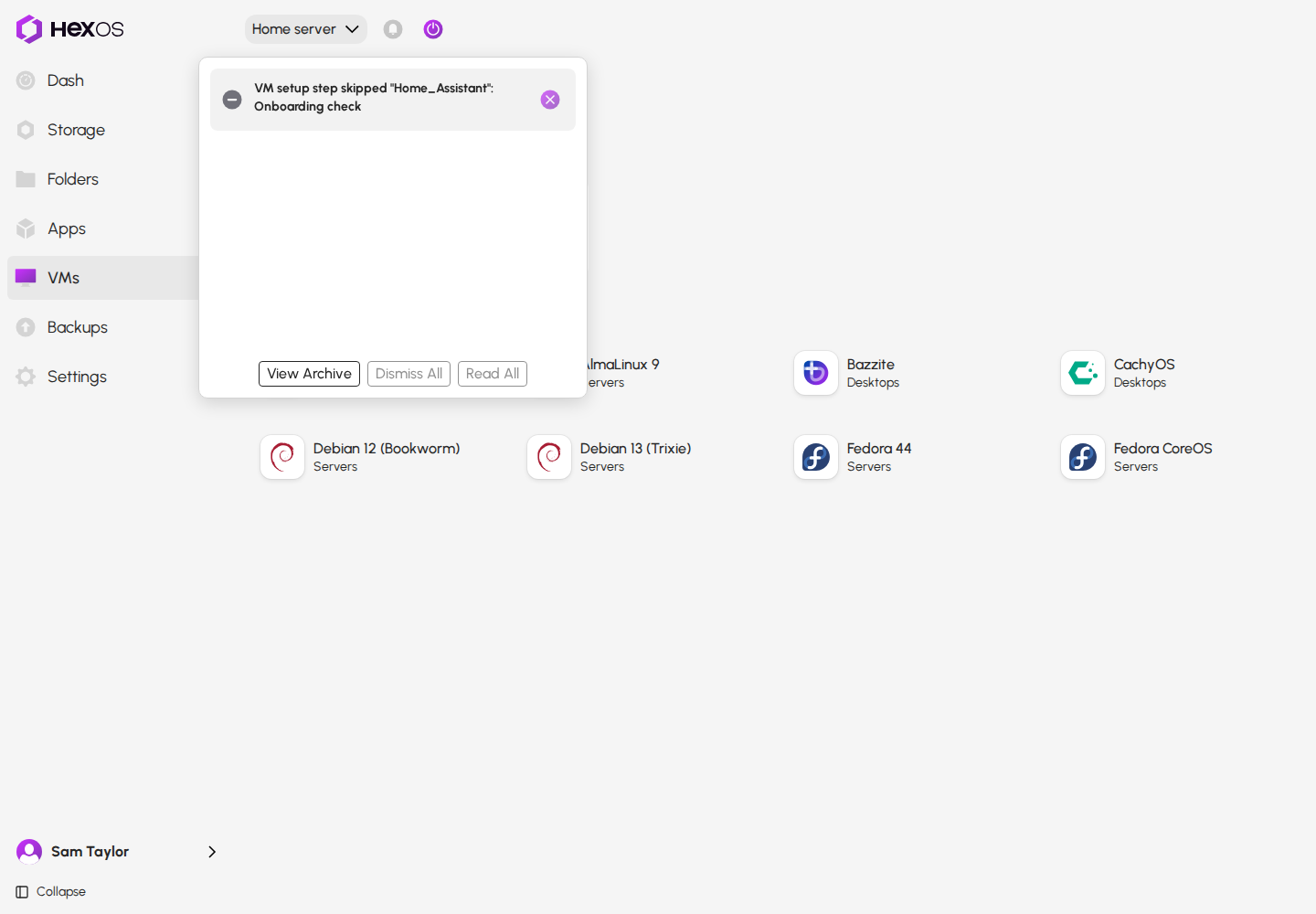
The activity center has a row for each step, such as VM setup step complete or VM setup step skipped. A skipped step can also mean the step failed. See Known issues.
A skipped setup step
¶ Run setup again
Run setup is among the VM's actions while the VM is running and no setup step is in progress. It runs every step you allowed again. For Plex, that applies the name and library settings again.
- Start the VM from HexOS, and wait until Status reads Running.
- Click Run setup.
HexOS says Setup started. If you allowed no steps, it says There is nothing to set up for this VM.
¶ When a step needs attention
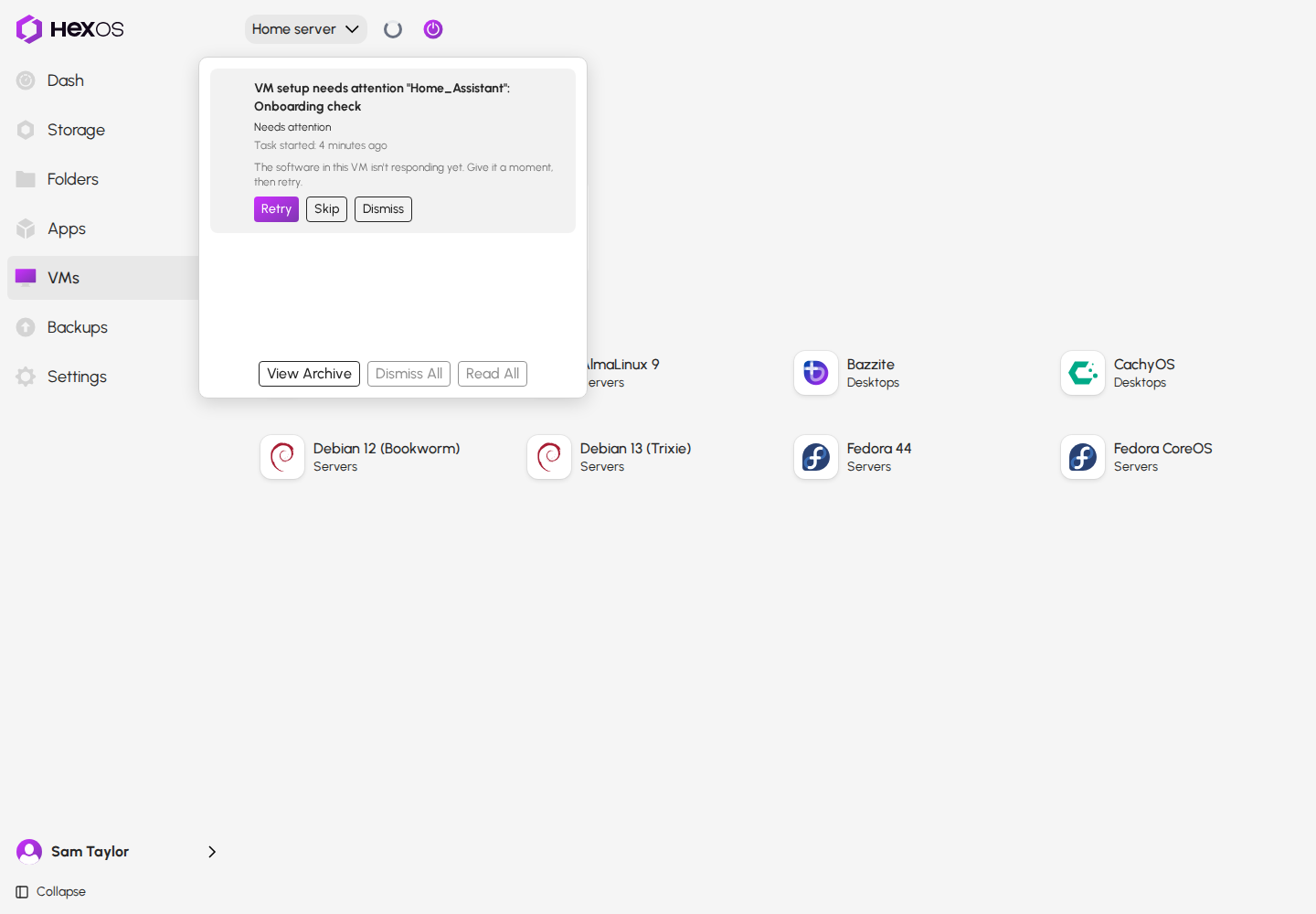
A step that could not finish shows VM setup needs attention or VM setup step failed in the activity center, with a line that says why:
- The software in this VM isn't responding yet. Give it a moment, then retry.
- This VM's address could not be confirmed as this VM, so nothing was sent. Make sure it is running, then retry.
- Another machine answered at this VM's address, so nothing was sent. Check the network, then retry.
- A server restart interrupted this setup step before it could record its outcome. Retry to run it again.
- This setup step was stopped before it finished. Retry to run it again.
- The answers given for this step could not be read. Retry to enter them again.
- No answer was given in time.
- An earlier setup step was not resolved, so this one did not run.
- This setup step failed.
A step that needs attention
Under the line, click:
- Retry to run the step again.
- Skip to leave the step out. The steps after it still run.
- Dismiss to set the step aside. The steps after it do not run.
Info: Before HexOS sends anything to a VM, it checks that the machine at the VM's address really is that VM. If it cannot be sure, it sends nothing and the step stops. This keeps your sign-in from reaching another machine on your network.
¶ What HexOS keeps
When Sign in to Plex works, HexOS keeps the Plex server's access token on your server, so it can ask Plex to scan your libraries later. The token is removed when you uninstall the VM.
¶ Known issues
We know about these and are working on fixes.
- A step that failed reads "Skipped". Both Plex steps and the Home Assistant check are optional, so when one fails, HexOS shows VM setup step skipped with no reason and no Retry, the same as when you click Skip. For Plex, the server may already be claimed on your Plex account. Meanwhile, if you did not click Skip, treat Skipped as "did not finish". Start the VM from HexOS and click Run setup, or finish the step inside the system.
- Run setup on a Plex VM can do nothing. If Sign in to Plex was off when you installed the VM, Run setup says There is nothing to set up for this VM., and you cannot turn the sign-in on later. Meanwhile, claim the server from Plex's own setup page, or uninstall the VM and set it up again with Sign in to Plex on.
- Retry on the media scan row always fails. Retry on a failed Scan libraries after a media folder reconnects row runs the scan without any folders, so it fails again. Meanwhile, do not click Retry on that row. Start a library scan inside Plex instead.
- Setup stops if the VM's network address changed. If the VM got a new address from your router while it was running, HexOS cannot confirm the VM and sends nothing. Meanwhile, give appliance VMs a fixed address in your router (a DHCP reservation). Then stop and start the VM from HexOS before you click Run setup.
- There is no way to switch setup off for a VM. The saved Plex token stays on your server until the VM is uninstalled. Meanwhile, uninstall the VM to remove the token.