¶ How starting fresh works
When you set up a server that already has storage pools, HexOS asks what to do with each one. You can keep a pool with everything on it. Or you can let it go and use its drives for new pools. Letting every pool go is called starting fresh.
This page explains how that works, what is erased, and when.
¶ When you would start fresh
- You reset HexOS on this server and want to begin again with empty drives.
- The server ran TrueNAS before, and you do not need what is on its pools.
- You want to group your drives in a new way, so you need new pools.
Danger: Starting fresh erases everything on each pool you let go whose drives a new pool uses: files, folders, apps and virtual machines. Make sure you have a copy of anything you still need before you click Finish setup.
¶ The pools on this server
Setup checks your hardware, then shows Import existing pools. Each pool that is already on this server has a card that says Already on this server. Every one of them starts as Will be kept with its contents.
Import existing pools with two pools on this server
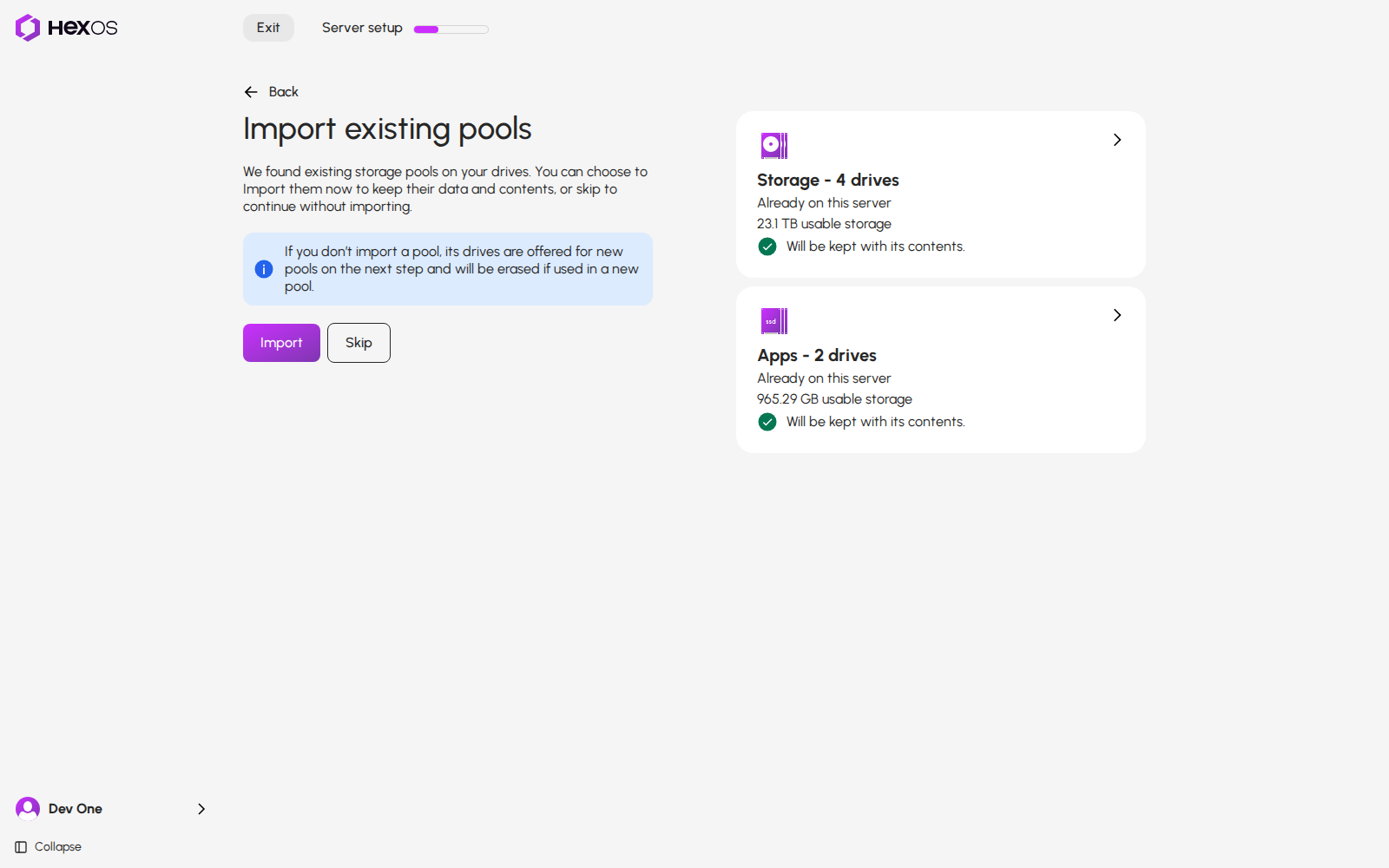
Info: This screen also lists pools found on drives that come from another server. Their cards say Previously used on and the other server's name. See Import existing pools for those.
You have three choices:
- Keep every pool: leave all the switches on and click Import.
- Let one pool go: switch it off, as shown below.
- Start fresh: click Skip to let every pool go.
¶ Let one pool go
Click the pool's card. A panel opens with the Keep this pool switch. Under Contents of this pool it lists the pool's drives, its folders and Time Machine backups, and its apps when your apps run from this pool. Under On this server, not in this pool it lists the server's users and virtual machines, which are listed for the whole server rather than for one pool. Click a group to see what is in it.
A pool on this server, kept
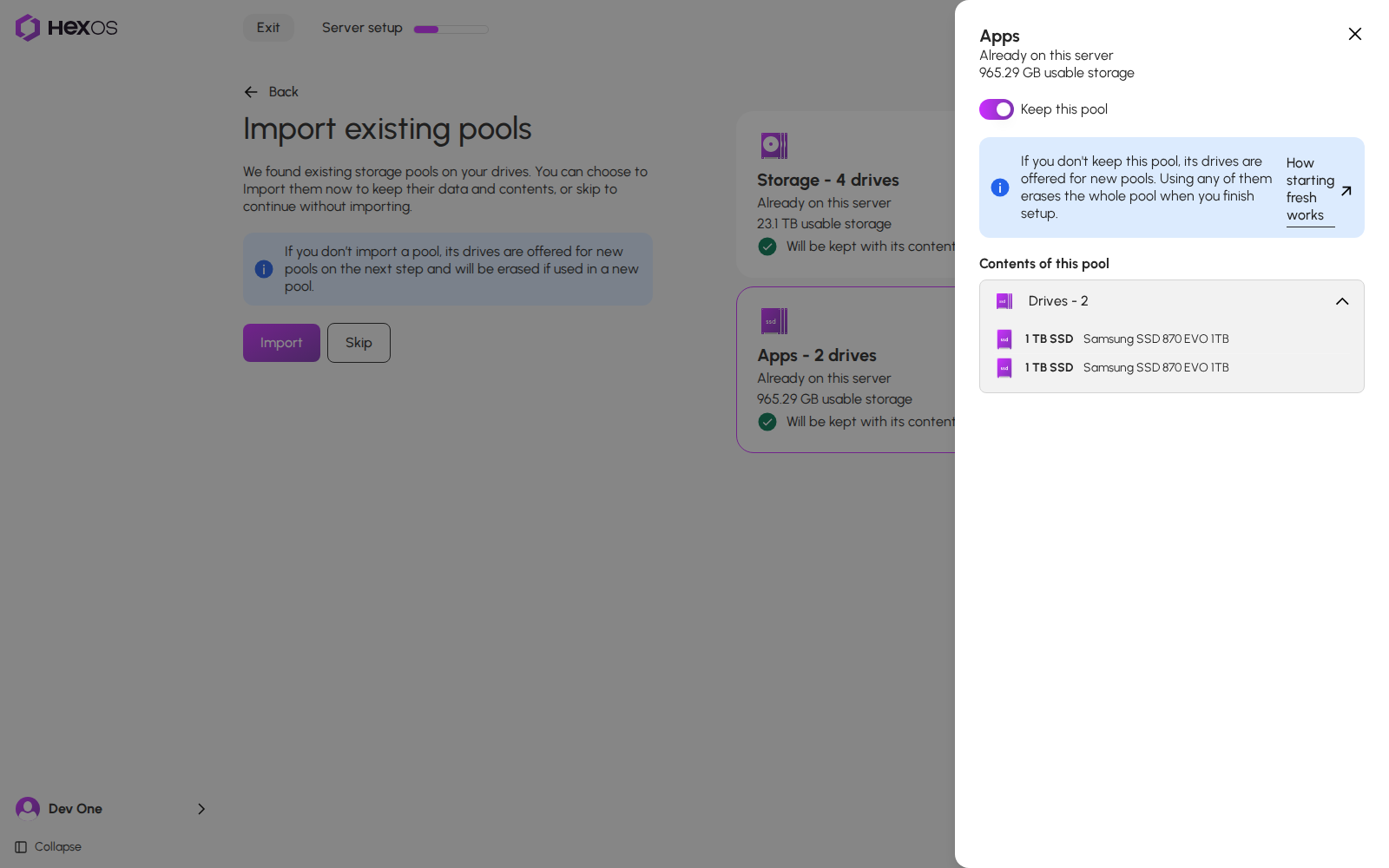
Click the Keep this pool switch so it is off. The panel says: If you don't keep this pool, its drives are offered for new pools. Using any of them erases the whole pool when you finish setup.
Keep this pool switched off
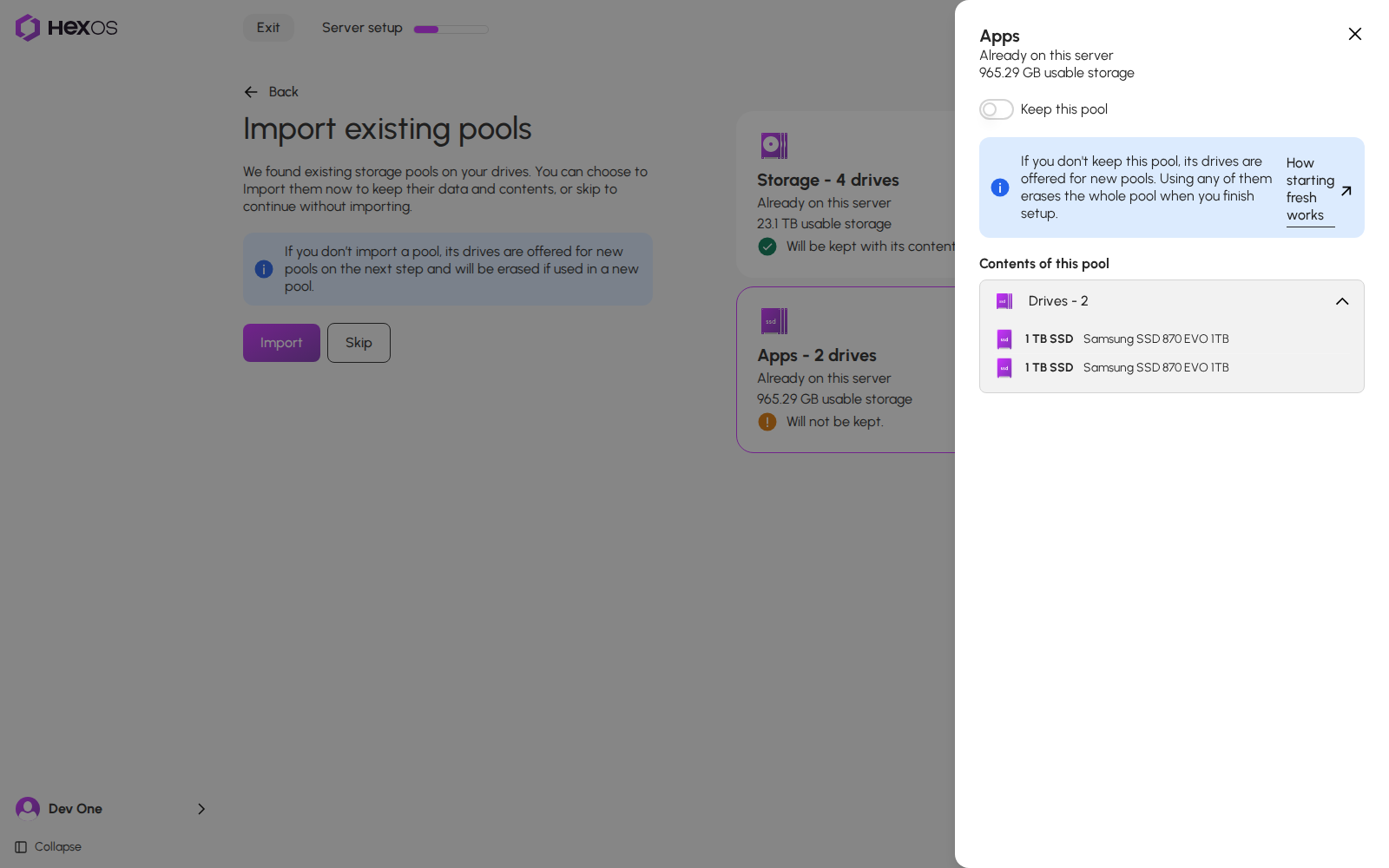
Close the panel. The pool's card now says Will not be kept.
A pool that will not be kept
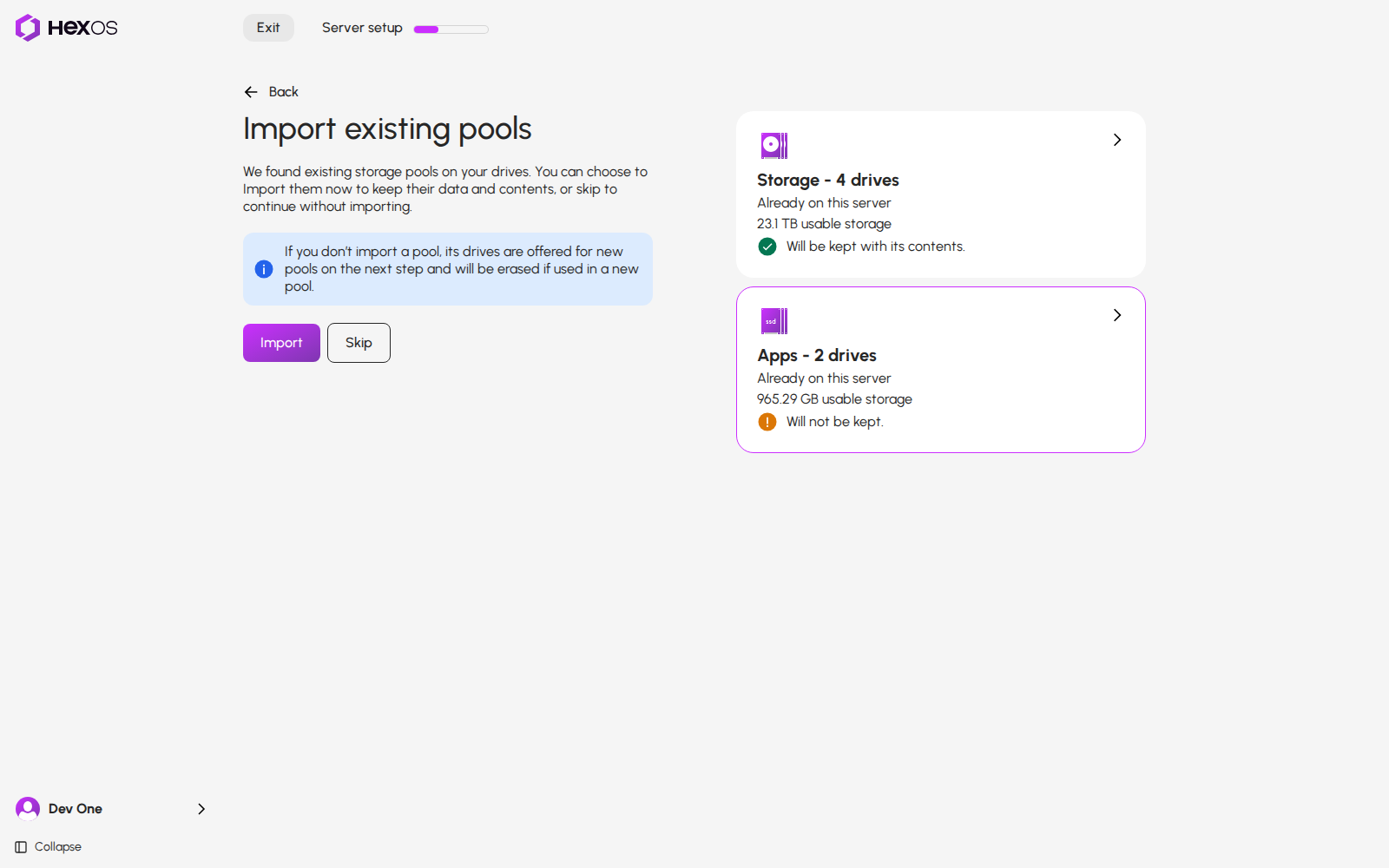
Click Import. The pools that are switched on are kept, and HexOS asks you to confirm the one you let go.
¶ Start fresh: let every pool go
Click Skip. Every pool on the screen is let go, including the pools already on this server.
Import and Skip wait until the pools already on this server are listed, so a quick click never lets go of fewer pools than the server has. If they cannot be read, the screen says We could not read the pools on this server. Click Try again.
¶ Confirm once
The Skip import dialog opens, whether you clicked Skip or let one pool go. Tick I understand that any data on the existing pools will be permanently deleted. and click Confirm.
Skip import
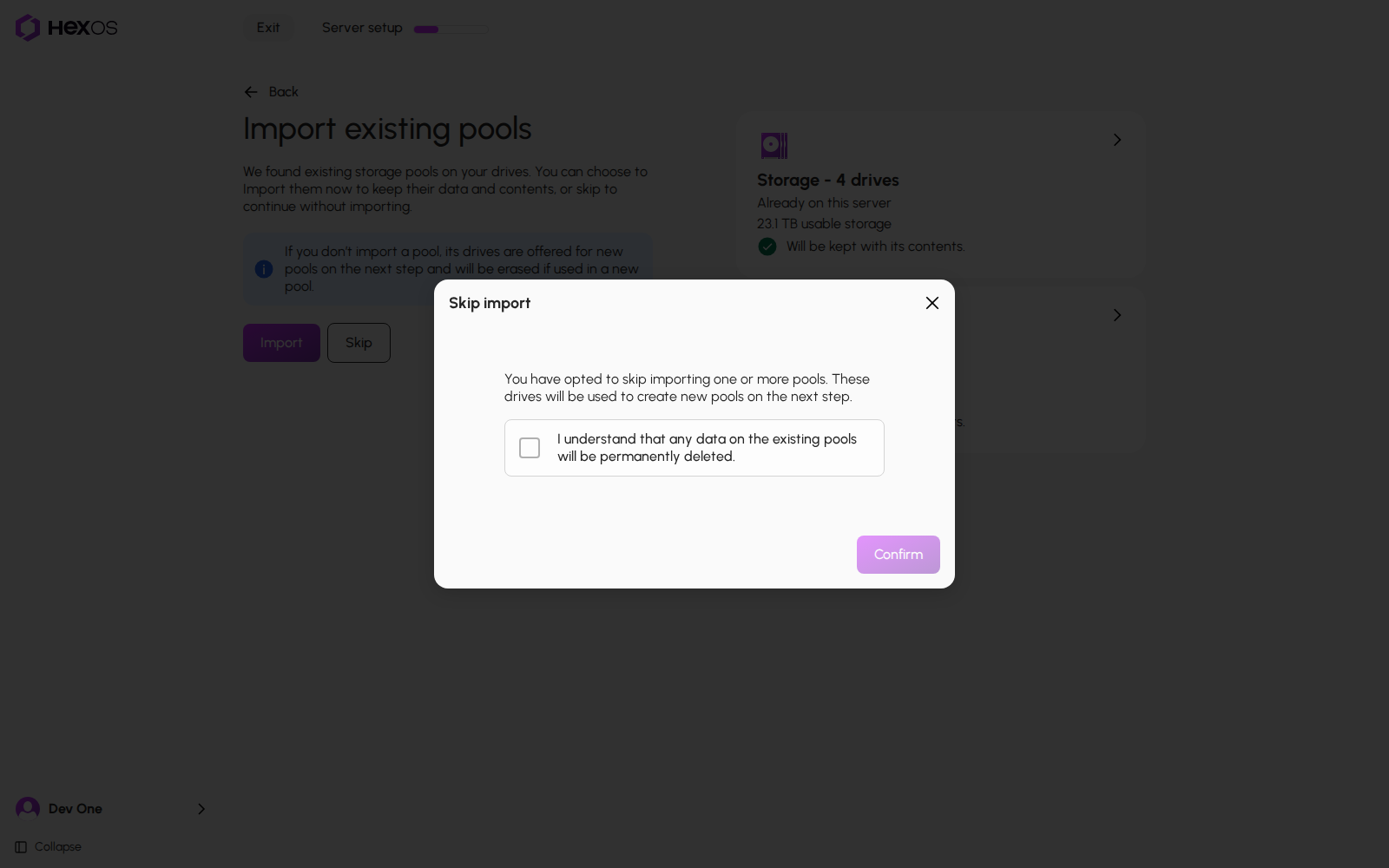
Info: Nothing is erased yet. Pools are only erased at the end of setup, when you click Finish setup.
¶ Choose your new pools
The drives of the pools you let go are now ready for new pools. Some special drives of a pool, such as spares and cache drives, are not offered. New storage pools tells you how many drives are ready. Choose Recommended or Custom. Complete server setup explains both.
Drives ready for new pools
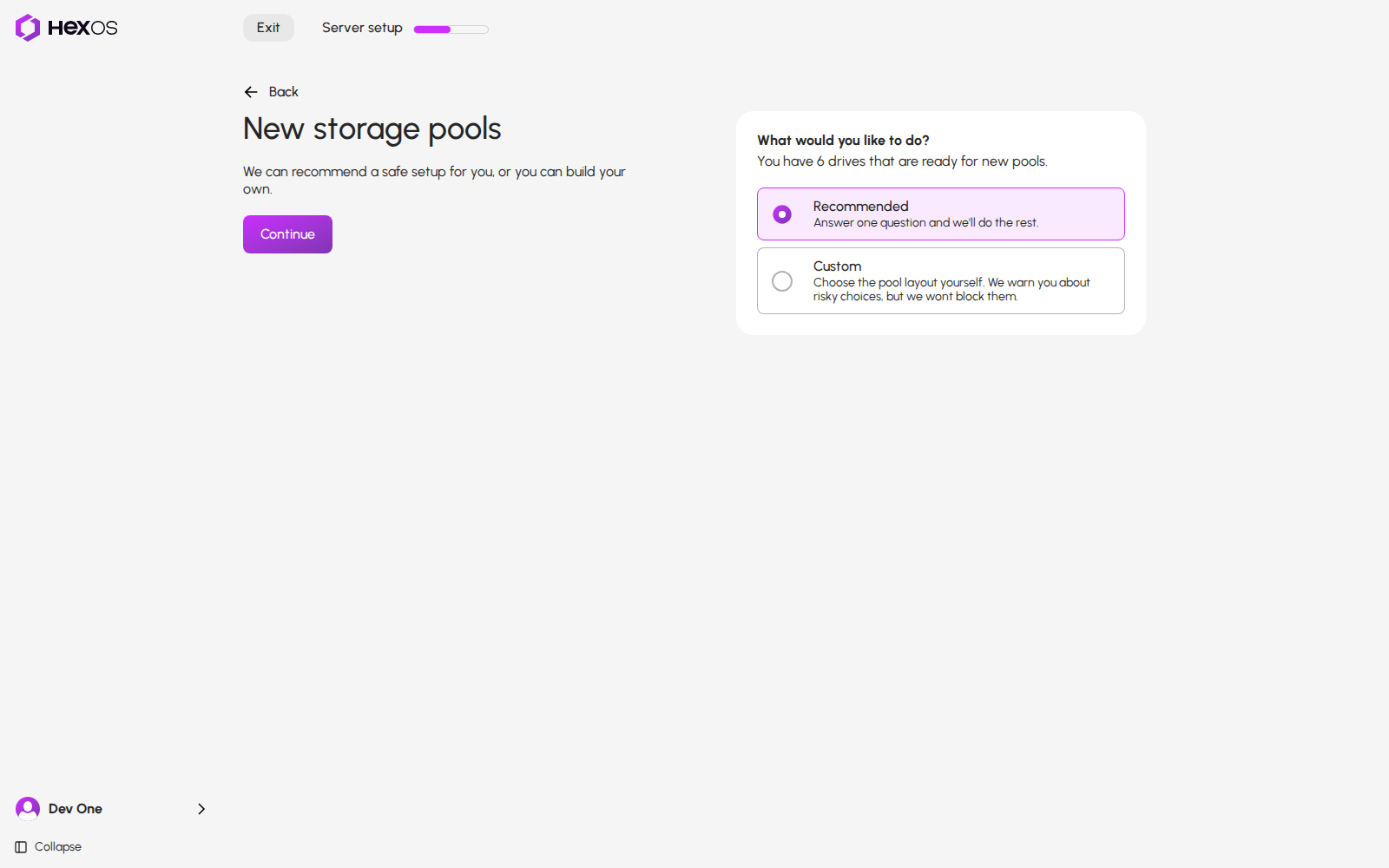
Info: Only use imported pools is only offered when you keep at least one pool. If you choose it, setup makes no new pool, so no pool is erased, not even one you let go.
¶ Choose hardware checks
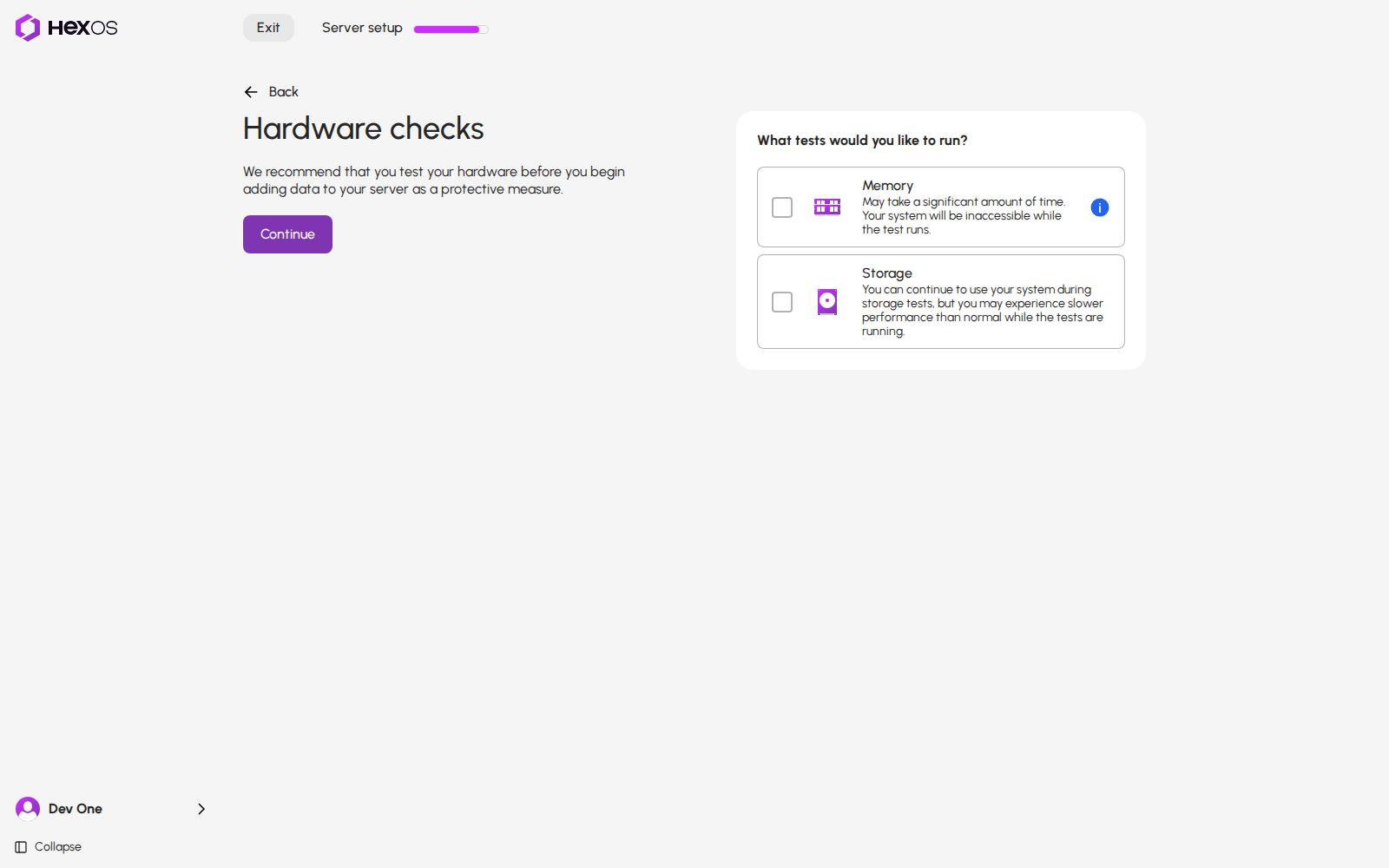
Before Almost done!, choose either, both or neither of Memory and Storage on Hardware checks. Both start unticked. Memory restarts the server for a test after setup; Storage requests drive checks. See New server checklist.
Optional hardware checks
¶ Check what will be erased
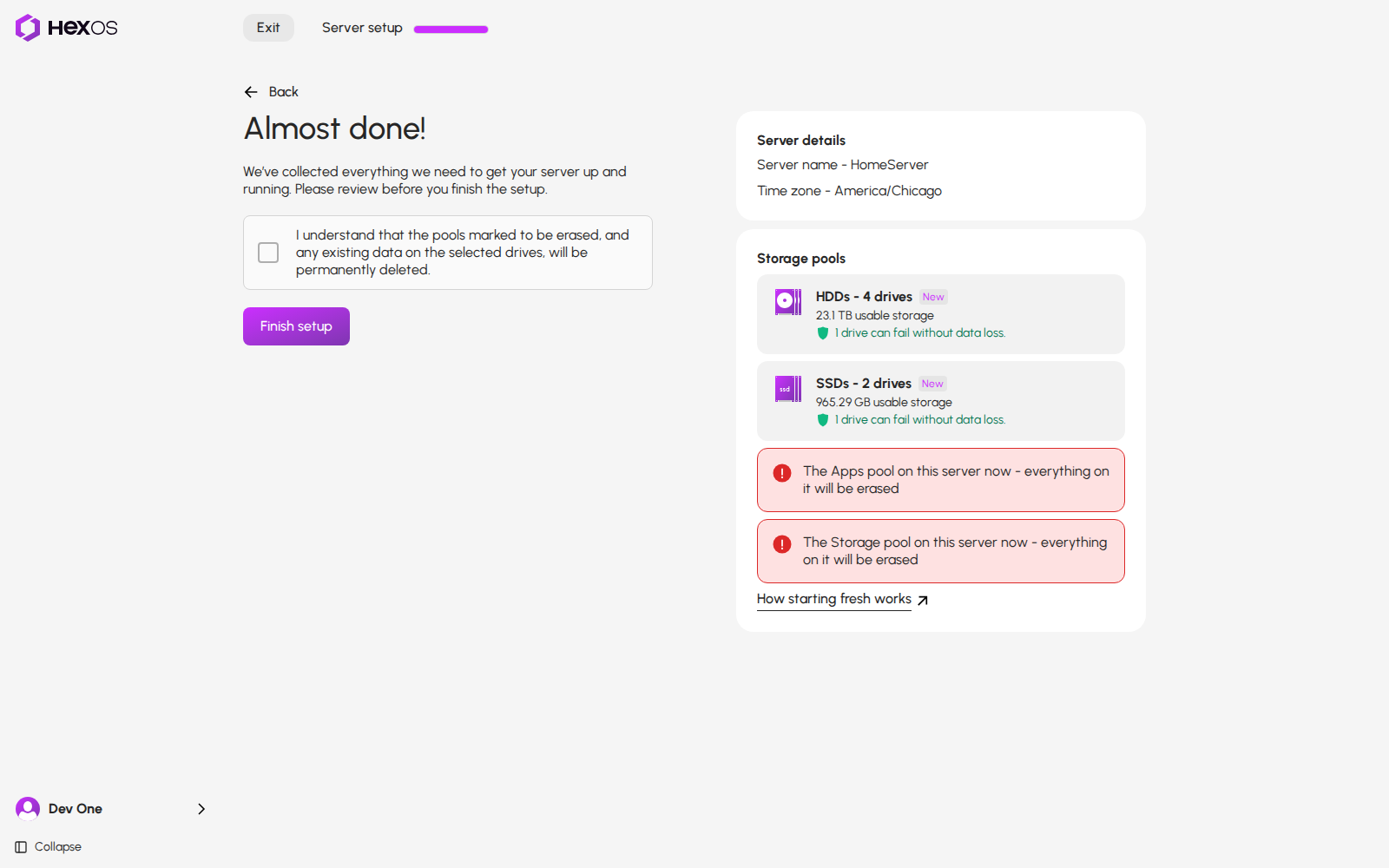
The Almost done! screen lists every pool that will be erased, with a warning mark. For a pool named Storage, the line reads The Storage pool on this server now - everything on it will be erased.
The box to tick then also says so: I understand that the pools marked to be erased, and any existing data on the selected drives, will be permanently deleted.
Almost done with two pools to be erased
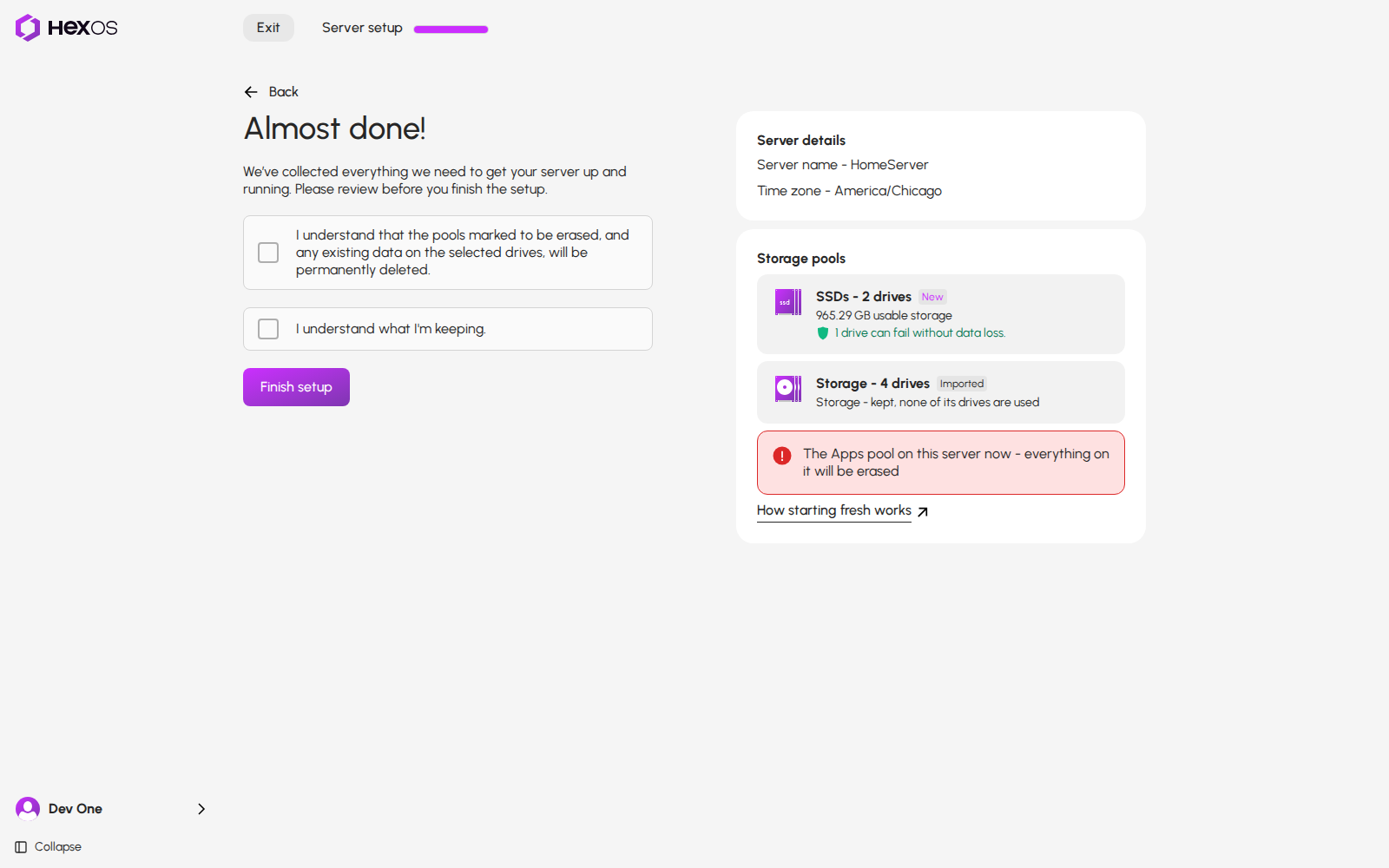
Each pool you keep has an Imported badge and lists its own folders, Time Machine backups and apps. A separate line counts the users and virtual machines that stay, for example Already on this server: 2 users. Only what stays is counted. Folders, Time Machine backups, apps and virtual machines on a pool that will be erased go with that pool, and are not counted. Users stay with the server either way. A virtual machine whose disks HexOS cannot locate is counted as kept. When something stays, or something on the server could not be read, a second box asks you to confirm it: I understand what I'm keeping. You tick both boxes before you can finish. When nothing stays and everything was read, there is no second box.
A pool you let go is erased only when a new pool uses one of its drives. If no new pool uses its drives, the pool stays as it is, and Almost done! says so. For a pool named Storage, the line reads Storage - kept, none of its drives are used, with its used space and how many drives can fail below it.
Almost done with one pool kept because none of its drives are used
When a pool is marked to be erased, How starting fresh works on that screen opens this page in a new window. The same link is in the panel of each pool already on this server.
If you want to change something, click Back to return to Hardware checks, then Back again to your pool choices. Nothing has been erased yet.
¶ Finish setup
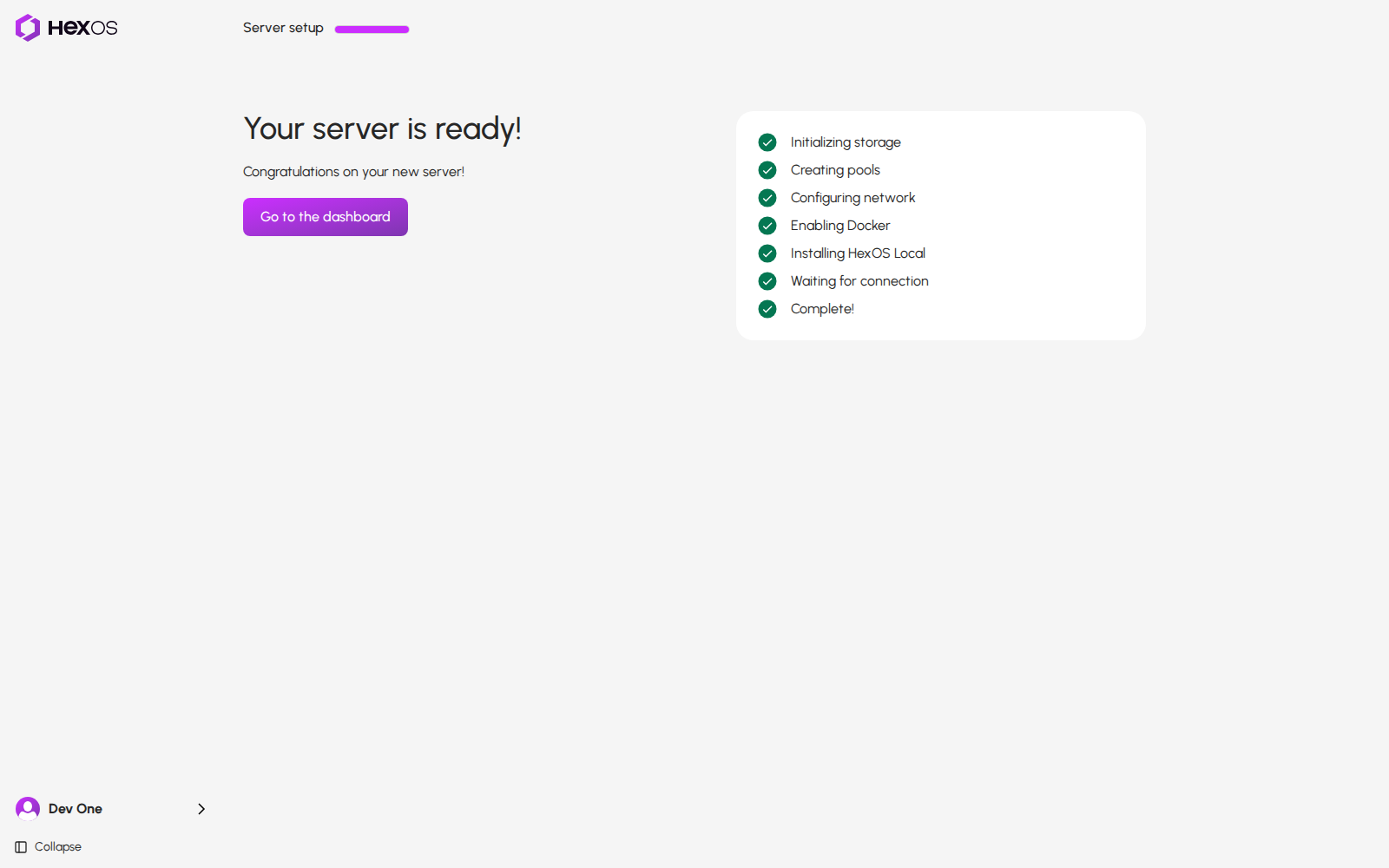
Tick the boxes and click Finish setup. This is when the pools marked to be erased are erased, and the new pools are built. Each step gets a check mark as it finishes. If you chose Memory, the server restarts for the test when setup finishes. See Finish setup for the progress screens.
Your server is ready
¶ What is erased, and when
- Nothing is erased before you click Finish setup. Until then, you can go back and change your mind.
- A pool you let go is erased only if a new pool uses one of its drives.
- When it is erased, the whole pool is erased, with everything on it, even if the new pool uses only one of its drives. HexOS cannot keep part of a pool.
- An erased pool's name is free for a new pool.
Info: One screen works differently. Most servers never see it: Some drives need to be reformatted appears only for drives a pool cannot use as they are. Reformatting erases a drive right away, and the screen warns you before you start.
¶ What is kept
- Every pool you keep, with everything on it.
- Every pool you let go whose drives no new pool uses. It keeps its name and everything on it.
¶ Limits
- A pool is kept or erased as a whole. You cannot keep some of its files and erase the rest.
- There is no undo. HexOS cannot bring back a pool once it is erased.
- Your choices are not saved if you reload the page. Setup asks you about these pools again.
- Do not change your pools in TrueNAS during setup. Setup checks the pools right before it erases anything, but it cannot catch a change made in TrueNAS in the last moments before the erase.
¶ Is my data safe?
- Nothing is erased until you tick the erase box and click Finish setup, except drives you choose to reformat.
- Setup never finishes while it cannot read the pools on the server. A failed read is never taken to mean there are no pools.
- Only the pools that Almost done! marks to be erased are erased, and the drives you put in new pools.
- Before it erases a pool, setup checks that the pool is still made of the same drives as when you saw Almost done!, and that no other pool would be touched. If anything changed, setup stops before it erases anything.
- If a drive for a new pool is unplugged or swapped after you saw Almost done!, setup stops before it changes anything.
- Pools you keep are not touched.
¶ If something goes wrong
We could not read the pools on this server. Setup cannot tell which pools you keep, so Continue and Finish setup wait. Click Try again. Complete server setup shows this message.
A drive was added, removed or changed. Please review your storage plan again. Something changed after you reviewed your plan. Nothing was erased. Click OK. Setup takes you back to your new pools so you can check them again.
These two messages can show on Recommended layout or Build your storage, or after you click Finish setup:
Go back to the import step and choose again. A pool you chose not to keep has changed. Click Back until you reach Import existing pools, and choose again.
HexOS could not read every drive in a pool you chose not to keep, so it will not erase it. Try again. Wait a moment and try again. Setup does not erase a pool it cannot read in full.
Help: Not sure what to keep? Ask in the HexOS Discord Community before you click Finish setup.
¶ Frequently asked questions
I clicked Skip by mistake. Can I undo it?
Yes, until you click Finish setup. Click Back until you reach Import existing pools. The pools already on this server that you let go are switched off. Pools from another server start switched on again. Switch on the ones you want to keep and click Import.
Will HexOS erase a pool I let go if I do not use its drives?
No. A pool is erased only when a new pool uses one of its drives.
I only need one drive from an old pool. Can I keep the rest of that pool?
No. If a new pool uses one of its drives, the whole pool is erased.
Can I get an erased pool back?
No. Make a copy of anything you need before you click Finish setup.