¶ New server checklist
We recommend testing your hardware before you add important data. You can choose the tests during setup or run them later. Neither a memory test recommendation nor a drive check locks your storage. You do not need to pass or skip a test to create folders, install apps or create virtual machine disks.
¶ Choose checks during setup
After choosing your pools, setup shows Hardware checks. Memory and Storage both start unticked. Choose either, both or neither, then click Continue.
Optional hardware checks during setup
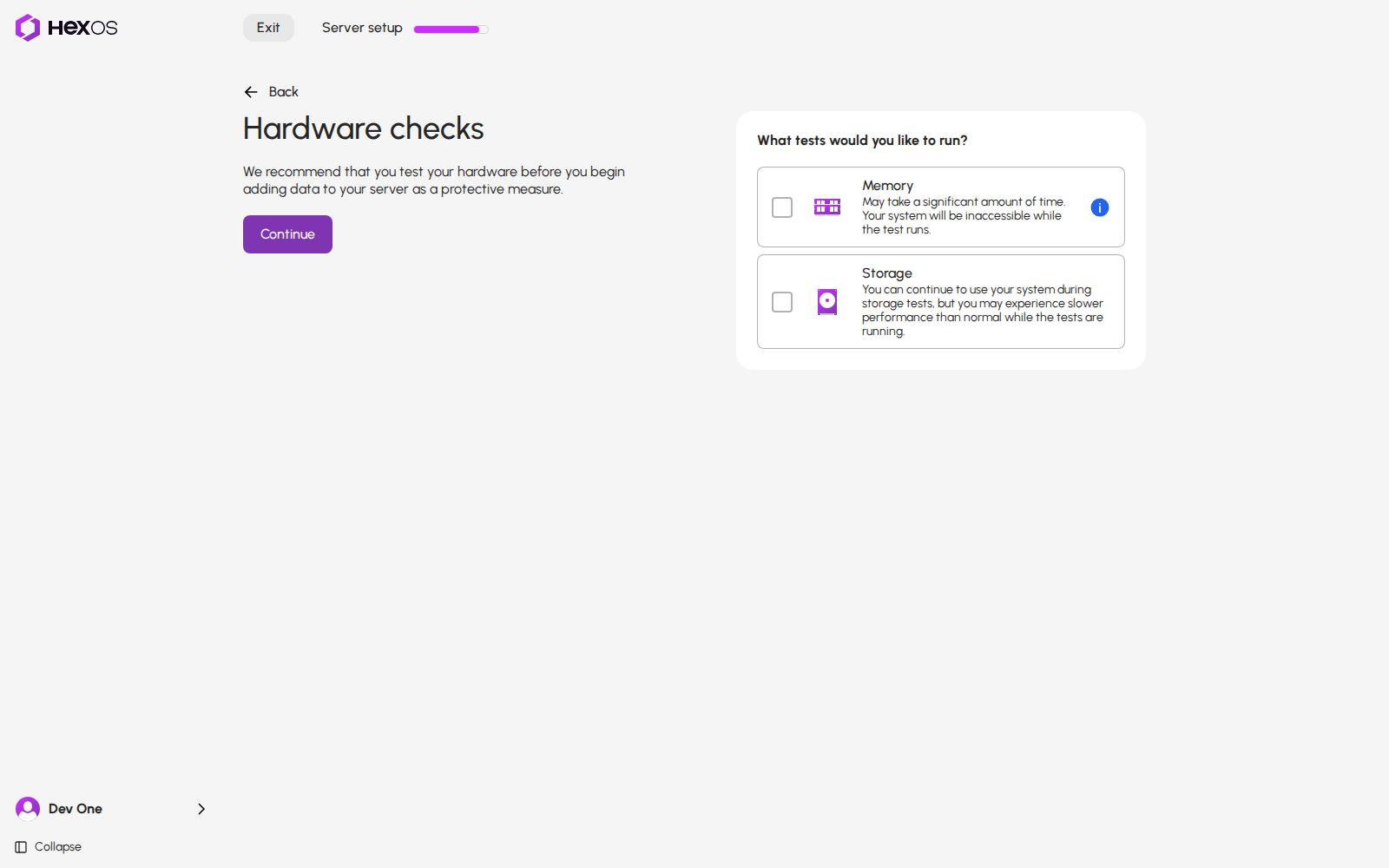
- Memory: when setup finishes, the server restarts into the memory tester. You cannot reach it through the Command Deck or TrueNAS until the test ends. It can take a few hours, depending on your hardware.
- Storage: asks for a Deep check of every pool you finish setup with, including pools you keep or import. You can keep using the server during the checks, but it may be slower.
Info: Kept and imported pools need current HexOS server software for their setup checks. An older server build does not start these checks. Check the activity center for progress; you can also start a check later when HexOS offers it.
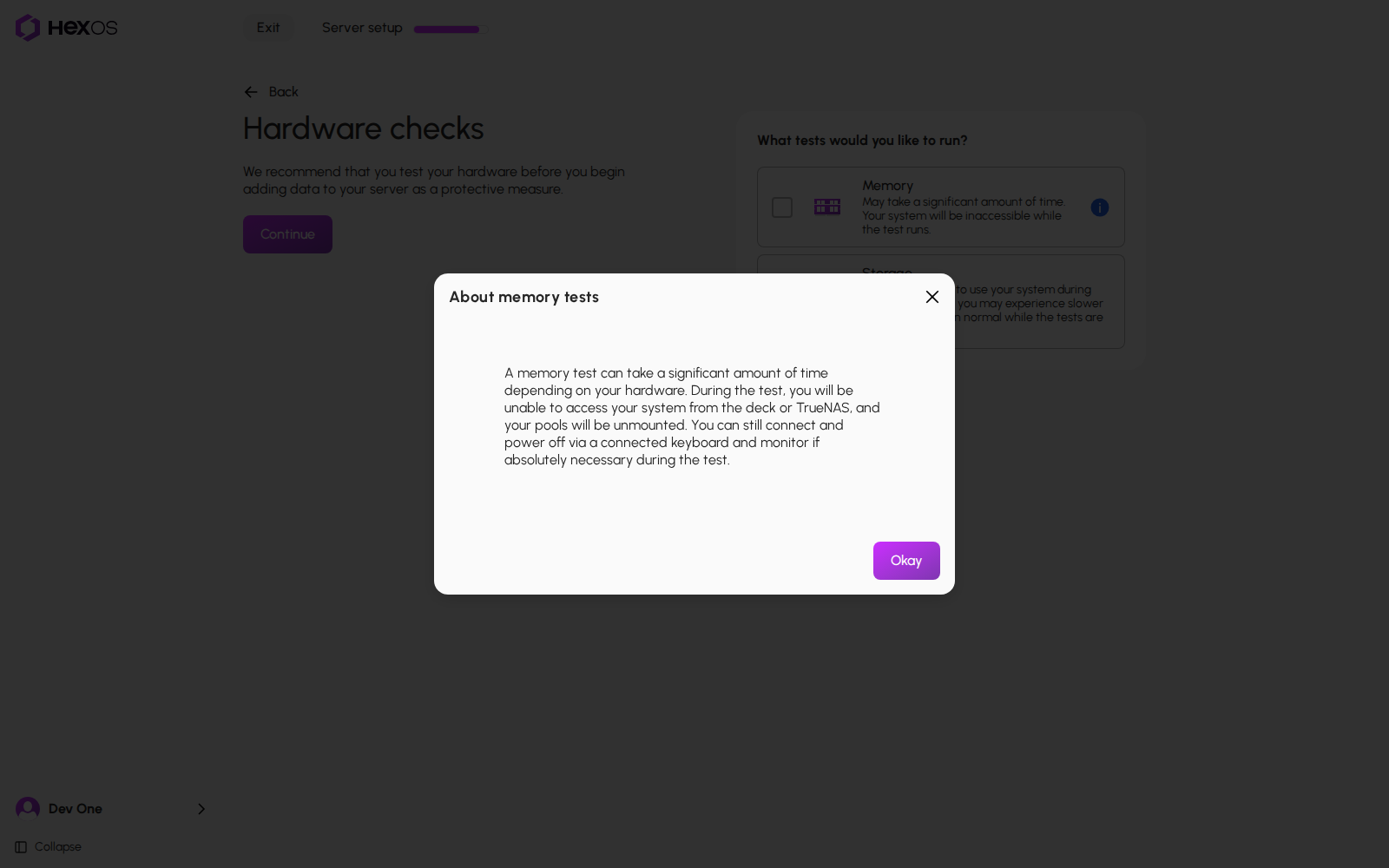
Click the info button beside Memory to read About memory tests. Click Okay to close it. Opening this dialog does not tick Memory.
About memory tests
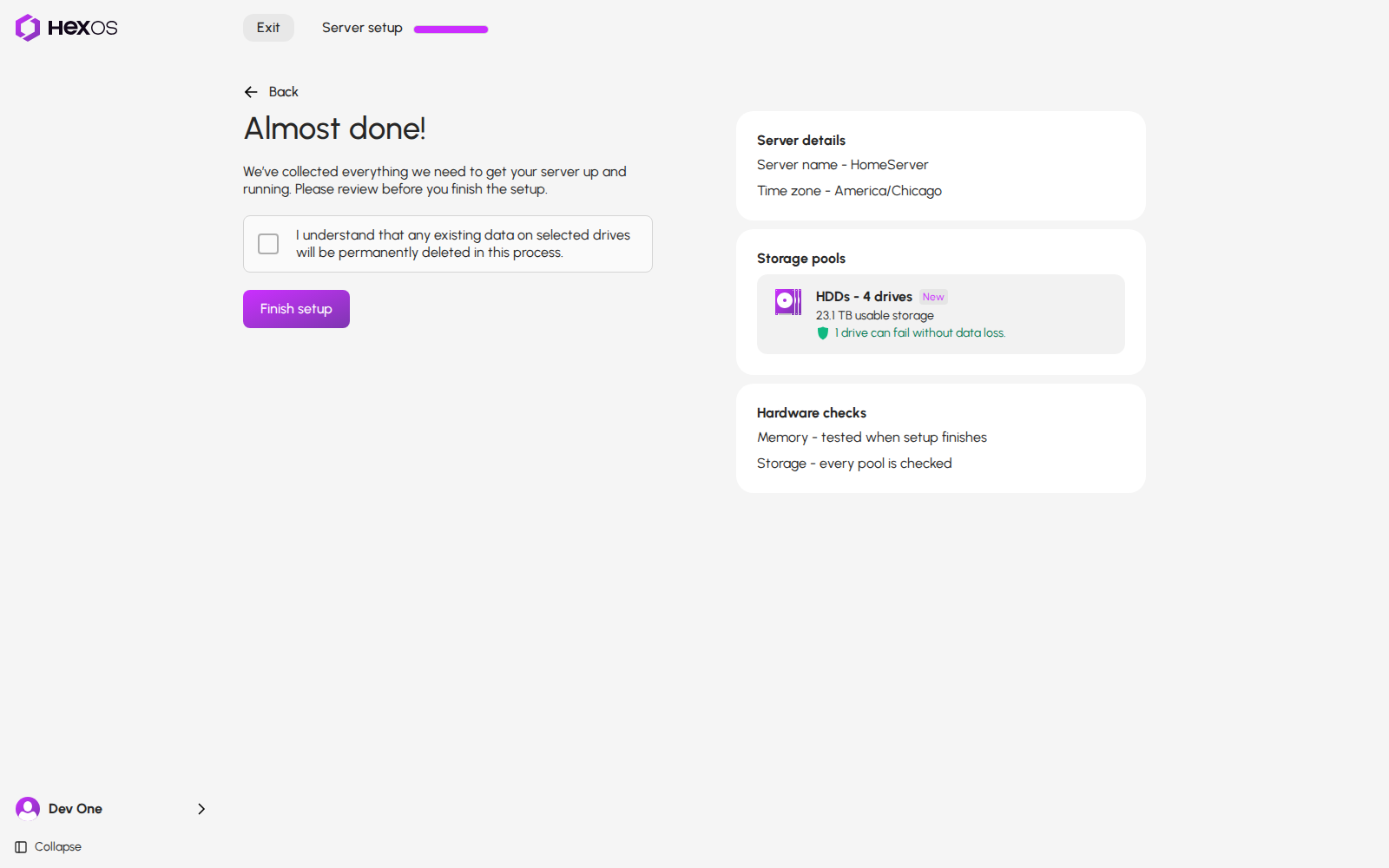
Almost done! lists the checks you chose. Review them before you click Finish setup. If you chose both tests, the drive checks wait until the server returns from the memory test.
Hardware checks on the final review
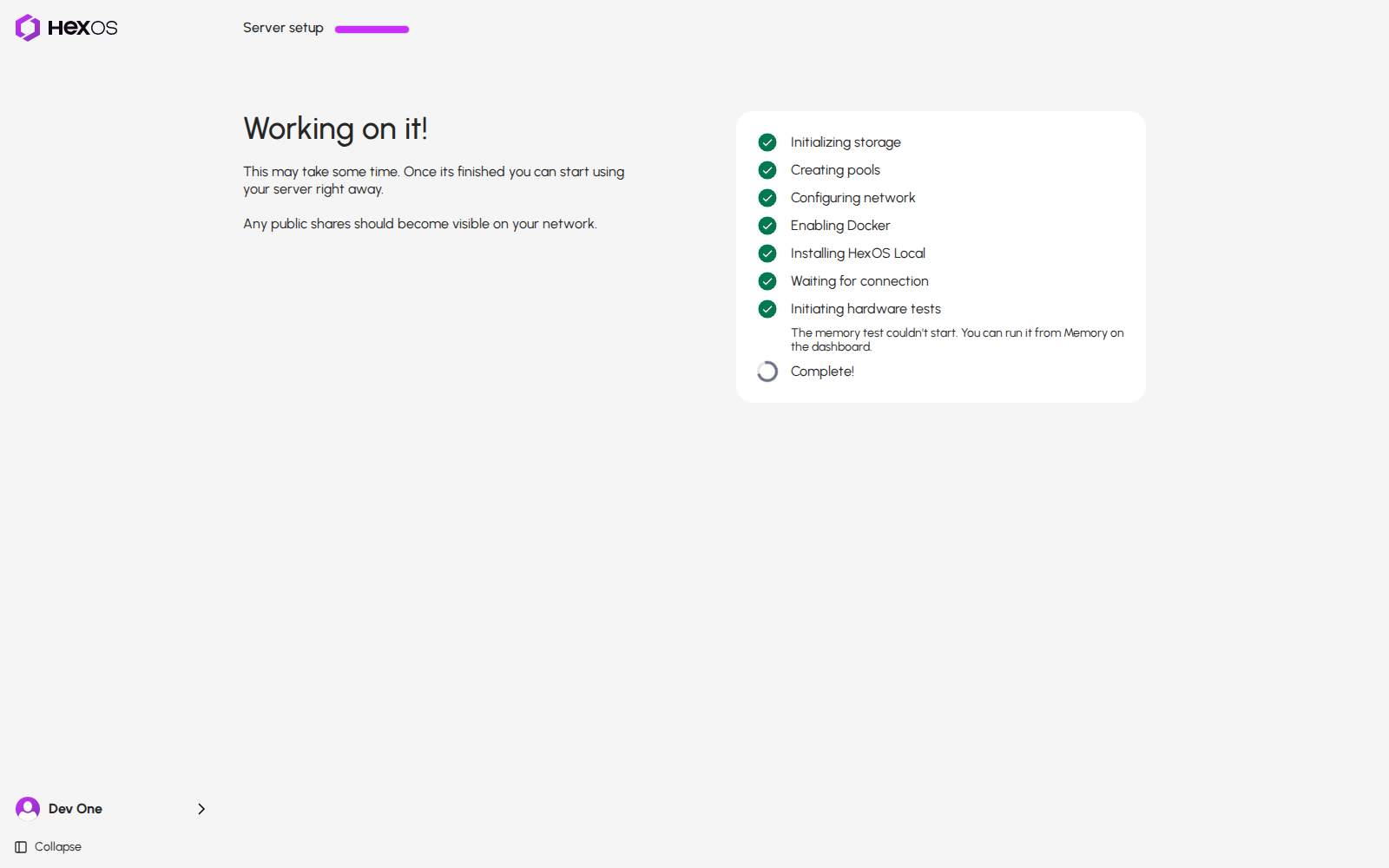
If the memory test cannot start, setup still finishes and the step explains that you can run it from Memory on the dashboard. A server installed in legacy boot mode needs UEFI boot mode to run the test.
A memory test that could not start
¶ Run a memory test later
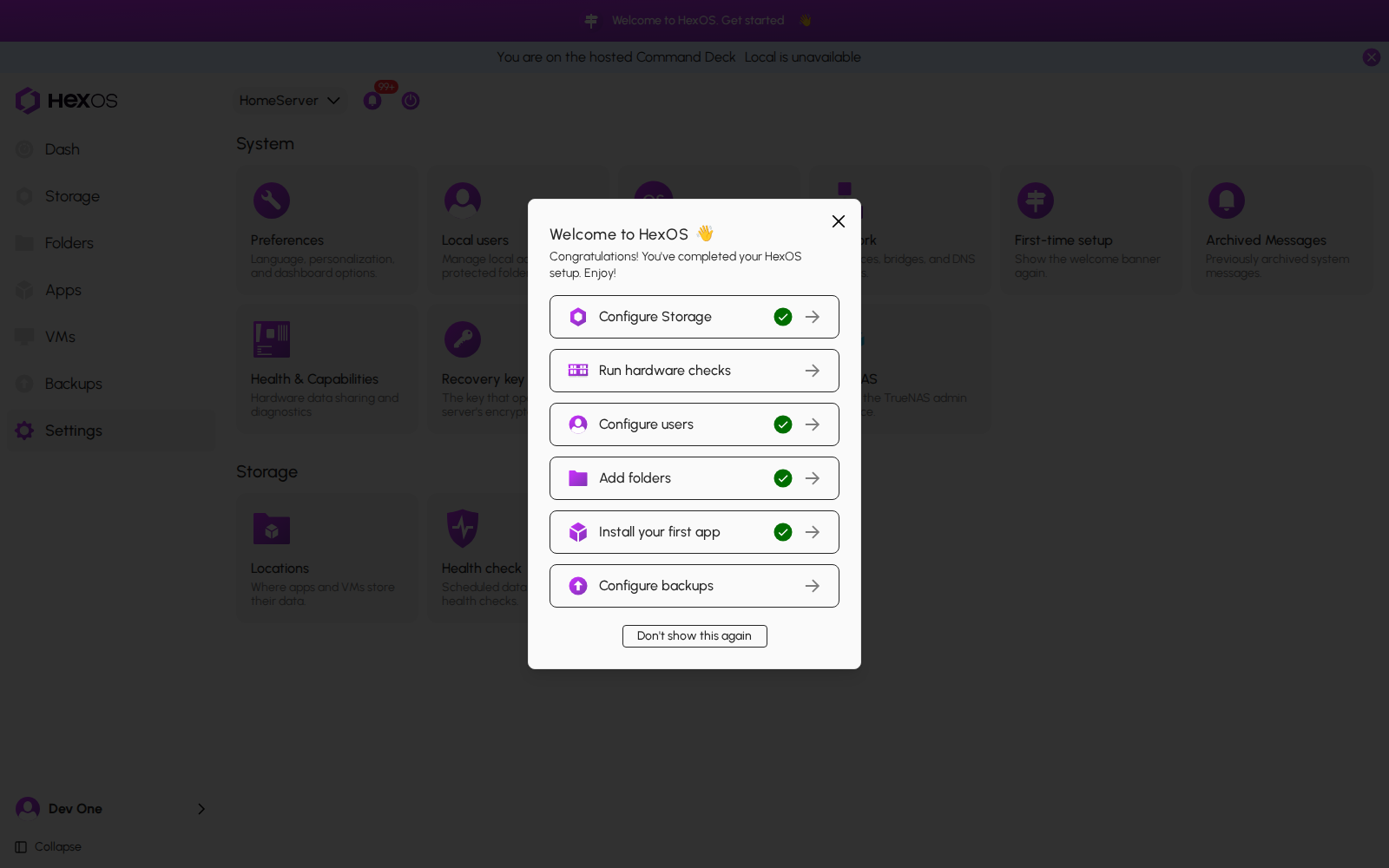
The welcome includes Run hardware checks. Click it to open the memory test. If you dismissed the welcome, see Show the welcome banner again.
Run hardware checks from the welcome
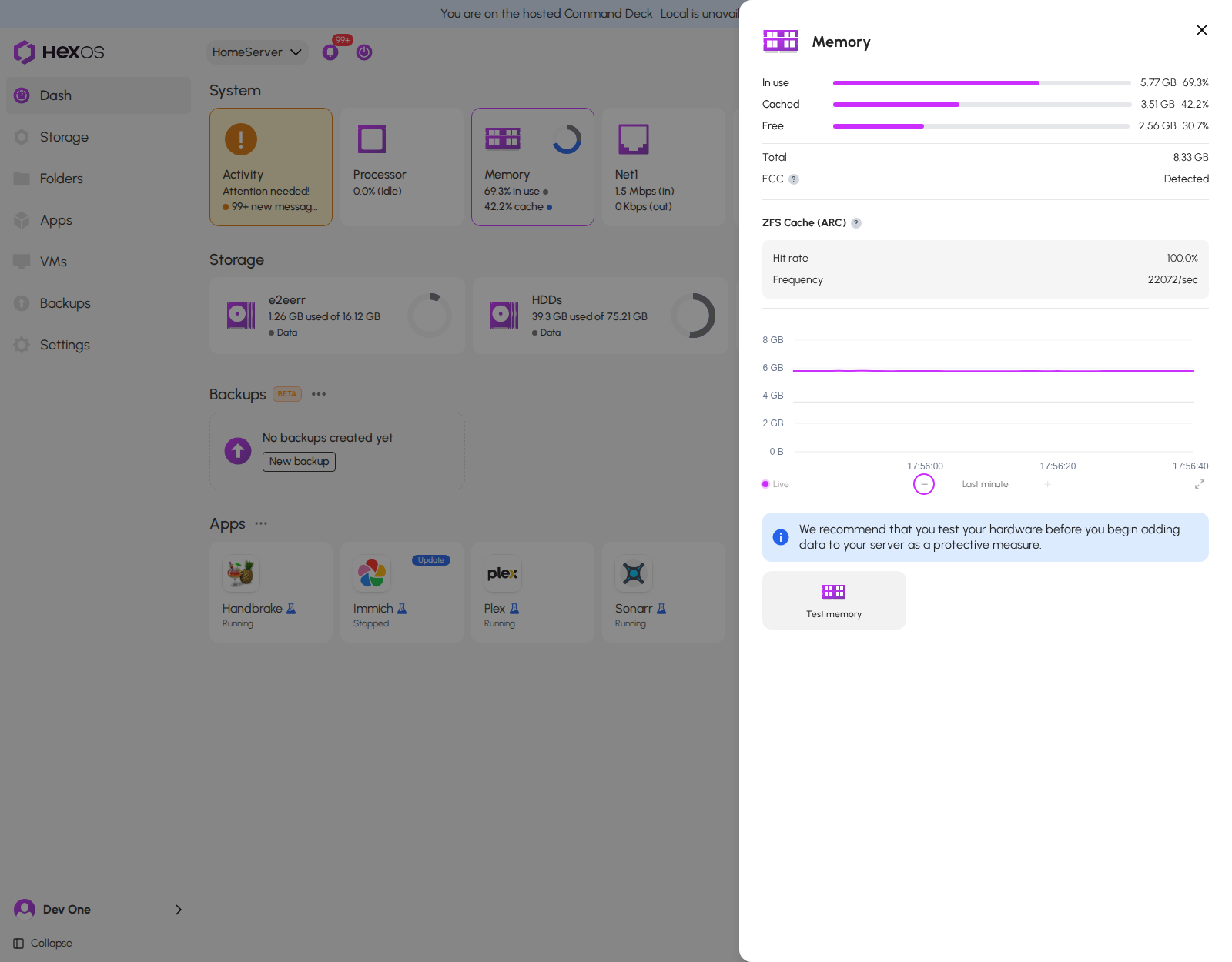
You can also click the Memory card on the dashboard. Its info panel recommends a test until the server has a test on record. Click Test memory.
The memory test recommendation
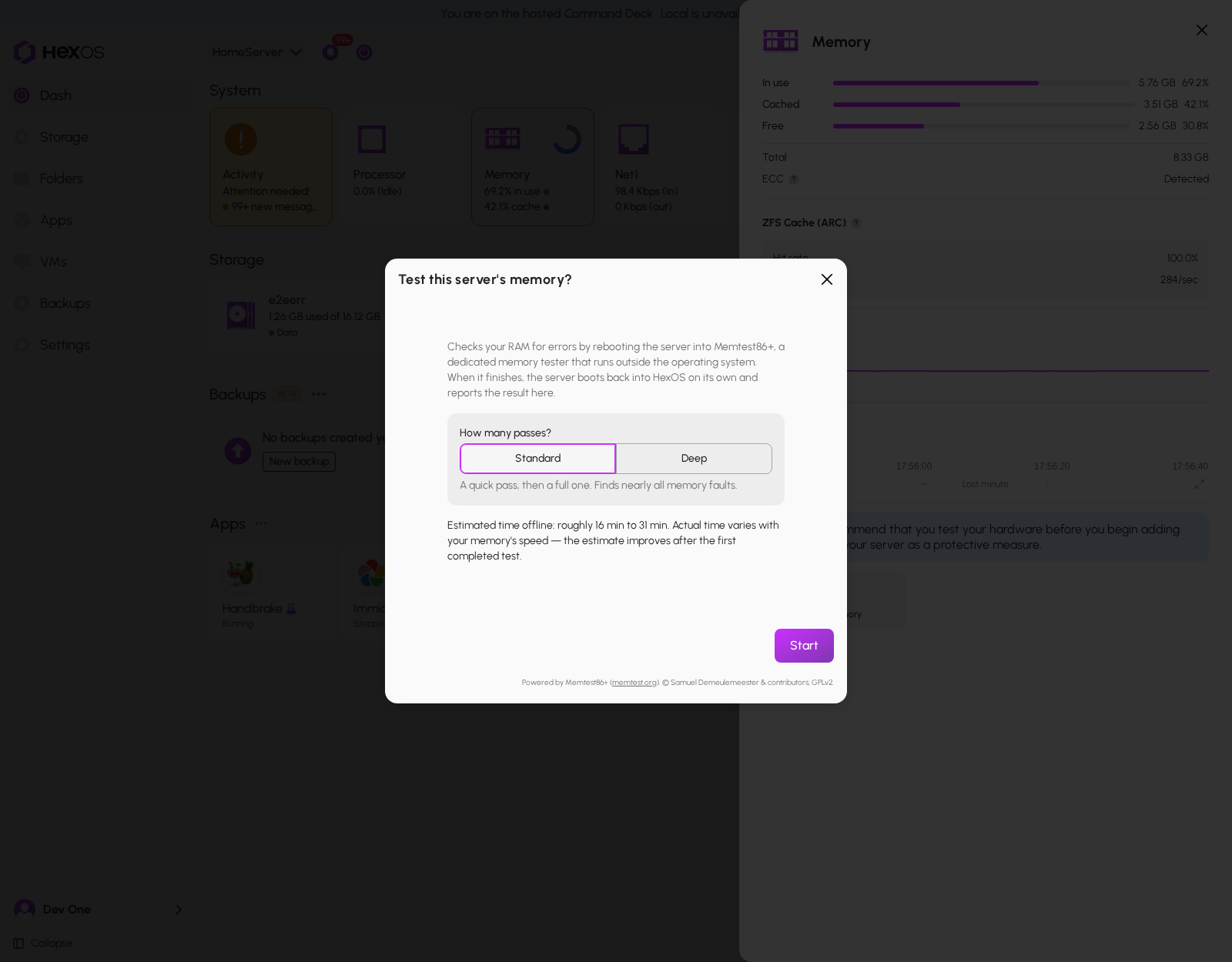
Choose Standard or Deep, then click Start. Standard is a quick pass, then a full one. Deep is a quick pass, then three full ones. The dialog estimates how long the server will be offline; the time varies with your hardware.
Choosing a memory test
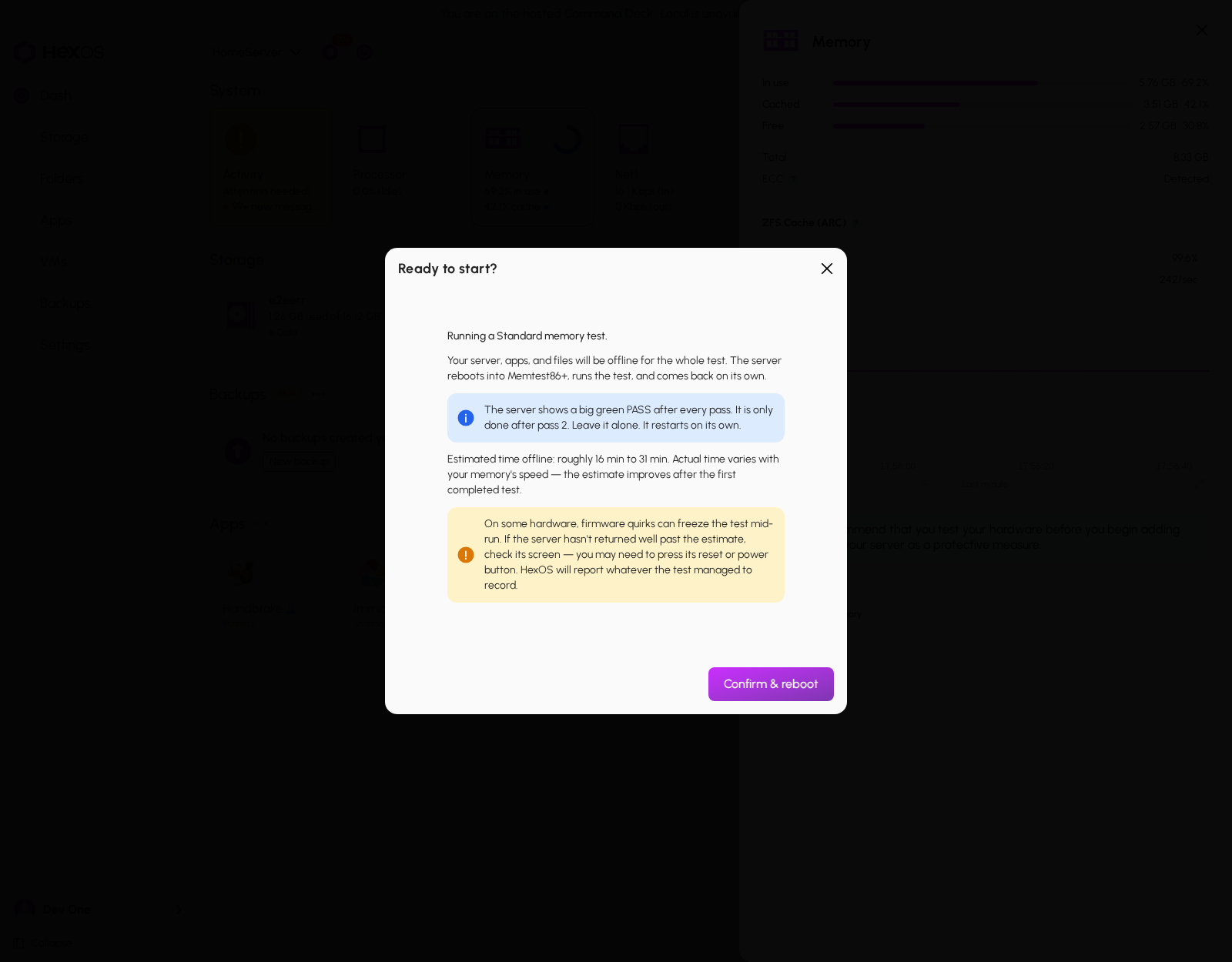
Review Ready to start?, then click Confirm & reboot when you are ready for the server to go offline.
Confirming the restart
Requirement: A memory test cannot start while a deep drive check is active. Let the drive check finish before restarting into a memory test.
Warning: The test screen shows a green PASS after each round. A Standard test is only done after the second round. Do not stop it after the first PASS. The server restarts on its own when the test ends.
Info: In a virtual machine, the test checks the memory assigned to that virtual machine. It does not test all of the host's physical memory.
¶ Read the result
When the server returns, HexOS reads the result. If it cannot confirm the result, for example because the test stopped early, the Memory test report asks What did the server's screen show? Click Errors were shown, No errors shown or Didn't see the screen.
What did the screen show
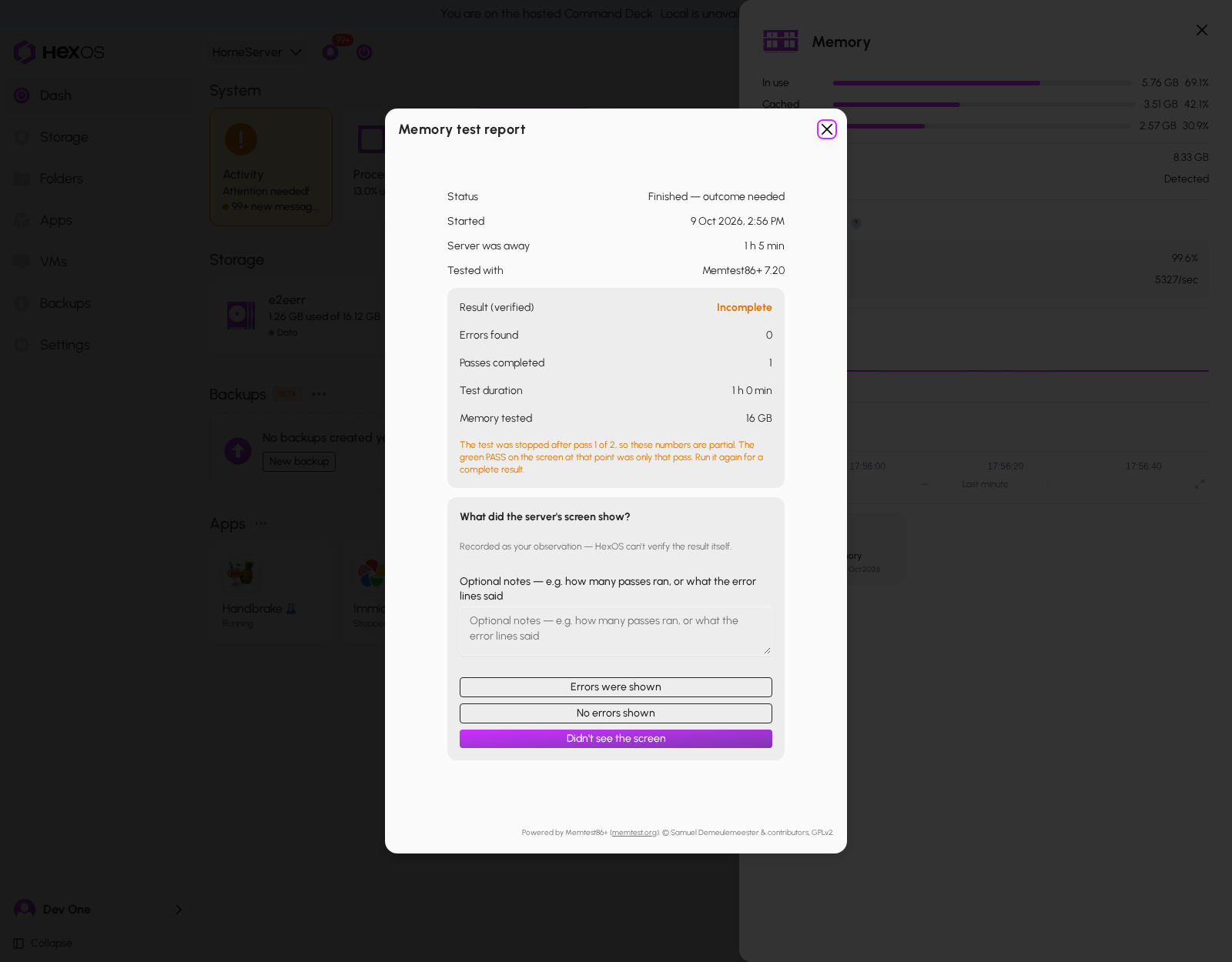
A failed or unfinished test does not lock your storage. If the test reports errors, resolve the memory problem before trusting the server with important data. You can run another test from the Memory info panel.
For drive check progress and results, see Deep check. A new pool with previously used or worn drives may receive a deep check even if you leave Storage unticked during setup.
Help: Questions about the checklist? Ask in the HexOS Discord Community.