¶ SSDs for pool data
Not every SSD is a good fit for holding your files. HexOS checks the model of each SSD in your pools and the job it does. To see the result, your server must share hardware data with HexOS. Open Settings > Health & Capabilities and click Run diagnostics. When a drive of a known slow type holds pool data, the report shows it under Hardware advisories, with the drive's system name and model after Device: and what to do about it. Click Learn more in the entry to open this page.
An SSD warning in diagnostics
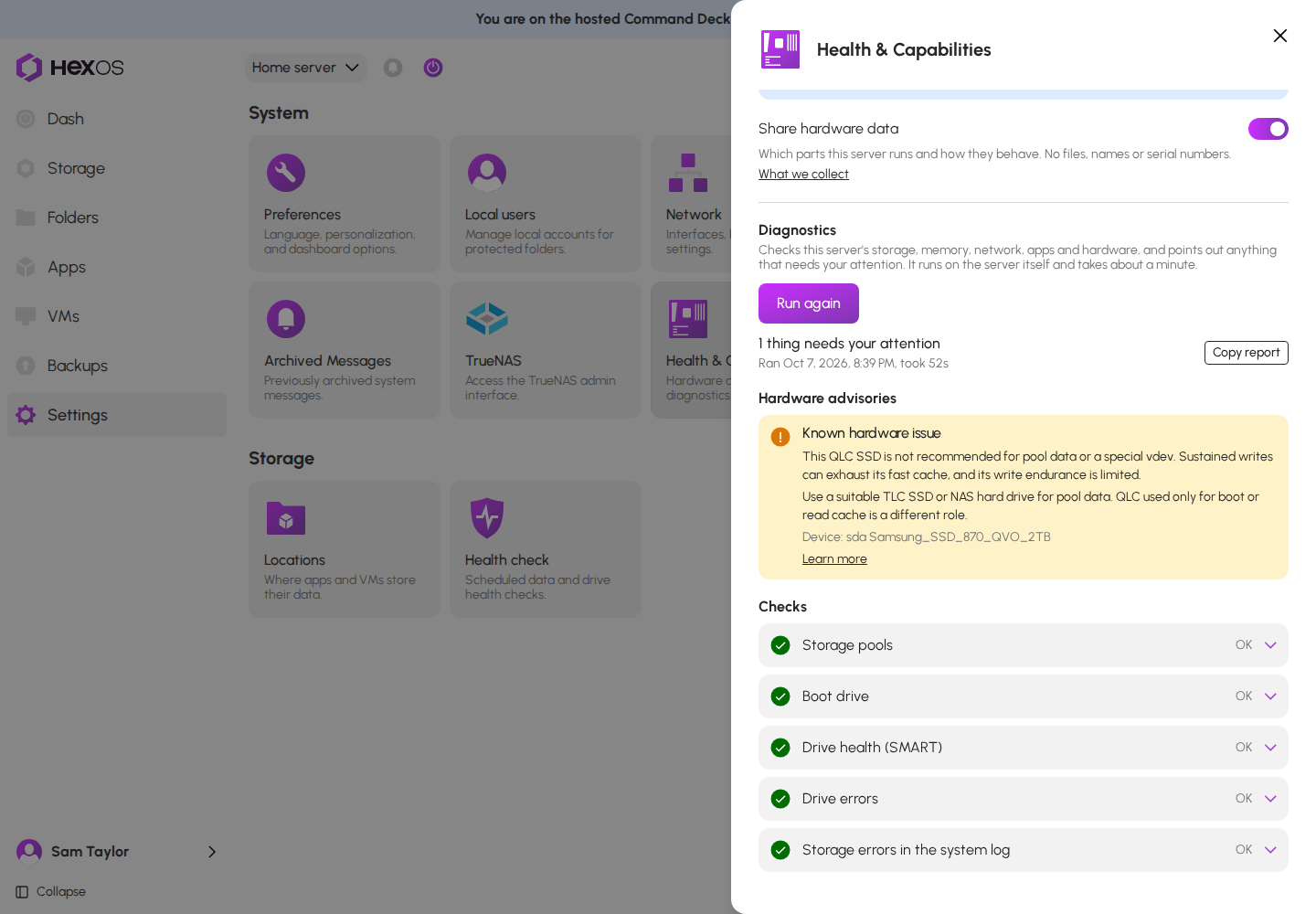
Info: Warnings on the dashboard are not shown for everyone yet. For now, the diagnostics report is where you see them. See Health & Capabilities.
The same SSD used as a boot drive or as a cache drive gets no warning. In those jobs the drawbacks below do not matter, and if the drive wears out your data is not at risk.
Info: A warning here is about speed and wear, not about a fault. The drive works. It will slow down under the kind of load a server produces, and it will wear out sooner than other SSDs.
¶ QLC SSDs
Which drives: Samsung 860 QVO and 870 QVO, Crucial P1, P3 and P3 Plus, Kingston NV2, WD Green SN350, Intel 660p, 665p and 670p, Corsair MP400, Sabrent Rocket Q and Q4.
The problem: These drives store four bits in each memory cell (QLC). They read quickly and handle short bursts of writing well. Once their small fast cache fills, sustained writing slows dramatically, on some models to below the speed of a spinning hard drive. Pool data produces exactly that kind of load: backups, large copies and the rebuild that runs after a drive is replaced. QLC cells also wear out after far fewer writes than other SSDs.
The recommended fix: For pool data, a TLC SSD with a DRAM cache is a better fit. See what to buy instead.
¶ DRAM-less SSDs
Which drives: Kingston A400 and NV1, Crucial BX500, WD Green SATA.
The problem: These drives have no memory chip of their own to keep track of where data is stored. They use a little of the computer's memory instead, or none at all. Small writes, and the record keeping a file system does all the time, are much slower as a result, and steady writing speed drops as the drive fills.
The recommended fix: For pool data, an SSD with a DRAM cache is a better fit. See what to buy instead.
¶ What to buy instead
Look for two things on the spec sheet:
- TLC memory, not QLC. Some product lines switched from TLC to QLC between sizes or revisions, so check the exact model.
- A DRAM cache. A spec sheet that says "DRAM-less" or "HMB" (host memory buffer) means there is none.
| Connection | Examples with both |
|---|---|
| SATA (2.5 inch) | Samsung 870 EVO, Crucial MX500, WD Red SA500 |
| NVMe (M.2) | Samsung 980 Pro or 990 Pro, WD Red SN700, Crucial P5 Plus |
Drives sold for NAS use, such as the WD Red and Seagate IronWolf SSD lines, are built for sustained writing and a long service life. They are a safe choice.
Tip: The Storage screen shows the job each drive does. Keep QLC and DRAM-less drives for the boot drive or a cache, where they do fine, and put your files on drives with TLC and DRAM.
Help: Not sure whether a drive you already own is affected? Ask in the HexOS Discord Community with the model number from the drive's page.
¶ After you change the drive
Replacing a pool drive is a guided task in HexOS. On the Storage screen, click the pool, then click View drives. Click the drive to open its info panel, then click Replace. The button is there for any drive in a pool of two or more drives, not only for a failed one, and Drive failure walks through the same steps. Replace one drive at a time and let the pool finish rebuilding before the next. Once the new drive is in the pool, HexOS reads the parts again and the warning is gone the next time you run diagnostics.