¶ Health & Capabilities
Health & Capabilities is a page in Settings. It holds two things for the server you have open:
- Hardware data sharing: your choice to send HexOS a daily report about your server's hardware. Nothing is sent until you choose to share.
- Diagnostics: a check of your server's storage, memory, network, apps and hardware. You run it whenever you like.
Info: The setup screen named Health and capabilities is a different screen. It checks your hardware while you set up a server. See Complete server setup.
¶ Open Health & Capabilities
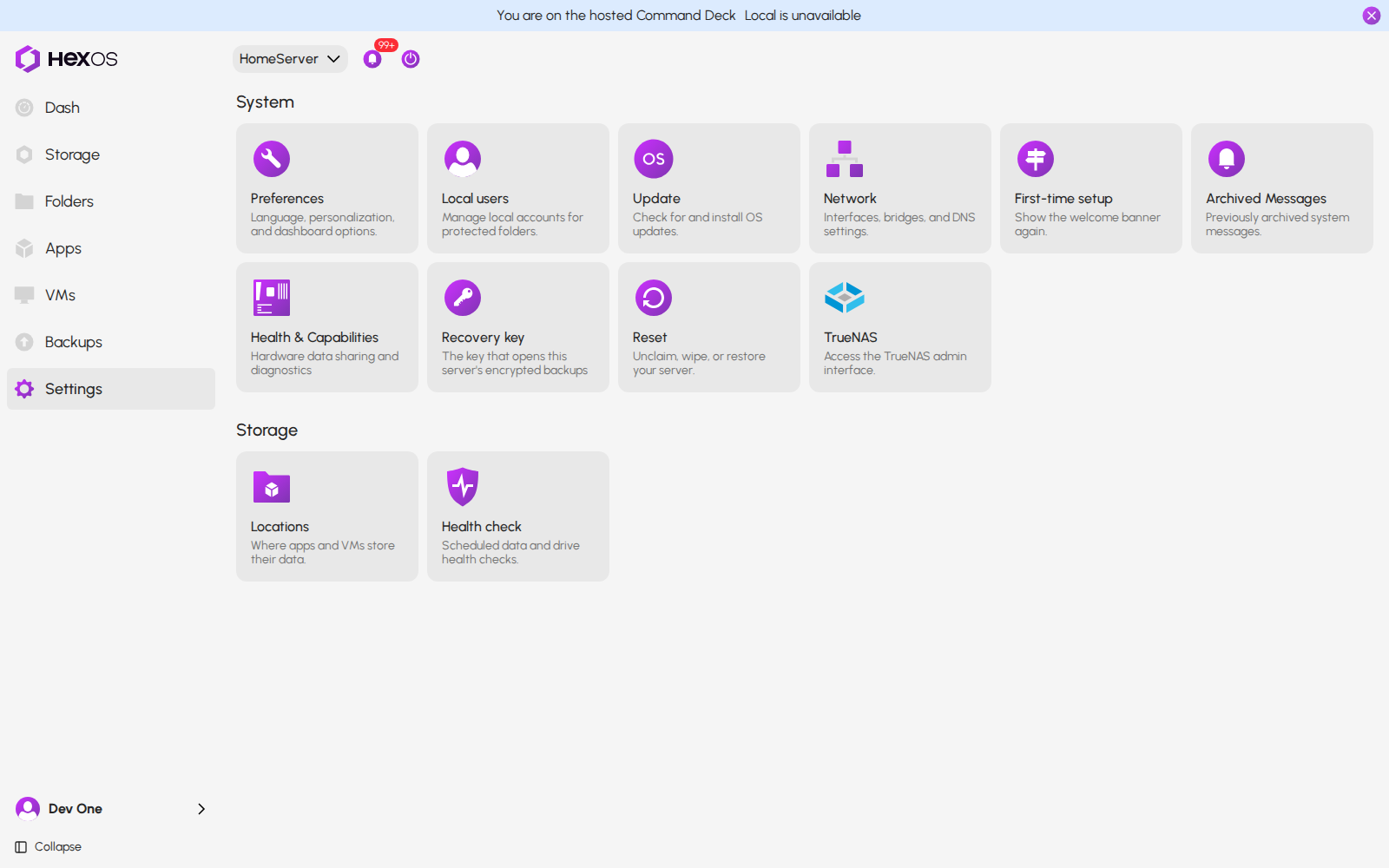
Click Settings. In the System group, click the Health & Capabilities tile.
Health & Capabilities tile in Settings
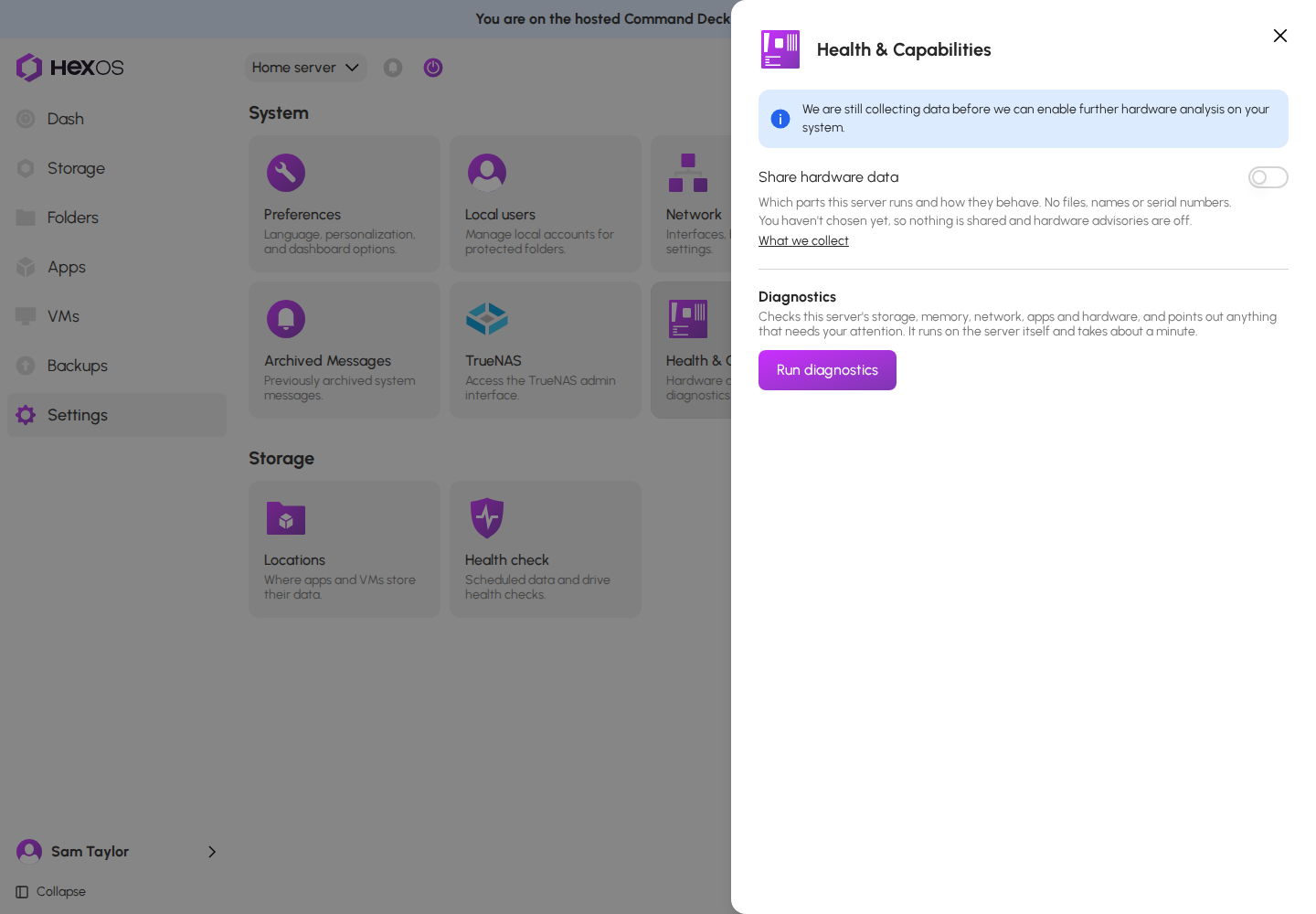
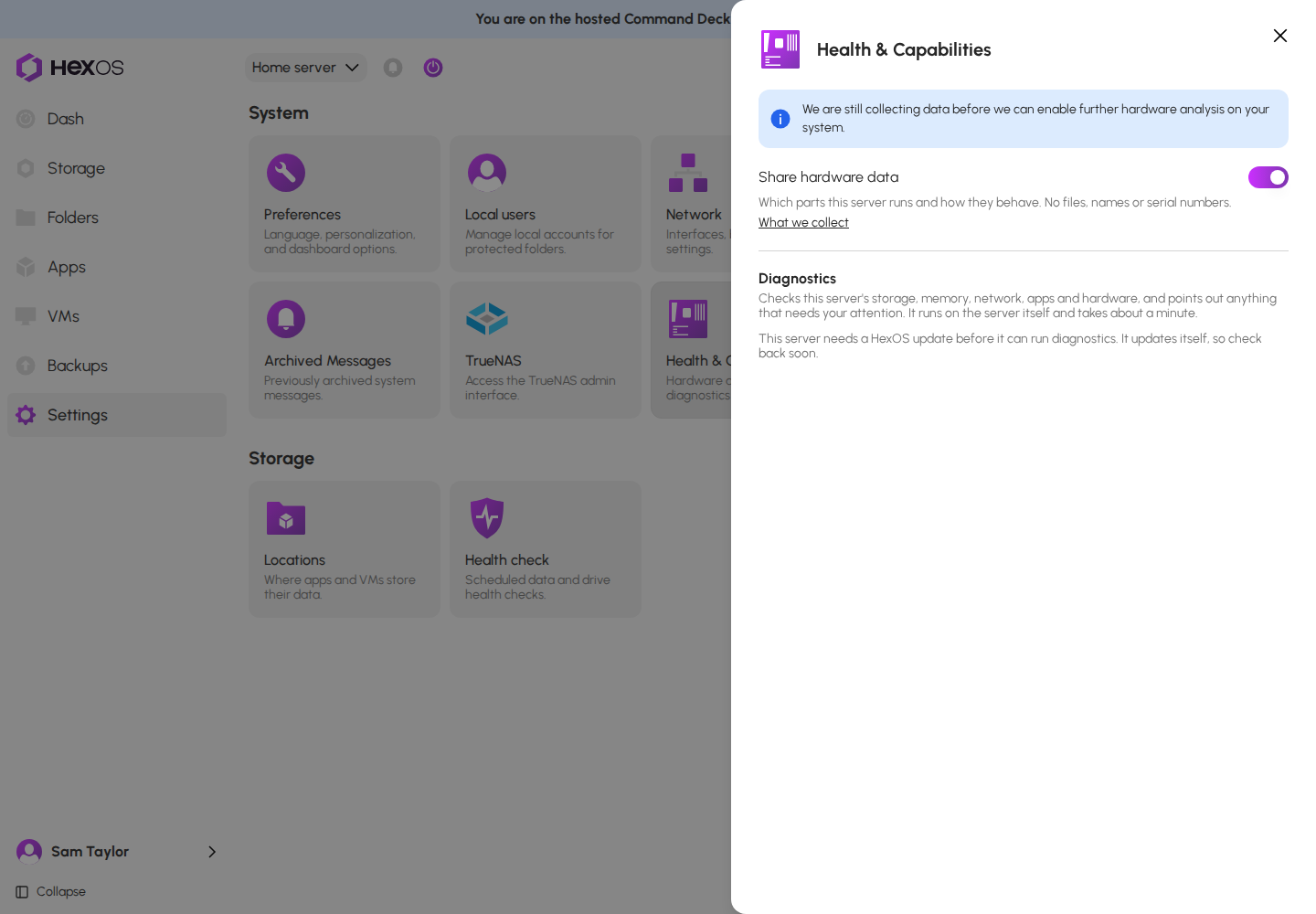
The page starts with a notice: We are still collecting data before we can enable further hardware analysis on your system. Below the notice are the Share hardware data switch and Diagnostics.
Health & Capabilities page before you choose
¶ Hardware data sharing
The Share hardware data switch decides whether this server sends HexOS a daily report about its hardware. What we collect lists everything in the report.
- Nothing is sent until you choose to share, in the Meet the Hardware Advisor window or with the switch.
- The choice is for one server. If you own several servers, each one has its own switch.
- Only the server's owner can change it.
What sharing gives you:
- Hardware advisories in your diagnostics report. These are known problems with parts like yours, with what to do about them. With sharing off, this server gets no hardware advisories.
- Your reports help HexOS learn which hardware causes trouble with TrueNAS. HexOS runs on top of TrueNAS.
Diagnostics works with sharing on or off. Only the Hardware advisories part of the report needs sharing.
¶ When HexOS asks
HexOS asks once for each server, in a window named Meet the Hardware Advisor. The window opens when you open the server in the Command Deck, after the First Flight guide is closed. It has two choices, and Let HexOS monitor my hardware is selected when the window opens.
Meet the Hardware Advisor window
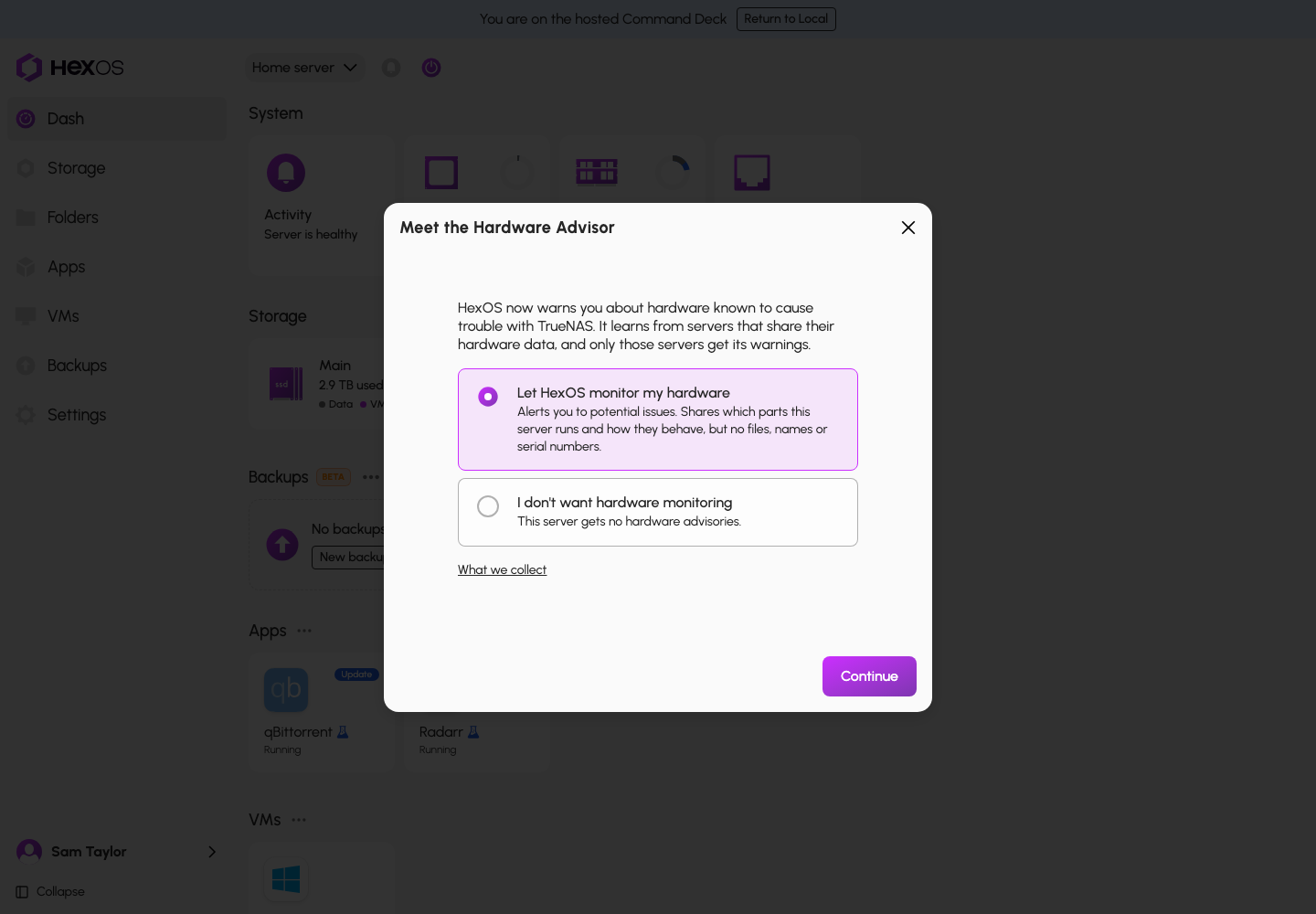
To share, click Continue. HexOS saves that you chose to share, and the window does not open again for this server.
To keep sharing off, click I don't want hardware monitoring, then click Continue. HexOS saves that you chose not to share, and the window does not open again for this server.
Meet the Hardware Advisor window, no monitoring
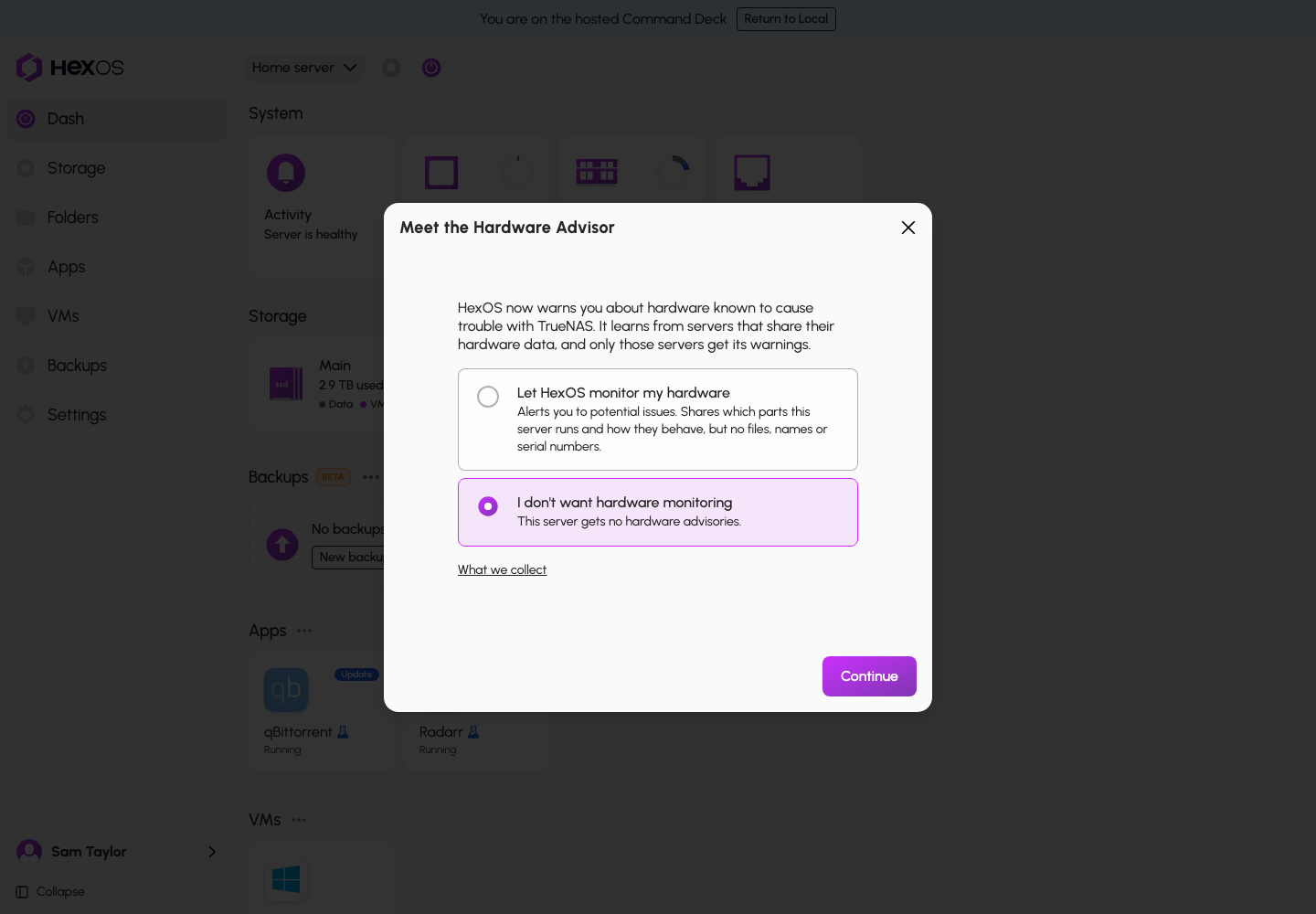
If you close the window without clicking Continue, nothing is saved. The window opens again the next time you open HexOS in a new browser tab.
Info: The window says that HexOS warns you about hardware known to cause trouble with TrueNAS. For now, those warnings appear only in your diagnostics report. The dashboard does not show them.
You can change your choice at any time in Settings > Health & Capabilities.
¶ Turn sharing on or off
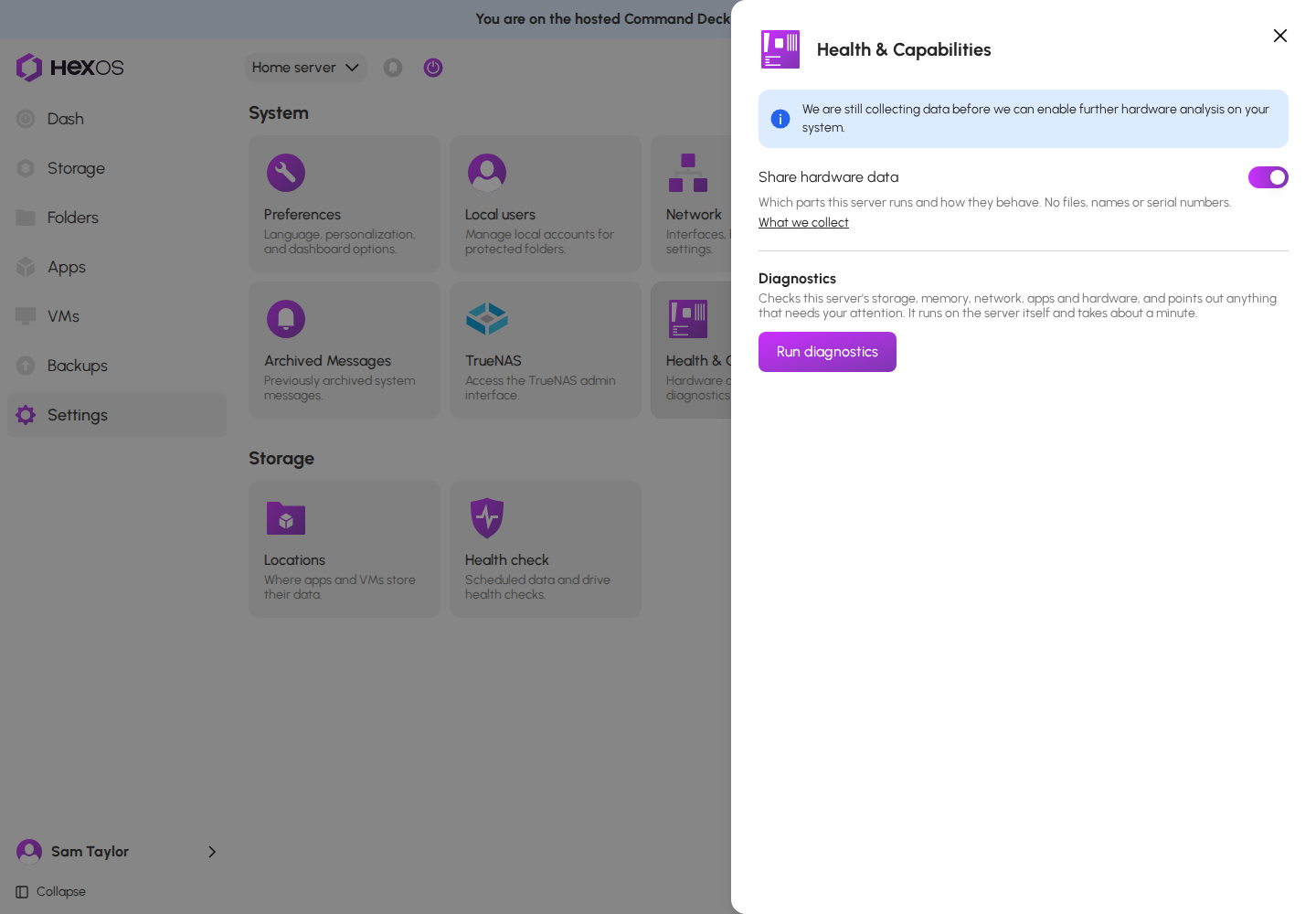
Open Settings > Health & Capabilities and click the Share hardware data switch. The change saves at once. There is no button to click.
Sharing on
With the switch off, the page shows With sharing off, this server gets no hardware advisories.
Sharing off
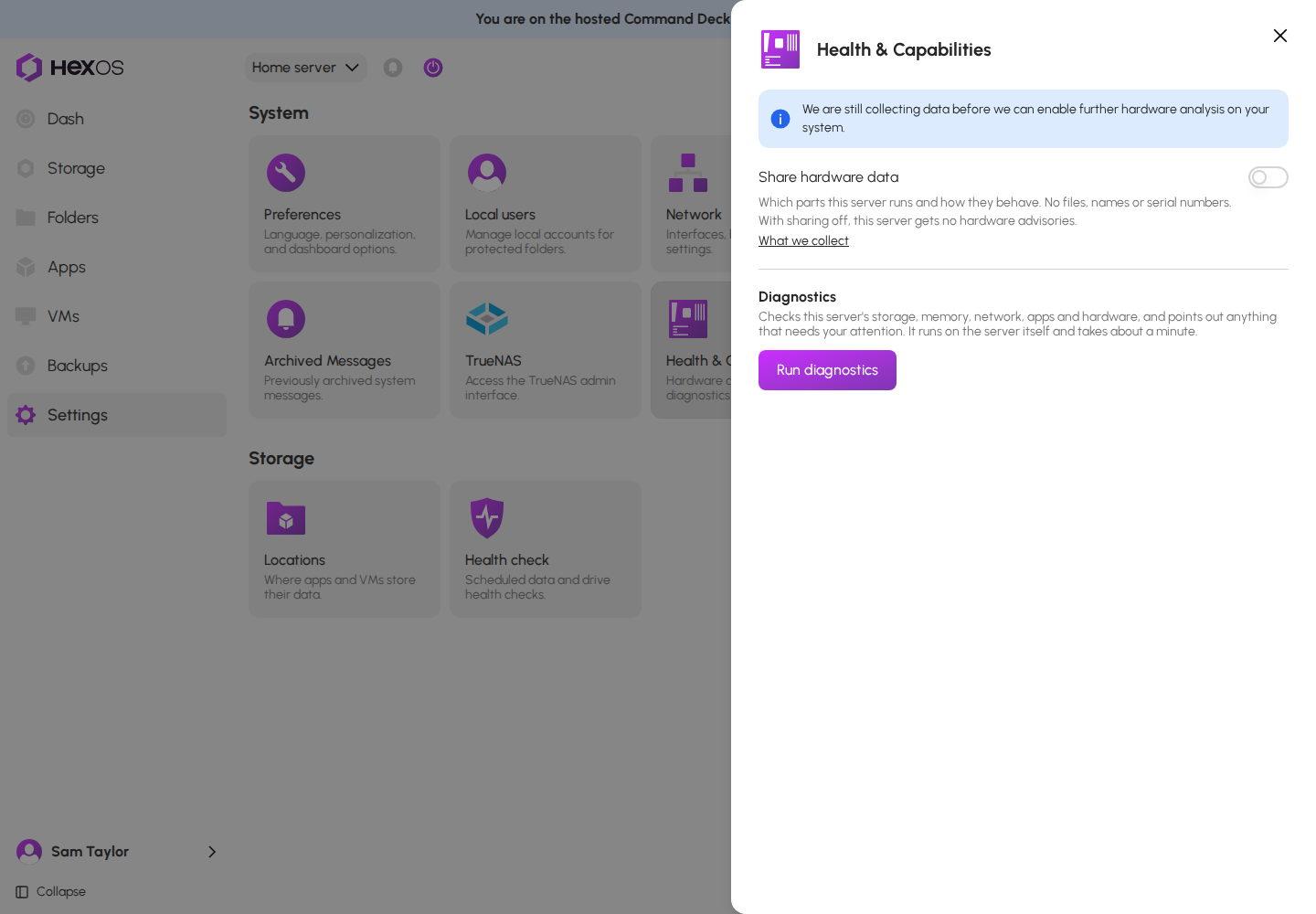
If you have never made a choice for this server, the switch is off and the page shows You haven't chosen yet, so nothing is shared and hardware advisories are off.
Tip: Share drive statistics in Settings > Preferences > Advanced settings is a separate switch with its own data. Turning one switch on or off does not change the other. See Drive Certification.
¶ What we collect
The What we collect link next to the switch opens this page. A report is sent only while sharing is on for that server, and it counts only what happened after you last turned sharing on. It contains:
- The parts in your server: the motherboard's maker and model, its BIOS version, the processor model, each network card and its driver name, storage and graphics controllers and their driver names, and any USB dock or enclosure that holds a drive. Each part comes with the hardware ID numbers that tell its make and model apart.
- Drives that match a known issue: the drive's model, and its firmware version when the issue depends on it.
- How those parts behave: counts of trouble signs, such as a network connection dropping, network errors, drive read or write errors, drive timeouts, a drive that disappears, or a restart that HexOS did not start. The report also says how many hours it covers.
- Known issues that match your parts: which known hardware issues match this server, and whether you marked one as fixed.
- Your TrueNAS version and how long the server has been running since it last started.
Drives and network ports are identified by private codes that your server makes, never by a drive's serial number or a network port's name.
Reports are not anonymous. Each report is linked to your server, so HexOS knows which server sent it.
¶ What is never sent
- Your files, or anything in them
- The names of your folders, shares, apps or users
- Passwords or keys
- Drive serial numbers
- Network port names and hardware (MAC) addresses
- The motherboard's serial number or system ID
- Lines from your server's system log
¶ When reports are sent
- Once a day, at night. The report starts at 3:37 a.m. US Central time, and each server waits a different time of up to two hours, so the reports do not all arrive together.
- After you turn sharing on, the server first takes a starting reading on its nightly check and sends nothing. The first report goes out on the night after that and counts only what happened since the starting reading. On a server that logs a lot, this can take a few nights.
- Each later report covers the time since the server's last report, up to the last 7 days.
- The server needs its connection to HexOS. If a night is missed, the next report covers the missed time, up to 7 days.
- HexOS support can ask your server to send its report early. This works only while sharing is on. Right after you turn sharing on, the first early request only takes the starting reading.
- A server sends reports only once it runs a current version of HexOS.
¶ If you turn sharing off
- The server stops sending reports. If you turn sharing back on, reports never include anything from while it was off. Your server keeps its own record for diagnostics.
- What was already sent stays with HexOS. You cannot delete it yourself. To ask HexOS to delete it, email [email protected] and name the server.
- When a server is unclaimed or reset, its choice goes back to not chosen. The next owner is asked again, and nothing is sent until they turn sharing on. Reports never include anything from before the new owner turned sharing on.
¶ Run diagnostics
Diagnostics checks your server's storage, memory, network, apps and hardware, and points out anything that needs your attention. It runs on the server itself and takes about a minute.
- Open Settings > Health & Capabilities.
- Click Run diagnostics. The button reads Running... and shows when the run started.
Diagnostics running
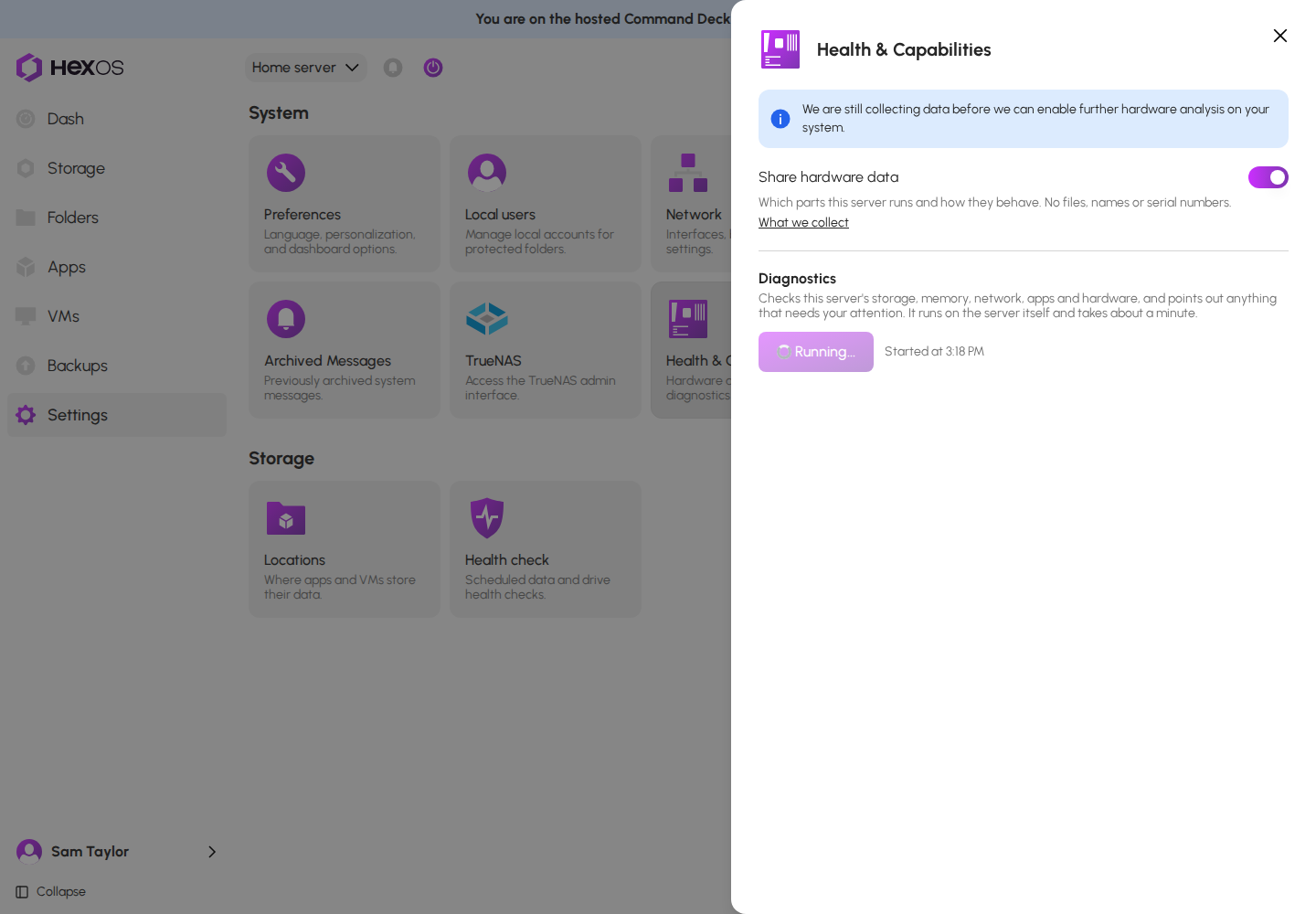
You can leave the page while diagnostics runs. The server keeps the last report, and the page shows it when you come back.
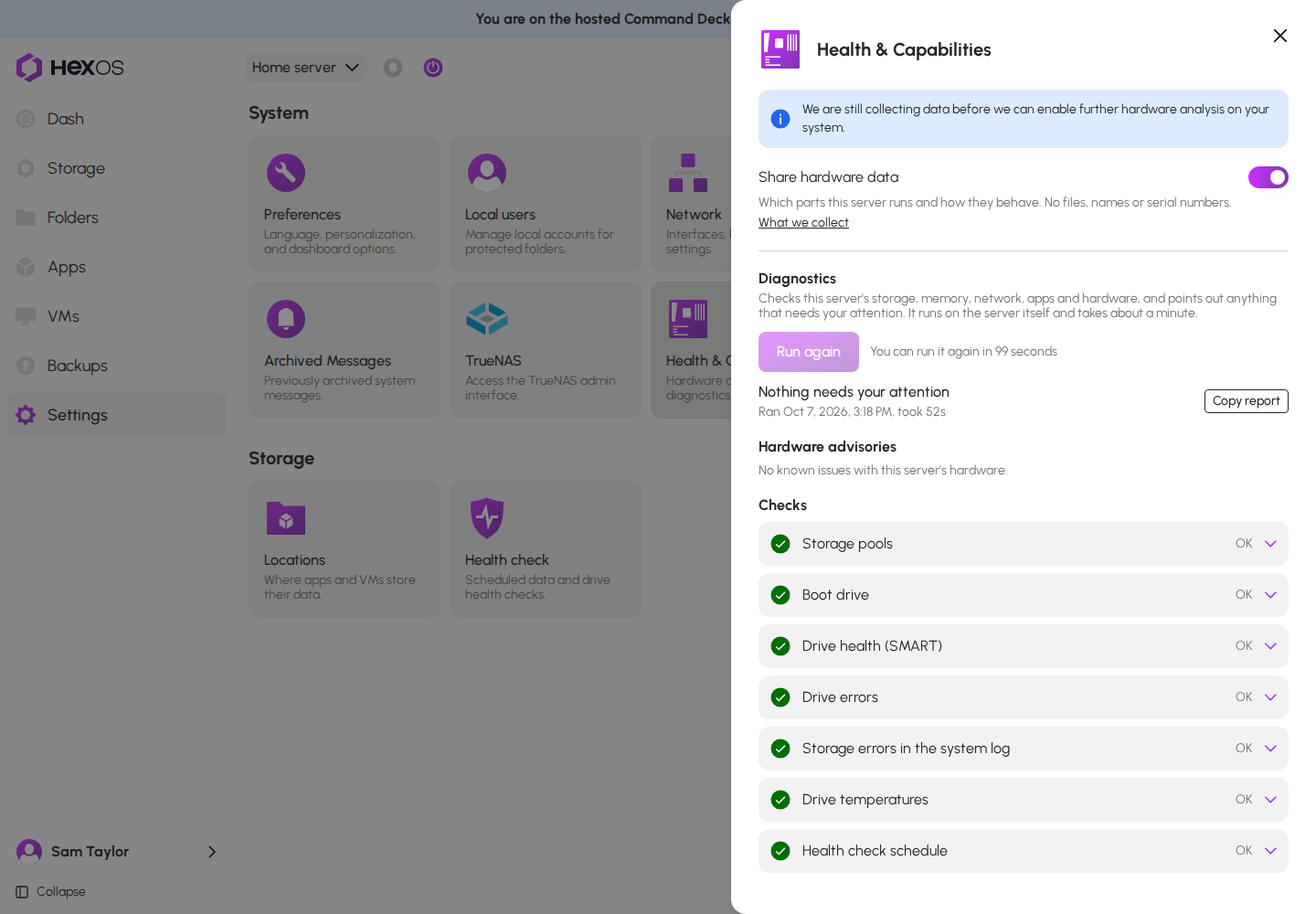
After a run, the button reads Run again. Only one run happens at a time, and you can run it again 2 minutes after the last run. Until then, the page shows how many seconds are left.
Wait before the next run
The report is kept on your server. When you open it in the Command Deck through HexOS, it passes through HexOS on its way to your browser. HexOS records a note that diagnostics ran, who ran it, how long it took, how many findings it had, and whether hardware advisories were on. To check your connection to HexOS, the server also asks HexOS for its side of that check.
¶ Read the report
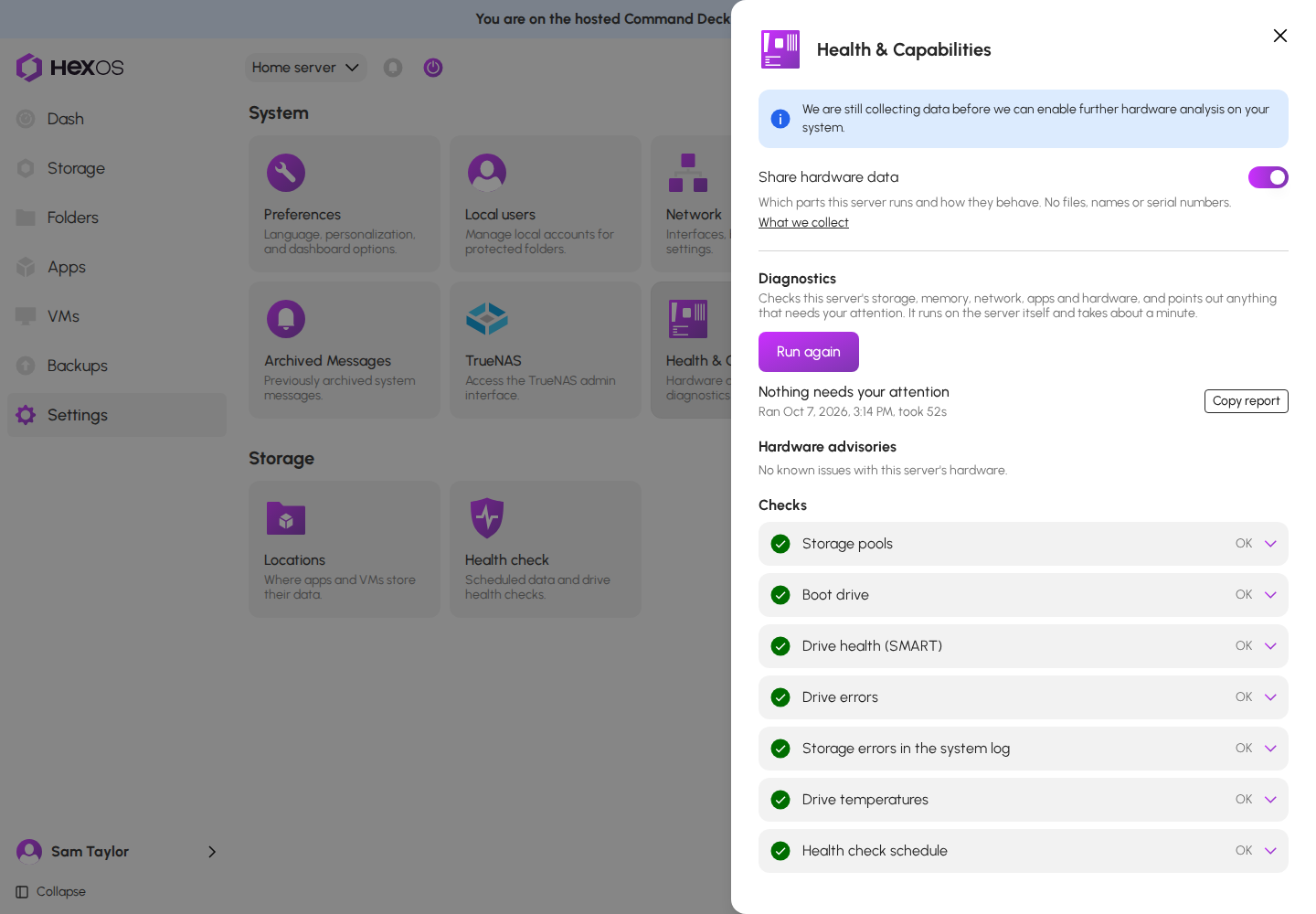
The top of the report says Nothing needs your attention or how many things need your attention, then when it ran and how long it took.
A finished report
¶ Hardware advisories
This part lists known problems with parts like the ones in your server. It shows one of these:
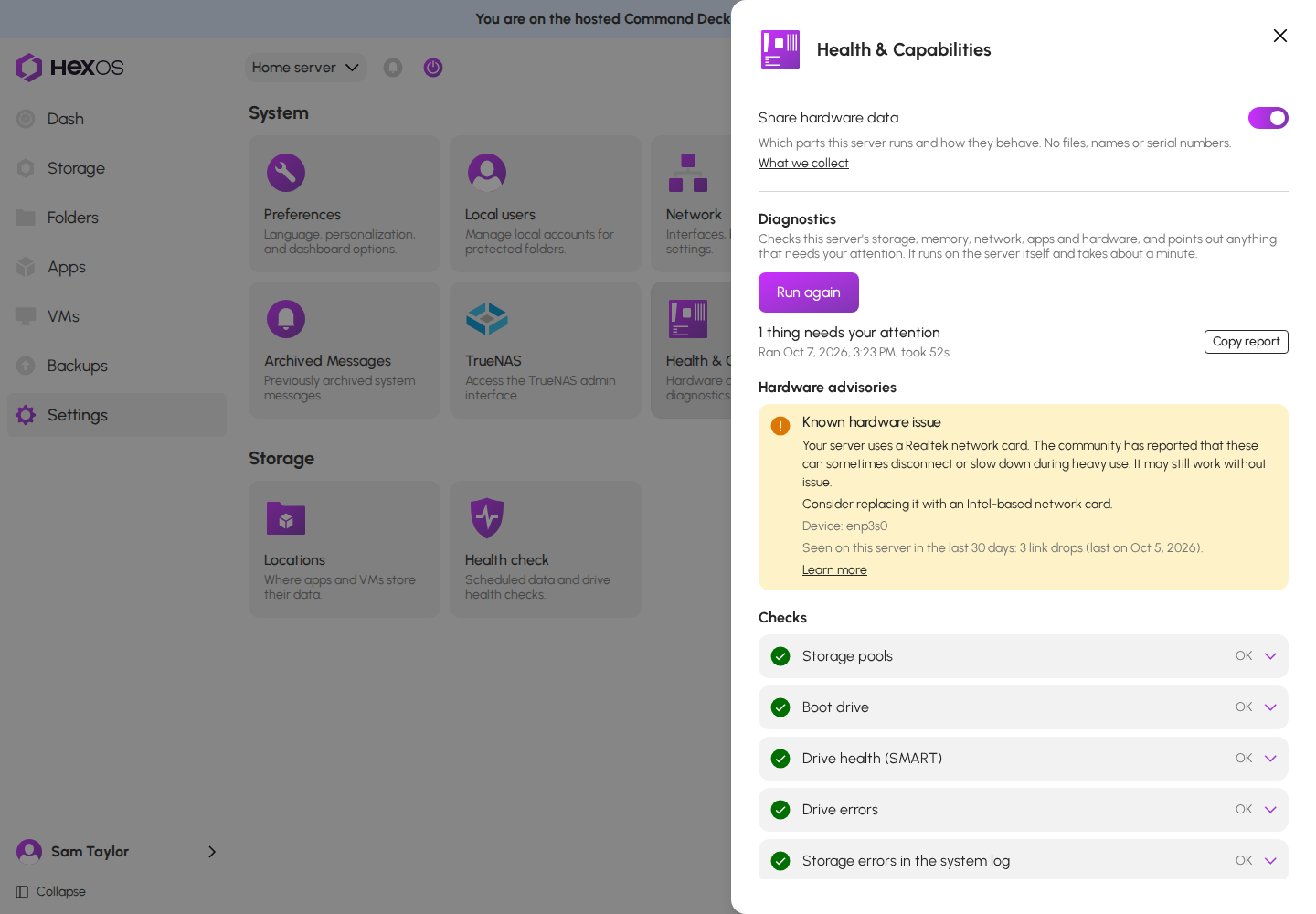
- One entry for each known issue that matches. Each entry says what the problem is and, when there is one, the recommended fix. It names the part after Device:. For a drive, that is its system name and model, such as
sda WDC_WD40EFRX-68N32N0. A report kept from before this update shows Drive. For a network part, it also says what this server has seen. Click Learn more to open a page about the issue. - Known issue, not seen on this server: a network part has a known issue, but this server has not logged that trouble. Most of these entries do not count as things that need your attention.
- No known issues with this server's hardware.
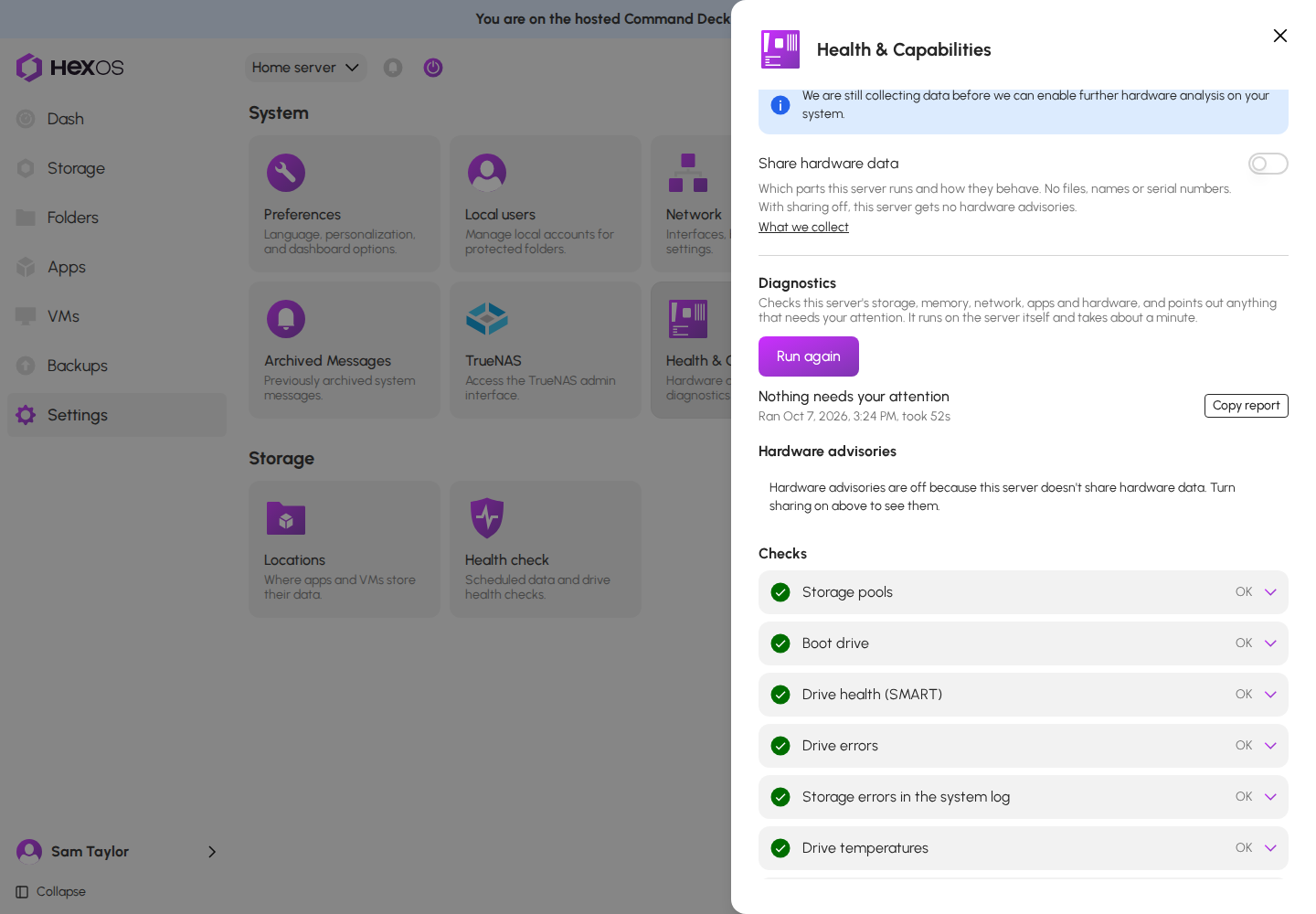
- Hardware advisories are off because this server doesn't share hardware data. Turn sharing on above to see them. The page keeps showing this until a new run. After you turn sharing on, click Run again.
- This server hasn't compared its hardware with the known issues yet. Try again in a few minutes. This can show shortly after the server starts, or when the server has not reached HexOS since it started. Run diagnostics again a few minutes later.
A hardware advisory
Hardware advisories with sharing off
¶ Checks
Each check has a result: OK, Needs attention, Note, Couldn't check or Skipped. Click a check to see Technical details, which shows what the check found.
A check that needs attention
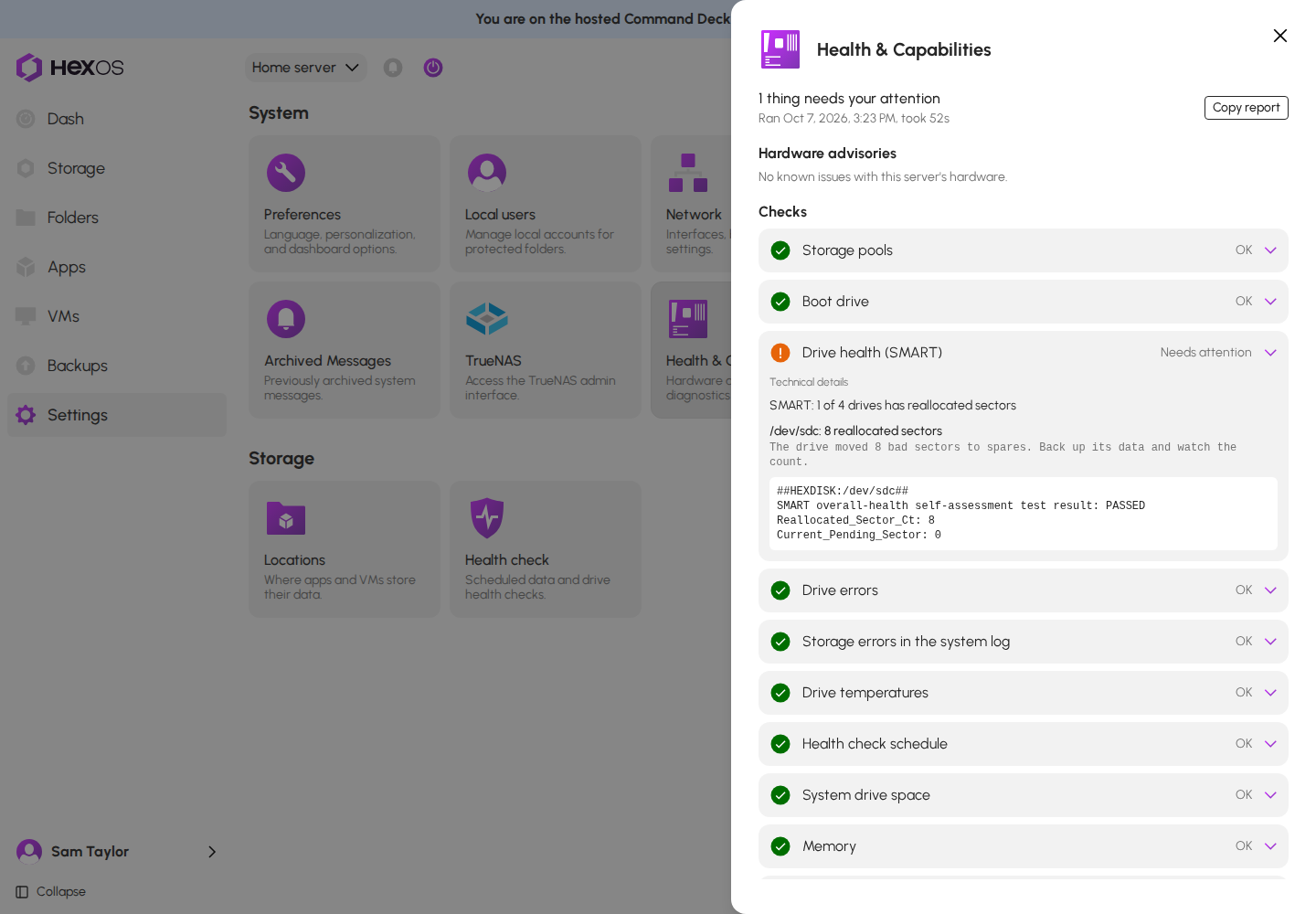
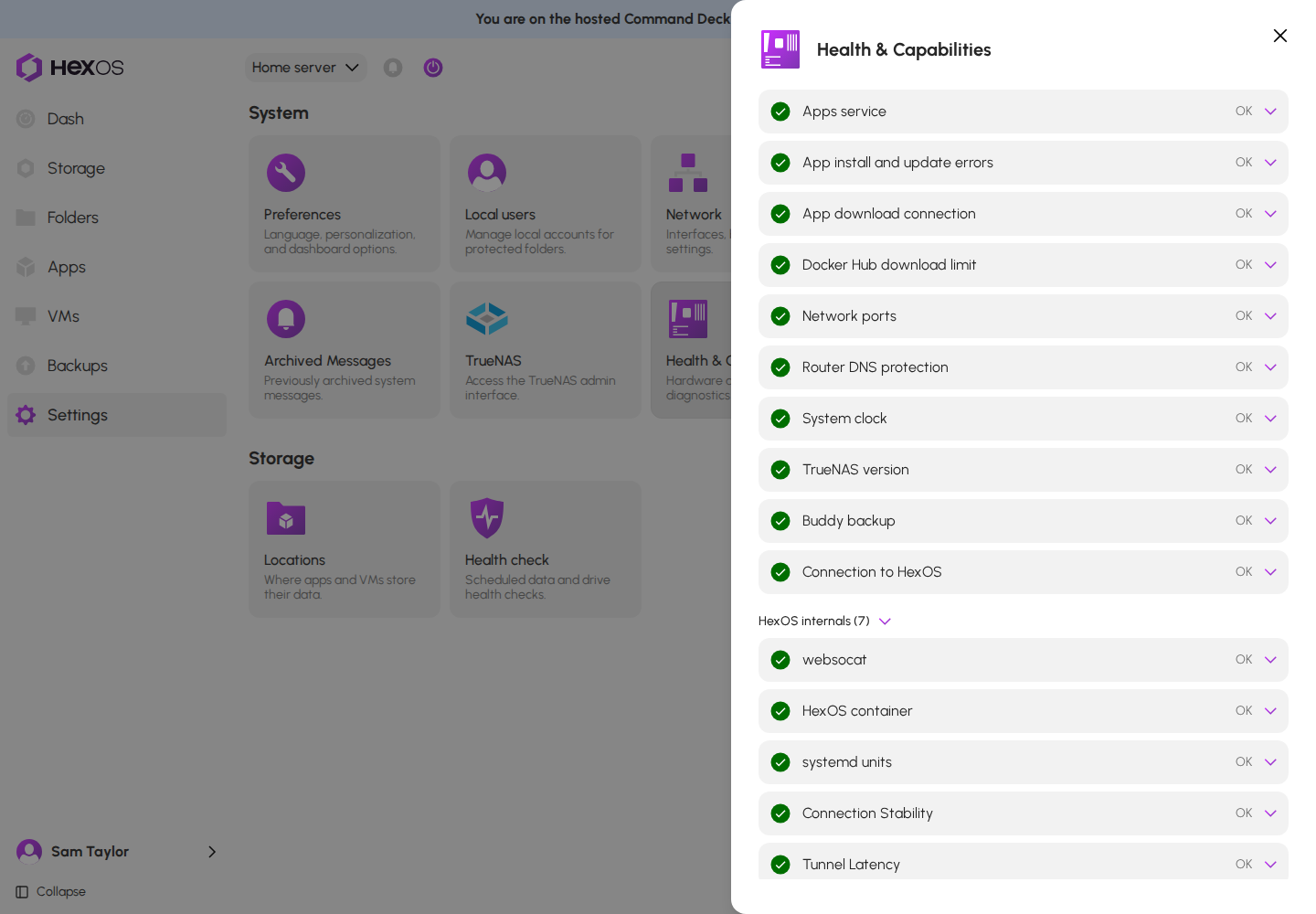
The checks are: Storage pools, Boot drive, Drive health (SMART), Drive errors, Storage errors in the system log, Drive temperatures, Health check schedule, System drive space, Memory, Out-of-memory events, Memory test, TrueNAS alerts, Failed TrueNAS jobs, Apps service, App install and update errors, App download connection, Docker Hub download limit, Network ports, Router DNS protection, System clock, TrueNAS version, Buddy backup and Connection to HexOS.
If your server has lost its connection to HexOS, Connection to HexOS says so. Checks that need HexOS, such as Buddy backup, show Skipped. The other checks still run. See Connection troubleshooting.
¶ HexOS internals
Under the checks, click HexOS internals to see checks of the parts of HexOS that run on your server. They are mostly useful to HexOS support.
HexOS internals
¶ Copy the report for support
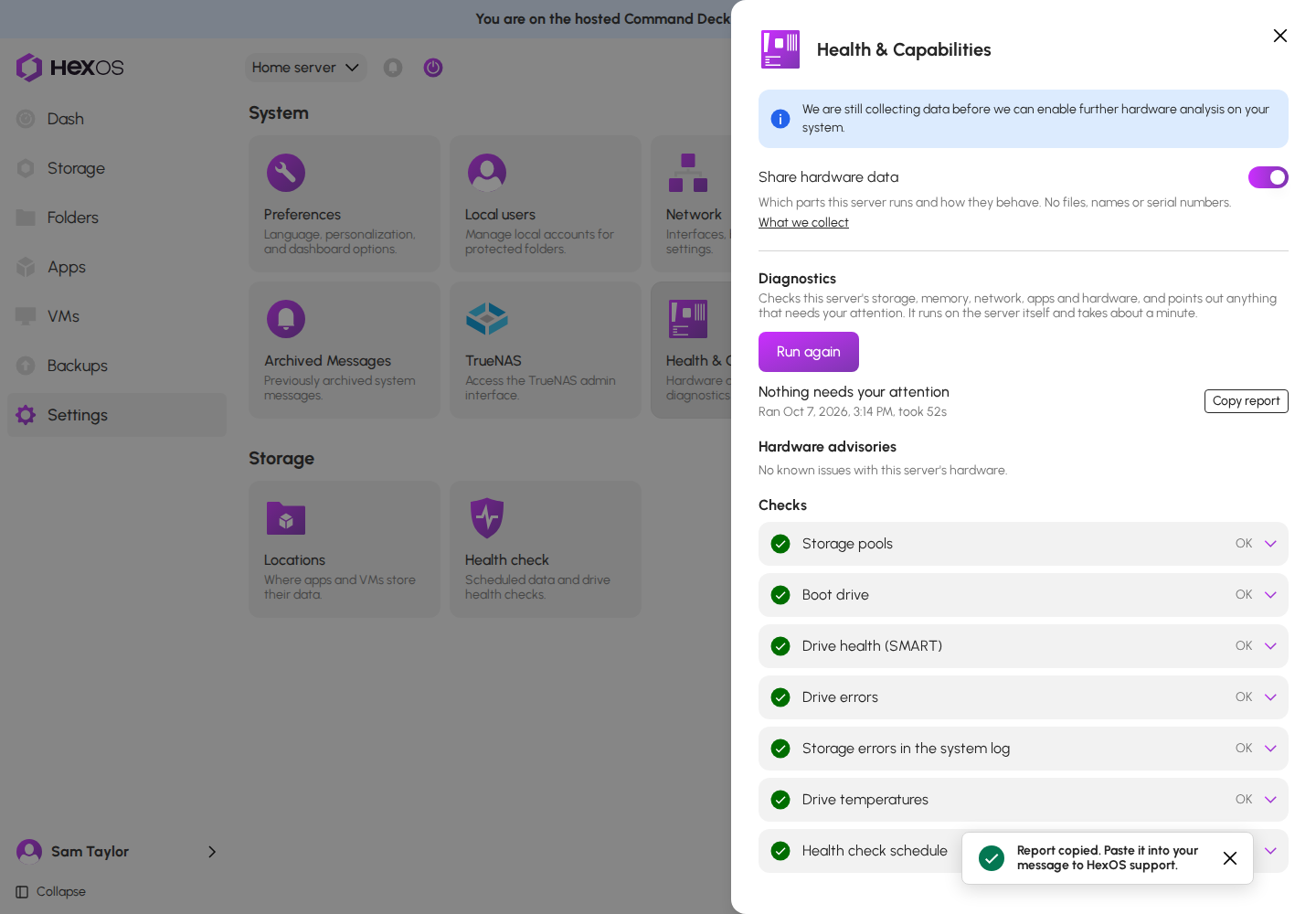
Click Copy report. The whole report, HexOS internals included, is copied as text, and HexOS shows Report copied. Paste it into your message to HexOS support. Paste it into an email to [email protected].
Warning: The copied report includes details about your server, such as your server's ID, pool names and IP addresses. TrueNAS alerts in it can also include drive serial numbers. Send it only to HexOS support by email. Do not paste it in a public place such as Discord.
Report copied
¶ If something goes wrong
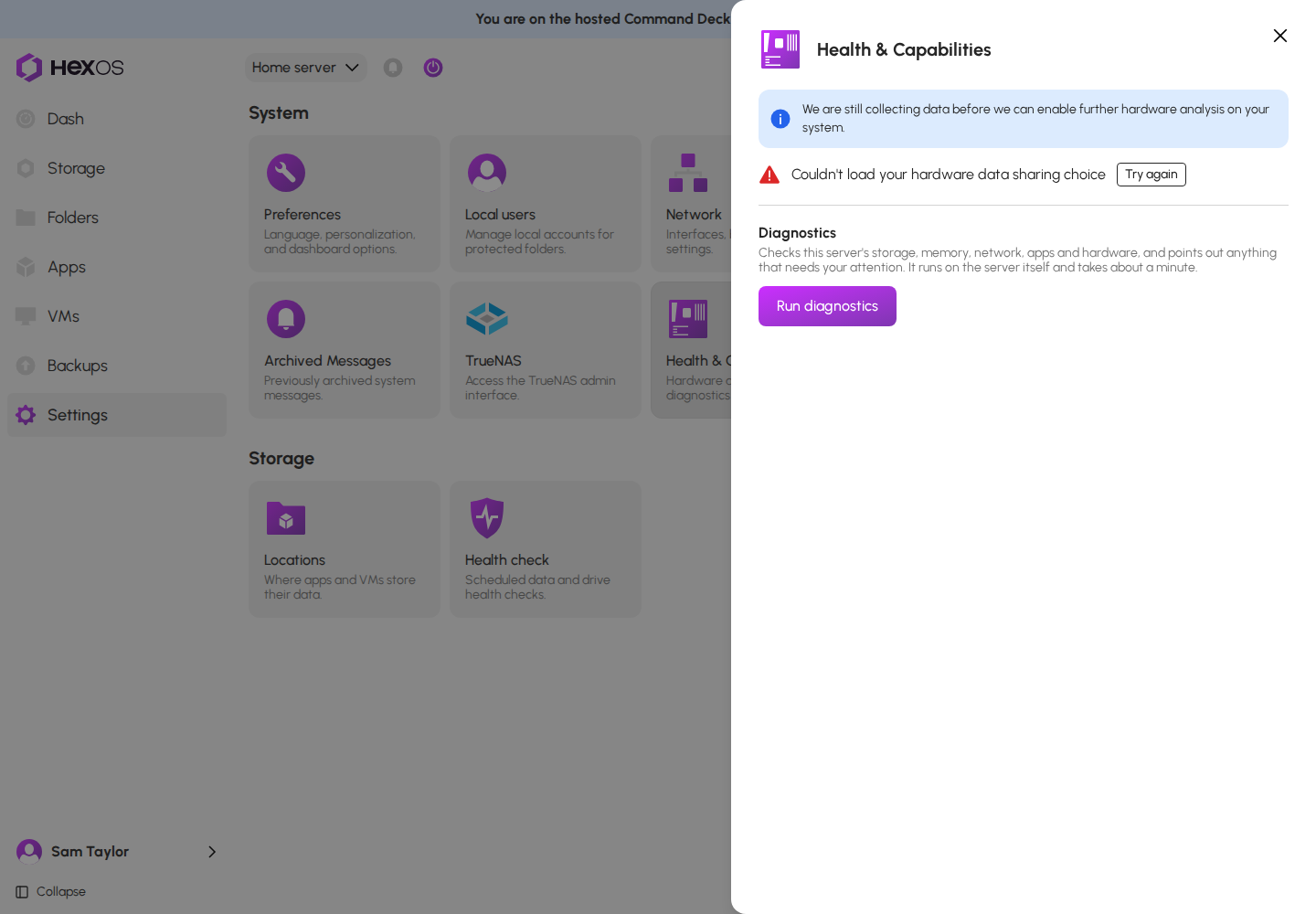
Couldn't load your hardware data sharing choice: the page could not read your choice. Click Try again.
Sharing choice did not load
Couldn't update hardware statistics sharing: your change to the Share hardware data switch was not saved. The message refers to the same switch. Wait a moment and click the switch again. In the Meet the Hardware Advisor window, the window stays open so you can click Continue again.
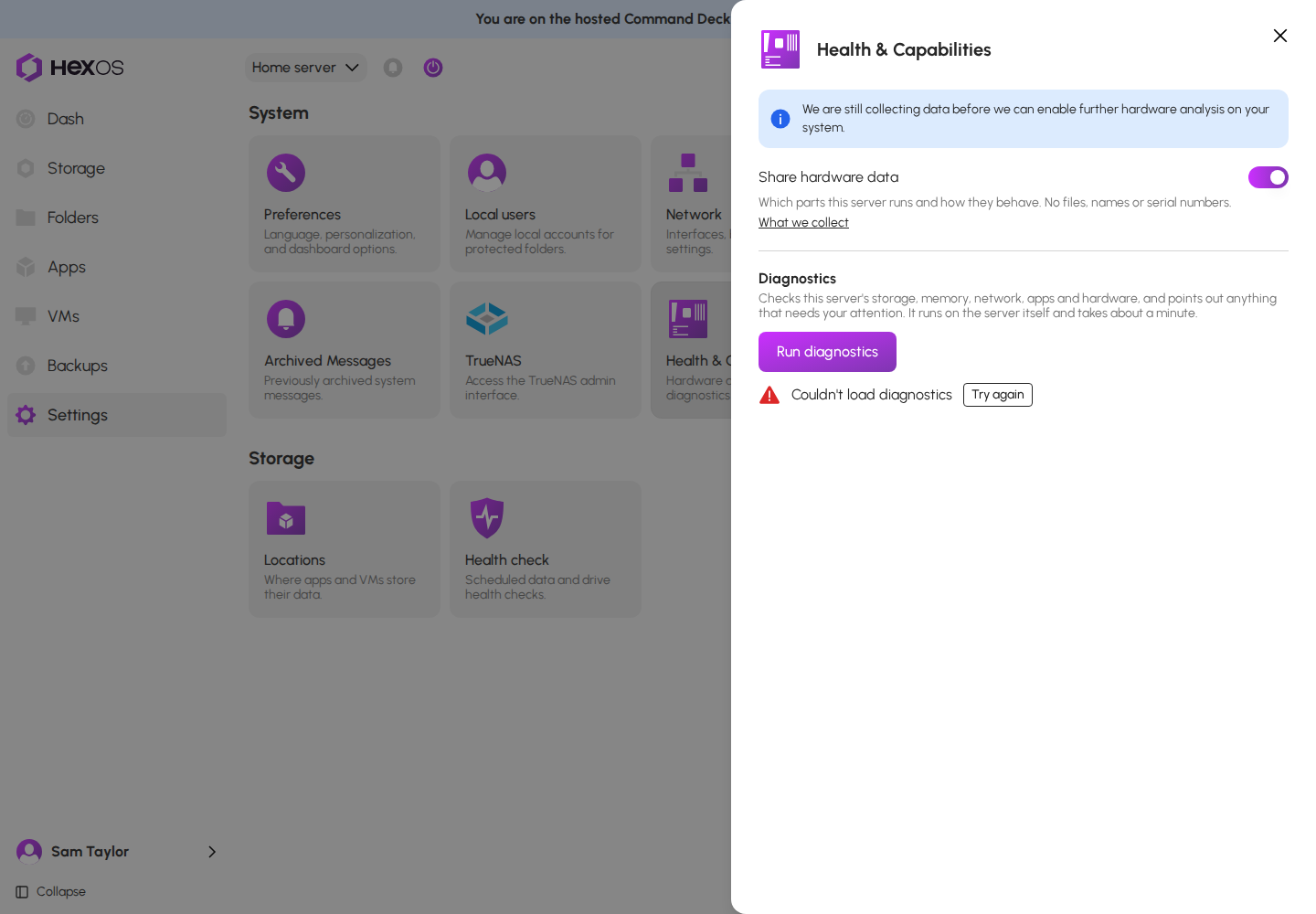
Couldn't load diagnostics: click Try again.
Diagnostics did not load
Couldn't start diagnostics: the run did not start. Wait a moment and click Run diagnostics again.
If the page says This server needs a HexOS update before it can run diagnostics. It updates itself, so check back soon., there is nothing for you to do. Come back later and run diagnostics.
Server needs an update
Help: Still stuck? Click Copy report and email it to [email protected]. You can also describe the problem in the HexOS Discord Community, without pasting the report.
¶ Known issues
These are problems we know about. Each one says what to do for now.
- The Meet the Hardware Advisor window keeps coming back. It opens again in each new browser tab until you click Continue, and it asks once for each server you own. What to do: pick one of the two choices and click Continue. Your choice is saved and the window stops opening for that server.
- Hardware warnings show only in diagnostics. The window talks about HexOS warning you about hardware, but the dashboard does not show these warnings yet. What to do: run diagnostics and read Hardware advisories.
- You cannot mark a hardware advisory as fixed. When HexOS cannot detect a fix on its own, the warning stays in the report after you apply the fix and still counts as a thing that needs your attention. One example is the BIOS setting for Ryzen idle freezes. What to do: if you have applied the fix that the Learn more page describes, you can ignore that entry.
¶ Frequently asked questions
Do I have to share hardware data to use HexOS?
No. Sharing is your choice, and nothing is sent until you make it. To say no in the Meet the Hardware Advisor window, click I don't want hardware monitoring before you click Continue. Diagnostics works without sharing. Only Hardware advisories in the diagnostics report need sharing.
Is the data anonymous?
No. Each report is linked to the server that sent it. Drives and network ports are identified by private codes, not by serial numbers or names, and no files, passwords or system log lines are sent. See What we collect.
Can I see what my server sent?
No. HexOS does not show the reports in the app. What we collect lists everything a report contains.
How do I delete what was already sent?
You cannot delete it yourself. Email [email protected] and name the server.
I own several servers. Do I choose once?
No. The choice is for one server. HexOS asks once for each server, and each server has its own switch in Settings > Health & Capabilities.
I sold or gave away my server. Does my choice go with it?
No. When the server is unclaimed or reset, its choice goes back to not chosen. The next owner is asked again.
Does diagnostics fix problems?
No. Diagnostics points out what needs your attention. Each finding and each Learn more page says what to do.