¶ UEFI boot mode
HexOS works best when your server starts in UEFI mode. This page explains what that means, why it matters, how HexOS tells you when your server is not in UEFI mode, and how to fix it.
¶ What UEFI and legacy mode are
When you turn on a server, the motherboard's firmware starts first. The firmware is the built-in program you see before HexOS loads. People often call it the BIOS. It finds the drive that holds HexOS and starts it.
The firmware can start a drive in one of two ways:
- UEFI mode is the modern way. Almost every motherboard made in the last ten years supports it.
- Legacy mode, also called BIOS mode or CSM, is the older way. Motherboards keep it so old operating systems still work.
The way your server started when you installed HexOS is the way it keeps starting. If the HexOS USB drive was started in legacy mode during installation, HexOS was installed in legacy mode.
Info: Using HexOS Imager or another tool to write the USB drive does not decide the mode. The HexOS USB drive can start either way. The firmware's choice when you start the USB drive decides it.
¶ Why HexOS needs UEFI
Some HexOS features need UEFI mode. Today, the main one is the memory test.
The memory test checks your server's memory (RAM) for errors. To run it, HexOS restarts your server into a separate memory tester called Memtest86+. HexOS asks the firmware to start the memory tester once, on the next restart only. After the test, the server starts HexOS again on its own and HexOS shows the result.
Only UEFI firmware lets HexOS ask for that one-time start. In legacy mode there is no safe way to do it, so the memory test cannot run. Features that HexOS adds later may need UEFI too. This is why HexOS asks you to fix it early, before you store anything on the server.
¶ How HexOS tells you
¶ During setup
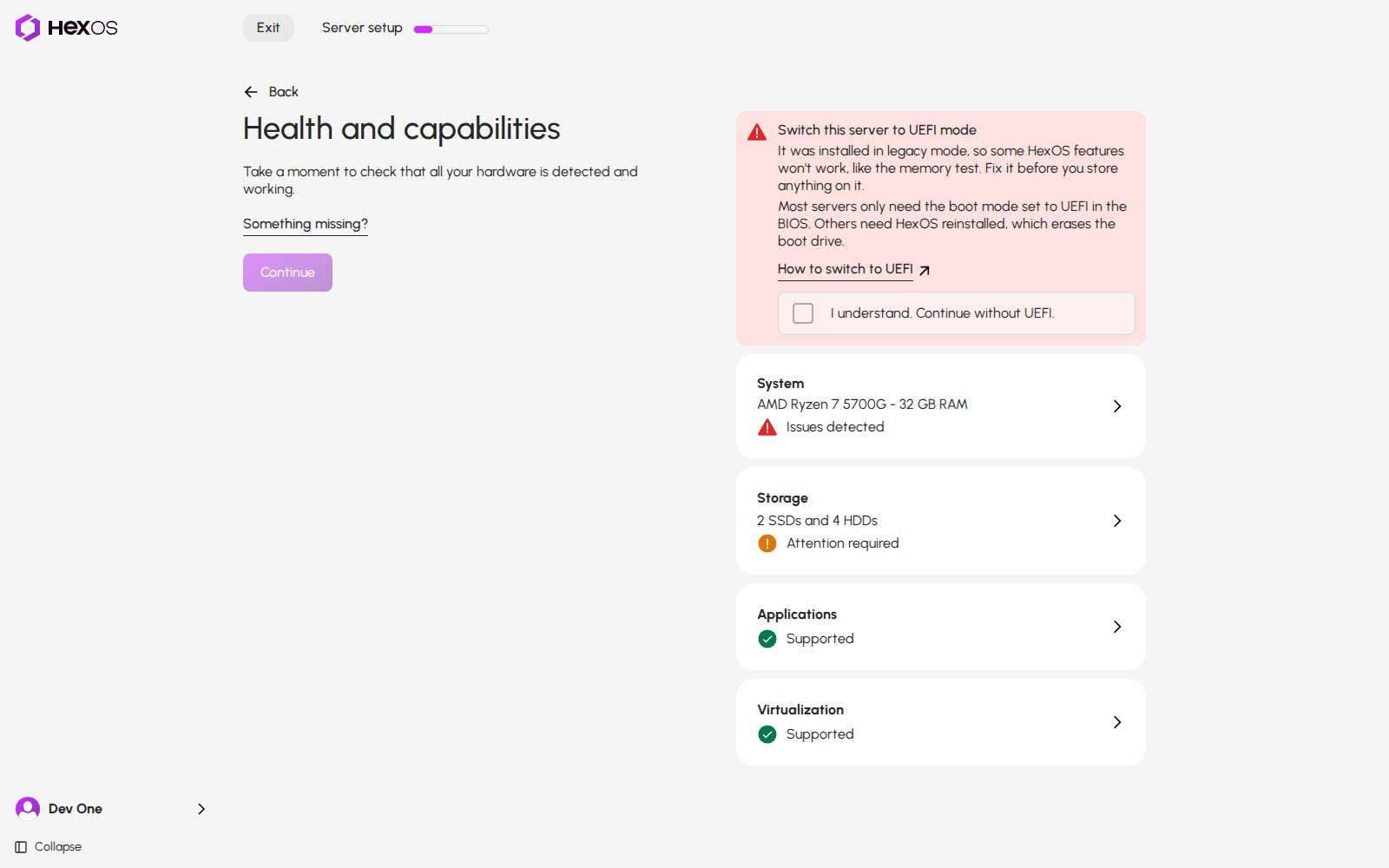
On the Health and capabilities screen, HexOS checks how your server started. If it started in legacy mode, you see a red message: Switch this server to UEFI mode. The System card shows Issues detected.
If HexOS has already tested your model of motherboard, the message says which fix worked on it: switching the setting, or reinstalling. Click How to switch to UEFI in the message to open this page in a new tab.
Switch this server to UEFI mode message
Message for a motherboard HexOS has tested
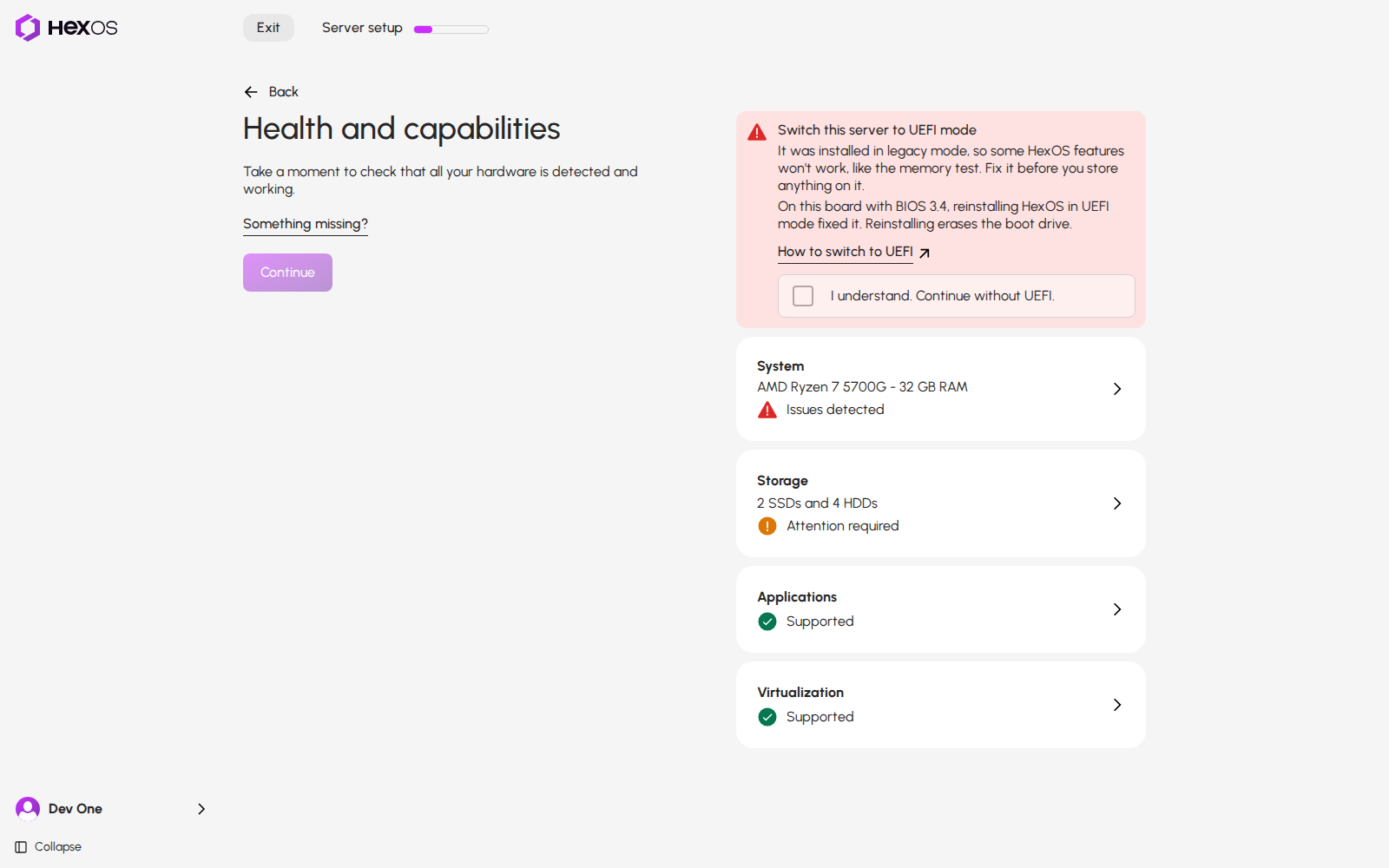
Continue stays off until you choose what to do. Fix the boot mode with the steps below, or click I understand. Continue without UEFI. to keep going without it.
¶ When you test memory
Test memory is on the Memory info panel. If you click Test memory on a server installed in legacy mode, HexOS shows The memory test can't run on this server and the Start button stays off. You can still test the memory with a Memtest86+ USB drive. The message links to memtest.org, where you can download it, and to this page through How to switch to UEFI.
The memory test can't run on this server
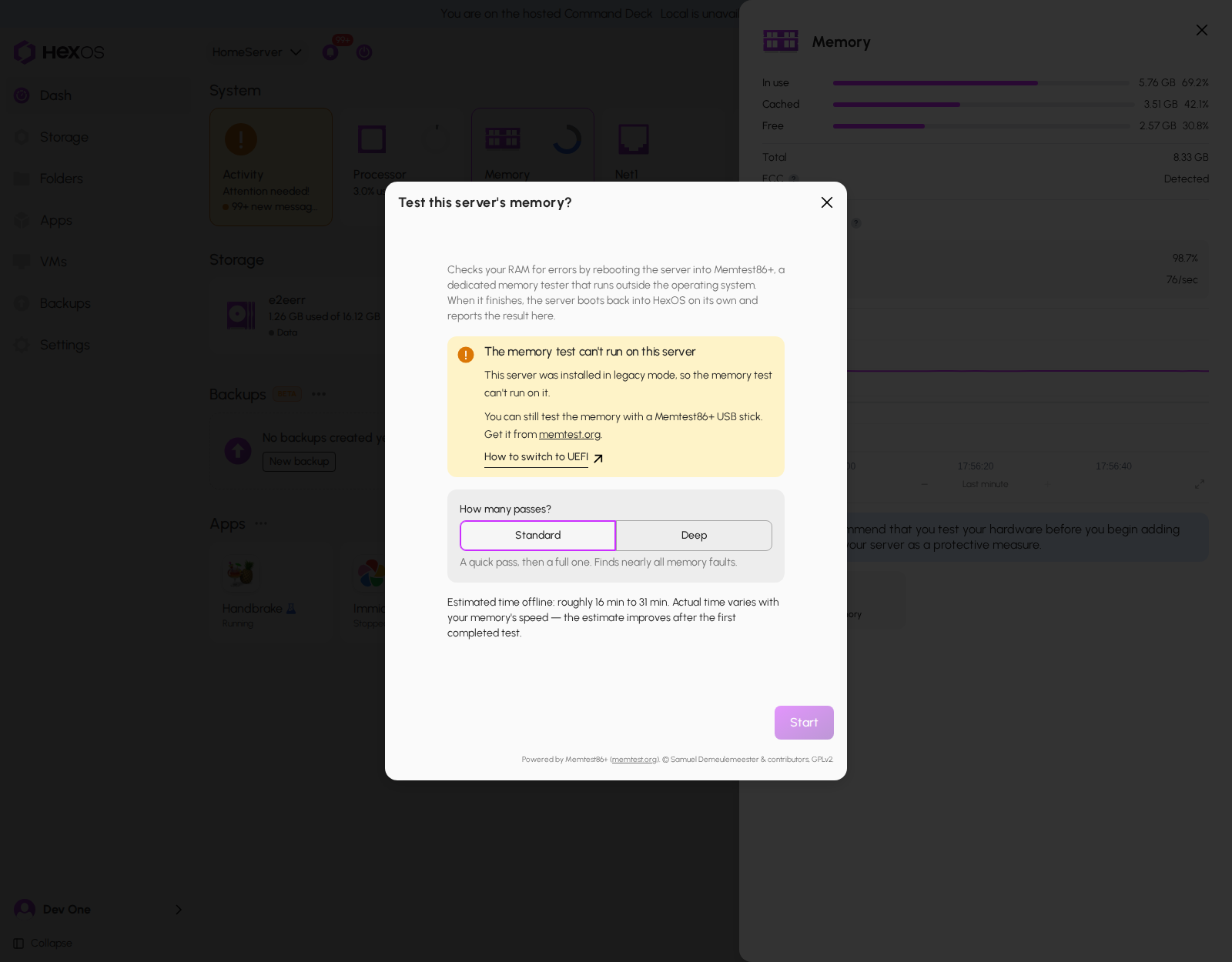
¶ Fix it
There are two ways to fix it. Try the first one before the second.
- Switch the setting. On many servers, changing the boot mode setting to UEFI is enough. This changes nothing on your drives.
- Reinstall HexOS in UEFI mode. Some motherboards cannot start a legacy install in UEFI mode. On those, reinstall HexOS with the USB drive started in UEFI mode.
Requirement: You need a display and a keyboard connected to your server for both fixes.
¶ Fix 1: switch the boot mode setting
¶ 1. Open the BIOS
Restart your server. While the motherboard logo shows, press the key that opens the BIOS several times. It is usually Del or F2. Your motherboard's manual lists the key.
¶ 2. Find the boot mode setting
The setting is usually on the Boot tab. Motherboards call it different names. Look for one of these:
| Setting name | Set it to |
|---|---|
| Boot Mode Select or Boot Mode | UEFI (sometimes UEFI only) |
| CSM Support or Launch CSM | Disabled |
If the boot mode setting offers LEGACY, UEFI and DUAL (or LEGACY+UEFI), choose UEFI.
Write down how the setting looks now, before you change it. You need this if you have to change it back.
Tip: If you cannot see a CSM setting, turn off Fast Boot first. On some motherboards the CSM setting only shows after that.
Example boot mode setting
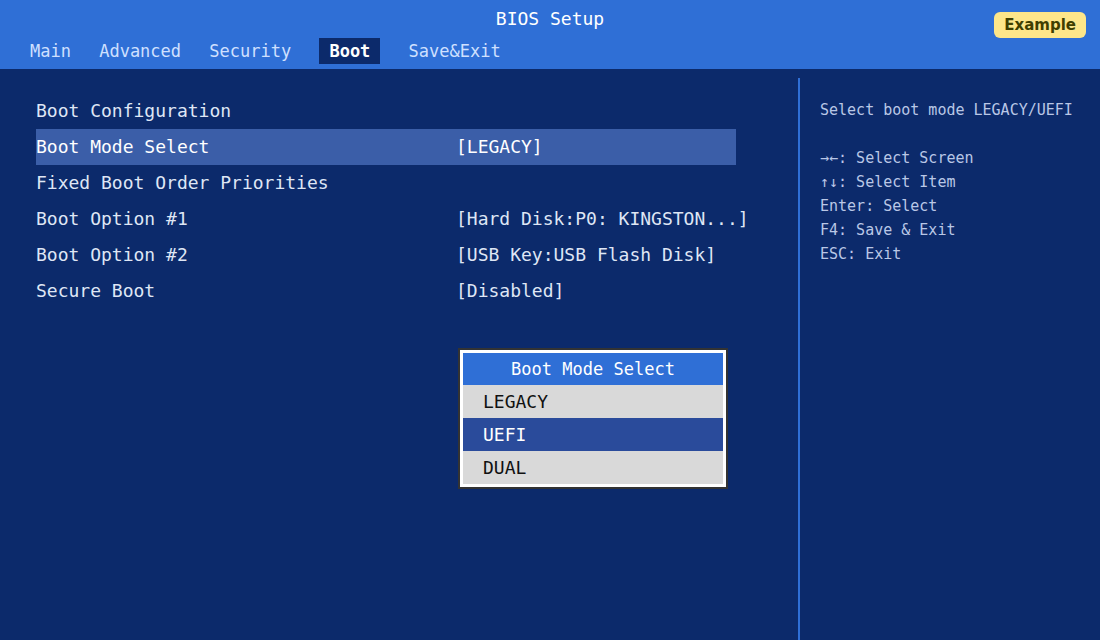
The picture is an example. Every BIOS looks a little different.
¶ 3. Leave Secure Boot off
If you see a Secure Boot setting, leave it Disabled. HexOS does not start when Secure Boot is on.
¶ 4. Save and restart
Save your changes and exit. This is often F10 or F4, and the BIOS asks you to confirm.
¶ 5. Check what happens
- HexOS starts as usual. The switch worked. Go to Check that it worked at the end of this page.
- The server stops at a black screen with
Shell>, or says no boot device was found. This motherboard cannot start this install in UEFI mode. Nothing is broken. Open the BIOS again, set the boot mode back to how you wrote it down, save and restart. HexOS starts as before. Then use Fix 2.
Example UEFI shell screen
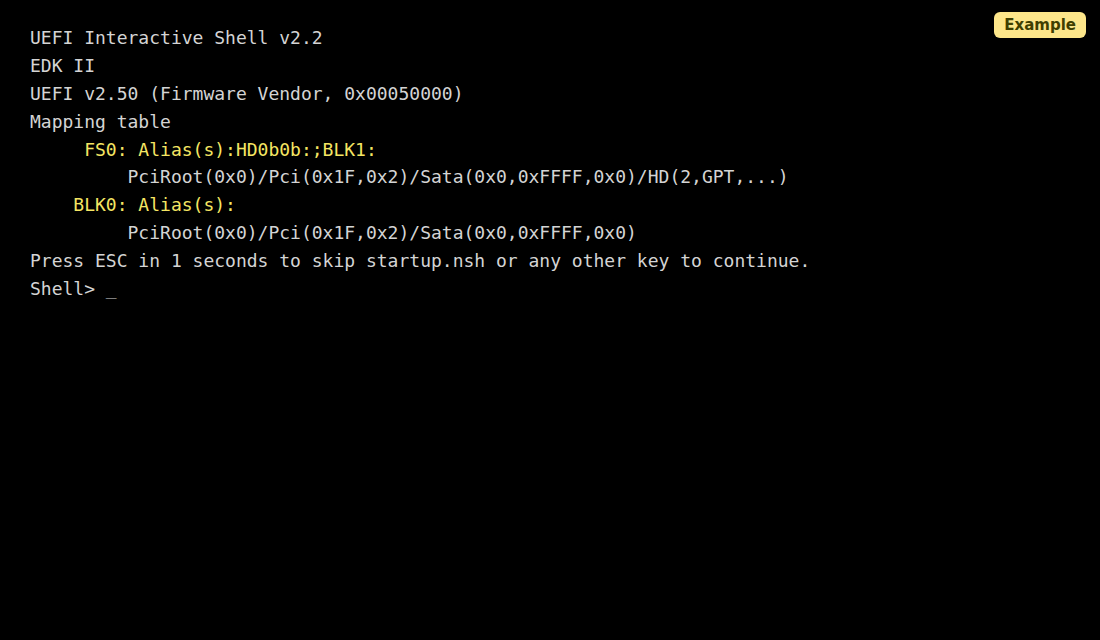
Warning: Do not type commands at the
Shell>prompt. Set the boot mode back in the BIOS instead.
¶ Fix 2: reinstall HexOS in UEFI mode
Danger: Reinstalling erases the boot drive. If your server already stores files, apps or settings, save your configuration first and follow Import existing pools, which covers reinstalling HexOS on the same hardware. Your storage drives are not erased when you pick only the boot drive during installation.
If your server is new and holds nothing yet, you can reinstall right away.
¶ 1. Plug in the HexOS USB drive
Use the same HexOS USB drive you installed with, or make a new one with the Illustrated installation guide.
¶ 2. Open the boot menu
Restart your server. While the motherboard logo shows, press the boot menu key several times. The boot menu lists every drive the server can start from. Common keys:
| Motherboard or computer | Boot menu key |
|---|---|
| ASUS | F8 or Esc |
| ASRock | F11 |
| Gigabyte | F12 |
| MSI | F11 |
| Supermicro | F11 |
| Dell | F12 |
| HP | Esc, then F9 |
| Lenovo | F12 |
If none of these work, your motherboard's manual lists the key.
¶ 3. Choose the UEFI entry for the USB drive
Most boot menus show the USB drive twice:
- once with a name that starts with UEFI, for example UEFI: USB Flash Disk 1.00, Partition 1
- once with only the drive's name, for example USB Flash Disk 1.00
Choose the one that starts with UEFI. The entry without UEFI starts the drive in legacy mode, which installs HexOS in legacy mode again.
Example boot menu with the UEFI entry
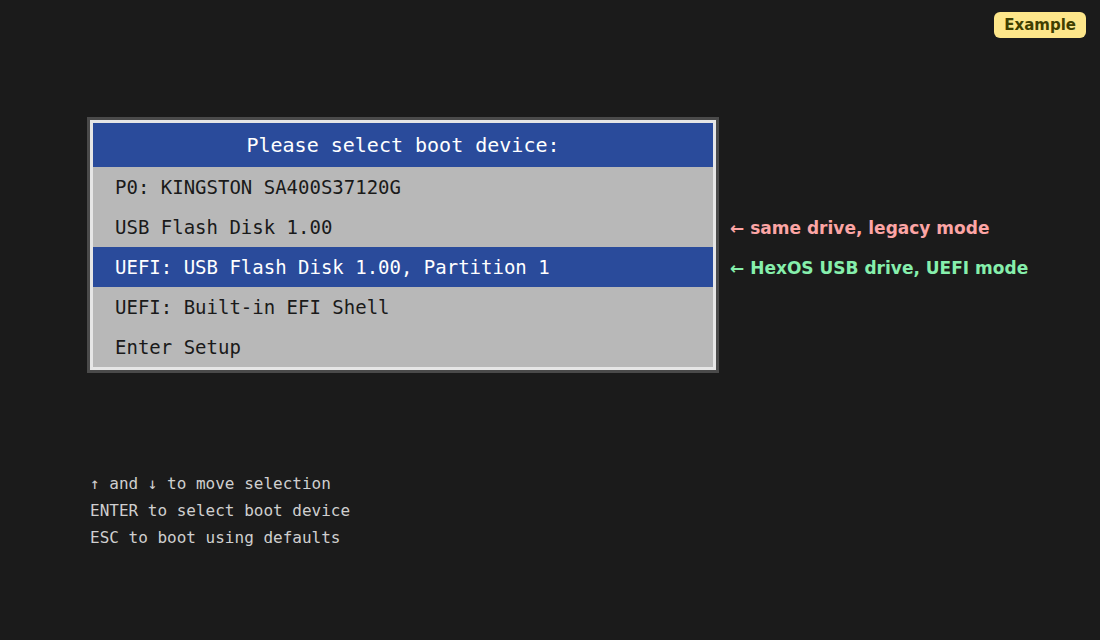
The picture is an example. Your boot menu may use other colors and words. Some list UEFI entries under a UEFI heading instead of starting each name with UEFI.
Tip: If the USB drive has no entry that starts with UEFI, set the boot mode to UEFI in the BIOS first, as in Fix 1. Then the USB drive can only start in UEFI mode, so either entry works.
¶ 4. Install HexOS
Follow the Illustrated installation guide from the boot screen. When the installer asks where to install, pick only the boot drive. Keep Secure Boot off.
¶ Check that it worked
If you are still in setup, return to the Health and capabilities screen. The System card shows No issues detected, and the red message is gone.
System card with no issues
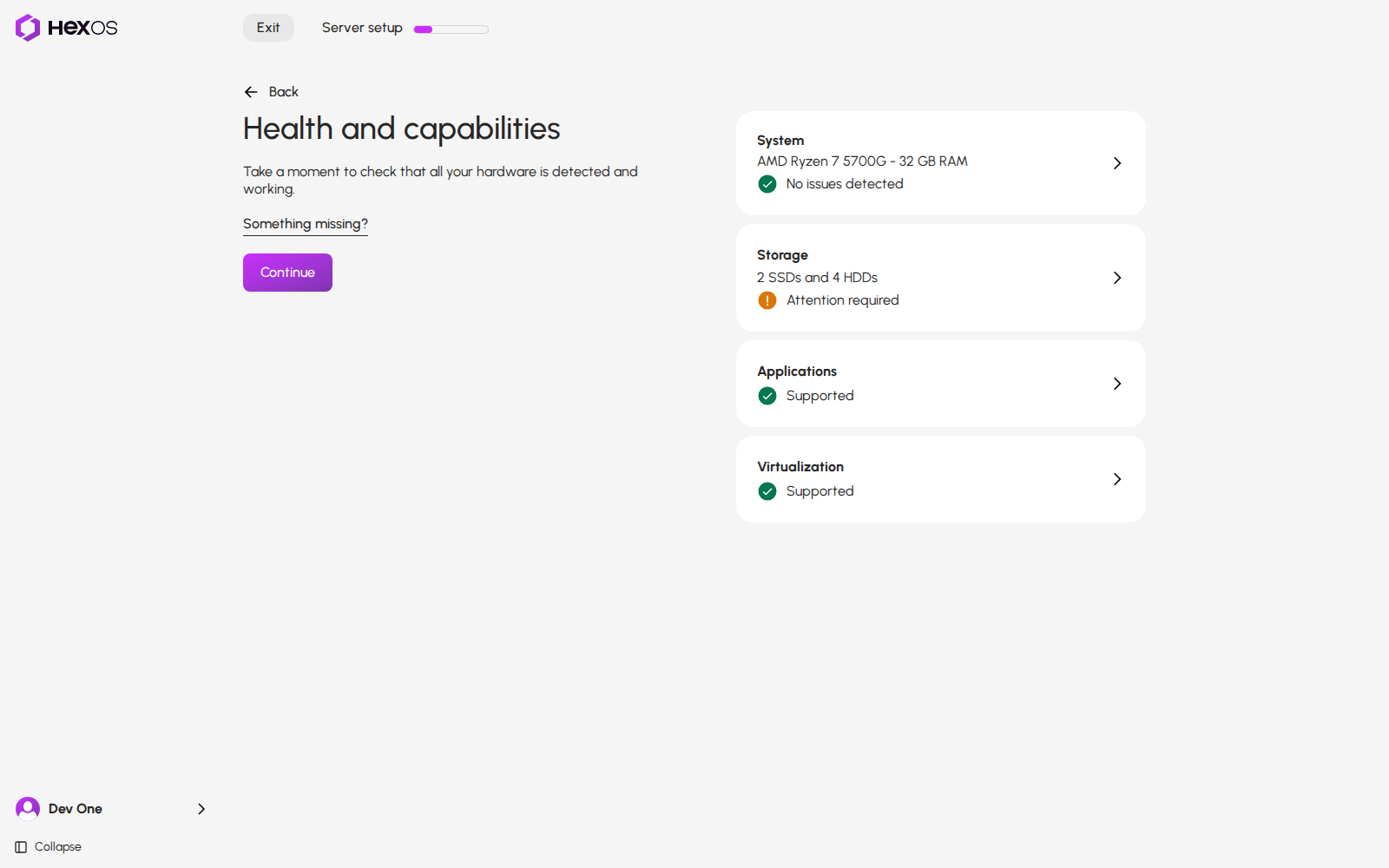
On a server that is already set up, click Test memory on the Memory info panel. The message that the memory test can't run is gone, and you can start the test.
¶ If you cannot use UEFI
Some older servers cannot start in UEFI mode at all. HexOS still works on them, without the memory test and other features that need UEFI.
- During setup, click I understand. Continue without UEFI.
- To test the memory, use a Memtest86+ USB drive from memtest.org.
Help: If you are not sure which fix to use, ask in the HexOS Discord Community.