¶ Manage your backups
Info: Buddy Backups is in beta. Everyone can use it, and every backup it makes is a real copy you can restore. Beta means we are still finishing it, so screens may change and you may find a rough edge. Keep any backup you already rely on running alongside it. What beta means
A backup looks after itself once it is set up. This page shows where to find your backups and how to change them: which folders, how often, how fast, and how much space.
¶ Find your backups
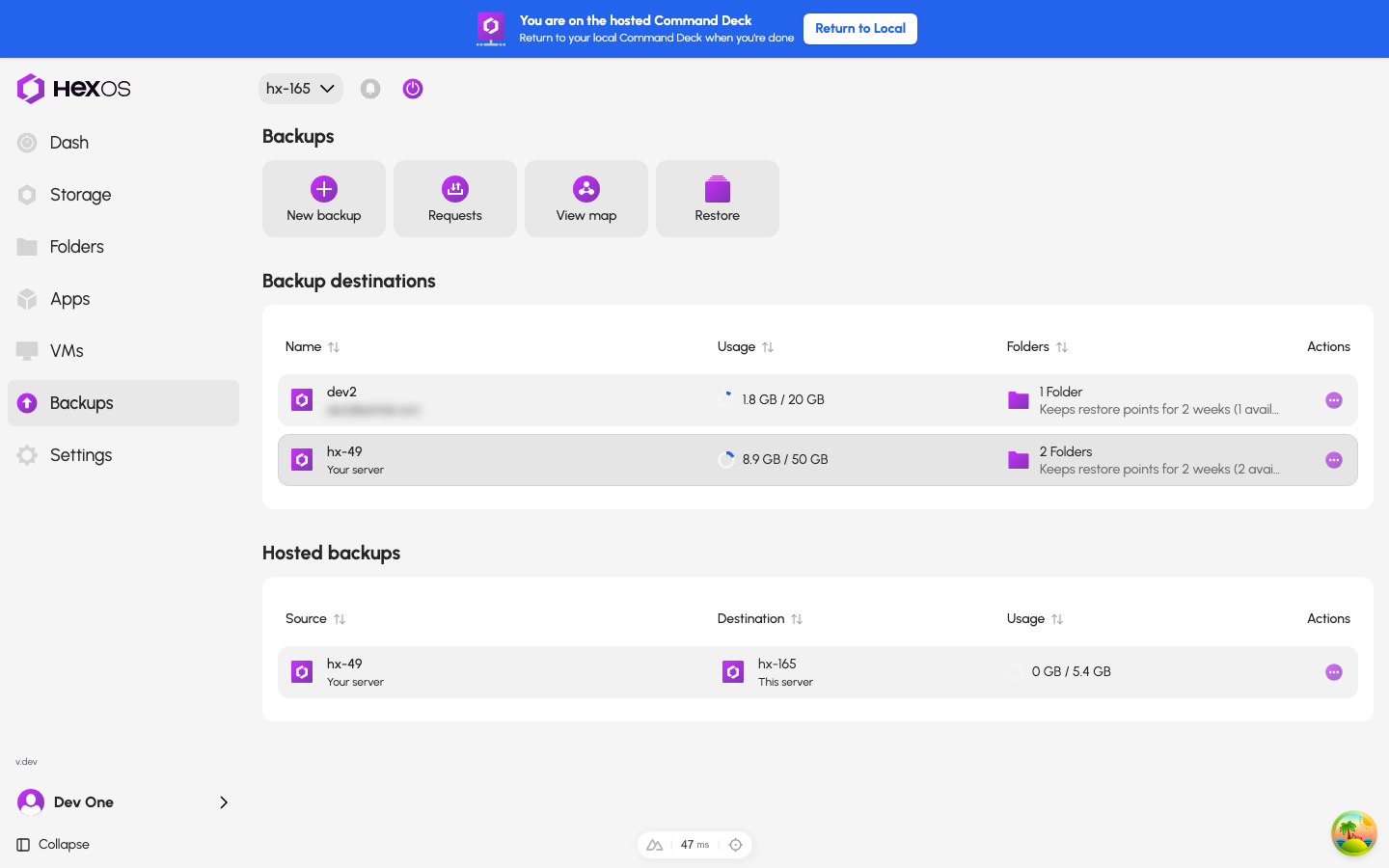
Click Backups in the sidebar. The Backups page shows the server you are viewing. It has two tables:
- Backup destinations: the places this server's folders are backed up to. Columns: Name, Usage, Folders, Schedule, Retention policy, Transfer speed, and Actions.
- Hosted backups: the backups this server stores for your other servers or a buddy. Columns: Source, Destination, Usage, and Actions.
Click a row to open that backup. Above the tables are New backup, Requests, and View map.
The Backups page
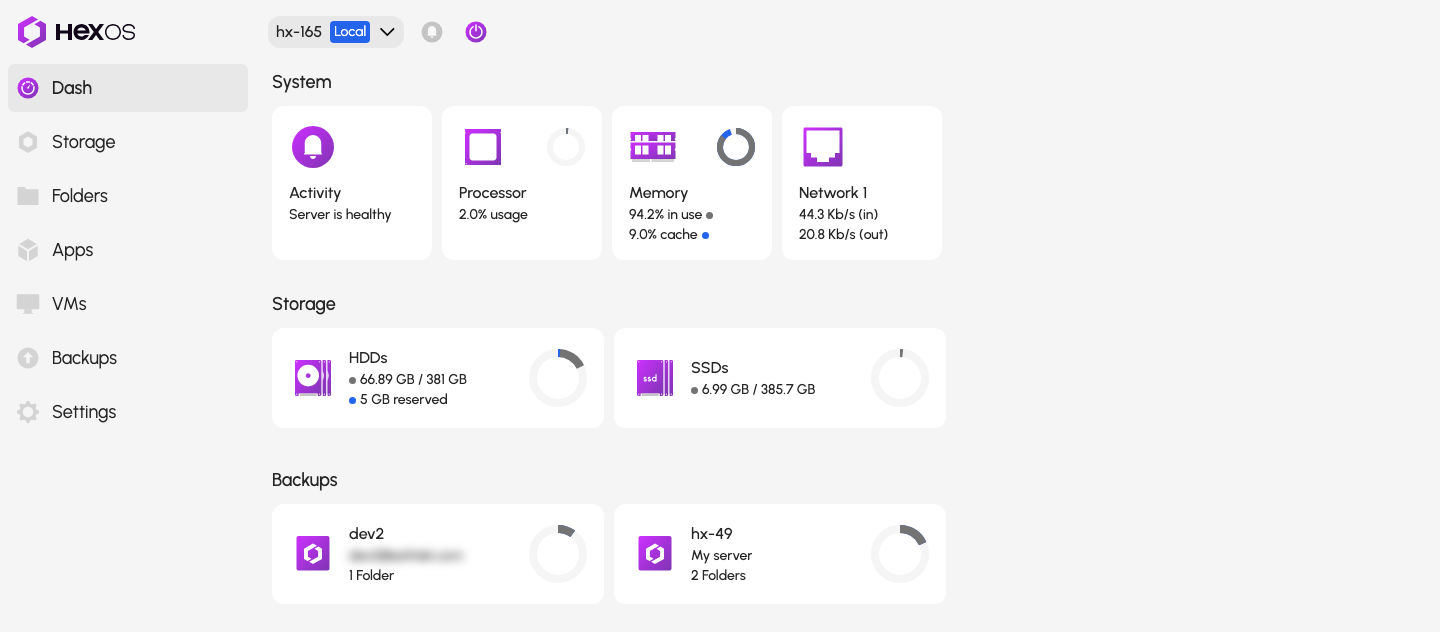
The dashboard also has a Backups section, with one card for each place this server backs up to. Each card shows how much of the space is used and how many folders it holds. Click a card to open that backup.
The Backups section on the dashboard
To remove the section from the dashboard, open its menu and click Hide from dashboard. To show it again, go to Settings > Preferences > Customize dashboard.
¶ A backup's page
Opening a backup you send shows four cards:
- Quota: the space used out of the space set aside, for example "1.8 GB of 20 GB". The used figure is compressed. See Compression.
- Schedule: for example "Weekly on Sunday at 23:00", "Daily at 02:00", or "Every hour", and when the next backup runs.
- Transfer speed: your speed setting and, once measured, the measured speed. On a buddy's backup it also says what your buddy's side is set to.
- Retention policy: how long restore points are kept, and how many there are.
A backup you send
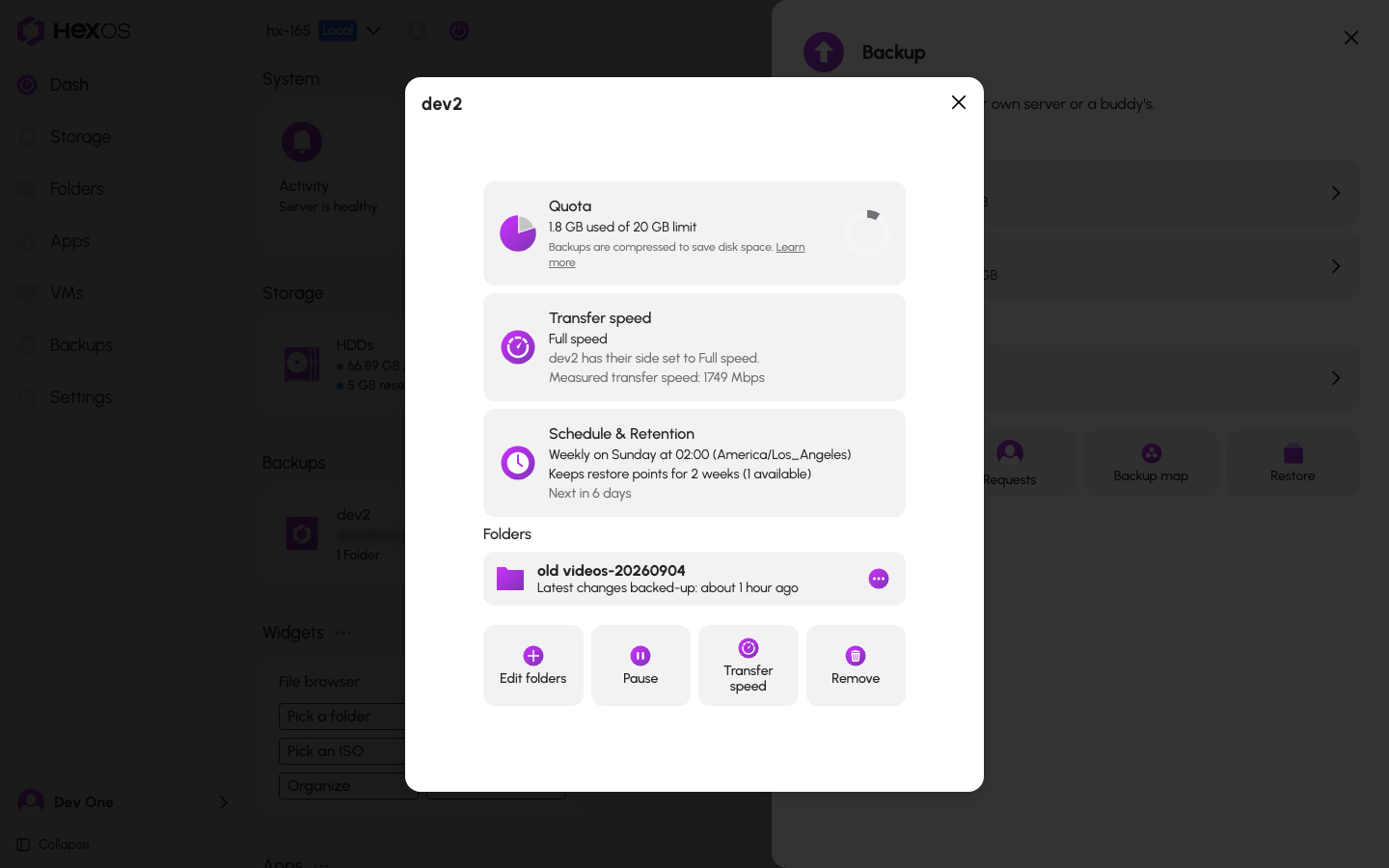
Below the cards is a row for each folder. It shows the folder's state, for example "Latest changes backed-up:" and a time, or "Backing up…" with a percentage. A folder with a problem shows what went wrong and Show details. See Backup troubleshooting.
Along the bottom are the tiles: Folders, Pause (or Resume), Schedule, Restore, Quota when you own the other server, Transfer speed, Rename on a buddy's backup, and Remove.
For a backup you store for someone else, see Host a buddy's backup.
¶ A folder's menu
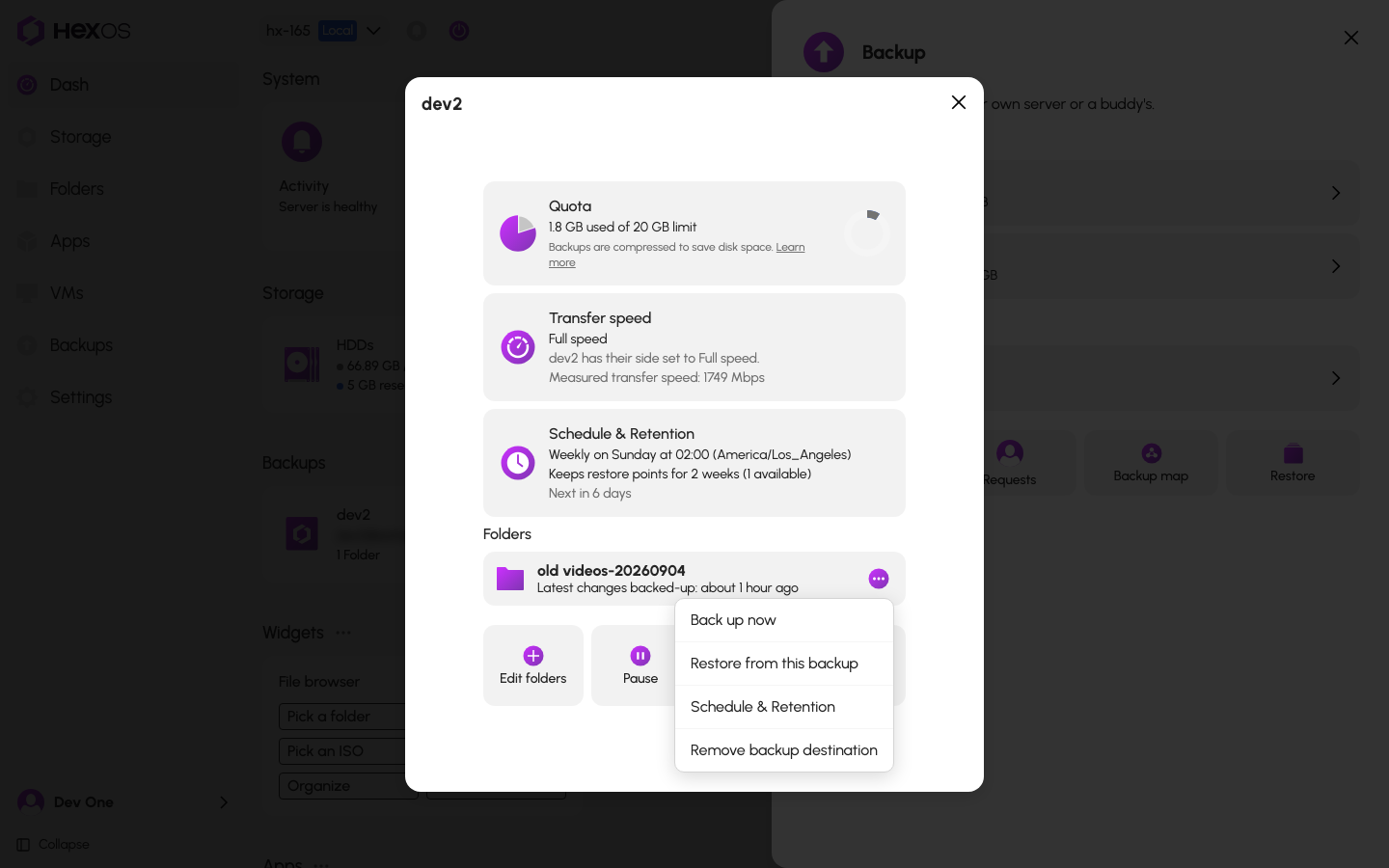
Each folder row has a menu with:
- Back up now: back up this folder straight away.
- Repair backup: only shows when the folder's copy needs to start over. See Backup troubleshooting.
- Restore from this backup: see Restore a folder.
- Remove: stop backing up this folder here, and delete its copy on the other server and its restore points on this one.
A folder's menu
¶ Back up now
- Open the folder's menu and click Back up now.
- HexOS asks "Back up now?". Click Back up now again.
The folder's row and the activity center show the progress. A backup cannot start while the other server is offline.
¶ Stop a running backup
- In the activity center, open the running backup.
- Click Stop backup.
Stop backup in the activity center
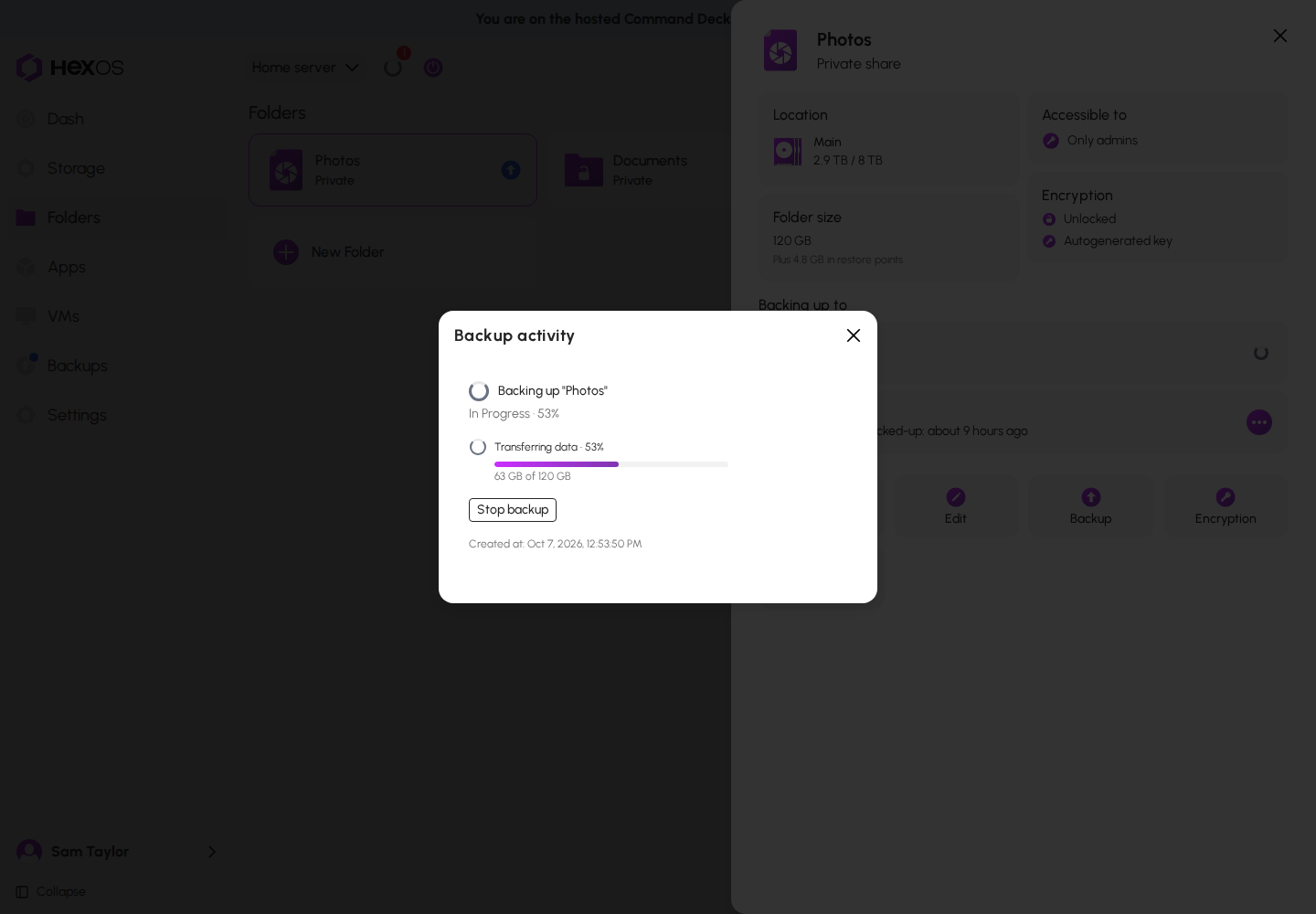
The activity item then says "Stopped. The next backup picks up from here." What already arrived is kept, and the next backup continues from where this one stopped.
¶ Change which folders are backed up
- Click the Folders tile.
- The Folders dialog says which folders back up to this destination. Check a folder to add it, or uncheck it to remove it.
- Click Save changes.
The Folders dialog
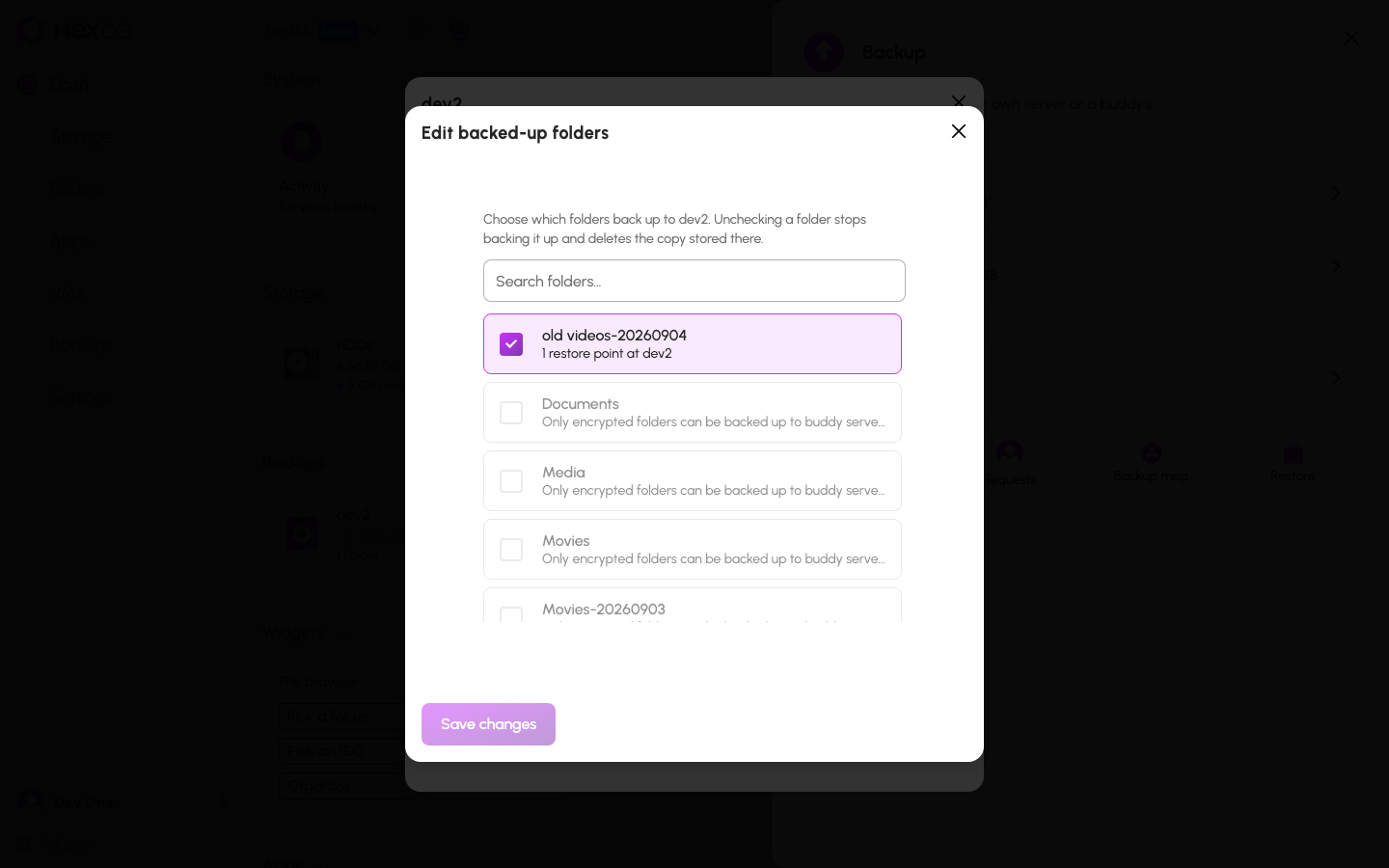
Each folder already in the backup shows how many restore points it has at the destination.
- Adding a folder starts copying all of it right away, so its first backup takes longer. If the folders you add need more than the free space set aside, the dialog warns you.
- Removing a folder changes the button to Remove 1 folder and save. HexOS then asks "Delete the stored backup of 1 folder?". Click Delete and save to confirm.
On a buddy's backup, folders that are not encrypted cannot be added yet. The dialog lists them with an Encrypt… button. When encryption finishes, HexOS adds the folder to the backup for you.
Danger: Removing a folder from a backup deletes its copy and every restore point on the other server, and its restore points on your server. It cannot be undone. The folder on your own server is not touched. See Removing backups.
¶ Change the schedule and retention
- Click the Schedule tile.
- In Schedule & Retention, choose how often backups run: Weekly, Daily, or Hourly. Hourly is only offered between your own servers.
- For Weekly, choose the Day and Time. For Daily, choose the Time. Backups run on your server's local time.
- Under Keep restore points for, choose 1 week, 2 weeks, 1 month, or 3 months.
- Click Save changes.
The Schedule & Retention dialog
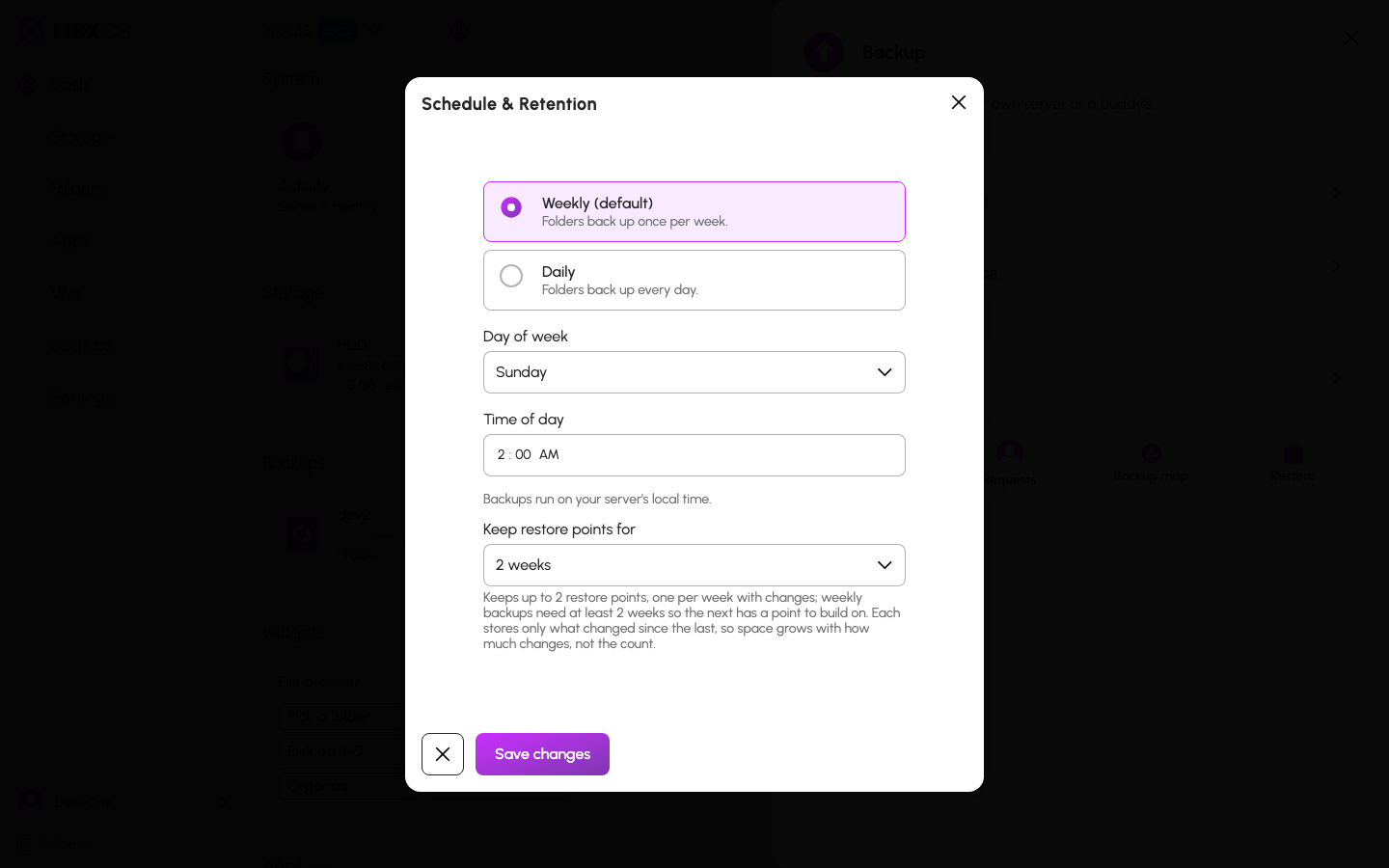
One schedule covers every folder in the backup. Folders do not have separate schedules.
Weekly backups need at least 2 weeks, so 1 week is not offered for them. When you change how often backups run, choose how long to keep restore points again.
Each restore point stores only what changed since the one before. Restore points older than your choice are removed at each backup.
Keeping restore points for longer saves straight away. Keeping them for less time asks "Remove older restore points?" and says how many go. Click Shorten and remove to confirm.
While a backup is paused, Folders, Schedule, Restore, Back up now and Restore from this backup are unavailable until you resume it. If your server is offline, the dialog cannot read the current schedule and asks you to try again later.
¶ Change the transfer speed
- Click the Transfer speed tile.
- Choose Full speed, Smart, or Custom. For Custom, type a limit in Mbps.
- Click Save changes.
The Transfer speed dialog
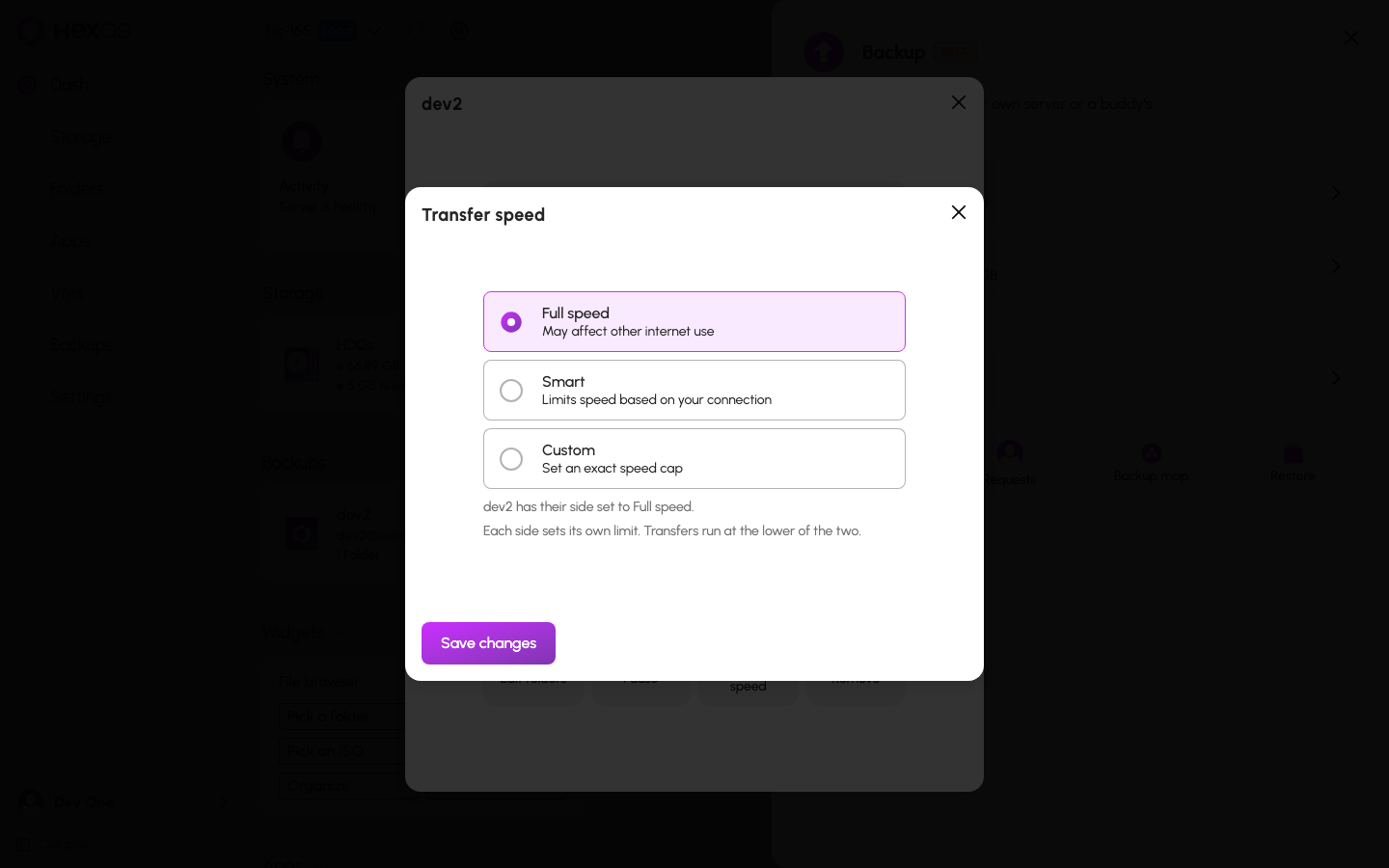
| Option | What it does |
|---|---|
| Full speed | No limit. May affect other internet use. |
| Smart | Limits speed based on your connection: half of the measured speed. |
| Custom | Sets an exact speed cap. |
To measure your connection, choose Smart, then click Run speedtest (or Test again). These buttons show only with Smart chosen. The dialog shows "Testing your internet connection…", then "Measured transfer speed:" and the result in Mbps.
On a buddy's backup, each side sets its own limit and transfers run at the lower of the two. Once it is known, the dialog also says how fast transfers currently run. Between your own servers, the dialog says "You own both servers, so this limit applies to both of them."
¶ Space for your backup
The server that stores a backup decides how much space it gets. That space is set aside on its pool, so other files cannot take it and the backup cannot grow past it.
If you own the other server:
- Click the Quota tile.
- In Storage quota, enter the new amount under Quota.
- Click Save changes.
It cannot go below what is already used, or above the free space on the pool.
If a buddy stores your backup, only they can change it. You can ask them for more:
- Click Folders in the sidebar and open any folder in this backup. Under Backing up to, open the backup's menu and click Storage reservation. If a backup already failed for lack of space, you can also click Request more space in its Backup failed dialog.
- Enter the amount you need.
- Click Request change. The dialog notes "The owner of the destination server must approve the change."
Your request waits on the Backups page under Requests > Outgoing requests, as "Awaiting approval for a storage change on" your buddy's name. You can withdraw it there. Your buddy approves or declines it. See Host a buddy's backup.
HexOS also checks ahead of time, every few hours while your server is online. If the next backup will not fit, both of you get a notice that says how much is needed. If HexOS is sure it will not fit, it also pauses the backup for space. It resumes on its own when there is room. A backup can still stop if the space fills before the check runs. See Backup troubleshooting.
¶ Pause and resume
- Click the Pause tile.
- HexOS asks "Pause this backup?". Click Pause.
The tile becomes Resume, and the page says "Backups are paused. Nothing new will back up until you resume them."
A paused backup
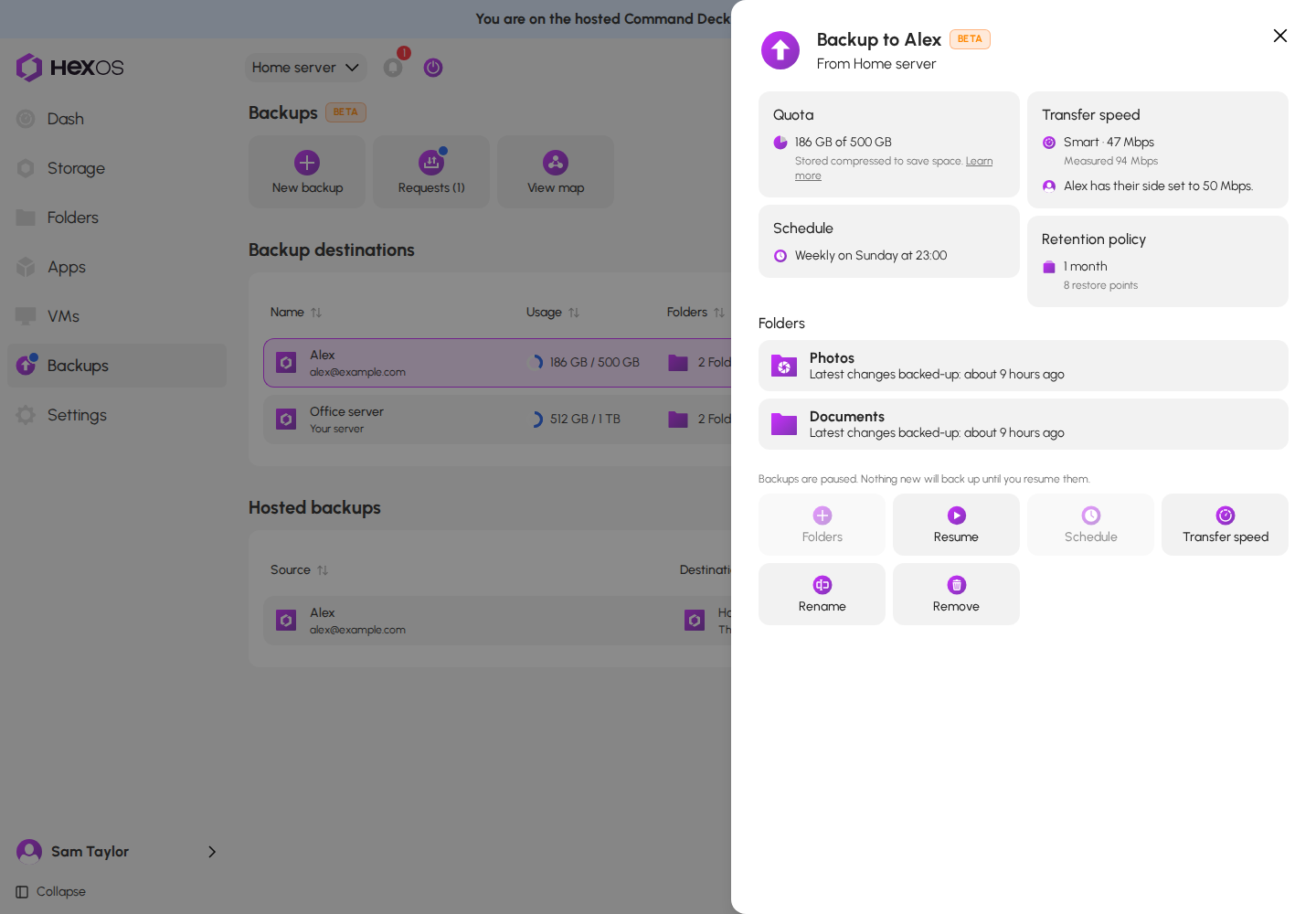
- A pause stops a backup that is running and stops new ones. Everything already stored stays, and so does the space set aside.
- On a buddy's backup, your buddy gets a notice that you paused.
- Only the person who paused can resume. If your buddy paused it, ask them to resume it. Between your own servers, you can resume from either side.
- A pause HexOS made because space ran short can be resumed by either side. It also resumes on its own when there is room.
- You cannot pause while a restore is running. The page says "A restore is running. Pausing is unavailable until it finishes."
- If the server that sends a paused backup is lost, recover the backup onto your new server. It stays paused there, and you can resume it from the new server. See Recover a failed server.
Pausing does not free space on the other server. To give the space back, remove the backup instead, which deletes the copy.
¶ Rename a buddy's backup
You and your buddy each keep your own name for each other. The other side never sees yours.
- Click the Rename tile.
- In Rename this backup, type a name under Display name (optional). Leave it empty to use their server name or account email.
- Click Save.
Backups between your own servers are always named after the server, so they have no Rename.
¶ The row menu on the backups page
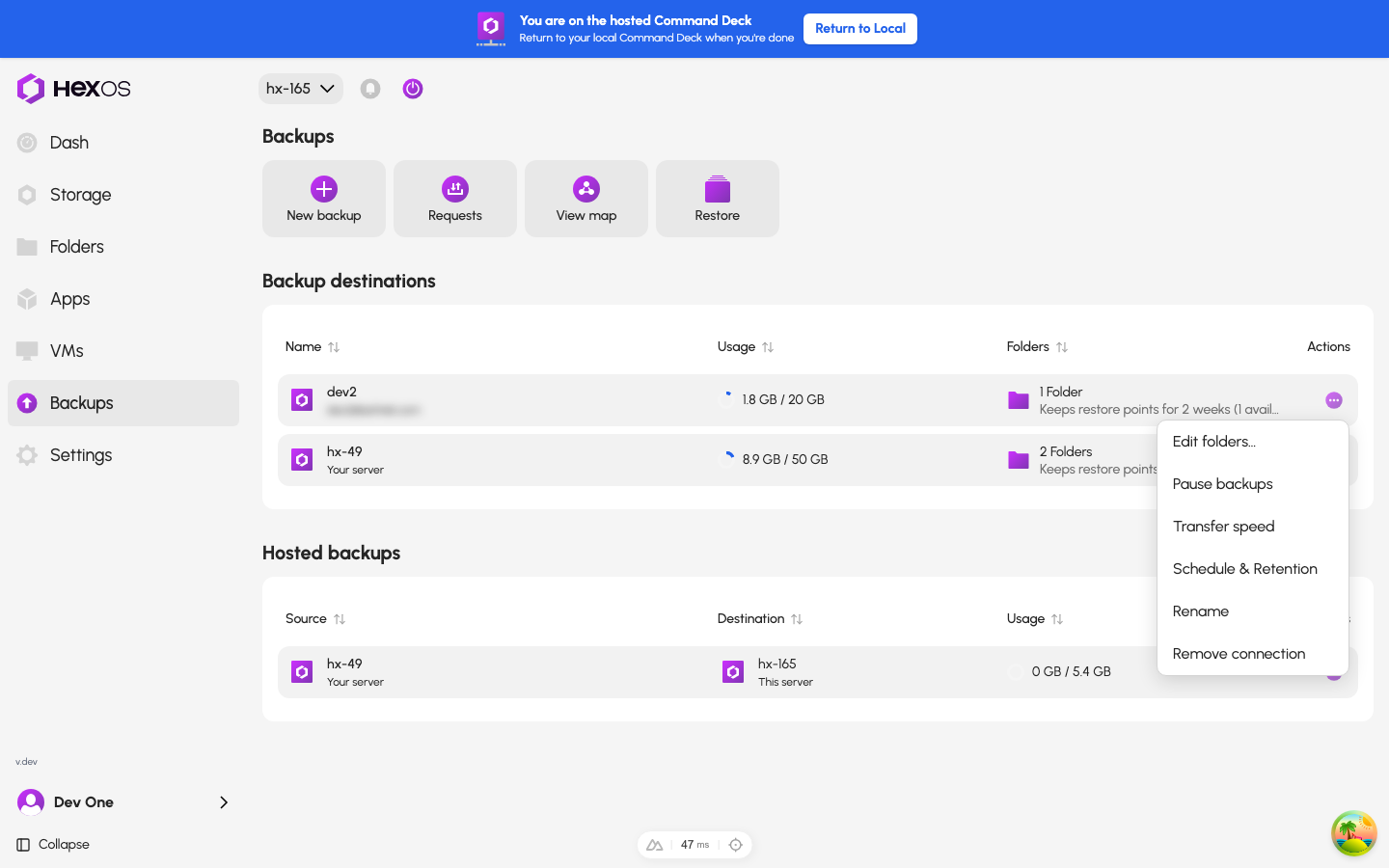
Each row on the Backups page has a menu, so you can act without opening the backup. Depending on the backup, it offers Folders…, Change pool, Pause backups (or Resume backups), Quota, Transfer speed, Schedule & Retention, Change server, Retry setup, Rename, and Remove connection.
A row's menu
¶ On a folder's page
A folder's page lists every place it is backed up to under Backing up to, with the state of each. Each one has a menu with Back up now and Restore from this backup (not while the backup is paused), Transfer speed, Schedule & Retention, Storage reservation, Remove backup destination, and Remove connection.
To add the folder to another backup, click Backup. See Set up a backup.
¶ The backup map
On the Backups page, click View map. The Backup map draws your servers and the backups between them.
The backup map
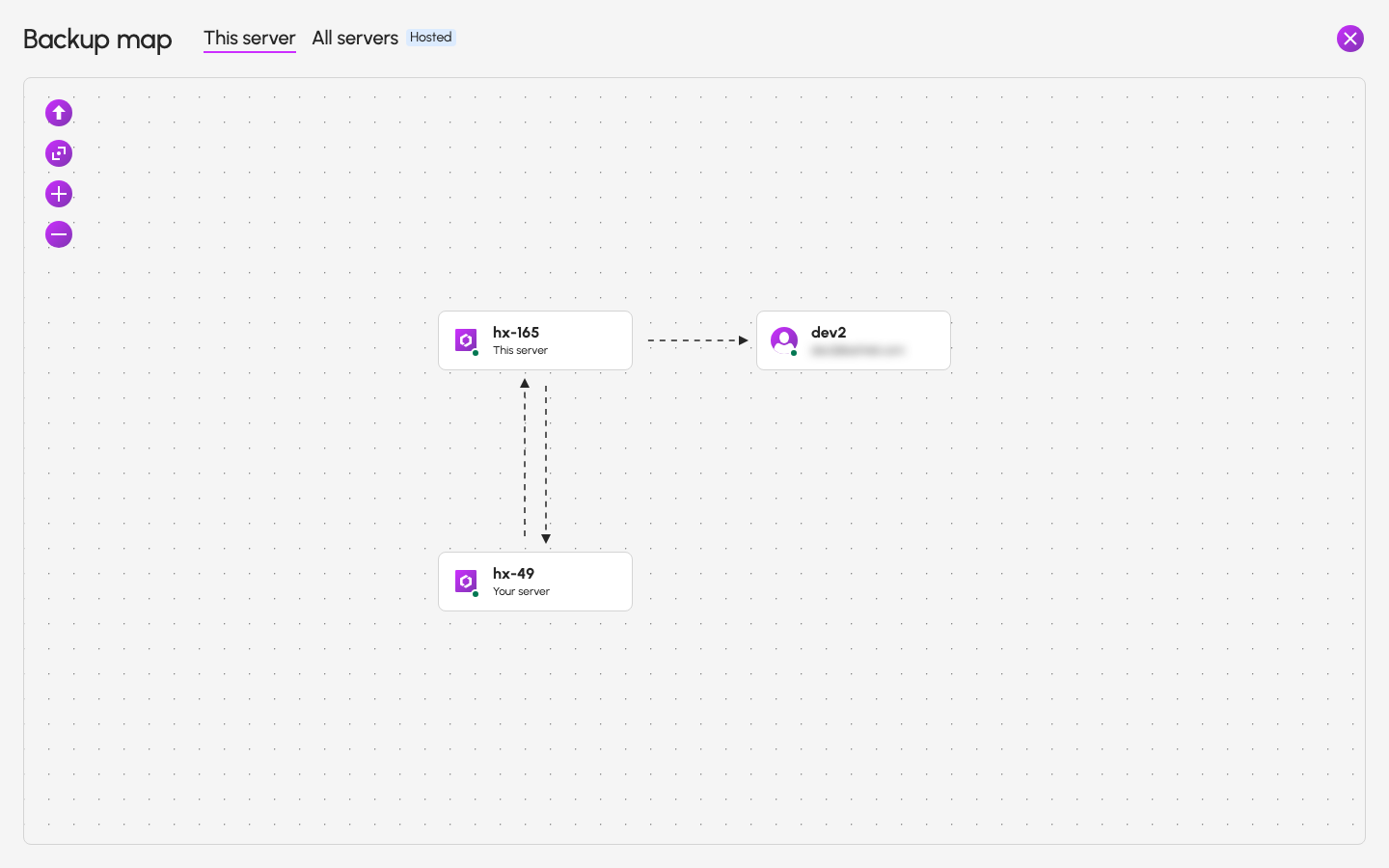
- This server shows the server you are viewing. All servers shows every server on your account.
- Filter by folder shows only the backups of one folder.
- Each server shows whether it is online, partly connected, not responding, or offline. A server that is down looks faded.
- A line between two servers shows when a backup is paused, its last backup failed, or it is waiting for a server to come back.
- The map also lists your pending requests.
- Click a server to see what it backs up and what it stores.
Help: A setting that will not save, or a message you do not recognize? See Backup troubleshooting or ask in the HexOS Discord Community.