¶ Migrating Immich to New Storage Configuration
¶ Prerequisites
- This guide requires at least enough storage space free on a pool to create another copy of your current immich installation including media such as photos and videos.
- This guide only applies to
- curated immich installations that have not been customized
- users that can still access the immich web-ui
- users with immich Version
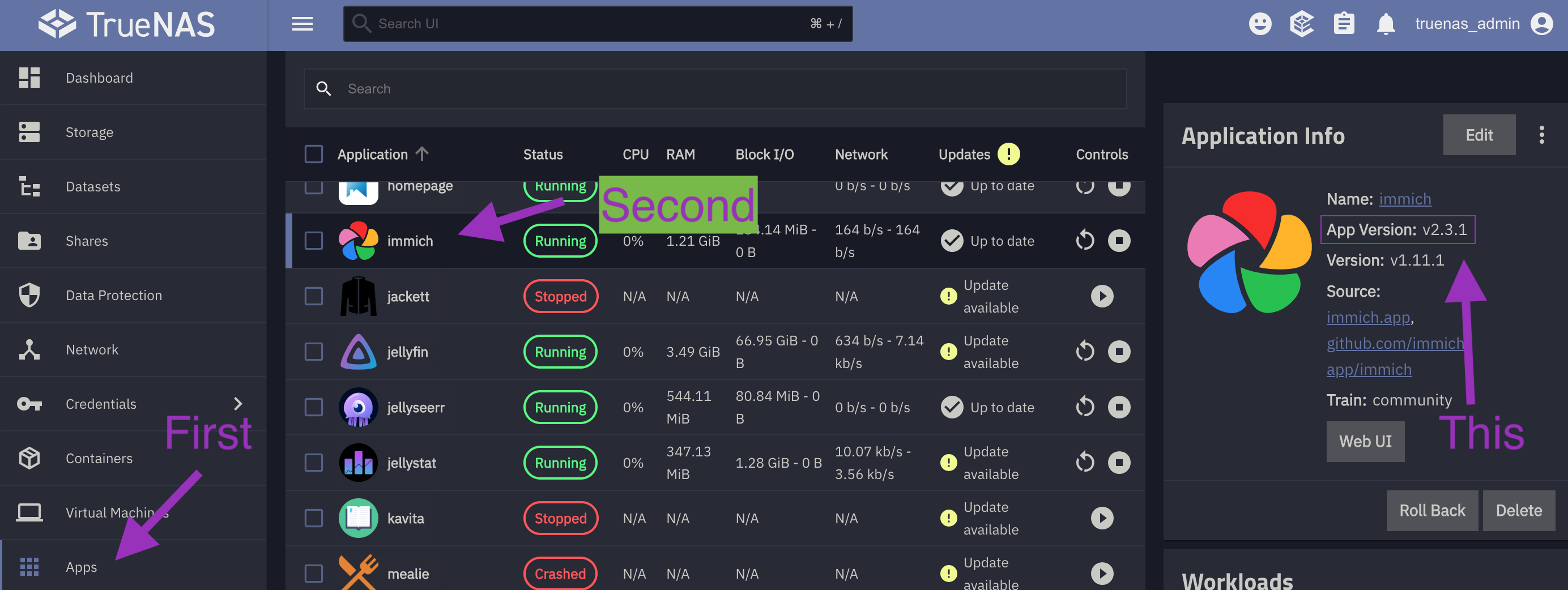
v1.135.0and higher- Select
Appson the left side bar - Click on the
immichapp on the list (Not the Checkbox) - View the
Application Versionin the Application info card
- Select
¶ Preparation
- Note the contents of the
Photosfolder- This can be done by viewing the
Photosfolder via SMB shares. - Instructions for how to access folder contents can be found here
- This can be done by viewing the
- Stop the
immichapplication - Log into TrueNAS UI
- Navigate to HexOS Deck
- Navigate to the settings panel by selecting it on the left sidebar
- Select the TrueNAS button
- Login
- The username will be
truenas_admin - The password will be what you selected when first installing HexOS
- The username will be
¶ Creating Datasets
Once in the TrueNAS interface we will
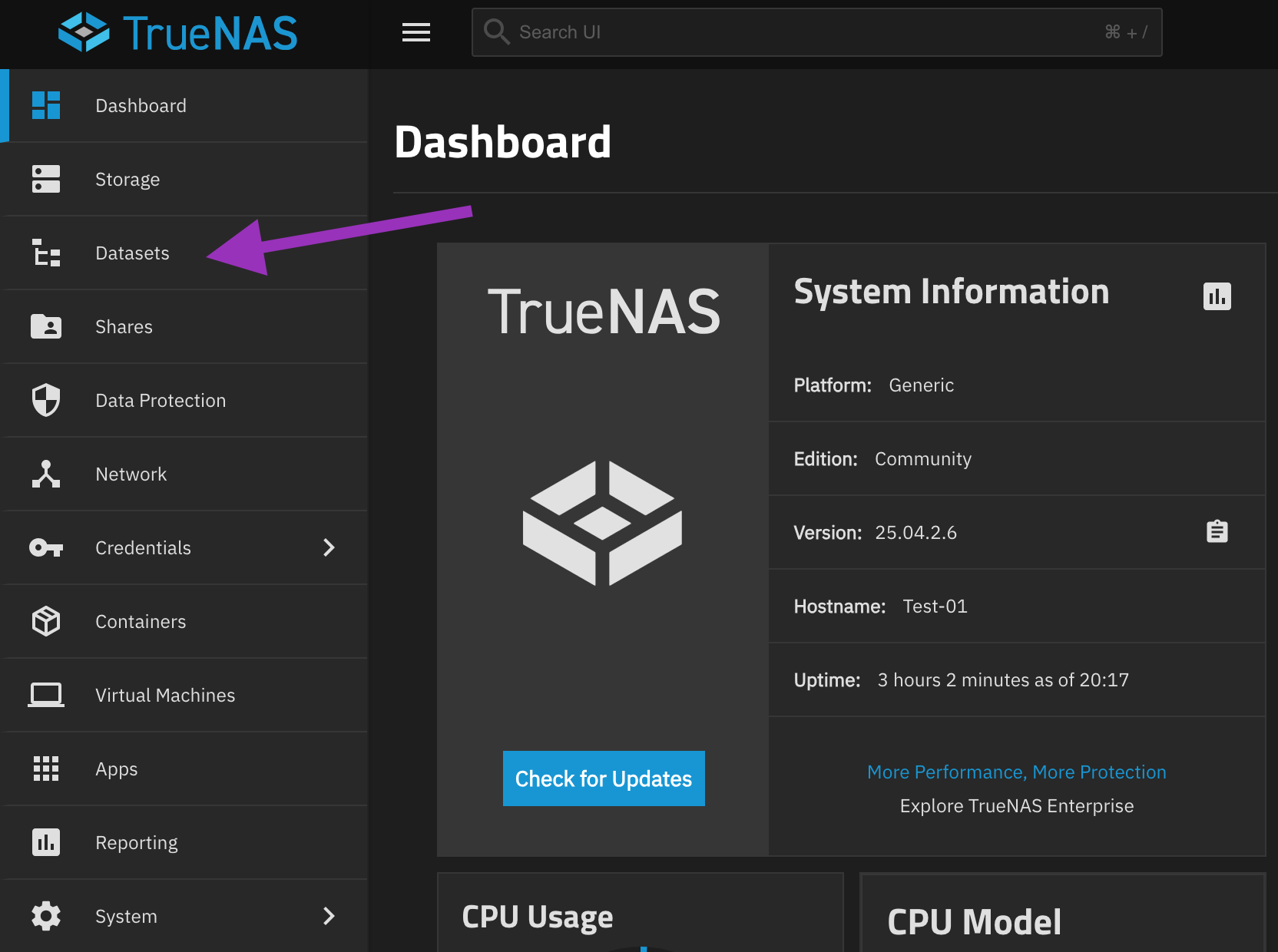
- Select
Datasetsin the left sidebar
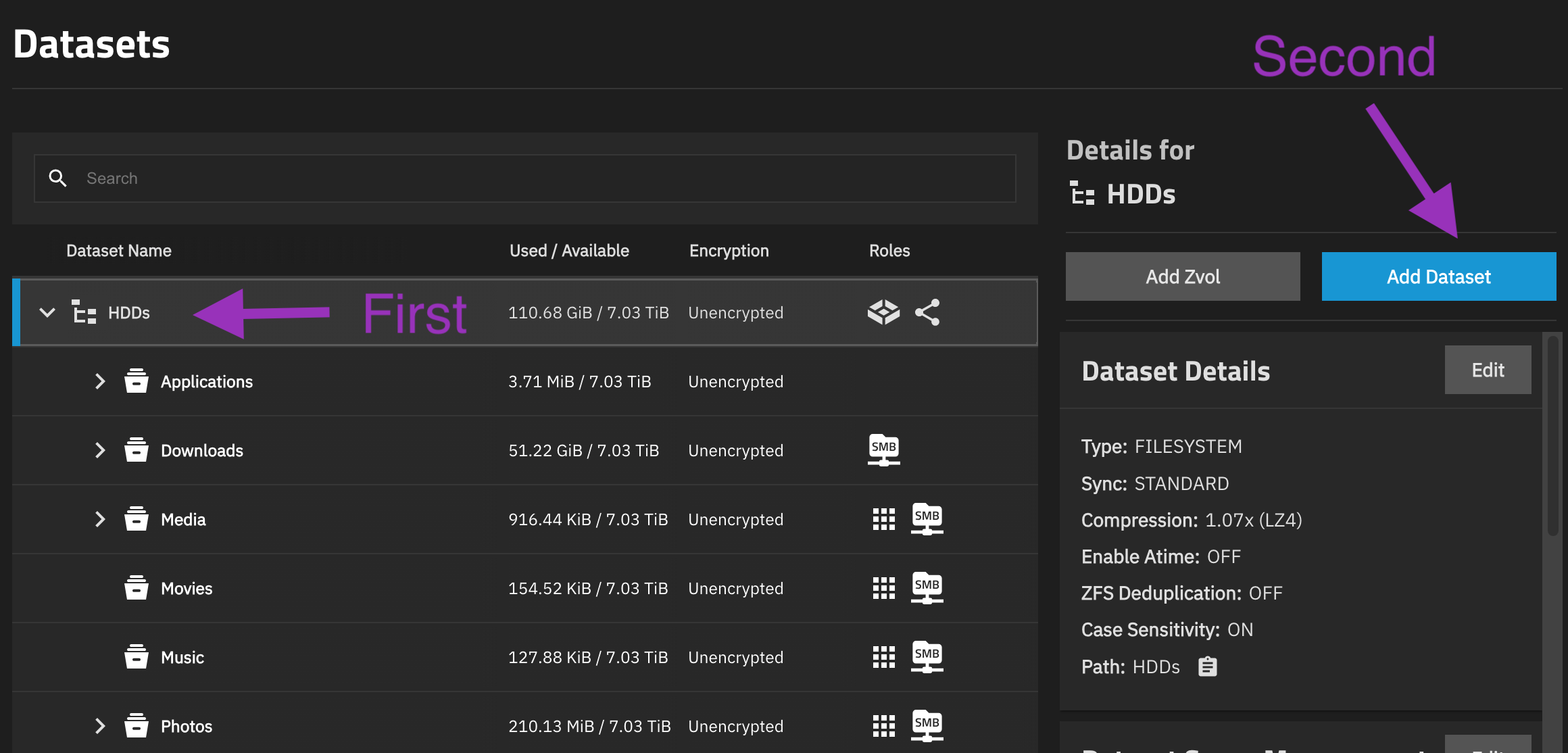
- Click on the pool with your
Photosfolder and pressAdd Dataset
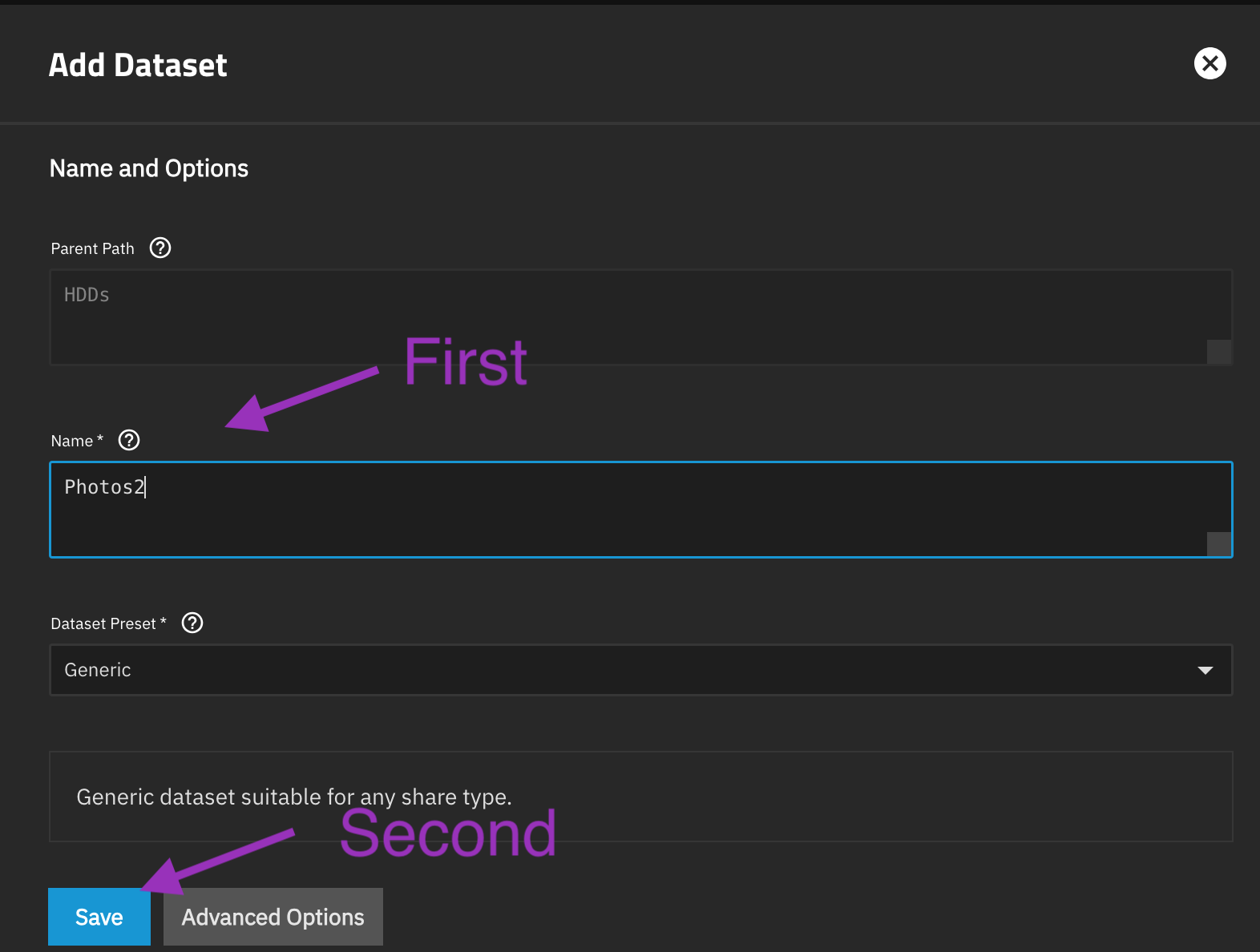
- Name the Dataset
Photos2and selectsave
- Click on the original
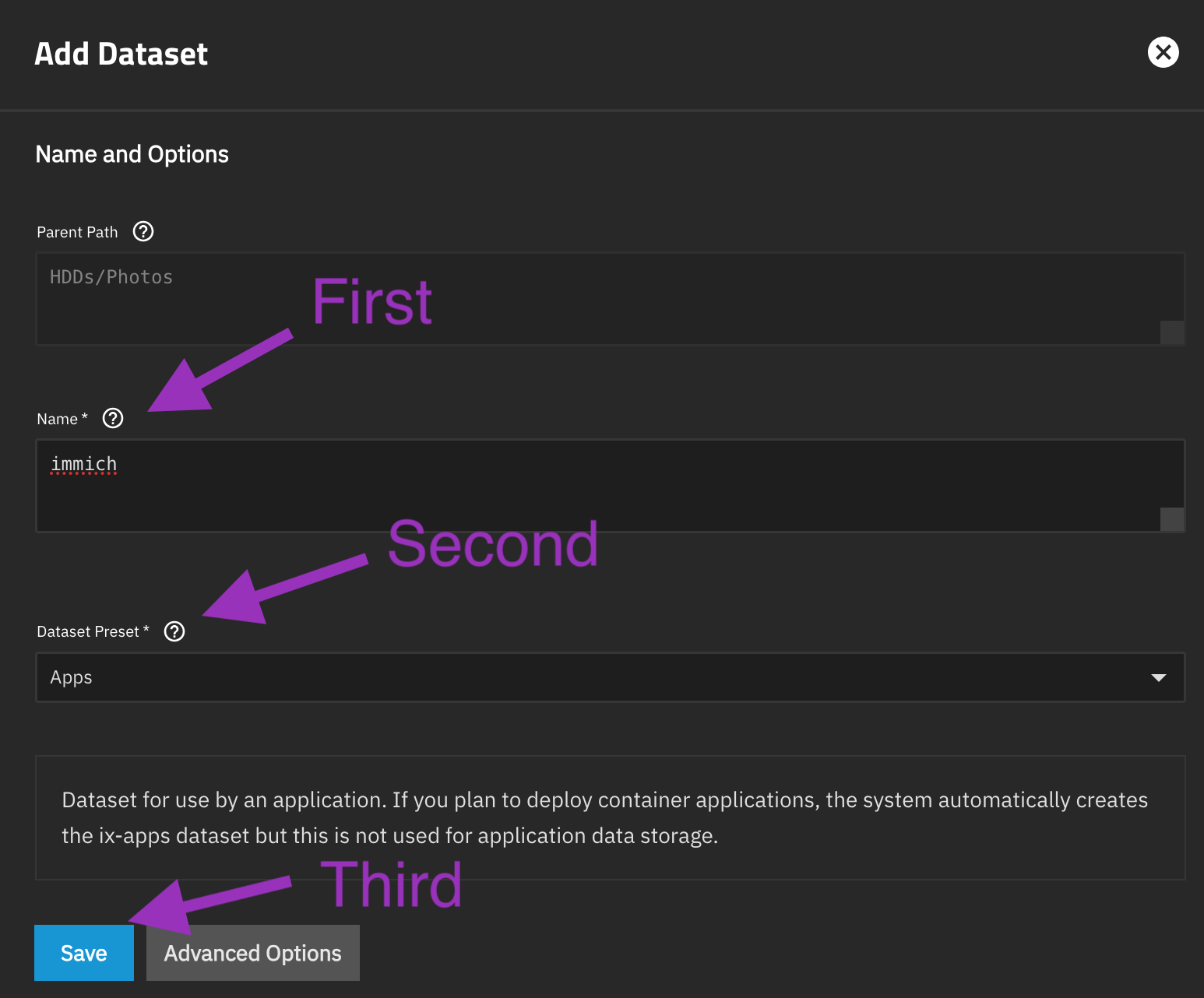
Photosdataset and then pressAdd Dataset - Name the Dataset
immich, set the Dataset Preset toAppsand then selectsave
¶ Copying Files
- Select
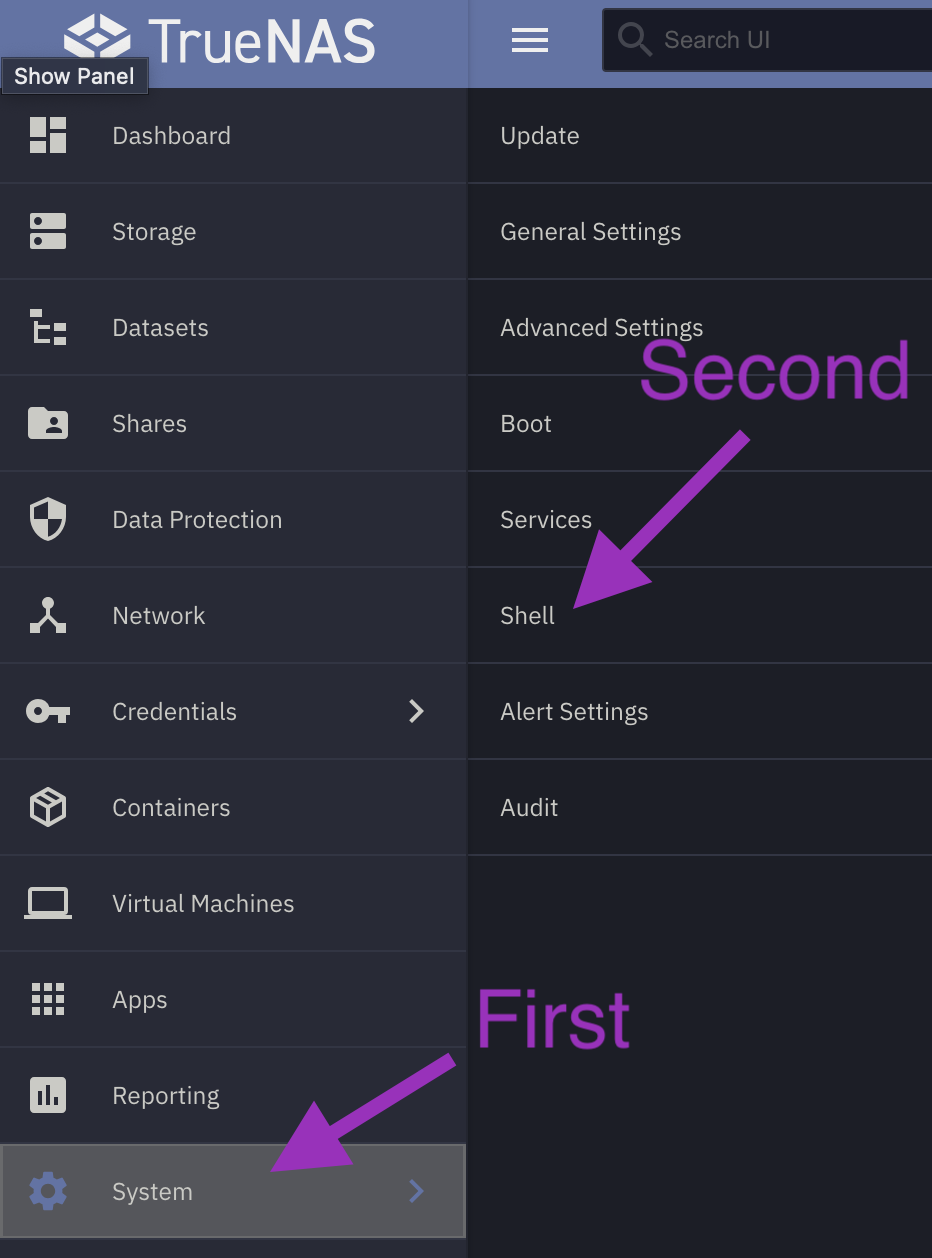
Systemin the left sidebar - Select
Shellin the new sidebar
- Type
tmuxinto the shell and press enter- This creates a session of the terminal that will keep going even if the TrueNAS web-ui times out
- If the TrueNAS web-ui times out you can return to
shelland typetmux attachto renter the session
- Input the following commands in sequential order
- There will be a prompt for the admin password
- When you enter the admin password the screen will not show any characters as a security feature
- When the password is fully inputted the command will run after pressing
enter
Note: The following commands are for users that have their Photos and Applications on HDDs
Note: When accessing shell from a Windows computer, the paste command is changed to
Shift + Insert
sudo rsync -avh --stats --progress /mnt/HDDs/Photos/ /mnt/HDDs/Photos2/
sudo rsync -avh --stats --progress /mnt/.ix-apps/app_mounts/immich/backups/ /mnt/HDDs/Photos/immich/backups/
sudo rsync -avh --stats --progress /mnt/HDDs/Applications/immich/profile/ /mnt/HDDs/Photos/immich/profile/
sudo rsync -avh --stats --progress /mnt/HDDs/Applications/immich/thumbs/ /mnt/HDDs/Photos/immich/thumbs/
sudo rsync -avh --stats --progress /mnt/HDDs/Applications/immich/encoded_videos/ /mnt/HDDs/Photos/immich/encoded-video/
sudo rsync -avh --stats --progress /mnt/HDDs/Applications/immich/uploads/ /mnt/HDDs/Photos/immich/upload/
sudo rsync -avh --stats --progress /mnt/HDDs/Photos2/ /mnt/HDDs/Photos/immich/library/
¶ Updating Immich
- Select
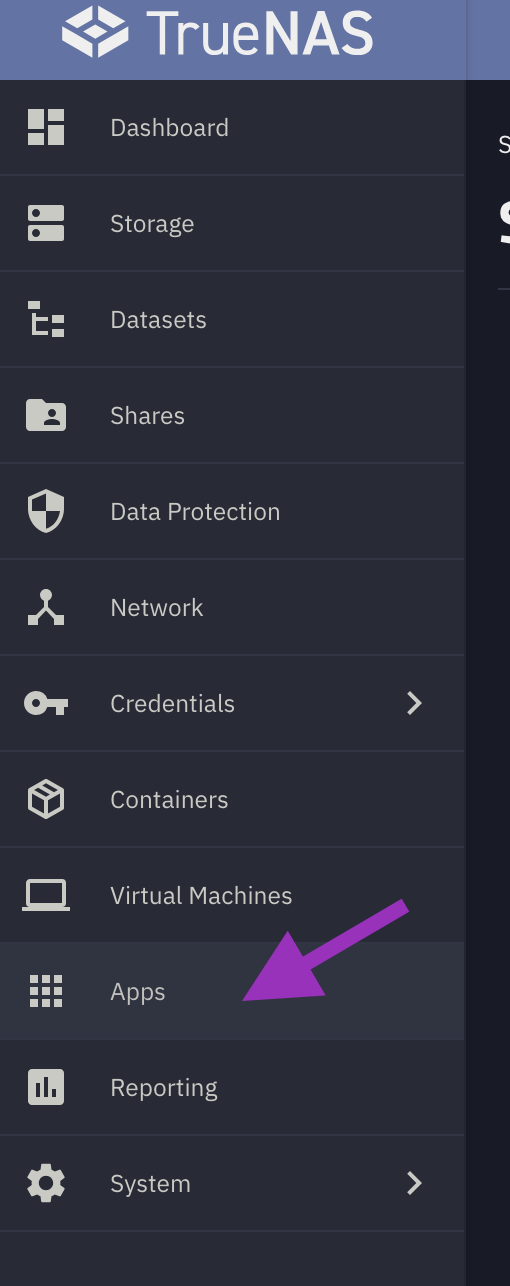
Appsin the left sidebar
- Select
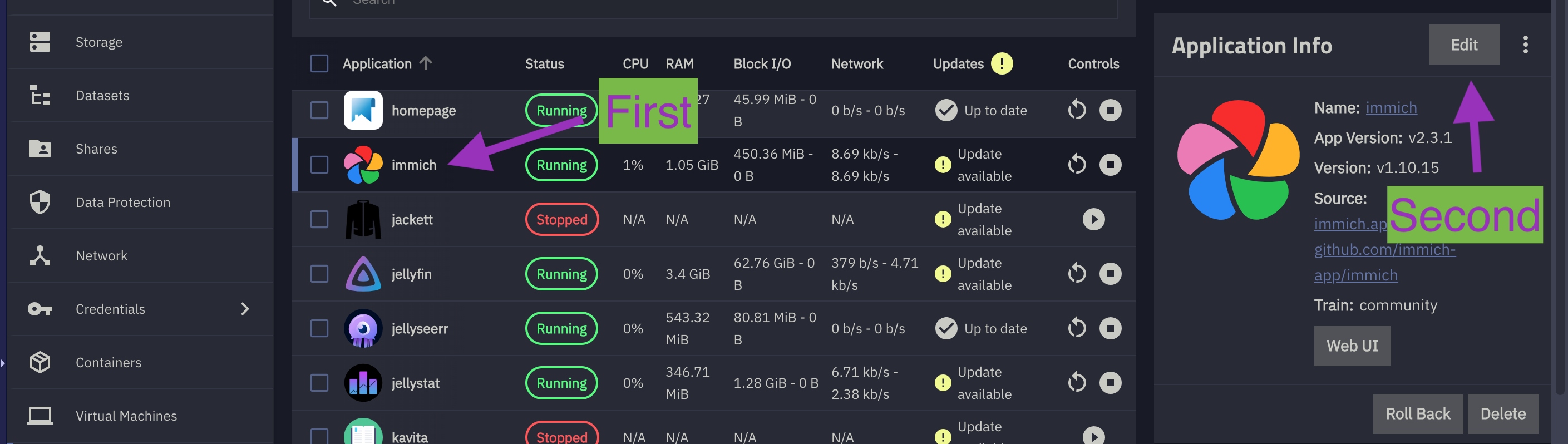
immich - Verify
immichapp version is 1.132.0 or higher in the application information card again - Select
Editin the application information card
- Scroll down to the storage section
- Uncheck
Use old storage configuration
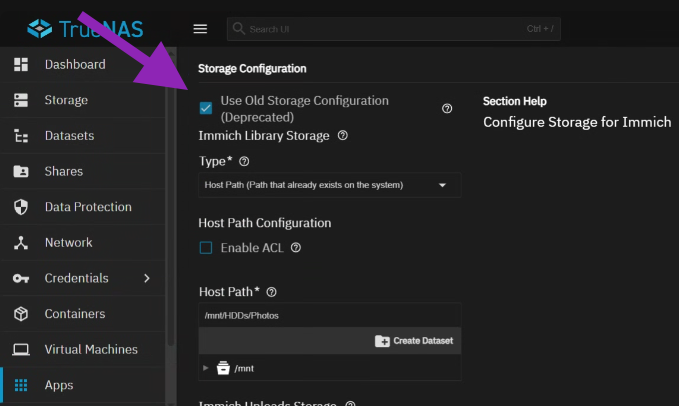
- Select
Host Pathfor Data Storage (aka Upload Location) - Set the Host path to
/mnt/HDDs/Photos/immich
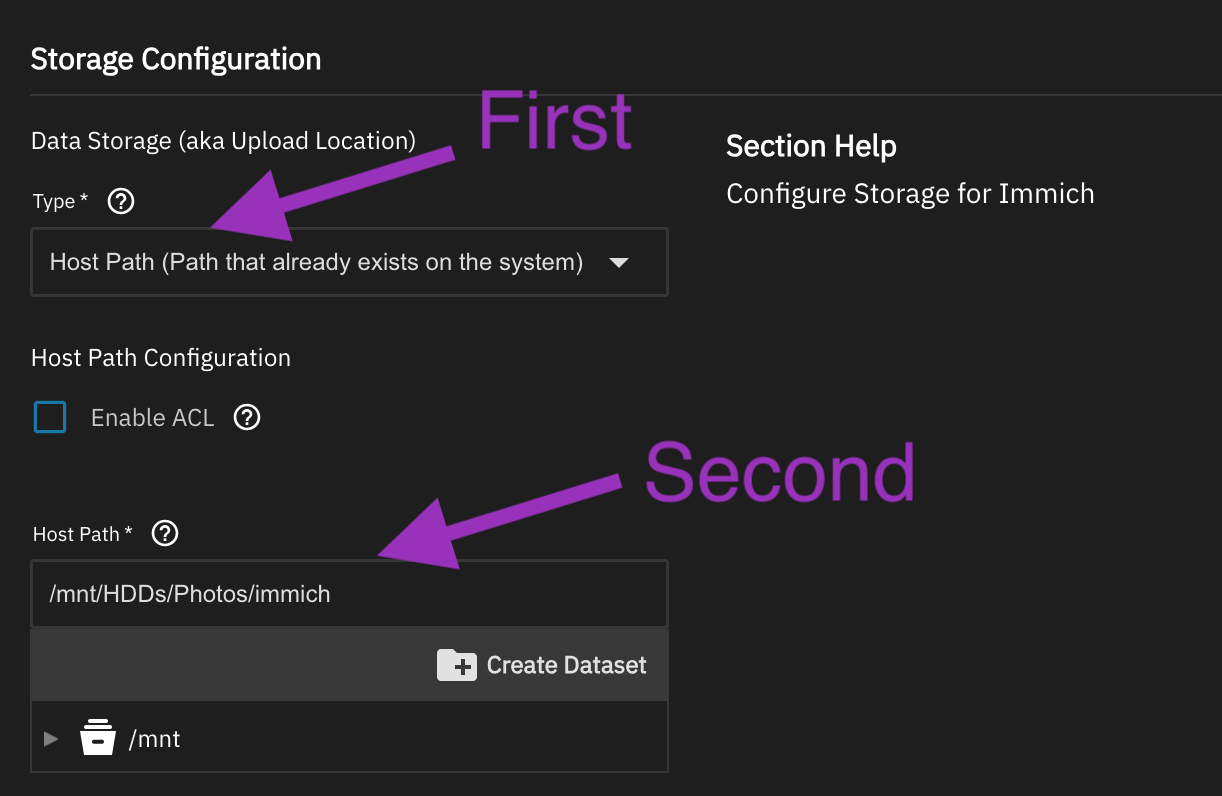
- Scroll down to the bottom and select the update button
- Verify if the immich web-ui is working
- If immich Web-UI is working as expected, update the immich app in HexOS Deck
- Verify if the immich web-ui is working and shows the most up to date version of immich
¶ Cleaning up
- Stop the immich application
- we will be deleting the old datasets to free up storage space (Optional)
- Select
Datasetsin the left sidebar - Click on the
Photos2data set created earlier, press theclipboardto copy and pressDelete
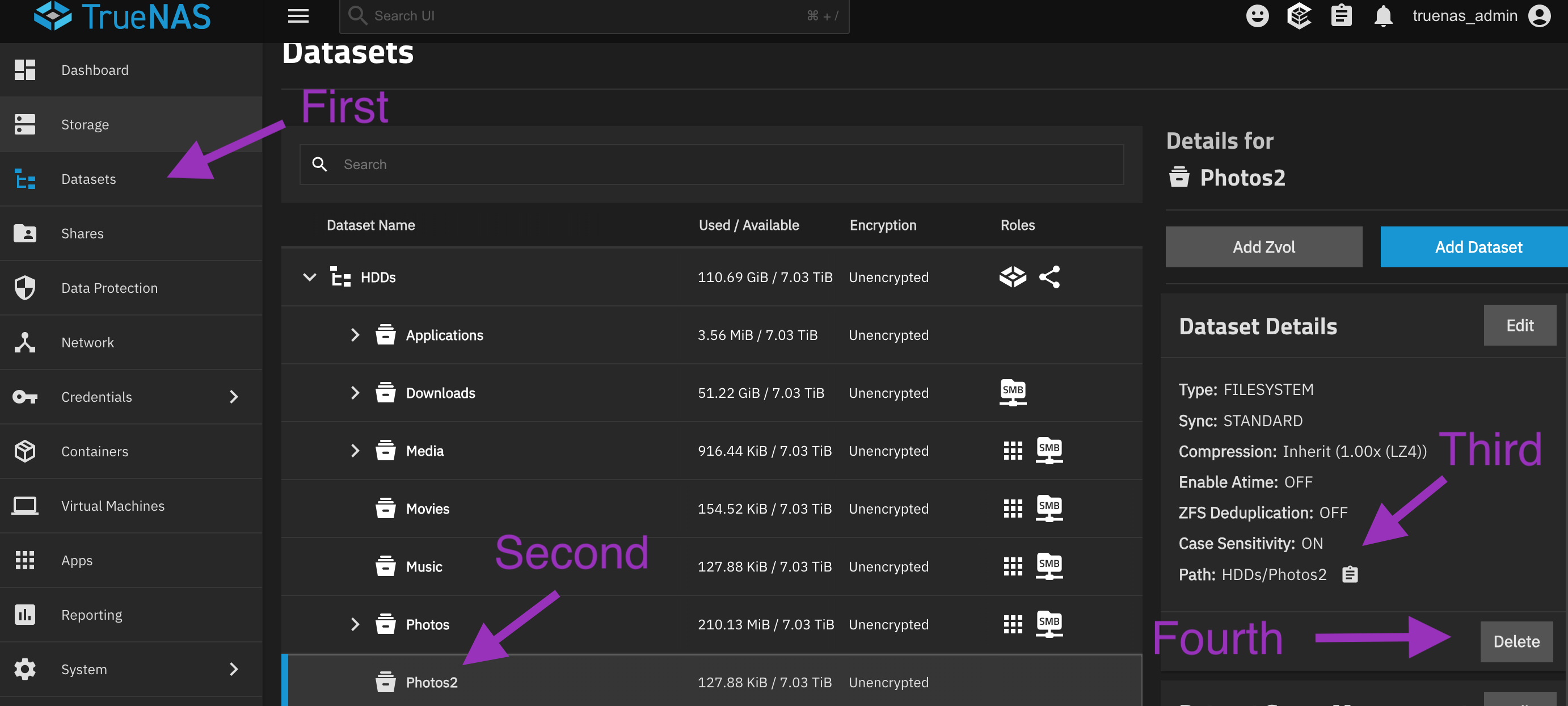
- Follow the on-screen prompts to confirm deletion
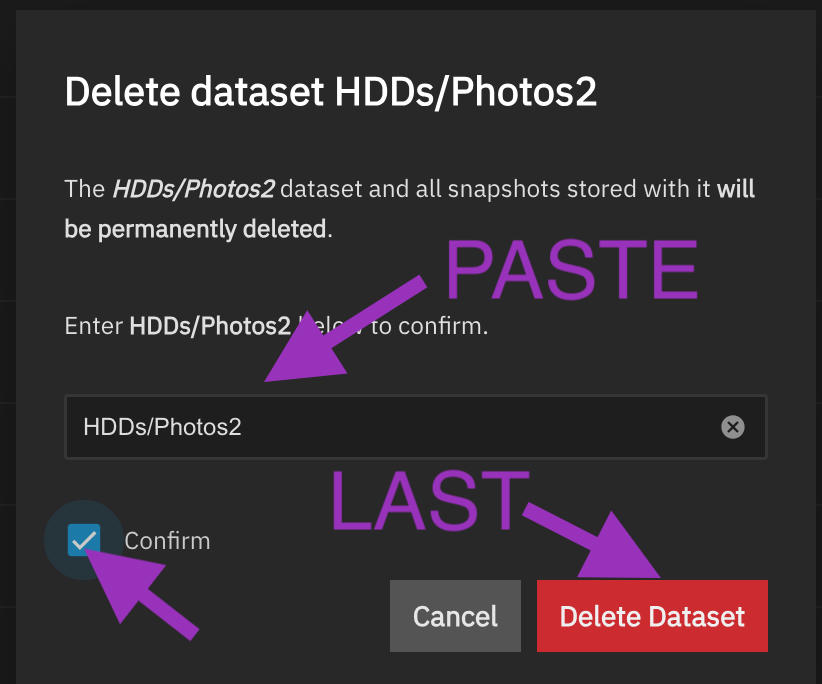
- Navigate to the ~/Applications/immich/ dataset
- Delete the
Backups,encoded-video,profile,thumbs&uploaddatasets.
- Select
Warning: Do not delete the
postgres_datadataset in the ~/Applications/immich/ dataset
- Open the original
Photosfolder using SMB again.- Refer to the contents noted in the preparation section of this guide
- Make your hidden files visible
- Mac: In the Finder app while in the
Photosfolder and then pressCommand + Shift + Periodto toggle hidden files. - Windows: Refer to these instructions
- Mac: In the Finder app while in the
- Delete all files & folders other than the
immichfolder and any files & folders you added to thePhotosfolder
- Re-enter shell
- Type
tmux kill-serverand press enter - Verify the tmux session has ended by entering
tmux attach - Restart the immich application and verify if the web-ui is working.