
Updating Immich to use Postgres 18
Overview
- This guide applies to users unable to update Immich and getting the following error
[EINVAL] immich.postgres_image_selector: Input should be 'vectorchord_18_image' - This guide only applies to users that are still able to access the Immich WebUI
Logging into the TrueNAS WebUI
- Log into TrueNAS UI
- Navigate to HexOS Deck
- Navigate to the
settingspanel by selecting it on the left sidebar
Image
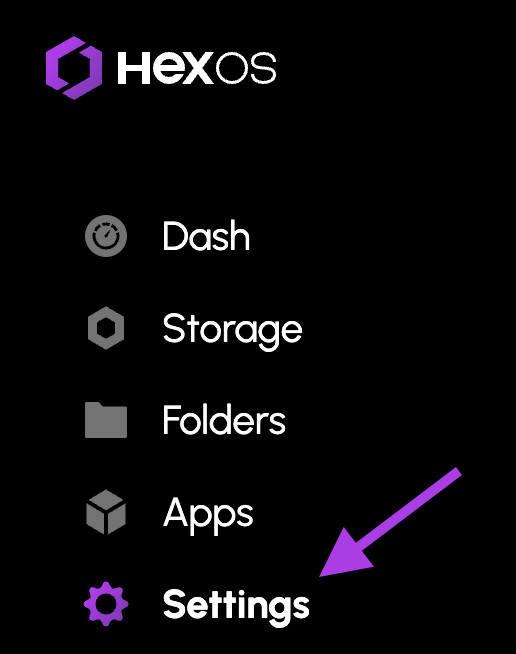
- Select the
TrueNASbutton
Image
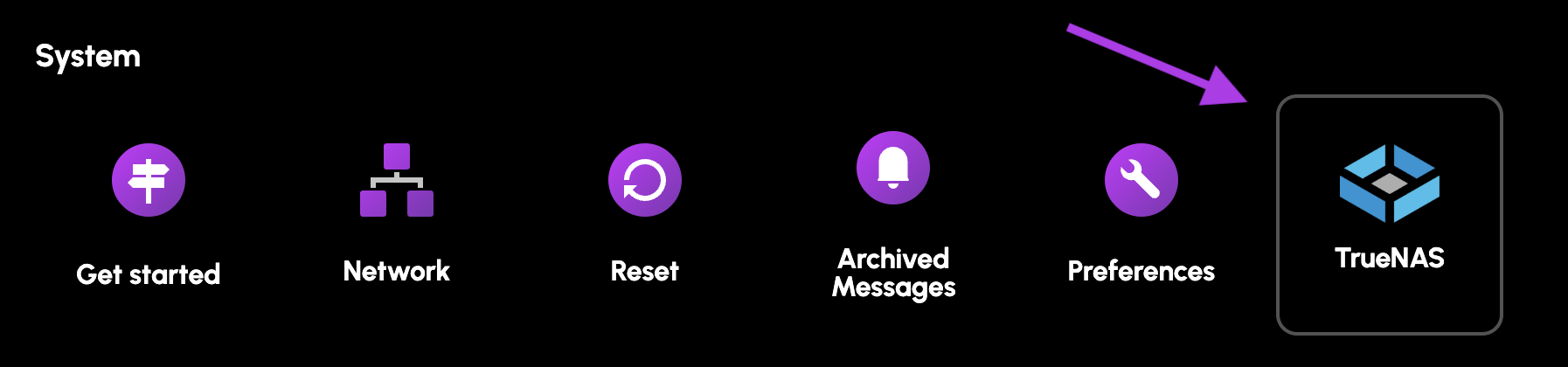
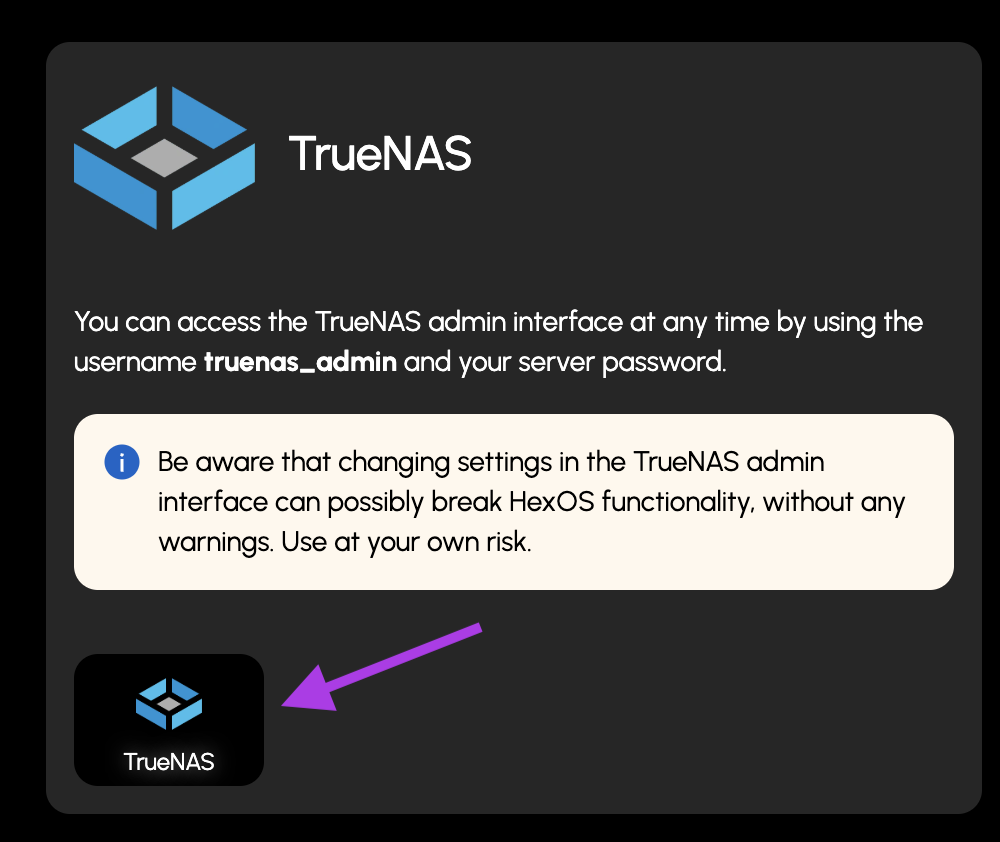
- Select the new
TrueNASbutton
Image
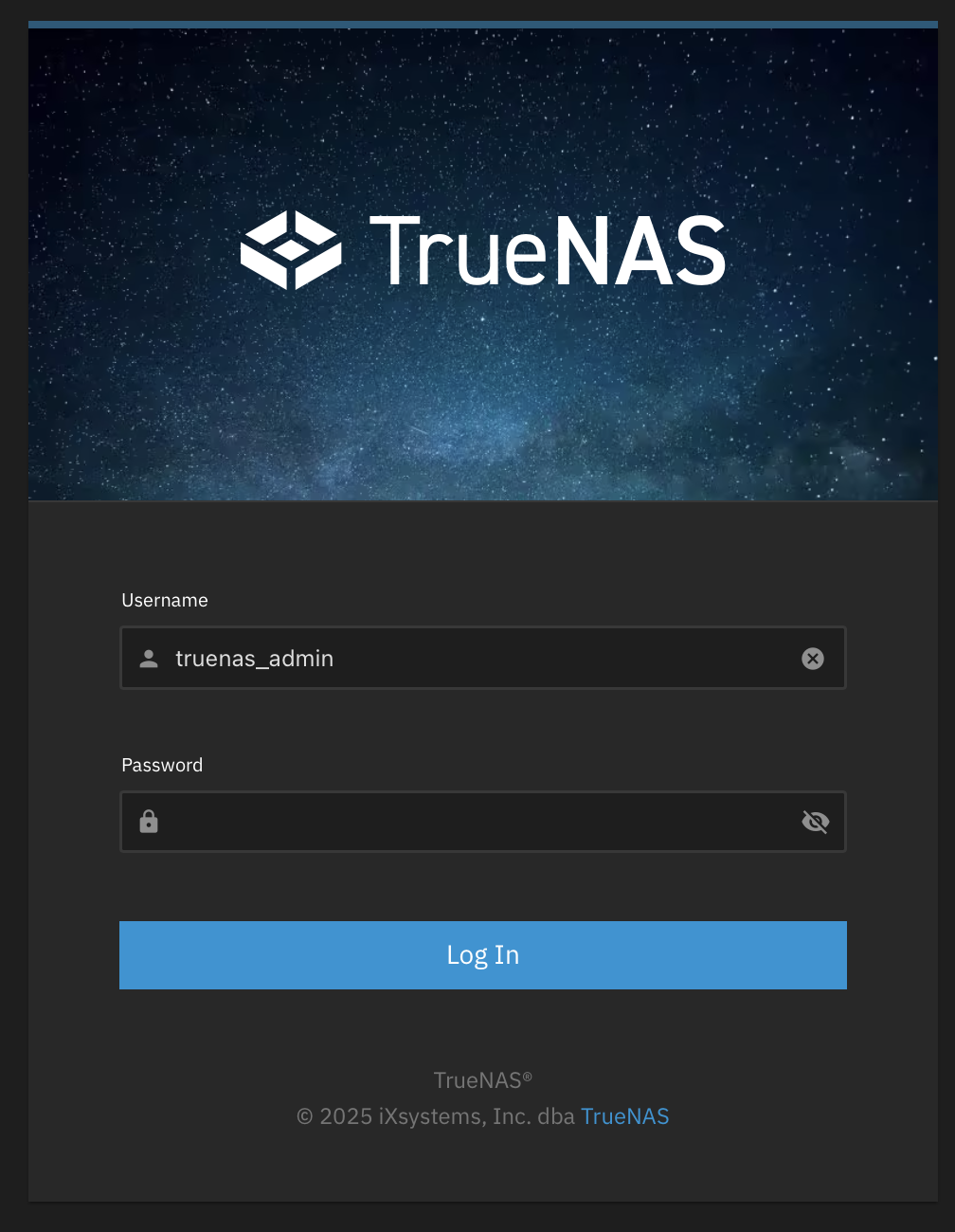
- Login
- The username will be
truenas_admin - The password will be what you selected when first installing HexOS
Image
- The username will be
Updating Process
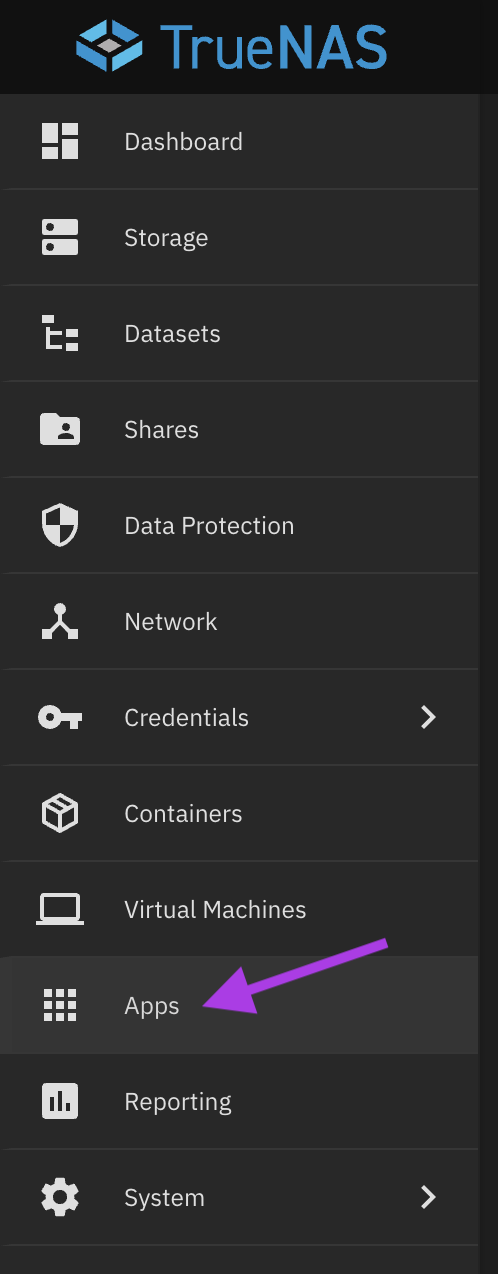
- Navigate to the
Appstab
Image
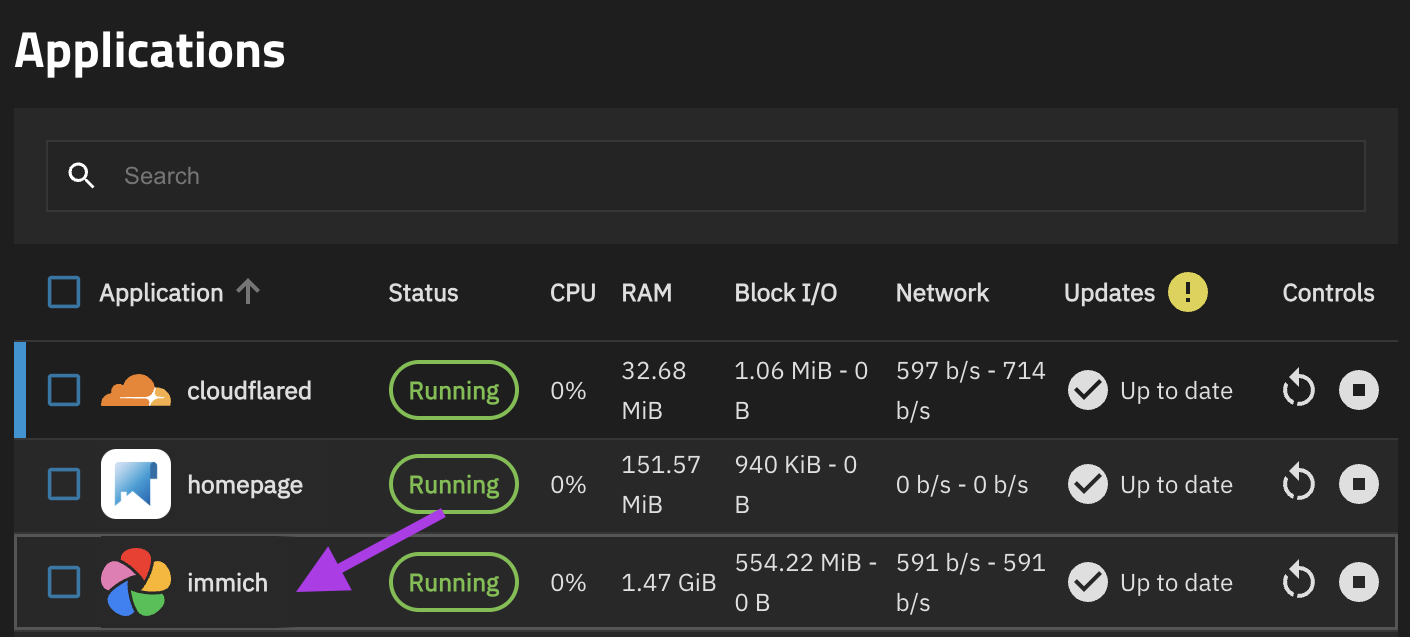
- Click on the Immich line
Image
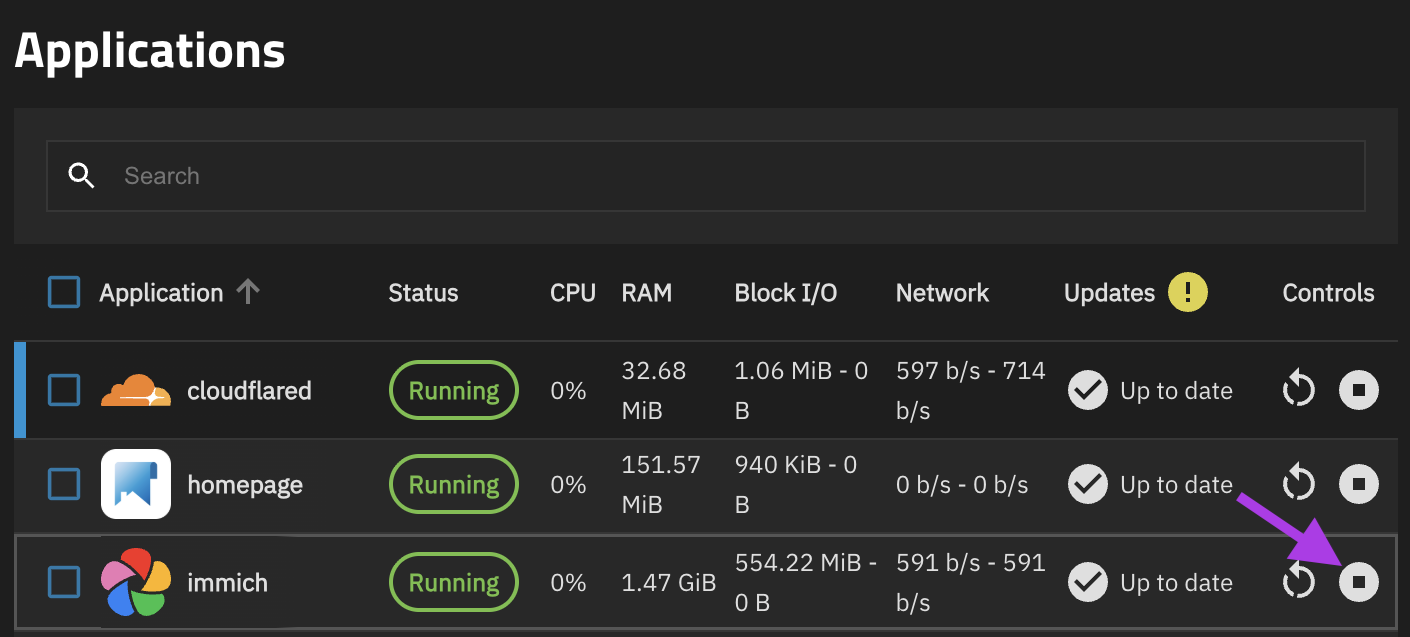
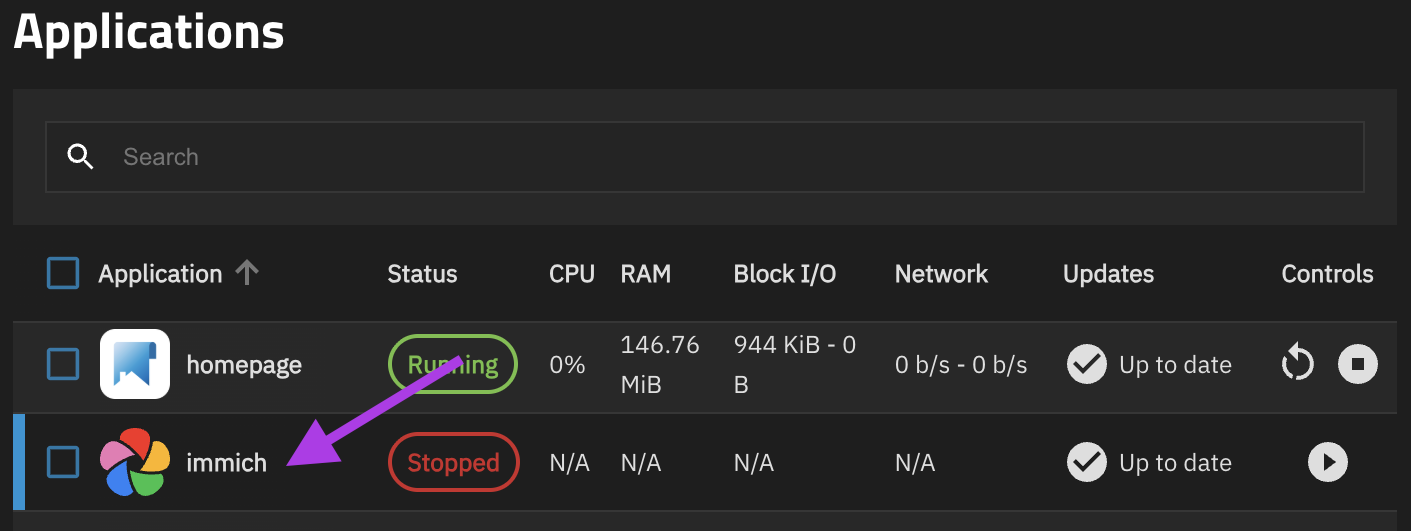
- Stop Immich
Image
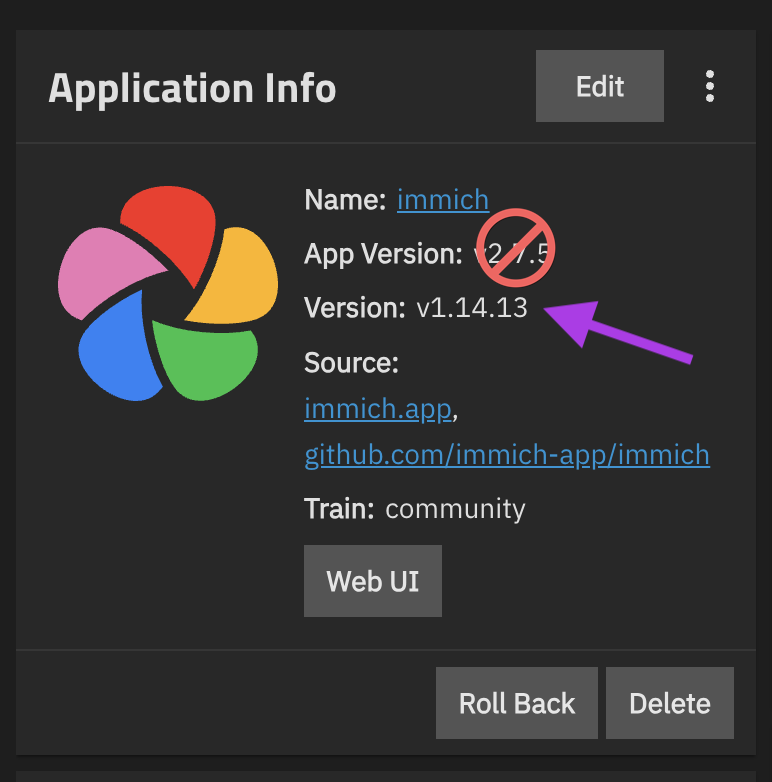
- Determine Immich
versionon theApplication Infocard
Note: Not to be confused with
App Version
Image
- Modify the following command to include your Immich
Version
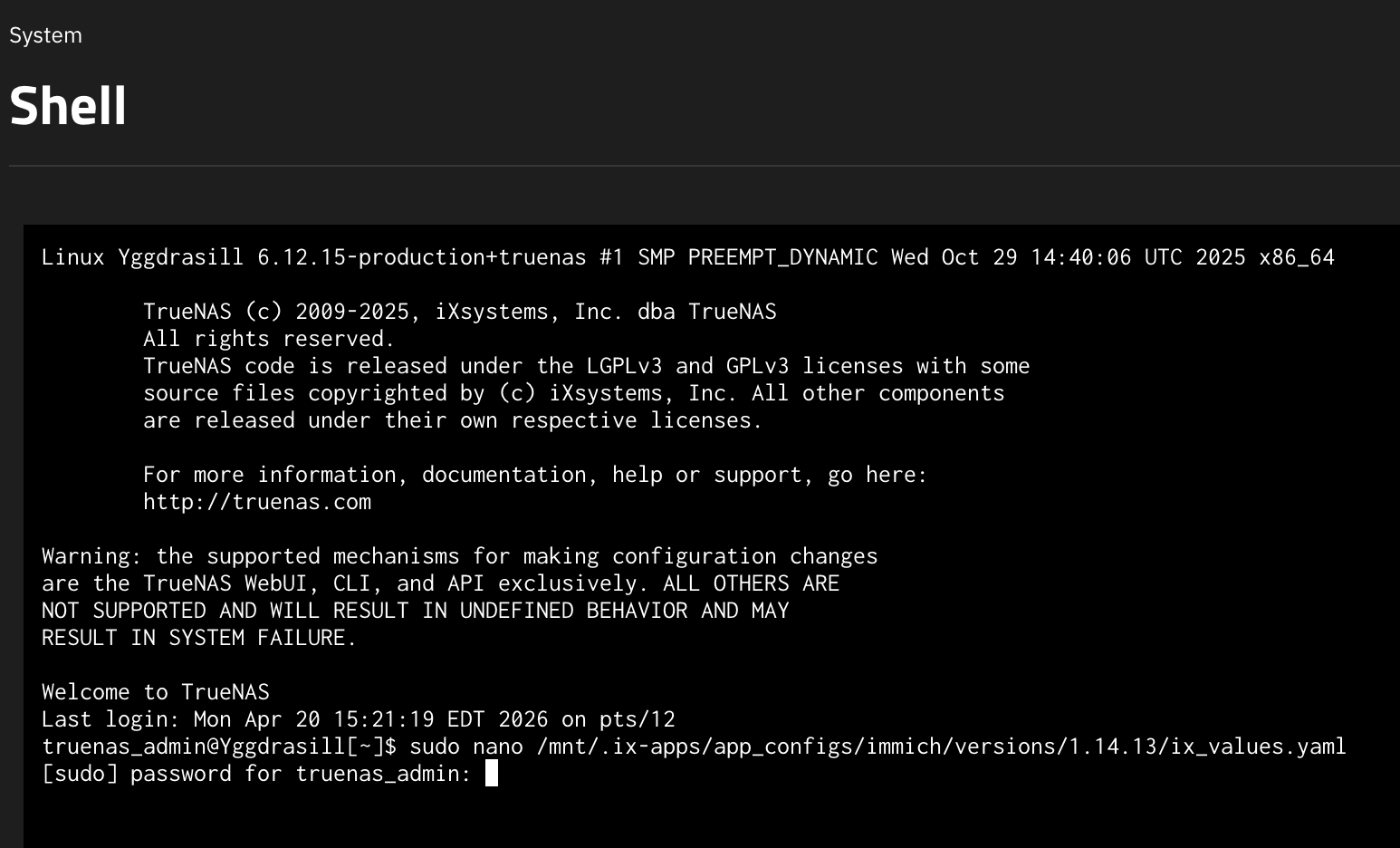
sudo nano /mnt/.ix-apps/app_configs/immich/versions/<insert_your_immich_version>/ix_values.yamlIn this example the command would be
sudo nano /mnt/.ix-apps/app_configs/immich/versions/1.14.13/ix_values.yaml- Navigate to the
Systemtab and then selectshell
Image
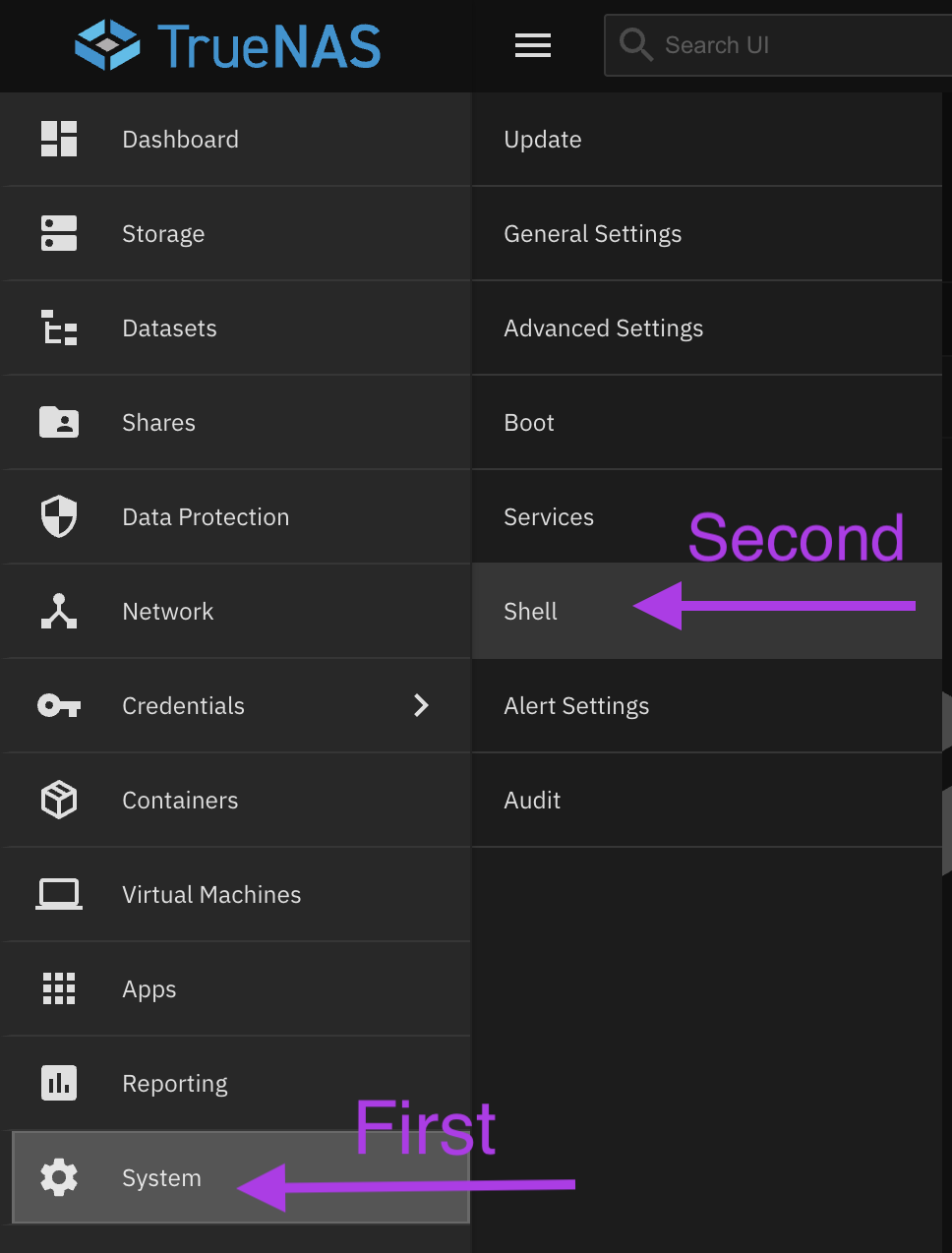
- Paste the command created in step 4 and press enter
Note: To paste things in shell you need to press
Shift + Enter
- You will be asked to enter your password.
- This is the same password used to login into TrueNAS
- There will be no input shown on screen as a security feature
- When you finish entering your password you can press enter
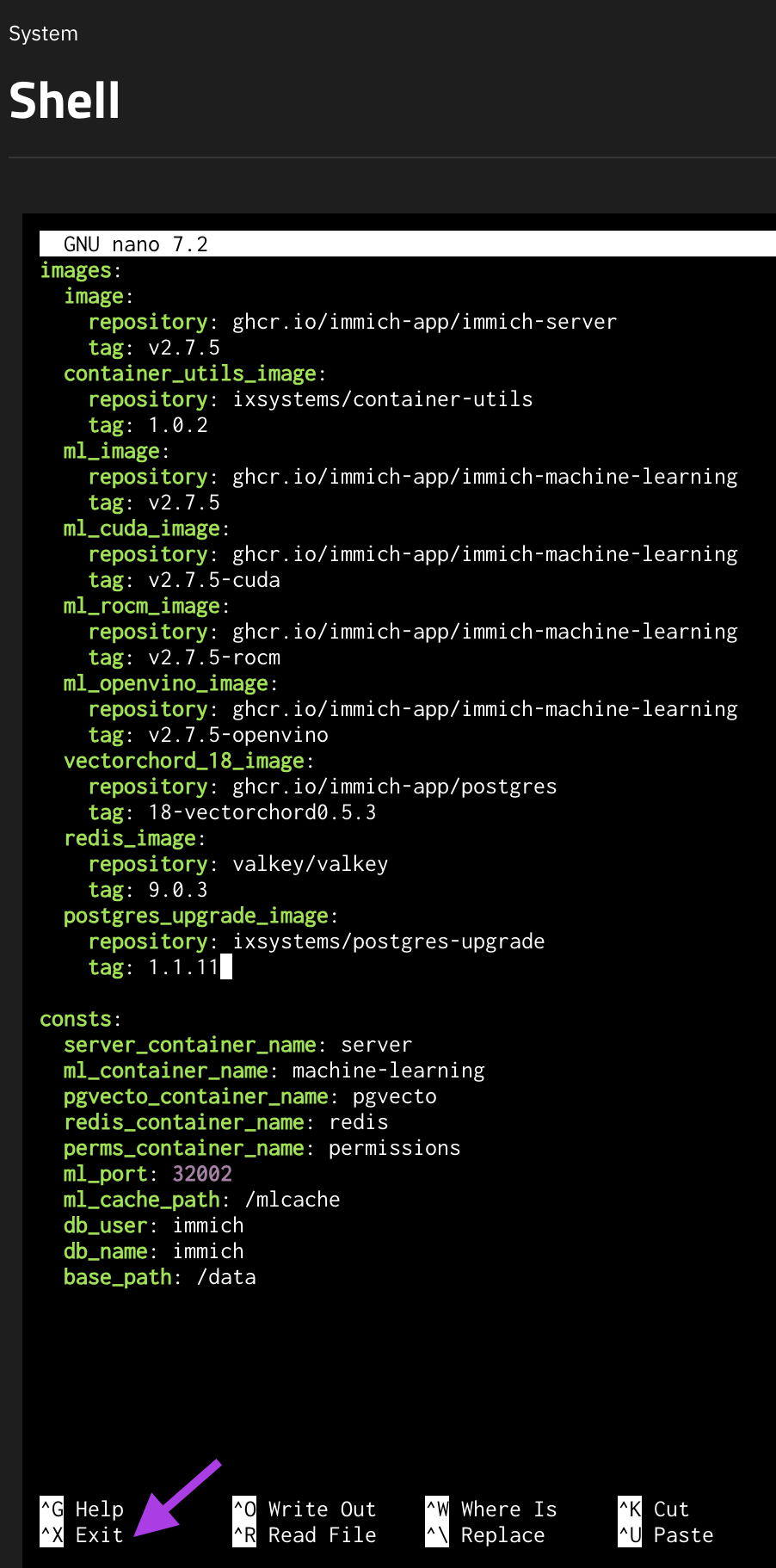
Image
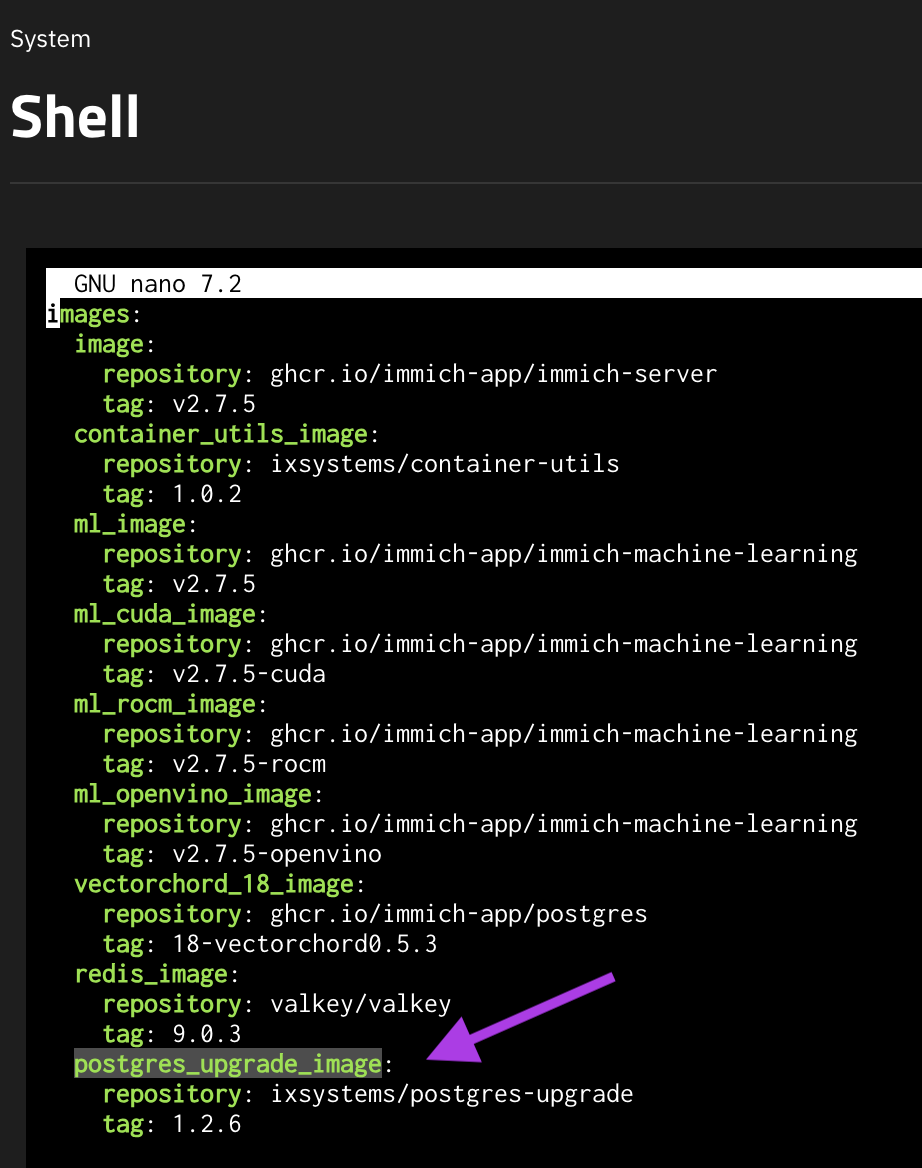
- Use your arrow keys to scroll down to the
postgres_update_imagesection
Image
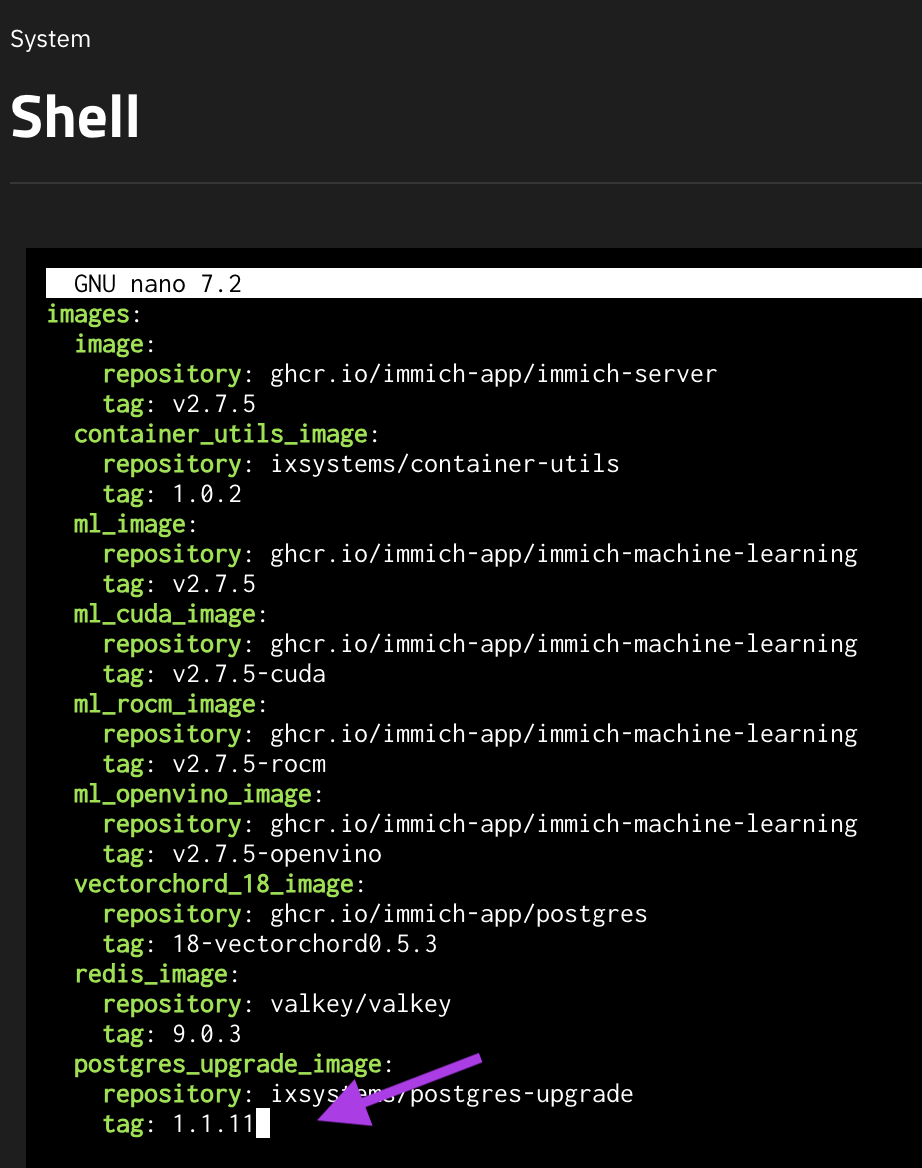
- Change the
tagto1.1.11
Image
- Save the changes
- Press
Control + Xto exit
Image
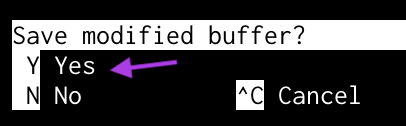
- Press
Yto save
Image
- Press
Enterto save the file name
Image

- Press
- Return to the
Appstab
Image
- Click on the Immich line
Image
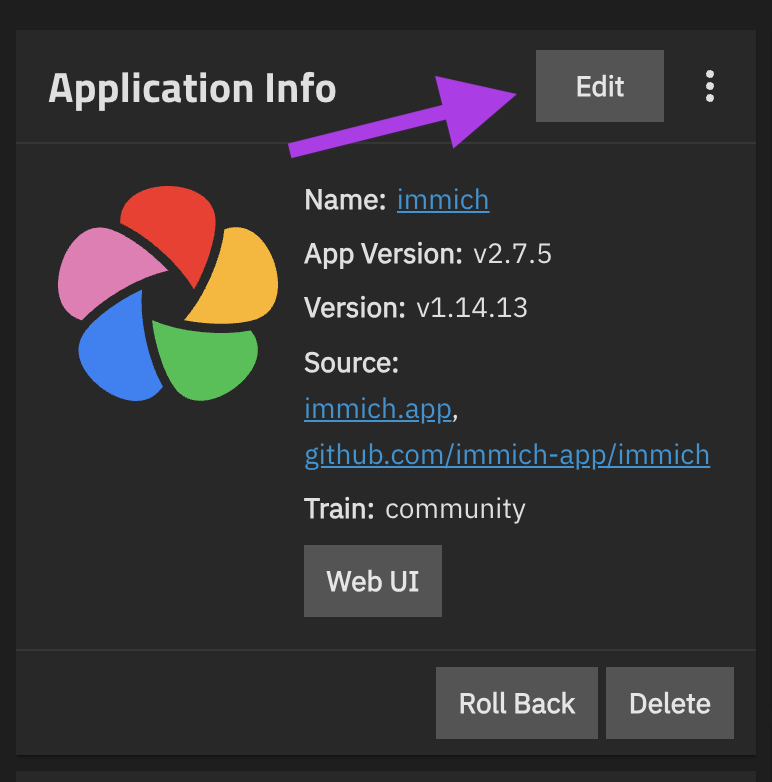
- On the
Application Infocard pressedit
Image
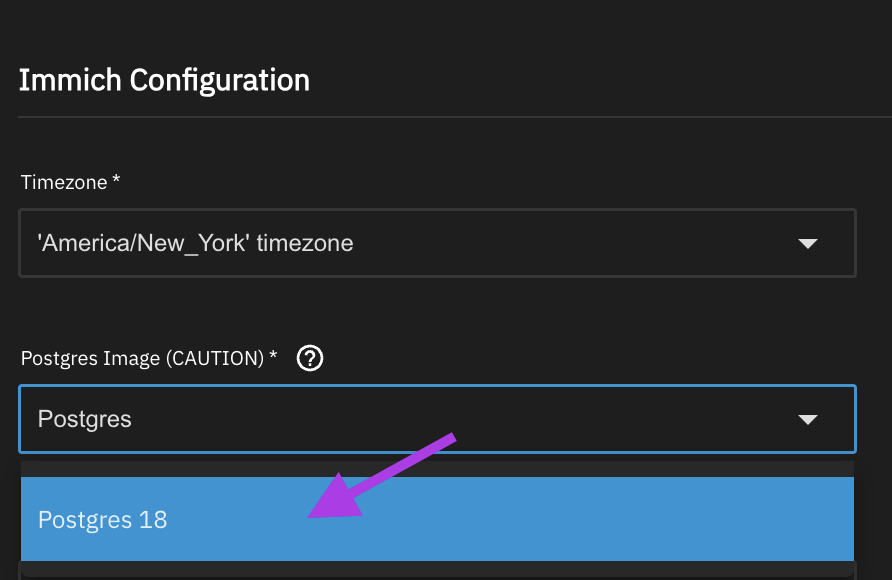
- Edit the
Postgres Image (CAUTION)line toPostgres 18
Image
- Scroll all the way down and press the
Update button - Start the Immich app
Image
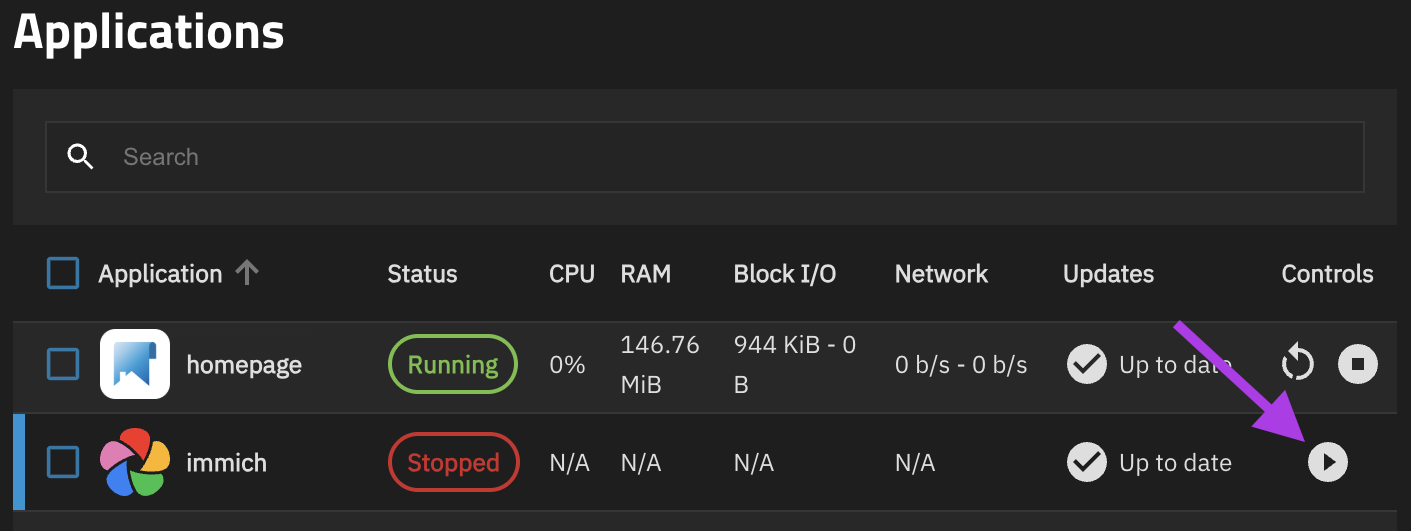
Note: Starting Immich will take longer than usual this time.
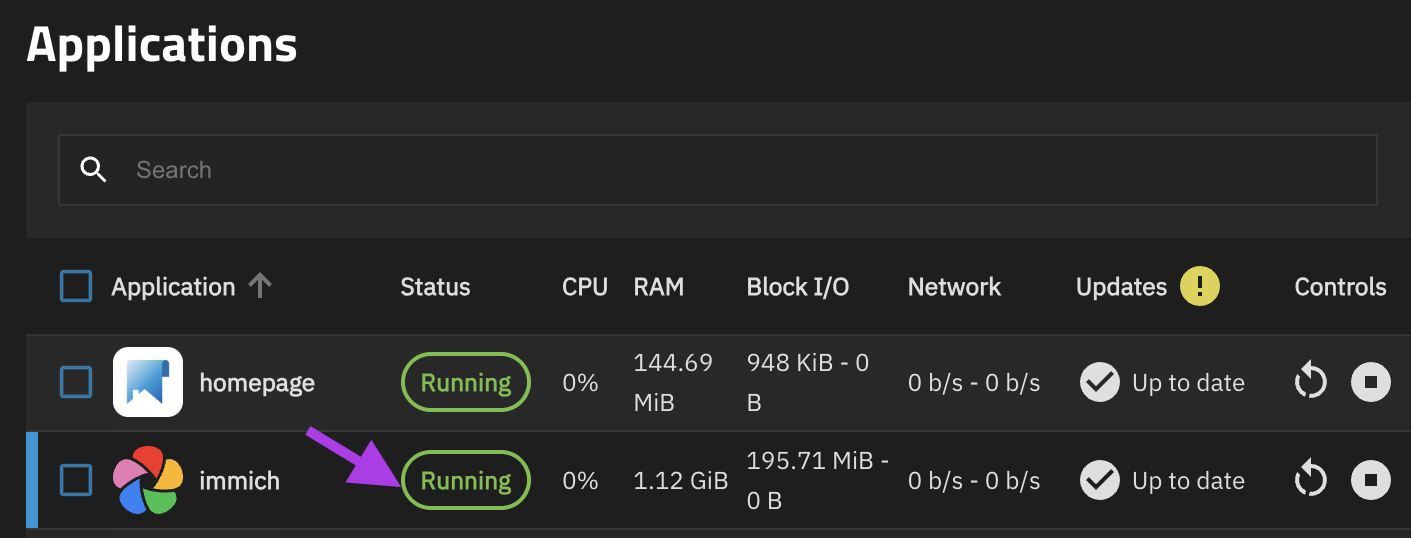
- Once Immich has the
Runningstatus open the WebUI and make sure Immich is functioning normally
Image
- Update the Immich app in HexOS
If you still can't update Immich
If you are still having trouble updating Immich please reach out to support@hexos.com
Community credits
sunny_raven - Created the original guide in the HexOS forums
BruteNas - Provided the instructions to saving files in shell
Also a big thank you to everyone that contributed on github to find a solution